Install Theme #
The first option for installing this Theme is to upload the EventPlace.zip file directly via the WordPress Theme Uploader.
Minimal requirements: #
- PHP 7.4+
- php.ini file settings
- max_execution_time = 600
- upload_max_filesize = 32M
- post_max_size = 48M
- memory_limit = 700M
- max_input_time = 300
- max_input_vars = 10000
- MySQL 5.0+
- WordPress 5+
Please make sure you have the proper version of WordPress installed.
Log in to WordPress and go to Appearance > Themes
Find the EventPlace Theme and click Activate
FTP Upload:
- Unzip the “EventPlace.zip” file from the theme folder
- Open up your FTP manager and connect to your hosting
- Browse to wp-content/themes
- Upload the EventPlace in the theme folder
- Log Into WordPress and go to Appearance > Themes
- Find the EventPlace Theme and click activate
WordPress Dashboard:
- Log into your WordPress backend
- Navigate to Appearance > Themes
- Click Install Themes
- Click Upload
- Now you just need to find the “EventPlace.zip” in the Upload folder and hit Install now.
- After completing the installation clicks on the active button to activate The theme.
Activate the Child Theme
After installing both the EventPlace Parent Theme and EventPlace Child Theme, activate the child theme to keep your customizations safe during future theme updates.
Activate the Child Theme #
- Log in to your WordPress Dashboard.
- Navigate to Appearance → Themes.
- Locate the EventPlace Child theme.
- Click Activate.
Important: Always activate the EventPlace Child Theme instead of the parent theme. This ensures your customizations are preserved when the parent theme is updated.
Install Required Plugins #
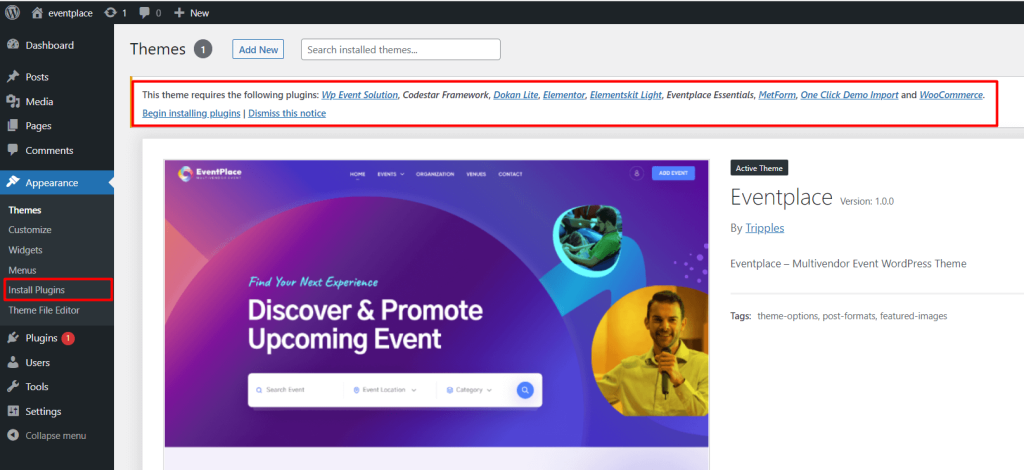
After activating the EventPlace theme you will see the below window. and install all required plugins.
One-click Demo Content Install #
!!! Don’t install One-click Demo content if you have an existing Site, Use Manual Demo Data XML Import.
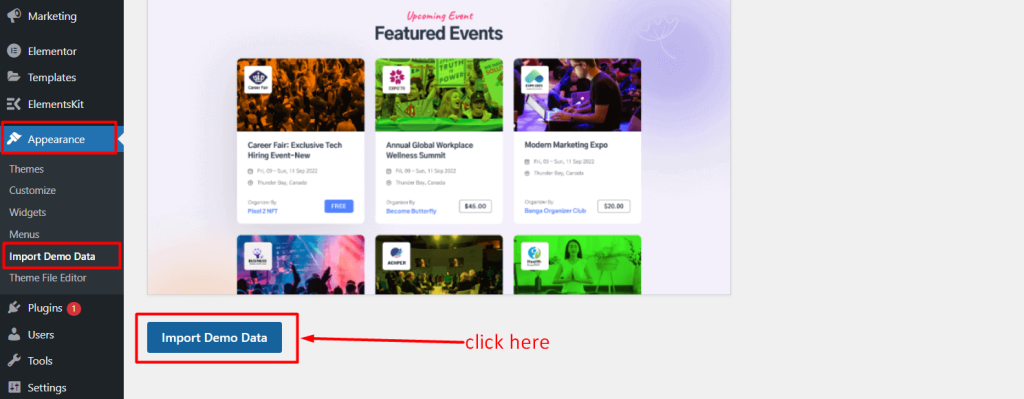
It will take some time to install full demo data like the demo site.
You are done! 🙂


