You can quickly set up your website to look exactly like the Cafeking demo using either the One-Click Demo Import or Manual Import method.
One-Click Demo Import #
This is the easiest and fastest way to set up your site like the demo.
⚠️ Important: Use this method only on a fresh WordPress installation. It is not recommended for sites that already contain content.
Follow these steps:
- Go to Appearance → Import Demo Data
- Select the demo layout that best matches your restaurant website
- Click Import Demo Content
- Wait for the process to complete
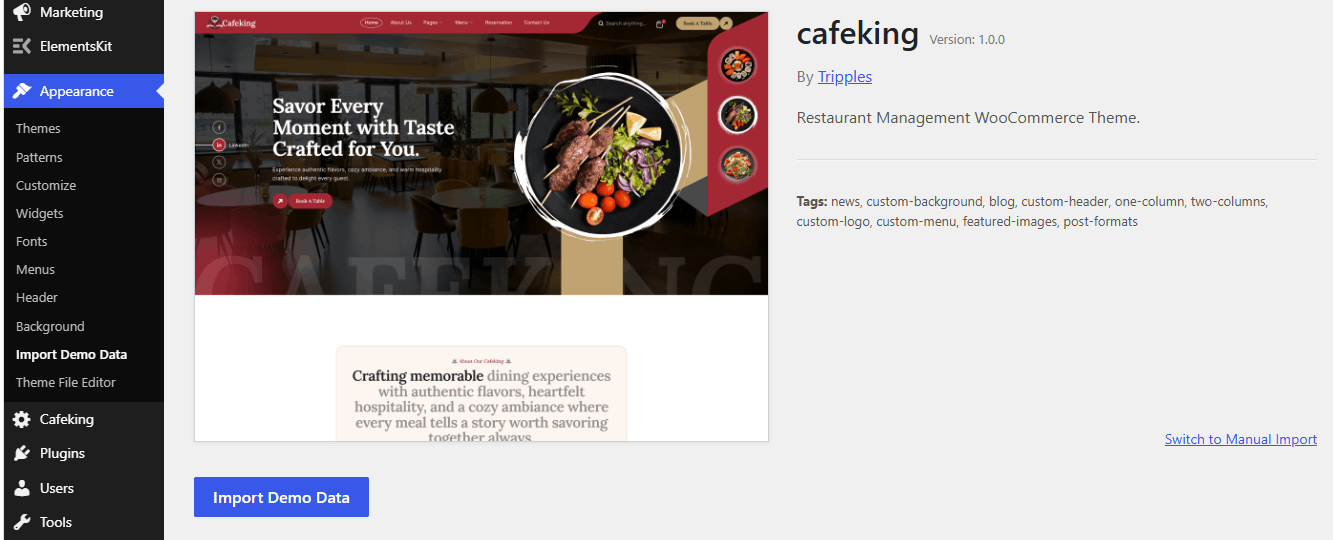
This will automatically import:
- Pages and layouts
- Menus and navigation
- Theme settings
- Widgets and homepage content
After import, your site will look exactly like the Cafeking demo preview.
Manual Demo Import #
If your website already contains content, we recommend using manual import to avoid overwriting existing data.
Follow these steps:
- Go to Tools → Import in your WordPress dashboard
- Select the WordPress Importer tool
- Upload the XML file provided in the theme package
- Assign content to an existing user or create a new user
- Click Run Importer
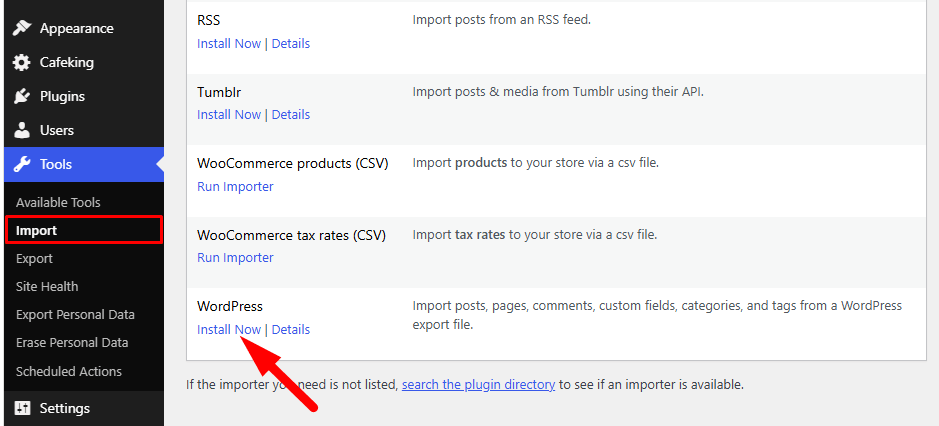
This method allows you to import demo content safely without affecting existing pages or posts.
After Import #
After installing the demo, your website will look similar to the Cafeking demo preview shown during theme preview.
You can now start customizing:
- Homepage sections
- Food menu items
- Reservation system
- Header and footer layout
- Branding and colors


