
Introduction #
Plans change, attendees drop out, and sometimes you need to give money back. Eventin lets you refund a booking straight from the Bookings list — either by picking the exact tickets you want to cancel, or by refunding a custom amount. Every refund is recorded on the order with its date, amount and reason, so you always have a clear history of what was returned.
Prerequisites #
- Eventin and Eventin Pro — installed and active. The Refund Booking action on a completed booking comes from Pro.
- A paid booking with the status Completed. Free bookings and bookings that are Failed, Pending or Waiting cannot be refunded.
- An account that can manage bookings — an Administrator, or any role with the Eventin order-management capability.
What a refund in Eventin does #
A refund in Eventin is a record of money returned. It updates the booking, cancels the refunded tickets, frees those seats for resale and emails the customer — but it does not move money by itself. For Stripe, PayPal or offline payments you still issue the actual refund in that gateway’s own dashboard. WooCommerce is the exception: Eventin writes a matching refund line on the linked WooCommerce order, which is also record-only.
Step 1 — Open the refund window #
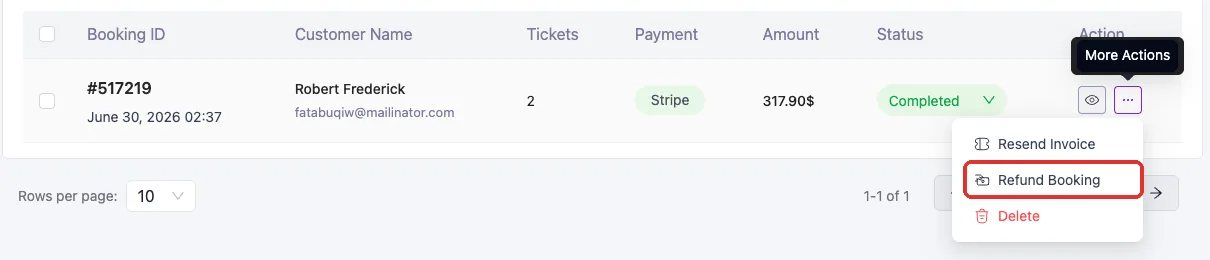
Go to Eventin → Bookings and find the booking. Click the … (More Actions) button at the end of its row and choose Refund Booking.
Step 2 — Pick a refund type #
The Refund type dropdown at the top of the window offers two ways to refund:
- Refund tickets — cancel one or more tickets on the booking. Eventin works out the amount for you.
- Refund amount — return a sum you type in, without cancelling any ticket.
Both types can be used more than once on the same booking until the full amount has been returned, and you can mix them.
Step 3 — Refund whole tickets #
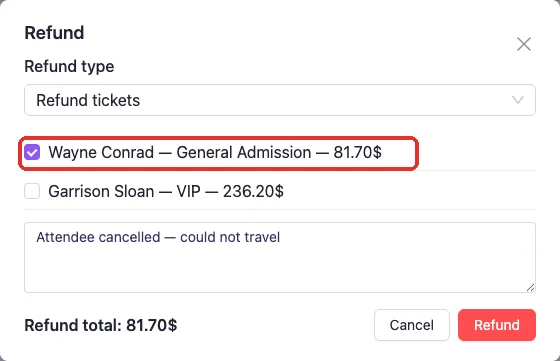
With Refund tickets selected, every ticket still refundable on the booking is listed with its attendee name, ticket type and refundable value. Tick the ones you are cancelling.
- Tick one ticket for a partial refund, or all of them for a full refund.
- Optionally type a Reason — it is saved with the refund and shown to the customer.
- Check the Refund total at the bottom, then click Refund.
The value next to each ticket is what the customer actually paid for it — their share of the booking after any discount, and including tax when tax was added on top. That is why a $85 ticket may show as $81.70. Refunding every ticket therefore returns exactly the amount the customer was charged.
Step 4 — Refund a custom amount #
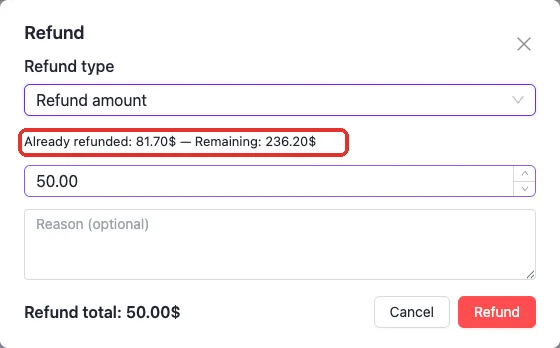
Choose Refund amount when you want to give part of the money back without cancelling a ticket — a goodwill gesture, a price adjustment, or a partial compensation. Eventin shows how much has already been refunded and how much is still refundable, and it will not let you go past that remaining balance.
- Type the amount to return.
- Add a Reason if you want one on record.
- Click Refund.
Tickets stay valid after an amount refund — the attendees can still attend the event.
What changes after a refund #
As soon as the refund is saved, the booking row updates: the status becomes Partially Refunded, the Amount column drops to what the customer has effectively paid, and the ticket count reflects the tickets that are still valid. Once refunds cover the whole amount, the status becomes Refunded.

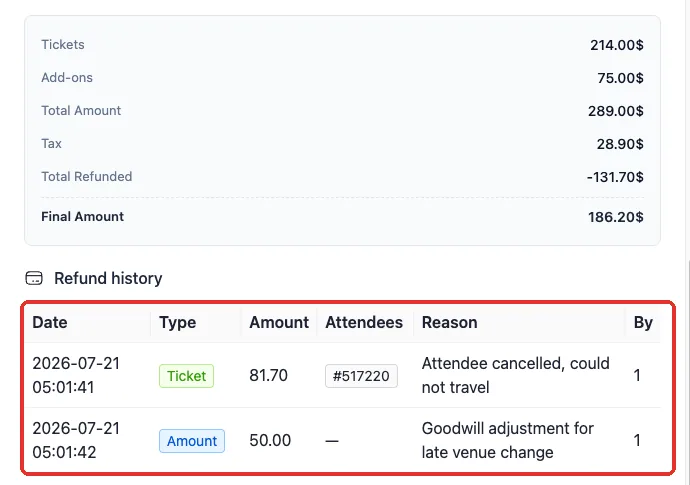
Click the eye icon on the booking row to open its details. The Pricing panel gains a Total Refunded line and a new Final Amount, and a Refund history table lists every refund with its date, type, amount, attendees, reason and the user who processed it. Further down, any refunded ticket in the Attendee List is tagged Refunded while the rest stay Active.
Eventin also emails the customer a “Refund processed for order #…” confirmation listing the amount, the refunded tickets and your reason.
FAQs #
Q: Does the money go back to the customer automatically? #
A: No. Eventin records the refund, updates the booking and notifies the customer, but the money is returned from your payment gateway. Refund the charge in Stripe, PayPal or your bank as usual, then the two records match.
Q: I don’t see “Refund Booking” in the row menu. Why? #
A: The action only appears on paid bookings whose status is Completed (or already Partially Refunded), and it is added by Eventin Pro. Free bookings and Failed, Pending or Waiting bookings have nothing to refund. SureCart bookings open the window with refunds disabled — refund those inside SureCart.
Q: Can I refund the same booking more than once? #
A: Yes. Refund one ticket today and another next week, or top up a ticket refund with a small amount refund. Eventin keeps a running total and blocks anything above the remaining refundable balance, so you can never refund more than the customer paid.
Q: Does a refunded ticket free up a seat? #
A: Yes — refunding a ticket cancels it and returns it to the available stock for that event, so someone else can buy it. An amount refund does not touch tickets or availability.
Q: Why is the refundable value lower than the ticket price? #
A: Because Eventin refunds what the customer actually paid. Each ticket carries its share of any coupon discount and of the tax, so the figures always add up to the exact amount charged for the booking.
Q: I refunded the wrong booking. Can I undo it? #
A: Yes. Set the booking’s status back to Completed from the Status dropdown in the Bookings list. That clears the refund history and reactivates the tickets. The confirmation email already sent to the customer cannot be recalled, so let them know.
Q: How do refunds work with WooCommerce orders? #
A: When the booking was paid through WooCommerce, Eventin writes a matching refund line on the linked WooCommerce order so both sides show the same figures. That line is record-only as well — the actual payment is still refunded through your WooCommerce payment gateway.
Conclusion #
Refunding in Eventin is a two-line job: open Eventin → Bookings, choose Refund Booking, and either tick the tickets you are cancelling or type the amount you are giving back. Eventin does the arithmetic, releases the seats, updates the booking status and emails the customer, and every refund stays on the order’s history so you can always see who refunded what, when and why. Just remember to return the money in your payment gateway to complete the picture.


