
Introduction #
The Mail Mint integration for WPCafe sends customer contact data from reservations and WooCommerce orders directly into Mail Mint, so you can grow your email list and run automations without manual imports. Every time someone books a table or places a food order through WPCafe, their name, email, and phone number are pushed to a Mail Mint webhook automatically.
If you use Mail Mint for email marketing, abandoned cart recovery, or post-purchase follow-ups, this integration keeps your contact lists up to date with zero manual work.
Requirements #
- WPCafe (free plugin, installed and active)
- Mail Mint and Mail Mint Pro (free plugin, installed and active)
- WooCommerce (active, required by WPCafe)
Step 1: Create a Webhook in Mail Mint #
The integration works through a webhook. You create it once in Mail Mint and paste its URL into WPCafe.
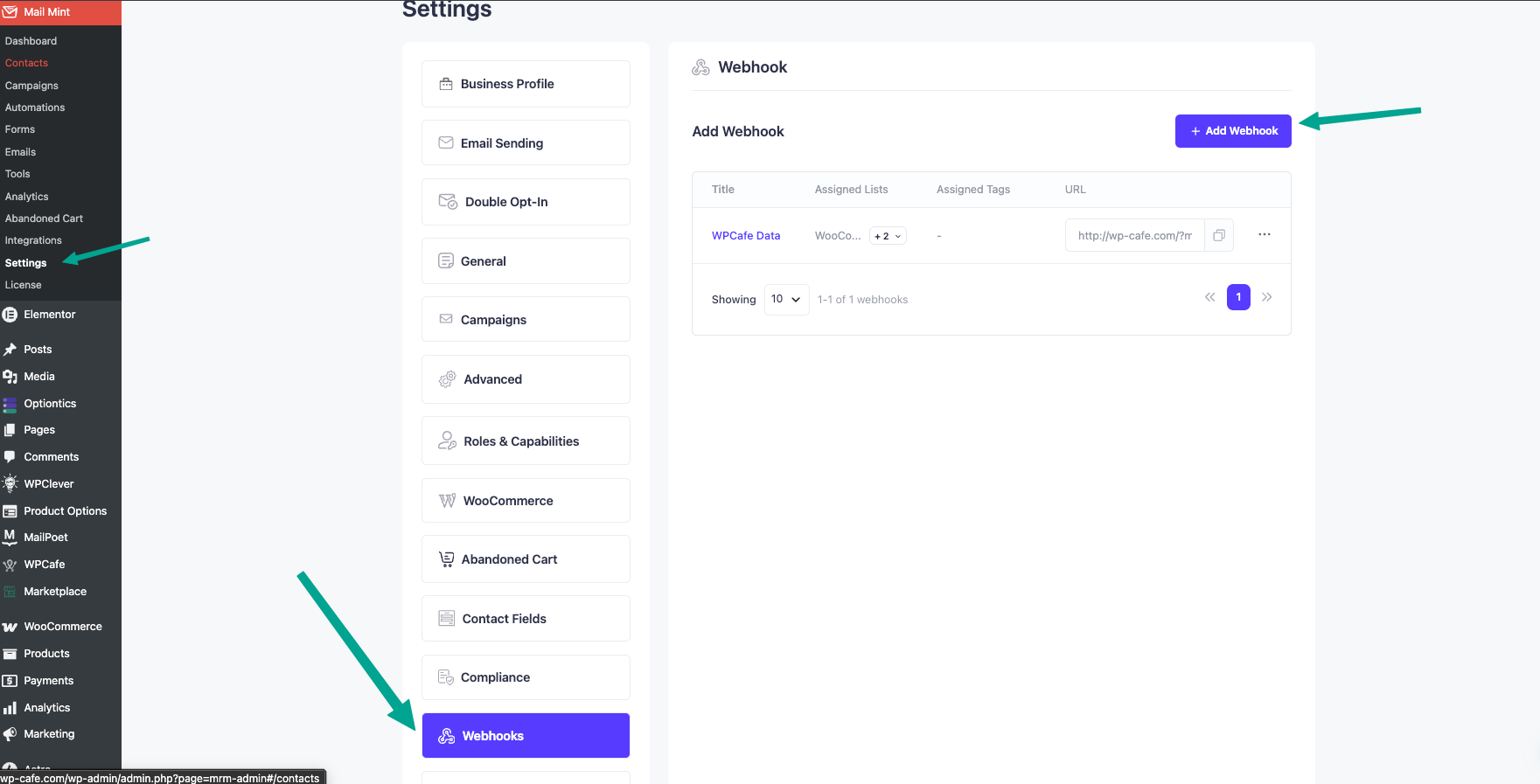
- Go to Mail Mint → Settings in your WordPress admin.
- Click the Webhooks tab.
- Click the + Add Webhooks button.
- Give the webhook a name, for example “WPCafe Reservations.”
- Under Assign to Lists, select which list new contacts should be added to.
- Under Assign to Tags, select any tags you want applied to incoming contacts (for example “Reservation” or “WooCommerce Order”).
- Set the contact Status (typically “Subscribed”).
- Click Save.
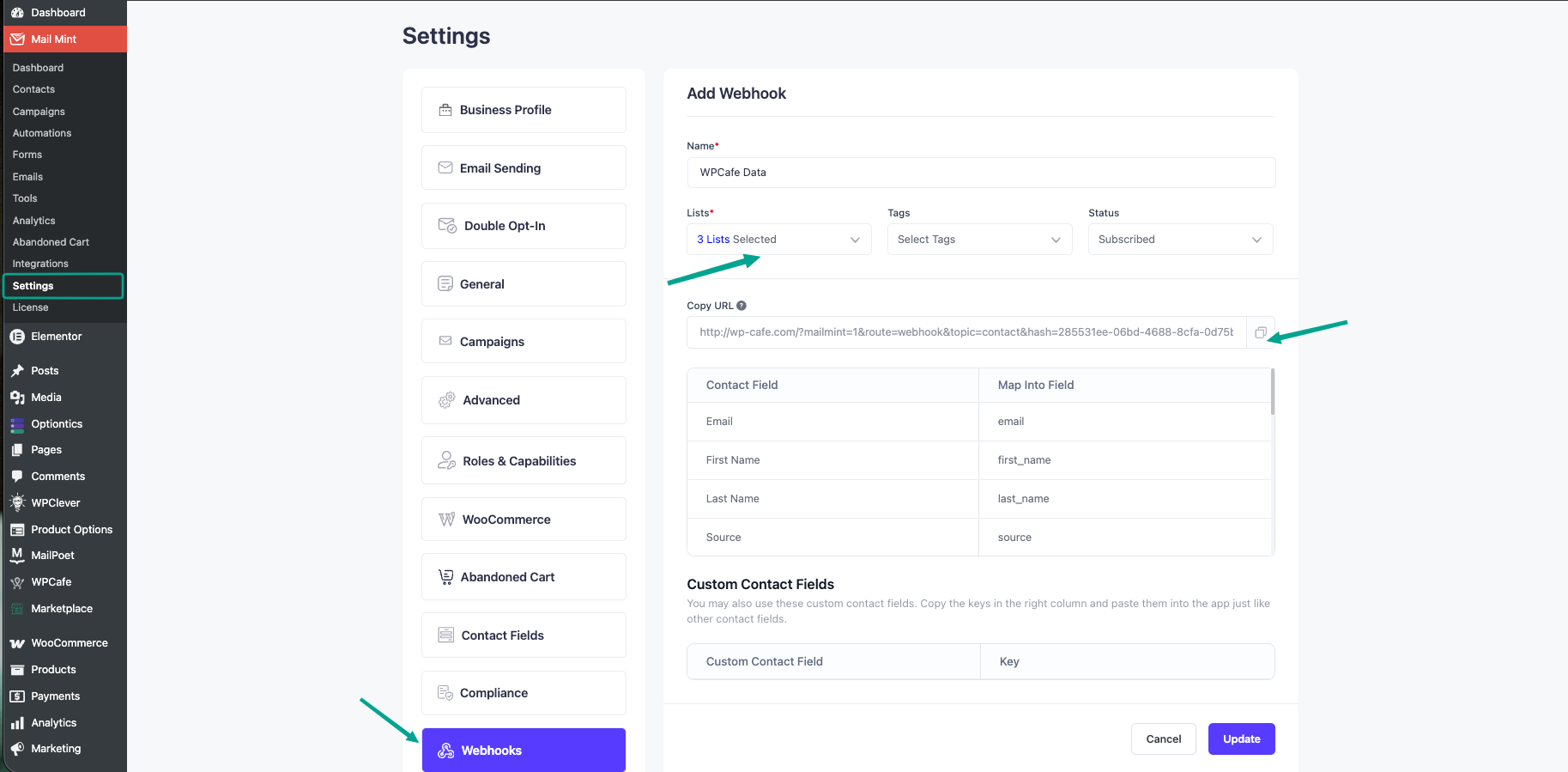
- After saving, Mail Mint shows the Webhook URL. Click the copy icon to copy it to your clipboard.
- Keep this URL handy. You will paste it into WPCafe in the next step.
Step 2: Enable and Configure the Integration in WPCafe #
- Go to WPCafe → Integrations in your WordPress admin.
- Find the Mail Mint card in the integrations list.
- Toggle the switch to on.
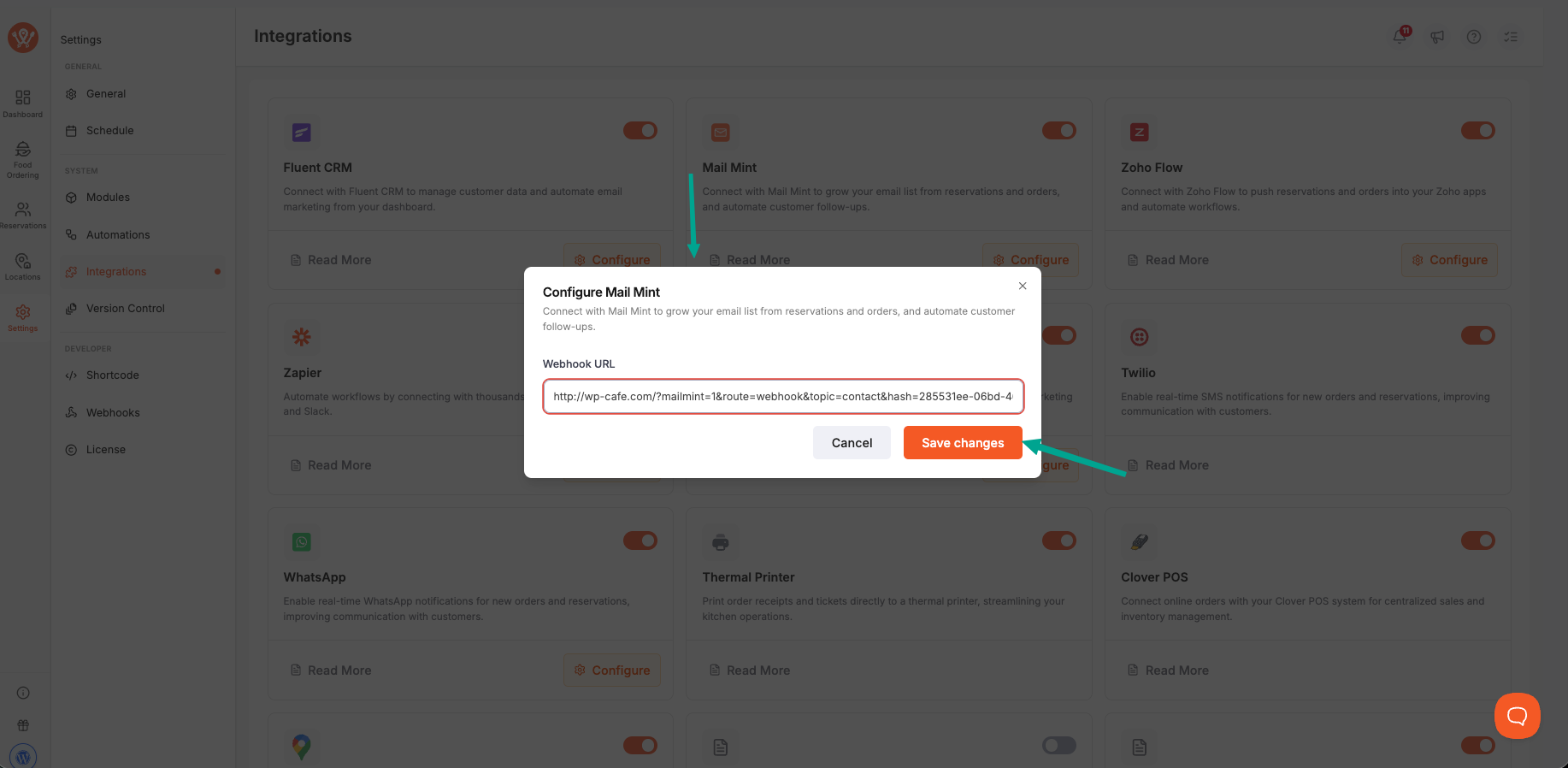
- Click the Configure button that appears on the Mail Mint card.
- In the configuration popup, paste the webhook URL you copied from Mail Mint into the Webhook URL field.
- Click Save Changes.
The integration is now active. WPCafe sends contact data to Mail Mint automatically.
What Data Gets Sent #
When the integration is active, WPCafe sends the following data to your Mail Mint webhook on three events:
| Trigger | Data sent |
| Restaurant settings saved with location info | First name, last name, email, phone number, address |
| A new table reservation is created | First name, last name, email, phone number |
| A WooCommerce order is processed | Billing first name, last name, email, phone number |
The data is sent as JSON in real time, so contacts appear in your Mail Mint lists right after each event.
Frequently Asked Questions (FAQ) #
| Q: Do I need Mail Mint Pro for this integration? Yes. The incoming webhooks feature that receives data from WPCafe is part of Mail Mint Pro. The free version of Mail Mint does not include webhook support. |
| Q: Can I send contacts to different Mail Mint lists depending on the trigger? Not directly from WPCafe. All three triggers (restaurant, reservation, order) send data to the same webhook URL. If you need different lists for different sources, create separate webhooks in Mail Mint with different list assignments and use automation rules inside Mail Mint to route contacts based on tags or custom fields. |
| Q: What happens if the webhook URL is empty or invalid? WPCafe skips sending data when no webhook URL is configured or when the Mail Mint integration is toggled off. No errors are shown to customers, and the reservation or order still goes through normally. |
Conclusion #
Connecting Mail Mint to WPCafe takes a few minutes and then works in the background. Set up the webhook once, toggle the integration on, and every reservation and food order starts feeding your email lists and automations. Next, check out the Mail Mint automation guide to build follow-up sequences for your new contacts.


