
Skip to content
Themewinter Logo
  • Home
  • About
  • Our Products
    • Eventin
    • WPCafe
    • WP Timetics
    • Poptics New
    • Booktics New
  • Blog
  • Deals
  • Login
Popular Search ticketqr codeemailtranslatelocation

Aisentic

  • Gettings Started
    • How to Manage Eventin Events Using AISentic’s AI Chatbot
    • How to Connect Your WordPress Plugins with AISentic
    • Getting Started with Aisentic: Your AI Assistant for WordPress

Authorsy

  • Introduction
  • Getting Started
    • Introduction
    • Plugin installation
    • License
  • Author Box
    • Add New Author
    • Author Settings
  • Voting
    • Voting
  • Shortcodes
    • ShortCode
  • Translation
    • Translation with Loco Translate

Delivery Module(Pro)

  • General
  • Add Food Store’s Location on Google Map(Pro)
  • Google autocomplete address in the checkout(Pro)
  • Minimum order amount to place order(Pro)

Eventin

  • Introduction of Eventin
  • Gettings Started
    • Introduction of Eventin
    • How to install Eventin Plugin
    • How to Upgrade Eventin Free to Pro Version
    • How to Activate Eventin License
    • Quick Start Guide
  • General Settings
    • General Settings for Eventin
    • How to Change Event & Speaker Slug
    • How to Create a Webhook for Events (Pro)
    • How to Use Embeddable Scripts in Events(Pro)
    • How to Manage Role-Based Access in Eventin
    • How to Set Up Native Tax in Eventin
    • Getting support
  • Events
    • How to Create Event in Eventin
    • How to work global stock
    • How to Use the Waitlist Feature in Eventin
    • How to Create Event Categories and Tags
    • How to Assign Categories and Tags to Events
    • How to Create Event Ticket Variations
    • How to Create Recurring Event in Eventin
    • How to Check Event Report
    • How to Customize the Eventin Event Page with Elementor
    • How to Use WooCommerce Coupon for Events
    • How to insert Event Location in Eventin
    • How to Submit Events from the Front End in Eventin
    • How to Create a Hybrid Event in Eventin
  • Event Attendees
    • How to Enable Event Attendee Registration
    • How to Add Attendee Extra Fields
    • How to Generate and Scan QR code(Pro)
    • How to Purchase Tickets on Eventin
    • How to Set a Countdown Timer for Ticket Purchases in Eventin
    • How to Send Event Certificates
    • How to Manage Attendees in Eventin
    • How to Manage Booking of Events
    • How to Add Attendees Manually (Pro)
    • How to View Event Bookings on the Frontend
  • Event Imports
    • How to import event from The Events Calendar to Eventin
    • How to import event from facebook in Eventin
    • How to import events in Eventin from Eventbrite?
  • Email Settings
    • How to Configure Confirmation Email for Event
    • How to Configure Reminder Email for Event
    • How to Configure RSVP Email
    • Email Automation Workflow Builder
  • Speakers and Organizers
    • Introduction of Eventin Speaker & Organizer
    • How to Create Eventin Speaker
    • How to Create Eventin Organizer
    • How to assign speakers on schedules
    • How to assign a speaker/organizer on events
  • Schedules
    • Introduction of Eventin Schedules
    • How to Create Eventin Schedule
    • How to Assign Schedule on Events
  • Payment Type
    • How to Configure FluentCart with Eventin
    • Which payment methods are supported by Eventin?
    • How to Configure the WooCommerce in Eventin
    • How to Configure the Stripe Payment Gateway in Eventin (Pro)
    • How to Configure the PayPal Payment Gateway in Eventin
    • How to Configure the Local Payment in Eventin
    • How to Configure SureCart in Eventin
  • Shortcodes & Widgets
    • Available Shortcodes & Widgets in Eventin
    • How to Use Eventin Shortcodes
    • Elementor Widgets in Eventin
    • Event Calendar View In Eventin
  • RSVP Events (Pro)
    • What is RSVP Event
    • How to Create RSVP in Eventin
    • RSVP Attendee Report
    • How to send RSVP invitations
  • Visual Seat Map
    • How to Create Event with Visual Seat Map in Eventin
  • Integration
    • How to integrate Mailpoet with Eventin
    • How to integrate Zoho CRM with Eventin
    • How to integration Funnelkit (autonami ) with Eventin
    • How to integrate Mail Mint with Eventin
    • How to Integrate Tutor LMS with Eventin
    • How to Integrate Eventin with Bit Integrations
    • How to Integrate Eventin with Bit Flows
    • How to Integrate Eventin with OttoKit (formerly SureTriggers) to Automate Event Workflows
    • How to Integrate WowRevenue with Eventin
    • How to Integrate Oxyzen Builder with Eventin(Pro)
    • How to Integrate Bricks Builder with Eventin(Pro)
    • How to Integrate DIVI Builder with Eventin
    • How to Integrate FluentCRM with Eventin (pro)
    • How to Integrate Calendar with Eventin (Google, Apple etc)
    • How to Integrate Pabbly with Eventin
    • How to Integrate Twilio SMS Remindar with Eventin
    • How to Integrate Zapier with Eventin
    • How to Integrate BuddyBoss with Eventin(Pro)
    • How to Integrate Zoom Module with Eventin
    • How to Integrate Google Meet with Eventin (Pro)
    • How to Integrate Artificial Intelligence (AI) with Eventin (Pro)
    • How to Integrate Dokan with Eventin for Multivendor Events( Pro)
    • How to Integrate SEO Plugin with Eventin
    • Automate Eventin Bookings with Make.com Webhooks
    • How to Integrate Optiontics with Eventin
  • Eventin MCP
    • How to use Eventin’s MCP to manage your WordPress events through Claude, Codex, and other AI assistants
  • Templates
    • How to Override Email Template
    • How to Change Event Templates
    • How to Change Speaker Templates
    • How to Change Ticket Templates
    • How to Override Event Template
    • How to Override Speaker Template
    • How to Override Archive Page
  • Template Builder
    • How to Create Custom Event Landing Pages in Eventin (Pro)
    • How to Create Event Ticket Templates in Eventin (Pro)
    • How to Create Event Certificate Templates in Eventin (Pro)
  • Translations
    • How to Translate Eventin with WPML
    • Which languages are supported in Eventin?
    • Which translation plugins are supported in Eventin?
  • Rollback V4 to V3
    • Rollback V4 to V3
  • Troubleshooting
    • Admin Email Showing in Public Source Code
    • Ticket Email Sent from WordPress
    • ACF Field Support
    • How to Fix 404 issue on Event Page

General

  • How to Cancel Your Subscription

Optiontics

  • How to use Image Swatch Field in Optiontics
  • How to use in Button Group Field in Optiontics
  • How to use Checkbox Input in Optiontics
  • How to use Dropdown Field in Optiontics
  • How to use Radio Field in Optiontics
  • How to use File Upload Field in Optiontics
  • How to use Switch Product Addon using Optiontics
  • How to Add ShortCode Product Option Using Optiontics
  • How to use Range Slider Block in Optiontics
  • How to Add Font Picker Product Option Using Optiontics
  • How to Use Advanced Date and Time Picker using Optiontics
  • What is Optiontics?
  • How to Install Optiontics?
  • How to Create Product Options?

WPCafe

  • Introduction of WPCafe
  • Troubleshooting
    • Slug Change
  • Getting Started
    • How to install the WPCafe Plugin
    • How to Upgrade WPCafe Free to Pro Version
    • How to Activate WPCafe License
    • Quick Start Guide
    • Plugin Uninstallation
  • Email Settings
    • How to Automate Reservation Emails in WPCafe
  • Product Addons
    • Product Addons (Pro)
  • Translation
    • How to Translate WPCafe
  • Rollback V2 to V3
    • How to Roll Back to an Older Version of WP Cafe
  • General settings
    • How to Manage Global Schedule Settings
    • General Settings for Date and Time
    • Get Support
    • Theme Compatibility
    • User Roles and Permissions
    • How to use shortocde on WPCafe
    • WpCafe Elementor Widgets
  • Food Ordering
    • How to Use Order Delay Notification in WPCafe
    • Product Nutritional and Allergen Info in WP Cafe
    • How to Use Product Label in WP Cafe
    • How to Manage Restaurant from Frontend or WordPress Site Panel – WP Cafe
    • How to Set Up the One Page Checkout in WPCafe
    • How to Add & Manage Food Categories and Tags
    • How to Add & Manage Brands
    • How to Add and Manage Food Menu in WPCafe
    • How to Manage Restaurant Locations in WPCafe
    • How to Show Food Menu by Location in WPCafe
    • How to Generate QR Codes for Food Menu
    • How to Enable Mini Cart in WPCafe
    • How to Set Up Tipping Using WPCafe
    • How to Add Discounts Using WPCafe
    • How to Enbale Sound Notification in WPCafe
    • How to Use Time Based Products in WPCafe
    • How to Setup Pickup for Food Ordering in WPCafe
    • How to Setup Delivery for Food Ordering in WPCafe
    • Searching Products with Pickup/Delivery(Pro)
    • How to Setup Recipt Layout in WPCafe
  • Reservation
    • How to Receive Deposit Payment in Reservation in WP Cafe
    • How to Configure Reservation Settings in WPCafe
    • How to Customize the Reservation Form in WPCafe
    • How to Display the Reservation Form
    • Schedule
    • Email Settings
    • Reservation with Food Ordering (PRO)
    • How to Customize Table Layout in Reservation
  • Integrations
    • How to Use WPML with WPCafe (Multilingual Setup)
    • How to Integrate Flowmattic in WPCafe
    • How to Add Mailmint Integration with WPCafe
    • How to Integrate MailPoet in WPCafe
    • WPCafe Multivendor Addon for WCFM Marketplace, Run a Multi-Restaurant Food Marketplace
    • How to integrate Zoho Flow with WPCafe
    • How to Create Webhook from WPCafe and Send Data to Any Third party integration
    • How to Integrate Fluent CRM with WPCafe
    • How to Integrate Zapier in WPcafe
    • How to Integrate Pabbly with WPCafe
    • How to Integrate Shipday Plugin with WPCafe
    • How to Integration Twilio SMS with WPCafe
    • How to Integrate Clover POS with WPCafe
    • Loyalty Program Points & Rewards for Food Orders
    • How to Integrate Multivendor Addon in WPCafe
    • How to Use WPCafe Elements in Oxygen Builder
  • Style Settings
    • Style Settings
  • Home
  • Docs
  • Eventin
  • Translations
  • How to Translate Eventin with WPML
View Categories

How to Translate Eventin with WPML

Eventin seamlessly integrates with WPML, allowing you to create multilingual events without duplicating your event data. Once WPML is activated, Eventin automatically configures the required translation settings, so you only need to translate the event content, such as the title and description. Tickets, dates, prices, seat availability, and other event details remain synchronized across all languages, ensuring centralized order and inventory management.

Prerequisites #

Before you begin, make sure you have:

  • Eventin installed and activated.
  • WPML (Multilingual CMS) installed and activated.
  • At least two languages configured under WPML → Languages.
  • At least one published event.

Note: The WPML String Translation add-on is optional and is only required for translating interface text.

How the Eventin & WPML integration works #

Eventin includes built-in WPML configuration, so no manual setup is required.

After activating WPML:

  • Events and Schedules are automatically configured as Translatable.
  • Attendees and Ticket Templates remain Not Translatable to prevent duplicate attendee records and ticket data.
  • These settings are managed by Eventin and appear as locked in WPML → Settings → Post Types Translation, preventing accidental changes.

Simply activate WPML, configure your site languages, and start translating your events.
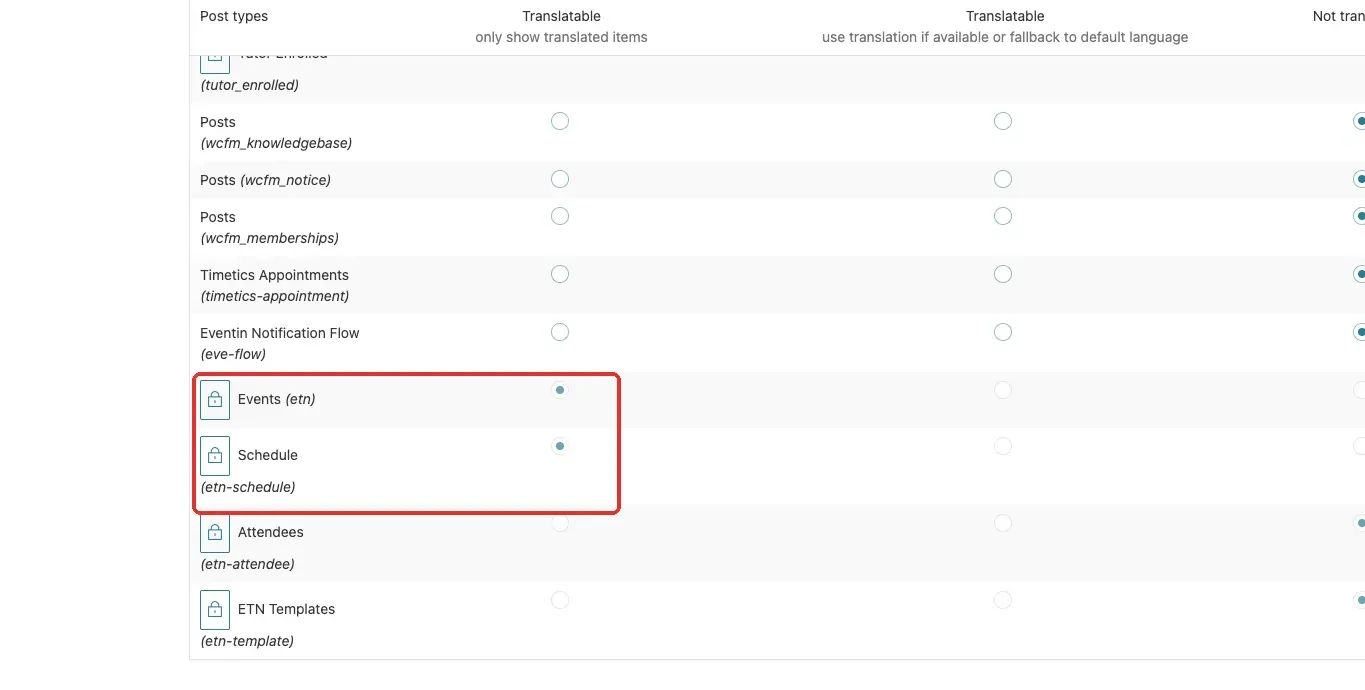
You never have to configure this yourself. The lock icon means the setting comes from Eventin and can’t be changed by mistake.

Step 1 — Install WPML and add your languages #

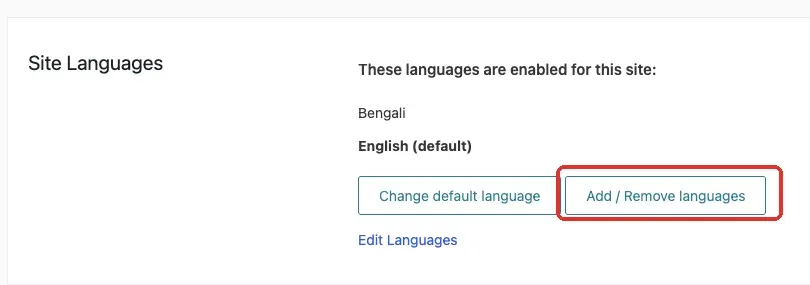
Install and activate WPML (Multilingual CMS) like any other plugin, then go to WPML → Languages. Set your default (original) language and add every language you want to offer. In the example below the site runs English (default) and Bengali.
Step 2 — Open the event and create a translation #

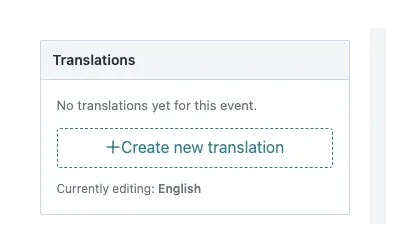
Open the event you want to translate. In the editor sidebar, you’ll find a Translations box that shows Currently editing: English (your default language). Click + Create new translation to start translating the event into your other language.
Translating a lot of events at once? Use WPML → Translation Dashboard instead: filter by the Events content type, tick the events you want, choose the target language, and click Translate. It opens the same editor covered next.

Step 3 — Translate the title and description #

WPML opens its Translation Editor. Translate the Title and the Description into the new language. Everything else — dates, times, tickets, prices, seats, venue, speakers, and layout — is copied from the original automatically, so there is nothing else to fill in. Tick “Translation is complete” and click Save & Close.

Repeat for each language. That is the whole job: you translate the words, and Eventin keeps the data.

What gets translated, and what stays the same #

To keep your ticket stock, prices, and orders consistent across languages, Eventin translates the text and shares everything operational. Here’s the split:

  • Translated per language: the event title and description, and — if you want — the schedule’s session titles, FAQ items, and category/tag names.
  • Shared automatically across every language: dates and times, tickets and prices, available and sold seats, venue and location, online-meeting links, speakers and organizers, and the banner and layout.

Ticket type names (for example VIP or General) stay the same in every language on purpose — Eventin uses the name to match orders and seats, so translating it would break checkout.

How it behaves on your site #

  • Visitors pick their language from your WPML language switcher and see the event in that language.
  • A visitor can buy from any language’s event page; the sale, the seat count, and the attendee always attach to the original event, so your stock and reports stay in one place.
  • Order-confirmation and ticket emails are always sent in your site’s default language.
  • Recurring event occurrences inherit from the translated parent event.

Frequently Asked Questions #

Q1: Do I need to re-enter dates, tickets, and prices for each language?
A: No. Eventin automatically copies and synchronizes dates, tickets, prices, and seat availability across all translated events. You only need to translate the event title and description.

Q2: Where can I enable Event translation in WPML?
A: You don’t need to configure it manually. Eventin automatically sets Events and Schedules as Translatable and locks these settings under WPML → Settings → Post Types Translation.

Q3: Why can’t I translate ticket names?
A: Ticket names (such as VIP or General) remain the same across all languages. Eventin uses these names to manage ticket orders and seat availability, ensuring the checkout process works correctly.

Q4: Where are orders recorded when customers purchase from a translated event?
A: Regardless of the language used during checkout, all orders, attendees, and seat counts are recorded against the original event. This keeps your inventory and reports centralized.

Q5: What language are order confirmation and ticket emails sent in?
A: Order confirmation and ticket emails are always sent in your site’s default language.

Q6: Are speakers and organizers translated?
A: No. Speakers and organizers are shared across all language versions of an event, so their profile information remains the same.

Q7: Which WPML translation editor does Eventin support?
A: Eventin supports both the WPML Classic Translation Editor and the Advanced Translation Editor. You can use whichever editor is enabled on your website.

Conclusion #

With WPML active, Eventin does the heavy lifting: your events and schedules are already set up to translate, all the operational data copies to every language, and every sale lands on the original event. Add your languages, translate each event’s title and description, and your attendees can browse and book in their own language while you manage one single set of tickets, stock, and reports.

What are your Feelings

Share This Article :

  • Facebook
  • X
  • LinkedIn
  • Pinterest
Updated on July 12, 2026
Which translation plugins are supported in Eventin?Which languages are supported in Eventin?
Table of Contents
  • Prerequisites
  • How the Eventin & WPML integration works
  • Step 1 — Install WPML and add your languages
  • Step 2 — Open the event and create a translation
  • Step 3 — Translate the title and description
  • What gets translated, and what stays the same
  • How it behaves on your site
  • Frequently Asked Questions
  • Conclusion
Copyright © 2013-2026 ThemeWinter. – A Brand of Arraytics.