
Overview #
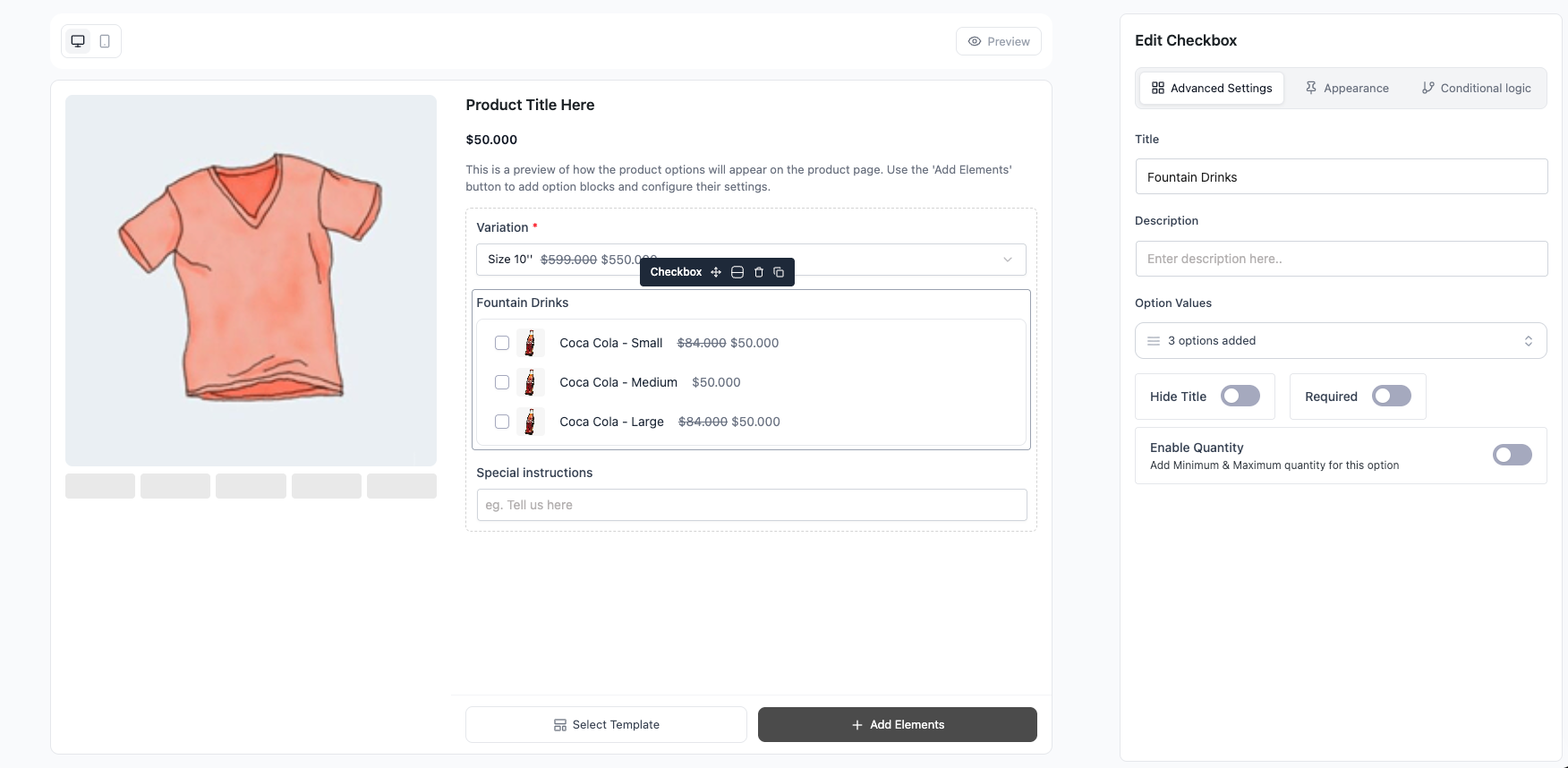
The Checkbox field lets customers select multiple options from a list on a WooCommerce product. Each checked choice adds to — or subtracts from — the price, can show an image, and can carry a per-choice quantity. It’s the go-to field for add-ons, extras, and bundles.
Use Cases: #
- Build Your Own” Gift Baskets / Boxes: Let users check off multiple treats to include (e.g., [x] Dark Chocolate, [x] Roasted Almonds, [ ] Vanilla Caramels).
- Hardware / PC Upgrades: Upgrading a device with multiple accessories (e.g., [x] Include Wireless Mouse, [x] Include Laptop Sleeve, [ ] Include Extra Charger).
- Pizza / Food Toppings: Selecting multiple ingredients for a custom dish.
Step 1: Add the Checkbox Field #
- Go to Optiontics → Add-ons and edit or create an add-on form.
- Drag the Checkbox block from the toolbox onto the canvas.
- Select the block to open its settings on the right.
Step 2: Add and Price Your Choices #
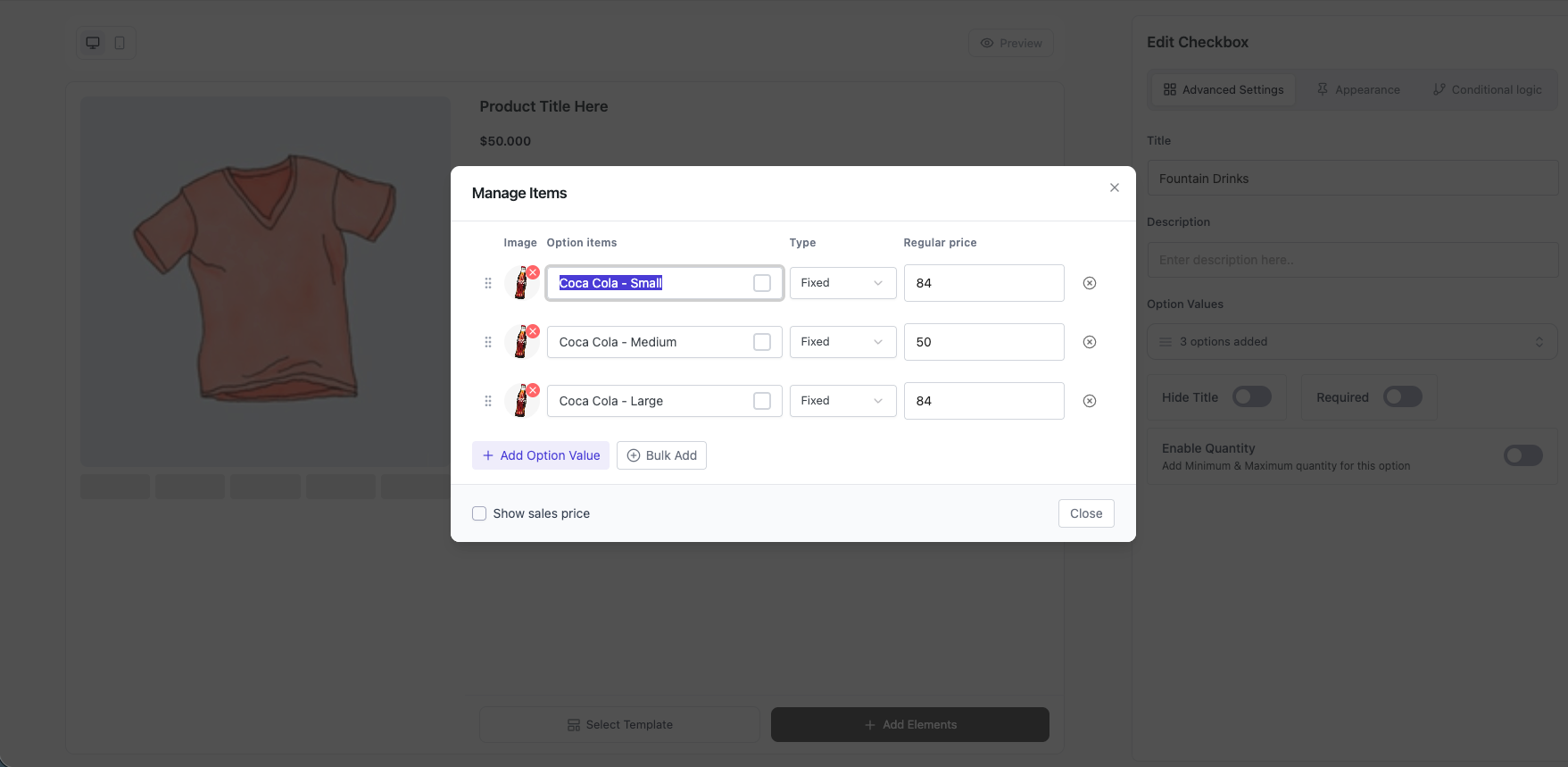
Add one choice per option customers can check. For each choice set:
- Label — text shown next to the box (e.g. “Extra Cheese”).
- Price — amount added when checked. Enter a negative value to subtract.
- Price type — Fixed (flat amount) or Percentage of the product base price.
- Default — mark any choices that should start checked.
- Image (optional) — a thumbnail shown with the choice.
Step 3: Adjust Field Settings #
- Title / Hide title / Description — control the heading and helper text.
- Required — at least one box must be checked before add to cart.
- Columns — lay choices out in 1–N columns.
- Quantity — enable a per-choice quantity input and set Min and Max.
- Show sale price — display the discounted choice price when one is set.
Step 4: Save and Preview #
- Click Save.
- Assign the add-on to a product (or category).
- Open the product page — each checked box updates the total live and carries through to cart and checkout.
Frequently Asked Questions (FAQ) #
| Q1: Can customers pick more than one option? Yes — that’s the point. Checkbox is multi-select, so customers can check as many choices as you offer. |
| Q2: Can I charge per quantity of an add-on? Yes. Enable Quantity on the field and set Min and Max — the checked choice price is multiplied by the quantity the customer enters. |
| Q3: How do I force at least one selection? Enable Required on the field. The customer can’t add to cart until at least one box is checked. |
Conclusion #
Use the Checkbox field whenever customers should choose more than one option. With per-choice pricing, optional images, column layout, and quantity, it’s the go-to field for extras and add-on bundles.


