
The WPCafe Webhook feature enables seamless data transmission from your store to external CRMs or automation tools, allowing for real-time workflow integrations.
Requirements #
- You will need to have the WPCafe Pro plugin installed and activated to use the Webhook feature.
How to Enable the Webhook Module #
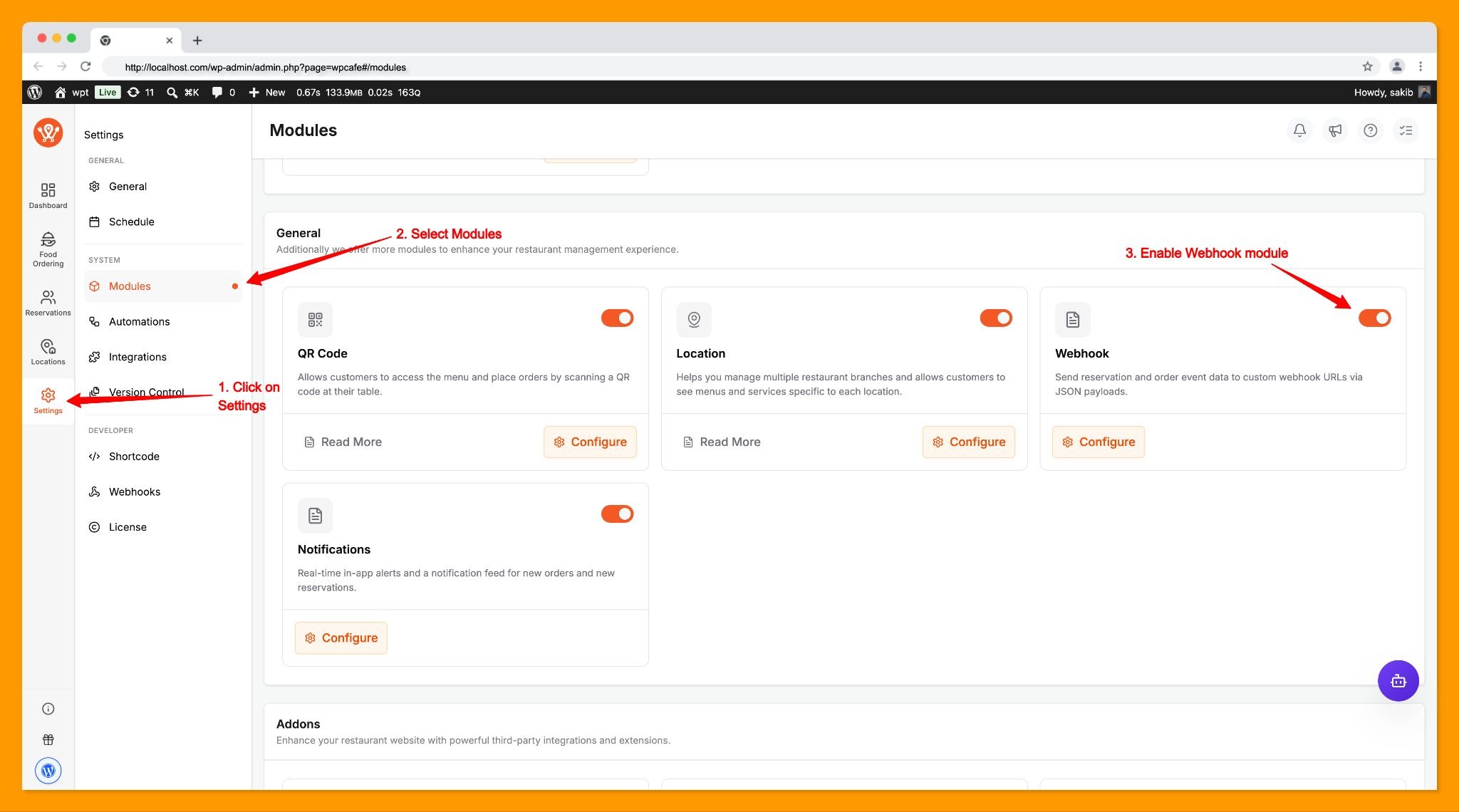
- Navigate to your WordPress dashboard and go to WPCafe > Settings.
- Click on the Modules tab.
- Locate the Webhook module and switch the toggle to ON.
How to Configure a Webhook #
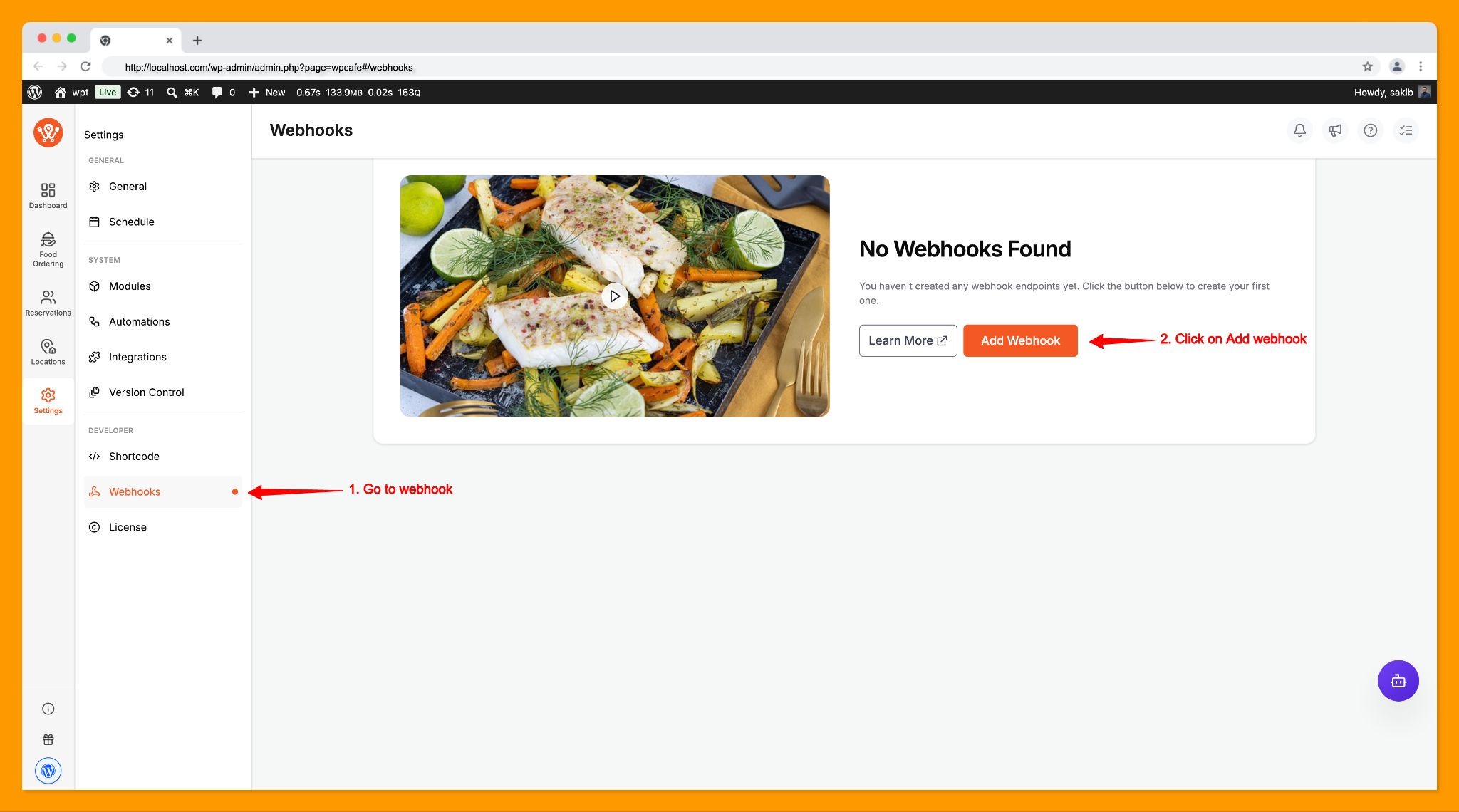
- Once the module is enabled, a new Webhook option will appear in the WPCafe Settings menu.
- Click the Add Webhook button to open the configuration modal.
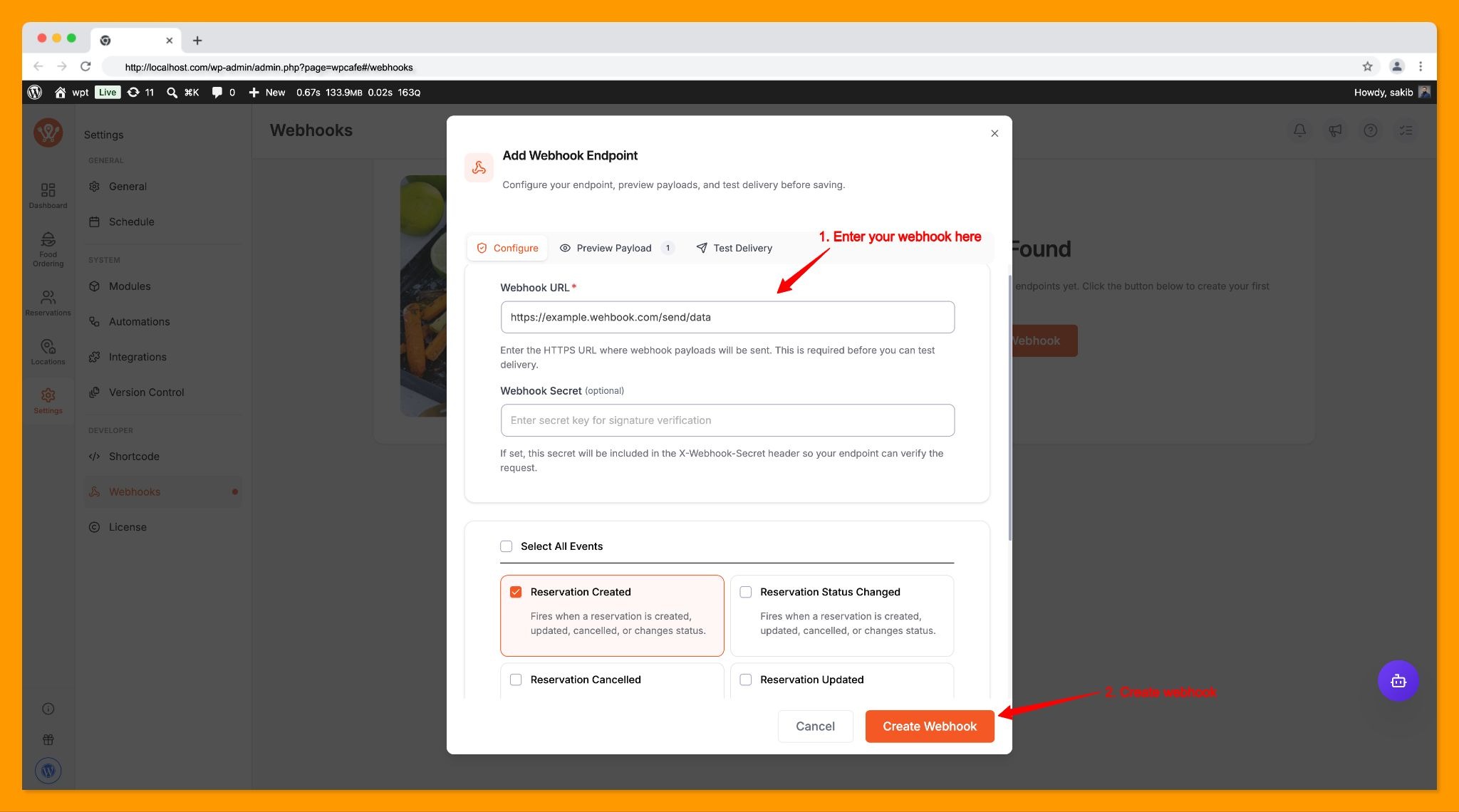
- Enter your target Webhook URL and the Webhook Secret (if applicable).
- Select the specific Events that should trigger data transmission (e.g., New Order, Reservation).
- Click Create Webhook to save your settings.
Previewing and Testing Webhooks #
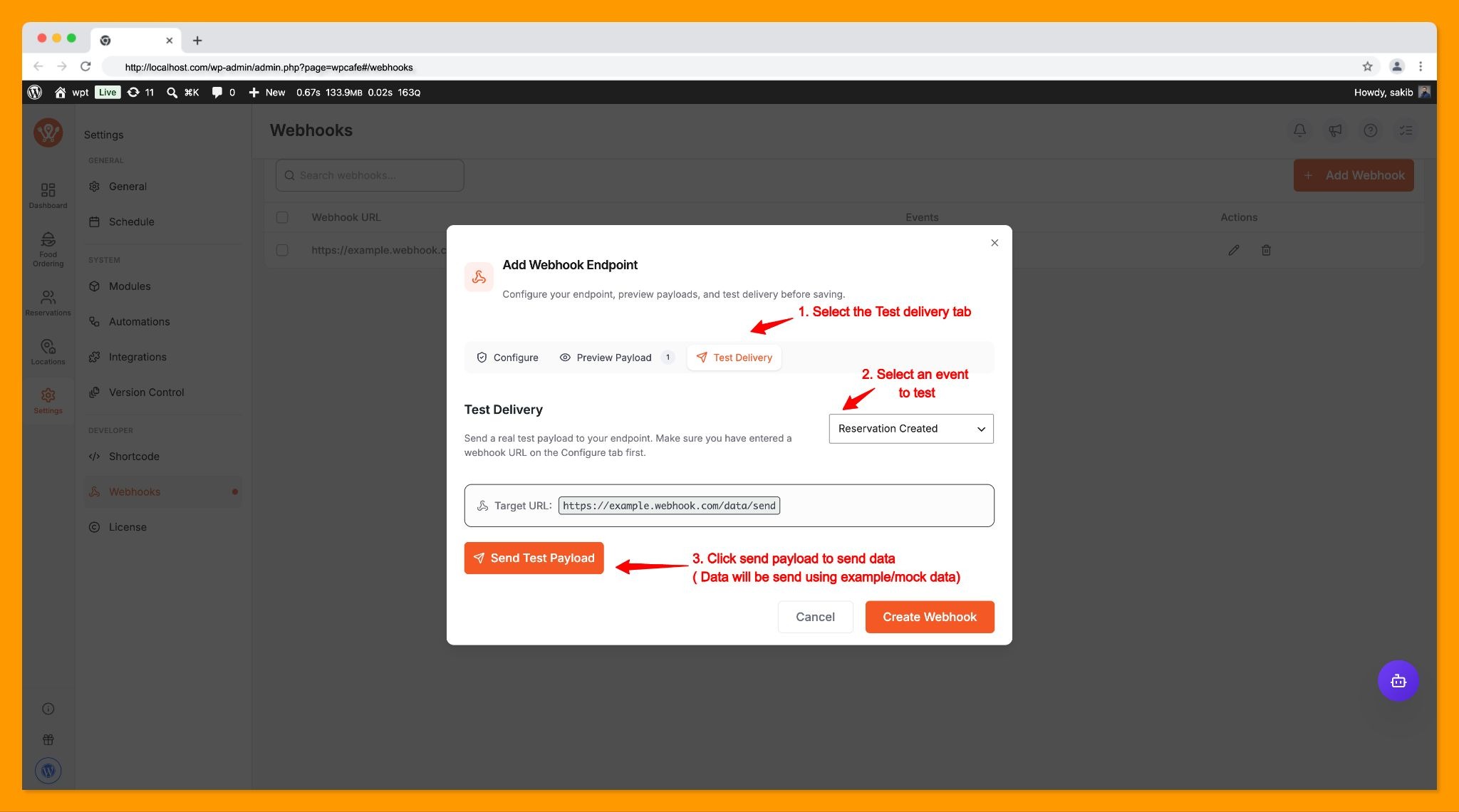
To ensure your integrations work correctly without waiting for a live event, use the built-in testing tools:
- Preview Tab: Review the exact data structure and format that will be sent via the webhook.
- Test Delivery Tab: Send a mock payload to verify the connection between WPCafe and your external endpoint.
Managing Your Webhooks #
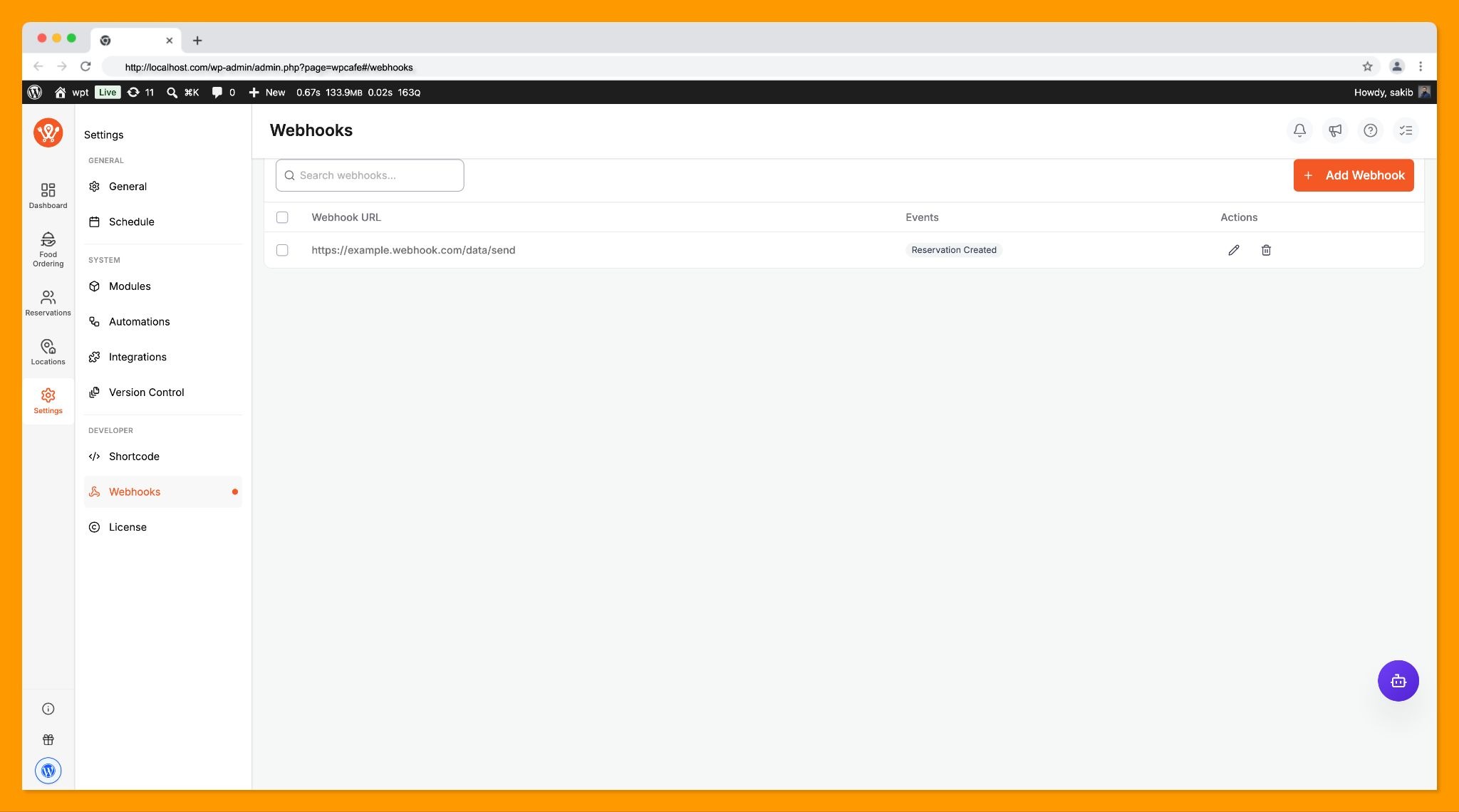
All configured webhooks are displayed in a centralized list. From this view, you can:
- Edit: Update URLs, secrets, or event triggers.
- Delete: Remove any webhook that is no longer required.
Conclusion #
By leveraging the WPCafe Webhook feature, you can easily bridge the gap between your restaurant management system and external automation platforms. Whether you are syncing order details to a custom CRM, sending instant SMS alerts to your kitchen staff, or logging reservation data in Google Sheets, webhooks provide the real-time connectivity needed to streamline your operations.
Before pushing your workflows live, always ensure your endpoints are properly configured, secured with HTTPS, and verified using the built-in testing tools. If you run into any specific hurdles during setup, review the frequently asked questions below for quick troubleshooting tips and best practices.
Frequently Asked Questions (FAQ) #
Q1: What is a webhook and how does it work in WPCafe?
A webhook is a way for WPCafe to deliver real-time data to other applications when a specific event occurs. Instead of another system constantly checking WPCafe for updates, WPCafe automatically “pushes” a JSON data payload to your specified Webhook URL the moment an action (like a new reservation) happens.
Q2: Can I send webhooks to multiple external platforms at the same time?
Yes — you can create and configure multiple unique webhook endpoints. For example, you can set up one webhook to send data to Zapier for Slack notifications, and another to send data to your custom CRM system simultaneously.
Q3: Why should I use the “Preview Payload” tab before saving?
The Preview Payload tab allows you to inspect the exact structure of the JSON keys and values WPCafe will send. This helps you map the data correctly in your receiving application (like Make or Zapier) without needing to trigger a live test purchase or reservation.
Q4: What is the difference between “Preview Payload” and “Test Delivery”?
Preview Payload only shows you the data structure visually inside your WordPress dashboard. Test Delivery actually fires a live, mock HTTP POST request to your external endpoint URL so you can verify that the connection is successful and returns a 200 OK response.
Q5: My test delivery failed. What should I check?
First, verify that your Webhook URL is completely correct and includes https://. Second, ensure your external server or automation platform is live and capable of accepting incoming POST requests. Lastly, check if any security or firewall plugins on your WordPress site are blocking outbound REST API requests.
Q6: Are the webhooks secure?
To ensure maximum data security, always use a secure https:// URL for your endpoints. This ensures that the reservation details and customer information transferred in the JSON payload are encrypted during transit.


