
1. Introduction #
The MailPoet integration for Eventin subscribes purchaser and attendee contacts to your MailPoet lists the moment an order is created. Because MailPoet runs on the same WordPress site, there is no webhook to set up — you choose the list(s) right inside each event. Use it to grow your MailPoet lists, automations, and welcome emails — no manual list imports.
Prerequisites #
- Eventin.
- MailPoet — installed and active on the same WordPress site.
- At least one MailPoet list — created in MailPoet → Lists (a “Newsletter mailing list” exists by default).
Step 1 — Enable the MailPoet integration #
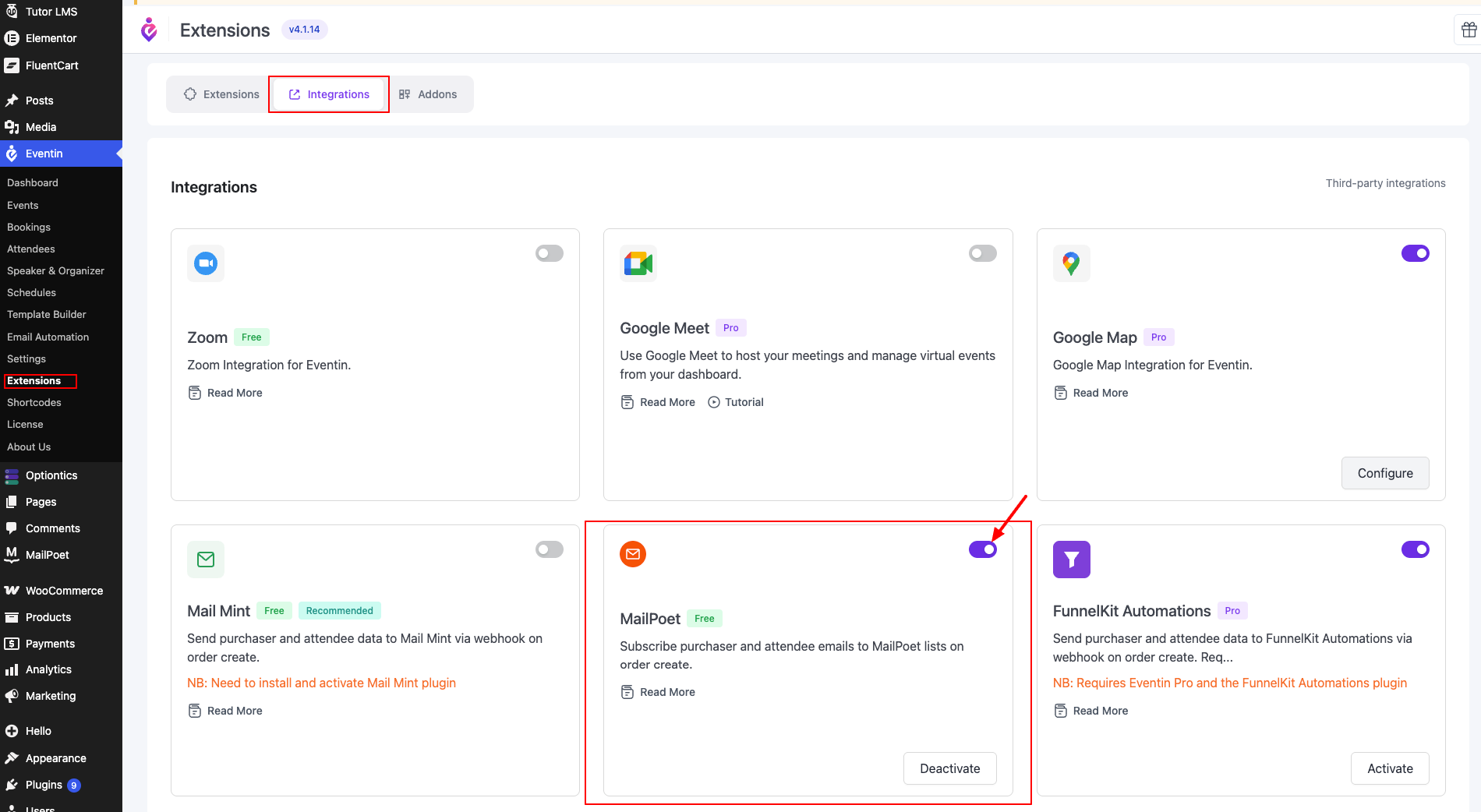
- Go to Eventin → Extensions → Integrations tab.
- Find the “MailPoet” card and toggle it ON.
- If MailPoet is not yet installed, Eventin shows the notice “NB: Need to install and activate MailPoet plugin”. Install and activate it from the WordPress Plugins page first, then return and toggle the integration ON.
Step 2 — Configure MailPoet per event #
The list and recipient settings are configured on each event individually, so different events can feed different MailPoet lists.
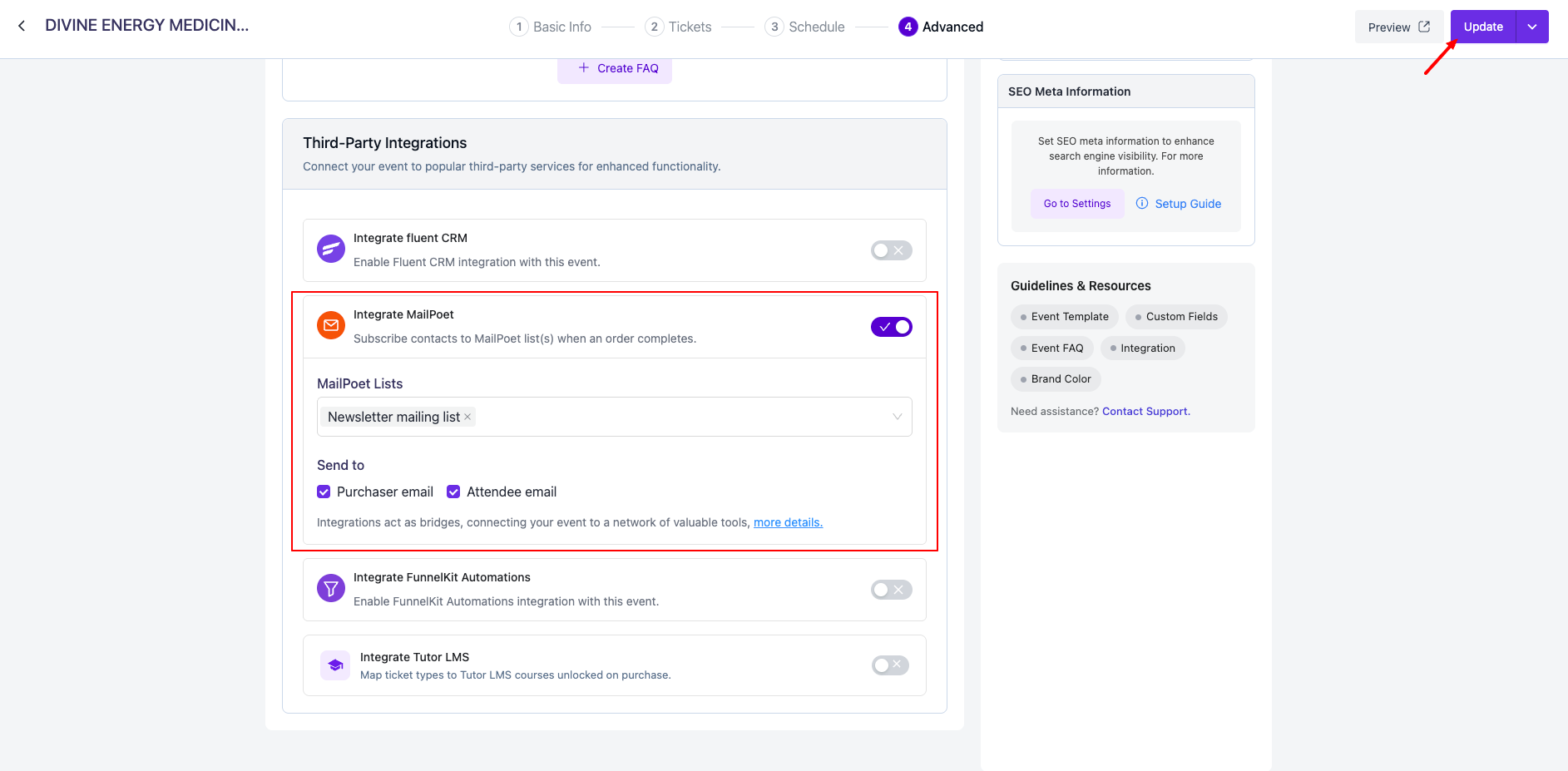
- Open the event in Eventin and switch to the Advanced tab.
- Scroll to the Third-Party Integrations card.
- Toggle “Integrate MailPoet” ON. The panel expands.
- In MailPoet Lists, select one or more lists. The list options are loaded live from MailPoet, so anything you create in MailPoet → Lists appears here.
- Under Send to, choose who gets subscribed:
- Purchaser email — the buyer who placed the order.
- Attendee email — every individual attendee on the order (only fires if Attendee Registration is on).
- Click “Update” at the top of the event page to save.
If the “Integrate MailPoet” row is not visible on the Advanced tab, the global toggle from Step 1 is off — turn it on first.
After purchase — contacts land in MailPoet #
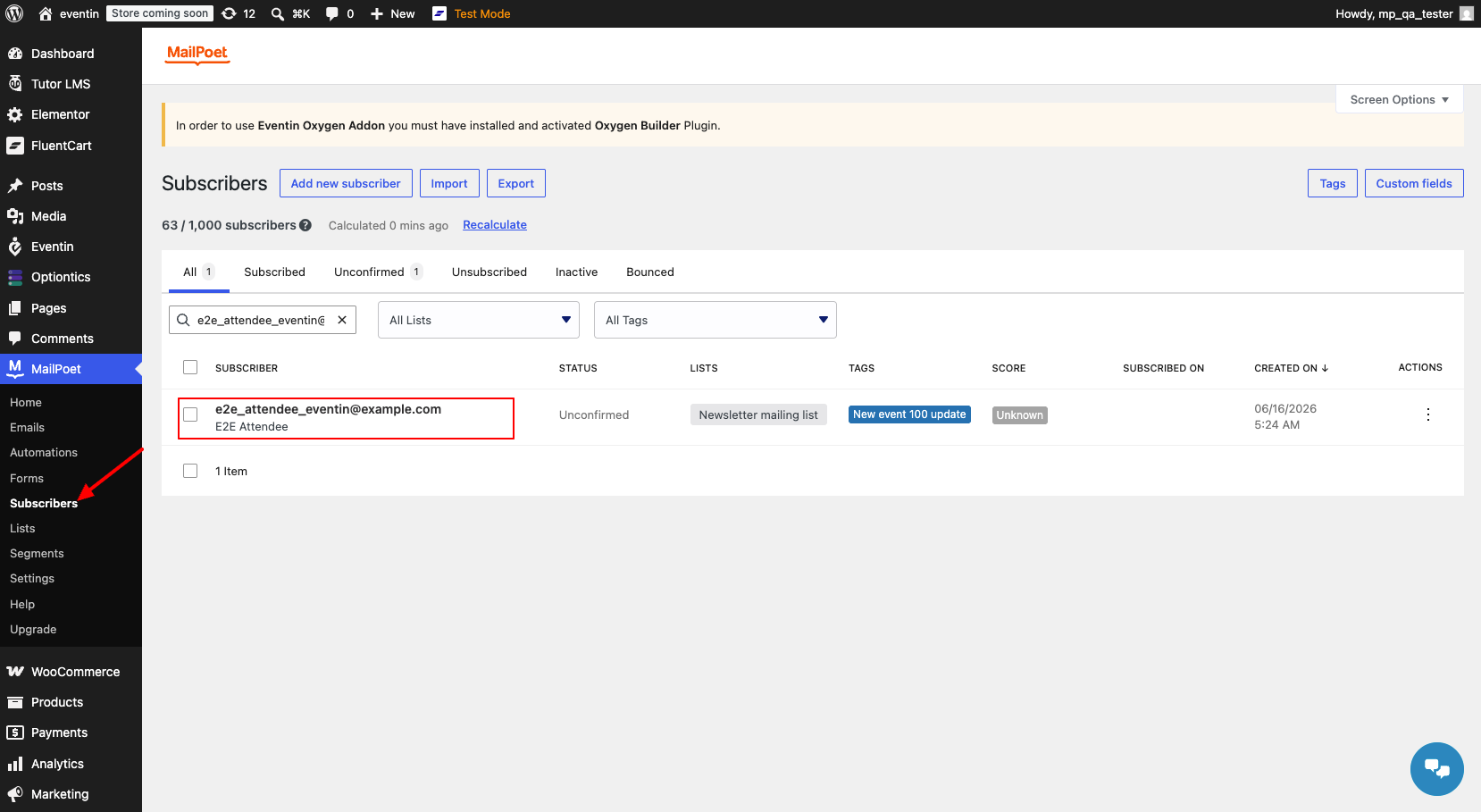
The moment an Eventin order is created for a MailPoet-enabled event, Eventin subscribes the configured contacts to your chosen list(s):
- Purchaser — the buyer’s email and name.
- Attendee — each attendee’s email and name (only when Attendee Registration is on).
- Each new contact is tagged with the event title, so you can segment by event inside MailPoet.
- Subscription respects your MailPoet sign-up confirmation setting: if double opt-in is on, contacts appear as Unconfirmed until they confirm via the email MailPoet sends.
- Note: a contact already in MailPoet (for example an existing subscriber or WooCommerce customer) is added to the list, but is not re-tagged with the event title.
Verify it is working by placing a test order, then opening MailPoet → Subscribers and checking that the buyer (and any attendees you opted in) appear on the chosen list.
FAQs #
Q: Where do the lists in the dropdown come from? #
A: Directly from MailPoet. Create your lists in MailPoet → Lists, and they appear in the MailPoet Lists dropdown on the event’s Advanced tab.
Q: The dropdown is empty, or I don’t see “Integrate MailPoet”. Why? #
A: Three things must be true: the MailPoet plugin is active, you have created at least one MailPoet list, and the global MailPoet integration is toggled ON in Eventin → Extensions → Integrations. Fix whichever is missing, then refresh the event page.
Q: Why is a new subscriber shown as “Unconfirmed”? #
A: MailPoet’s sign-up confirmation (double opt-in) is enabled, so contacts must confirm via the email MailPoet sends before they become Subscribed. Eventin honors this setting. If you want contacts subscribed immediately, turn off sign-up confirmation in MailPoet → Settings.
Q: Can I send only the purchaser, not the attendees? #
A: Yes. In the Send to field, check only Purchaser email and leave Attendee email unchecked. Only the buyer will be subscribed.
Q: Are existing subscribers tagged with the event? #
A: A contact already in MailPoet is added to the selected list, but is not re-tagged with the event title. Only brand-new subscribers receive the event tag.
3. Conclusion #
Enable MailPoet once under Extensions, then on each event’s Advanced tab pick your list(s) and choose who to send. From that point on, every Eventin order auto-subscribes buyers and attendees to MailPoet — tagged by event and ready for your automations — no manual exports.


