
Eventin has a built-in coupon system that lets you offer percentage or fixed-amount discounts on your event tickets — no WooCommerce or third-party plugin required. You create a coupon once, decide which events and tickets it applies to, set how many times it can be used, and your buyers enter the code at checkout to see the discount applied instantly.
Prerequisites #
- Eventin — installed and active.
- At least one event with a paid ticket to discount.
- A native payment method (Stripe, PayPal, or Offline) enabled under Eventin → Settings → Payments. Native coupons apply to Eventin’s own checkout — they are turned off when WooCommerce is your ticket payment method.
Step 1 — Open the Coupons page #
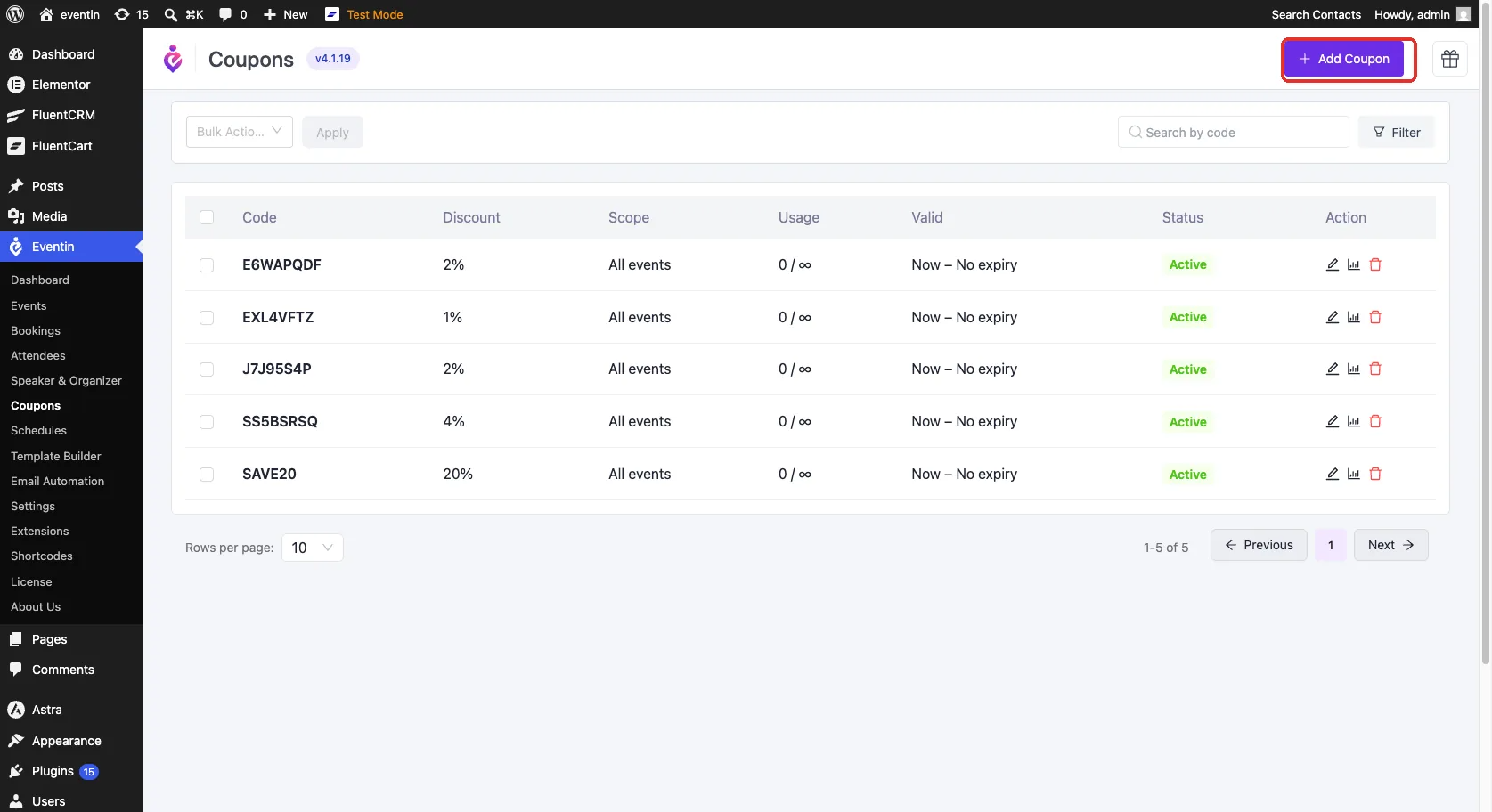
Go to Eventin → Coupons. This screen lists every coupon you have created, with its discount, scope, usage, validity, and status. Use Add Coupon in the top-right to create a new one.
Step 2 — Set the code, discount, and validity #
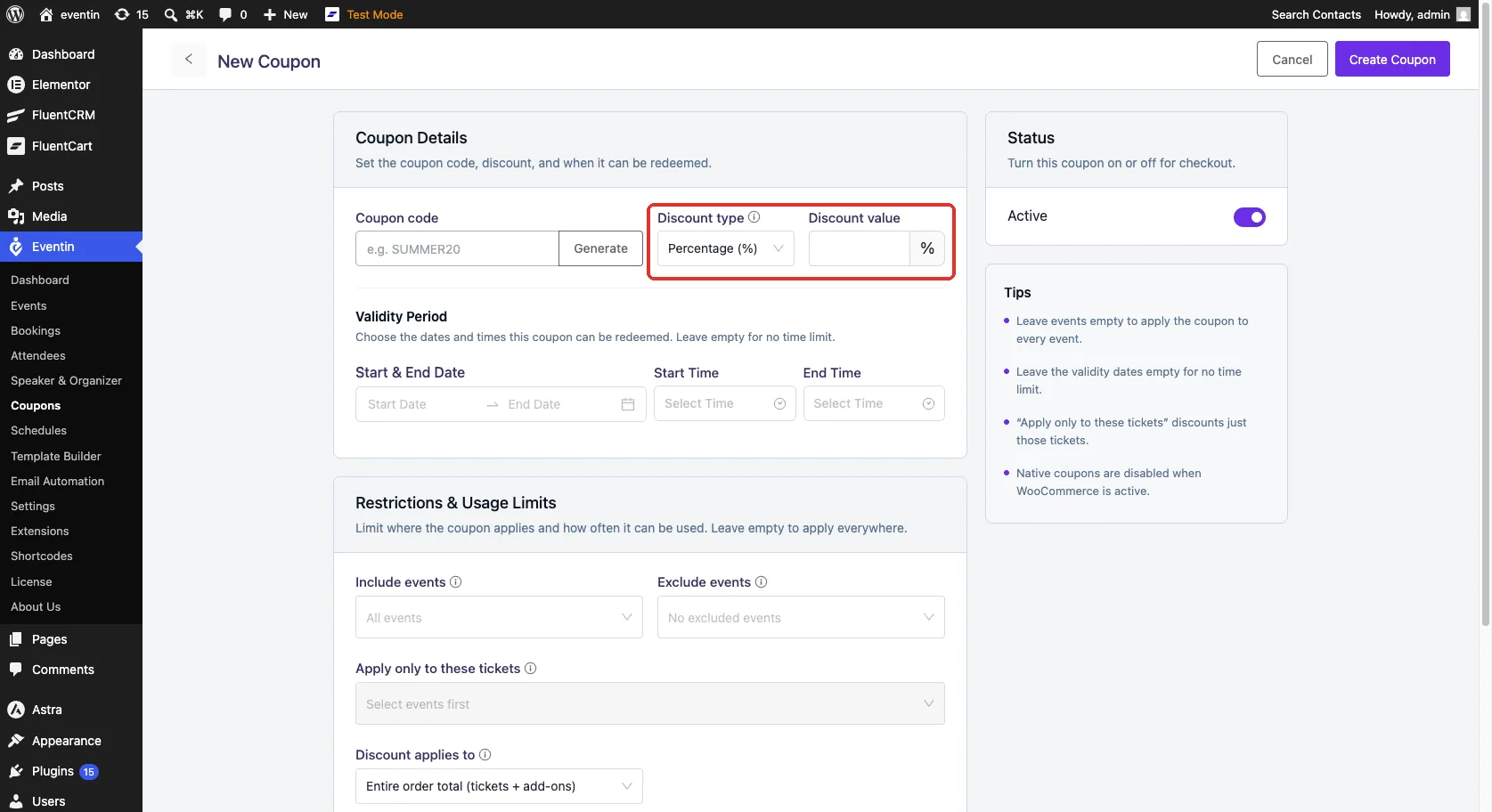
In the Coupon Details card, fill in the basics of the coupon.
- Enter a Coupon code (e.g. SUMMER20), or click Generate to create a random one. This is what buyers type at checkout.
- Choose a Discount type — Percentage (%) or Fixed amount.
- Enter the Discount value (e.g. 20 for 20% off, or a flat amount).
- Optionally set a Validity Period — the start/end dates and times the coupon can be redeemed. Leave it empty for no time limit.
Step 3 — Choose where the discount applies #
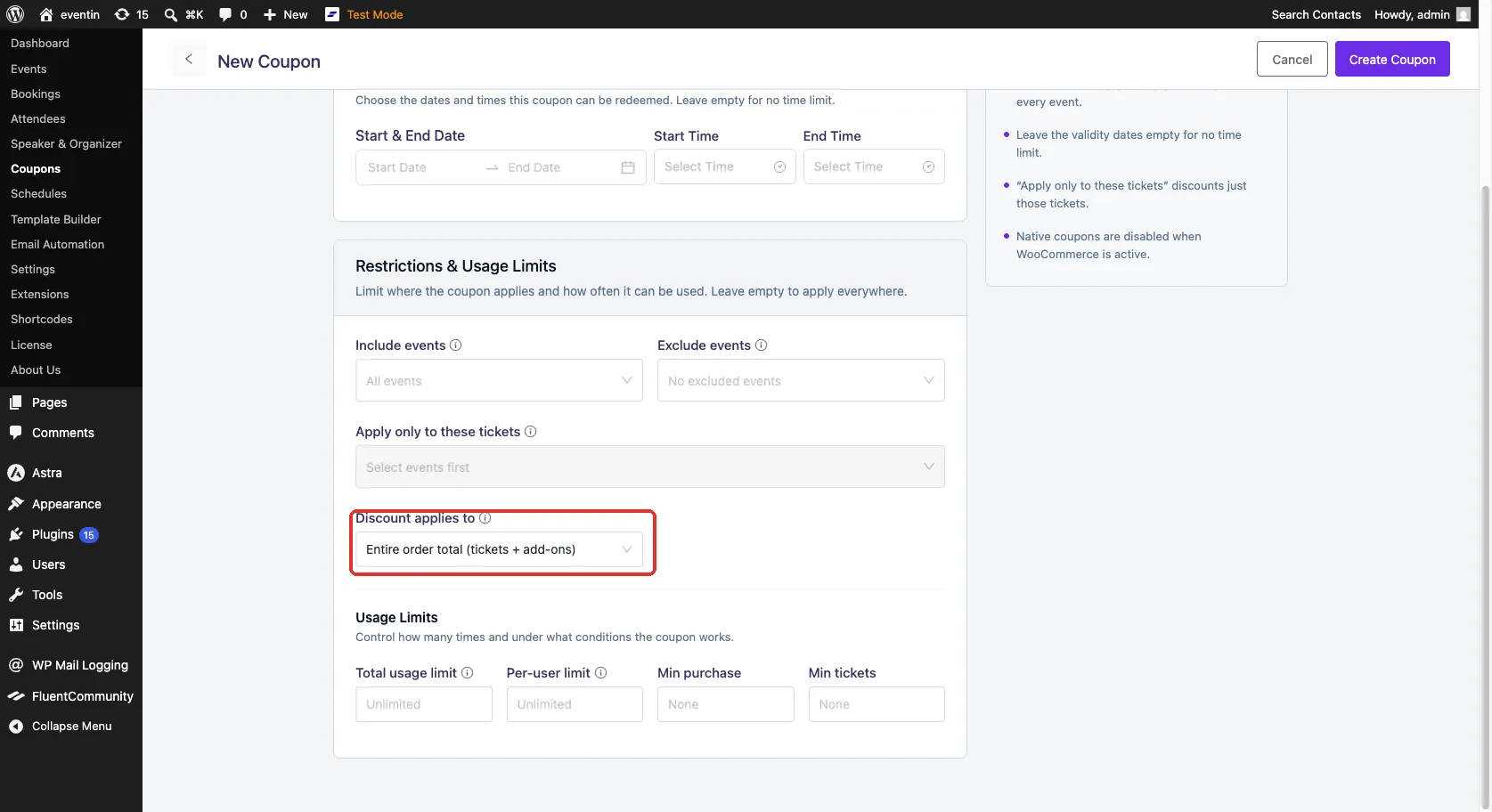
The Restrictions & Usage Limits card controls which events and tickets the coupon works on. Leave everything empty to apply it everywhere.
- Include events — limit the coupon to specific events. Empty means all events.
- Exclude events — block the coupon on certain events even when it otherwise applies everywhere.
- Apply only to these tickets — restrict the discount to specific ticket types (for example, only VIP). Pick your events first, then choose their tickets.
- Discount applies to — choose whether the discount comes off the Entire order total (tickets + add-ons) or the Ticket price only.
Step 4 — Set usage limits and activate #
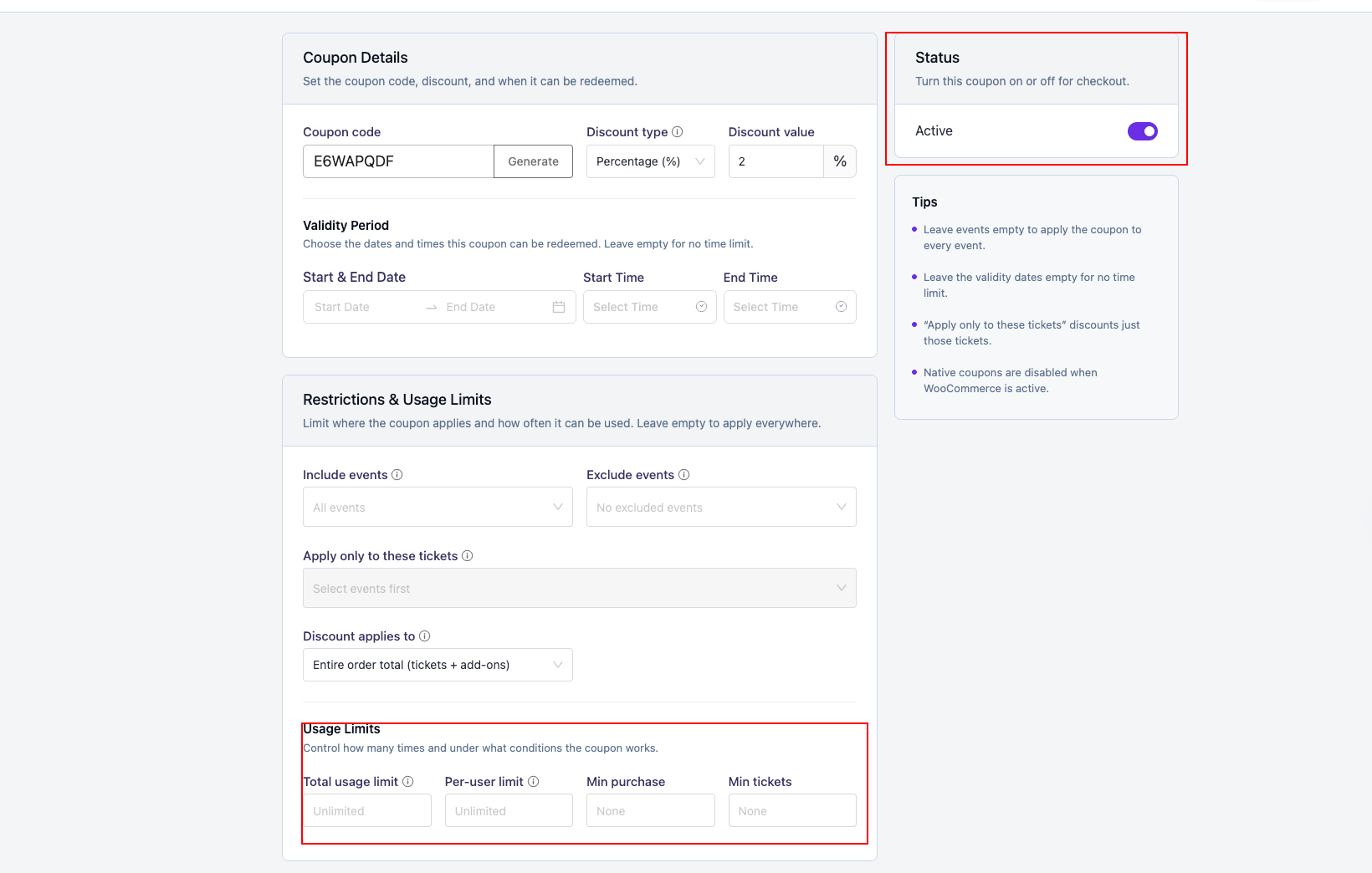
Still in the Restrictions & Usage Limits card, control how often the coupon can be used.
- Total usage limit — the maximum number of times the coupon can be redeemed overall. Empty means unlimited.
- Per-user limit — how many times a single buyer can use it.
- Min purchase / Min tickets — the smallest order value or ticket count needed for the coupon to work.
Finally, make sure the Status toggle in the sidebar is set to Active, then click Create Coupon (or Update Coupon when editing). Only active coupons within their validity window work at checkout.
Step 5 — How buyers apply a coupon at checkout #
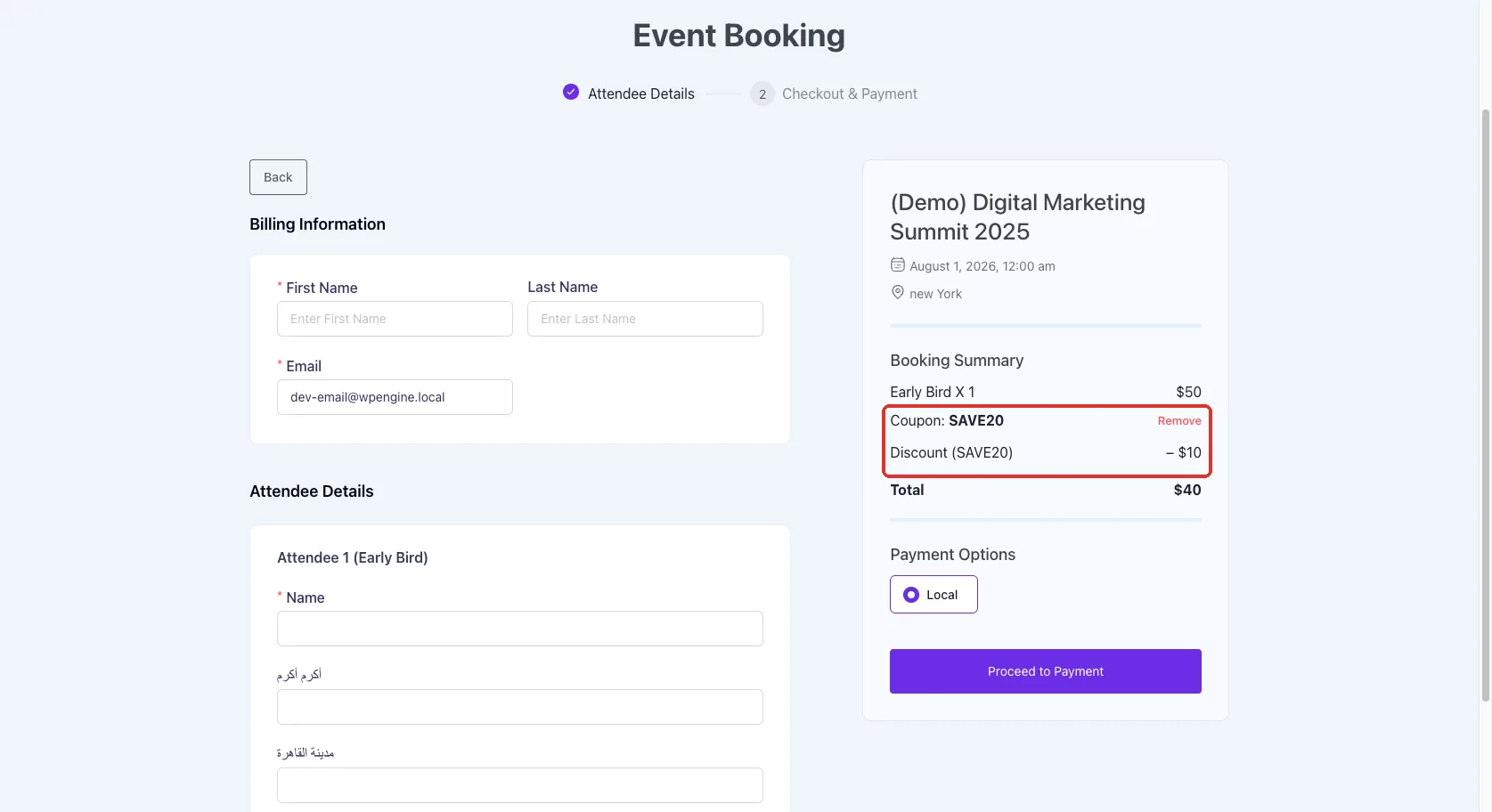
When a buyer selects a paid ticket and reaches the booking page, a coupon field appears in the order summary. They type the code and click Apply. The discount is shown as its own line and the total updates right away. If they add or remove extra options (add-ons), the discount recalculates automatically.
The field only shows when a coupon can actually be used for that event and those tickets — so a buyer never sees it on an event you excluded, or when the coupon is limited to tickets that aren’t in their cart.
Track how a coupon is used #
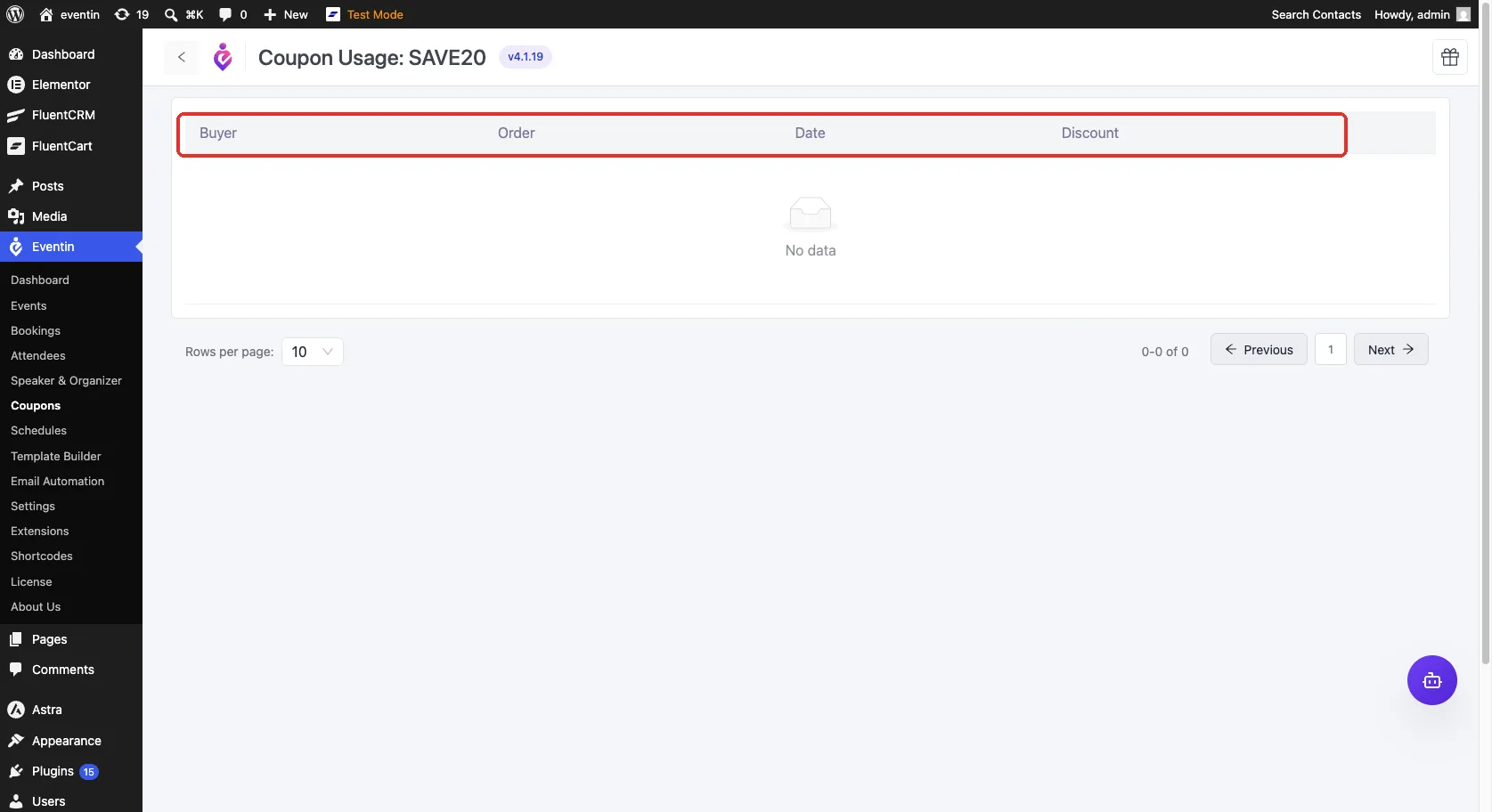
Back on the Coupons list, the Usage column shows how many times each coupon has been redeemed against its limit (for example, 3 / 100). Click the usage (bar chart) icon on any row to open its detail view, which lists every completed order that used the coupon — the buyer, the order, the date, and the discount given. Redemptions are recorded only when an order is completed, so abandoned carts never inflate the count.
Using WooCommerce for payments? #
Eventin’s native coupons work with Eventin’s own checkout. If WooCommerce is your ticket payment method, the native coupon screen is turned off to avoid clashing with WooCommerce’s own discounts — create and manage those from WooCommerce → Marketing → Coupons instead. To use Eventin’s native coupons, switch your payment method under Eventin → Settings → Payments.
FAQs #
Q: What’s the difference between a percentage and a fixed discount? #
A: A percentage coupon takes a share off the price (20% off a $50 ticket = $10 off). A fixed coupon takes a set amount off (a $10 coupon always removes $10), no matter the ticket price.
Q: I created a coupon but the field doesn’t show at checkout. Why? #
A: The coupon field only appears when a coupon can actually be used for that event and its tickets. Check that the coupon is Active, still within its validity dates, the event isn’t in Exclude events, and — if you used Apply only to these tickets — that one of those tickets is in the cart. Also confirm WooCommerce isn’t set as your payment method.
Q: Does the discount include add-ons or just the ticket? #
A: That’s what Discount applies to decides. Choose Entire order total (tickets + add-ons) to discount everything, or Ticket price only to leave add-ons at full price.
Q: The Usage count still shows 0 after someone used my coupon. Why? #
A: Usage is counted only when the order is completed, not the moment the code is applied. If the order is still pending payment, it won’t show yet. Once the order is marked completed, the redemption appears in the coupon’s usage view.
Q: Can I stop one person from using a coupon over and over? #
A: Yes. Set a Per-user limit to cap how many times a single buyer can redeem it, and a Total usage limit to cap redemptions across everyone.
Q: Can a buyer use more than one coupon on the same order? #
A: No. One coupon applies per order. Applying a new code replaces the one already on the order.
Conclusion #
Create a coupon under Eventin → Coupons, set its discount and validity, choose the events and tickets it covers, and decide how often it can be used. Your buyers enter the code at checkout and see the discount applied on the spot, while the Usage view keeps you in control of how each coupon is performing — all without leaving Eventin.


