
Global Capacity (also called “Global Stock”) lets you set one shared ticket pool for an entire event, instead of giving every ticket type its own separate quantity. When it is on, all ticket types: General, VIP, Student, and so on draw from the same total. Once that total is reached, every ticket type shows as “Sold Out”.
Use it when you only care about total attendance (for example, a venue that holds 200 people regardless of ticket tier).
Where to Find It #
In your WordPress admin, go to:
Eventin → Events → (Open or create an event) → Tickets tab
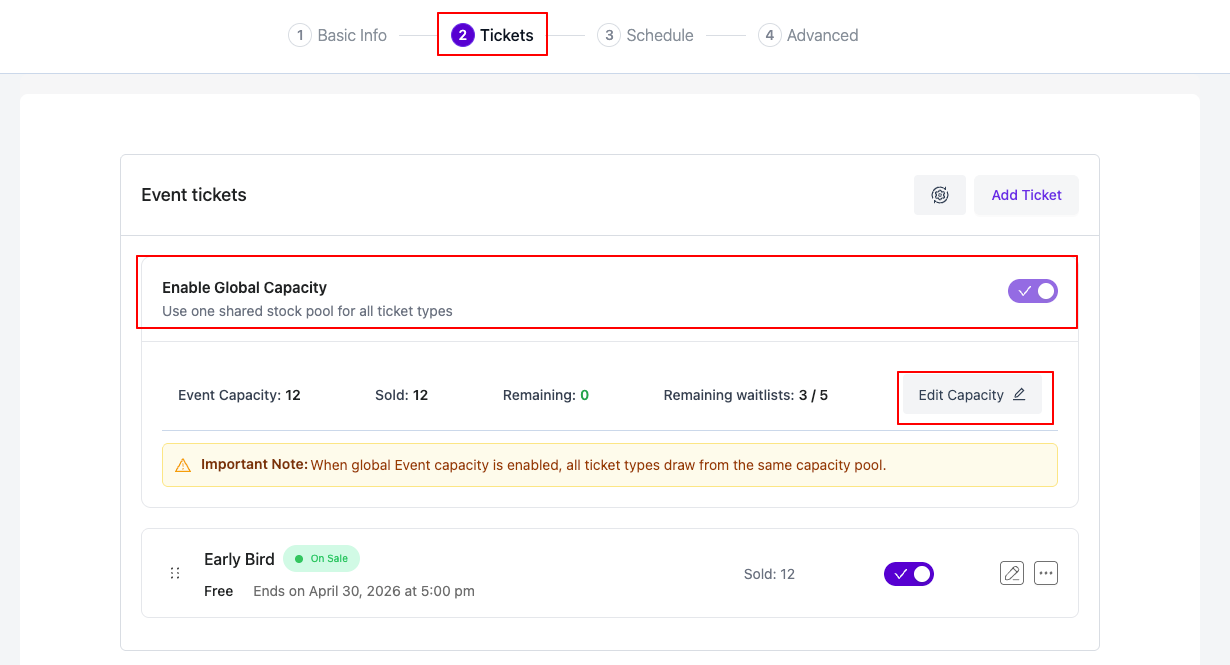
At the top of the Tickets tab you will see a banner titled “Enable Global Capacity” with a toggle switch.
How to Enable Global Capacity #
- Open the event in Eventin and switch to the Tickets tab.
- Toggle the “Enable Global Capacity” switch ON.
- The banner expands and shows three numbers:
- Event Capacity — the shared pool (starts at 0)
- Sold — how many tickets are already sold
- Remaining — Capacity minus Sold
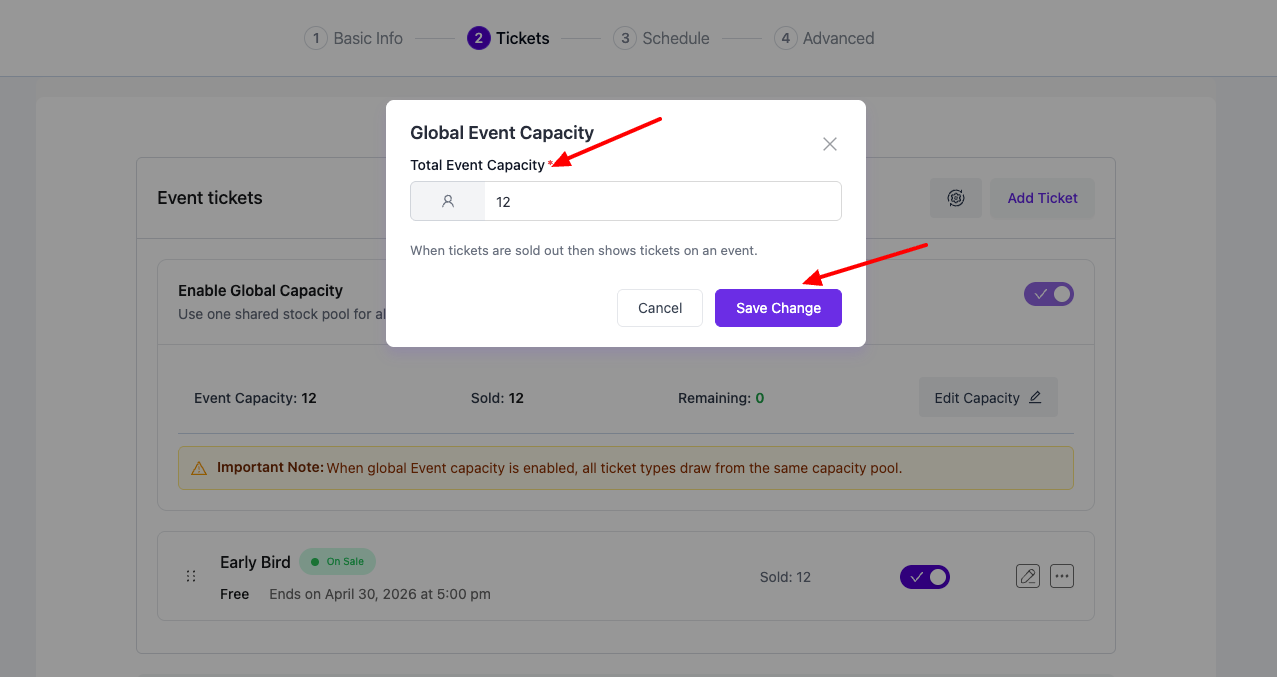
- Click “Edit Capacity” on the right side of the banner.
- In the modal, enter the total number of tickets you want to make available across the whole event.
- Click “Save Change”.
Reading the Banner #
Once enabled, the banner shows you a live view of stock:
- Event Capacity — total tickets available across all types
- Sold — tickets already paid for (all types combined)
- Remaining — Capacity minus Sold
- Remaining waitlists — waitlist spots left (only if the Attendee Waiting List is enabled)
A yellow “Important Note” box reminds you that all ticket types are sharing the same pool while Global Capacity is ON.
How to Turn Global Capacity Off #
Toggle the “Enable Global Capacity” switch OFF.
Important: Once tickets have been sold from the global pool, the toggle is locked and a tooltip explains why. This prevents you from accidentally breaking the inventory of an event that is already selling. To free the toggle, you would need to refund the sold tickets first.
FAQs #
Q1. What is the difference between Global Capacity and the per-ticket quantity?
A: Per-ticket quantity limits the number of tickets available for a specific ticket type (for example, 20 VIP tickets). Global Capacity sets a shared limit across all ticket types. When Global Capacity is enabled, the shared event capacity controls ticket availability instead of the individual ticket quantities.
Q2. Why is the “Enable Global Capacity” toggle greyed out?
A: This happens when ticket sales have already started. If Global Capacity is enabled, it cannot be turned off after tickets are sold. Likewise, if ticket types have already been sold individually, Global Capacity cannot be enabled later.
Q3. Can I set the Event Capacity lower than the number of tickets already sold?
A: No. The event capacity cannot be reduced below the number of tickets already sold. The Save Changes button remains disabled until a valid capacity is entered.
Q4. Can I change the Event Capacity after the event is live?
A: Yes. You can increase the capacity at any time. You can also decrease it, but only to a value that is equal to or greater than the number of tickets already sold.
Q5. What happens when the Global Capacity is full?
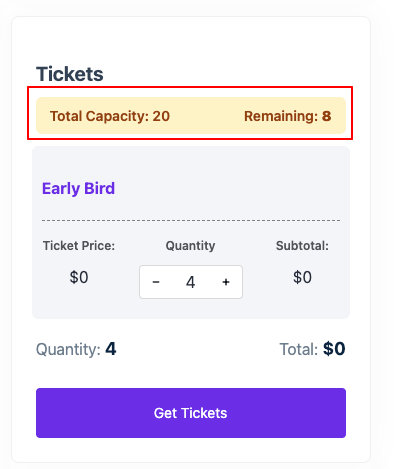
A: When the remaining Global Capacity reaches 0, all ticket types are marked as Sold Out, even if an individual ticket type still has unused quantity. No more tickets can be purchased once the shared capacity is reached.
Conclusion #
Global Capacity is the simplest way to manage events where what matters is the total number of attendees, not which tier they booked. With one toggle and one number, you stop worrying about keeping ticket-tier inventories in sync and let Eventin enforce a single, shared limit for the whole event.


