
The Pointics integration for WP Cafe adds a loyalty points program to your restaurant’s table bookings. Guests earn points when they book a table, spend points for money off their next booking, and earn a bonus when a friend they invite books too. Everything is set up from the Pointics menu in WordPress.
Requirements #
WP Cafe with Reservation on and Pointics; Pointics Pro and WooCommerce are optional.
You need WP Cafe v3.0.22 and Pointics v1.0.4 or newer. With an older WP Cafe, the WPCafe cards in Pointics are locked with the message “Update WP Cafe to use booking rewards.”
Step 1: Install Pointics #
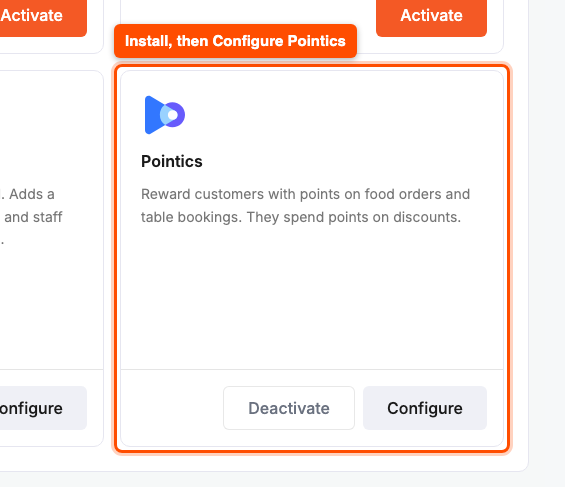
- Go to WP Cafe → Settings → Modules.
- On the Pointics card, click Install, then Activate, then Configure.
Step 2: Create the “Book a table” earning rule #
- Go to Pointics → Earning Rules and click Add Point Earning Rule.
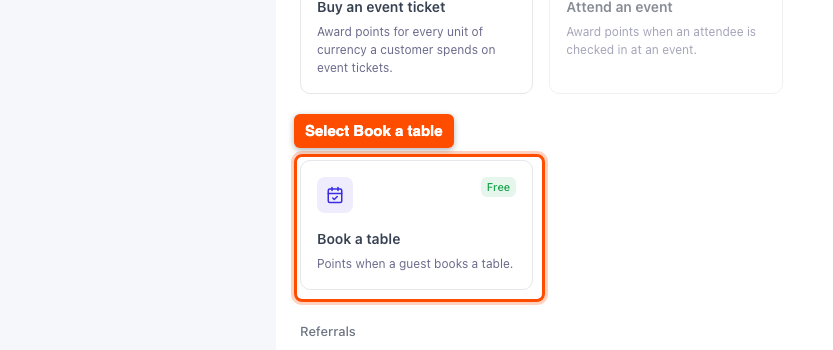
- Open the WPCafe tab and select Book a table.
- Choose Fixed per Item (a flat number per booking, for example 100) or Per Amount Spent (points per unit of the booking price and its food, Pointics Pro).
- Click Publish.
Step 3: Choose which booking statuses earn points #
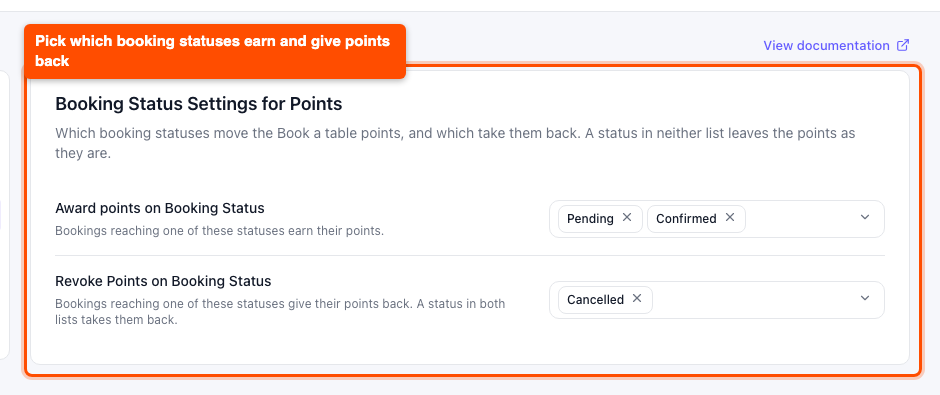
By default, a pending or confirmed booking earns, and a cancelled one gives the points back.
- Go to Pointics → Settings and open the WPCafe tab.
- Pick the statuses under Award points on Booking Status and Revoke Points on Booking Status, then click Save Change.
Because Pending is on the list, guests earn as soon as they book. The trade-off: a guest can spend those points before you cancel the booking, and the cancel can only take back the points that are left. Remove Pending if you want guests to earn only after you confirm.
Step 4: Let guests earn without signing up first #
Points need an account. WP Cafe can make one from the booking email.
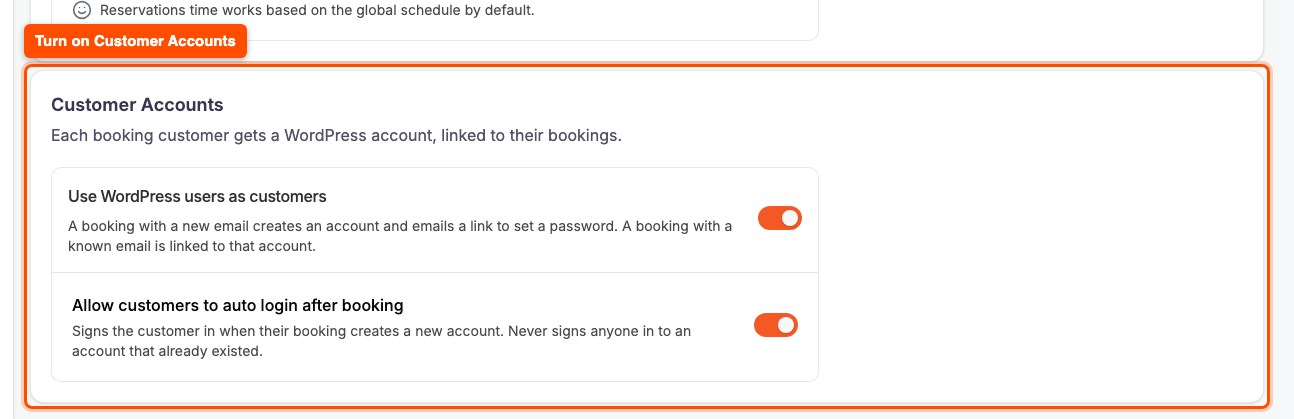
- Go to WP Cafe → Reservations → Reservation Rules.
- In Customer Accounts, turn on Use WordPress users as customers. If you want new guests signed in right away, turn on Allow customers to auto-login after booking too. Then click Save Changes.
A known email is linked to its account but never signed in automatically.
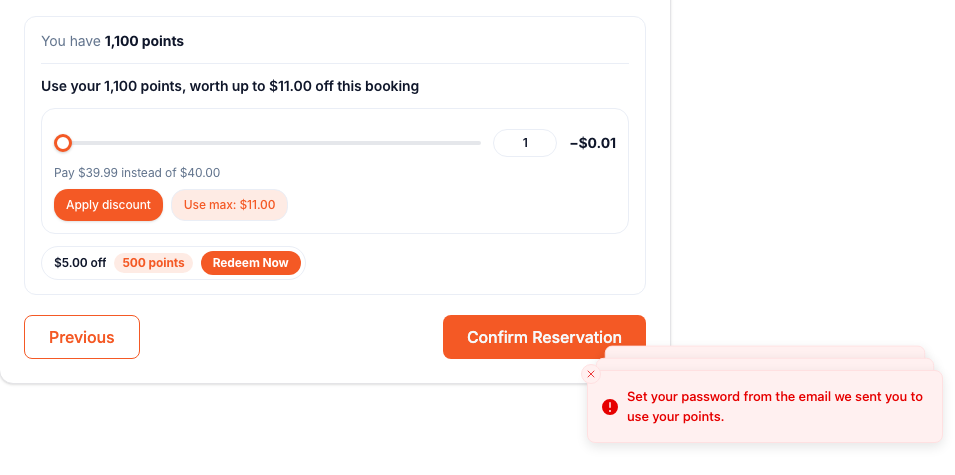
Note: An account made from a booking stays unverified until its owner sets a password from the “Account created” email. Anyone can type any email on the booking form, so the password proves the email really belongs to them. Until then, the account still collects points, but it cannot spend them and does not see other bookings made with that email. Auto-login does not change this. Customers who register with their own password are verified straight away.
Step 5: Add a reward guests can spend on a booking #
- Go to Pointics → Rewards and click Add Rewards Rule.
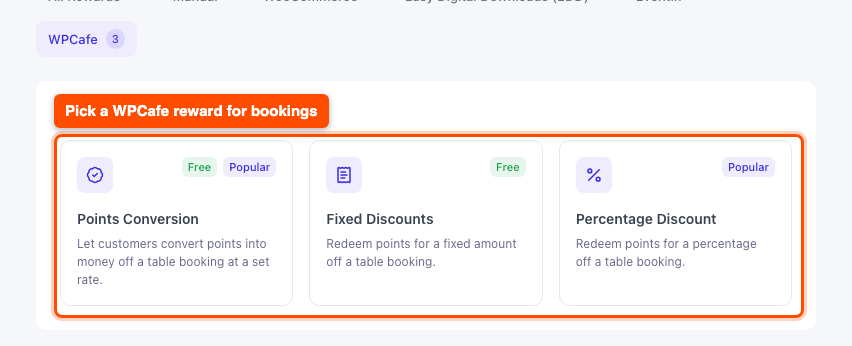
- Open the WPCafe tab and pick Points Conversion (a slider), Fixed Discounts (for example $5 off for 500 points) or Percentage Discount (Pointics Pro).
- Set the cost and value, then click Create Reward.
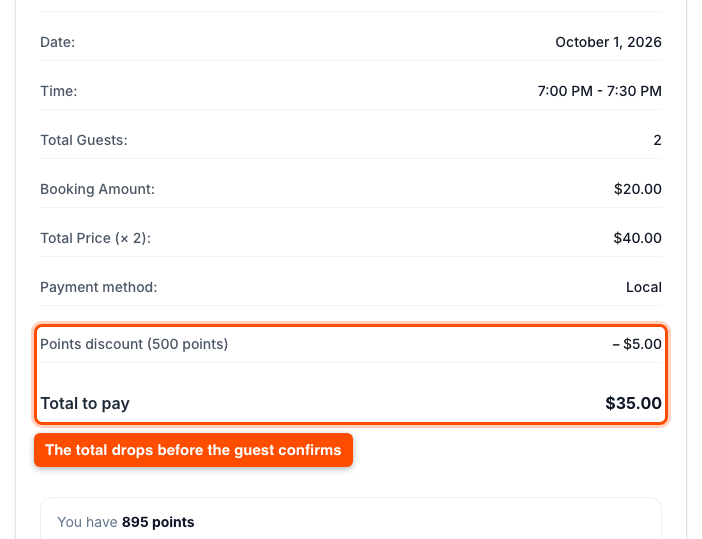
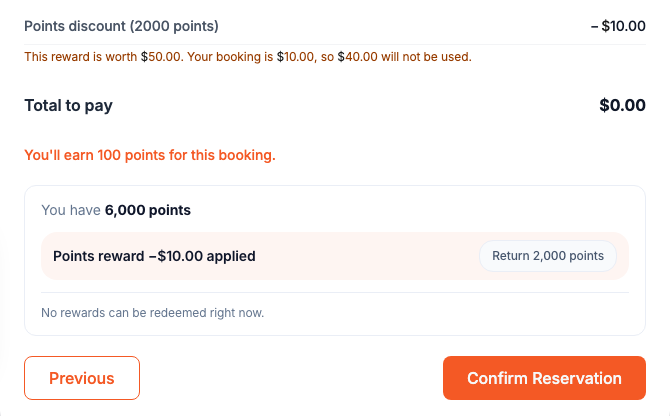
On the Reservation Summary, a signed-in guest clicks Redeem Now and the total drops before they confirm. This works for bookings paid at the restaurant, even without WooCommerce.
Good to know:
- Only a guest who has set their password can spend points (see the note in Step 4). The booking total must also be more than zero.
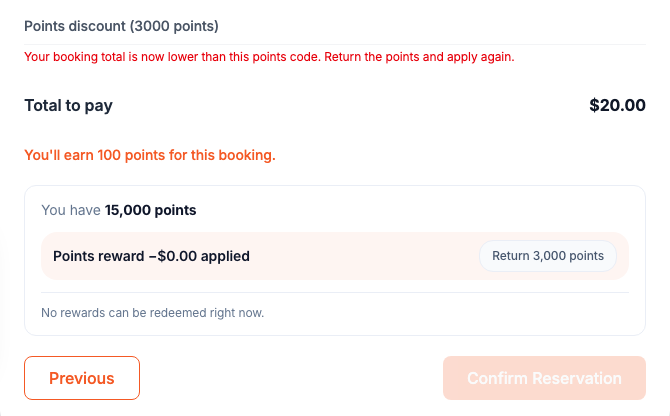
- Points Conversion: if the booking total drops below the converted amount (for example the guest picks fewer people or removes food), the summary says “Your booking total is now lower than this points code. Return the points and apply again.” Confirm stays disabled until the guest clicks Return points and applies again.
- Fixed Discounts: a reward worth more than the booking still works, like a WooCommerce coupon. A $50 reward on a $10 booking gives $10 off, and the remaining $40 is not used. The guest sees a short note about it before confirming.
- Cancelling: the points come back if the guest cancels before the table’s start time, or if staff cancel, refund or delete the booking. A guest who cancels after the start time does not get them back, because the meal was likely eaten on that discount.
Step 6: Reward guests who invite friends #
- Go to Pointics → Earning Rules, click Add Point Earning Rule, and open the Referrals tab.
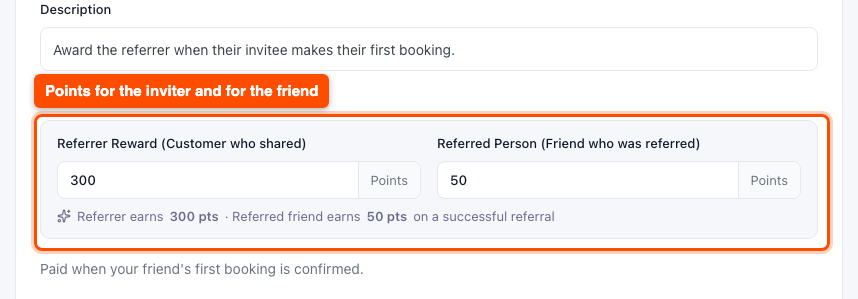
- Select Referral makes a reservation, set Referrer Reward and Referred Person, then click Publish.
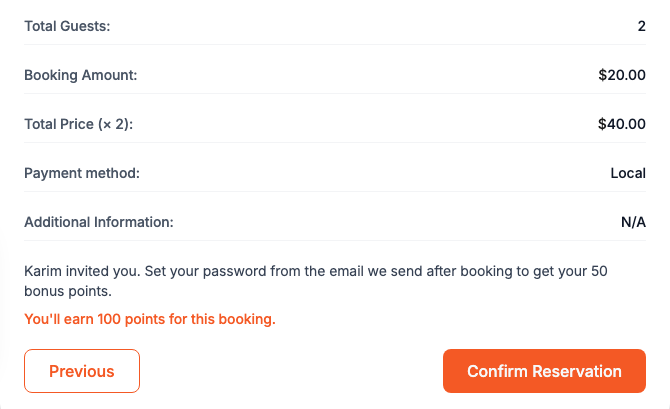
A friend who opens a share link to your booking page stays on the form, and the summary shows who invited them and their bonus. Each friend pays the inviter once, on their first booking.
- A friend who is signed in pays the inviter as soon as their booking earns points.
- A friend who books as a guest gets an account from the booking (Step 4). The invite is paid after they set their password from the email, not right after booking. Their summary tells them this. It also stops anyone paying themselves by using their own link with a second email.
- Staff can make a phone booking for a referred customer, and the invite still counts.
- If the friend’s booking is cancelled or deleted, the inviter’s points are taken back. The friend keeps their bonus.
Step 7: Show points on your food menus #
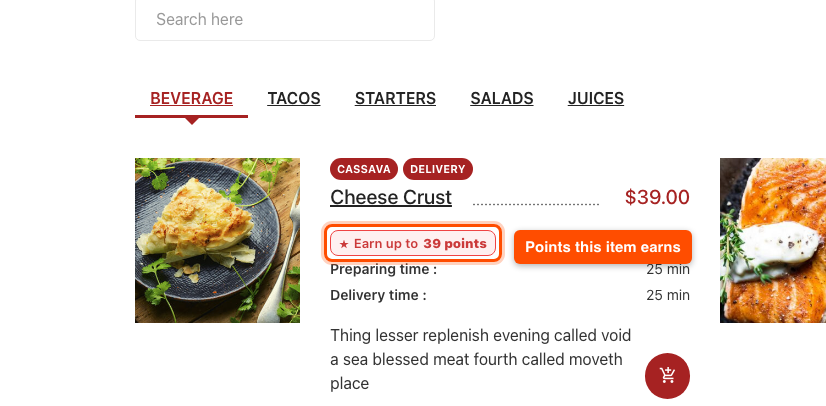
Set Show Points to Yes on your WP Cafe food menu shortcode, block, or Elementor widget. Signed-in customers see the points under each price, and guests see a link to sign in.
Frequently Asked Questions #
| Q: Why does a guest’s booking not earn points? The booking needs an account to hold points. Turn on “Use WordPress users as customers,” or ask the guest to sign in first. Then check that the booking’s status is in Award points on Booking Status under Pointics → Settings → WPCafe, and that the “Book a table” rule is active. |
| Q: Can a guest use a points reward when paying online? Yes, but online payments use the rewards from Pointics’ WooCommerce tab at checkout. WPCafe tab rewards apply only to bookings paid at the restaurant, and a booking that already has a WPCafe points discount cannot be switched to online payment afterwards. |
| Q: Why can’t a guest spend their points? Their account was made from a booking and is not verified yet. Ask them to set a password from the “Account created” email. Their points are safe in the meantime. |
| Q: A friend booked, so why did the inviter get no points? Usually the friend booked as a guest and has not set their password yet. The invite is paid as soon as they do. Also check that it is the friend’s first booking and that its status is in Award points on Booking Status. |
Conclusion #
The Pointics integration for WP Cafe rewards guests for booking and gives them a reason to come back. Start with the “Book a table” rule in Step 2, then add a WPCafe reward so the points have something to spend on.


