
The Directory gives your site a public, searchable list of your Eventin organizers and speakers. Each person gets a card and a profile that lists their upcoming and past events. You can also let organizers and speakers join from the front end: you approve each person, and they submit events from their own dashboard for you to review.
Prerequisites #
- Eventin and Eventin Pro — installed and active.
- The Eventin Directory Addon — installed and active. On activation it creates a Directory page for you.
What the directory includes #
- A public directory page with search and filters, and an Events by section on every profile.
- A Directory block and an
[eventin_directory]shortcode, so you can show the directory on any page. - Optional self sign-up: a Join page, a member Dashboard, and review of join requests and submitted events.
- A People screen under Eventin → Directory to show, hide or feature people in bulk.
Step 1 — Open the Directory settings #
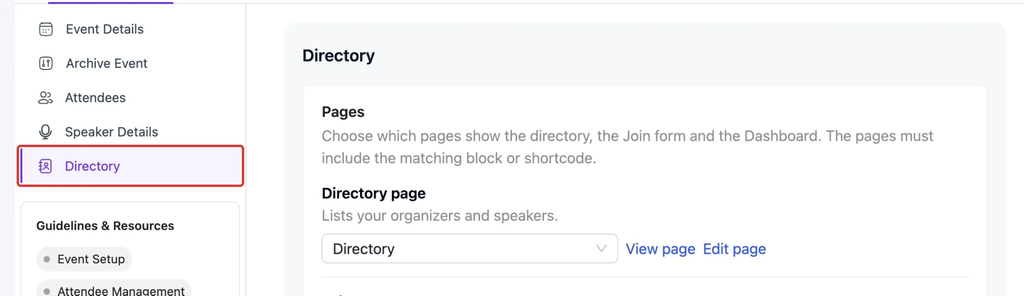
Go to Eventin → Settings → Event Settings → Directory. Everything the directory does is set up on this tab.
Step 2 — Choose who is listed #
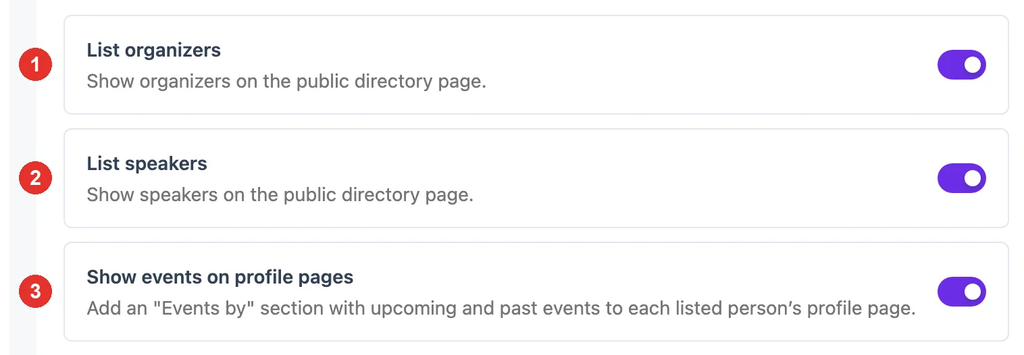
Three switches decide what appears on the public directory:
- List organizers — show organizers on the directory page.
- List speakers — show speakers on the directory page.
- Show events on profile pages — add an Events by section, with upcoming and past events, to each listed person’s profile.
Click Save Changes after you change a switch.
Step 3 — Pick the directory pages #
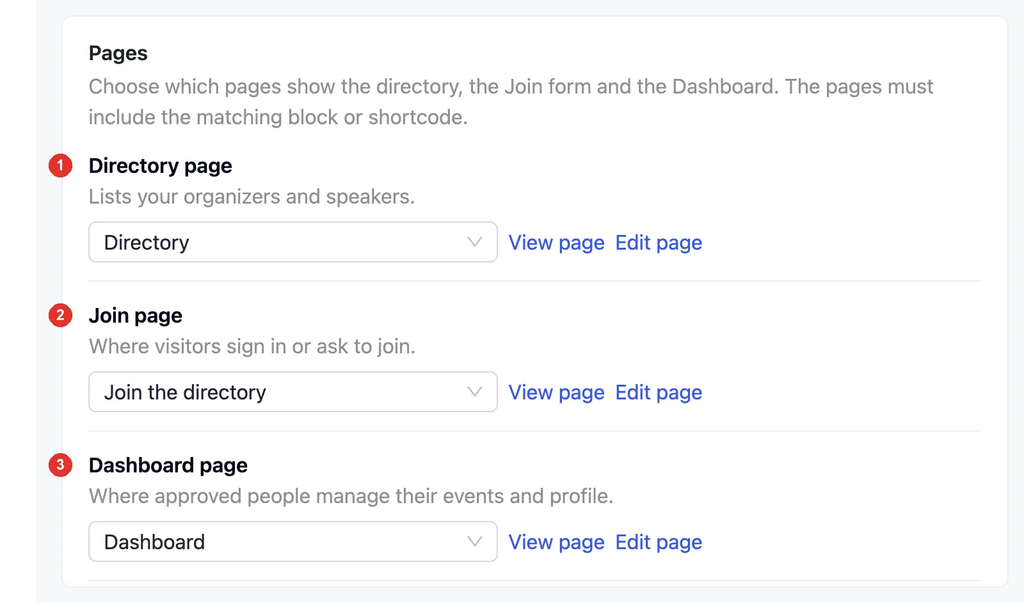
The Pages section lists the three pages the directory uses. Each one has a page picker plus View page and Edit page links.
- Directory page — lists your organizers and speakers.
- Join page — where visitors sign in or ask to join.
- Dashboard page — where approved people manage their events and profile.
To use one of your own pages, choose it in the picker; the change saves straight away. The page must contain the matching block or shortcode — the Directory block or [eventin_directory], [eventin_directory_join], or [eventin_directory_dashboard]. If it doesn’t, a yellow note tells you what to add. If a page was deleted, the row shows No page is set and a Create page button, which restores it from the trash or publishes a new one.
Step 4 — Set up each organizer and speaker #
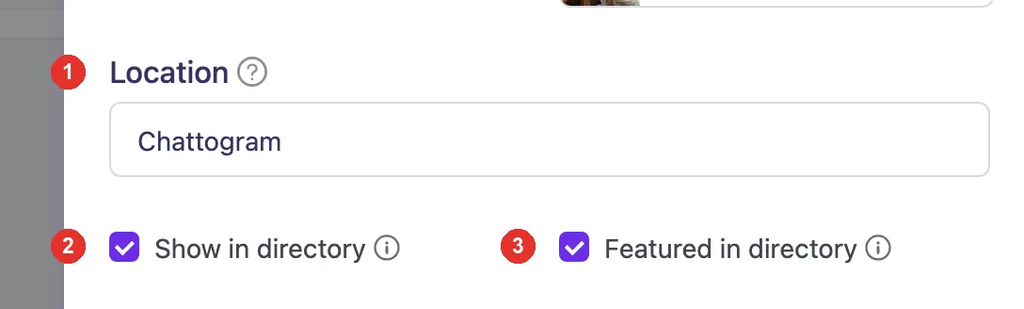
Open Eventin → Speaker & Organizer, and add or edit a person. The directory adds three fields to the form:
- Location — shown on the card and used by the location filter.
- Show in directory — untick it to keep this person off the directory and hide the events list on their profile.
- Featured in directory — featured people appear first, with a Featured label.
Hover the ⓘ icon next to a field to see its help text. New people are shown in the directory unless you untick Show in directory.
Step 5 — Check the public directory #
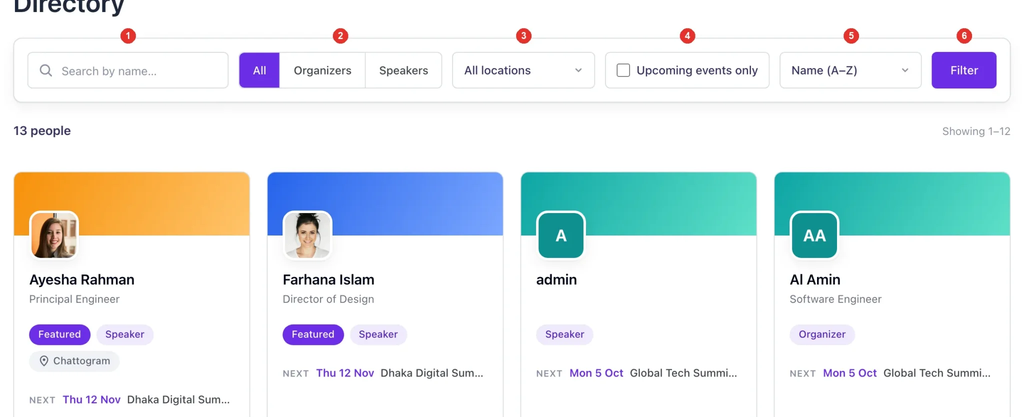
Open your Directory page to see it as visitors do. The filter bar at the top has:
- Search by name.
- All / Organizers / Speakers switch.
- Location filter.
- Upcoming events only — only people who have an upcoming event.
- Sort — Name (A–Z), Most events, or Next event.
- Filter — apply the choices.
If you use speaker categories, a Category filter appears too. Featured people always come first, whichever sort is chosen.
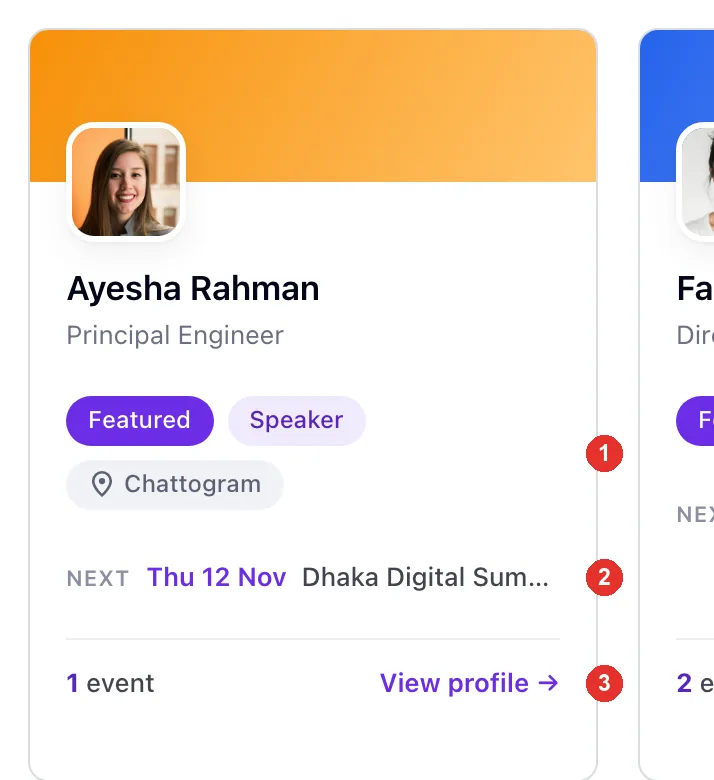
Each card shows the person’s photo, name and title, then:
- Their labels — Featured, Organizer or Speaker — and location.
- Their next event, with its date.
- How many events they have, and a View profile link.
Step 6 — See each person’s events on their profile #
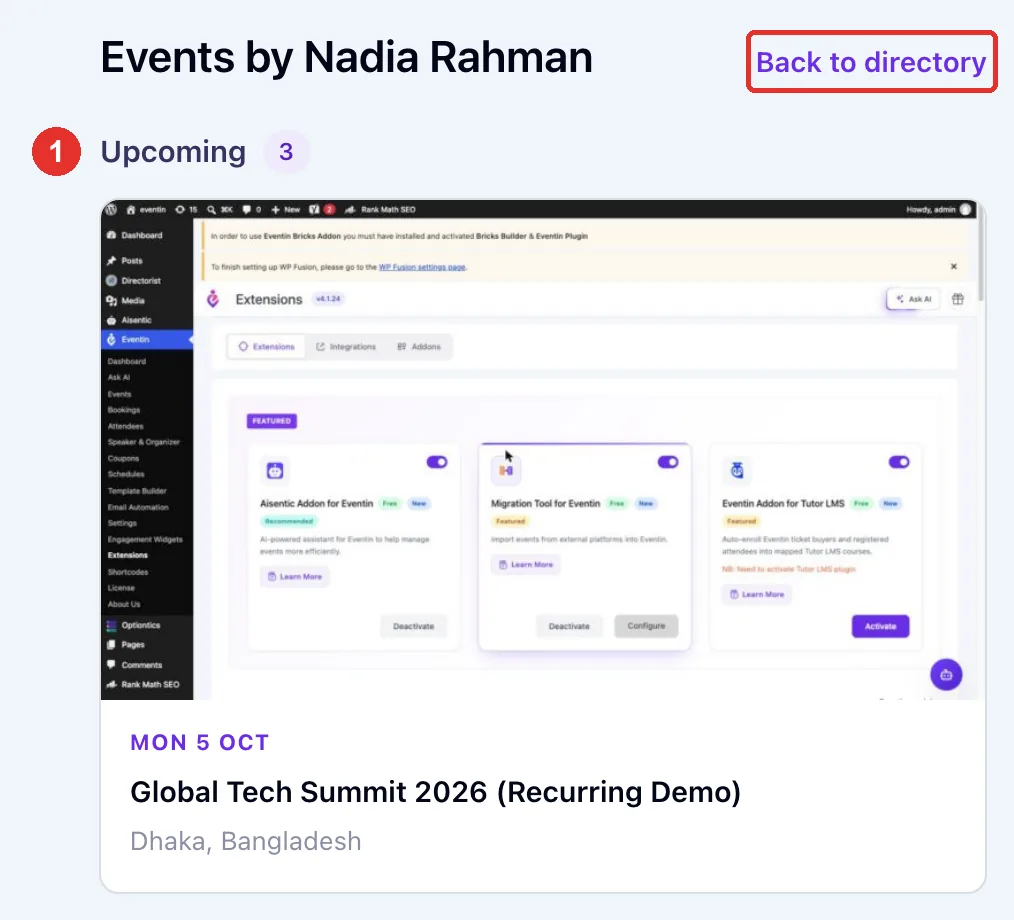
With Show events on profile pages turned on, each profile ends with an Events by section. It splits the person’s events into Upcoming and Past, and has a Back to directory link to your Directory page.
Step 7 — Show the directory on any page #
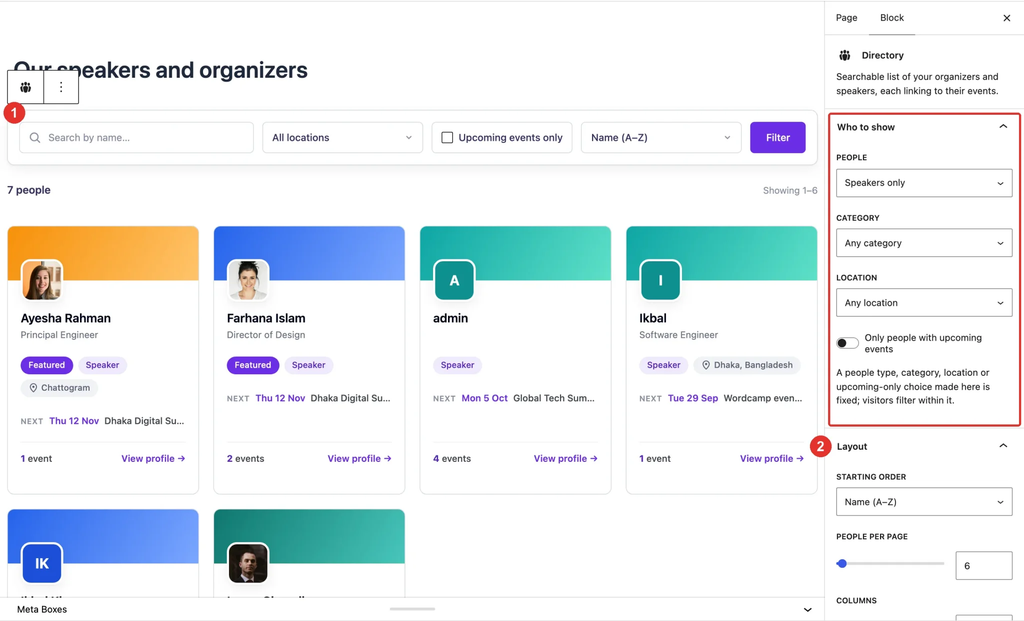
Add the Directory block to any page or post. In the block settings, Who to show lets you fix the people type, category or location, or show only people with upcoming events — visitors then filter within that choice. Layout sets the starting order, people per page, columns, and whether the filter bar shows.
Prefer a shortcode? Use [eventin_directory] with any of these options:
type— all, organizer or speaker.categoryandlocation— show only one category or place.upcoming="yes"— only people with upcoming events.sort— name, events or upcoming.per_pageandcolumns(1–6) — how many people, and how many per row.filters="no"— hide the filter bar.
For example: [eventin_directory type="speaker" upcoming="yes" columns="3"]. A type, category, location or upcoming choice set in the shortcode is fixed; the matching filter is hidden.
Step 8 — Let organizers and speakers join #
Back in Eventin → Settings → Event Settings → Directory, turn on:
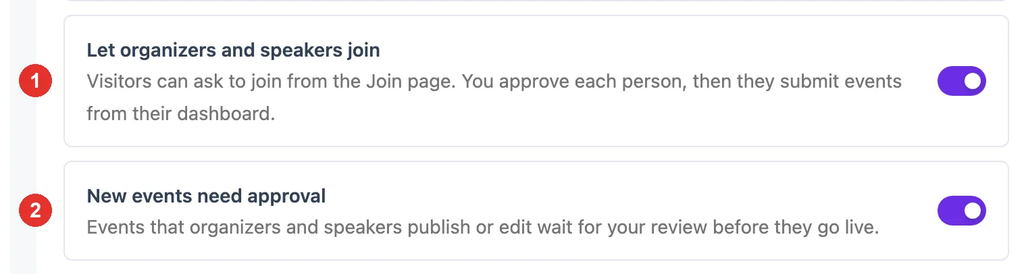
- Let organizers and speakers join — visitors can ask to join from the Join page. You approve each person, and they then submit events from their Dashboard.
- New events need approval — on by default. Events that members publish or edit wait for your review before they go live.
Click Save Changes. Eventin creates the Join and Dashboard pages the first time you turn joining on.
Step 9 — How visitors join #
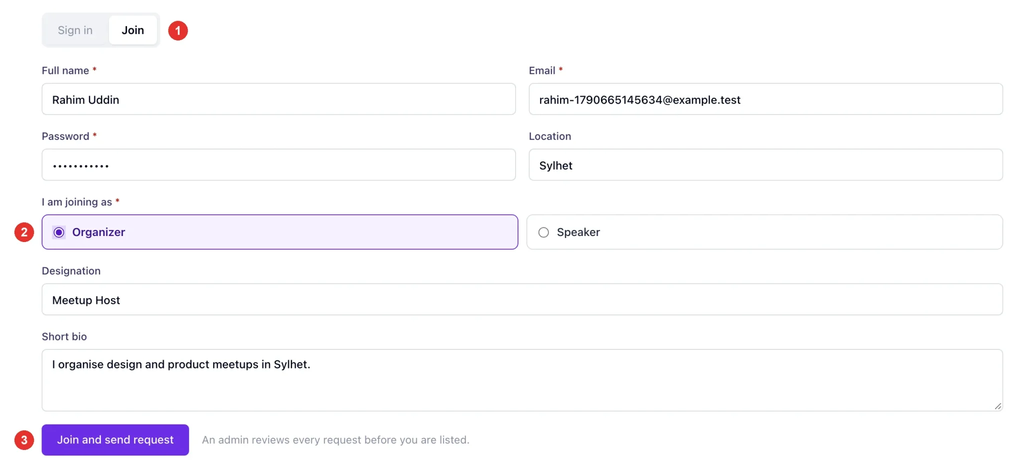
On the Join page, a visitor opens the Join tab, fills in their details, picks Organizer or Speaker, and clicks Join and send request.
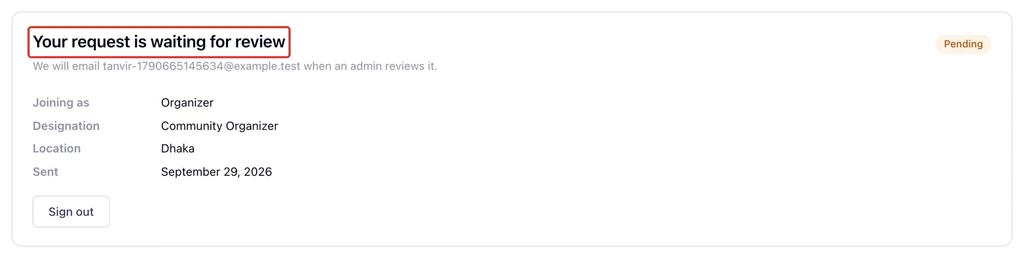
The request then waits for you. The visitor sees Your request is waiting for review and gets an email once you decide.
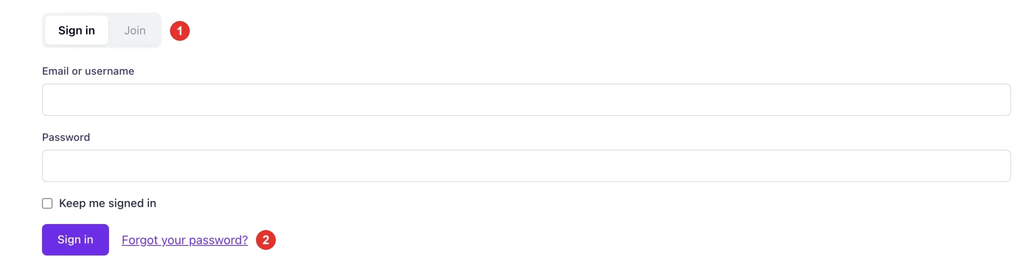
People who already have an account use the Sign in tab. Signed-in customers can apply with their existing account, without creating a new one.
Step 10 — Review join requests #
New requests show a count on Eventin → Directory in the WordPress menu.
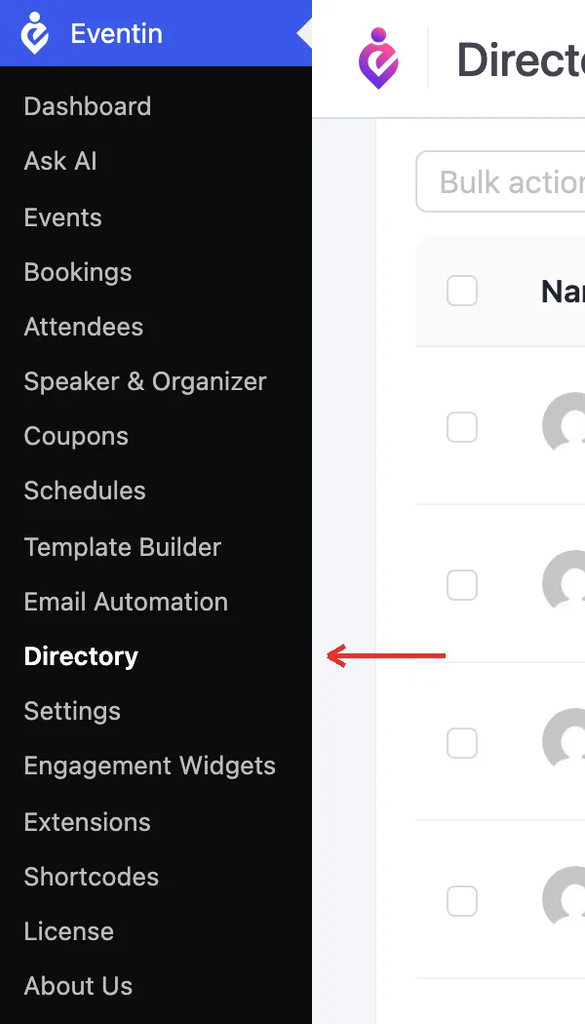
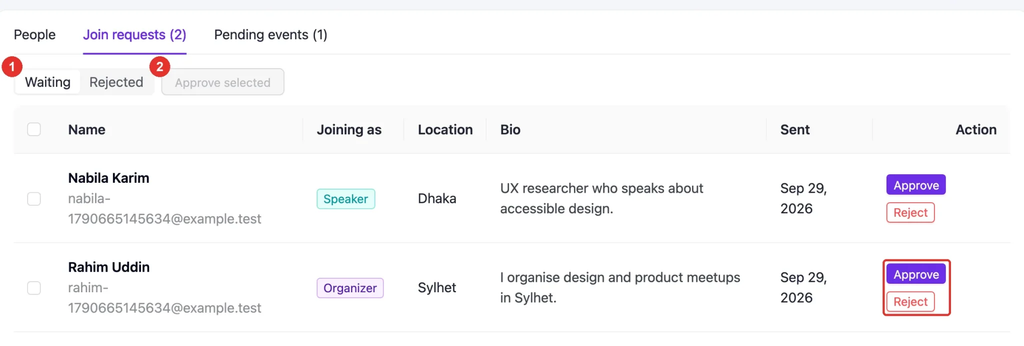
Open it and choose the Join requests tab. Use Waiting and Rejected to switch lists, tick several people and click Approve selected, or use Approve and Reject on a row.
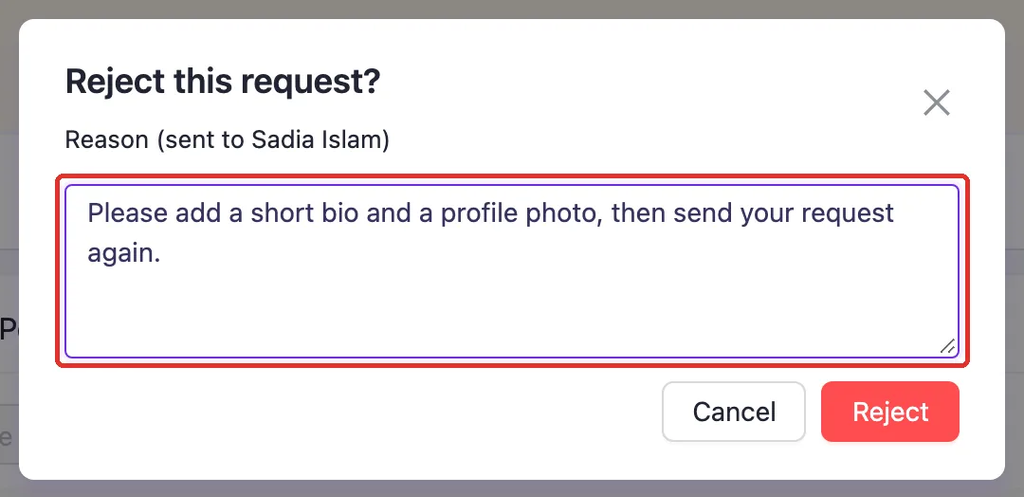
When you reject, type a reason — the Reject button stays off until you do. The person gets your reason by email and on the Join page, and can update their details and send the request again. A request rejected by mistake can still be approved from the Rejected list.
Step 11 — What approved members can do #
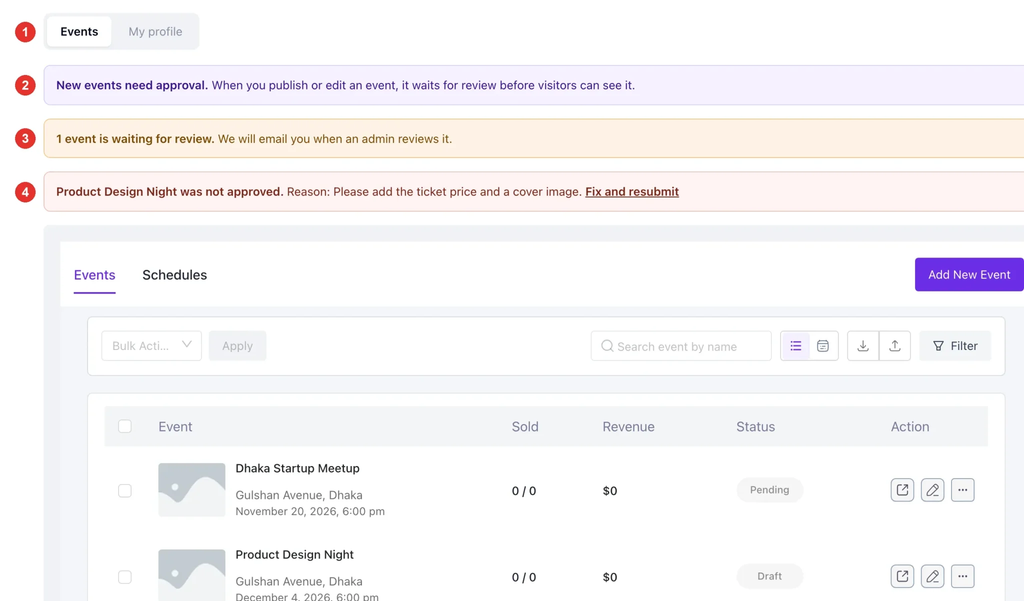
After approval, the person signs in and lands on the Dashboard page. It has two tabs:
- Events — Eventin Pro’s event manager, where they create and edit their own events and schedules.
- A note that new events need approval, when you have that switch on.
- How many of their events are waiting for review.
- Any event you sent back, with your reason and a Fix and resubmit link.
On the My profile tab, members update their name, designation, location, bio, photo and social links. Their directory card updates as soon as they save.
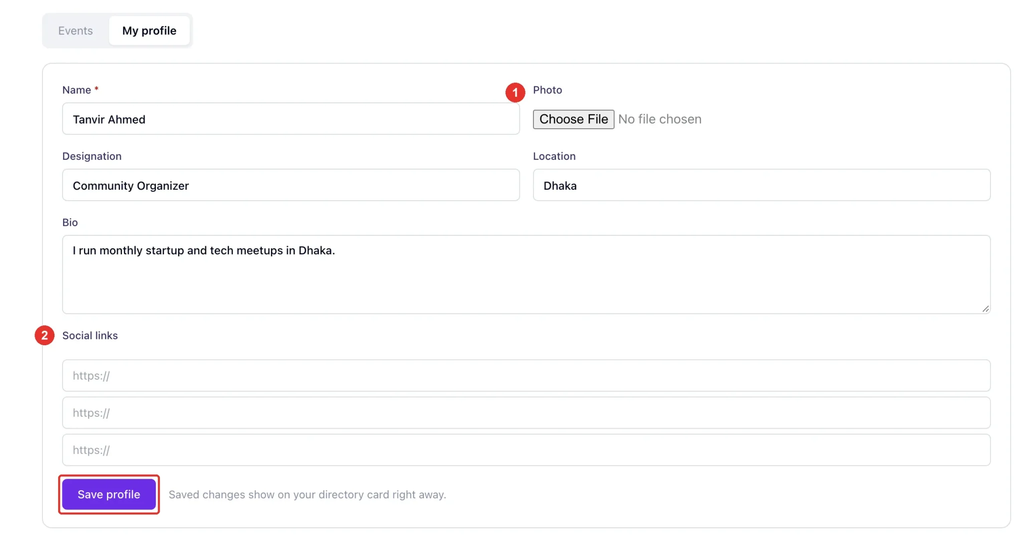
Members who joined this way can’t open wp-admin — they are sent to their Dashboard — and can’t publish posts or pages. They are linked to their own events automatically: organizers as the organizer, speakers as a speaker.
Step 12 — Review submitted events #
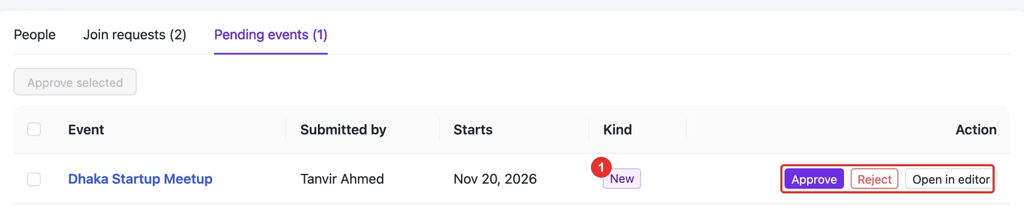
The Pending events tab lists events waiting for you. The Kind column shows New, or Edited for a live event the member changed. Editing a live event takes it offline until you approve it again.
- Approve — the event goes live and the member gets an email.
- Reject — the event goes back to the member as a draft, with your reason.
- Open in editor — check or fix the event in Eventin first.
A recurring event is reviewed as one item: approving it publishes every occurrence.
Step 13 — Manage who appears in the directory #
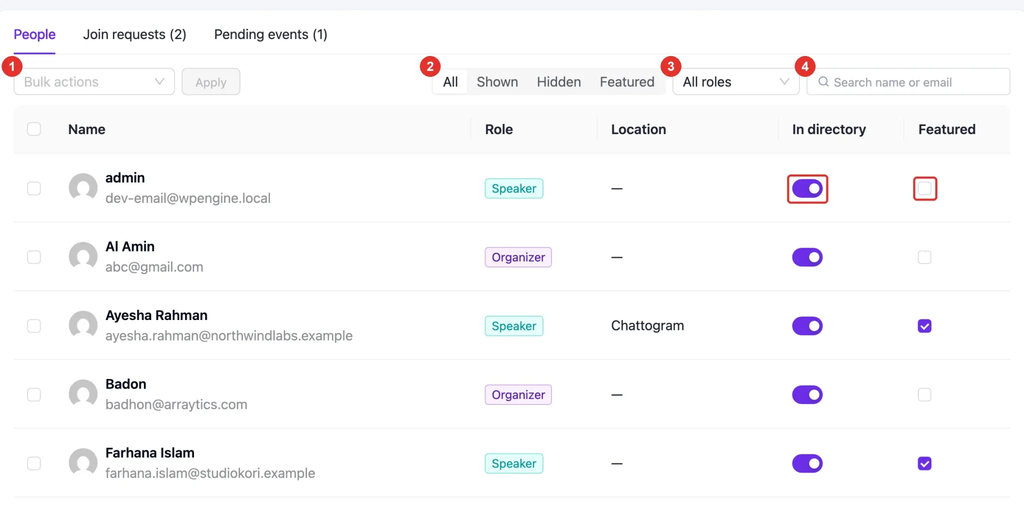
The People tab under Eventin → Directory lists every organizer and speaker in one place, whether or not joining is on.
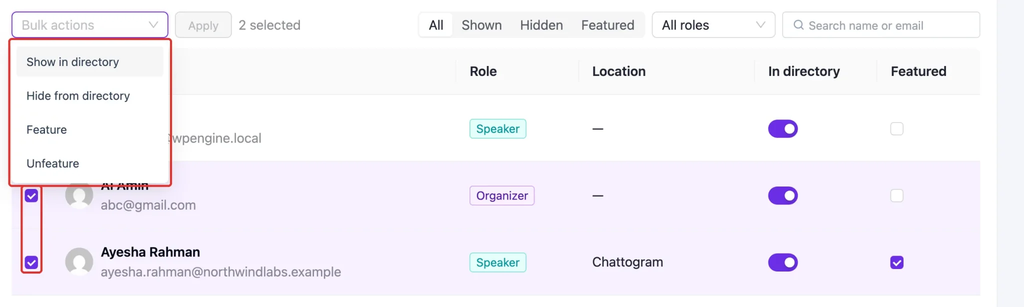
- Bulk actions — Show in directory, Hide from directory, Feature, or Unfeature, applied to the people you tick.
- All / Shown / Hidden / Featured — narrow the list.
- All roles — show only organizers or only speakers.
- Search — by name or email.
Each row also has an In directory switch and a Featured checkbox for quick changes to one person.
To change several people at once, tick them, choose an action from Bulk actions, and click Apply.
Step 14 — Choose which emails are sent #
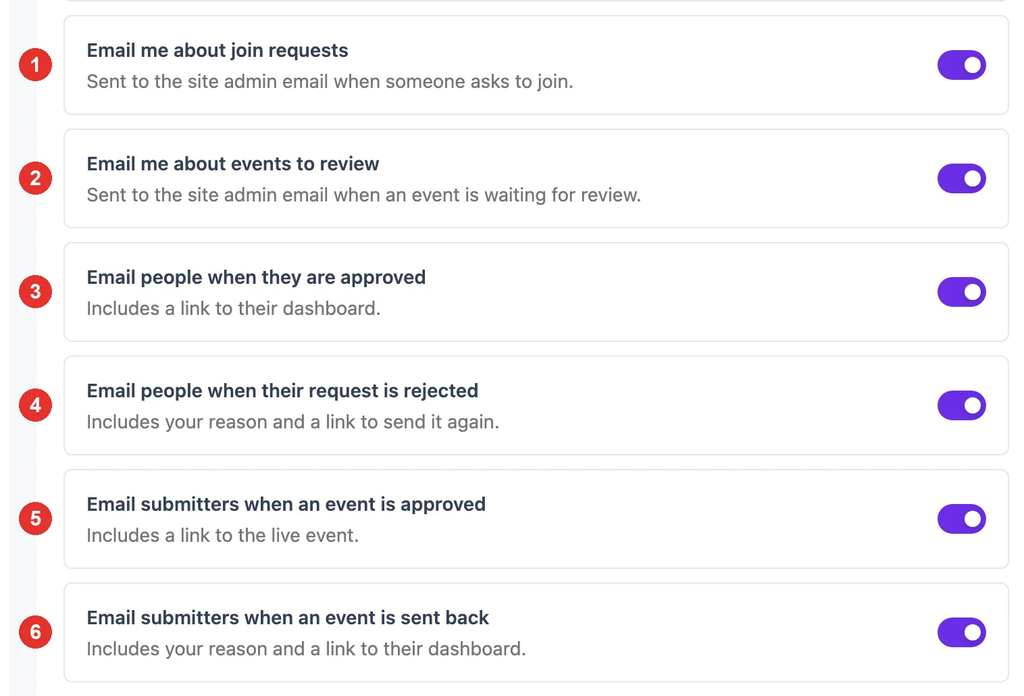
Six switches at the bottom of the Directory settings control the emails. All are on by default:
- Email me about join requests — to the site admin email when someone asks to join.
- Email me about events to review — to the site admin email when an event is waiting.
- Email people when they are approved — with a link to their Dashboard.
- Email people when their request is rejected — with your reason and a link to send it again.
- Email submitters when an event is approved — with a link to the live event.
- Email submitters when an event is sent back — with your reason and a link to their Dashboard.
How it behaves #
- Joining switched off later? The Join and Dashboard pages show nothing and the request tabs are hidden. Members keep their profiles, and they still can’t publish posts or pages.
- Your own edits aren’t held. When you publish or edit an event in wp-admin, it goes live straight away, even if a member owns it.
- Deactivating the addon unpublishes only the pages it created, so visitors never see a bare shortcode. Pages you chose yourself stay as they are, and everything comes back when you reactivate.
FAQs #
Q: Nobody shows up on my directory page. Why? #
A: Check that List organizers or List speakers is on under Eventin → Settings → Event Settings → Directory, and that the people have Show in directory ticked. The Hidden filter on the People tab shows anyone who is hidden.
Q: The Join page shows nothing. #
A: Turn on Let organizers and speakers join and click Save Changes. Also check that the Join page contains [eventin_directory_join] — the Pages section warns you if it doesn’t.
Q: Can I use my own page for the directory? #
A: Yes. Add the Directory block or [eventin_directory] to any page, then choose it as the Directory page in the Pages section. Links such as Back to directory, and the emails, follow your choice.
Q: I deleted the Directory page by mistake. How do I get it back? #
A: Open the Directory settings. The Directory page row shows No page is set — click Create page. It restores the page from the trash, or publishes a new one if it was deleted for good.
Q: Can my staff (editors or admins) join as a speaker? #
A: No — staff accounts can’t apply through the Join page, so they keep their full access. Add them as an organizer or speaker yourself under Eventin → Speaker & Organizer.
Q: A visitor says they can’t send the join form any more. #
A: To stop spam, the Join form accepts five requests per network per hour. After that it asks the visitor to try again later.
Q: Do events from organizers I added myself need approval too? #
A: Yes. With New events need approval on, events that any organizer or speaker publishes or edits wait for your review. Events you publish yourself go live straight away.
Conclusion #
Turn on the lists you want under Eventin → Settings → Event Settings → Directory, pick your pages, and mark each person’s location, visibility and featured status. If you open joining, the Join page, the member Dashboard and the Eventin → Directory screen take care of the rest. You approve people and events in one place, and curate who appears from the People tab.


