
Overview #
The MailPoet integration in WPCafe adds your reservation and food-order customers to your MailPoet email lists automatically. It is built for restaurant owners who run a newsletter and want every new booking or order to grow their subscriber list without manual export or copy-paste.
Collecting emails by hand is slow and easy to forget. This integration captures the customer’s name and email the moment a reservation or order goes through, then subscribes them to the MailPoet list you choose, so your follow-up emails and promotions reach real customers.
Requirements #
- WooCommerce active (required by WP Cafe for orders).
- WPCafe active. The MailPoet integration is free, no Pro license needed.
- MailPoet plugin installed and active.
- At least one MailPoet list to subscribe people to.
Step 1: Enable the MailPoet card #
Turn the integration on before you can configure it.
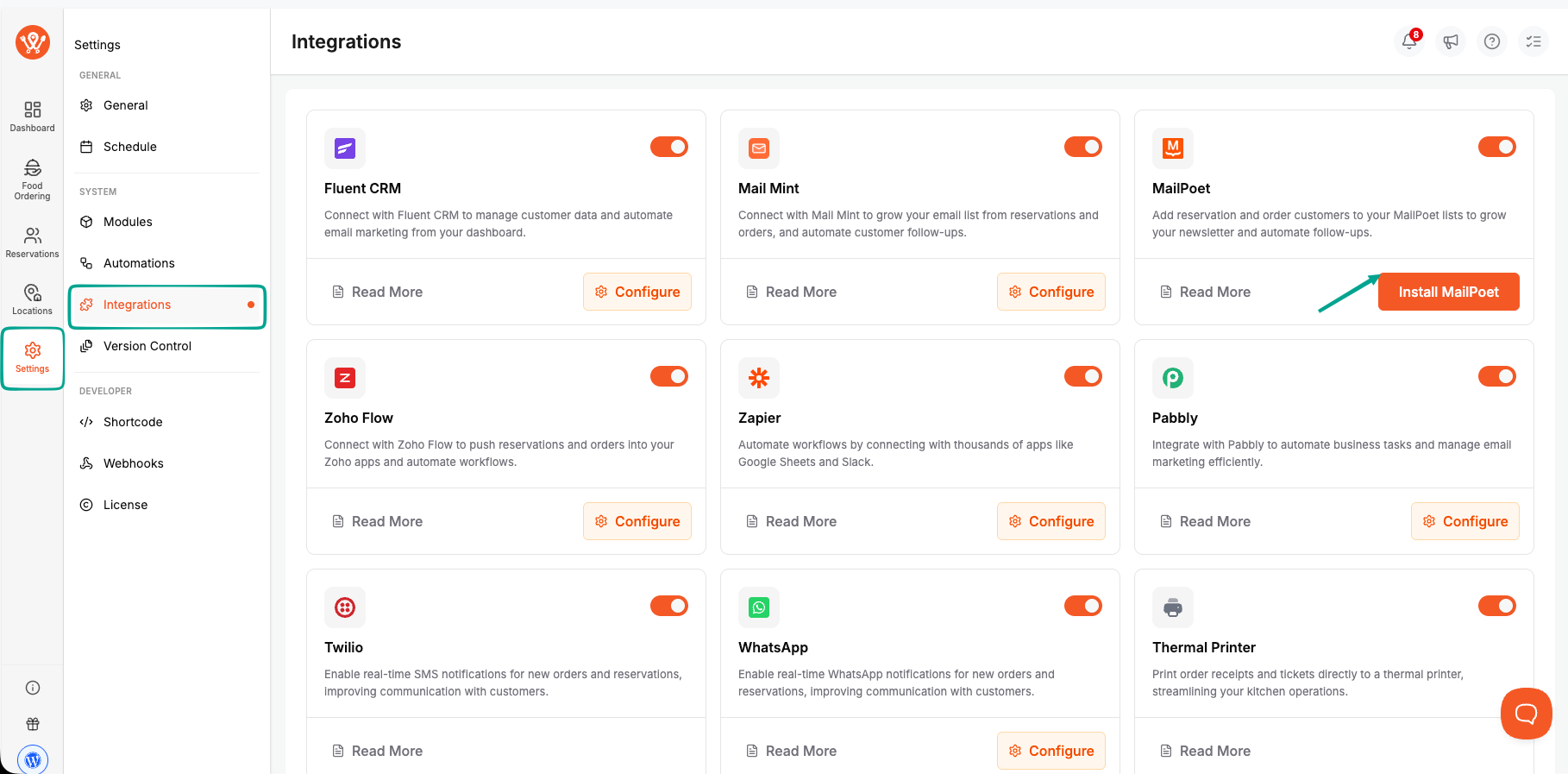
- Go to WP Cafe → Integrations in your WordPress admin.
- Find the MailPoet card.
- Click the toggle on the card so it switches on.
| Note: You must have the MailPoet WordPress plugin installed and active to use this integration. If you don’t have it yet, you can install it straight from here by clicking Install MailPoet on the card, then Activate MailPoet. The button advances through Install, Activate, then Configure on its own, with no reload needed. |
Step 2: Create a list in MailPoet #
If you don’t already have a list to add customers to, make one first. A list is just the group your subscribers belong to.
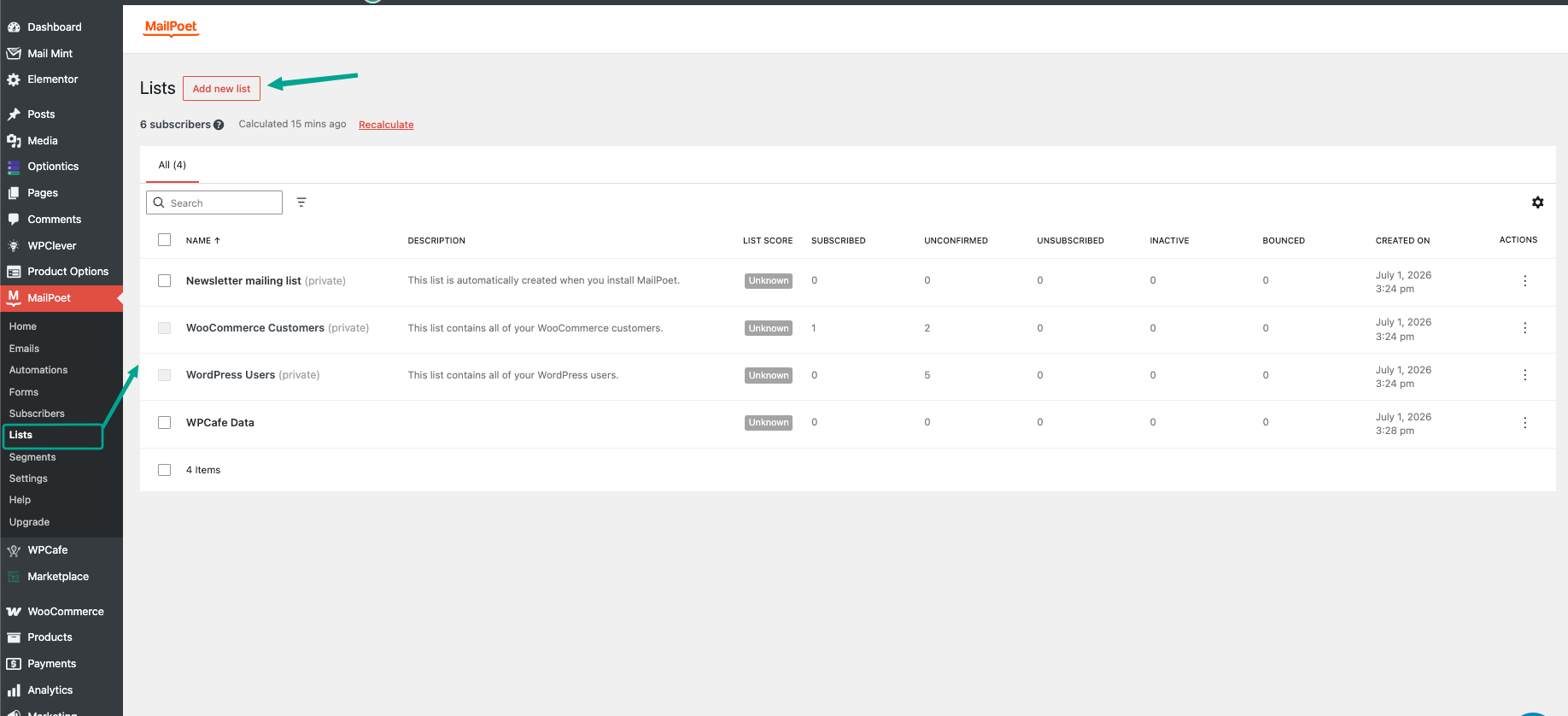
- Go to MailPoet → Lists in your WordPress admin.
- Click the Add New button.
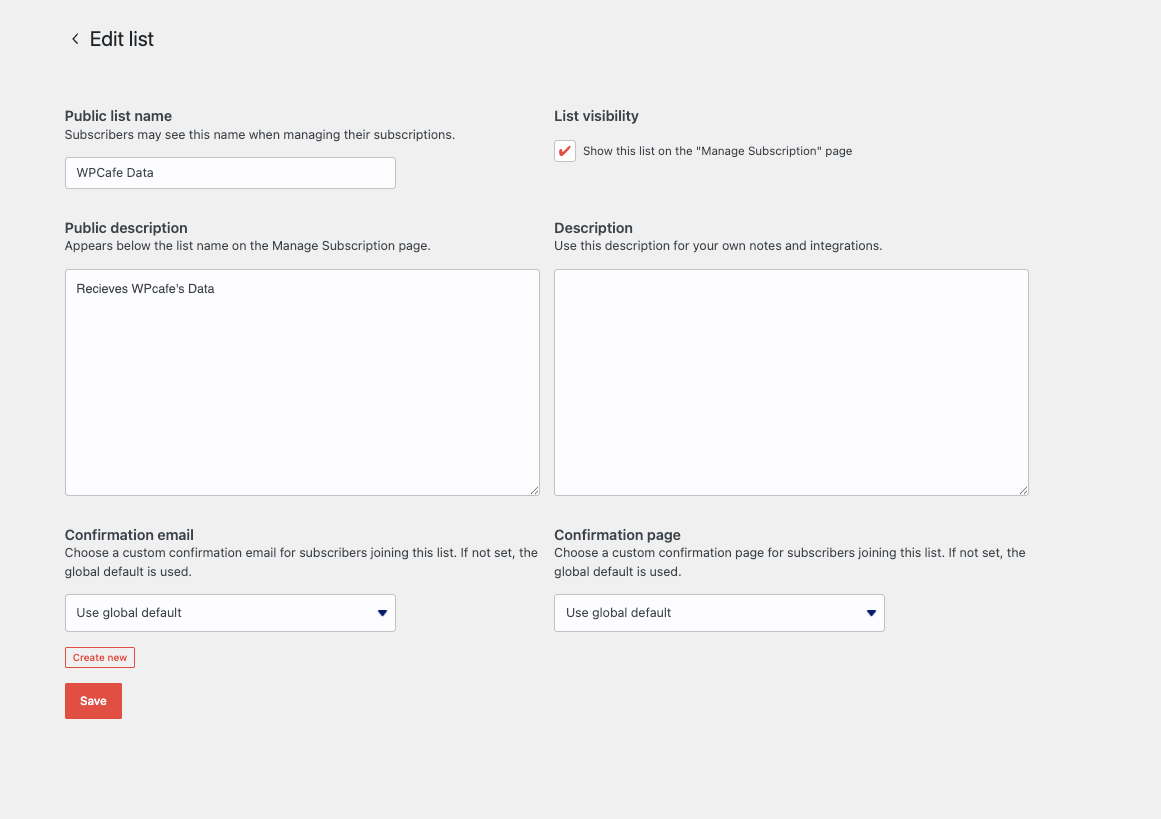
- Enter a name for the list, for example “Restaurant Customers”. This name is public, so use one that makes sense to your subscribers.
- Optionally, tick the box to show this list on the subscription management page so subscribers can manage it themselves.
- Click Save.
MailPoet also ships with a default “Newsletter mailing list” you can use if you’d rather not create your own.
Step 3: Choose your MailPoet lists #
Pick which list (or lists) new customers get added to.
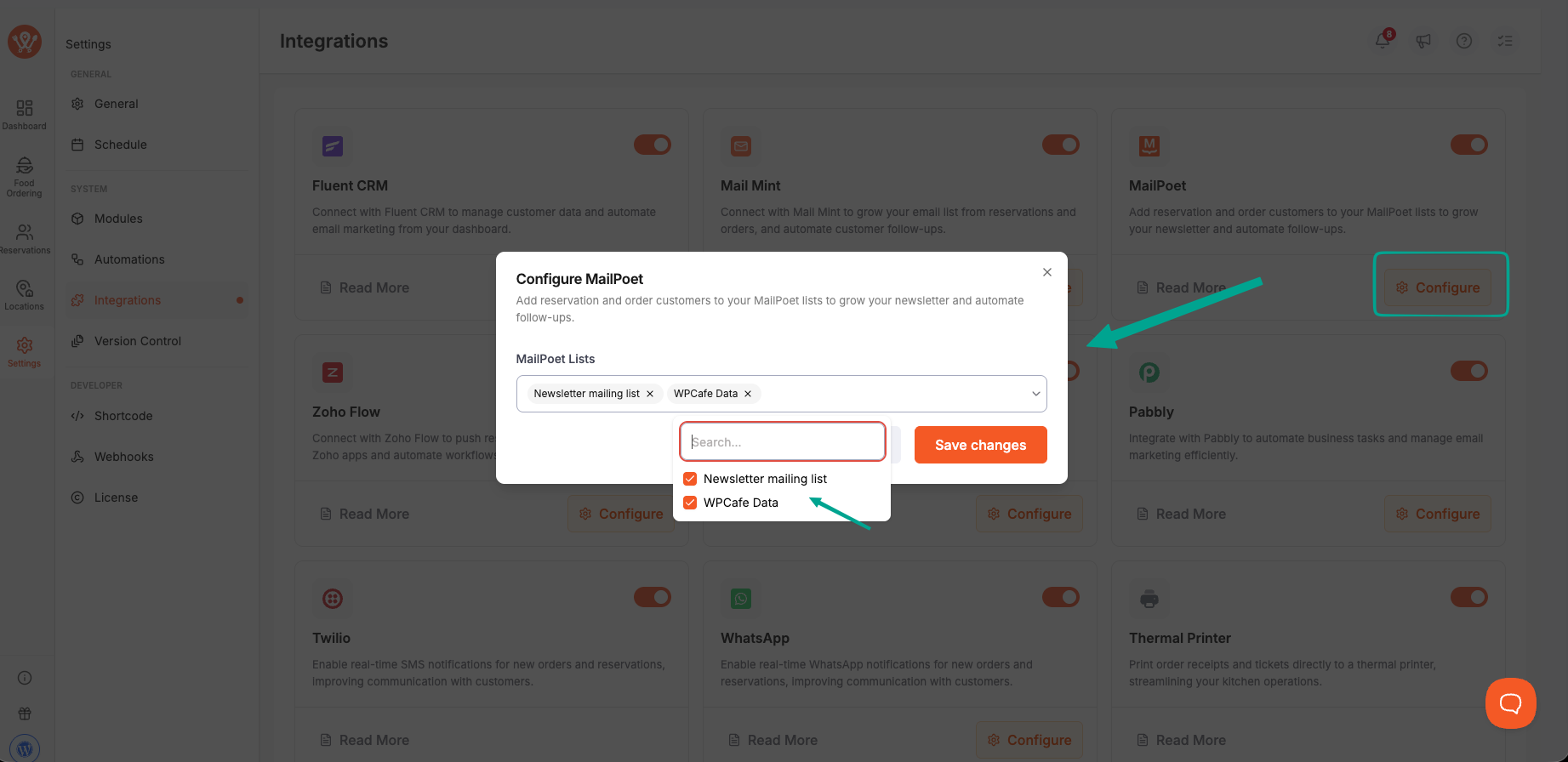
- Go back to WP Cafe → Integrations and click Configure on the MailPoet card.
- In the popup, open the MailPoet Lists dropdown.
- Select one or more lists. Each selected list shows as a chip you can remove.
- Click Save changes.
You can select several lists at once. Every new reservation and order customer is added to all of the lists you picked here.
Step 4: Confirm it works #
Test the flow end to end so you know customers are landing in MailPoet.
- Place a test food order, or create a test reservation, using an email address you control.
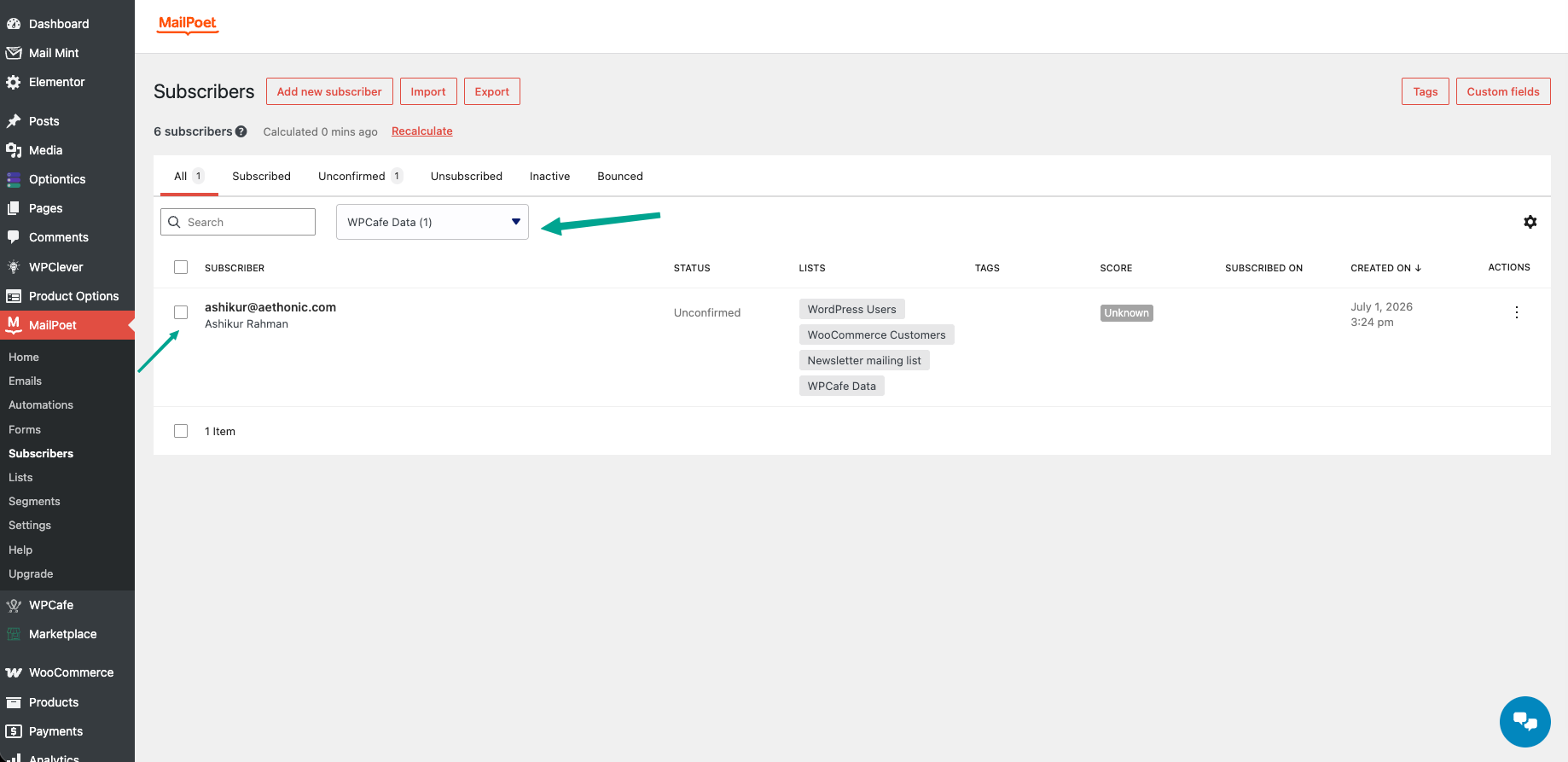
- Go to MailPoet → Subscribers in WordPress admin.
- Look for that email under the list you selected.
The customer’s name and email come from the reservation form or the WooCommerce order billing details. If MailPoet has double opt-in turned on, the new subscriber shows as “Unconfirmed” until they click the confirmation email. That is MailPoet’s own setting, not a WP Cafe one.
Frequently Asked Questions (FAQ) #
| Q1: I selected a list but no subscribers are showing up. What’s wrong? Check three things: the MailPoet card toggle is on, MailPoet itself is active, and you actually saved a list in the Configure popup. If a customer’s order has no email, they are skipped. Also confirm you are looking at the same list you selected. |
| Q2: Does it add customers from both reservations and orders? Yes. Both are covered. A new reservation subscribes the person using the name and email on the reservation form. A new WooCommerce order subscribes them using the billing name and email. Both go to the same list or lists you chose in the Configure popup. |
| Q3: If the same person orders twice, do they get added twice? No. If the email already exists in MailPoet, WP Cafe re-subscribes that existing record to your chosen lists instead of creating a duplicate. The subscriber’s status is left to MailPoet’s own opt-in setting, so WP Cafe never forces or overrides it. |
Conclusion #
The MailPoet integration keeps your email lists growing from real restaurant activity, no manual export needed. Enable the MailPoet card in WP Cafe → Integrations, create or pick your lists, and your next reservation or order lands in MailPoet automatically.


