
Eventin seamlessly integrates with WPML, allowing you to create multilingual events without duplicating your event data. Once WPML is activated, Eventin automatically configures the required translation settings, so you only need to translate the event content, such as the title and description. Tickets, dates, prices, seat availability, and other event details remain synchronized across all languages, ensuring centralized order and inventory management.
Prerequisites #
Before you begin, make sure you have:
- Eventin installed and activated.
- WPML (Multilingual CMS) installed and activated.
- At least two languages configured under WPML → Languages.
- At least one published event.
Note: The WPML String Translation add-on is optional and is only required for translating interface text.
How the Eventin & WPML integration works #
Eventin includes built-in WPML configuration, so no manual setup is required.
After activating WPML:
- Events and Schedules are automatically configured as Translatable.
- Attendees and Ticket Templates remain Not Translatable to prevent duplicate attendee records and ticket data.
- These settings are managed by Eventin and appear as locked in WPML → Settings → Post Types Translation, preventing accidental changes.
Simply activate WPML, configure your site languages, and start translating your events.
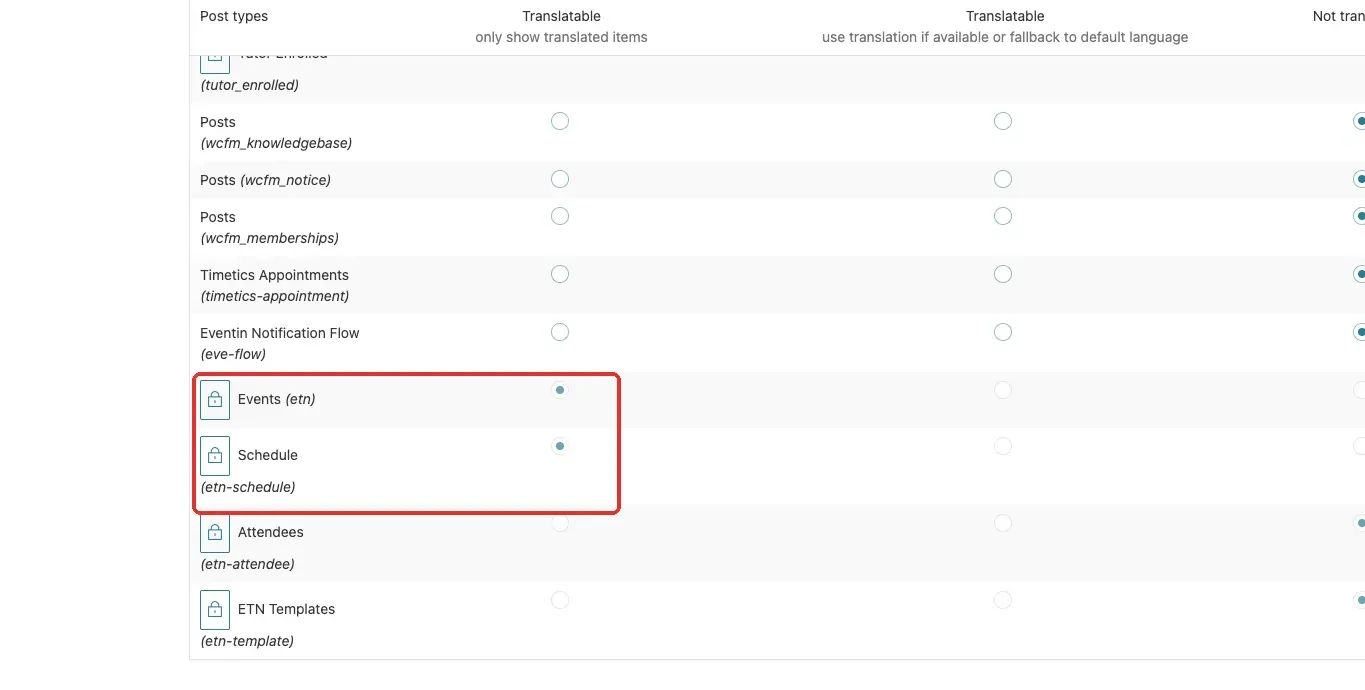
You never have to configure this yourself. The lock icon means the setting comes from Eventin and can’t be changed by mistake.
Step 1 — Install WPML and add your languages #
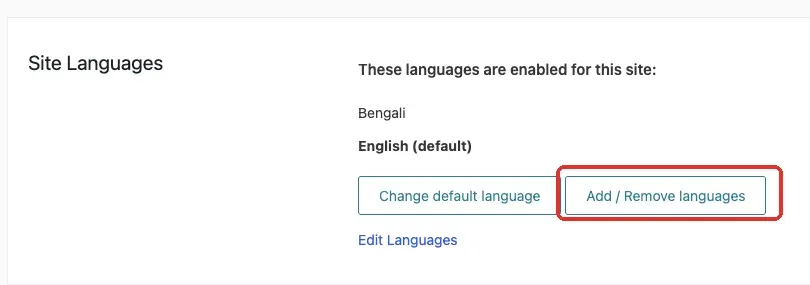
Install and activate WPML (Multilingual CMS) like any other plugin, then go to WPML → Languages. Set your default (original) language and add every language you want to offer. In the example below the site runs English (default) and Bengali.
Step 2 — Open the event and create a translation #
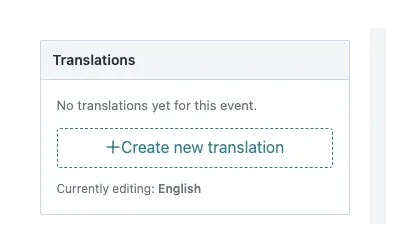
Open the event you want to translate. In the editor sidebar, you’ll find a Translations box that shows Currently editing: English (your default language). Click + Create new translation to start translating the event into your other language.
Translating a lot of events at once? Use WPML → Translation Dashboard instead: filter by the Events content type, tick the events you want, choose the target language, and click Translate. It opens the same editor covered next.
Step 3 — Translate the title and description #
WPML opens its Translation Editor. Translate the Title and the Description into the new language. Everything else — dates, times, tickets, prices, seats, venue, speakers, and layout — is copied from the original automatically, so there is nothing else to fill in. Tick “Translation is complete” and click Save & Close.

Repeat for each language. That is the whole job: you translate the words, and Eventin keeps the data.
What gets translated, and what stays the same #
To keep your ticket stock, prices, and orders consistent across languages, Eventin translates the text and shares everything operational. Here’s the split:
- Translated per language: the event title and description, and — if you want — the schedule’s session titles, FAQ items, and category/tag names.
- Shared automatically across every language: dates and times, tickets and prices, available and sold seats, venue and location, online-meeting links, speakers and organizers, and the banner and layout.
Ticket type names (for example VIP or General) stay the same in every language on purpose — Eventin uses the name to match orders and seats, so translating it would break checkout.
How it behaves on your site #
- Visitors pick their language from your WPML language switcher and see the event in that language.
- A visitor can buy from any language’s event page; the sale, the seat count, and the attendee always attach to the original event, so your stock and reports stay in one place.
- Order-confirmation and ticket emails are always sent in your site’s default language.
- Recurring event occurrences inherit from the translated parent event.
Frequently Asked Questions #
Q1: Do I need to re-enter dates, tickets, and prices for each language?
A: No. Eventin automatically copies and synchronizes dates, tickets, prices, and seat availability across all translated events. You only need to translate the event title and description.
Q2: Where can I enable Event translation in WPML?
A: You don’t need to configure it manually. Eventin automatically sets Events and Schedules as Translatable and locks these settings under WPML → Settings → Post Types Translation.
Q3: Why can’t I translate ticket names?
A: Ticket names (such as VIP or General) remain the same across all languages. Eventin uses these names to manage ticket orders and seat availability, ensuring the checkout process works correctly.
Q4: Where are orders recorded when customers purchase from a translated event?
A: Regardless of the language used during checkout, all orders, attendees, and seat counts are recorded against the original event. This keeps your inventory and reports centralized.
Q5: What language are order confirmation and ticket emails sent in?
A: Order confirmation and ticket emails are always sent in your site’s default language.
Q6: Are speakers and organizers translated?
A: No. Speakers and organizers are shared across all language versions of an event, so their profile information remains the same.
Q7: Which WPML translation editor does Eventin support?
A: Eventin supports both the WPML Classic Translation Editor and the Advanced Translation Editor. You can use whichever editor is enabled on your website.
Conclusion #
With WPML active, Eventin does the heavy lifting: your events and schedules are already set up to translate, all the operational data copies to every language, and every sale lands on the original event. Add your languages, translate each event’s title and description, and your attendees can browse and book in their own language while you manage one single set of tickets, stock, and reports.


