
- What Is It?
- Why Do You Need It?
- Prerequisites
- Step-by-Step Instructions
- Step 1: Check the Integration Is Active
- Step 2: Create the Earning Rule
- Step 3: Set the Points
- Step 4: Choose Which Booking Statuses Give Points
- Step 5: Add a Booking Reward
- Step 6: What the Customer Sees on a Service
- Step 7: Points in the Booking Summary
- Step 8: Spending Points on the Booking
- Step 9: The Discount Is Applied
- Step 10: Points on the Confirmation
- Step 11: Complete or Cancel an Appointment
- Step 12: Referrals (Pro)
- Step 13: Limit a Rule with Booktics Conditions (Pro)
- Step 14: Level Discounts (Pro)
- Limitations
- Troubleshooting
- FAQ
What Is It? #
The Booktics integration lets Pointics give customers points when they book an appointment. Customers see what a service earns on the booking form, spend points for a discount on the booking, and see their points on the booking confirmation. Cancelling a booking takes the earned points back and returns any points spent on it.
Why Do You Need It? #
- More repeat bookings: Customers come back to spend the points from their last visit.
- Clear value up front: Every service card and the booking summary show the points before the customer books.
- More new customers: With Pro, customers earn when a friend they invite completes a first appointment.
Prerequisites #
- Booktics 1.0.33 or later, installed and active (Booktics Pro is not needed)
- Pointics installed and active, with Pointics → Settings → General → Enable/Disable Loyalty Program turned on
- Pointics Pro only for the Percentage Discount reward, the Referral completes an appointment rule, level discounts and the Booktics conditions
Step-by-Step Instructions #
Step 1: Check the Integration Is Active #
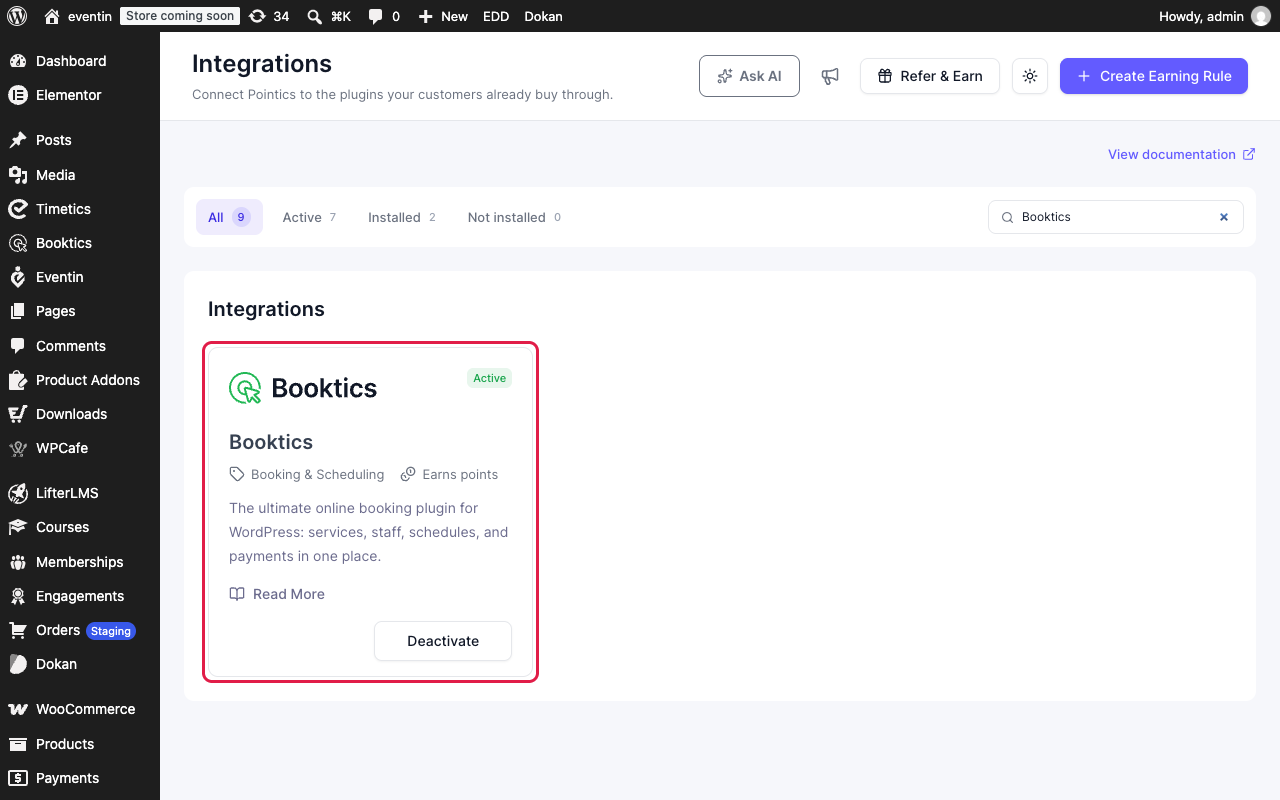
Go to Pointics → Integrations and search for Booktics. The card shows Active once Booktics is running. If it shows Inactive, activate Booktics first.
Step 2: Create the Earning Rule #
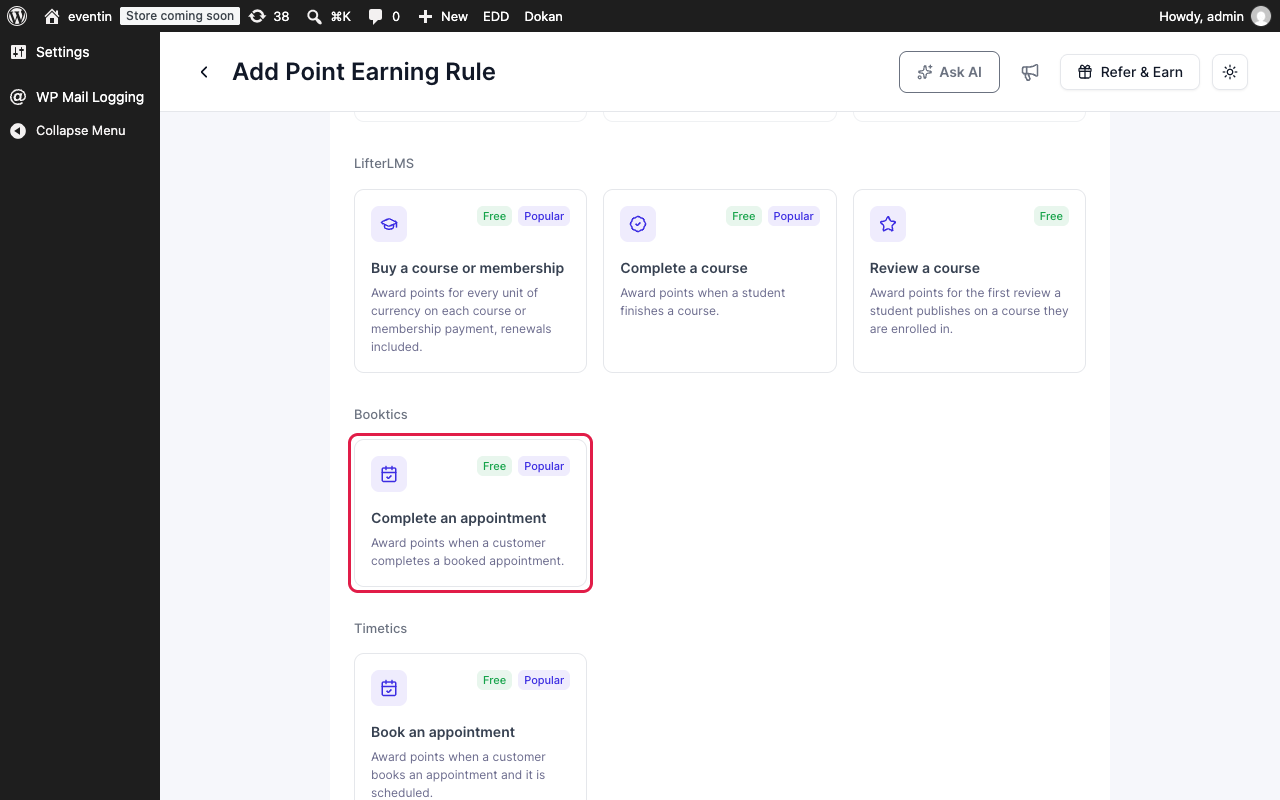
Go to Pointics → Earning Rules, click Create Earning Rule, and pick Complete an appointment in the Booktics section.
Step 3: Set the Points #
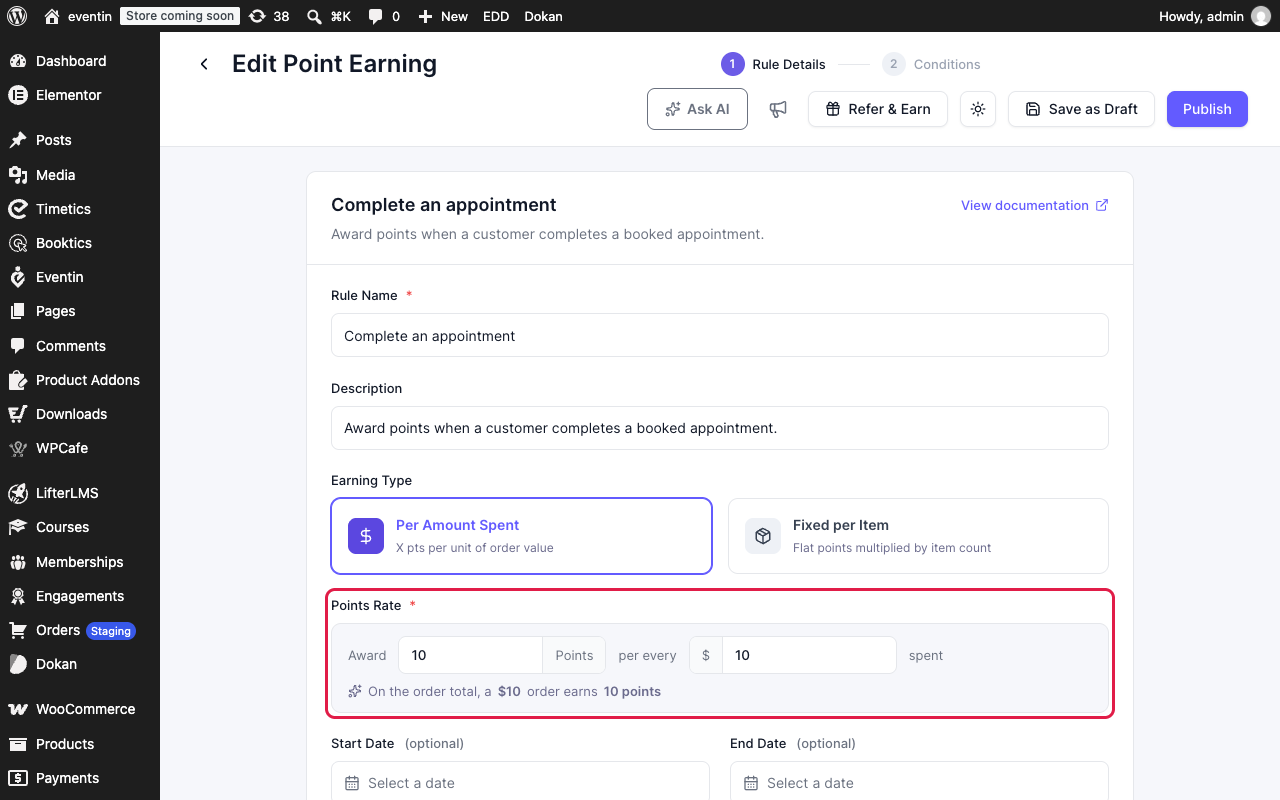
Pick an Earning Type:
- Per Amount Spent: set Award points per every amount spent. For example, 10 points per $10 gives 90 points on a $90 booking.
- Fixed per Item: a flat number of points for each booking, whatever the price.
Points are counted on what the customer actually pays, after any points or level discount. Optional: a Start Date and End Date, and the Customer Action Link (by default Book Now, pointing to your services page). Click Publish.
Step 4: Choose Which Booking Statuses Give Points #
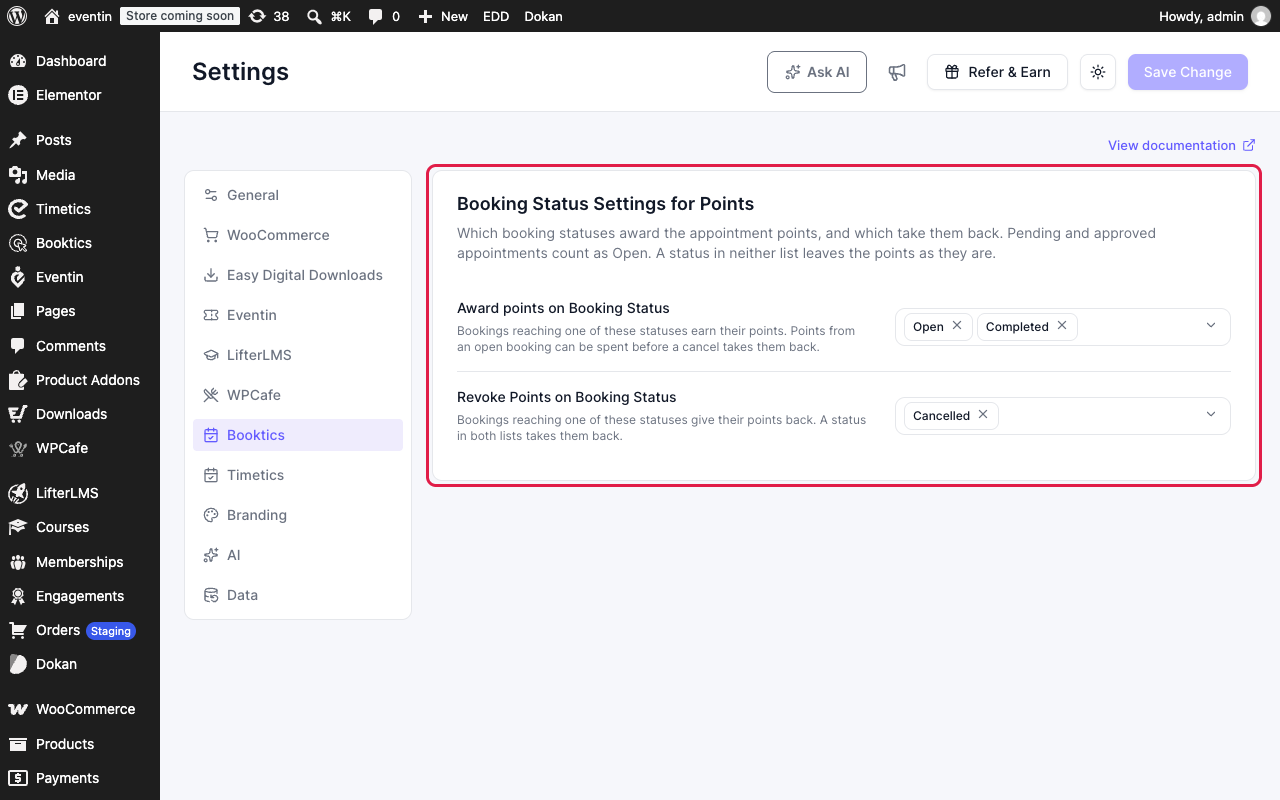
Go to Pointics → Settings → Booktics.
| Field | What It Does | Default |
|---|---|---|
| Award points on Booking Status | A booking that reaches one of these statuses earns its points, once | Open, Completed |
| Revoke Points on Booking Status | A booking that reaches one of these statuses gives its points back | Cancelled |
Pending and Approved appointments count as Open. A status in both lists takes the points back, and a status in neither leaves them as they are. To pay only after the visit, remove Open from the first list. Click Save Change.
Step 5: Add a Booking Reward #
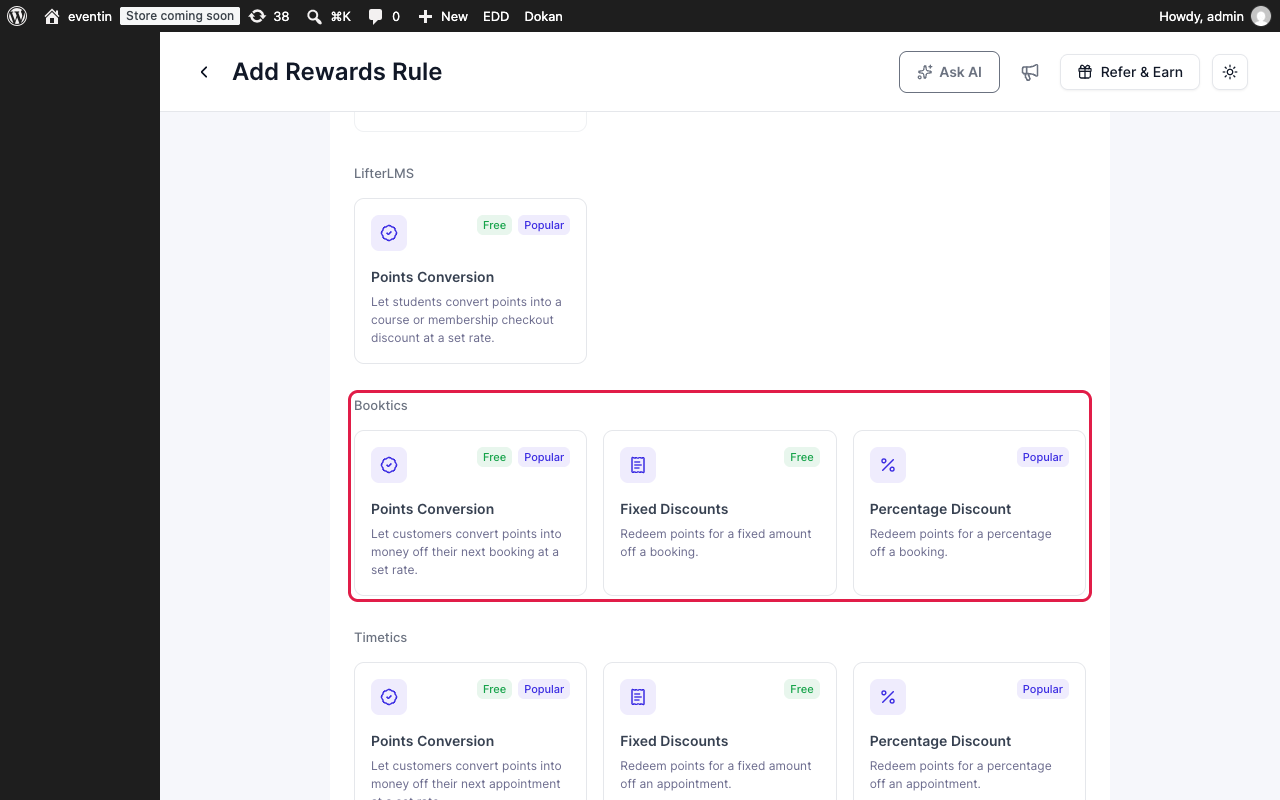
Go to Pointics → Rewards, add a reward, and pick one under Booktics:
| Reward | What the Customer Gets |
|---|---|
| Points Conversion | Money off the booking at a set rate, for example 100 points for $1 |
| Fixed Discounts | A fixed amount off, for example 200 points for $10 |
| Percentage Discount (Pro) | A percentage off the booking |
Set the Point Cost and value, plus an optional minimum booking total, then click Publish.
Step 6: What the Customer Sees on a Service #
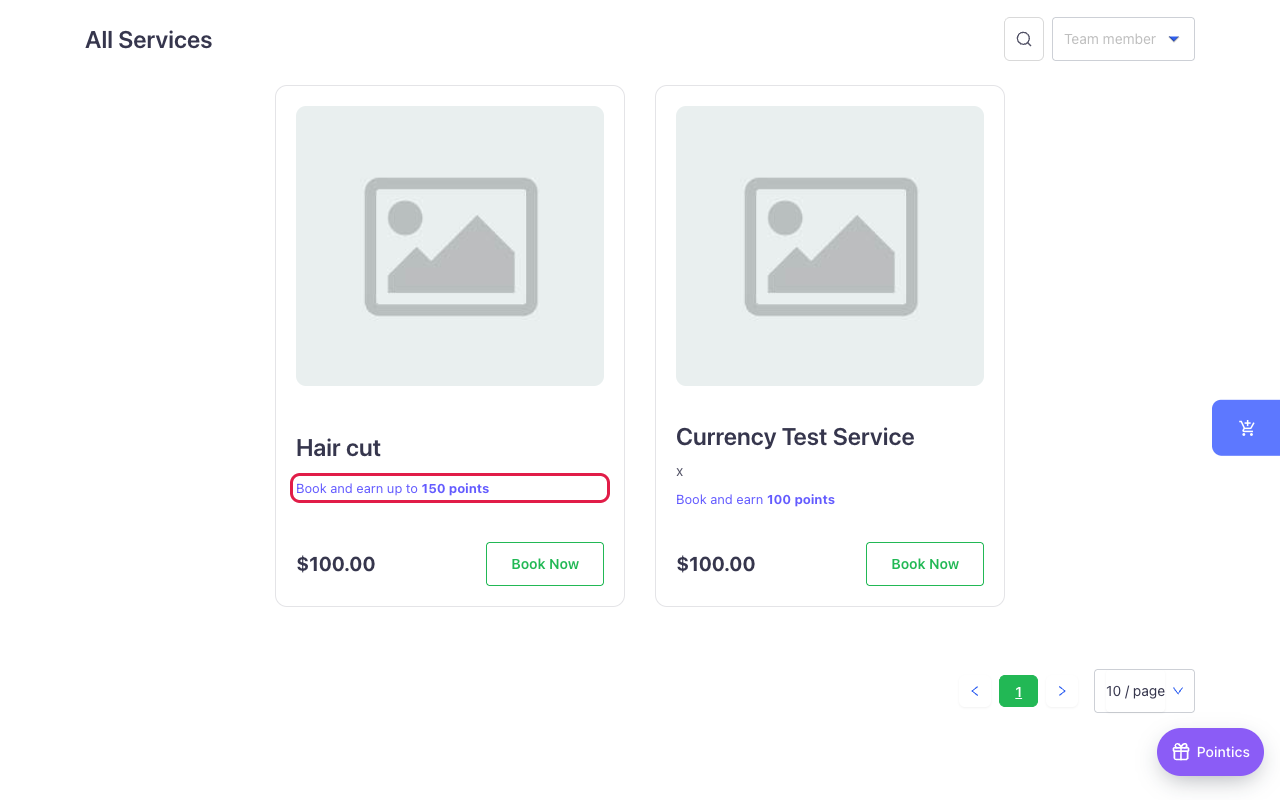
Signed in customers see Book and earn on each service card. When a service has more than one duration at different prices, the card shows Book and earn up to the points for the highest price.
Step 7: Points in the Booking Summary #
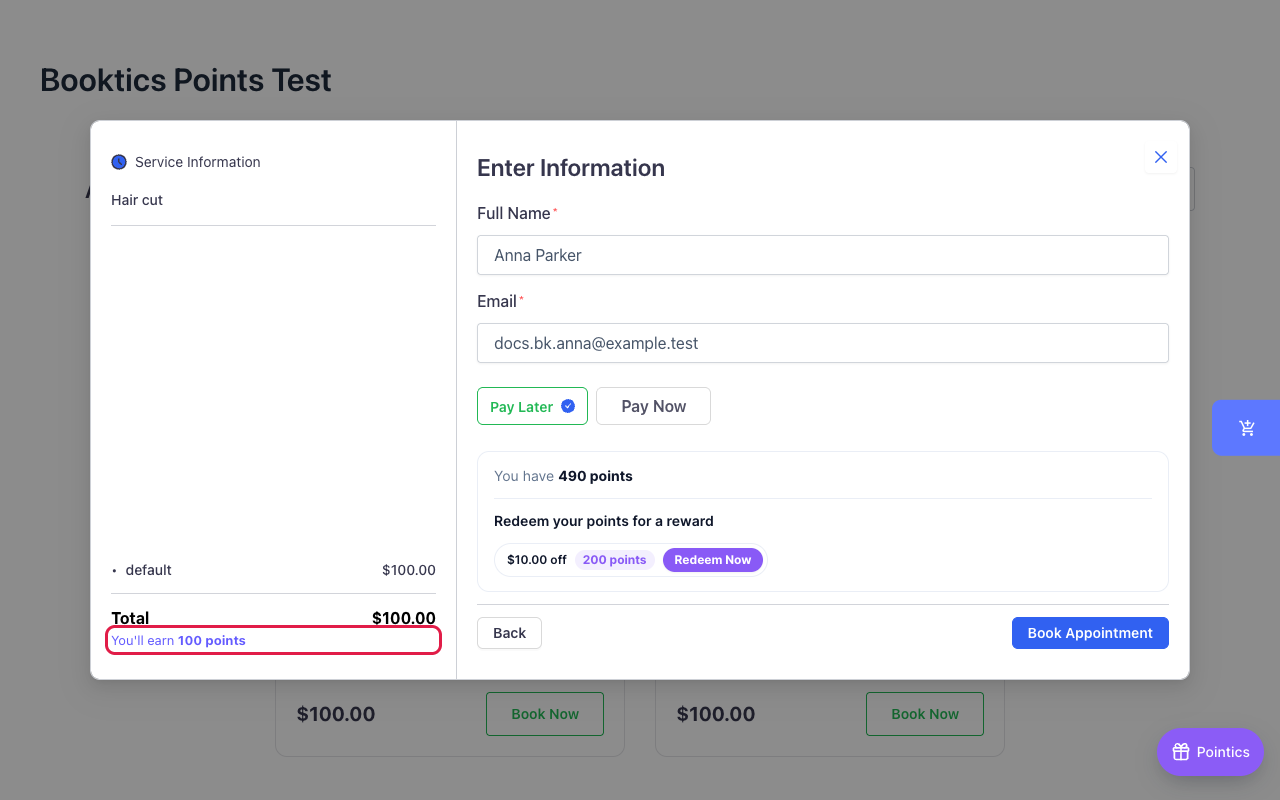
Under the Total, the summary shows You’ll earn and updates when a discount changes the total.
Step 8: Spending Points on the Booking #
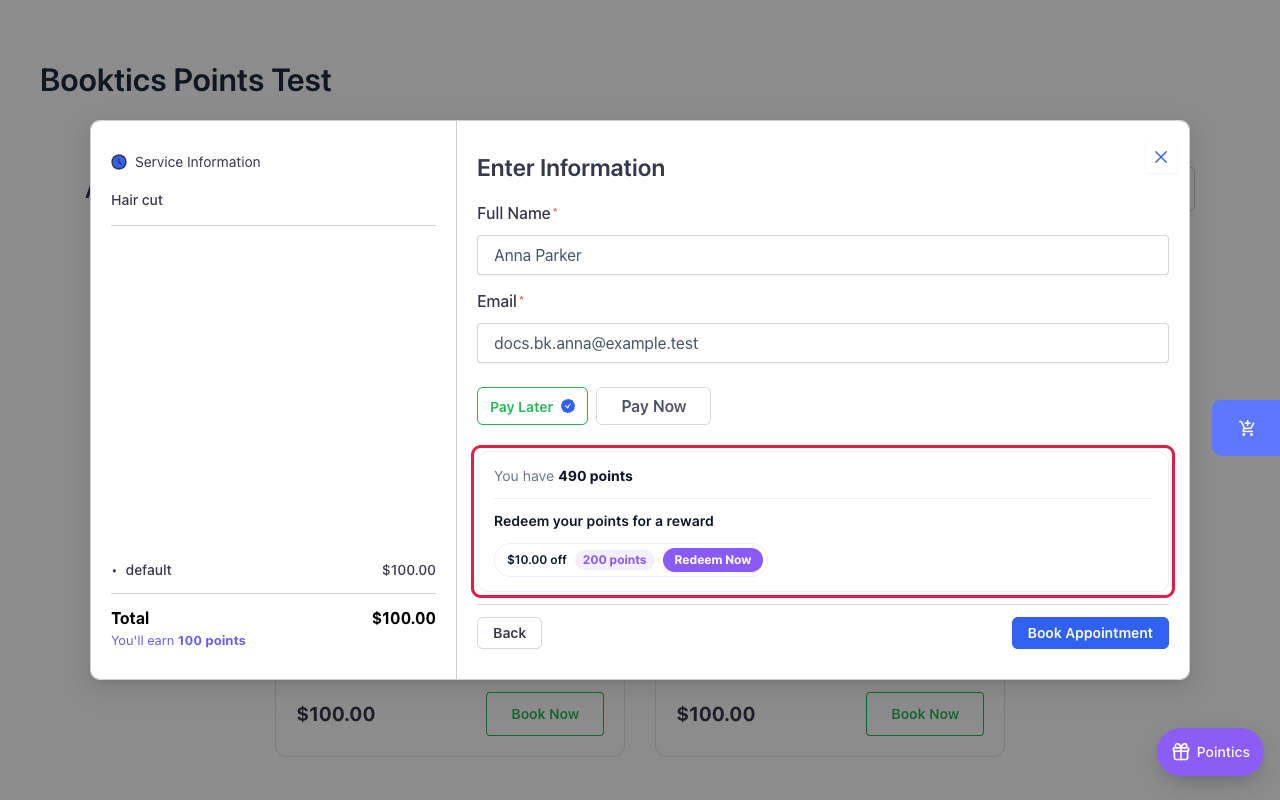
On the Enter Information step, the card shows the customer’s balance and the rewards they can afford. The customer clicks Redeem Now.
Step 9: The Discount Is Applied #
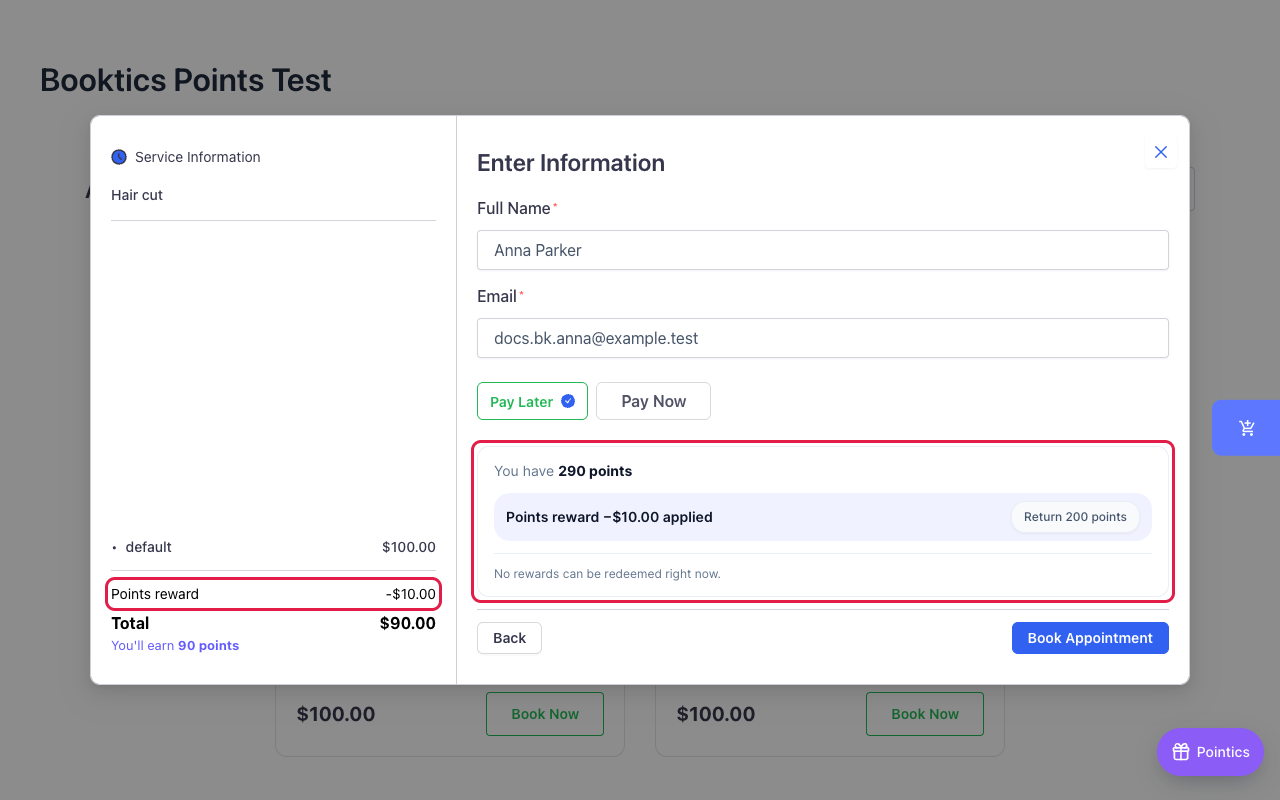
The summary adds a Points reward line and a lower total. Return gives the points back before booking. A redeemed reward that no booking uses goes back to the customer automatically after one day.
Step 10: Points on the Confirmation #
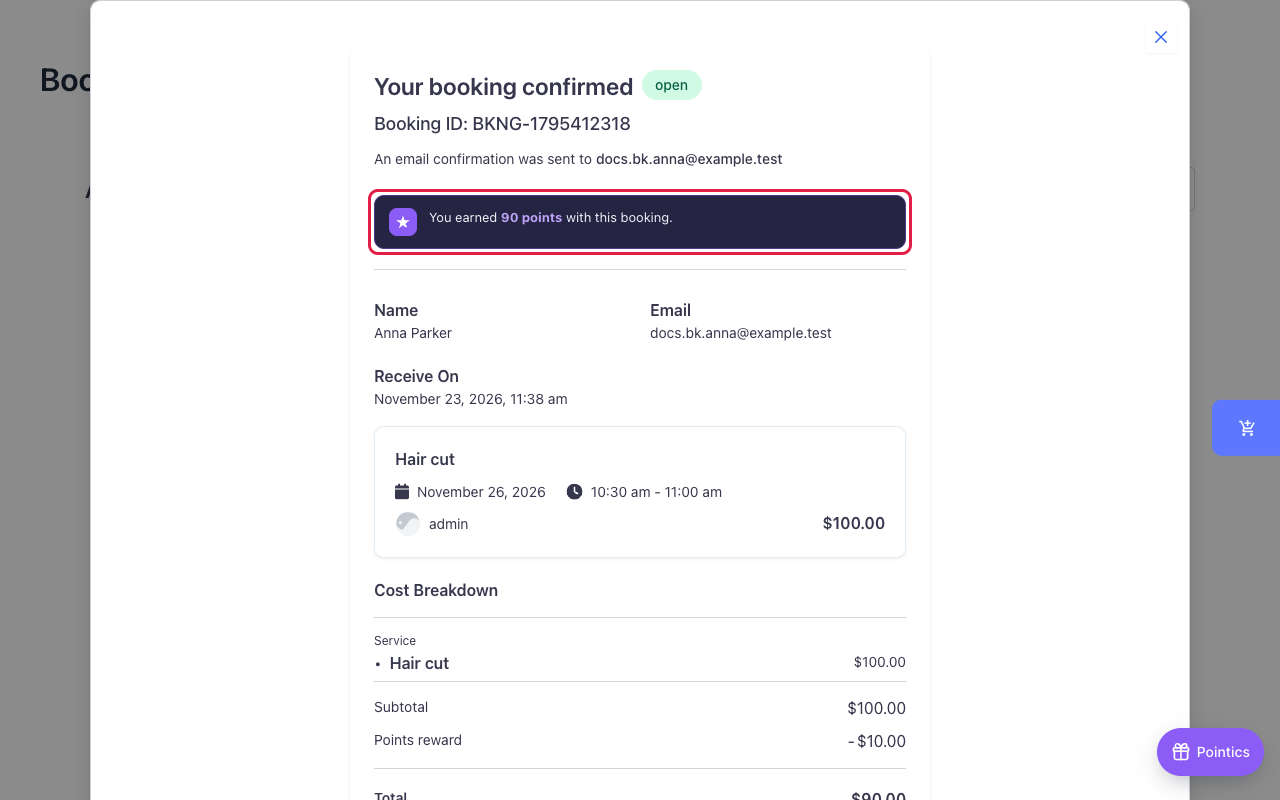
The confirmation shows You earned X points with this booking. If the booking is still waiting for an earning status, it says the points are on the way and land once the appointment is completed.
Step 11: Complete or Cancel an Appointment #
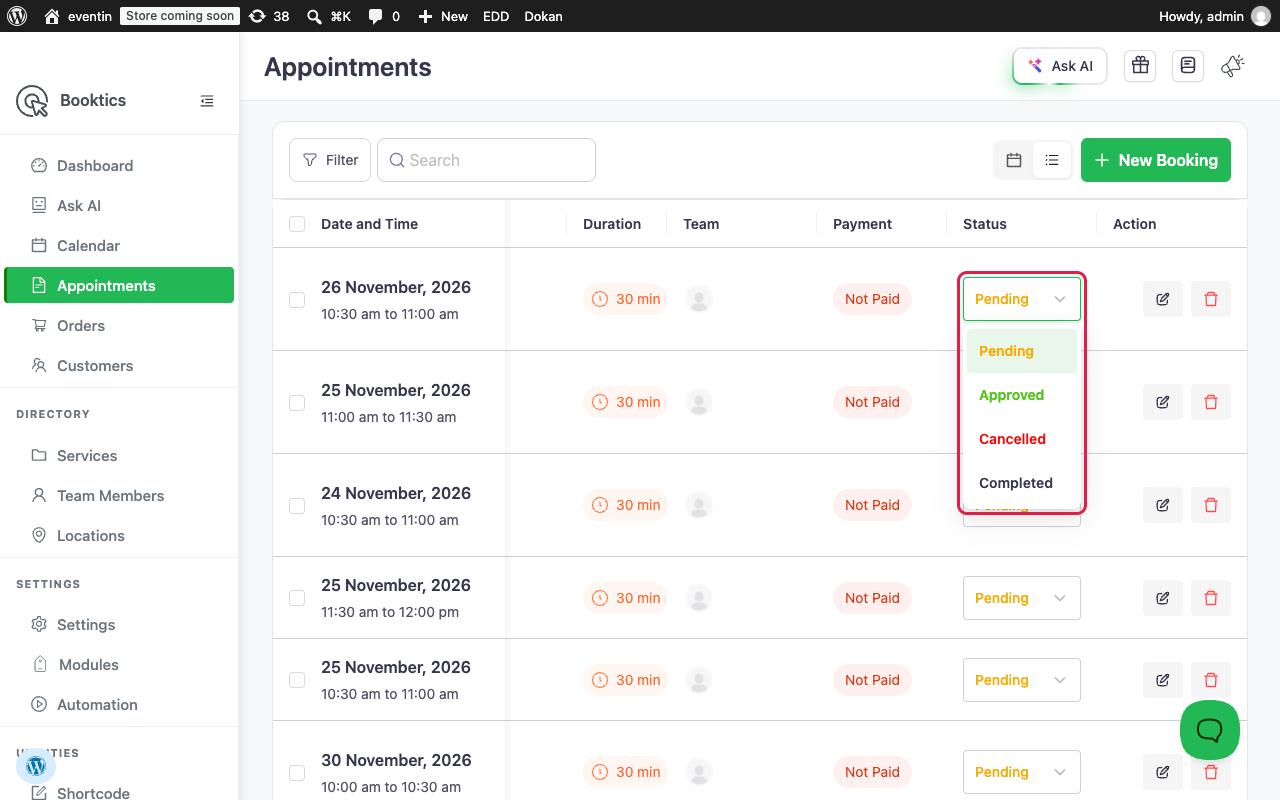
Go to Booktics → Appointments and change the status. Completed awards the points if they were not given yet. Cancelled takes the earned points back and returns any points spent on the booking. A customer cancelling from the confirmation does the same.
Step 12: Referrals (Pro) #
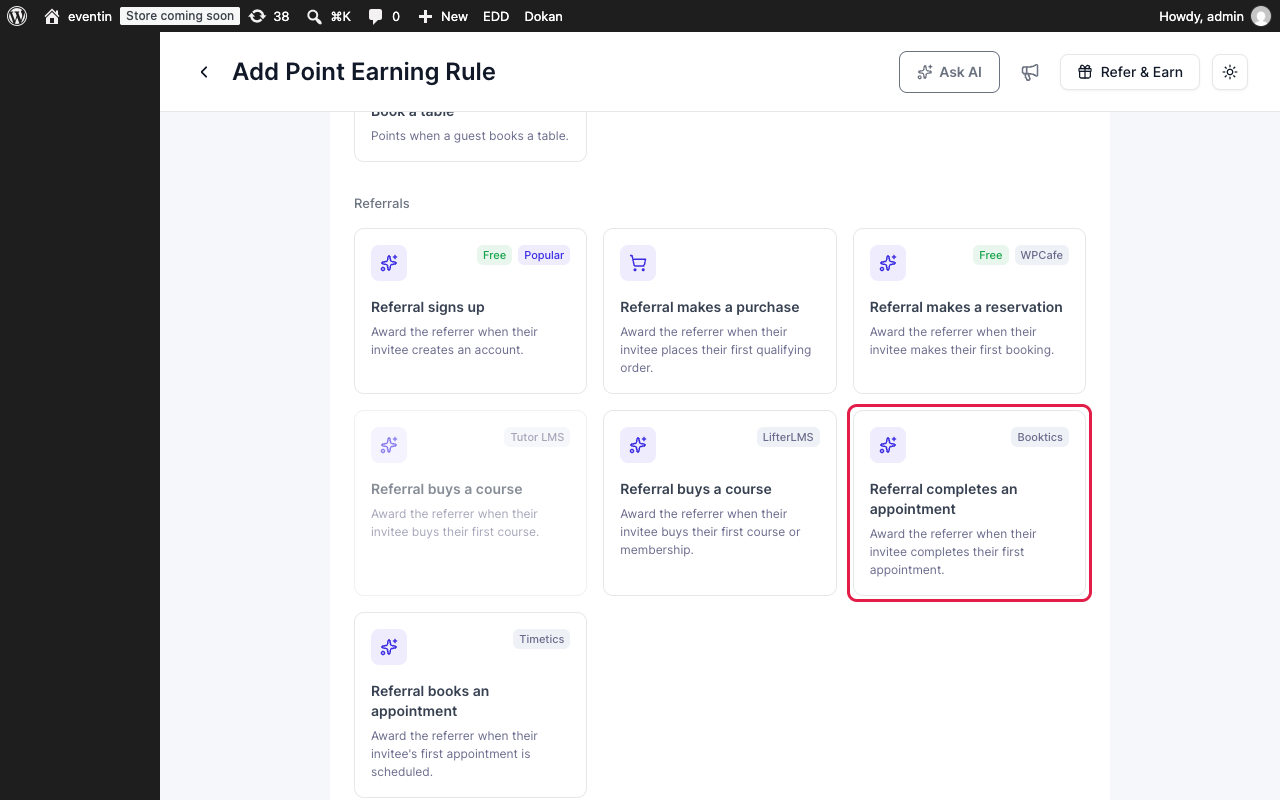
In Create Earning Rule, open the Referrals section and pick Referral completes an appointment. Set the Referrer Reward (100 points by default) and an optional Referred Person reward for the friend. Customers copy their invite link from the Pointics panel on your site. The referrer earns when the friend’s first booking is Completed, and loses those points if it is cancelled.
Step 13: Limit a Rule with Booktics Conditions (Pro) #
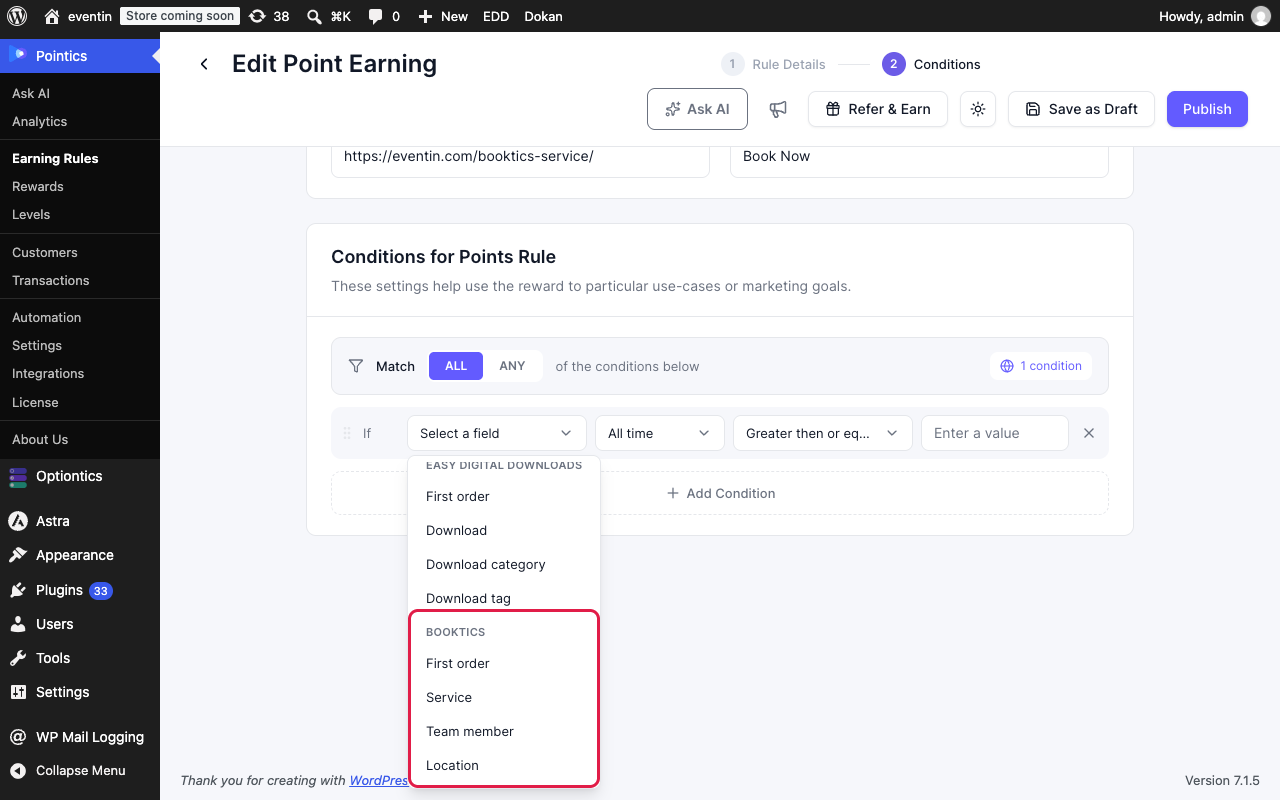
On a rule’s Conditions step, click Select a field and pick from Booktics:
- First order: only the customer’s first booking earns.
- Service, Team member, Location: only matching appointments earn, on their share of the booking total.
Step 14: Level Discounts (Pro) #
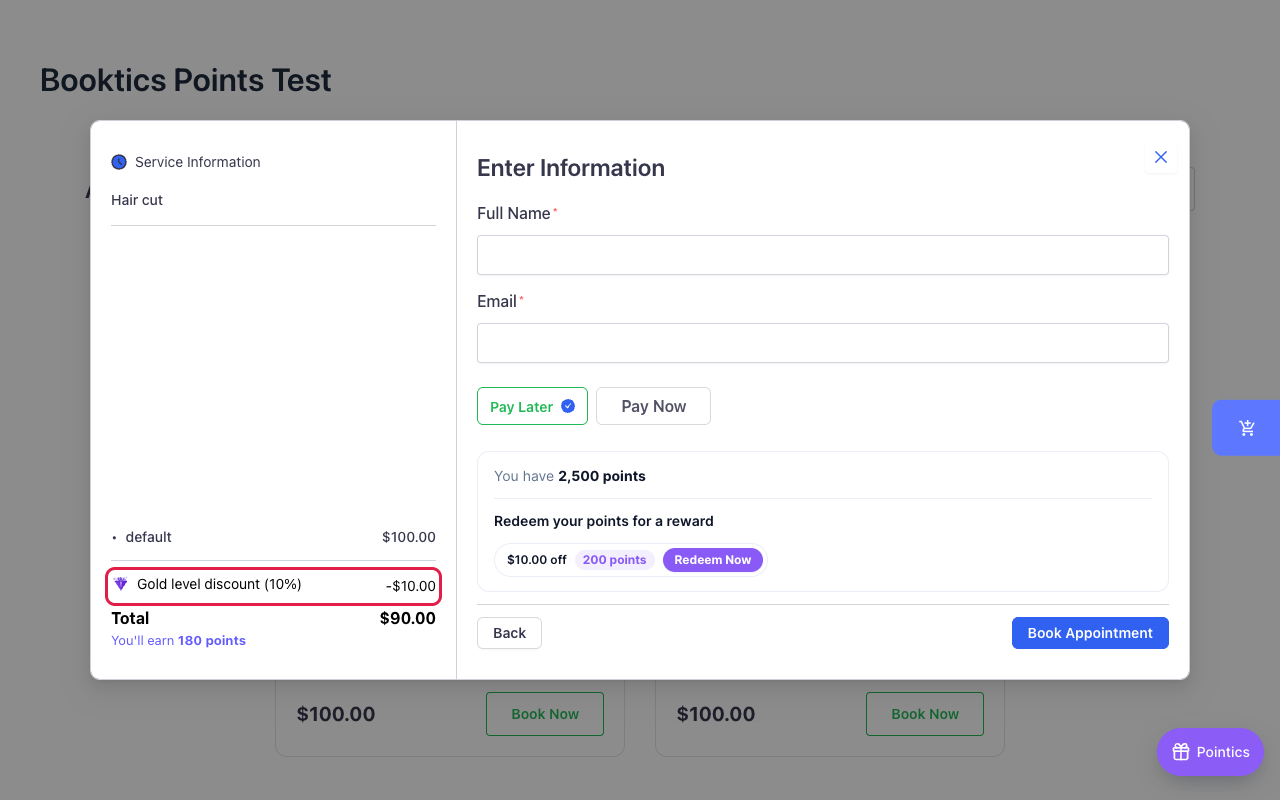
When a level has an order discount perk under Pointics → Levels, members get it on every booking. The summary shows a line such as Gold level discount (10%), and it can be combined with a points reward.
Limitations #
- Points need a WordPress account. A booking earns for the signed in customer, or for the account whose email matches the booking. Signed out visitors do not see the earn line or the redeem card.
- When the customer pays with WooCommerce, the Booktics redeem card is hidden. Points are spent and level discounts applied on the WooCommerce checkout instead. The booking still earns under Booktics.
- A reward cannot cover the whole booking, and a reward with a minimum needs a booking total at least that high.
- Points go back only when the whole booking is cancelled. Cancelling one appointment of several keeps them.
- With Open in the earning list, customers can spend points from a booking before a later cancel takes them back.
Troubleshooting #
| Problem | Solution |
|---|---|
| No Book and earn line or redeem card | Check Booktics is 1.0.33 or later, the customer is signed in, and the loyalty program is on. |
| Points not added after booking | Check the booking status is in Award points on Booking Status and the booking email belongs to a WordPress account. |
| Redeem card missing on Pay Now | It is hidden when WooCommerce is the payment method. Choose another method or use the WooCommerce checkout card. |
| “This reward is worth the whole booking” | The reward value is equal to or more than the total. Offer a smaller reward. |
FAQ #
Who gets the points when staff book for a customer? #
The customer. Admin and team member accounts are never treated as the customer, so points go to the account that matches the booking email.
What happens to points if a WooCommerce paid booking is refunded? #
A refunded or cancelled WooCommerce order takes the booking’s points back, the same as a cancelled booking.
Can a customer earn twice for the same booking? #
No. Each booking earns once. If you cancel a booking and later set it back to Completed, it does not earn again, so add those points by hand under Pointics → Customers.
Do points show in other currencies? #
Rewards use the currency set in Booktics.


