Overview #
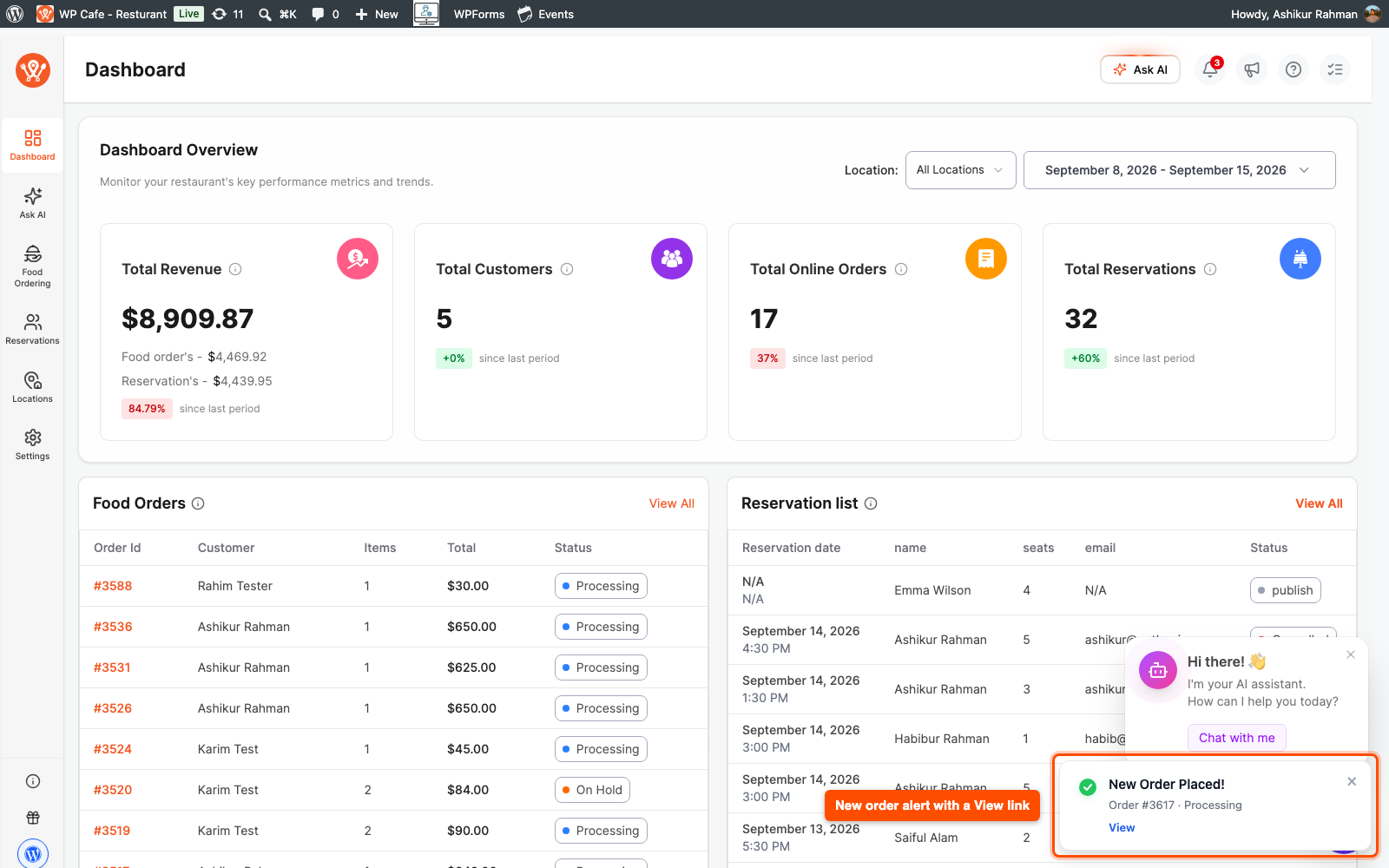
Live Notifications in WPCafe alert your restaurant staff the moment a new food order or table reservation is placed. While any WordPress admin page is open, an alert box appears on the screen, a sound can play, and the notification bell adds a new item. Nobody needs to refresh the page.
Without it, staff keep reloading the orders or reservations list to catch new ones, and a busy lunch rush means a customer can wait before anyone notices. Live Notifications shows each new order or booking on screen as it arrives, so your team can act right away.
Requirements #
- WP Cafe (free) with the Food Ordering module, the Reservation module, or both turned on
- WooCommerce for food order alerts
- WP Cafe Pro for reservation alerts, custom sound, repeated sound and the notification bell
- The Pro Notifications module turned on (Pro only)
- A user role that can view orders or reservations (Administrator, Shop Manager, or a WPCafe staff role)
Step 1: Open the Live Notifications Settings #
All alert settings live in one tab.
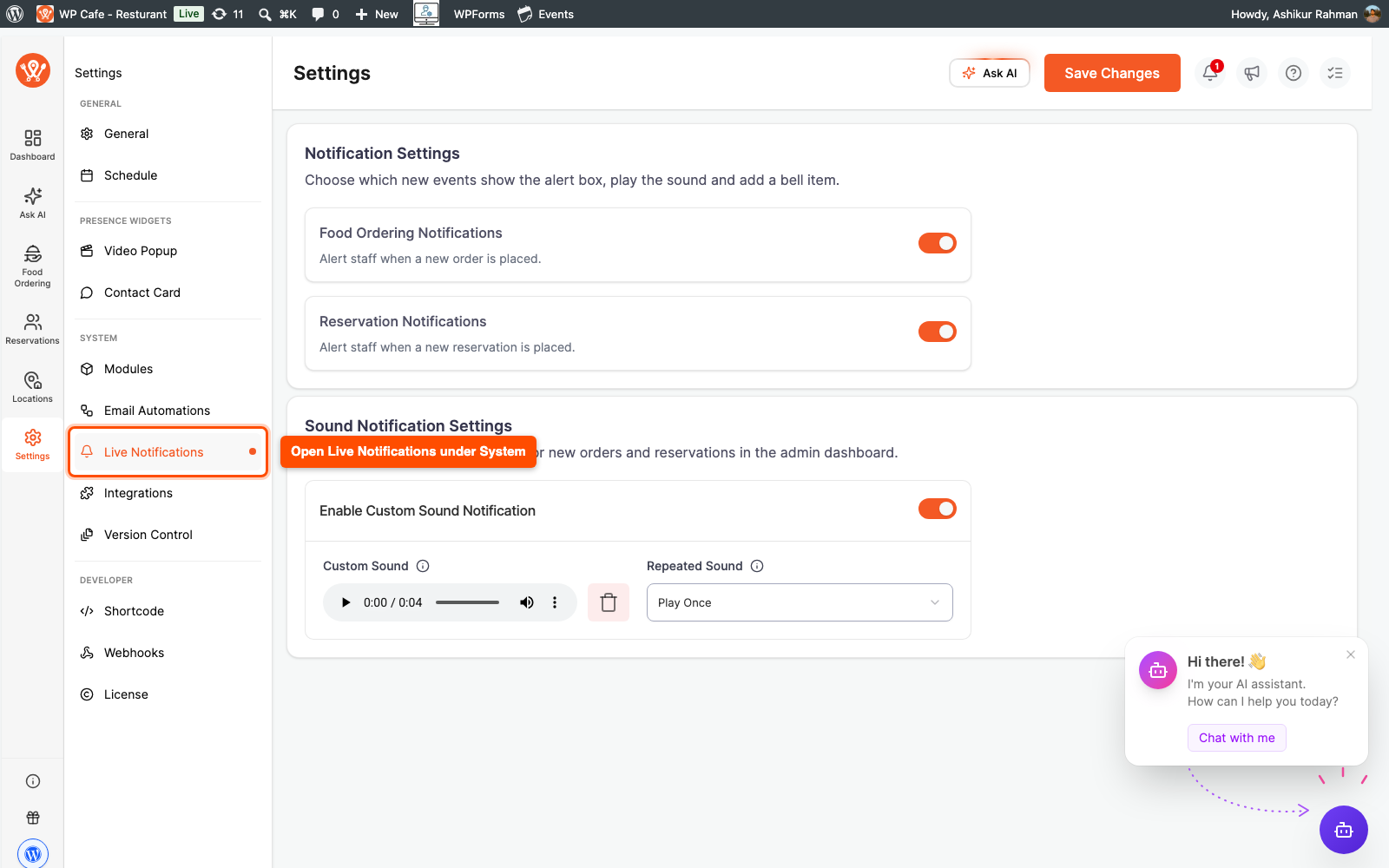
- Go to WPCafe > Settings.
- In the left menu, find the System group.
- Click Live Notifications. It sits right after Email Automations.
If both the Food Ordering and Reservation modules are off, this tab shows an Enable Food Ordering or Reservation Module screen instead of the settings. Turn on at least one of them from the Modules page first.
Step 2: Choose Which Events Send Alerts #
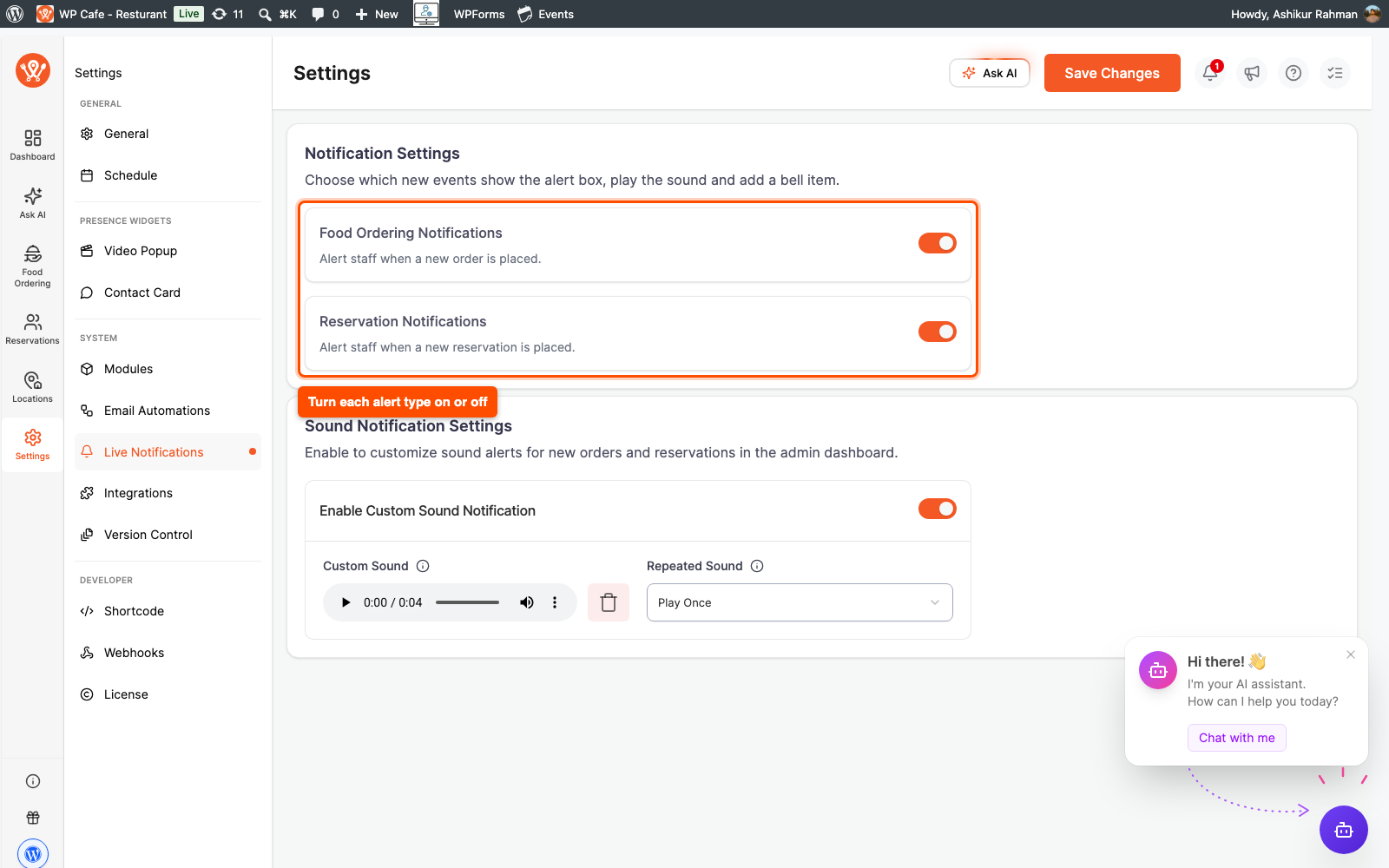
The Notification Settings section has one switch per type. Each switch controls the alert box, the sound and the bell item for that type together.
- Turn Food Ordering Notifications on to get alerts for new orders. This switch is free.
- Turn Reservation Notifications on to get alerts for new bookings. This switch needs WP Cafe Pro.
- Click Save Changes.
Both switches are on by default, so alerts start working as soon as the modules are on. Turn one off if your team only wants alerts for the other type.
A switch only shows when its module is on. If the Food Ordering module is off, you will not see Food Ordering Notifications, and the same goes for Reservation. With Pro active but the Notifications module off, you will see the message Turn on the Notifications module to get reservation alerts in place of the reservation switch.
Step 3: Set Up the Alert Sound (Pro) #
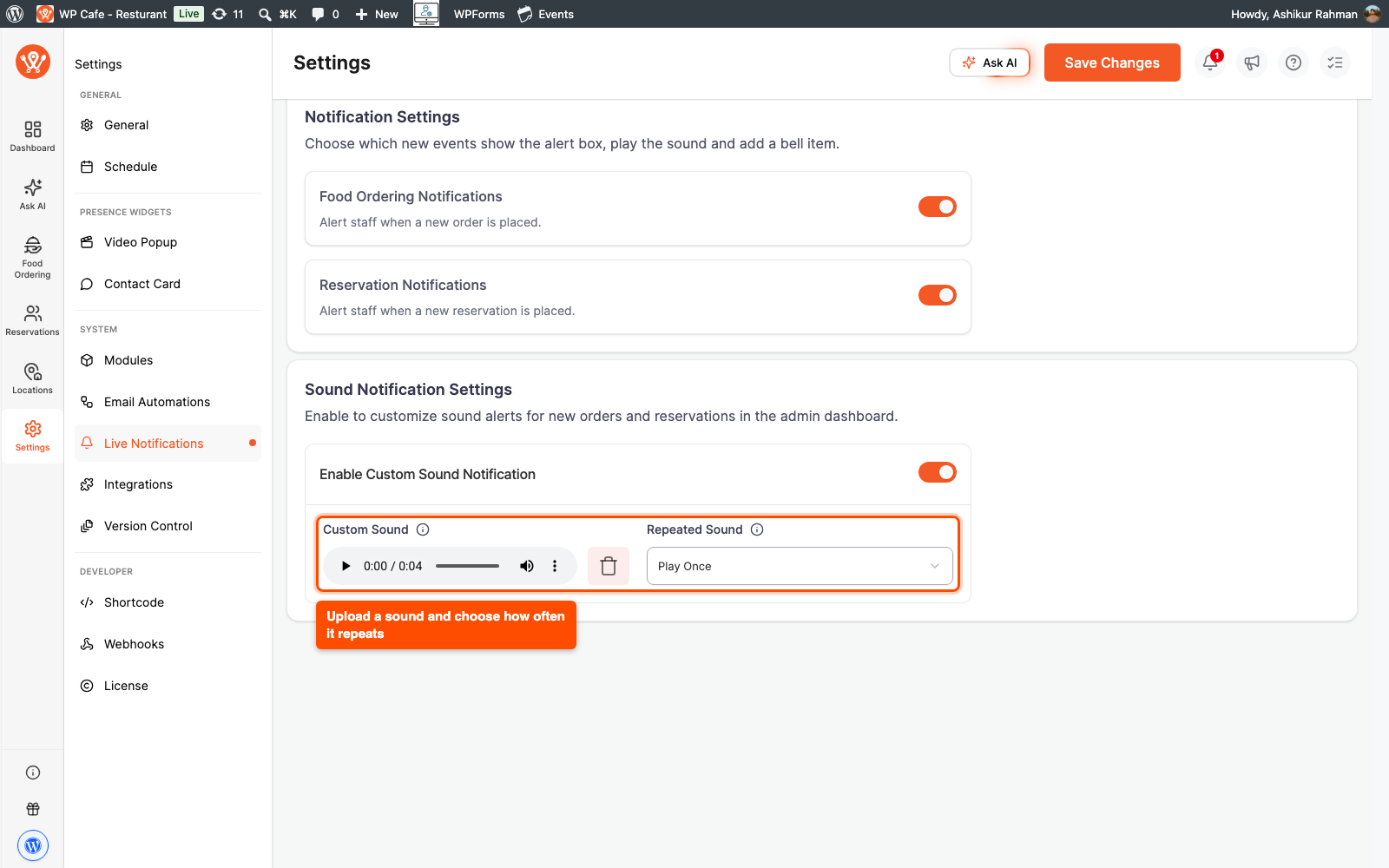
The Sound Notification Settings section decides what plays and how often. This part needs WP Cafe Pro.
- Turn on Enable Custom Sound Notification.
- Under Custom Sound, upload an MP3, WAV or OGG file. If you skip this, WPCafe plays its default ding dong sound.
- Under Repeated Sound, pick how often the sound plays again while an alert box is still open:
- Play Once plays the sound one time for each new order or booking and never repeats it.
- 1, 2, 5, 10, 15 or 30 Minutes plays it again at that interval until you close every open alert box. You can also type your own number of minutes.
- Click Save Changes.
You do not need to reload other open admin tabs. They pick up the new sound settings on their next check, so changing Repeated Sound from 1 Minute back to Play Once stops the repeat everywhere.
| Note: Browsers block sound on a page that was just loaded until you interact with it. If an alert box appears but no sound plays, click anywhere on the page and the sound plays once. |
Step 4: See the Alerts in Action #
Once a customer places an order or a booking, every open admin page shows it.
- Keep any WordPress admin page open, for example the WPCafe dashboard or the WooCommerce orders list.
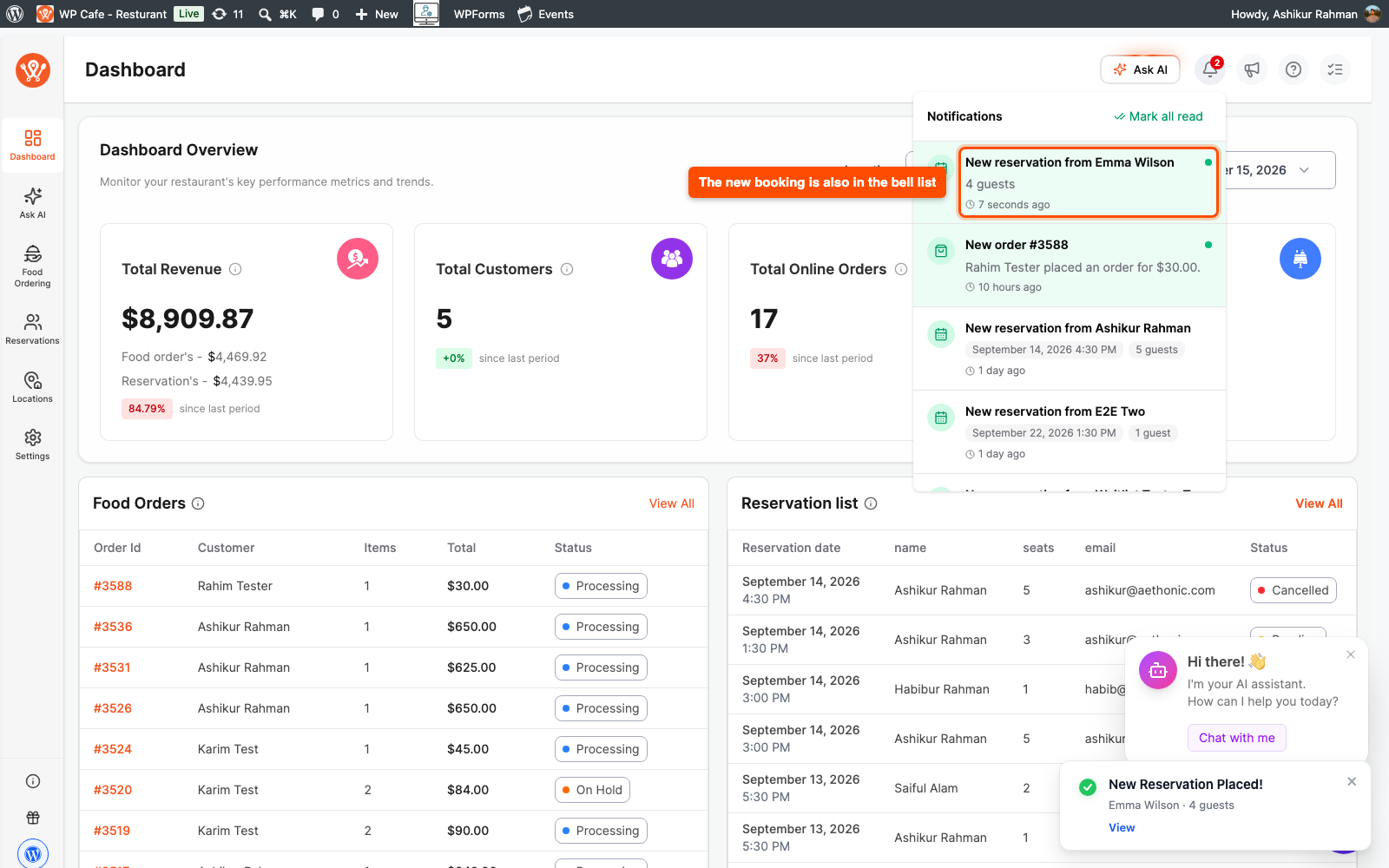
- When a new order comes in, a New Order Placed! box appears with the order number and status. For a booking, a New Reservation Placed! box shows the guest name and party size.
- Click View to open the order or reservation, or click the close icon to dismiss the box. Closing it in one tab closes it in your other open tabs too.
- With Pro, open the bell icon in the WPCafe dashboard header to see the full list of recent orders and bookings.
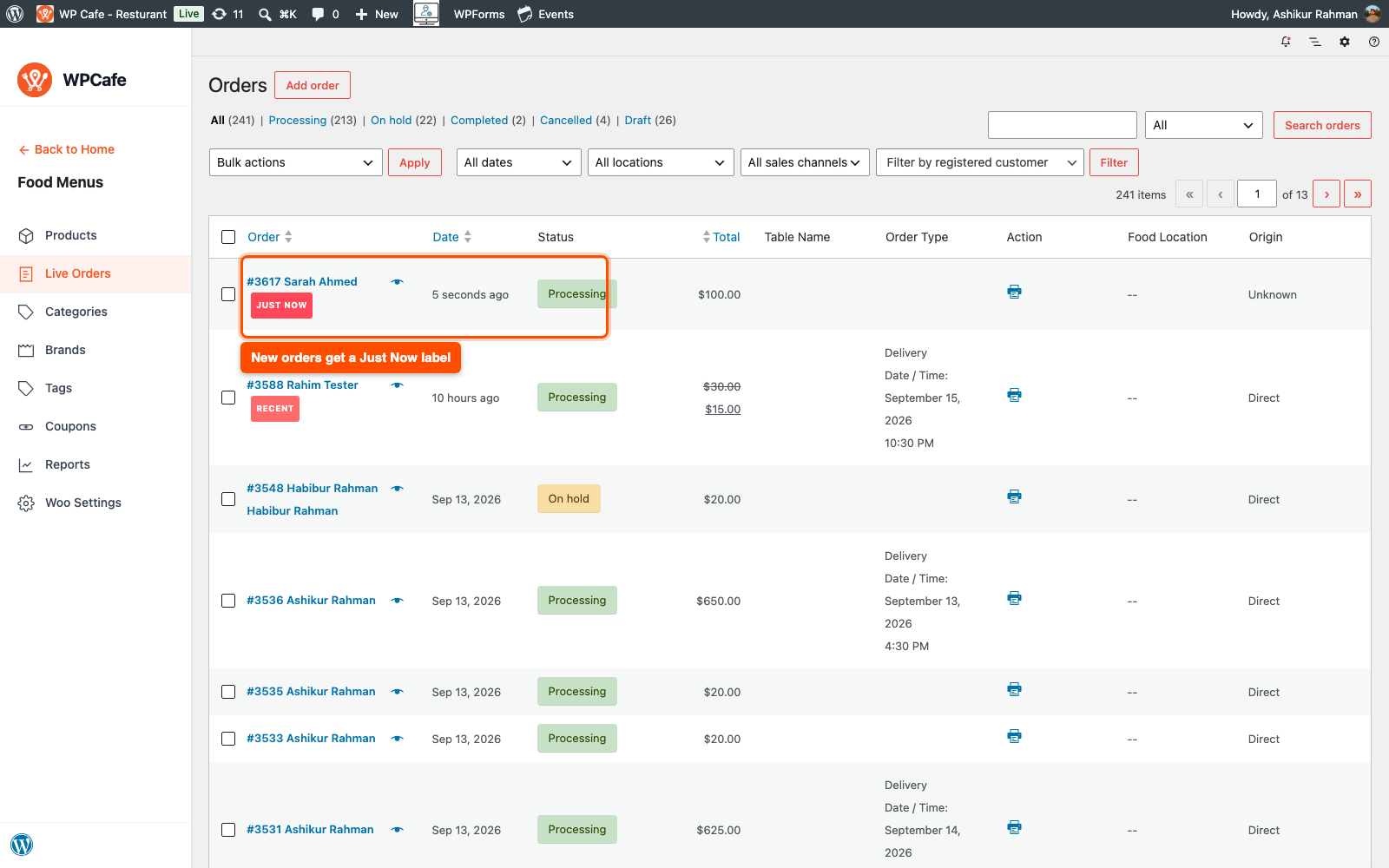
On the WooCommerce orders list, new rows are added without a reload and get a Just Now, Recent or Today label. The list does not refresh while you have rows ticked, so a bulk action you are in the middle of stays safe.
Frequently Asked Questions (FAQ) #
| Q1: Will I get alerts when I am not on a WordPress admin page? No. Alerts only appear while you are logged in and a WordPress admin page is open in a browser tab. They do not show on your site’s front end or when the browser is closed. A tab running in the background checks less often, so its alert can arrive up to a couple of minutes later. |
| Q2: I turned off Reservation Notifications, so why did a booking still alert me? That booking was paid online. A pay-online reservation creates a WooCommerce order at checkout, and that order alerts as a normal new order while Food Ordering Notifications is on. Bookings that do not need online payment stay silent. See Reservations for payment options. |
| Q3: The alert box appeared, but I heard no sound. What is wrong? First check that Enable Custom Sound Notification is on, since sound is a Pro feature. If it is on, your browser blocked the sound because the page was just loaded and you had not clicked it yet. Click anywhere on the page and the sound plays once. |
Conclusion #
Live Notifications keeps your staff on top of every new order and reservation without refreshing a single page. Open WPCafe > Settings > Live Notifications, pick the alert types and sound that suit your team, and place a test order to see it work.


