
What are Advanced Conditions? #
Conditions are the second section of the point rule editor. A rule without conditions awards points every time its trigger fires. Add conditions and the rule becomes selective: it only awards points when the event matches the conditions you define.
Each condition is displayed as a row that reads like a sentence:
If — Total amount — Greater then or equal — 50
You can add multiple condition rows. A Match option at the top determines whether every condition must be true or whether matching any one condition is enough.
- Match ALL: Every condition must be true.
- Match ANY: At least one condition must be true.
Why Do You Need It? #
- Protect your margin: Award points only when an order reaches a minimum value instead of rewarding every order.
- Target campaigns: Run special point campaigns for selected products, categories, dates, or customer groups.
- Separate audiences: Reward retail customers while excluding staff or wholesale roles.
- Reward the right first step: Apply a bonus only when a customer completes their first order.
Prerequisites #
- An Administrator account.
- Pointics Pro must be active and licensed. Without Pro, the Conditions section displays a locked line with an Upgrade to Pro link.
- A new or existing point earning rule.
- WooCommerce must be active to use WooCommerce-specific condition fields.
- Fields provided by other integrations only appear while those integrations are active.
Where to Find It #
Go to Pointics → Points Program, create or open a rule, and select Conditions from the left rail.
/wp-admin/admin.php?page=pointics#/points-programStep-by-Step Instructions #
Step 1: Open the Conditions Section #
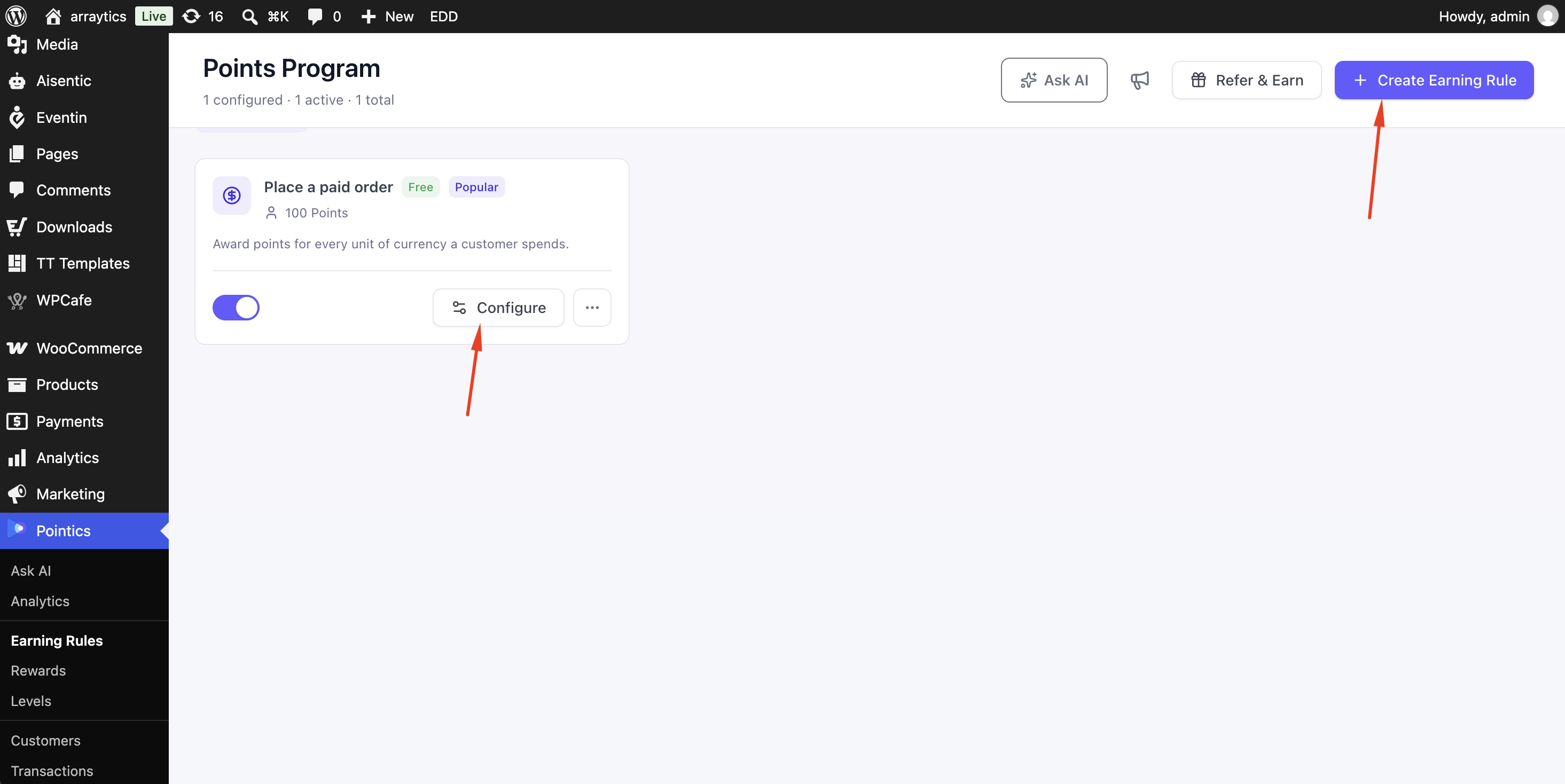
Create a rule using New Point Channel, or click Configure on an existing rule.
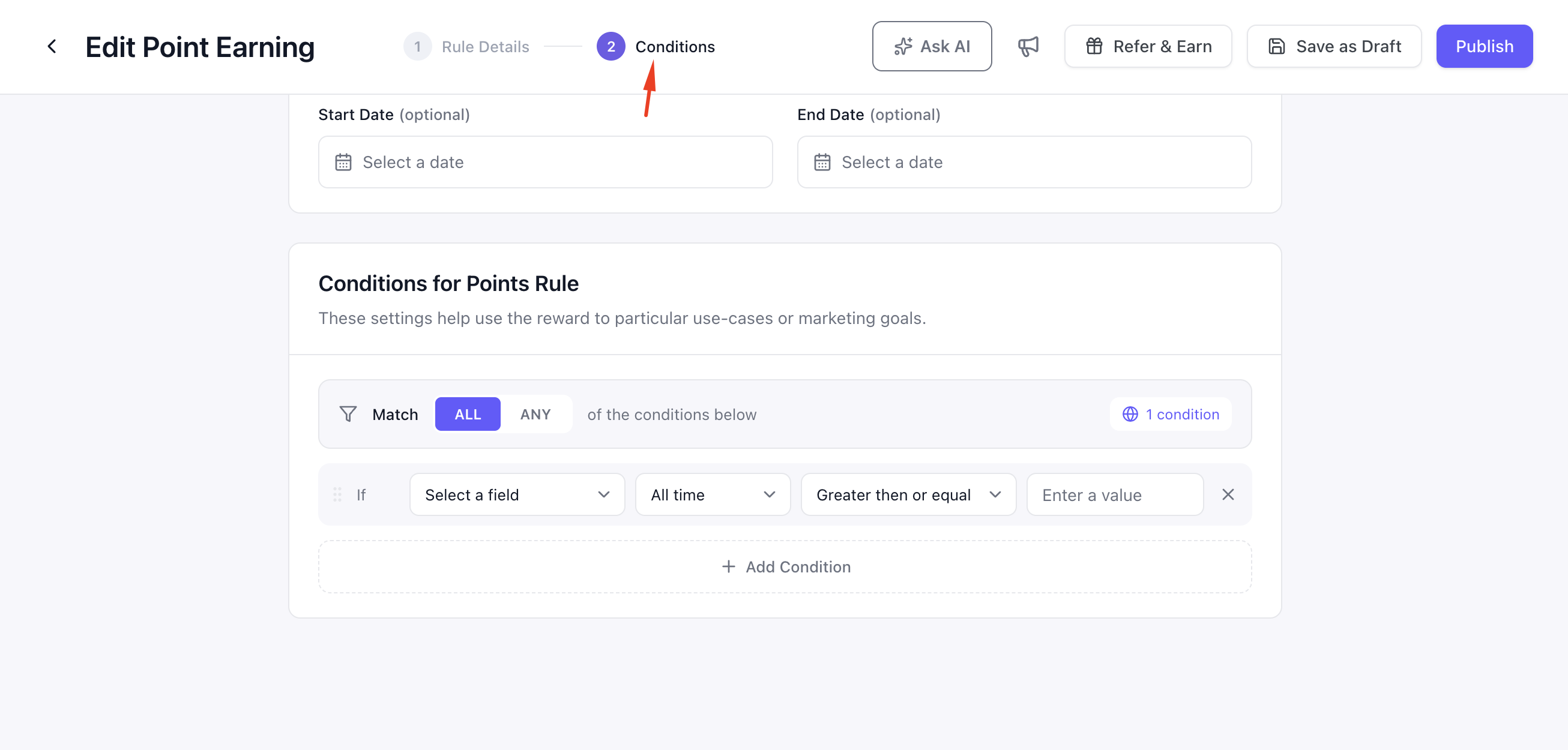
In the editor’s left rail, choose 2 Conditions. The section heading reads Conditions for Points Rule.
One empty condition row is always available for you to configure.
Step 2: Choose How the Rows Combine #
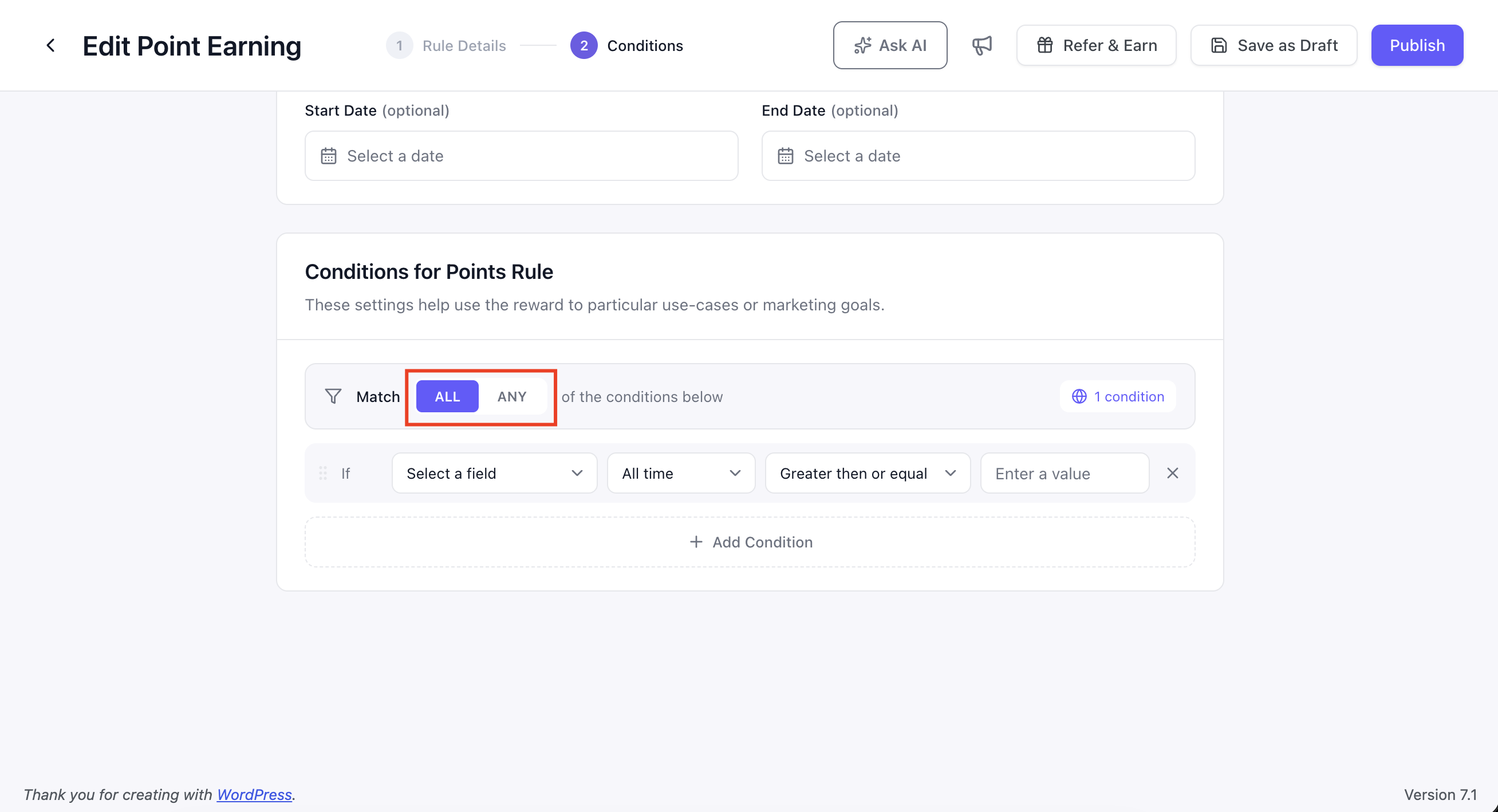
Use the Match option at the top of the Conditions card to determine how multiple rows work together.
| Control | Meaning |
|---|---|
| Match ALL | Every condition row must be true. This is the default. |
| Match ANY | At least one condition row must be true. |
The badge on the right side of the card shows how many condition rows you currently have.
Step 3: Pick a Field #
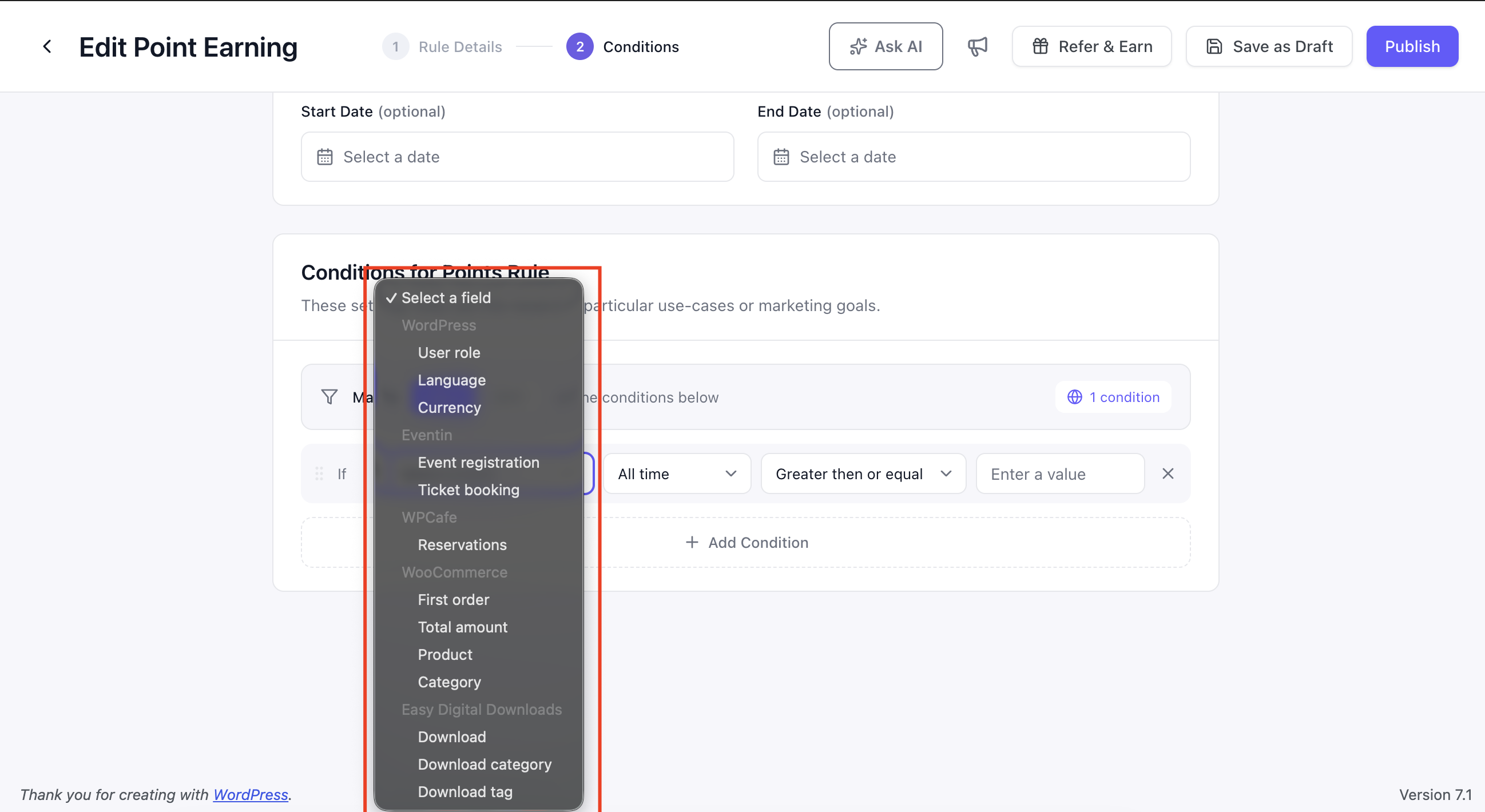
Open the first dropdown and select what you want Pointics to check. Fields are grouped according to where their data comes from.
An integration-specific group only appears while the corresponding plugin is active.
| Group | Field | Needs |
|---|---|---|
| WordPress | User role | WordPress |
| WordPress | Language | WordPress |
| WordPress | Currency | WordPress |
| WooCommerce | First order | WooCommerce |
| WooCommerce | Total amount | WooCommerce |
| WooCommerce | Product | WooCommerce |
| WooCommerce | Category | WooCommerce |
| Eventin | Event registration | Eventin |
| Eventin | Ticket booking | Eventin |
| WPCafe | Reservations | WPCafe |
If an expected group is missing, activate the plugin that provides it from Pointics → Integrations.
Step 4: Complete the Condition Row #
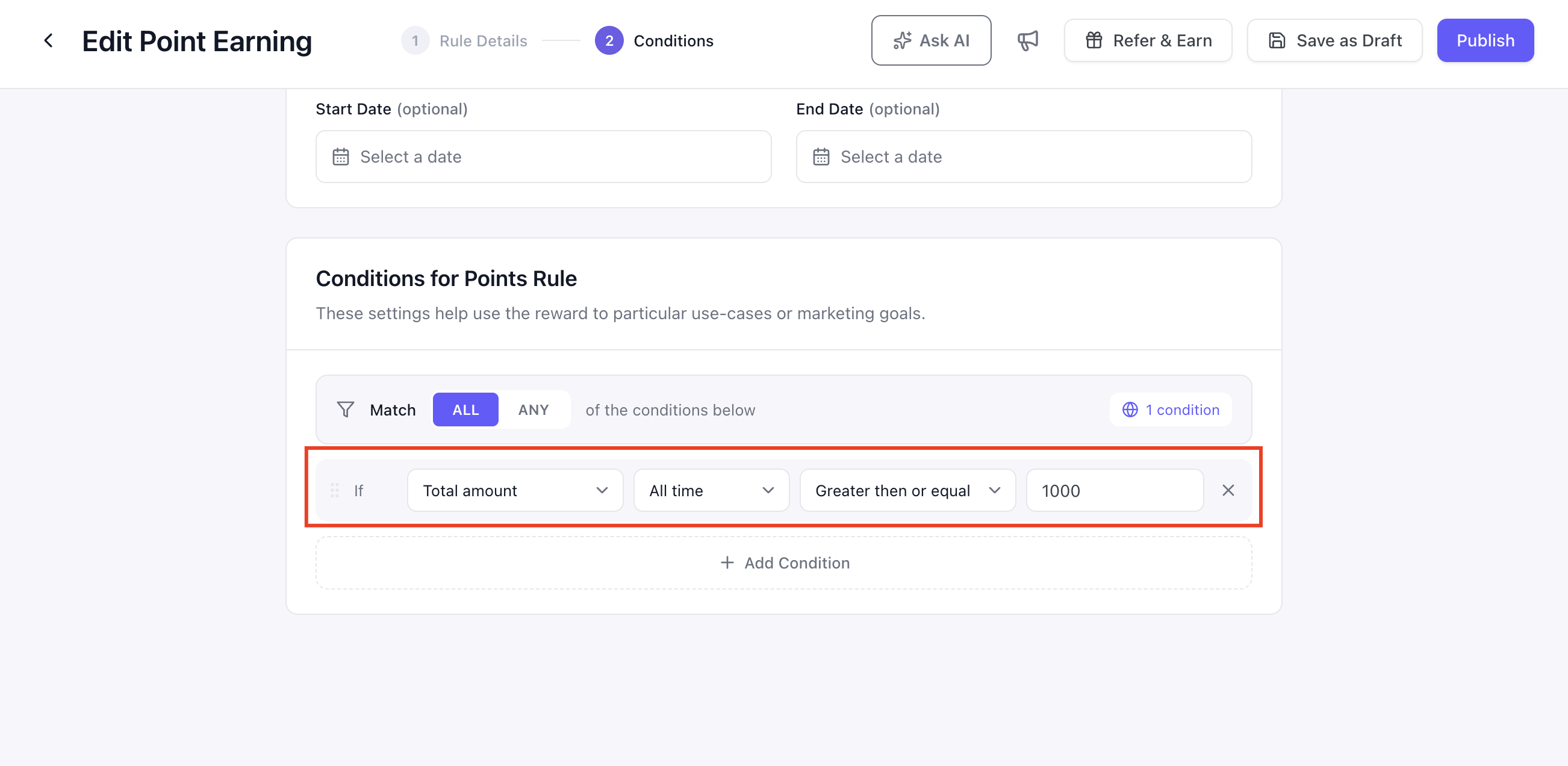
The remaining fields in the row change depending on the condition you selected. Some conditions require a comparison and value, while others work as a simple flag or selection.
| Field | Time Window | Comparison | Value |
|---|---|---|---|
| First order | — | — | — |
| Total amount | Yes | Greater then or equal · Less then or equal · Equal to · Not equal to | A number |
| Product | — | All products · Specific products | Product picker when Specific is selected |
| Category | — | All categories · Specific categories | Category picker when Specific is selected |
| User role | — | Including · Excluding | One or more roles |
| Language | — | Including · Excluding | One or more locales |
| Currency | — | Including · Excluding | One or more currencies |
| Event registration | Yes | Greater then or equal · Less then or equal · Equal to · Not equal to | A number |
| Ticket booking | Yes | Greater then or equal · Less then or equal · Equal to · Not equal to | A number |
| Reservations | Yes | Greater then or equal · Less then or equal · Equal to · Not equal to | A number |
First order requires no additional configuration. The condition simply reads If · First order.
All products and All categories mean that no restriction is placed on which items qualify. Select Specific to display the corresponding product or category picker.
Including keeps customers whose values match the selected list. Excluding keeps customers whose values are not in the selected list.
You can click anywhere inside a value box to open its list. You do not need to click directly on the arrow.
Step 5: Add More Conditions #
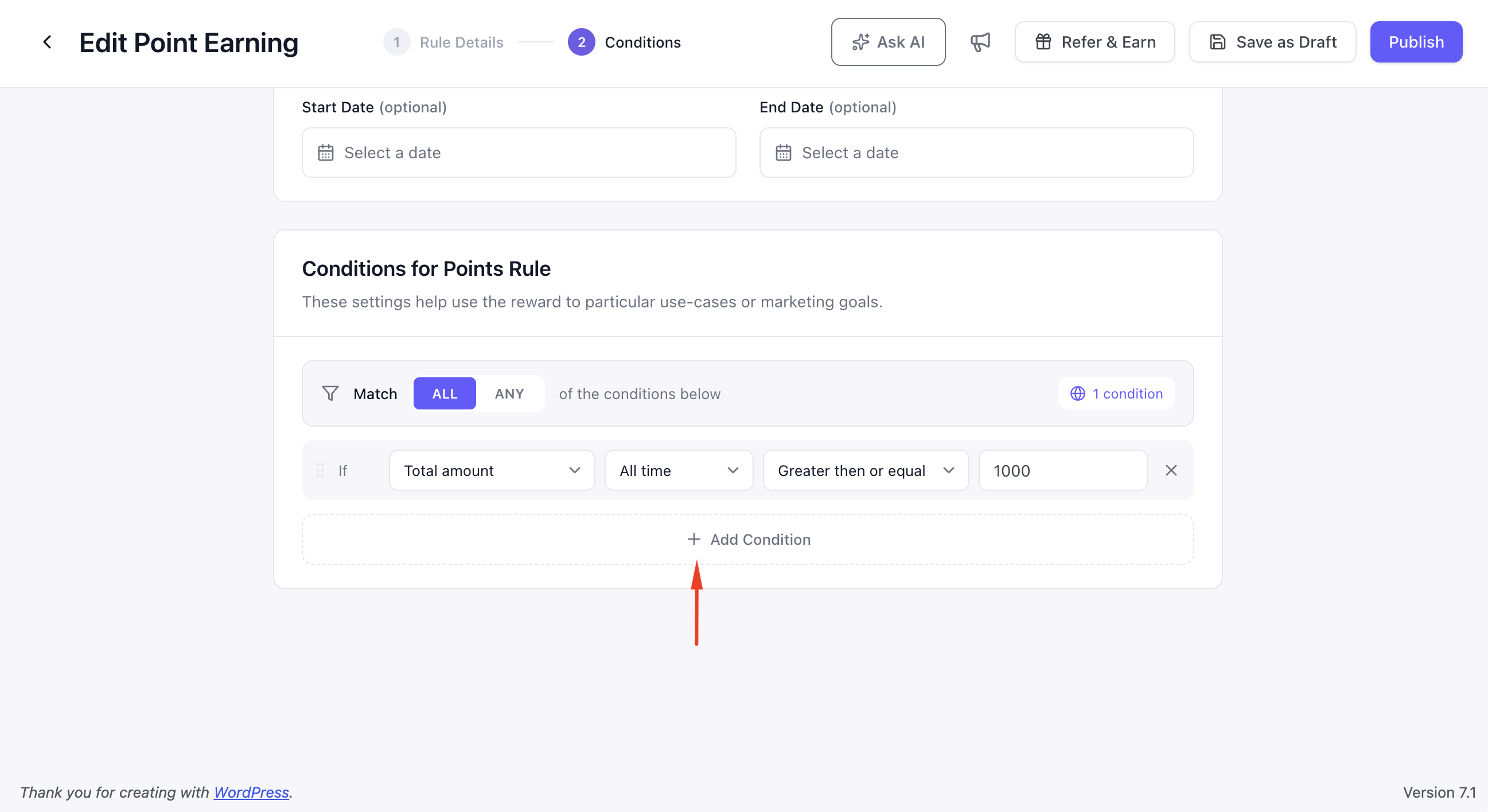
Click Add Condition to create another row.
Each additional row is prefixed with And when using Match ALL or Or when using Match ANY, making the complete rule easier to read.
Use the remove button at the end of a row to delete that condition. If you remove the final condition, Pointics leaves one empty row available rather than showing an empty card.
Step 6: Save the Rule #
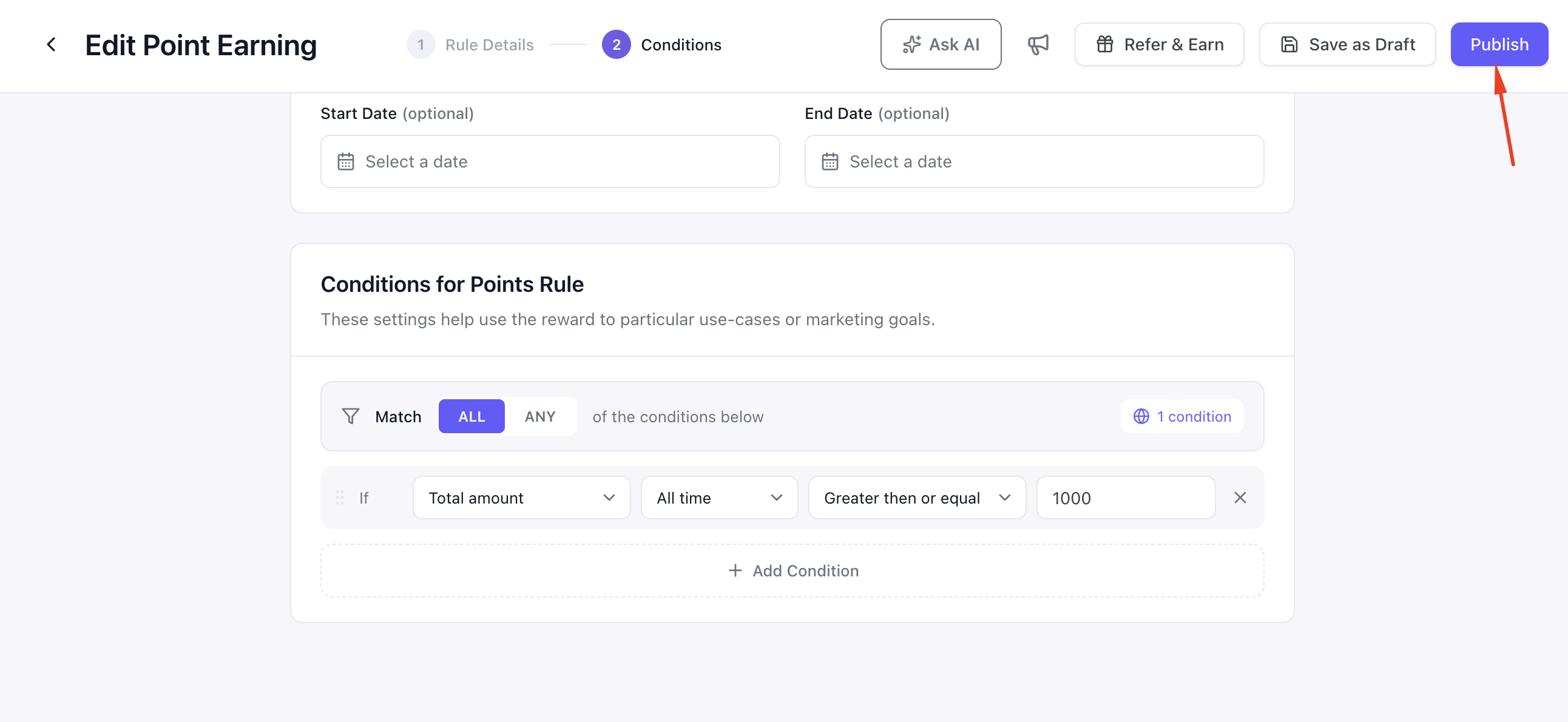
Conditions are saved together with the point rule. Click Save draft or Publish as usual.
When you reopen the rule, the saved condition rows appear with their previous configuration.
Key Functionality #
Which Rows Are Actually Saved? #
An unfinished condition is not treated as a restriction. Pointics drops incomplete rows instead of storing partially configured conditions.
| Field | Condition Is Kept When |
|---|---|
| First order | Always, once the field is selected |
| Total amount | A number is entered. An empty value is not treated as zero. |
| Product / Category | Set to All, or Specific with at least one item selected |
| User role / Language / Currency | At least one value is selected |
This is particularly important for Total amount. Treating an empty field as zero could accidentally create a condition such as “total is at least 0,” which would match almost every order.
How Conditions Gate an Award #
When an event occurs, Pointics evaluates conditions before checking the rule’s frequency limit and calculating the point award.
- A store event triggers the earning rule.
- Pointics checks whether the rule has conditions.
- If there are no conditions, it continues to the frequency check.
- If conditions exist, Pointics checks the selected Match mode.
- With Match ALL, every condition must match.
- With Match ANY, at least one condition must match.
- If the conditions do not match, no points are awarded.
- If the conditions match, Pointics checks the rule’s frequency limit.
- If the frequency limit has been reached, no points are awarded.
- If the event is allowed, Pointics calculates and records the points.
Changing a Field Mid-Row #
Changing the selected field automatically resets the remaining parts of the condition so an incompatible comparison cannot remain behind.
For example, changing Product to Total amount replaces a product comparison such as Specific products with an amount comparison such as Greater then or equal. The previous product value is cleared because a product list cannot be used as an amount.
Validation Rules #
- A condition row with no field selected is ignored.
- Total amount requires a number. A blank value means no condition rather than zero.
- Specific products and Specific categories require at least one selected item.
- Including and Excluding require at least one selected value.
- Incomplete condition rows do not block Save draft or Publish. They are quietly dropped while the rest of the rule is saved.
Limitations #
- Conditions are available with Pointics Pro only. The free plugin displays a locked version of the section.
- The Time window is not currently saved. Although the dropdown appears for Total amount and count-based fields, the selected window is not stored or enforced. Those comparisons are currently evaluated over all time.
- Eventin and WPCafe condition fields are not currently enforced. Event registration, Ticket booking, and Reservations can be selected, but they are not yet evaluated. A rule using one behaves as though that condition row were not present.
- Conditions use a flat list. Nested logic such as “A and (B or C)” is not supported. One Match mode applies to every row.
- Language values use locale codes such as
en_USandfr_FRrather than native language names. - Currency has no available values without WooCommerce because there is no event currency to compare.
Troubleshooting #
| Problem | Solution |
|---|---|
| The section shows a locked line with an Upgrade to Pro link | Conditions require Pointics Pro. Activate and license Pointics Pro. |
| A whole group is missing from the field list | The integration that provides the group is not active. Enable it under Pointics → Integrations. |
| Currency has no values to select | WooCommerce is not active, so there are no available currencies. |
| The rule saved but a condition disappeared | The row was incomplete. Common causes include an empty Total amount or selecting Specific products without choosing a product. |
| The rule never awards points | With Match ALL, every condition must be true. Try Match ANY or remove conditions individually to identify which one is not matching. |
| A time window has no effect | Time windows are not currently saved. Use the rule’s Start Date and End Date instead. |
| A Reservations or Ticket Booking condition is ignored | Those fields do not currently have condition evaluation behind them. |
| Clicking a value box does nothing | This issue is fixed in current builds. Update Pointics to the latest version. |
Notes #
- Excluding a role fails safely. If Pointics cannot read the customer’s roles, the condition fails instead of passing. This prevents an unreadable event from bypassing an exclusion.
- The same Conditions builder is available in the reward editor. See How Do I Limit Who Can Redeem a Reward?
- Changing a rule’s conditions does not affect points that were already awarded. The updated conditions apply only to future events.
- If a rule containing Pro conditions is later edited without Pro, Pointics preserves the existing conditions rather than deleting them.


