Table of Contents
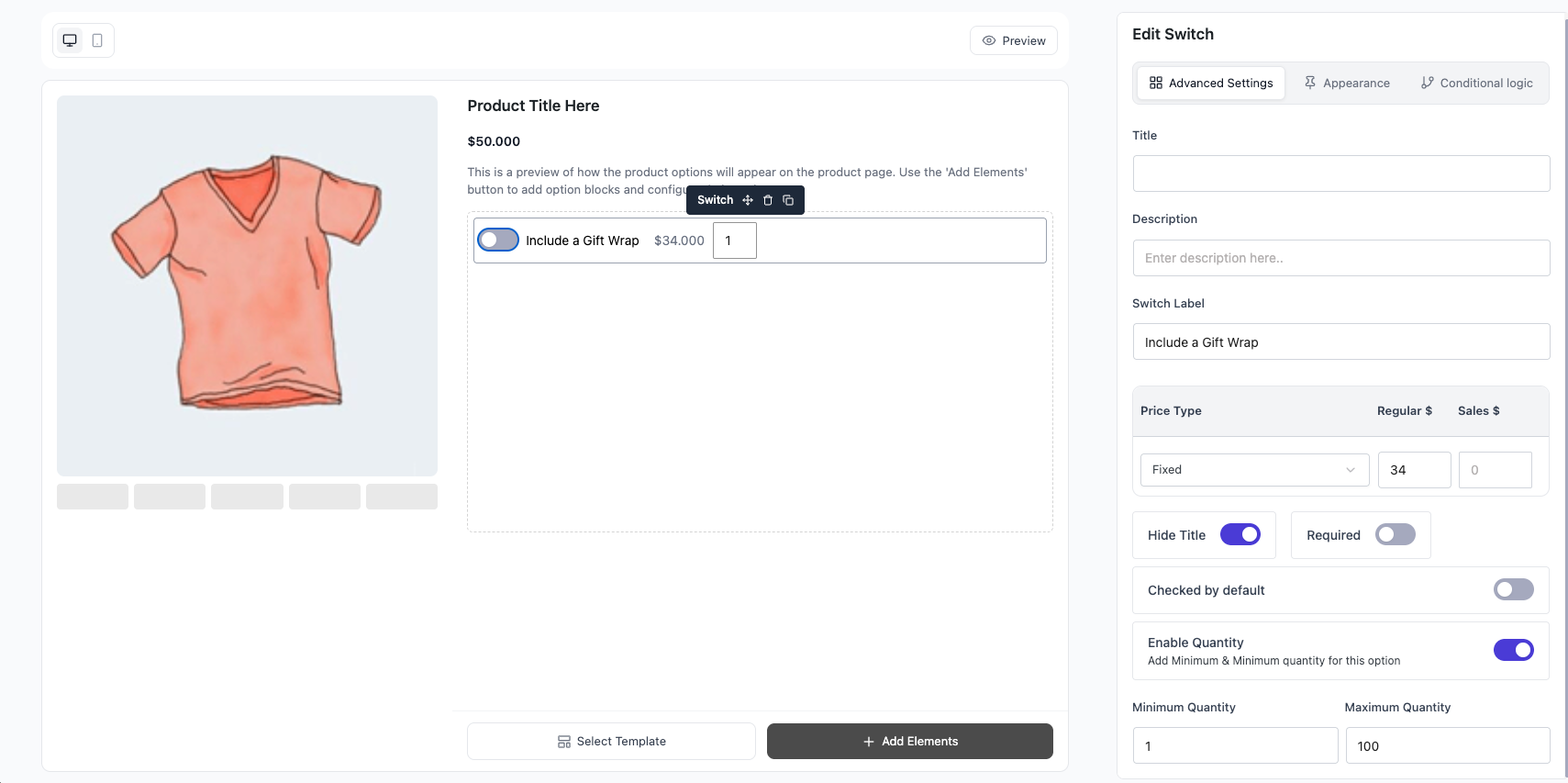
The Switch (toggle) field is a single on/off control. When turned on, its one choice adds to (or subtracts from) the product price. Use it for a single optional upgrade.
Use Cases #
- Add Gift Wrapping (+$4.99)” — The most common single-upgrade use case in e-commerce.
- Assemble Before Shipping (+$20)” — Perfect for furniture, bikes, or complex items where users pay for convenience.
- Opt-out of Plastic Packaging (-$1.00)” — Great for eco-friendly stores using your negative price feature to reward users.
- Make it a subscription” style single toggle.
How to Use #
- Open Optiontics → Add-ons and edit (or create) an add-on form.
- Drag the Switch block onto the canvas.
- Select the block to open its settings on the right.
- Set the single choice:
- Label — text shown beside the toggle.
- Price — amount added when the switch is on (negative to subtract).
- Price type — Fixed or Percentage of the base price.
- Default — start the switch on if checked.
- Adjust the settings (below).
- Save, assign to a product, and preview.
Settings & Customizations #
- Title / Hide title / Description.
- Required — switch must be on before add to cart.
- Quantity (optional) — enable a quantity input; set Min and Max.
- Show sale price — show the discounted price when set.
FAQ #
Q1: Does it support multiple options?
A: No — Switch is a single on/off choice. Use Checkbox or Button Group for lists.
Q2: When is the price added?
A: Only when the switch is on.
Q3: Can I start it turned on?
A: Yes — mark the choice as Default.
Q4: Can the upgrade reduce the price?
A: Yes — enter a negative amount.
Conclusion #
The Switch is the simplest selection field: one toggle, one price. Reach for it whenever a product needs a single yes/no upgrade rather than a list of choices.


