Skip to content
Themewinter Docs
  • Docs

Aisentic

3
  • Gettings Started
    • Getting Started with Aisentic: Your AI Assistant for WordPress
    • How to Connect Your WordPress Plugins with AISentic
    • How to Manage Eventin Events Using AISentic’s AI Chatbot

Authorsy

8
  • Introduction
  • Getting Started
    • Introduction
    • Plugin installation
    • License
  • Author Box
    • Add New Author
    • Author Settings
  • Voting
    • Voting
  • Shortcodes
    • ShortCode

Delivery Module(Pro)

4
  • Add Food Store’s Location on Google Map(Pro)
  • Google autocomplete address in the checkout(Pro)
  • Minimum order amount to place order(Pro)
  • General

Eventin

114
  • Introduction of Eventin
  • Gettings Started
    • How to Install the Eventin Plugin
    • How to Activate an Eventin License
    • Introduction of Eventin
    • Quick Start Guide
    • How to Upgrade Eventin Free to Pro Version
  • General Settings
    • General Settings for Eventin
    • Getting support
    • How to Manage Role-Based Access in Eventin
    • How to Use Embeddable Scripts in Events(Pro)
    • How to Create a Webhook for Events (Pro)
    • How to Change Event & Speaker Slug
    • How to Set Up Native Tax in Eventin
  • Events
    • How to Create Event in Eventin
    • How to Customize the Eventin Event Page with Elementor
    • How to Create Event Ticket Variations
    • How to Create Recurring Event in Eventin
    • How to Use WooCommerce Coupon for Events
    • How to Assign Categories and Tags to Events
    • How to work global stock
    • How to Use the Waitlist Feature in Eventin
    • How to Submit Events from the Front End in Eventin
    • How to insert Event Location in Eventin
    • How to Create Event Categories and Tags
    • How to Create a Hybrid Event in Eventin
    • How to Check Event Report
  • Event Attendees
    • How to Purchase Tickets on Eventin
    • How to Manage Attendees in Eventin
    • How to Manage Booking of Events
    • How to Send Event Certificates
    • How to Set a Countdown Timer for Ticket Purchases in Eventin
    • How to View Event Bookings on the Frontend
    • How to Refund a Booking (Full or Partial) in Eventin
    • How to Add Attendee Extra Fields
    • How to Add Attendees Manually (Pro)
    • How to Generate and Scan QR code(Pro)
    • How to Enable Event Attendee Registration
  • Event Imports
    • How to import events in Eventin from Eventbrite?
    • How to import event from facebook in Eventin
    • How to import event from The Events Calendar to Eventin
  • Email Settings
    • How to Configure Confirmation Email for Event
    • How to Configure RSVP Email
    • How to Configure Reminder Email for Event
    • Email Automation Workflow Builder
  • Speakers and Organizers
    • Introduction of Eventin Speaker & Organizer
    • How to Create Eventin Speaker
    • How to Create Eventin Organizer
    • How to assign speakers on schedules
    • How to assign a speaker/organizer on events
  • Schedules
    • How to Create Eventin Schedule
    • Introduction of Eventin Schedules
    • How to Assign Schedule on Events
  • Payment Type
    • How to Configure the Stripe Payment Gateway in Eventin (Pro)
    • How to Configure the WooCommerce in Eventin
    • How to Configure the PayPal Payment Gateway in Eventin
    • Which payment methods are supported by Eventin?
    • How to Configure SureCart in Eventin
    • How to Configure the Local Payment in Eventin
    • How to Configure FluentCart with Eventin
  • Shortcodes & Widgets
    • How to Use Eventin Shortcodes
    • Event Calendar View In Eventin
    • Elementor Widgets in Eventin
    • Available Shortcodes & Widgets in Eventin
  • RSVP Events (Pro)
    • How to Create RSVP in Eventin
    • How to send RSVP invitations
    • What is RSVP Event
    • RSVP Attendee Report
  • Visual Seat Map
    • How to Create Event with Visual Seat Map in Eventin
  • Integration
    • How to Integrate Zoom Module with Eventin
    • How to Integrate Calendar with Eventin (Google, Apple etc)
    • How to Integrate Zapier with Eventin
    • How to Integrate Pabbly with Eventin
    • How to Integrate FluentCRM with Eventin (pro)
    • How to Integrate Twilio SMS Remindar with Eventin
    • How to Integrate Dokan with Eventin for Multivendor Events( Pro)
    • How to Integrate DIVI Builder with Eventin
    • How to Integrate BuddyBoss with Eventin(Pro)
    • How to Integrate Bricks Builder with Eventin(Pro)
    • How to Integrate Google Meet with Eventin (Pro)
    • How to Integrate Oxyzen Builder with Eventin(Pro)
    • How to Integrate Artificial Intelligence (AI) with Eventin (Pro)
    • How to Integrate WowRevenue with Eventin
    • How to Integrate SEO Plugin with Eventin
    • Automate Eventin Bookings with Make.com Webhooks
    • How to Integrate Eventin with OttoKit (formerly SureTriggers) to Automate Event Workflows
    • How to Integrate Eventin with Bit Flows
    • How to Integrate Eventin with Bit Integrations
    • How to Integrate Tutor LMS with Eventin
    • How to integrate Mail Mint with Eventin
    • How to integration Funnelkit (autonami ) with Eventin
    • How to integrate Zoho CRM with Eventin
    • How to integrate Mailpoet with Eventin
    • How to Integrate Optiontics with Eventin
    • How to Use WCFM Multivendor with Eventin
  • Eventin MCP
    • How to use Eventin’s MCP to manage your WordPress events through Claude, Codex, and other AI assistants
  • Templates
    • How to Override Event Template
    • How to Override Speaker Template
    • How to Override Archive Page
    • How to Change Event Templates
    • How to Change Speaker Templates
    • How to Change Ticket Templates
    • How to Override Email Template
  • Template Builder
    • How to Create Event Certificate Templates in Eventin (Pro)
    • How to Create Event Ticket Templates in Eventin (Pro)
    • How to Create Custom Event Landing Pages in Eventin (Pro)
  • Translations
    • Which translation plugins are supported in Eventin?
    • Which languages are supported in Eventin?
    • How to Translate Eventin with WPML
  • Rollback V4 to V3
    • Rollback V4 to V3
  • Troubleshooting
    • How to Fix 404 issue on Event Page
    • ACF Field Support
    • Ticket Email Sent from WordPress
    • Admin Email Showing in Public Source Code
  • Coupon
    • How to Create and Use Coupons in Eventin

General

1
  • How to Cancel Your Subscription

Optiontics

14
  • How to Create Product Options?
  • What is Optiontics?
  • How to Install Optiontics?
  • How to Use Advanced Date and Time Picker using Optiontics
  • How to Add Font Picker Product Option Using Optiontics
  • How to use Range Slider Block in Optiontics
  • How to Add ShortCode Product Option Using Optiontics
  • How to use Switch Product Addon using Optiontics
  • How to use File Upload Field in Optiontics
  • How to use Radio Field in Optiontics
  • How to use Dropdown Field in Optiontics
  • How to use Checkbox Input in Optiontics
  • How to use in Button Group Field in Optiontics
  • How to use Image Swatch Field in Optiontics

Pointics

18
  • Points Program
    • How Do I Apply Advanced Conditions in Earning Rules
    • How Do I Create Point Earning Rules
  • Reward Program
    • How Do I Apply Advanced Conditions in Reward Program
    • How Do I Create Rewards Customers Can Redeem
  • Levels
    • How Do I Set Up VIP Levels
  • AI Features
    • How Do I Use the Pointics AI Assistant
  • Getting Started
    • How Do I Activate Pointics Pro
    • Introduction to Pointics
    • How Do I Set Up My Loyalty Program with the Pointics Setup Wizard
  • Customers
    • How Do Customers See Their Points
    • How Do I Manage Customers and Adjust Their Points
  • Transactions
    • How Do Points Expire
    • How Do I Read the Points Ledger
  • Automations
    • How Do I Send Automated Loyalty Emails
  • Settings
    • How Do I Configure Pointics Settings
  • Integrations
    • How Do I Install and Manage Integrations
  • Refferal
    • How Do I Set Up Referrals
  • Analytics
    • How Do I Read the Analytics Dashboard

WPCafe

69
  • Introduction of WPCafe
  • Troubleshooting
    • Slug Change
  • Getting Started
    • How to install the WPCafe Plugin
    • How to Activate WPCafe License
    • Plugin Uninstallation
    • Quick Start Guide
    • How to Upgrade WPCafe Free to Pro Version
  • Email Settings
    • How to Automate Reservation Emails in WPCafe
  • Product Addons
    • Product Addons (Pro)
  • Translation
    • How to Translate WPCafe
    • Translation with Loco Translate
  • Rollback V2 to V3
    • How to Roll Back to an Older Version of WP Cafe
  • General settings
    • How to use shortocde on WPCafe
    • WpCafe Elementor Widgets
    • Get Support
    • Theme Compatibility
    • User Roles and Permissions
    • General Settings for Date and Time
    • How to Manage Global Schedule Settings
  • Food Ordering
    • How to Add & Manage Food Categories and Tags
    • How to Add and Manage Food Menu in WPCafe
    • How to Manage Restaurant Locations in WPCafe
    • How to Enable Mini Cart in WPCafe
    • How to Enbale Sound Notification in WPCafe
    • How to Set Up Tipping Using WPCafe
    • How to Add Discounts Using WPCafe
    • How to Setup Pickup for Food Ordering in WPCafe
    • How to Setup Delivery for Food Ordering in WPCafe
    • How to Generate QR Codes for Food Menu
    • Searching Products with Pickup/Delivery(Pro)
    • How to Add & Manage Brands
    • How to Use Time Based Products in WPCafe
    • How to Show Food Menu by Location in WPCafe
    • How to Set Up the One Page Checkout in WPCafe
    • How to Manage Restaurant from Frontend or WordPress Site Panel – WP Cafe
    • How to Use Product Label in WP Cafe
    • Product Nutritional and Allergen Info in WP Cafe
    • How to Use Order Delay Notification in WPCafe
    • How to use Recipt Layout in WPCafe for Order/Recipts Printing
    • How to Use Optiontics with WP Cafe for Food Add-ons
    • How to Set Up Dine-in, Pickup, Delivery, and ASAP Orders in WP Cafe
  • Reservation
    • Reservation with Food Ordering (PRO)
    • How to Customize Table Layout in Reservation
    • How to Configure Reservation Settings in WPCafe
    • How to Customize the Reservation Form in WPCafe
    • Schedule
    • Email Settings
    • How to Display the Reservation Form
    • How to Receive Deposit Payment in Reservation in WP Cafe
  • Integrations
    • How to Integrate Multivendor Addon in WPCafe
    • How to Use WPCafe Elements in Oxygen Builder
    • How to Integrate Shipday Plugin with WPCafe
    • How to Integration Twilio SMS with WPCafe
    • How to Integrate Zapier in WPcafe
    • How to Integrate Pabbly with WPCafe
    • Loyalty Program Points & Rewards for Food Orders
    • How to Integrate Clover POS with WPCafe
    • How to Integrate Fluent CRM with WPCafe
    • How to Create Webhook from WPCafe and Send Data to Any Third party integration
    • How to integrate Zoho Flow with WPCafe
    • WPCafe Multivendor Addon for WCFM Marketplace, Run a Multi-Restaurant Food Marketplace
    • How to Integrate MailPoet in WPCafe
    • How to Add Mailmint Integration with WPCafe
    • How to Integrate Flowmattic in WPCafe
    • How to Use WPML with WPCafe (Multilingual Setup)
    • How to Integrate FunnelKit Automation in WPCafe
    • How to Integrate Uncanny Automator in WPCafe
  • Style Settings
    • Style Settings
  • WPCafe MCP
    • How to Use WPCafe MCP with Claude, Codex & AI Assistants to Manage Your Restaurant
View Categories
  • Home
  • Docs
  • Pointics
  • Transactions
  • How Do I Read the Points Ledger

How Do I Read the Points Ledger

What is the Transactions Screen? #

Transactions is the complete record of every point movement on your site. Each row shows who the transaction belongs to, how many points moved, why the movement happened, and whether it counted toward the customer’s balance.

This record is the source of truth for Pointics. Every customer’s balance is calculated from it, and balances and transactions are updated together.

Why Do You Need It? #

  • Points are a liability: Loyalty points represent value, and this screen records every movement.
  • It resolves disputes: When a customer questions their balance, the Transactions screen provides the full history.
  • It helps detect problems: Duplicate awards, failed redemptions, reversals, and expiry activity are all visible here.

Prerequisites #

  • An Administrator account.
  • No additional setup is required. Transactions are recorded automatically as customers earn, redeem, adjust, expire, or reverse points.

Customers can also view their own transaction history from their account panel.

Where to Find It #

Go to Pointics → Transactions.

/wp-admin/admin.php?page=pointics#/transactions

Step-by-Step Instructions #

Step 1: Open the Transactions Screen #
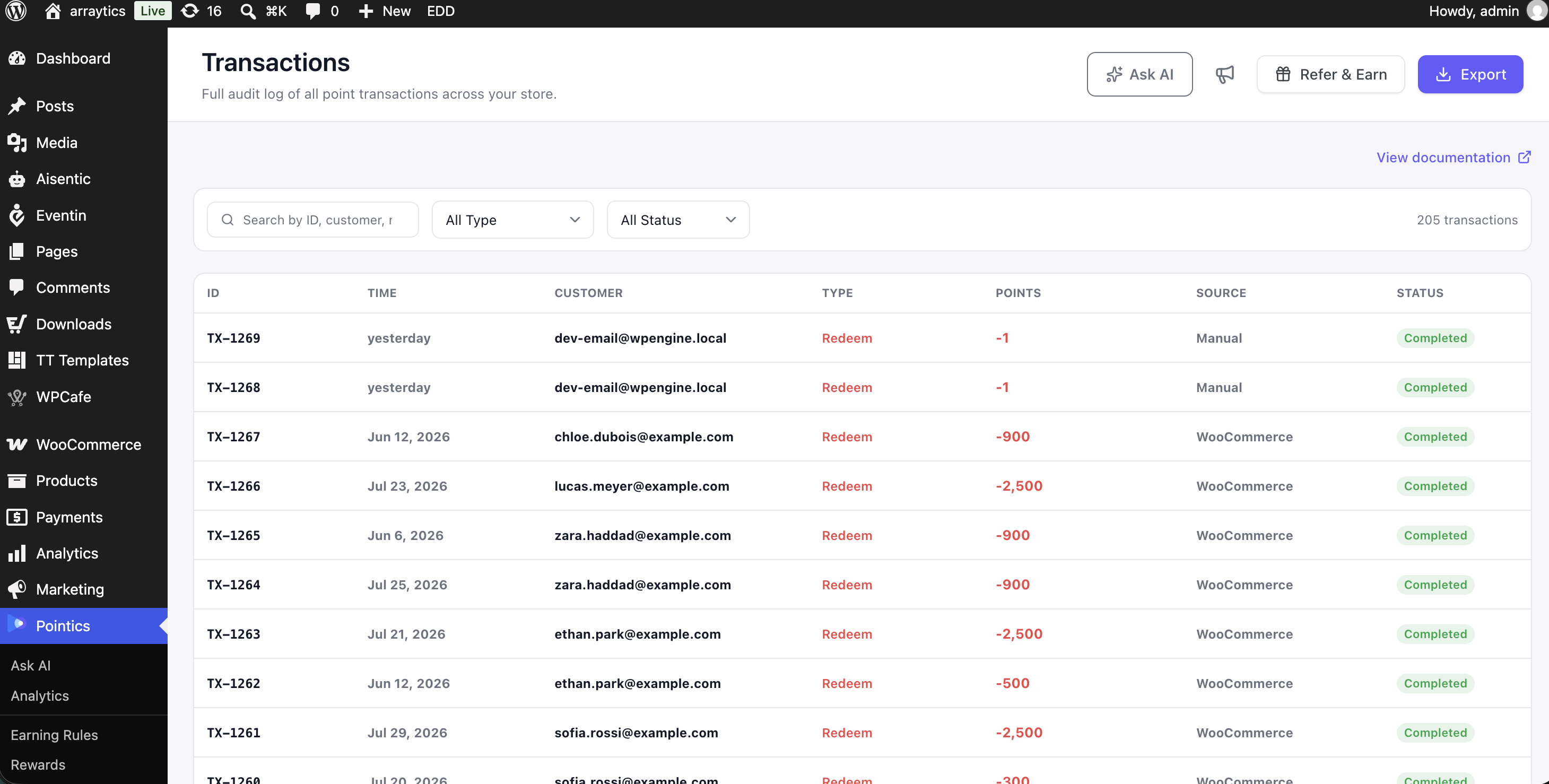
Go to Pointics → Transactions. Every point movement on your site is listed, with the newest transactions shown first.

Step 2: Read a Row #

ColumnShows
IDThe transaction reference.
TimeRelative time in the table and an exact date in the export.
CustomerThe customer’s email address.
TypeEarn, Redeem, Adjust, Expire, or Reversal.
PointsSigned in the table and unsigned in the export.
SourceWhere the transaction originated, such as an integration or an administrator.
StatusPending, Completed, Reversed, Failed, or Expired.

The export writes point values as unsigned numbers. This prevents spreadsheet software from interpreting a leading minus sign as text and breaking calculations.

Step 3: Narrow the List #
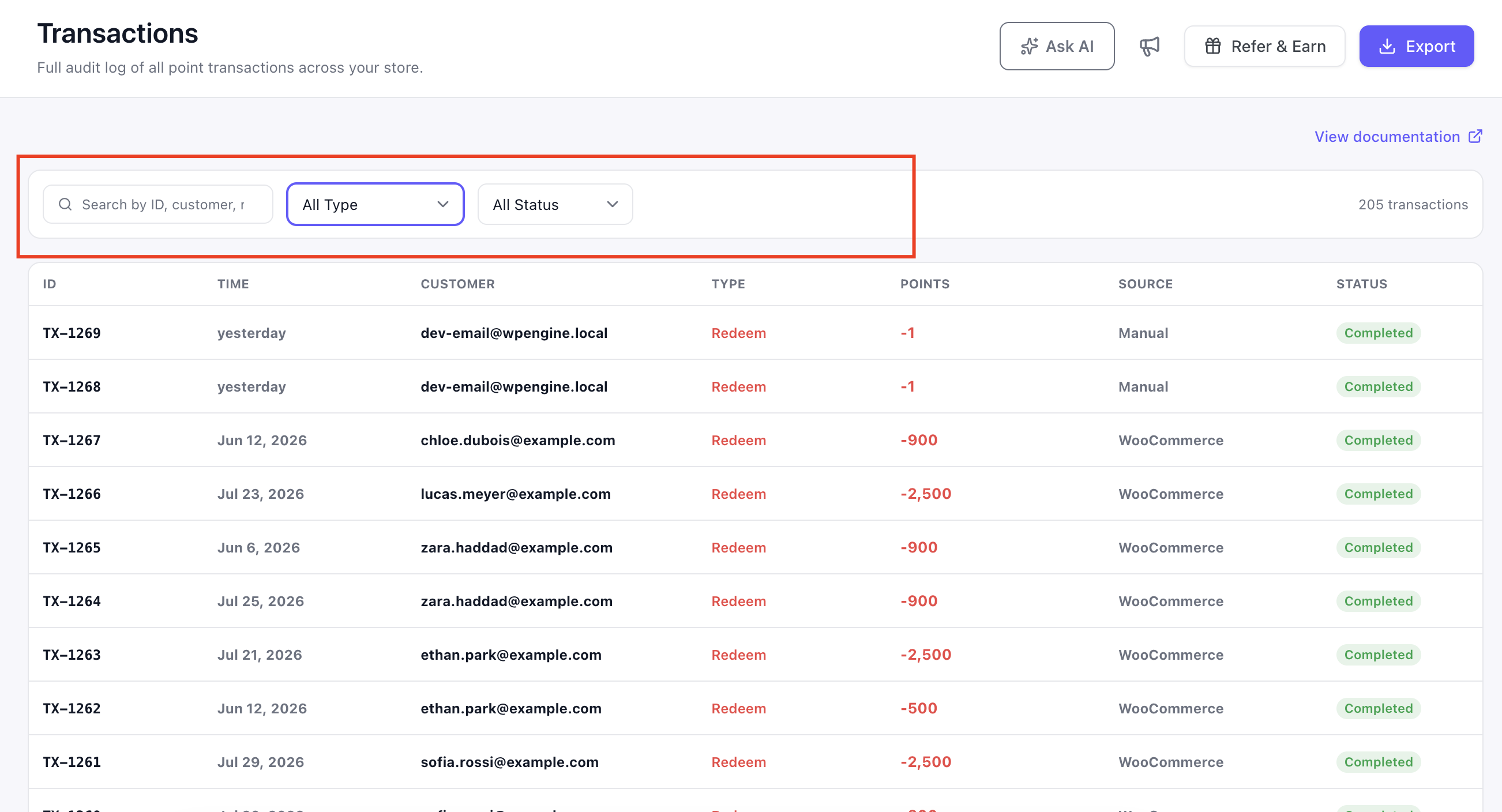
ControlBehaviour
Search Transactions — “Search by ID, customer, ref..”Matches the transaction and customer information.
Filter by Type — “All Type”Filters by Earn, Redeem, Adjust, Expire, or Reversal.
Filter by Status — “All Status”Filters by Pending, Completed, Reversed, Failed, or Expired.
Date RangeFilters by a start date and end date.

Transactions belonging to deleted user accounts or guest users are still preserved. In those cases, the Customer column is empty.

Step 4: Sort Transactions #

You can sort transactions by ID, Time, or Points. The default order is newest first.

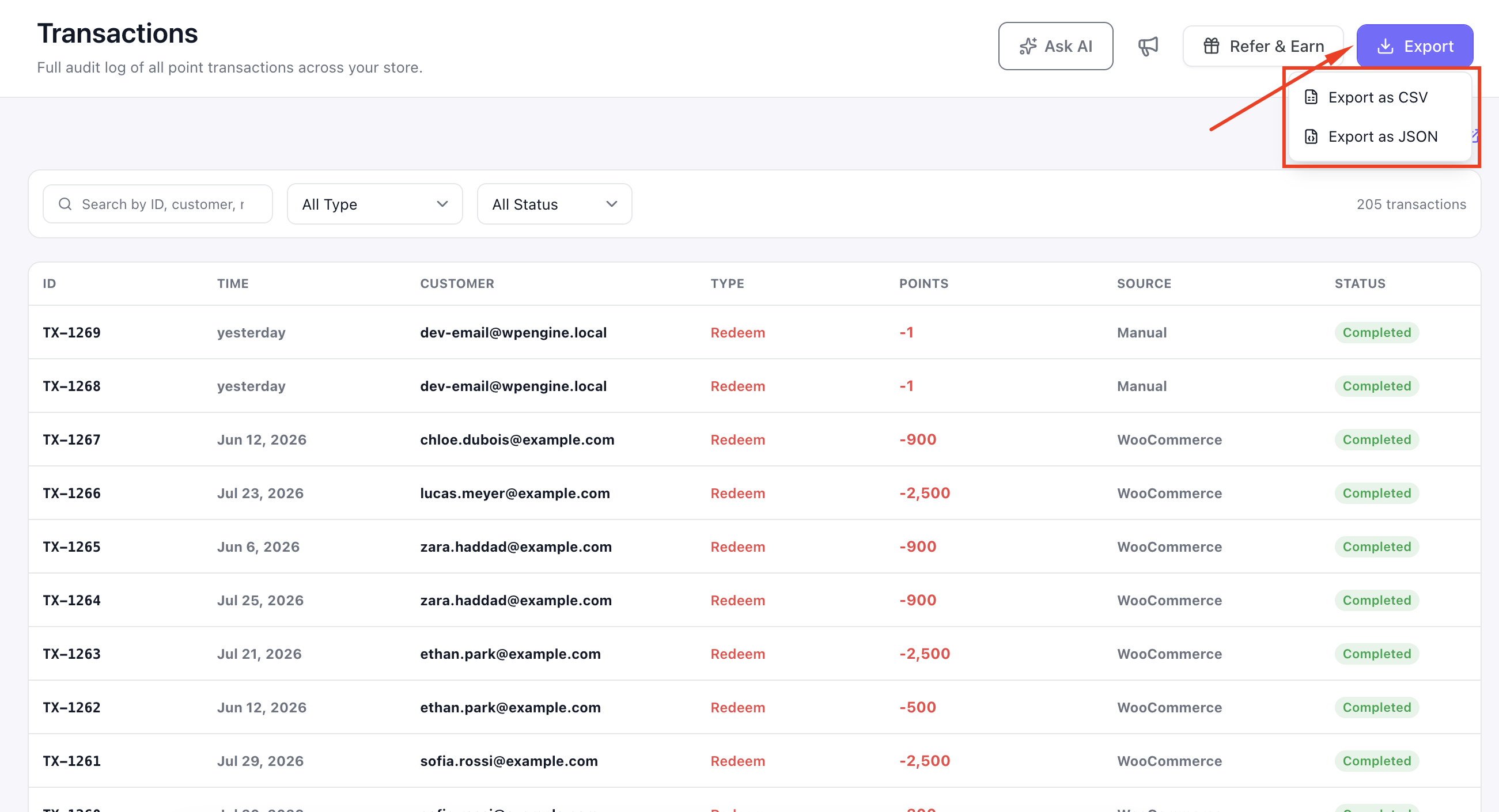
Step 5: Export Transactions #

The export includes every transaction matching the current filters and uses the same columns as the Transactions table.

Key Functionality #

Transaction Types #

TypeMeaning
EarnPoints awarded by an earning rule.
RedeemPoints used to redeem a reward.
AdjustA manual credit or deduction made by an administrator.
ExpirePoints removed because they reached their expiry date.
ReversalAn earlier points movement that was undone, such as after a refunded order.

Transaction Statuses #

StatusCounts Toward the Balance?Meaning
PendingNoPoints are being held for a redemption that has not settled.
CompletedYesThe transaction has settled successfully.
ReversedNoThe original transaction was undone.
FailedNoThe transaction never completed successfully.
ExpiredNoThe transaction aged out.

Only Completed transactions count toward a customer’s available balance. Pending, Reversed, Failed, and Expired rows do not count.

How Points Move #

Point movements follow these main paths:

  • Earning Rule: An earning rule awards points → an Earn transaction is completed → the balance updates.
  • Admin Credit: An administrator adds points → an Adjust transaction is completed → the balance updates.
  • Reward Redemption: A customer redeems a reward → a Redeem transaction becomes Pending → points are held.
  • Paid Order: If the related order is paid, the pending redemption becomes Completed and the points are permanently spent.
  • Cancelled or Expired Reward: If the redemption is cancelled or the coupon expires, the hold is reversed and the points return.
  • Point Expiry: Expired points create an Expire transaction and the balance is reduced.
  • Refund: A refunded order creates a Reversal transaction and eligible points are removed.

Validation Rules #

  • Type and Status filters accept only the supported values listed above.
  • Search accepts up to 191 characters.
  • Date filters must use a valid calendar date in YYYY-MM-DD format, optionally including a time.
  • Impossible dates, such as 30 February, are rejected.
  • Leaving either date field empty means there is no limit on that side of the date range.

“date_from must be a date as YYYY-MM-DD, optionally with HH:MM:SS.”

What Pointics Guarantees #

  • Every points movement and the balance it changes are recorded together.
  • The same event cannot be recorded twice, which protects retries and frequency-limited rules from duplicate awards.
  • Plugin updates do not destroy transaction data.
  • Deactivating Pointics does not remove transaction history.

Limitations #

  • Transactions cannot be edited or deleted. Corrections must be made with a new adjustment so the original record remains visible.
  • You can sort by only ID, Time, and Points.
  • The customer profile history supports search only. Use the Transactions screen for date and type filters.
  • There is no separate detail page for individual transactions.
  • Deleting a WordPress user does not remove their transactions. The Customer column becomes empty instead.

Troubleshooting #

ProblemSolution
“date_from must be a date as YYYY-MM-DD, optionally with HH:MM:SS.”Correct the date format and make sure the date actually exists.
A filter returns no results.Check that the selected transaction type and status are valid.
The Points column does not sum correctly in a spreadsheet.Use the CSV export instead of copying the visible table. The export uses unsigned numeric values.
A balance does not match a quick sum of all rows.Only Completed transactions count toward the balance.
Duplicate award rows appear.This should not normally happen. Check the earning rule’s frequency configuration.
A redemption remains Pending.The related order has not been paid. Check its WooCommerce order status.
A row has no customer.The WordPress user was deleted, or the transaction belongs to a guest.
No Expire transactions appear even though expiry is enabled.Expiry runs on a schedule. Confirm that WordPress scheduled tasks are running.
Sorting by Source or Status does nothing.Only ID, Time, and Points can be sorted.

Notes #

  • An Earn transaction also tracks how much of the awarded amount remains unspent and when it expires.
  • This tracking allows Pointics to support point expiry and oldest-points-first spending.
  • A refund can only reverse points the customer still has available. Points that have already been spent cannot be clawed back.

Was This Article Helpful? #

Related Articles #

  • How Do I Manage Customers and Adjust Their Points?
  • How Do Points Expire?
  • How Do I Read the Analytics Dashboard?
  • How Do I Create Point Earning Rules?
Updated on August 16, 2026

What are your Feelings

  • Happy
  • Normal
  • Sad

Share This Article :

  • Facebook
  • X
  • LinkedIn
  • Pinterest
How Do Points ExpireHow Do Points Expire
Table of Contents
  • What is the Transactions Screen?
  • Why Do You Need It?
  • Prerequisites
    • Where to Find It
  • Step-by-Step Instructions
    • Step 1: Open the Transactions Screen
    • Step 2: Read a Row
    • Step 3: Narrow the List
    • Step 4: Sort Transactions
    • Step 5: Export Transactions
  • Key Functionality
    • Transaction Types
    • Transaction Statuses
    • How Points Move
  • Validation Rules
    • What Pointics Guarantees
  • Limitations
  • Troubleshooting
  • Notes
    • Was This Article Helpful?
    • Related Articles
Copyright © 2026 Themewinter Docs