Table of Contents
The Shortcode field embeds any WordPress shortcode inside your add-on form. Whatever the shortcode outputs — a notice, a form, a video, a custom widget — renders right alongside your product options. Use it to drop dynamic or third-party content into the form without writing code.
Requirements #
- Optiontics plugin installed and active
- WooCommerce active with at least one product
- An add-on form created under Optiontics → Add-ons
- A valid, registered shortcode from WordPress or another active plugin
Step 1: Add the Shortcode Field #
- Go to Optiontics → Add-ons and edit or create an add-on form.
- Drag the Shortcode block from the toolbox onto the canvas.
- Select the block to open its settings on the right.
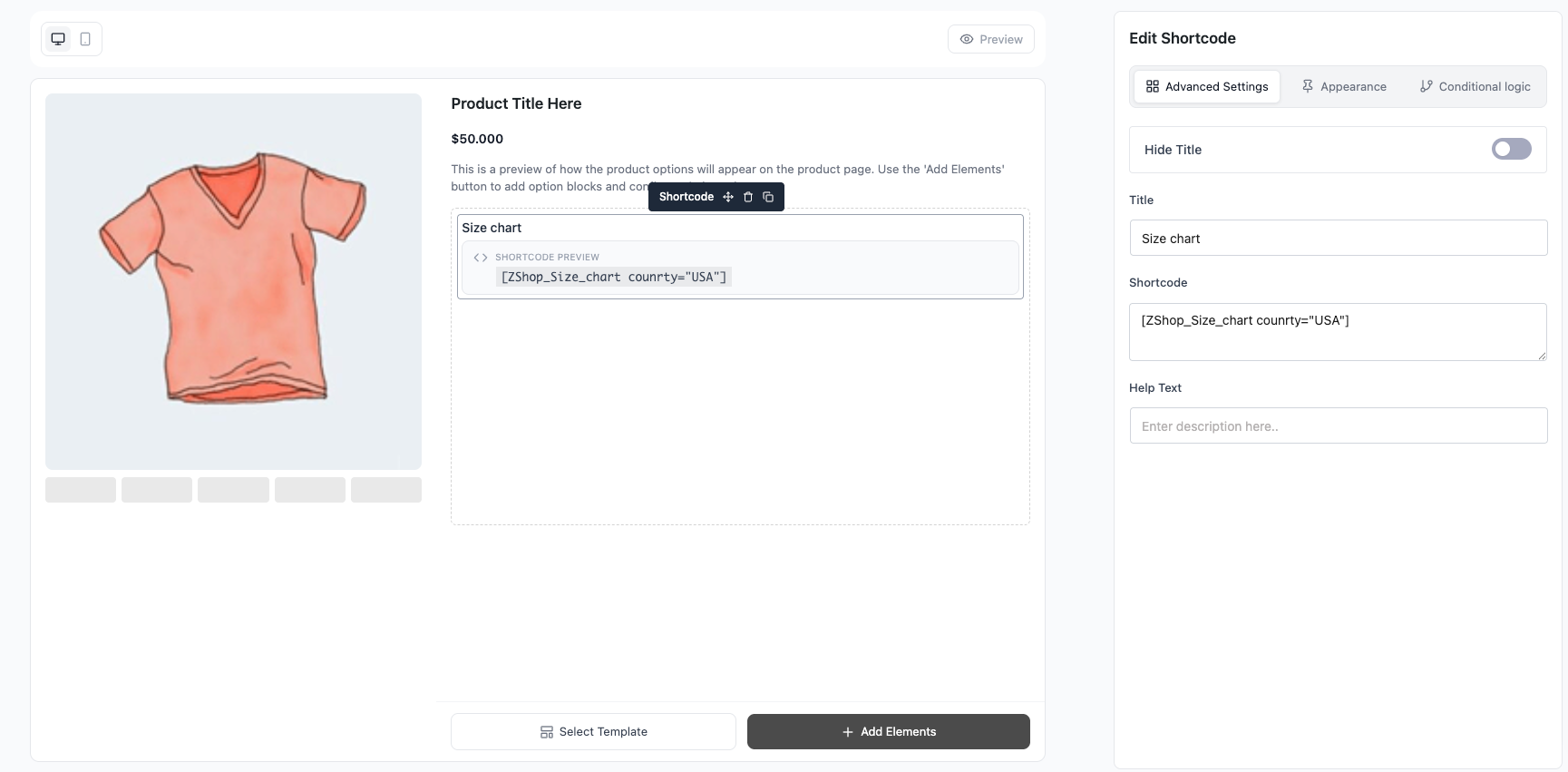
Step 2: Enter Your Shortcode #
- Title — heading shown above the output.
- Shortcode — paste the shortcode, e.g.
[shortcode_example id="1100"]. - Help Text — optional note shown under the title.
Step 3: Adjust Field Settings #
- Title / Hide Title — show a heading above the output, or hide it to render the output only.
- Help Text — helper text shown under the title.
- Conditional logic — show or hide the field based on other field values.
Step 4: Save and Preview #
- Click Save.
- Assign the add-on to a product (or category).
- Open the product page — the shortcode renders its live output inside the form (the builder shows only the raw shortcode preview).
Frequently Asked Questions (FAQ) #
| Q1: Why is my shortcode showing as plain text? The shortcode renders only on the live product page, not in the builder — the builder shows a preview of the raw shortcode. Confirm the shortcode’s plugin is active and the tag is spelled correctly. |
| Q2: Can I use any shortcode here? Yes — any registered WordPress shortcode works, including those from other plugins. It runs through the standard WordPress shortcode processor. |
| Q3: Does the Shortcode field affect the product price? No — it only displays content. It has no price or selection of its own; use it purely for embedded output. |
Conclusion #
The Shortcode field is the flexible escape hatch of the builder — embed forms, videos, badges, or any shortcode-driven content directly inside your add-on form, no custom code required.


