
Collect a deposit when guests book a table online, so they pay part of the booking now and the rest at your restaurant. WPCafe works out the deposit from the booking amount plus any food ordered with it, and charges it through WooCommerce checkout.
What Is a Deposit Payment? #
A deposit payment (also called a partial payment) is the part of the bill a guest pays in advance to secure a booking. The rest, called the balance, is paid later at the restaurant.
For example, booking a table costs 100 and you ask for a 50% deposit. The guest pays 50 online when booking and the remaining 50 when they arrive.
Why Use Deposits in WPCafe? #
A table held for a guest who never shows up is a table you could have sold. Deposits help in these ways:
- Fewer no-shows – Guests who have already paid are more likely to turn up, or to cancel in time so you can rebook the table.
- Protected income – You hold part of the payment for the table you set aside. Your own refund policy decides when it is returned.
- Easier booking – Paying a smaller amount upfront feels lighter than paying the full bill, so more guests finish booking.
- Food orders covered – When guests pre-order food with the table, the deposit covers part of that food before you prepare it.
- Guest choice – Guests can pay the deposit or the full amount, unless you require the deposit.
- Clear records – Staff see what each guest paid and what is left to collect, on the reservation and on the WooCommerce order.
How It Works #
WPCafe uses the Deposet plugin (Deposits & Partial Payments for WooCommerce) to set the deposit rate, so you set it once and it applies to every online booking. The deposit applies only when the guest pays online with WooCommerce. Guests who choose Local pay the full amount at the restaurant, so the form shows no deposit for them.
Before You Start #
Make sure your site has the following:
- WPCafe with the Reservation module turned on.
- WooCommerce installed and active. Deposits are paid through WooCommerce checkout.
- WooCommerce payments turned on for reservations, so guests can pay online.
- A Booking Amount above 0 in WPCafe > Reservation Rules, or food that guests can order with the booking. With nothing to pay, there is no deposit.
Install Deposet #
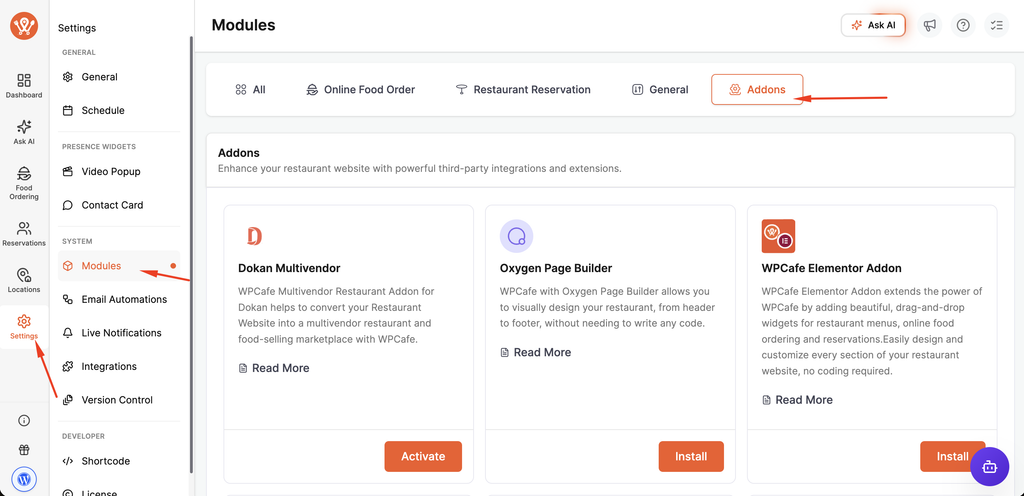
- Go to WPCafe > Modules and open the Addons tab.
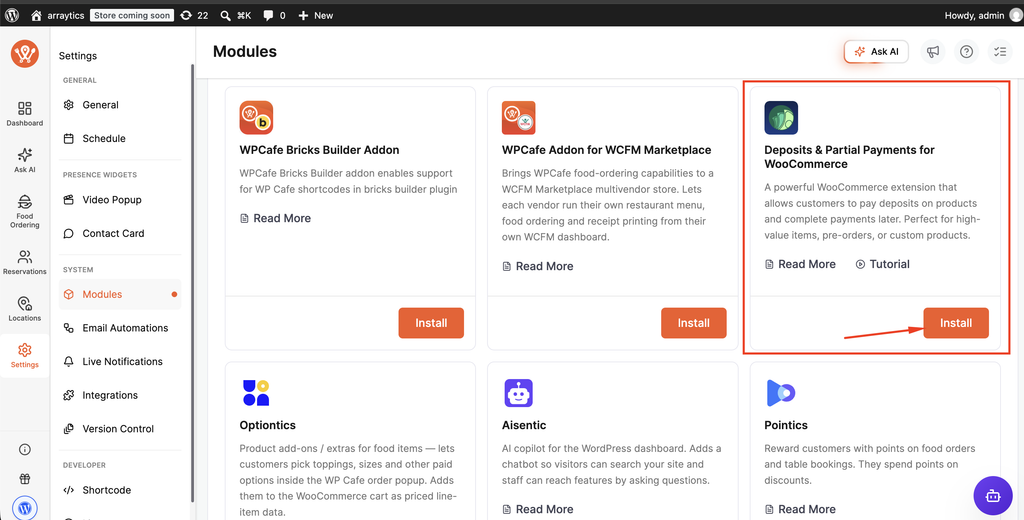
- Find the Deposits & Partial Payments for WooCommerce card.
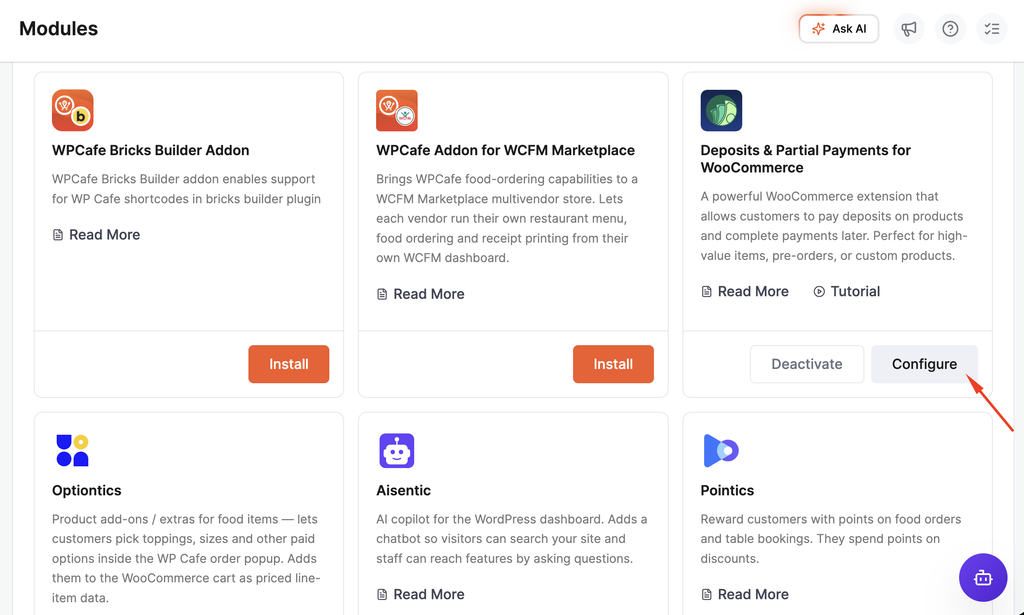
- Click Install, then Activate.
Deposet adds deposit and partial payment support to WooCommerce. WPCafe reads its deposit rule for every online booking.
#
Set up the Deposit Rule in Deposet
After activating Deposet, turn deposits on and create one rule that sets how much guests pay at booking.
Enable Deposits #
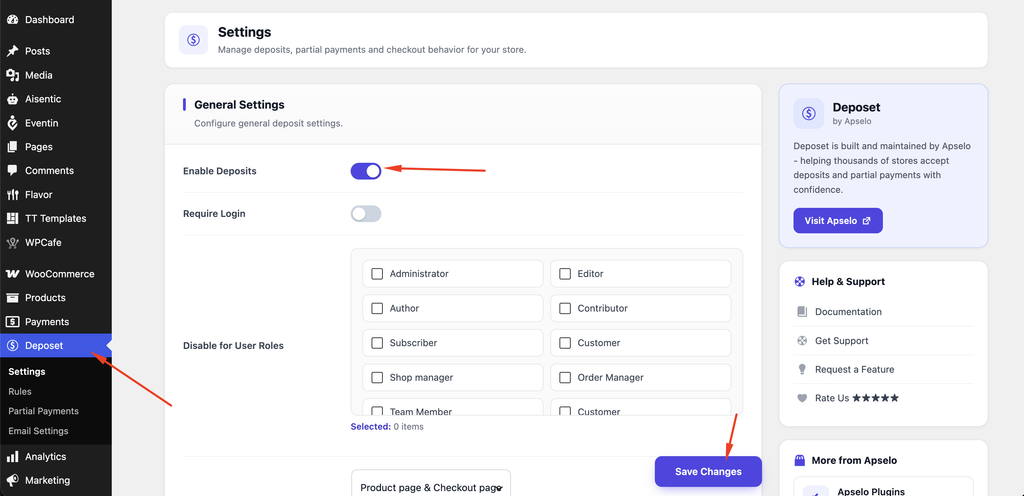
- Go to Deposet > Settings.
- Under General Settings, turn on Enable Deposits.
- Click Save Changes.
Add a Deposit Rule #
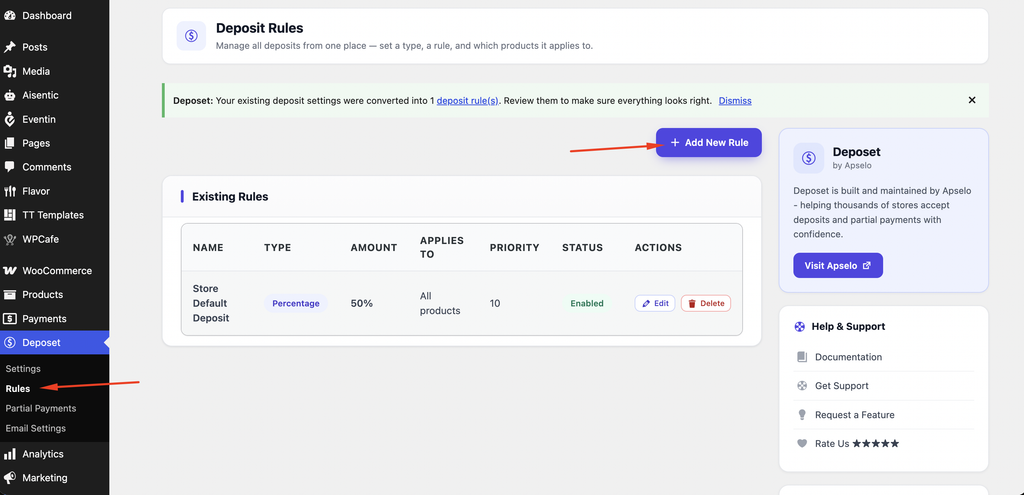
- Go to Deposet > Rules.
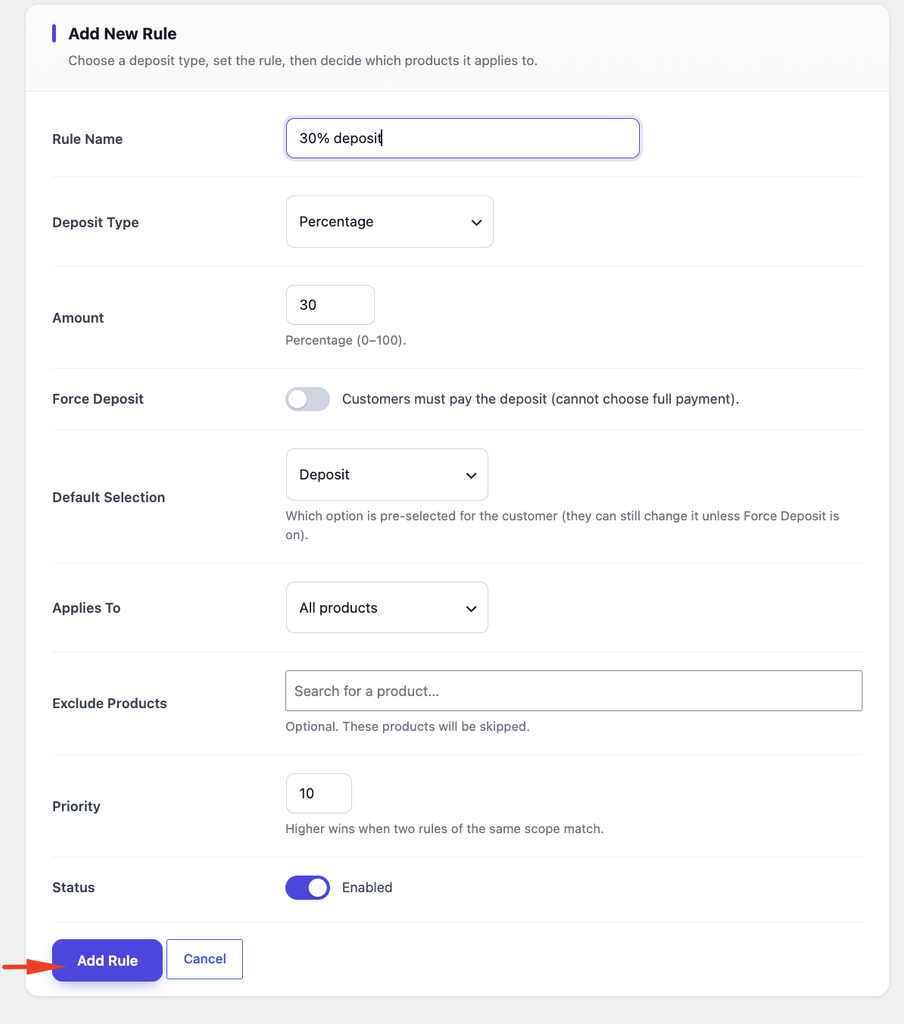
- Fill in the Add New Rule form (each field is explained below).
- Set Applies To to All products. Reservations only follow rules for all products.
- Click Add Rule.
Manage Deposit Rule Settings #
In the Add New Rule form, fill in the following details:
- Rule Name – A name only you see, such as “Table booking deposit”.
- Deposit Type – Choose Percentage or Fixed Amount. Payment Plan (installments) does not apply to reservations.
- Amount – The deposit rate. For example, 50 with Percentage means guests pay half now. With Fixed Amount, guests pay that sum, or the full total when the total is smaller.
- Force Deposit – Turn on to make every online booking pay the deposit. Guests then cannot choose to pay in full.
- Default Selection – Which option the booking form picks first: Deposit or Full Payment. Guests can still change it unless Force Deposit is on.
- Applies To – Set to All products. Rules for specific categories or products are skipped for reservations.
- Priority – If you have more than one rule for all products, the one with the highest number is used.
- Status – Keep Enabled checked. Disabled rules are ignored.
- Add Rule / Update Rule
Turn On Deposit at Booking in WPCafe #
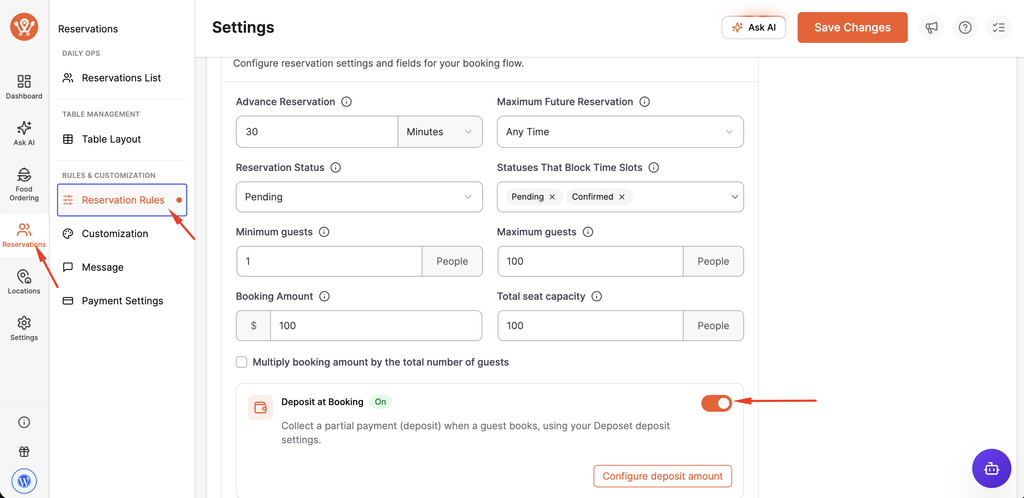
- Go to WPCafe > Reservation Rules.
- Set the Booking Amount guests pay to reserve a table.
- Optional: check Multiply booking amount by the total number of guests to charge the amount per guest.
- In the Deposit at Booking card, turn the switch on. The label changes to On.
- Save the settings.
The Deposit at Booking card shows one of three labels:
- Requires Deposet – Deposet is not active, or Enable Deposits is off. Click Activate Deposet to go to the Addons tab.
- Off – Deposet is ready, but WPCafe does not ask for a deposit.
- On – Online bookings take a deposit. Click Configure deposit amount to open Deposet.
Final Output #
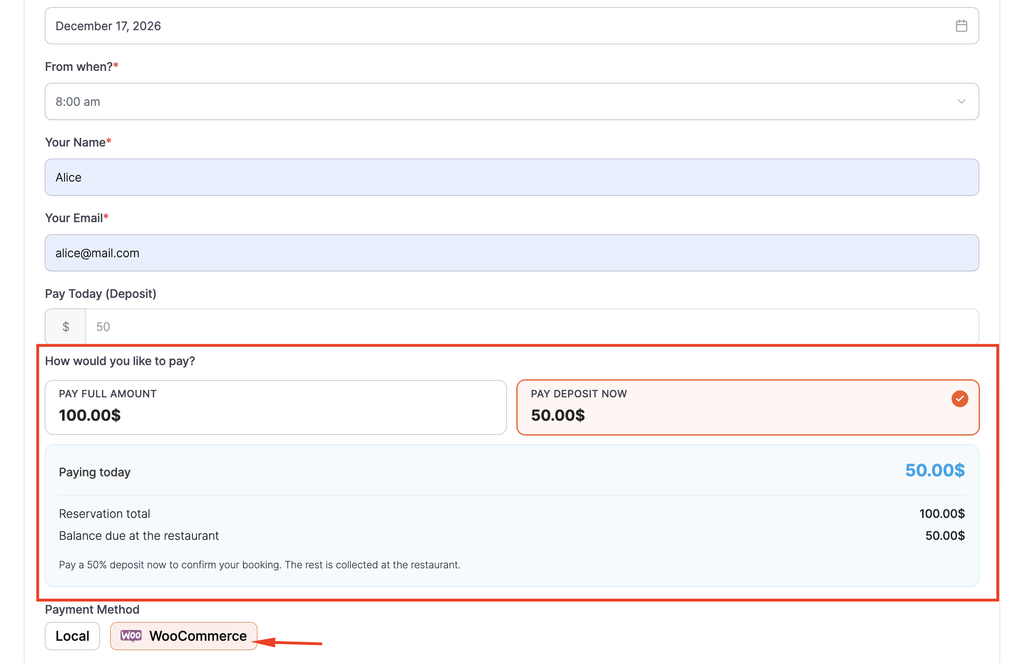
After setup, guests who pay online see the deposit at every step, from the booking form to the order email.
Booking Form #
The deposit appears once the guest picks WooCommerce under Payment Method. The amount field then reads Pay Today (Deposit), and a box shows Paying today, the Reservation total and the Balance due at the restaurant. Under How would you like to pay?, guests pick Pay full amount or Pay deposit now. If Force Deposit is on, the choice is hidden and the deposit is charged. When food is added, a breakdown shows Reservation, Food and Total.
Checkout Page #
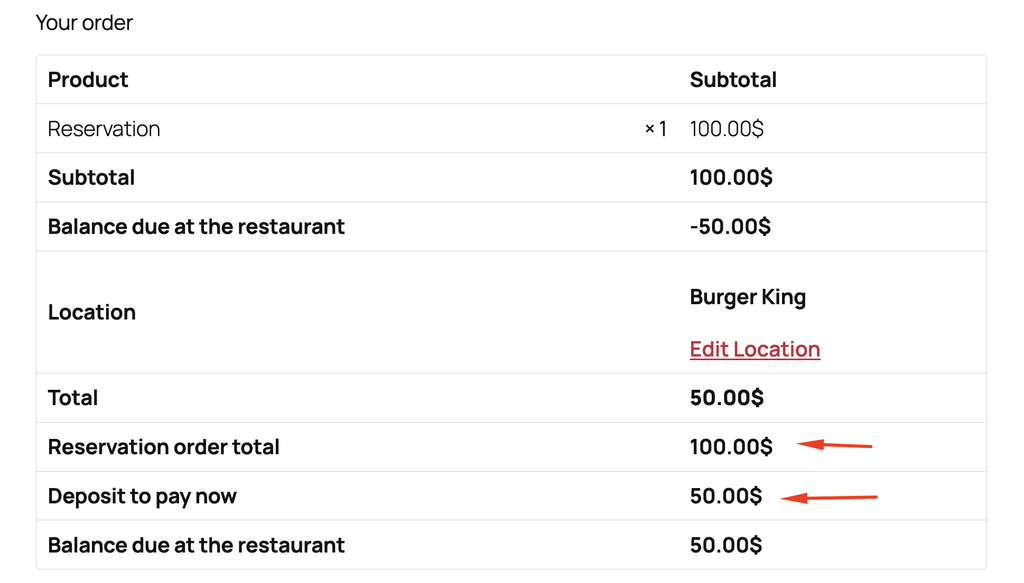
The order lists Reservation at its full price, then a Balance due at the restaurant line that subtracts what guests pay later. The order total is the deposit. Below it, three rows show Reservation order total, Deposit to pay now and Balance due at the restaurant.
[Screenshot: checkout with the Balance due at the restaurant line and the three summary rows]
Order Received Page and Email #
The order received page and the order email include a Your reservation payment table: Reservation total, Deposit paid and Balance due at the restaurant. Until the order is paid, the deposit row reads Deposit (awaiting payment).
Example #
Booking Amount 100 with a 50% deposit rule:
| Booking | Reservation total | Paid at checkout | Balance due at the restaurant |
|---|---|---|---|
| Table only, Pay deposit now | 100 | 50 | 50 |
| Table + 30 of food, Pay deposit now | 130 | 65 | 65 |
| Table only, Pay full amount | 100 | 100 | 0 |
Track Deposits in the Dashboard #
Staff can see what each guest paid and what is still owed, in WPCafe and in WooCommerce.
WPCafe Reservation Details #
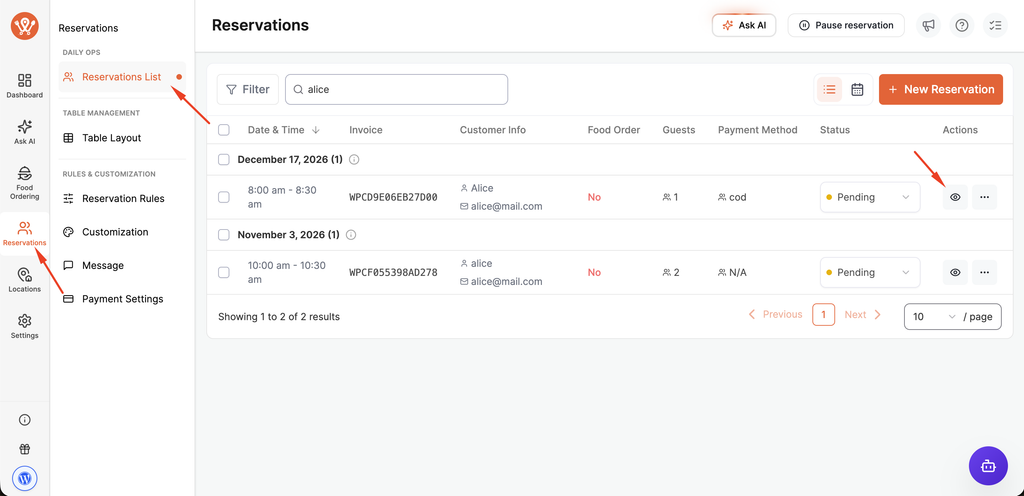
- Go to WPCafe > Reservations.
- Open a reservation’s details.
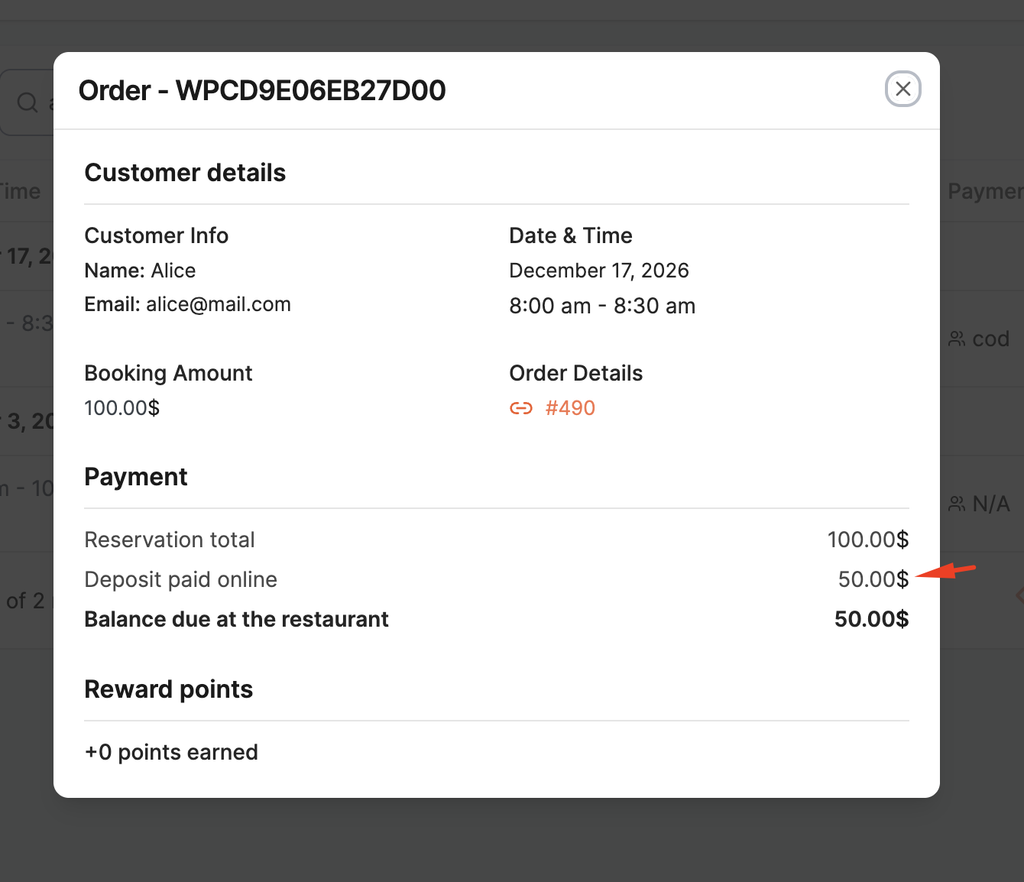
- Check the Payment section: Reservation total, Deposit paid online and Balance due at the restaurant. Before payment, the middle row reads Deposit (awaiting payment).
In the calendar view, the quick view of a deposit booking shows Balance due, the amount to collect when the guest arrives. Click the Order Details link to open the WooCommerce order.
WooCommerce Order #
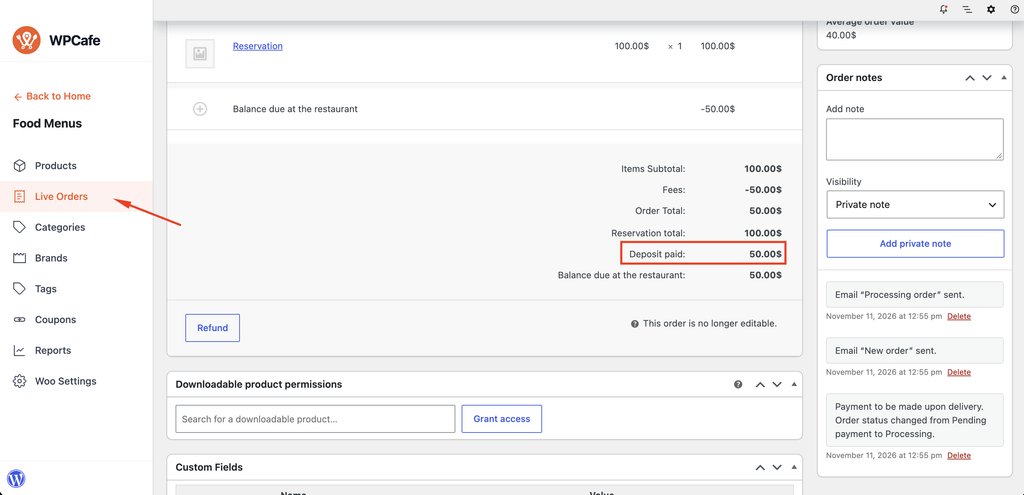
Go to WooCommerce > Orders and open the order. Below the order total, three rows show Reservation total, Deposit paid and Balance due at the restaurant.
Good to Know #
- Online payment only – Guests who choose to pay at the restaurant pay nothing upfront, so no deposit is taken.
- Food is included – The deposit covers the booking amount plus any food ordered with it, as one total.
- Cart changes count – The deposit is worked out again at checkout, so adding or removing food in the cart updates it.
- Discounts come first – Coupons and member discounts are taken off before the deposit is worked out.
- Balance is paid in person – WPCafe does not charge the balance online. Collect it at the restaurant.
- Rule changes apply to new bookings – Orders already placed keep the amounts they were charged.
Frequently Asked Questions #
Why is there no deposit when a guest picks Local?
Local means the guest pays at the restaurant, so nothing is charged online. The deposit only applies to WooCommerce payments.
What if a fixed deposit is larger than the booking total?
The guest pays the booking total in full, and no balance is left.
What happens to existing bookings if I turn Deposet off?
They keep the deposit and balance saved on their orders. New bookings charge the full amount until Deposet is active again.
Can I set a different deposit for reservations than for my shop products?
Reservations follow the highest-priority Deposet rule set to All products. Rules for specific categories or products do not apply to reservations.


