
- Requirements
- How to Enable the NiroHelp Integration
- How to Add Support Tabs to the Eventin Customer Dashboard
- How to Add a Get Support Button to Event Pages
- How to Let Attendees Request a Refund
- How to Open Tickets for Failed Bookings
- How Agents See the Event and Booking on a Ticket
- How to Let the NiroHelp Chatbot Answer Event Questions
- FAQs
- Conclusion
NiroHelp is a WordPress help desk plugin with support tickets, a knowledge base, and an AI chatbot. When you connect it to Eventin, attendees can open a support ticket from their Eventin dashboard or straight from an event page. Every ticket arrives with the event, and the booking when there is one, so your team never has to ask which event or which order the question is about.
The integration doesn’t change anything in Eventin. Bookings, checkout, and refunds work exactly as before. NiroHelp only reads the bookings and adds its own tabs, buttons, and form fields.
In this guide, you’ll learn how to:
- Add Submit Ticket and Support History tabs to the Eventin customer dashboard
- Add a Get Support button to event pages
- Let attendees send refund requests
- Open a ticket automatically when a booking fails
- Let the NiroHelp chatbot answer questions about your events
Requirements #
- Eventin
- Eventin Pro 4.1.23 or later
- NiroHelp
How to Enable the NiroHelp Integration #
Once both plugins are active, the integration starts working right away, with the dashboard tabs and the event-page button on. To review or change what it does:
- In your WordPress dashboard, go to NiroHelp → Integrations.
- Select Eventin from the list. If it says Unavailable, Eventin isn’t active yet.
- Choose the features you want:
- Submit Ticket tab in the customer dashboard (on by default)
- Get support on event pages (on by default)
- Open a ticket when a booking fails (off by default)
- Click Save settings.
Screenshot: NiroHelp → Integrations → Eventin, showing the three checkboxes and the Save settings button.
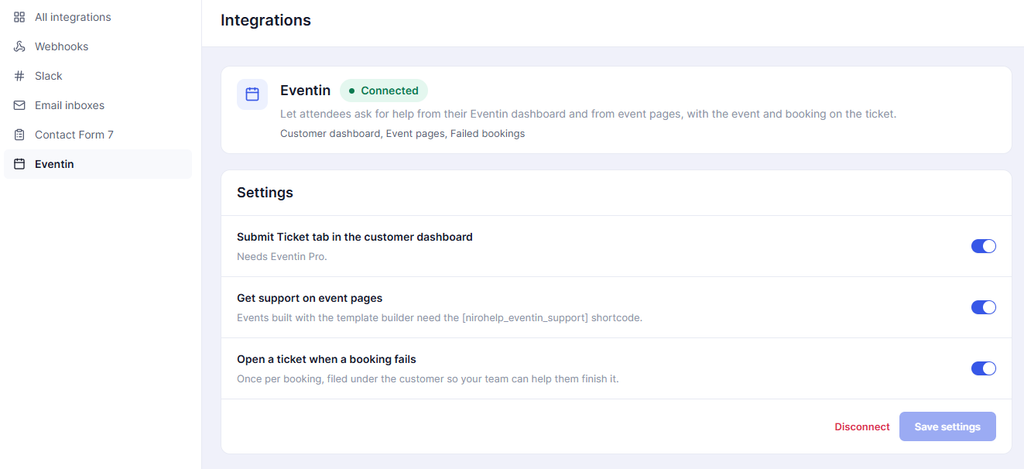
When you turn off a feature, it disappears from your site straight away. Tickets that were already filed keep their event and booking details.
How to Add Support Tabs to the Eventin Customer Dashboard #
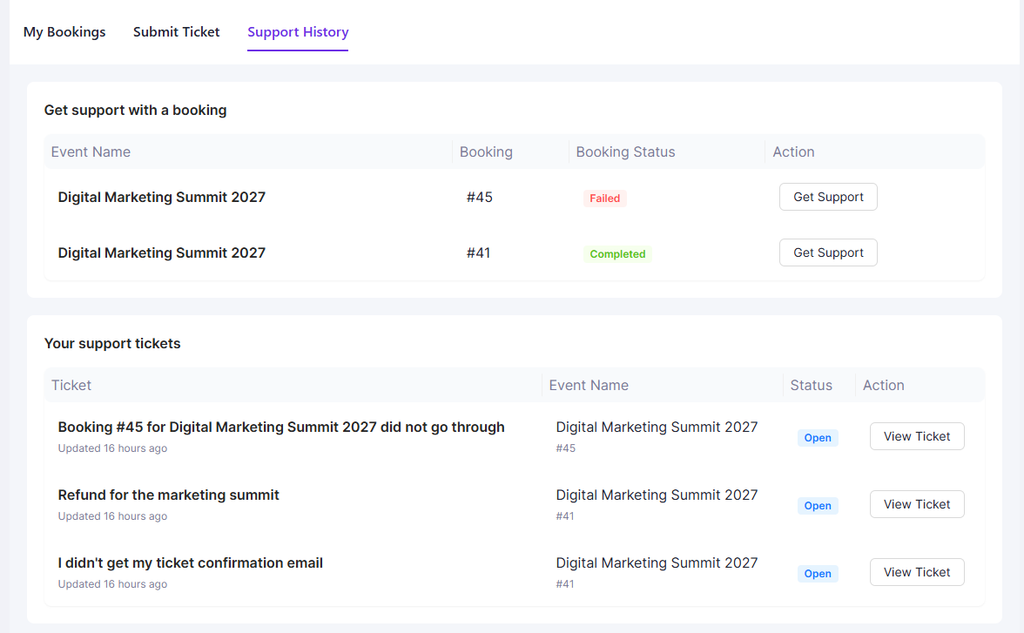
With the Submit Ticket tab in the customer dashboard turned on, NiroHelp adds two tabs to the Eventin Pro front-end dashboard, which is the page that uses the [etn_pro_dashboard] shortcode. Only signed-in Eventin customers see them.
- Submit Ticket opens the NiroHelp ticket form inside the dashboard. Attendees can choose one of their own bookings from a list, so the ticket is linked to it.
- Support History has two parts. Get support with a booking lists the customer’s bookings, each with a Get Support button that opens Submit Ticket with that booking already selected. Your support tickets list their tickets, newest first, with the event, booking number, status, and last update. View Ticket opens the full conversation on your My Tickets page.
Screenshot: Eventin customer dashboard showing the Submit Ticket and Support History tabs next to My Bookings.
NiroHelp also adds a Get Support button to Eventin’s Bookings Details popup. Customers open it from My Bookings → View Details, and the button takes them to Submit Ticket with that booking selected.
Screenshot: The Bookings Details popup with the Get Support button at the bottom.
Customers only ever see their own bookings and tickets.
How to Add a Get Support Button to Event Pages #
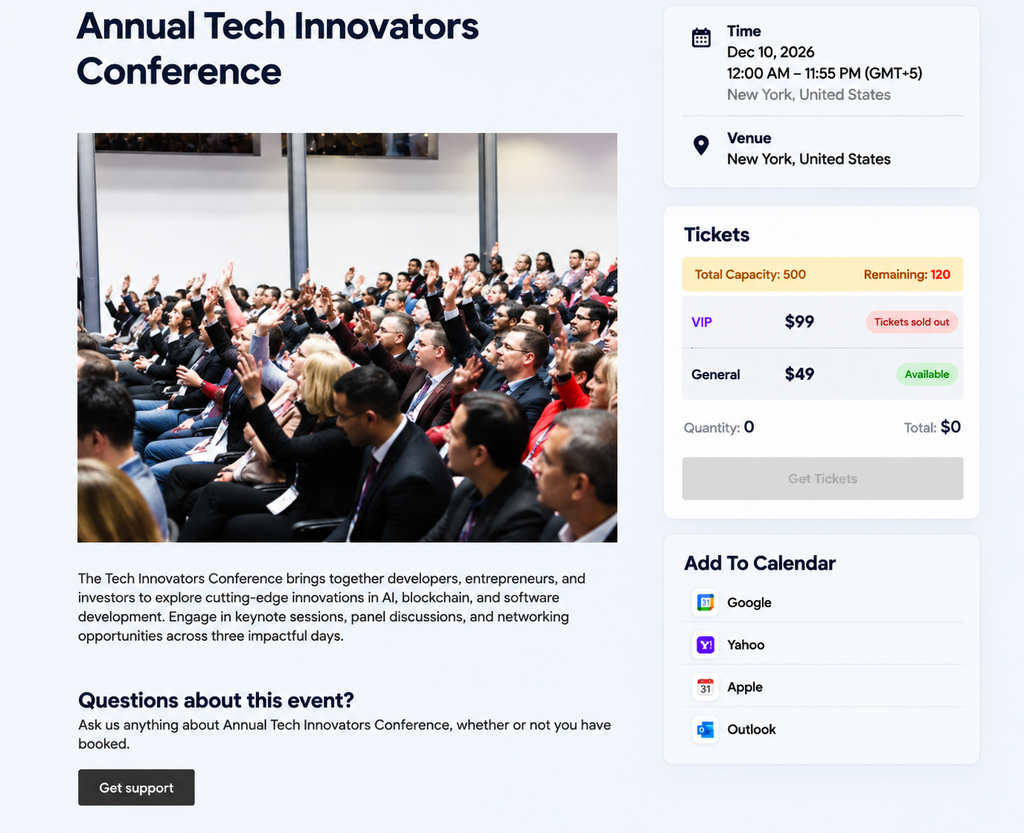
With Get support on event pages turned on, a Questions about this event? section with a Get support button appears below the event details. The button opens your New Ticket page with the event already filled in. Anyone can use it, whether or not they’ve booked, so it works for pre-sale questions too.
Screenshot: A single event page showing the Questions about this event? section and the Get support button.
Events using a classic layout #
Nothing to do. The section is added automatically.
Events built with the Eventin template builder #
The template builder doesn’t give other plugins a place to add content, so you add the section yourself:
- Open the event template in the Eventin template builder.
- Add a Shortcode block where you want the section to appear.
- Paste this shortcode:
[nirohelp_eventin_support]
- Save the template.
On an event’s own page, the shortcode uses that event. To show the section for a specific event somewhere else, add the event’s ID:
[nirohelp_eventin_support event=”136″]
Note: The section only appears when a New Ticket page is set under NiroHelp → Settings → Tickets → Pages. Whether visitors who aren’t signed in can submit the form depends on your Allow guest submissions setting in NiroHelp → Settings → Tickets → Submission.
How to Let Attendees Request a Refund #
In Eventin, only the organizer can issue a refund, and attendees have no built-in way to ask for one. NiroHelp gives them that way in. There’s nothing to set up: it works whenever the dashboard tab or the event-page button is on.
When a signed-in customer has a paid booking (Completed or Partially Refunded), the ticket form shows a Refund request list with these reasons:
- I can no longer attend
- The event changed or was cancelled
- I booked more than once by mistake
- Another reason
If they leave it on Not a refund request, the ticket is filed as a normal question.
Screenshot: The ticket form with a booking selected and the Refund request list open.
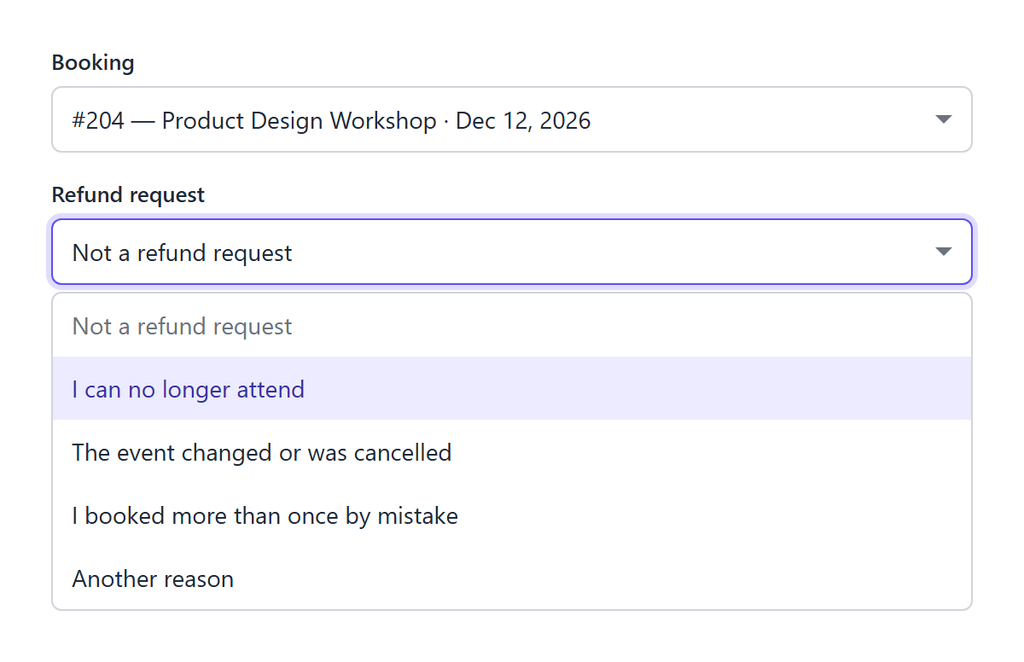
The reason is only saved together with one of the customer’s own paid bookings. If they pick a reason without a booking, or with an unpaid one, the reason is dropped and the ticket is filed as usual.
Note: Submitting the ticket never refunds anything. The booking stays as it is until you refund it from the booking in Eventin.
How to Open Tickets for Failed Bookings #
With Open a ticket when a booking fails turned on, NiroHelp opens a ticket whenever Eventin marks a booking as Failed. That covers a declined Stripe or Razorpay payment, a failed WooCommerce order, and an organizer setting a booking to Failed. Cancelled bookings don’t count.
- Go to NiroHelp → Integrations → Eventin.
- Tick Open a ticket when a booking fails.
- Click Save settings.
The ticket is titled “Booking #[number] for [event] did not go through” and filed under the customer, so your team can reply to them directly. It includes the booking number, event, customer, amount, payment method, and booking date.
Screenshot: A failed-booking ticket in NiroHelp, showing the booking details in the message.

Each booking gets one ticket, no matter how many times Eventin reports the failure.
Note: A booking made without an account is filed under its email address. That needs Create accounts for new clients (in NiroHelp → Settings → Tickets → Submission) or WordPress’s Anyone can register setting to be on. Otherwise, no ticket is opened when a guest’s payment fails at checkout. A booking an administrator marks as Failed always gets its ticket.
How Agents See the Event and Booking on a Ticket #
When your team opens a ticket in NiroHelp, up to three Eventin details appear next to the ticket’s other details:
| Detail | What it shows |
| Event | The event’s name, linked to its page |
| Booking | The booking number, for example #204 |
| Refund requested | The reason the customer gave, when they asked for a refund |
Screenshot: A ticket in the NiroHelp admin showing the Event, Booking and Refund requested details.
A booking is only attached when it belongs to the customer who filed the ticket. If someone sends a booking number that isn’t theirs, NiroHelp drops it and still files the ticket. An event is only attached while it’s published.
How to Let the NiroHelp Chatbot Answer Event Questions #
The NiroHelp AI chatbot can answer visitors’ questions about your events, such as dates, venue or ticket prices. AI features are optional and need your site connected to NiroHelp AI first (NiroHelp → AI → Connect to NiroHelp AI).
- Go to NiroHelp → AI.
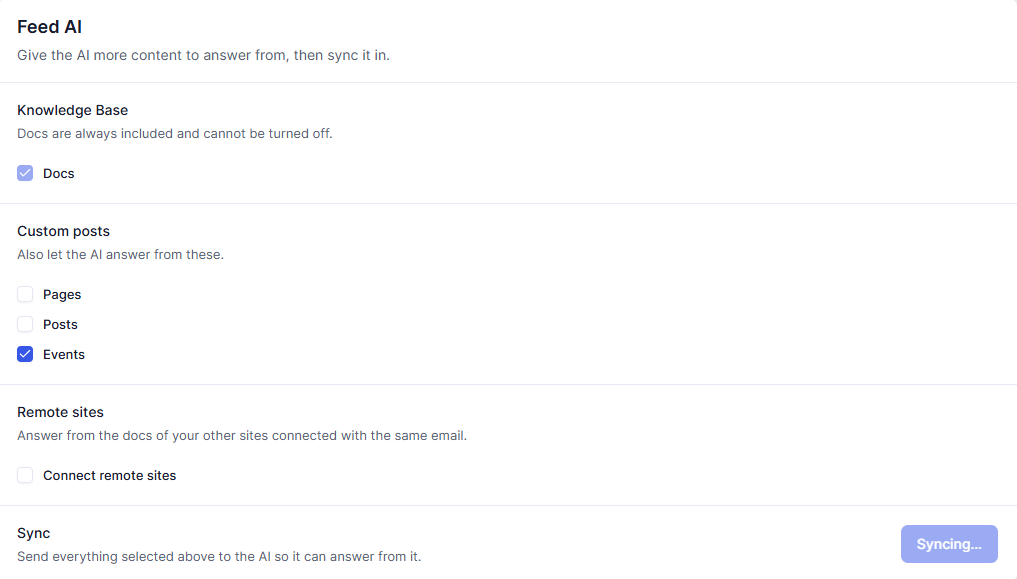
- In the Feed AI section, under Custom posts, tick Events. It’s listed while Eventin is active.
- Click Sync.
Screenshot: NiroHelp → AI, Feed AI section, with Events ticked under Custom posts.
Each event is indexed with its description, dates and time, location, ticket prices, and the questions and answers from the event’s own FAQ. Policies that apply to every event, such as refunds or ticket transfers, are best written as NiroHelp docs, which the chatbot already reads.
To show the chatbot on event pages, embed it as you would on any other page. When it can’t answer, it offers an Open a ticket link. Set that link to your New Ticket page in the Support Ticket URL field on the chatbot screen.
FAQs #
Do I need Eventin Pro?
Only for the Submit Ticket and Support History tabs in the customer dashboard, which need Eventin Pro 4.1.23 or later. Event pages, refund requests, failed-booking tickets, and the chatbot work with the free version.
Why don’t the dashboard tabs show up?
Check three things: Eventin Pro is 4.1.23 or later, Submit Ticket tab in the customer dashboard is ticked, and you’re signed in as an Eventin customer. Administrators and other roles don’t see the tabs.
Why isn’t the Get support button showing on my event page?
Either the event uses the template builder and needs the [nirohelp_eventin_support] shortcode, or no New Ticket page is set under NiroHelp → Settings → Tickets → Pages.
Does NiroHelp refund the booking?
No. NiroHelp only records the refund request on the ticket. You still issue the refund from the booking in Eventin.
Can someone attach another person’s booking to a ticket?
No. NiroHelp only keeps a booking that belongs to the customer filing the ticket. Guests can’t attach a booking at all.
Does the integration change my Eventin settings or bookings?
No. It only reads bookings and events, and adds its own tabs, buttons, and form fields.
Conclusion #
With NiroHelp connected to Eventin, attendees can ask for help from their dashboard or the event page, and your team gets every ticket with the event and booking already attached. Turn on failed-booking tickets to follow up on payments that didn’t go through, and sync your events so the chatbot can answer the common questions first.
For more on NiroHelp, see the NiroHelp documentation.


