
- What Is It?
- Why Do You Need It?
- Prerequisites
- Step-by-Step Instructions
- Step 1: Check the Integration Is Active
- Step 2: Create the Earning Rules
- Step 3: Set the Points
- Step 4: Add the Checkout Reward
- Step 5: Choose Where Points Show
- Step 6: What the Student Sees on a Course
- Step 7: Paying with Points at Checkout
- Step 8: Points on the Order Page
- Step 9: The Student Dashboard
- Step 10: Referrals (Pro)
- Limitations
- Troubleshooting
- FAQ
What Is It? #
The LifterLMS integration lets Pointics give students points when they buy a course or membership, complete a course, or review a course. Students spend those points as a discount at course checkout, and they see their points on course pages, order pages and their student dashboard.
Why Do You Need It? #
- More sales: Students see what a course earns before buying.
- More finished courses: A completion bonus pulls students to the last lesson.
- More reviews and referrals: Students earn for reviews and, with Pro, for friends who buy.
Prerequisites #
- LifterLMS installed and active
- Pointics installed and active
- Pointics Pro only for the Referral buys a course rule
Step-by-Step Instructions #
Step 1: Check the Integration Is Active #
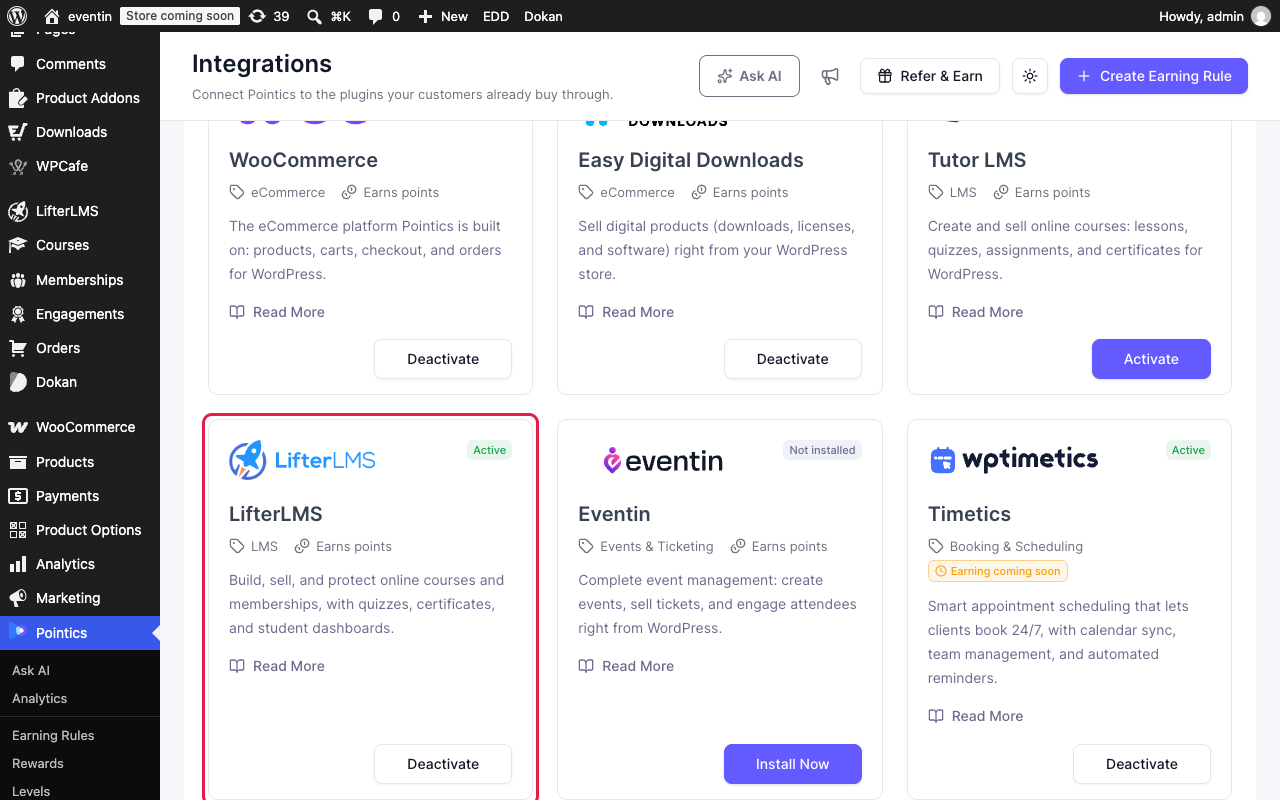
Go to Pointics → Integrations. The LifterLMS card shows Active once LifterLMS is running. If it shows Inactive, activate LifterLMS first.
Step 2: Create the Earning Rules #
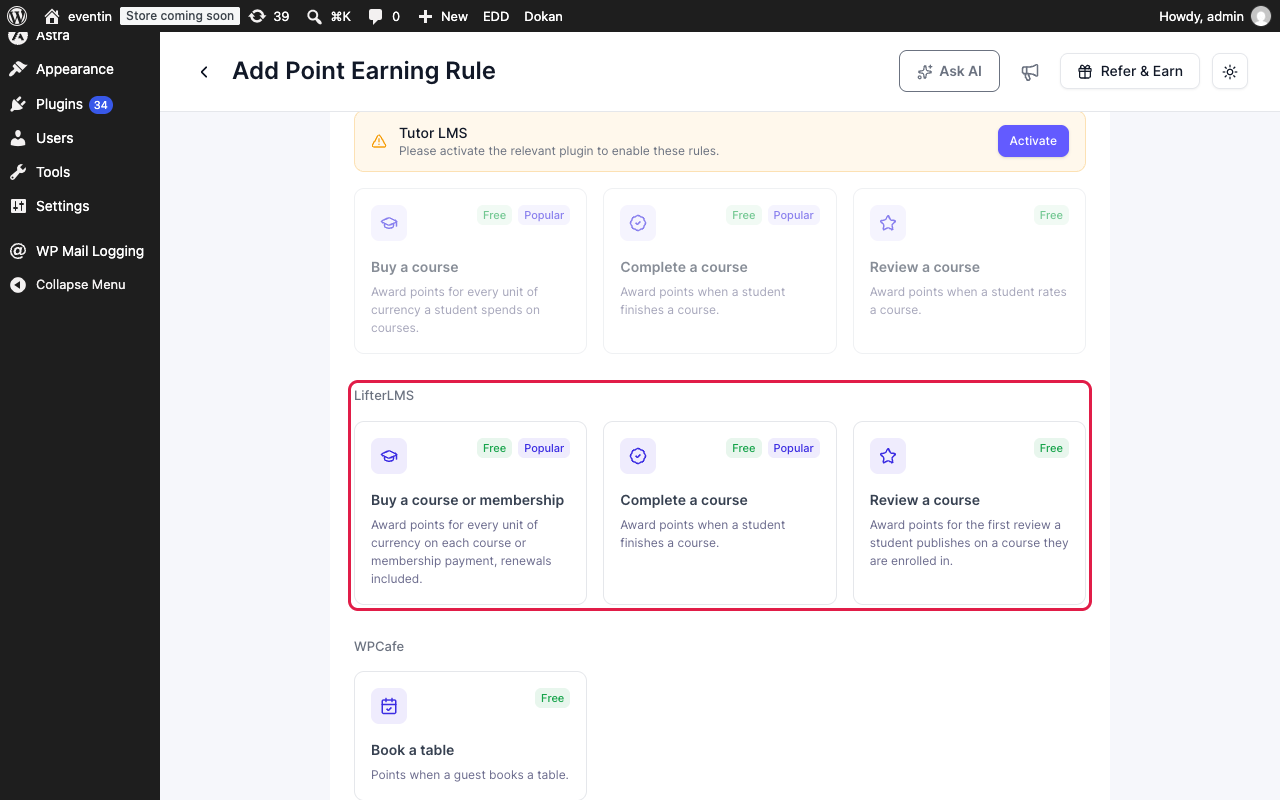
Go to Pointics → Earning Rules and click Create Earning Rule. In the LifterLMS section, pick a rule:
| Rule | When Students Earn | Default |
|---|---|---|
| Buy a course or membership | Each payment that goes through, renewals included | 1 point per 1 unit of currency |
| Complete a course | Once per course, when the student finishes it | 200 points |
| Review a course | First review on a course the student is enrolled in | 30 points |
Step 3: Set the Points #
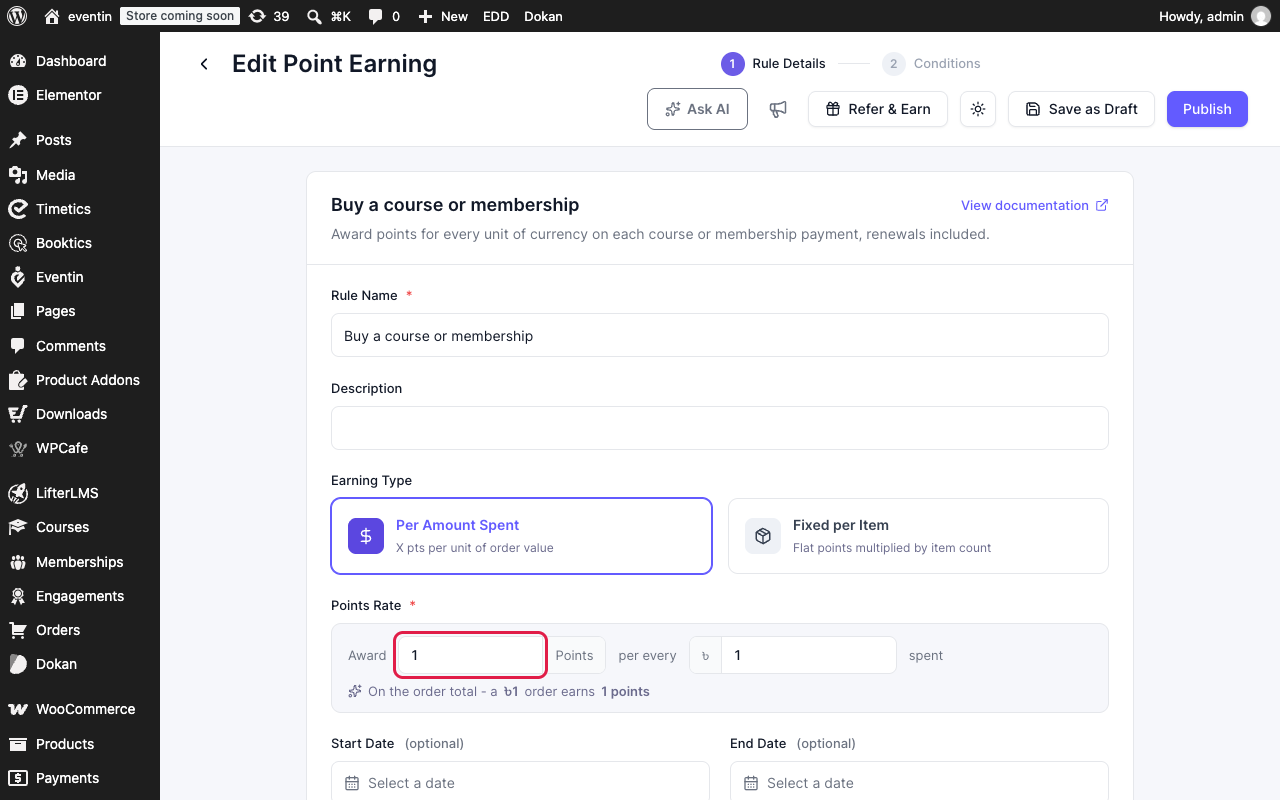
For Buy a course or membership, pick an Earning Type:
- Per Amount Spent: set Award points per every amount spent. For example, 1 point per 1 dollar gives 49 points on a $49 course.
- Fixed per Item: a flat number of points for each payment, whatever the price.
Optional: a Start Date and End Date, the earn card’s Customer Action Link, and Conditions to limit who earns. Click Publish.
Step 4: Add the Checkout Reward #
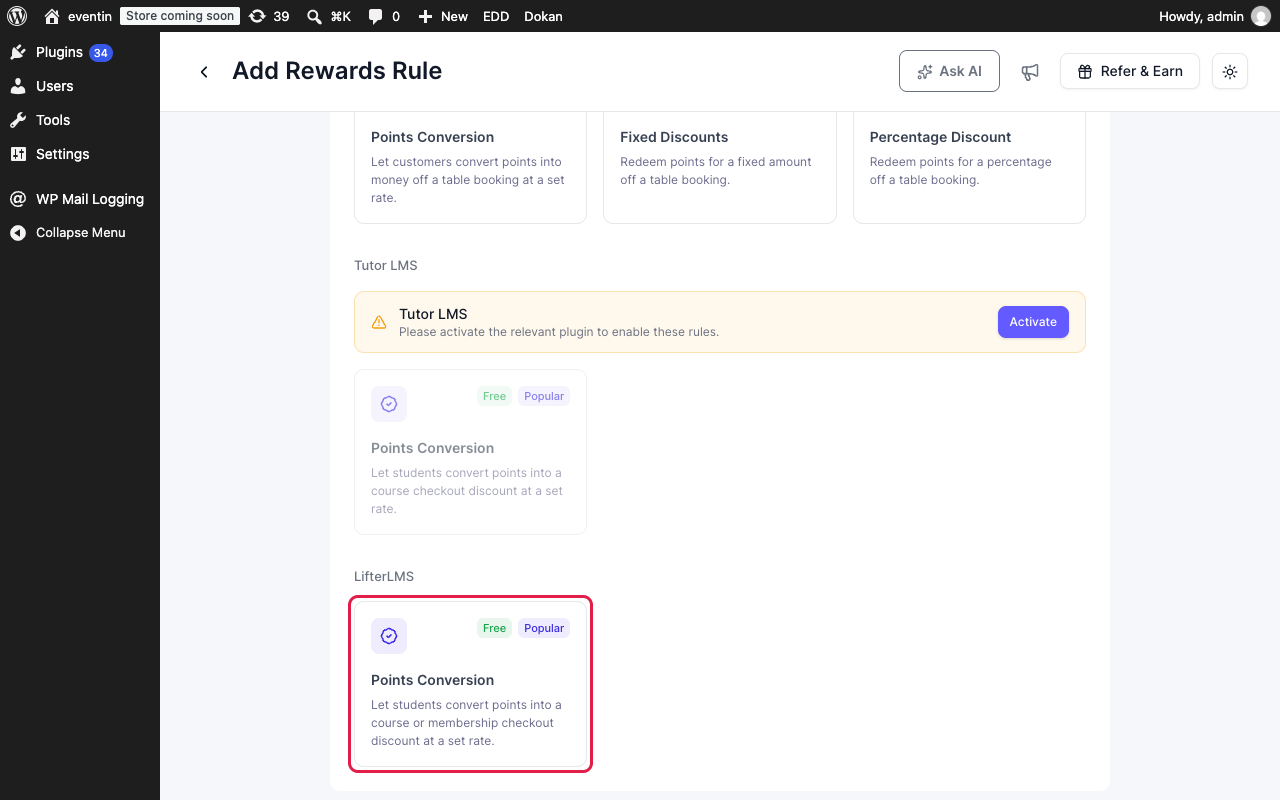
Go to Pointics → Rewards, add a reward, and pick Points Conversion under LifterLMS. Set the Point Cost (for example, 100 points for 1 dollar). Optional fields:
- Min Points and Max Points: how many points a student can convert at once.
- Points Expiry: days the coupon stays valid (30 by default). Unused, expired coupons give the points back.
Click Publish.
Step 5: Choose Where Points Show #
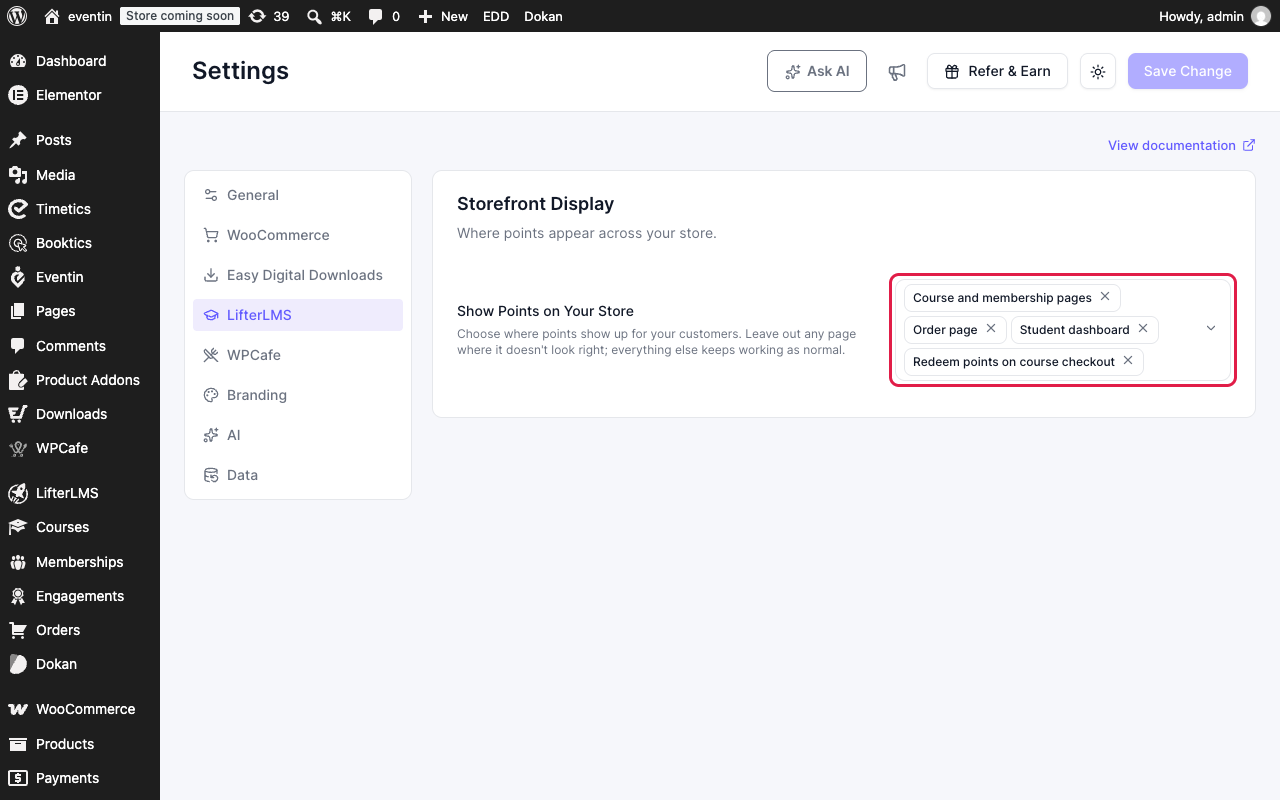
Go to Pointics → Settings → LifterLMS. In Show Points on Your Store, keep the places you want: Course and membership pages, Order page, Student dashboard and Redeem points on course checkout. Remove a place to hide Pointics there, then click Save Change.
Step 6: What the Student Sees on a Course #
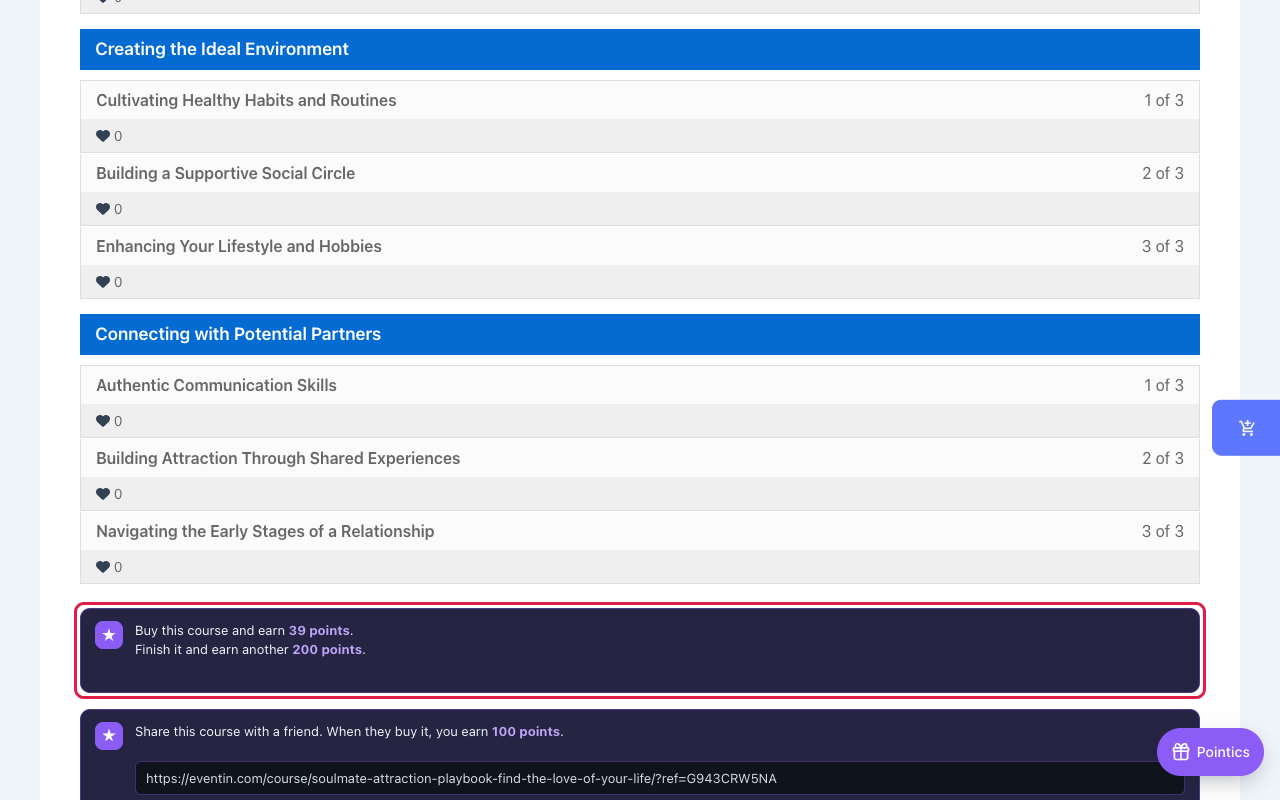
Each course and membership page shows what the student earns, with a sign in prompt for guests. After enrolling, the card shows the completion bonus; after finishing, it asks for a review. Admins and instructors do not see this card.
Step 7: Paying with Points at Checkout #
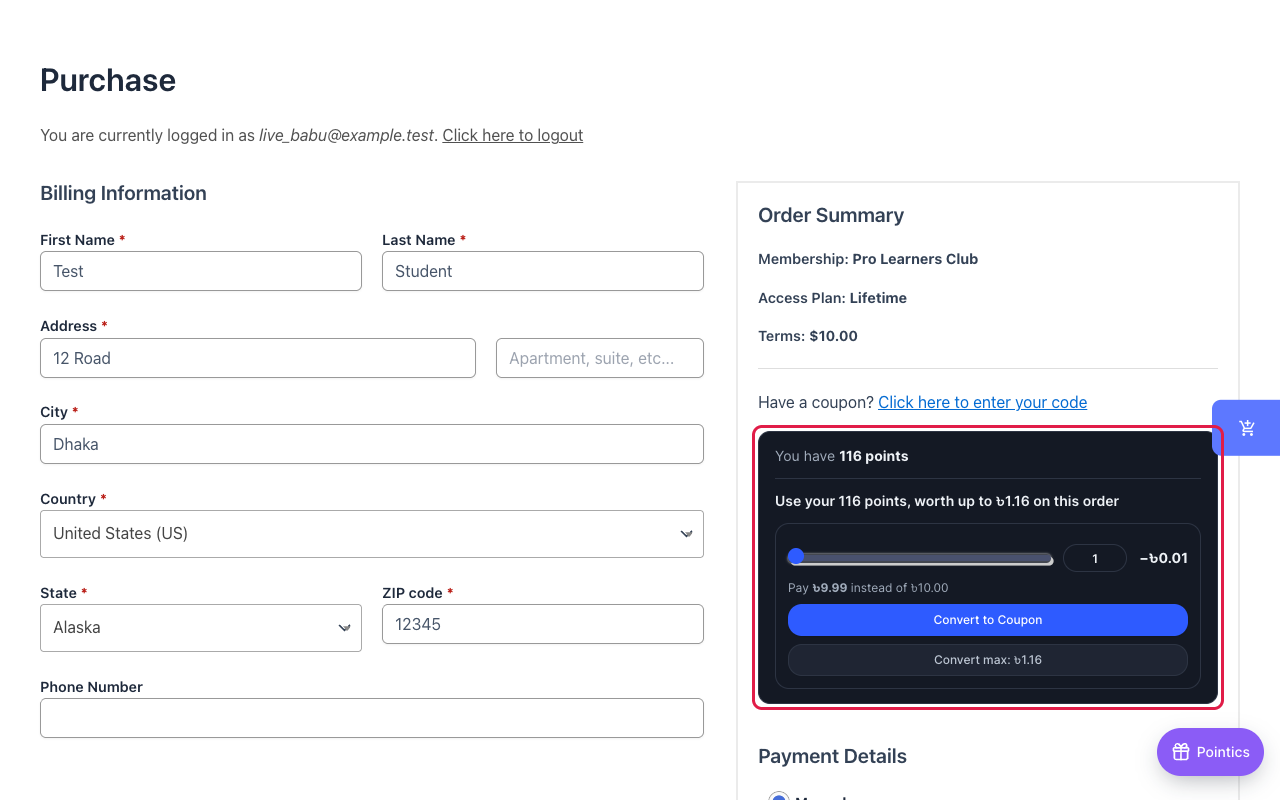
On checkout, the student picks how many points to use and clicks Convert to Coupon. Pointics applies the coupon to the order. Return points removes it and gives the points back.
Step 8: Points on the Order Page #
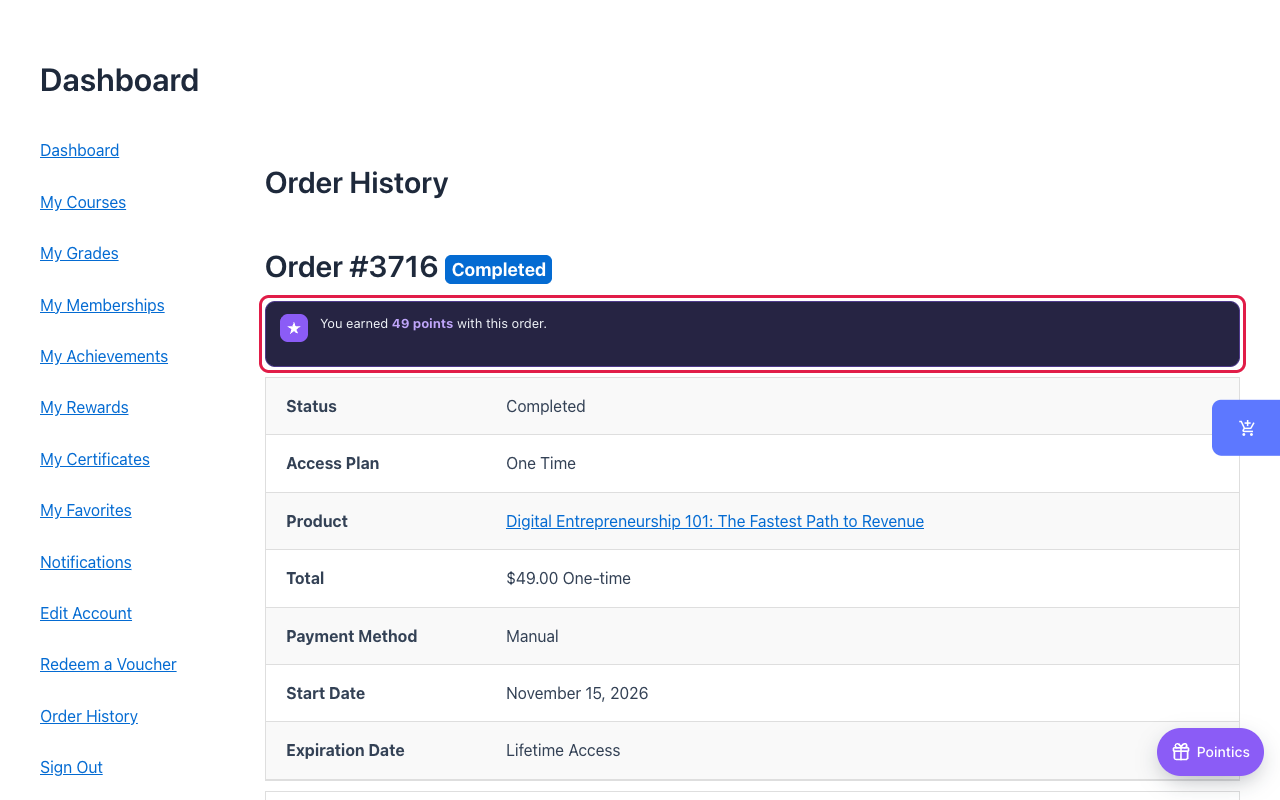
While a payment is pending, the order page says the points are on the way. Once the payment is confirmed, it shows the points earned. Admins see the same in the order notes under LifterLMS → Orders.
Step 9: The Student Dashboard #
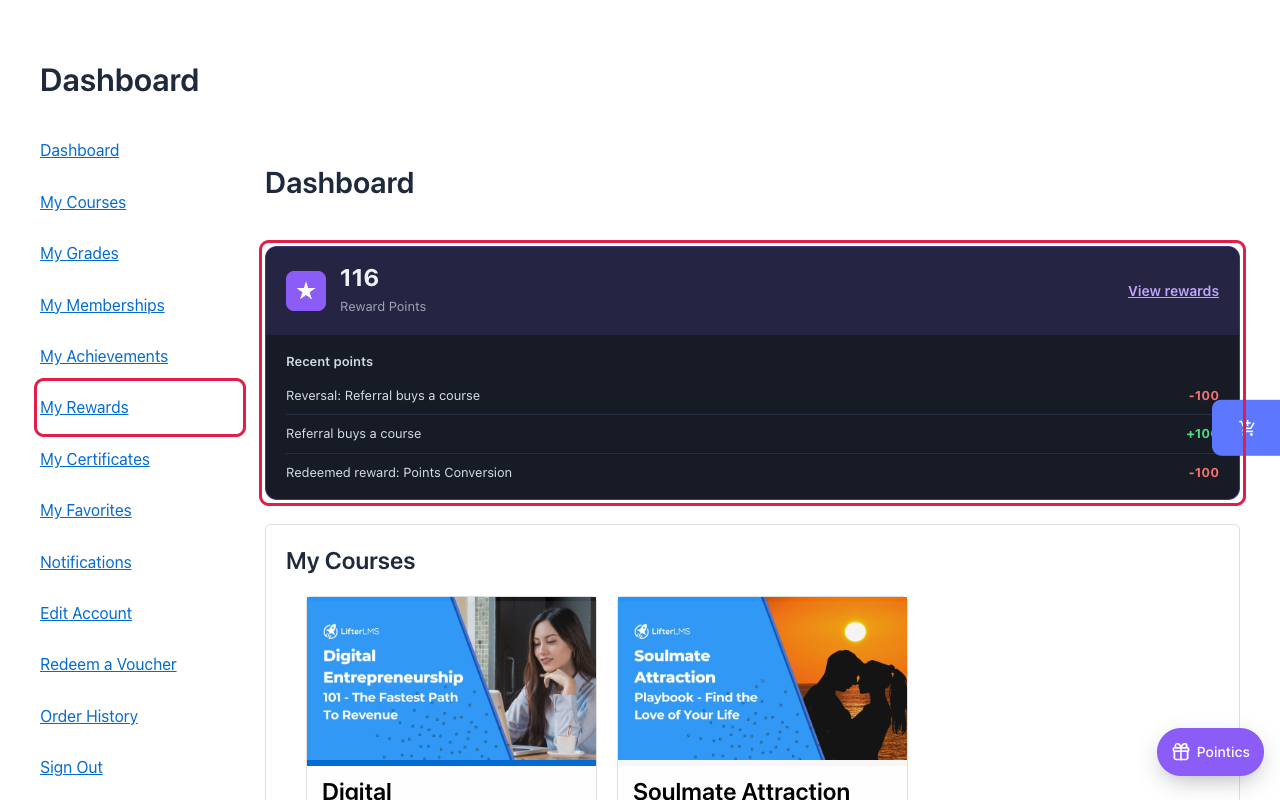
The dashboard gets a My Rewards tab and a points summary with recent activity.
Step 10: Referrals (Pro) #
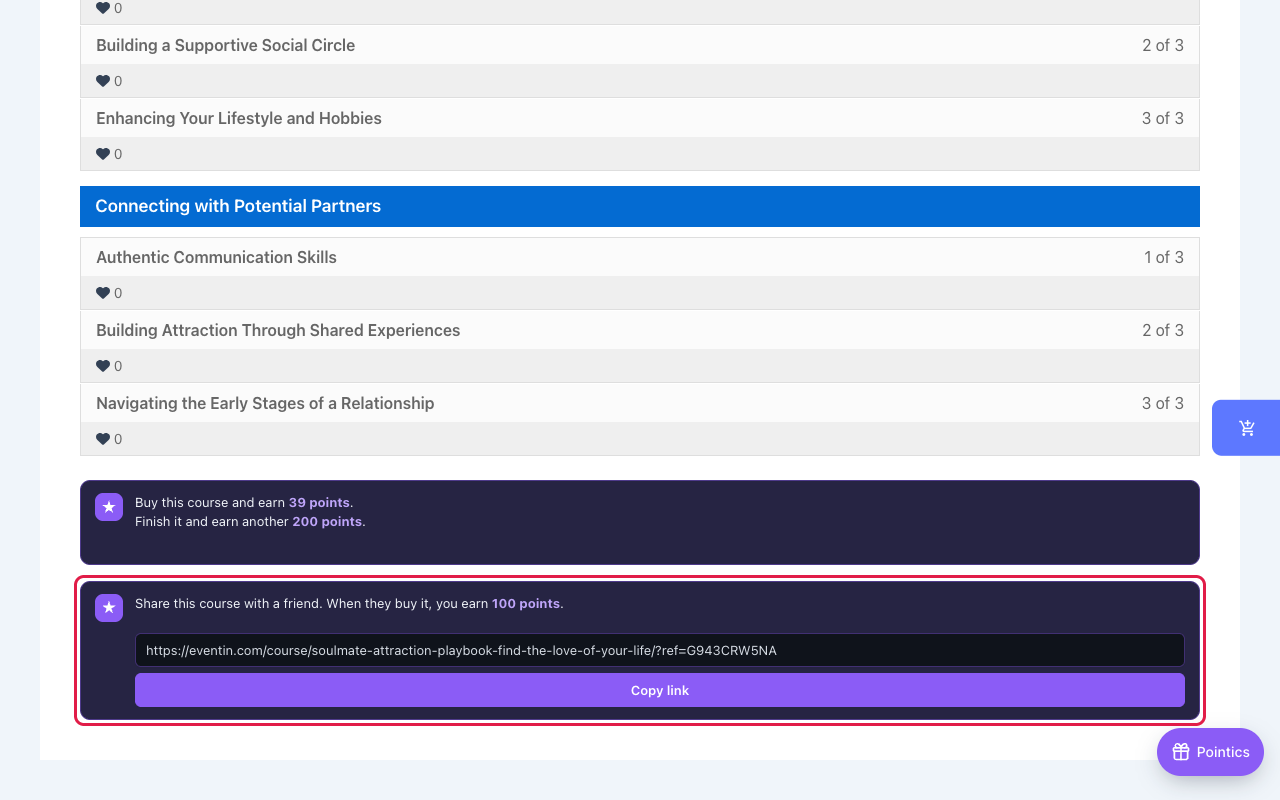
With Pointics Pro, create the Referral buys a course rule from the Referrals section of Create Earning Rule. Set the Referrer Reward for the student who shares, and an optional Referred Person reward for the friend. Signed in students then see a share link on each course. When the friend’s first payment goes through, both get their points.
Limitations #
- Points can be redeemed only on one time plans, not on subscription plans.
- A points coupon works only for the student who made it, and only once.
- Any refund takes back all points from that payment, because LifterLMS refunds the whole order.
- A student earns the completion and review points once per course, and review points only when enrolled.
- The checkout card shows one store currency. If another store plugin is active, its currency may show.
Troubleshooting #
| Problem | Solution |
|---|---|
| No points card on the course page | Check Course and membership pages is kept in Settings → LifterLMS and the earning rule is active. Admins do not see the card, so check as a student. |
| No redeem card on checkout | The plan must be one time, the student must be signed in, and Redeem points on course checkout must be kept. |
| Points not added after a purchase | Points land only when the payment is confirmed. Check the order status in LifterLMS → Orders. |
| My Rewards tab gives a 404 | Go to Settings → Permalinks and click Save Changes once. |
FAQ #
Do students earn on subscription renewals? #
Yes. Each renewal payment earns on its own, and refunding one renewal takes back only that payment’s points.
What happens to the points if an unpaid order is cancelled? #
When an order carrying a points coupon fails, expires or is cancelled before payment, the student gets the points back.
What if the student already used a coupon code from me? #
Redeeming points replaces the other coupon on that order. The checkout card shows a note about this first.
What if a student makes a coupon and never uses it? #
The points stay on hold until the coupon expires, then go back automatically.


