
What Is the Reservation Calendar View? #
The calendar view shows your restaurant’s reservations on a Month, Week or Day calendar instead of a table. Each booking appears on its date with the guest’s name, time and a status color, so you can see how busy each day is at a glance.
It lives on the same Reservations screen as the list view. You switch between the two with one click, and both use the same search, status and location filters.
Why do you need it? #
- Plan your staff: See which days and weeks are busiest before they arrive, with total bookings and guests counted for you.
- Spot open days fast: Closed days are greyed out, and empty days are easy to see and fill.
- Act in place: View, edit, delete or add a reservation straight from the calendar, without hunting through rows.
- Stay current: The calendar refreshes itself every 60 seconds, so new online bookings show up while you work.
Step-by-Step Instructions #
Step 1: Open the Reservations List
In your WordPress dashboard, navigate to WPCafe → Reservations → Reservations List. The page opens with the heading “Reservations”.
Step 2: Switch to Calendar View
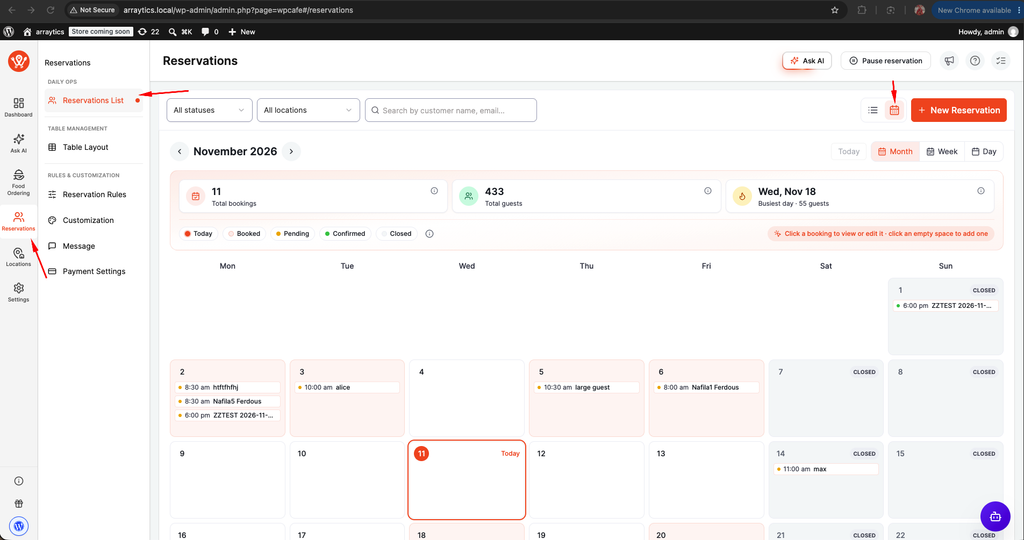
On the right of the filter bar, next to “New Reservation”, click the calendar icon (tooltip “Calendar view”). To go back to the table, click the list icon (“List view”). Any date filter from the list is cleared, because the calendar picks its own dates.
Step 3: Choose Month, Week or Day
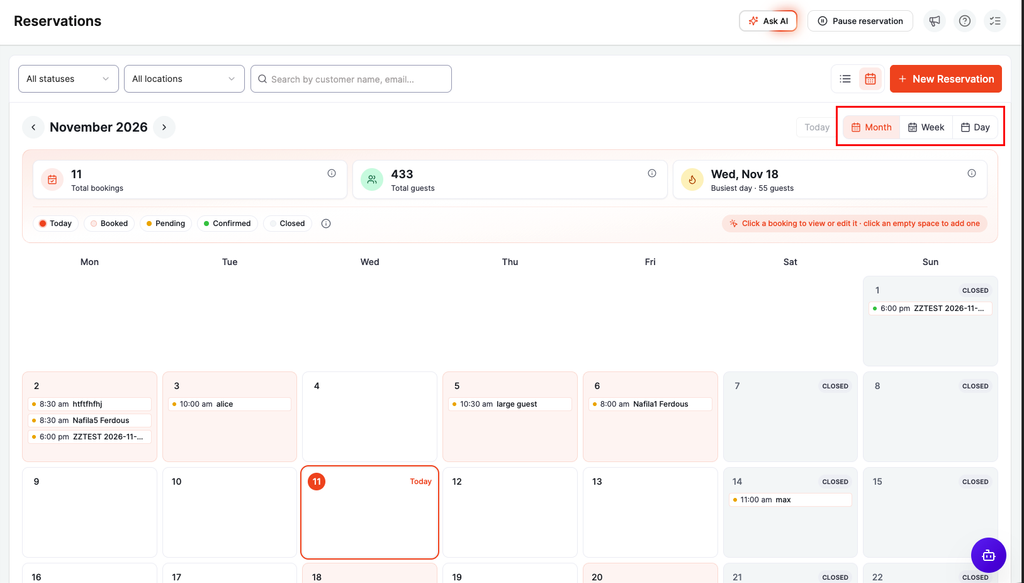
Use the “Month”, “Week” and “Day” buttons to change the view. Month is the default. Clicking a day number, or a “+N more” link, opens that day in Day view.
Step 4: Move Between Dates
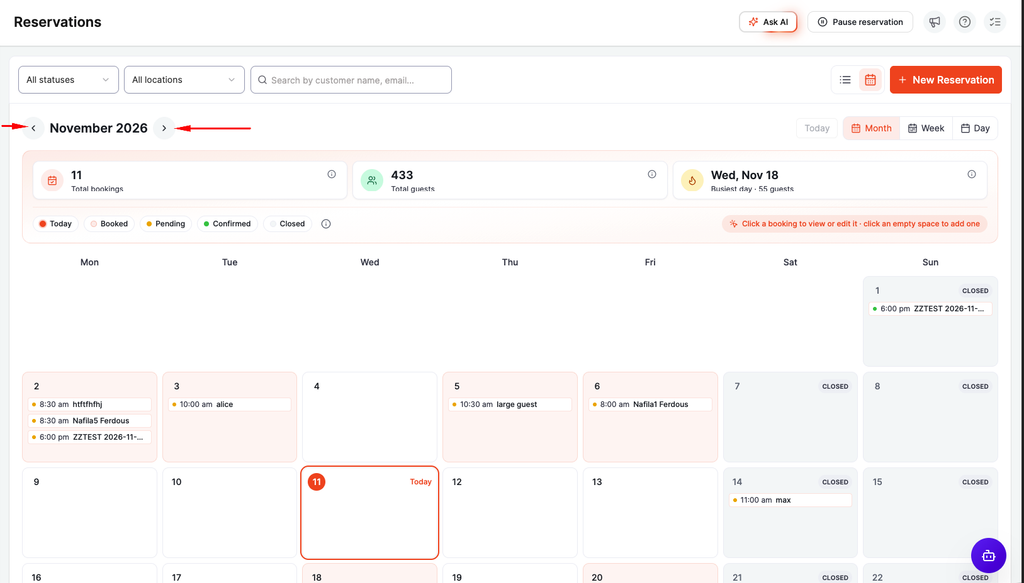
Click the left and right arrows to go to the previous or next month, week or day. Click “Today” to jump back to the current date. The week starts on the day set in WordPress Settings → General → “Week Starts On”.
Step 5: Filter the Calendar
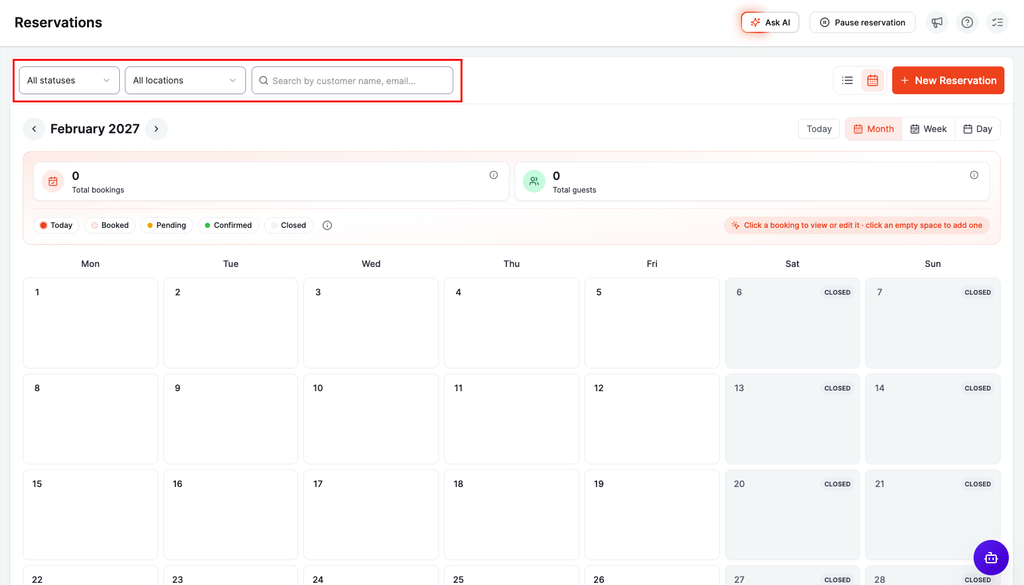
Type in “Search by customer name, email…” to find a guest, pick a status (“All statuses”, Pending, Confirmed or Cancelled), or choose a branch in “Filter by Location”. The totals above the calendar update to match.
Step 6: Open a Reservation
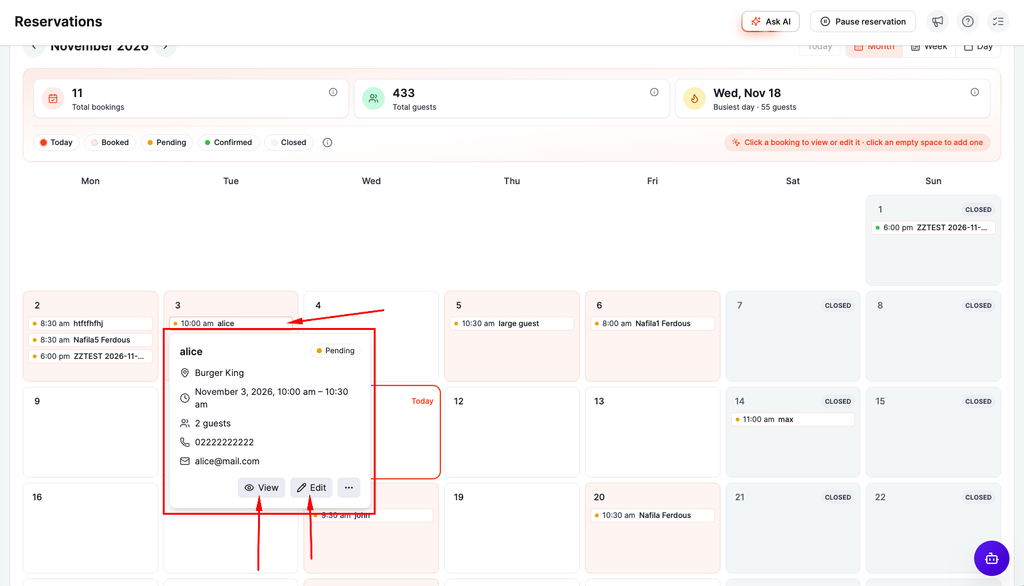
Click any booking to see its details: name, status, location, date and time, guests, phone, email and total. From there, click “View” for the order preview or “Edit” to open the edit page. To remove it, open the “…” menu, click “Delete” and confirm.
Step 7: Add a Reservation (Optional)
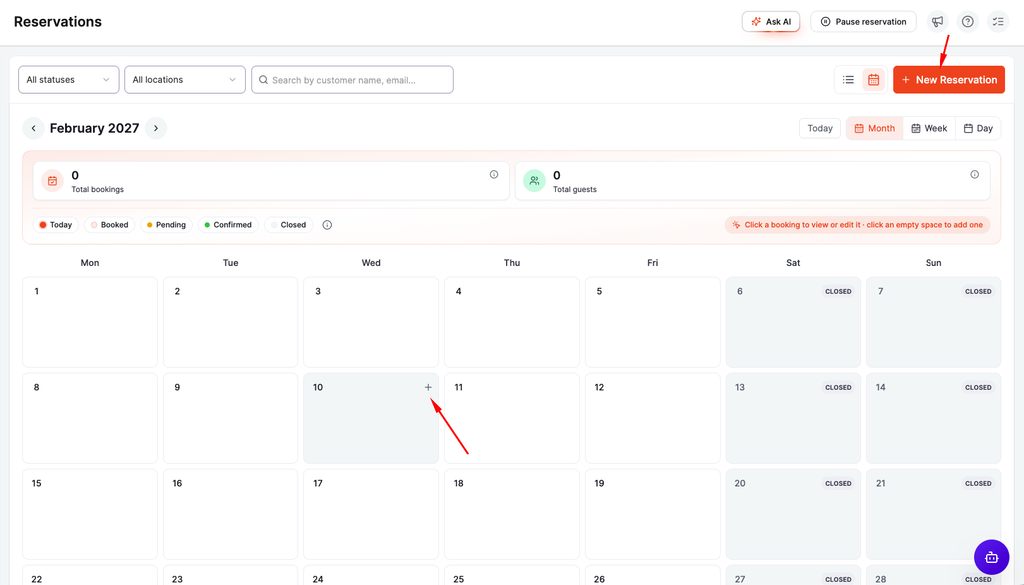
Click an empty space on an open day, or the “+” that appears when you hover over it. The new reservation form opens with that date already filled in, plus the location if you filtered by one. In Day view you can also click “New reservation”.
Key Functionality #
Above the calendar, three tiles show “Total bookings”, “Total guests” and, in Month and Week view, the “Busiest day” from today onward. Month view fits up to 3 bookings per day and groups the rest under “+N more”; on small screens each day shows a count you tap to see the list. Week view shows cards with time, name and guest count, and Day view shows full cards with email, phone and location, plus “Open in list” to see that day in the table.
“Today” and past days follow your site timezone from WordPress settings, not your computer’s clock. You can’t add bookings on past or closed days, but existing bookings there still show. Your choice of list or calendar, and of Month, Week or Day, is remembered in your browser for next time.
To change a booking’s status or use bulk actions, click “Open in list” in Day view. The list opens filtered to that day; click “Show all dates” to clear it. The calendar has no drag and drop.
Calendar Colors #
- Pending — Yellow. The booking is waiting for confirmation or payment.
- Confirmed — Green. The booking is confirmed or completed.
- Cancelled — Red. Cancelled, refunded, failed or rejected bookings. These are hidden and not counted unless you filter by “Cancelled”.
- Today — A ring around the current date.
- Booked — A light tint on days that have at least one booking.
- Closed — Grey, with a “Closed” tag. Your reservation schedule or a holiday closes this day, so you can’t add bookings from the calendar.
Prerequisites #
- WP Cafe installed and active. The calendar view is free.
- The Reservation module turned on, so the Reservations menu appears.
- At least one reservation. On a brand-new site the screen shows “No reservations found” and the view switch appears after the first booking.
- A user role that can manage reservations to add, edit or delete. Users who can only view their own reservations see just their bookings.
- A reservation schedule set up if you want closed days greyed out. Without one, every day shows as open.


