
What are the Storefront Surfaces? #
Everything customers see comes in four parts:
- Storefront badges — small point badges added to WooCommerce pages, including product pages, shop listings, cart, and checkout.
- The floating widget — a branded launcher in the corner of every page that opens a panel with Earn, Redeem, Rewards, and History.
- The My Account panel — a full Points & Rewards tab in the WooCommerce account area with eight sections.
- Blocks and shortcodes — tools for placing a balance or earn badge anywhere on your site.
Why Do You Need It? #
- Loyalty works best when customers see it while they shop: Showing how many points a product or order earns can influence buying behaviour.
- Balances should not stay hidden: Storefront badges and the floating widget bring the loyalty program into the shopping experience.
- Guests can see the offer too: Logged-out visitors can see the published program, giving them a reason to create an account.
Prerequisites #
- The Storefront feature must be enabled.
- The storefront setting must be switched On.
- WooCommerce must be active for storefront badges and the My Account panel.
- Branding should be configured so the floating widget uses your preferred colours and display style.
The floating widget does not require WooCommerce. Storefront badges and the My Account panel do.
Where Customers Find It #
| Surface | Who Sees It |
|---|---|
| Product and Shop Badges | Everyone, including logged-out visitors |
| Cart and Checkout Earn Line | Everyone with a cart |
| Cart and Checkout Balance Line | Logged-in customers |
| Floating Widget | Everyone |
| My Account Panel | Logged-in customers |
| Blocks and Shortcodes | Wherever you place them |
The default account address is /my-account/points-and-rewards/ with the menu label Points & Rewards.
Step-by-Step Instructions #
Step 1: Turn On the Storefront #
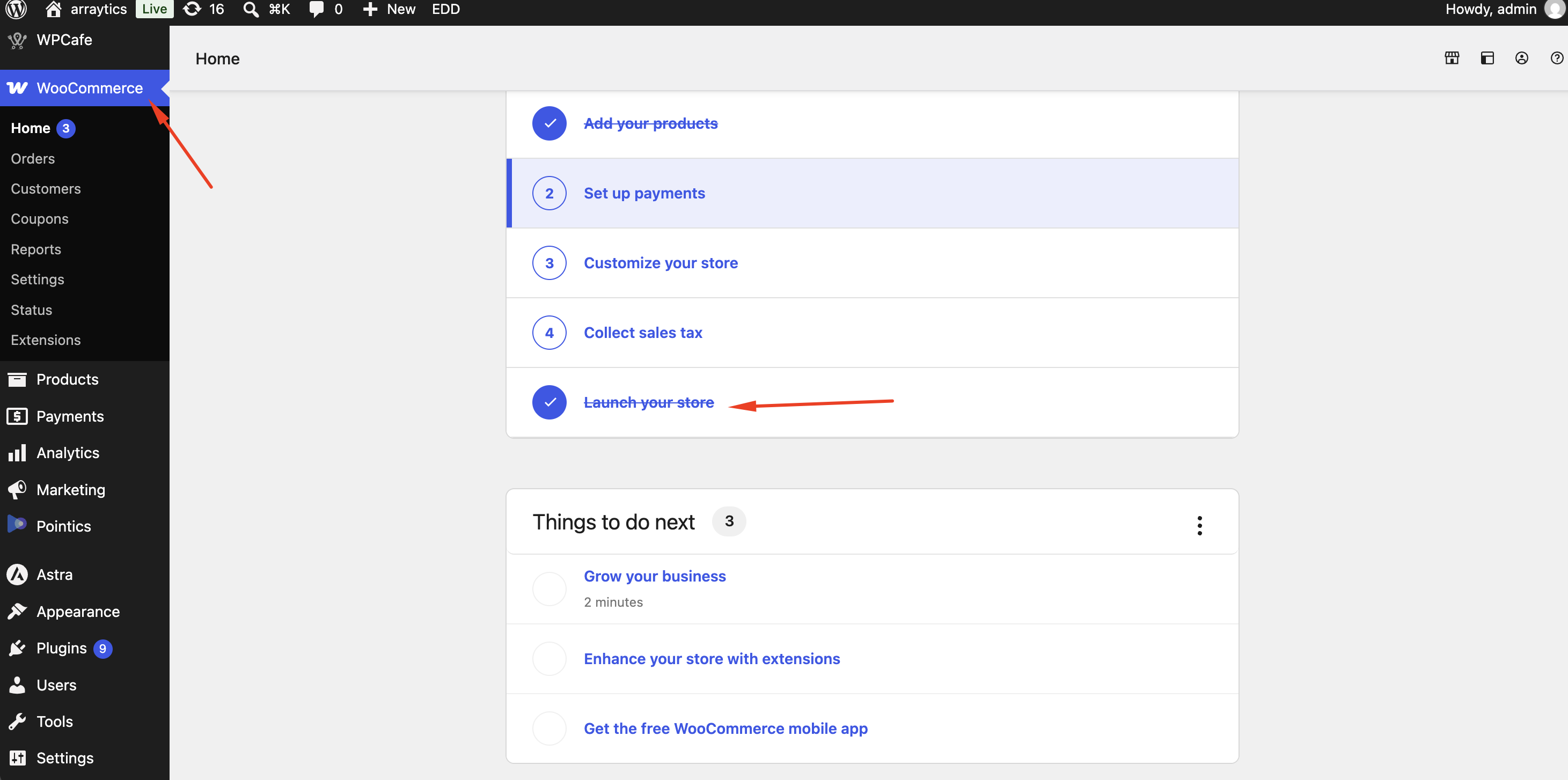
Check that the Storefront feature and storefront setting are enabled. If you want WooCommerce badges and the account panel, make sure WooCommerce is also active.
Step 2: Confirm the Automatic Badges #
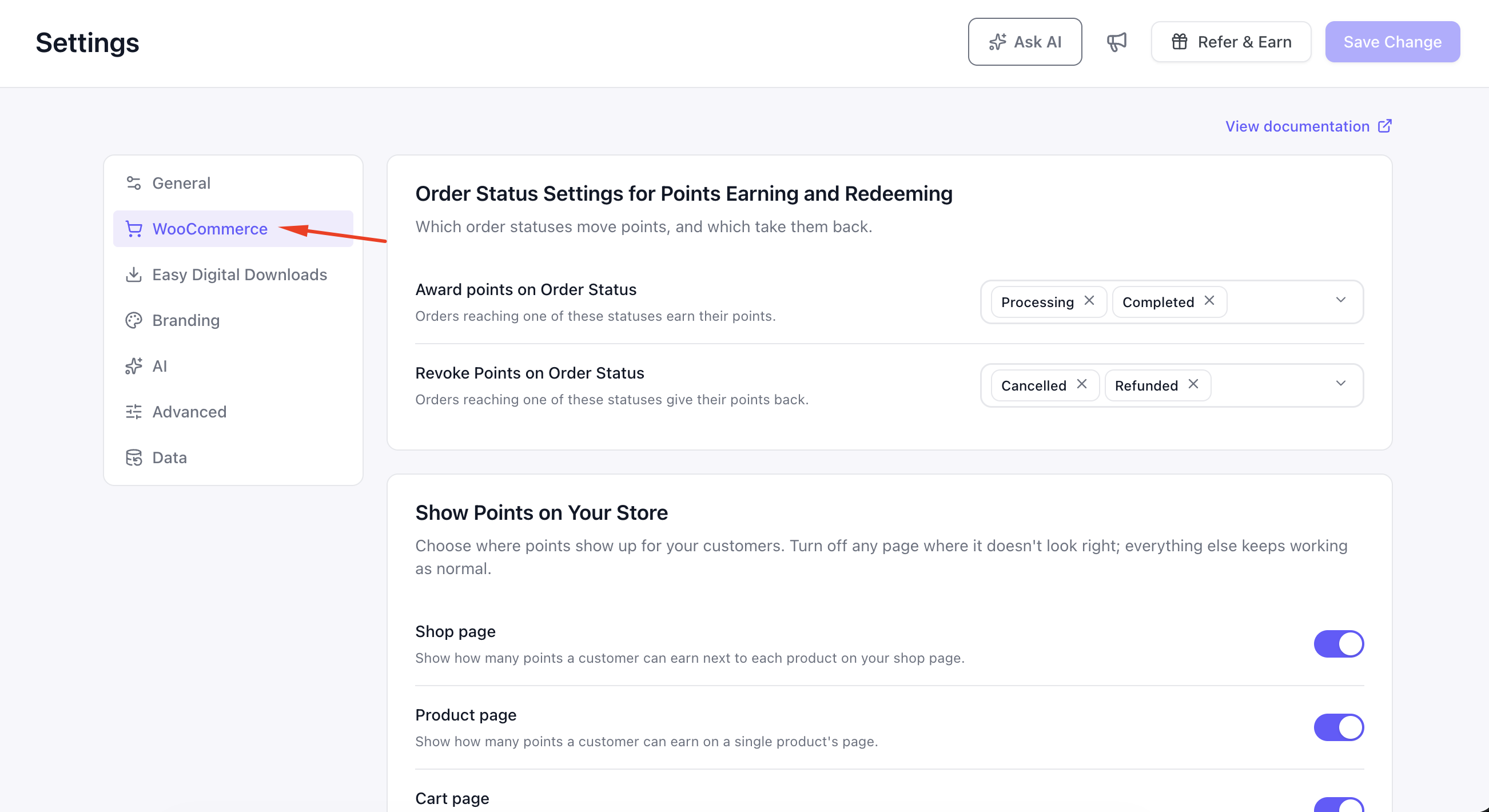
| Badge | Where It Appears | Shows |
|---|---|---|
| Product Page | Below the product summary | Points the product earns |
| Shop Listing | Under each product card | Points badge for each product |
| Cart and Checkout Earn Line | Inside the totals table | How many points the current order will earn |
| Cart and Checkout Balance Line | Below the earn line | The customer’s current points balance |
The order earn amount is always displayed before the customer’s running balance.
The earn line is omitted entirely when there is nothing to show, such as when the cart is empty or a coupon leaves no eligible amount for earning points.
Step 3: Brand the Floating Widget #
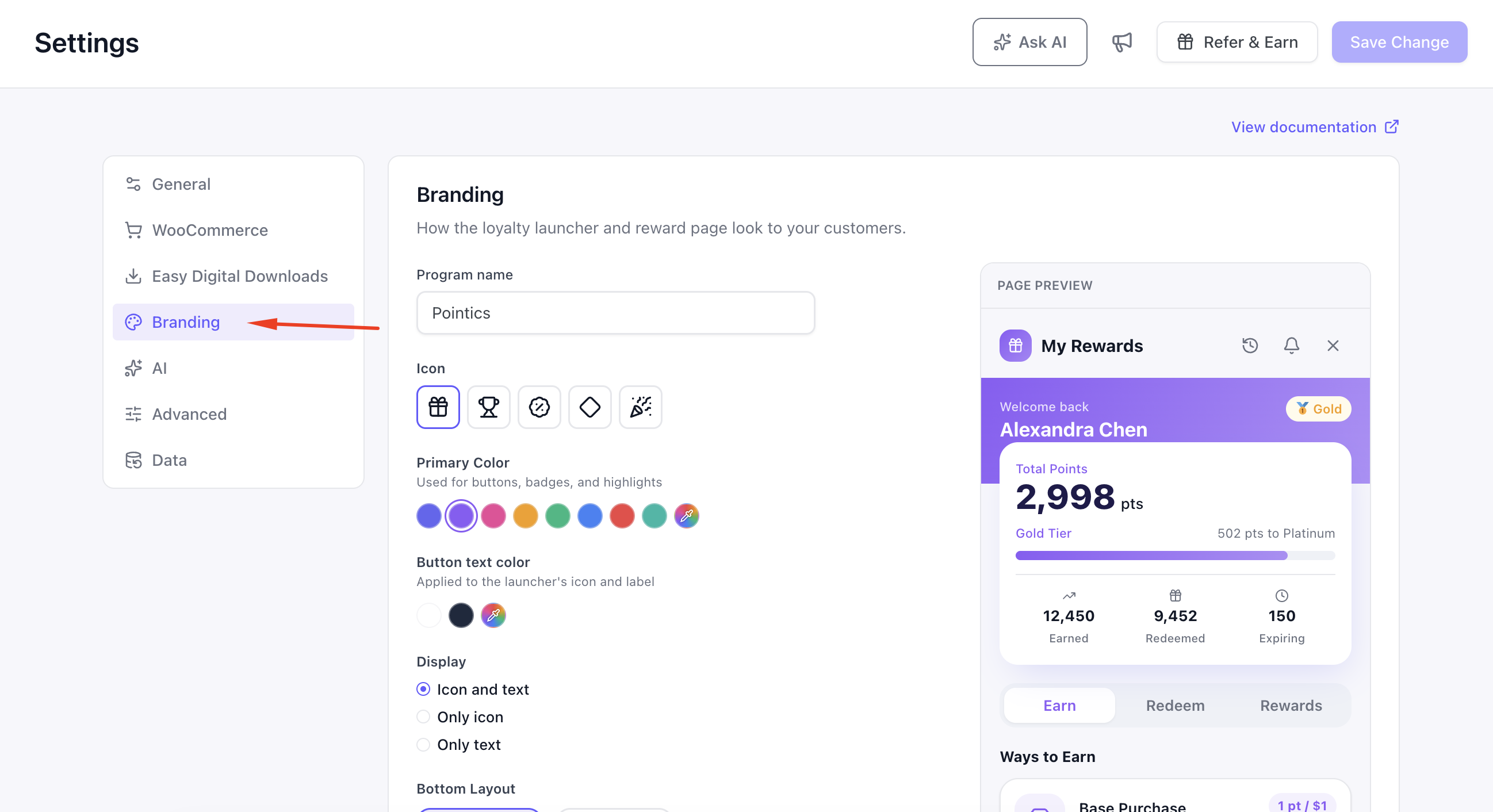
Set the widget name, icon, colour, font colour, display mode, and placement in Settings → Branding.
The launcher appears on the side you choose and can display your icon, your text, or both.
Step 4: Check the Widget Panel #
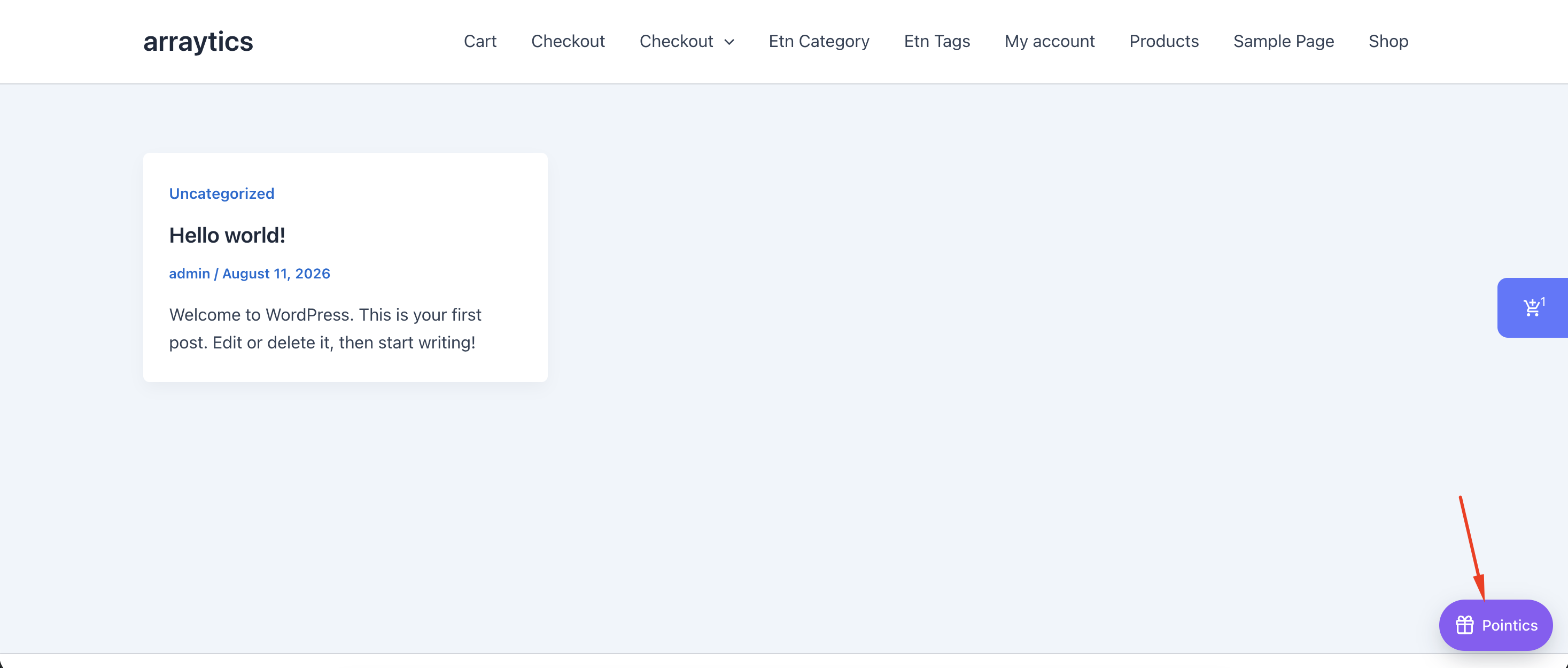
Open the floating widget. It displays a hero section using your brand colour, a balance card, and three primary tabs.
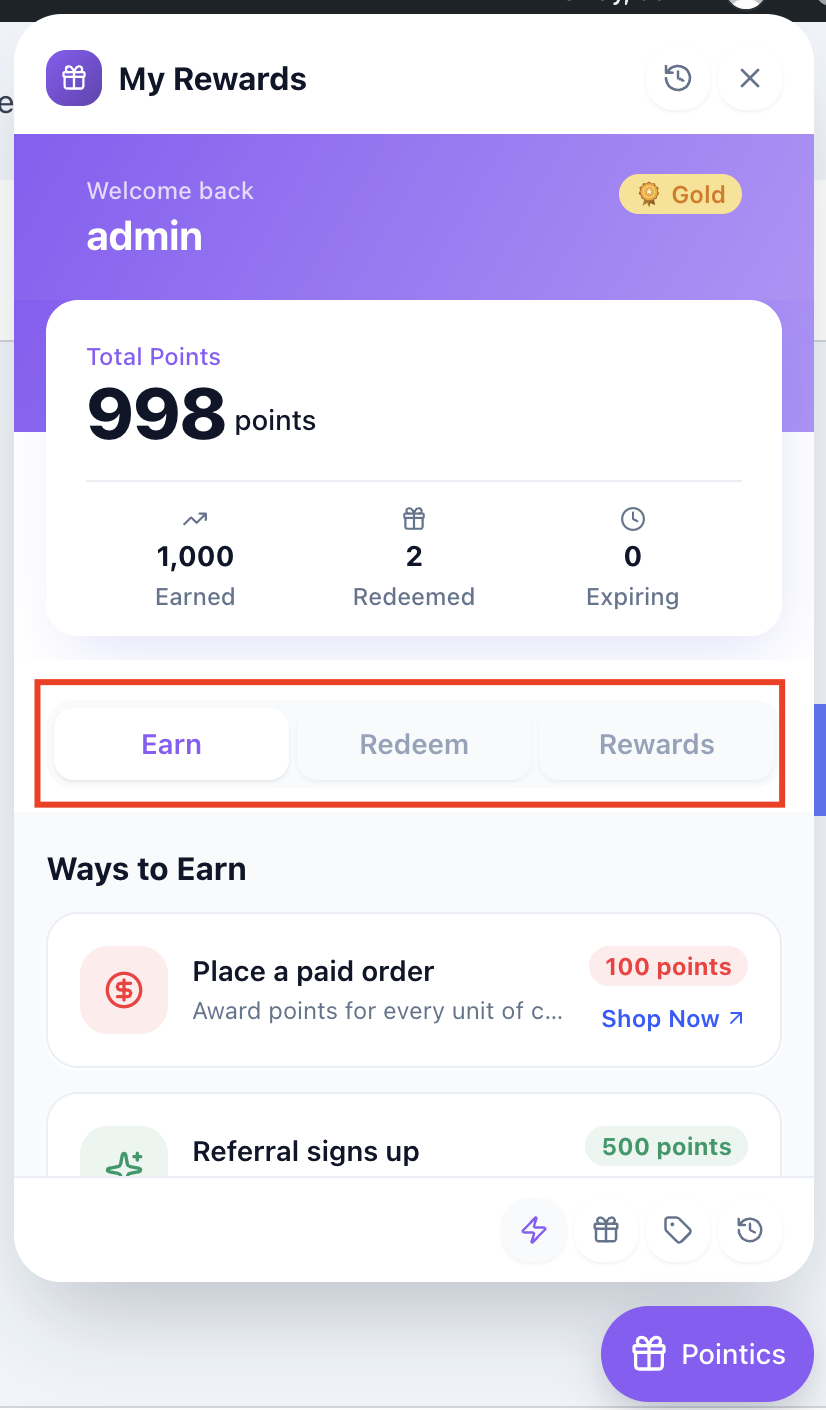
| Tab | Shows |
|---|---|
| Earn | The available ways to earn points |
| Redeem | Options for redeeming points |
| Rewards | The reward catalogue |
A footer row provides a fourth shortcut, History. The panel opens on the Earn tab by default.
Step 5: Check the My Account Panel #
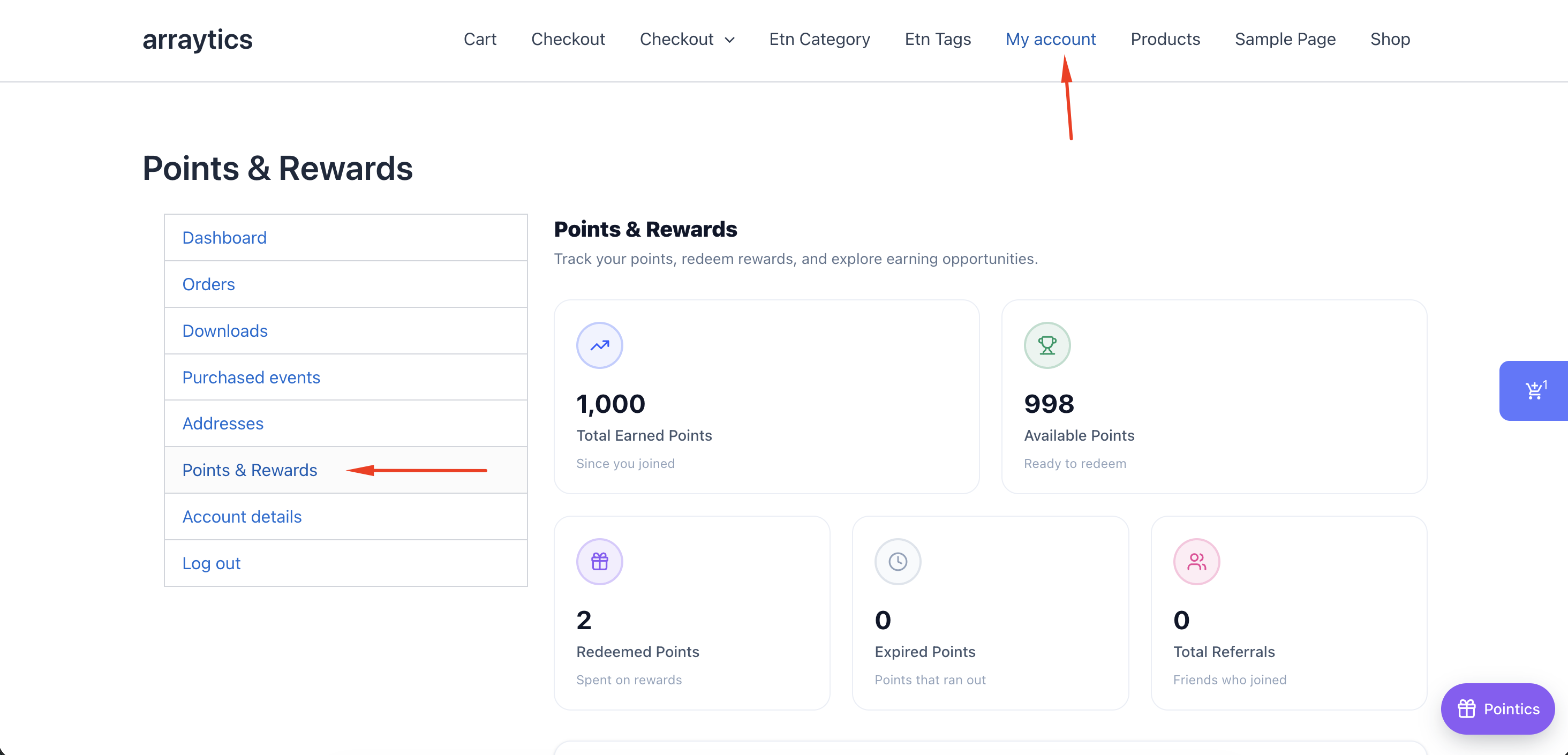
The WooCommerce My Account panel contains eight tabs:
| Tab | Shows |
|---|---|
| Logs | Point history |
| Expiring Points | Points that will expire and their expiry dates |
| My Level | The current level, progress, and level ladder |
| Earn | Ways to earn points |
| Redeem | Ways to redeem points |
| Rewards | The reward catalogue |
| Referrals | Referral link, code, and referral history |
| Summary | Six loyalty stat cards |
The Logs tab opens by default.
The Referrals tab is hidden until at least one referral earning rule exists.
Step 6: Place Extra Badges by Hand #
You can add Pointics balances and earn previews manually using shortcodes or blocks.
| Shortcode | Block | Shows |
|---|---|---|
[pointics_balance] | Points Balance | The customer’s current balance |
[pointics_earn_preview] | Points Earn Preview | The earn badge |
See How Do I Place a Points Balance Anywhere? for more details.
Key Functionality #
The floating widget and the My Account panel use the same loyalty data, so the information shown in both places stays consistent.
Customer balances are always current. Pages that display a customer’s personal balance are automatically excluded from page caching so one customer cannot see another customer’s balance.
Logged-out visitors can see the published loyalty program, including ways to earn and available rewards, but they cannot see personal balances, history, or other customer-specific information.
How a Customer Moves Through the Storefront #
A typical customer journey works like this:
- A visitor opens a product page.
- An earn badge shows how many points the product can earn.
- The visitor adds the product to the cart.
- The cart totals display how many points the order will earn.
- If the customer is logged in, their current points balance appears below the earn amount.
- If the visitor is logged out, the floating widget shows only the published loyalty program.
- If the customer is logged in, the widget and My Account panel display personal loyalty information.
- The customer can redeem a reward from the widget or My Account panel.
- The required points are placed on hold while the reward or discount is applied.
- When the order is paid, the held points are permanently spent.
- The floating widget remains available from any page.
- From the widget, customers can access Earn, Redeem, Rewards, and History.
Settings #
| Setting | Effect | Default |
|---|---|---|
| Storefront Enabled | Master switch for every customer-facing badge | On |
| Widget Name | Launcher text | Pointic |
| Widget Icon | Gift, Trophy, Percent, Diamond, or Party | Gift |
| Widget Colour | Launcher and hero colour | #8b5cf6 |
| Widget Font Colour | Launcher text and icon colour | #ffffff |
| Widget Display | Icon and Text, Icon Only, or Text Only | Icon and Text |
| Widget Placement | Right or Left | Right |
| Points Labels | Wording used throughout the storefront | point / points |
| Account Tab Address | Where the My Account panel is available | points-and-rewards |
Validation Rules #
- A customer can only see their own personal loyalty data.
- There is no way to request another customer’s balance or history.
- Logged-out visitors can only see published information: branding, ways to earn, and the reward catalogue.
- Pages that display a personal balance are automatically excluded from page caching.
- The account tab address is re-registered only when the address changes.
Limitations #
- WooCommerce is required for storefront badges and the My Account panel. The floating widget can work without WooCommerce.
- Pages displaying personal balances cannot be fully cached because the data differs for each customer.
- Some block themes use shop layouts that the automatic product badge cannot reach. Use the earn-preview shortcode or block instead.
- The floating widget does not have a separate home screen behind its tabs.
- Changing the My Account tab address requires permalink rules to be refreshed.
- An empty cart, or a coupon that leaves nothing eligible for earning, produces no earn line.
- The Referrals tab remains hidden until a referral earning rule exists.
- Older browsers display a flat brand colour instead of the widget gradient.
- Guests only see the published loyalty program and never personal information.
Troubleshooting #
| Problem | Solution |
|---|---|
| No badges appear anywhere | Check that the Storefront feature and storefront setting are enabled and that WooCommerce is active. |
| Badges appear on product pages but not shop listings | Your theme may use a block-based shop layout. Use the earn-preview shortcode or block. |
| No earn line appears in the cart | The cart may be empty, a coupon may leave nothing eligible to earn on, or no earning rule matches the cart contents. |
| Balance line appears above the earn line | Another plugin may have changed the WooCommerce totals-table order. |
| Balances appear stale | A page cache may be serving old HTML. Exclude cart, checkout, and account pages from caching. |
| My Account tab is missing | Check that WooCommerce is active and refresh permalinks from Settings → Permalinks. |
| My Account tab shows “page not found” | Re-save WordPress permalinks from Settings → Permalinks. |
| Floating widget is not visible | Check that the storefront setting is enabled and that the selected display mode shows either text, icon, or both. Also check the placement. |
| Widget brand colours look flat | An older browser may be using the flat-colour fallback. |
| Referrals tab is missing | Create a referral earning rule in the Points Program. |
| Logged-out visitors see no personal information | This is expected. Guests can only see the published loyalty program. |
| A shortcode displays nothing | The Storefront feature may be disabled, or the badge may have nothing to display in that location. |
Notes #
- Each panel tab loads only when the customer opens it, so unused sections do not slow down the initial panel load.
- The widget’s hero section remains fixed while the balance card scrolls beneath it.
- The hero section uses a solid brand shade so content remains readable while the panel scrolls.


