
What is the Transactions Screen? #
Transactions is the complete record of every point movement on your site. Each row shows who the transaction belongs to, how many points moved, why the movement happened, and whether it counted toward the customer’s balance.
This record is the source of truth for Pointics. Every customer’s balance is calculated from it, and balances and transactions are updated together.
Why Do You Need It? #
- Points are a liability: Loyalty points represent value, and this screen records every movement.
- It resolves disputes: When a customer questions their balance, the Transactions screen provides the full history.
- It helps detect problems: Duplicate awards, failed redemptions, reversals, and expiry activity are all visible here.
Prerequisites #
- An Administrator account.
- No additional setup is required. Transactions are recorded automatically as customers earn, redeem, adjust, expire, or reverse points.
Customers can also view their own transaction history from their account panel.
Where to Find It #
Go to Pointics → Transactions.
/wp-admin/admin.php?page=pointics#/transactionsStep-by-Step Instructions #
Step 1: Open the Transactions Screen #
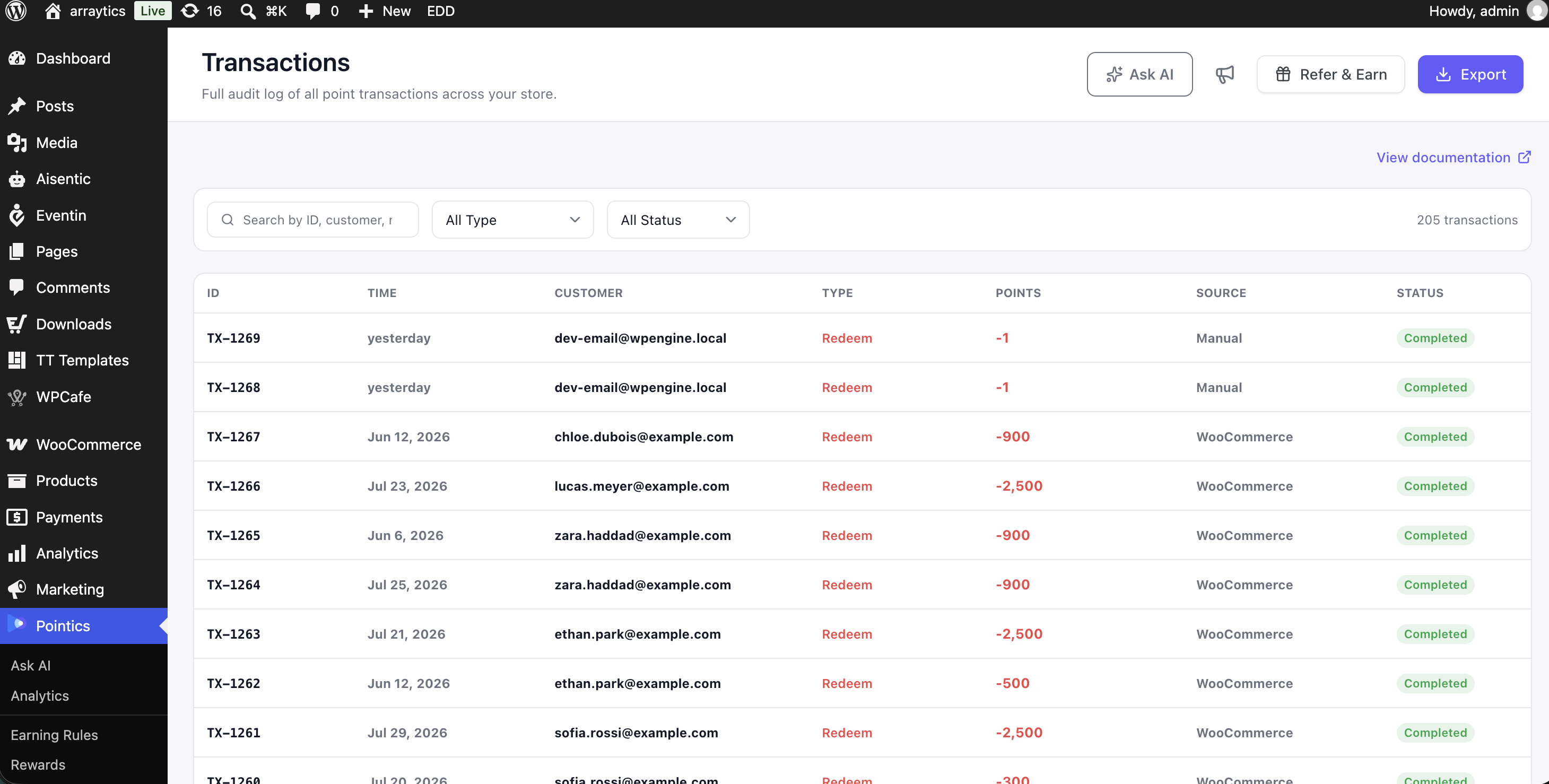
Go to Pointics → Transactions. Every point movement on your site is listed, with the newest transactions shown first.
Step 2: Read a Row #
| Column | Shows |
|---|---|
| ID | The transaction reference. |
| Time | Relative time in the table and an exact date in the export. |
| Customer | The customer’s email address. |
| Type | Earn, Redeem, Adjust, Expire, or Reversal. |
| Points | Signed in the table and unsigned in the export. |
| Source | Where the transaction originated, such as an integration or an administrator. |
| Status | Pending, Completed, Reversed, Failed, or Expired. |
The export writes point values as unsigned numbers. This prevents spreadsheet software from interpreting a leading minus sign as text and breaking calculations.
Step 3: Narrow the List #
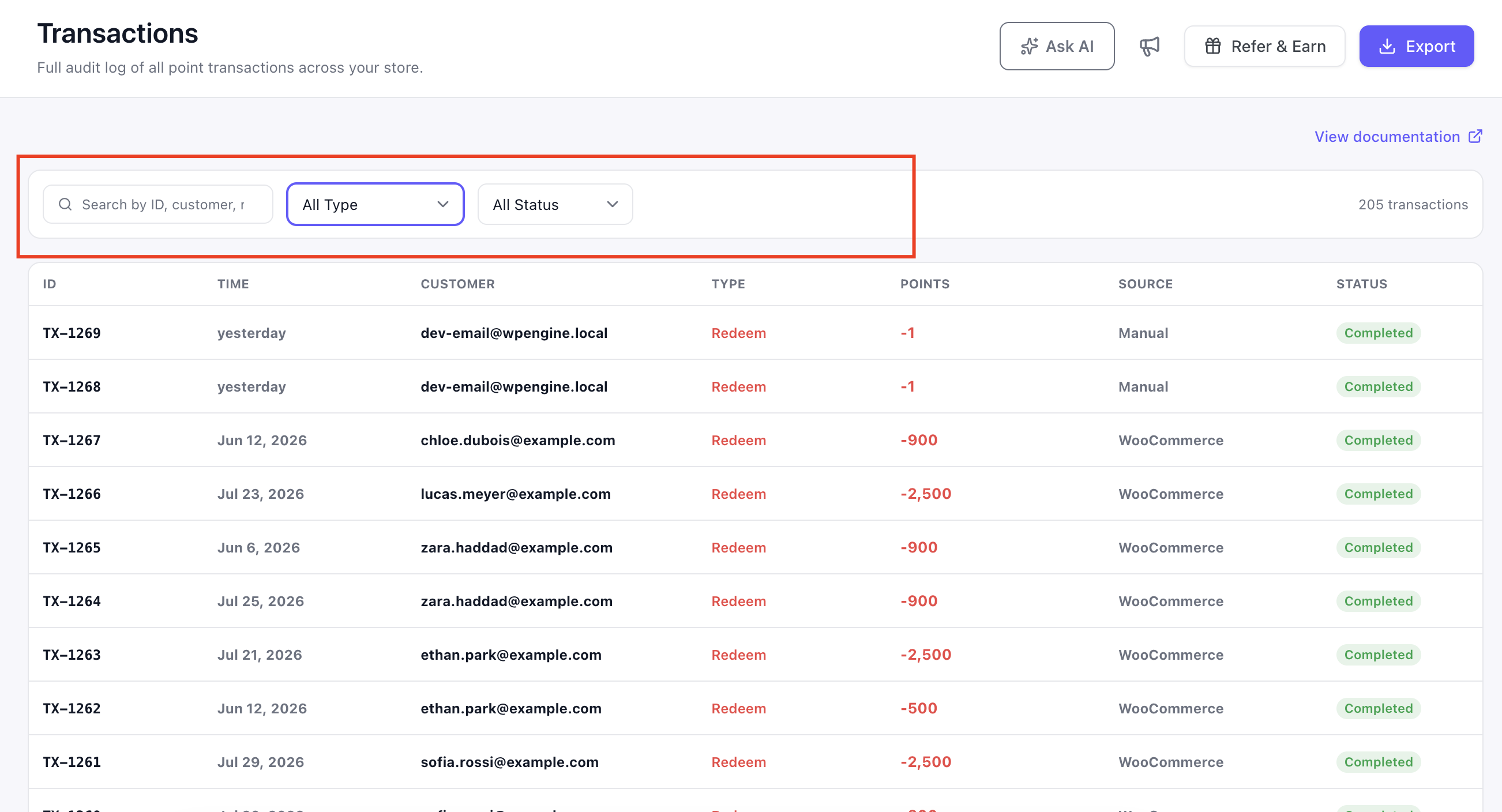
| Control | Behaviour |
|---|---|
| Search Transactions — “Search by ID, customer, ref..” | Matches the transaction and customer information. |
| Filter by Type — “All Type” | Filters by Earn, Redeem, Adjust, Expire, or Reversal. |
| Filter by Status — “All Status” | Filters by Pending, Completed, Reversed, Failed, or Expired. |
| Date Range | Filters by a start date and end date. |
Transactions belonging to deleted user accounts or guest users are still preserved. In those cases, the Customer column is empty.
Step 4: Export Transactions #
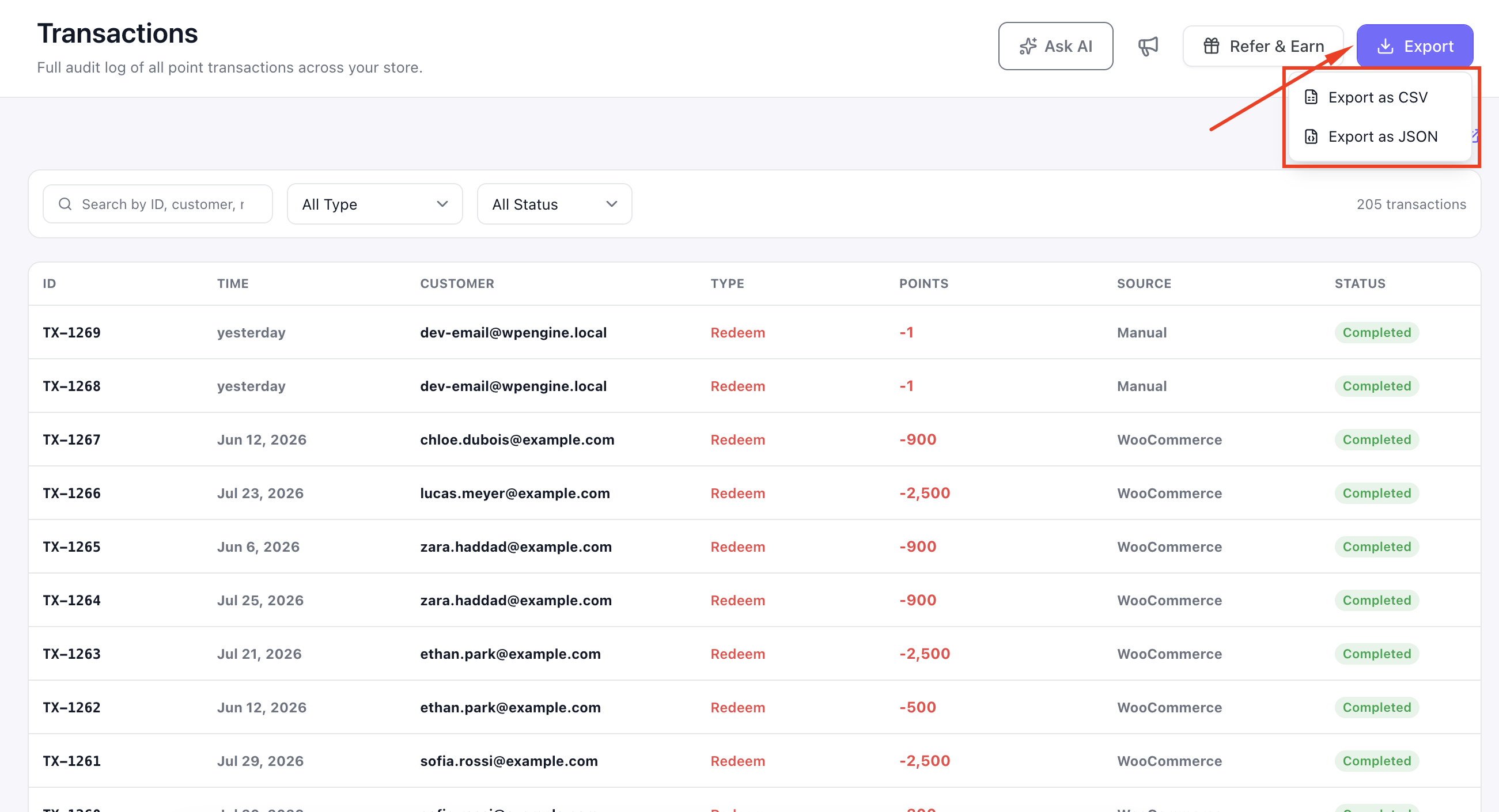
The export includes every transaction matching the current filters and uses the same columns as the Transactions table.
Key Functionality #
Transaction Types #
| Type | Meaning |
|---|---|
| Earn | Points awarded by an earning rule. |
| Redeem | Points used to redeem a reward. |
| Adjust | A manual credit or deduction made by an administrator. |
| Expire | Points removed because they reached their expiry date. |
| Reversal | An earlier points movement that was undone, such as after a refunded order. |
Transaction Statuses #
| Status | Counts Toward the Balance? | Meaning |
|---|---|---|
| Pending | No | Points are being held for a redemption that has not settled. |
| Completed | Yes | The transaction has settled successfully. |
| Reversed | No | The original transaction was undone. |
| Failed | No | The transaction never completed successfully. |
| Expired | No | The transaction aged out. |
Only Completed transactions count toward a customer’s available balance. Pending, Reversed, Failed, and Expired rows do not count.
How Points Move #
Point movements follow these main paths:
- Earning Rule: An earning rule awards points → an Earn transaction is completed → the balance updates.
- Admin Credit: An administrator adds points → an Adjust transaction is completed → the balance updates.
- Reward Redemption: A customer redeems a reward → a Redeem transaction becomes Pending → points are held.
- Paid Order: If the related order is paid, the pending redemption becomes Completed and the points are permanently spent.
- Cancelled or Expired Reward: If the redemption is cancelled or the coupon expires, the hold is reversed and the points return.
- Point Expiry: Expired points create an Expire transaction and the balance is reduced.
- Refund: A refunded order creates a Reversal transaction and eligible points are removed.
Validation Rules #
- Type and Status filters accept only the supported values listed above.
- Search accepts up to 191 characters.
- Date filters must use a valid calendar date in
YYYY-MM-DDformat, optionally including a time. - Impossible dates, such as 30 February, are rejected.
- Leaving either date field empty means there is no limit on that side of the date range.
“date_from must be a date as YYYY-MM-DD, optionally with HH:MM:SS.”
What Pointics Guarantees #
- Every points movement and the balance it changes are recorded together.
- The same event cannot be recorded twice, which protects retries and frequency-limited rules from duplicate awards.
- Plugin updates do not destroy transaction data.
- Deactivating Pointics does not remove transaction history.
Limitations #
- Transactions cannot be edited or deleted. Corrections must be made with a new adjustment so the original record remains visible.
- You can sort by only ID, Time, and Points.
- The customer profile history supports search only. Use the Transactions screen for date and type filters.
- There is no separate detail page for individual transactions.
- Deleting a WordPress user does not remove their transactions. The Customer column becomes empty instead.
Troubleshooting #
| Problem | Solution |
|---|---|
| “date_from must be a date as YYYY-MM-DD, optionally with HH:MM:SS.” | Correct the date format and make sure the date actually exists. |
| A filter returns no results. | Check that the selected transaction type and status are valid. |
| The Points column does not sum correctly in a spreadsheet. | Use the CSV export instead of copying the visible table. The export uses unsigned numeric values. |
| A balance does not match a quick sum of all rows. | Only Completed transactions count toward the balance. |
| Duplicate award rows appear. | This should not normally happen. Check the earning rule’s frequency configuration. |
| A redemption remains Pending. | The related order has not been paid. Check its WooCommerce order status. |
| A row has no customer. | The WordPress user was deleted, or the transaction belongs to a guest. |
| No Expire transactions appear even though expiry is enabled. | Expiry runs on a schedule. Confirm that WordPress scheduled tasks are running. |
| Sorting by Source or Status does nothing. | Only ID, Time, and Points can be sorted. |
Notes #
- An Earn transaction also tracks how much of the awarded amount remains unspent and when it expires.
- This tracking allows Pointics to support point expiry and oldest-points-first spending.
- A refund can only reverse points the customer still has available. Points that have already been spent cannot be clawed back.


