
What are Reward Conditions? #
Conditions are the second section of the reward editor. A reward without conditions is offered to everyone who can afford it. Add conditions and the reward becomes targeted: it is only available to customers or carts that match what you define.
Each condition appears as a row that reads like a sentence:
If — User role — Including — Wholesale Customer
You can stack multiple rows. A Match option at the top decides whether every row must be true or whether any one matching row is enough.
- Match ALL: Every condition row must be true.
- Match ANY: At least one condition row must be true.
Why Do You Need It? #
- Make rewards exclusive: Create VIP-only discounts or rewards for wholesale customers.
- Run regional offers: Offer rewards only for selected currencies or languages.
- Control redemption: Make a reward available only when certain products or categories are in the cart.
- Protect stock and margin: Keep expensive rewards away from audiences they were not designed for.
Prerequisites #
- An Administrator account.
- Pointics Pro must be active and licensed. Without Pro, the Conditions section displays a locked line with an Upgrade to Pro link.
- A reward, either new or being edited.
- WooCommerce must be active for WooCommerce-specific fields.
- Integration-specific fields only appear while their corresponding integration is active.
Where to Find It #
Go to Pointics → Rewards, open or create a reward, then select Conditions from the left rail.
/wp-admin/admin.php?page=pointics#/rewardsStep-by-Step Instructions #
Step 1: Open the Conditions Section #
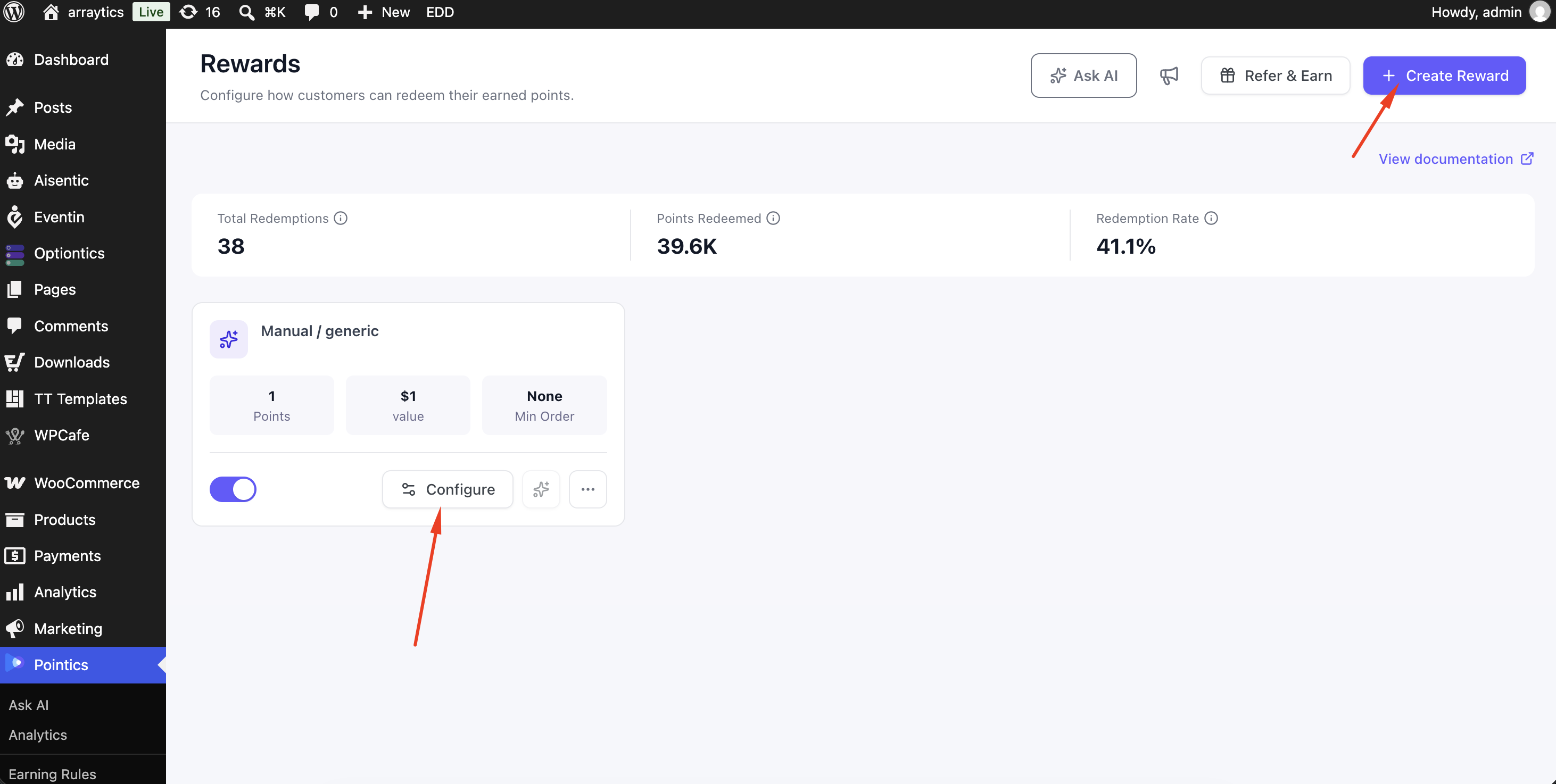
Create a reward using Create Reward, or click Configure on an existing reward card.
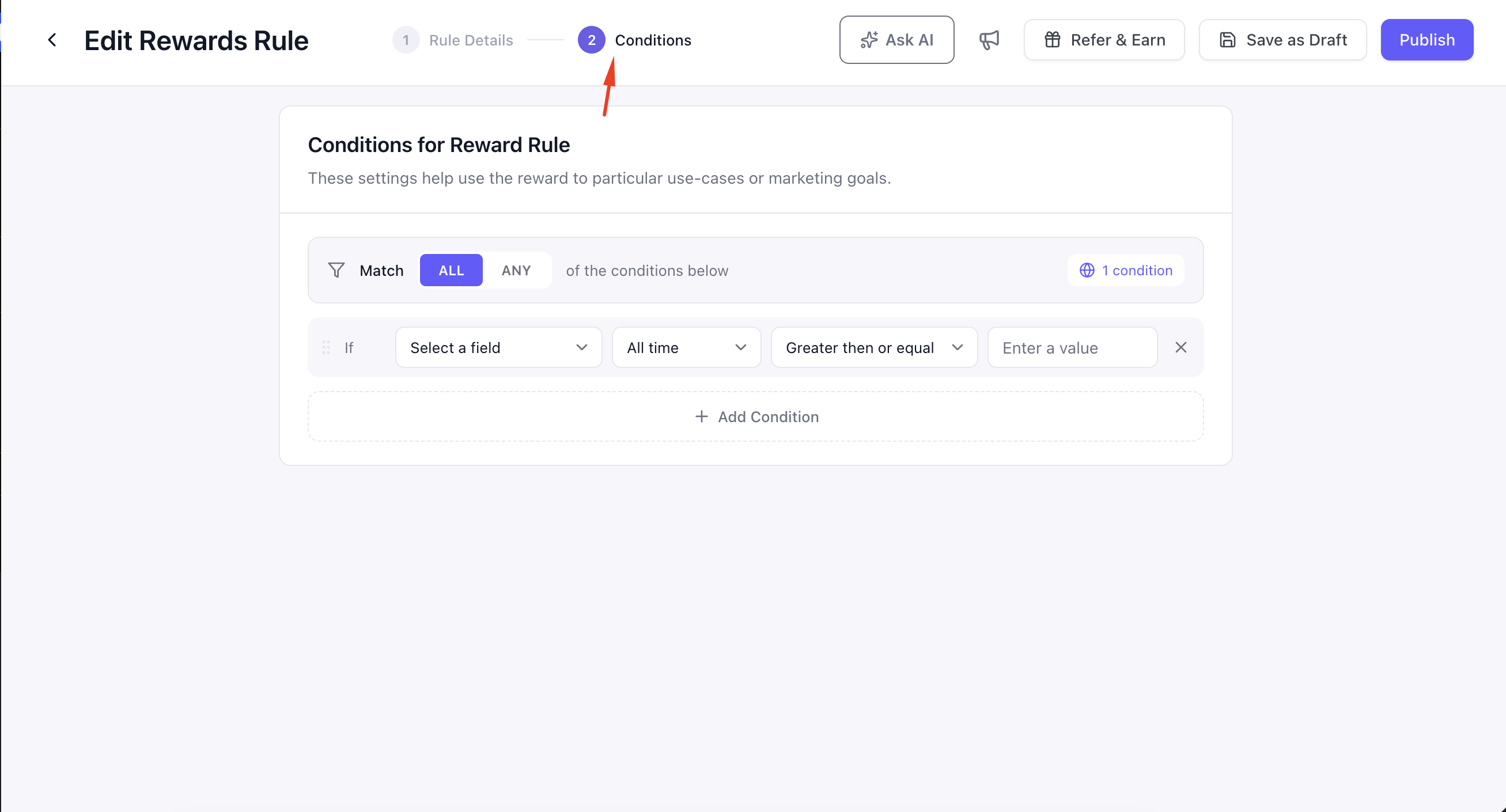
In the editor’s left rail, choose 2 Conditions. The heading reads Conditions for Reward Rule.
One empty condition row is always available.
Step 2: Choose How the Rows Combine #
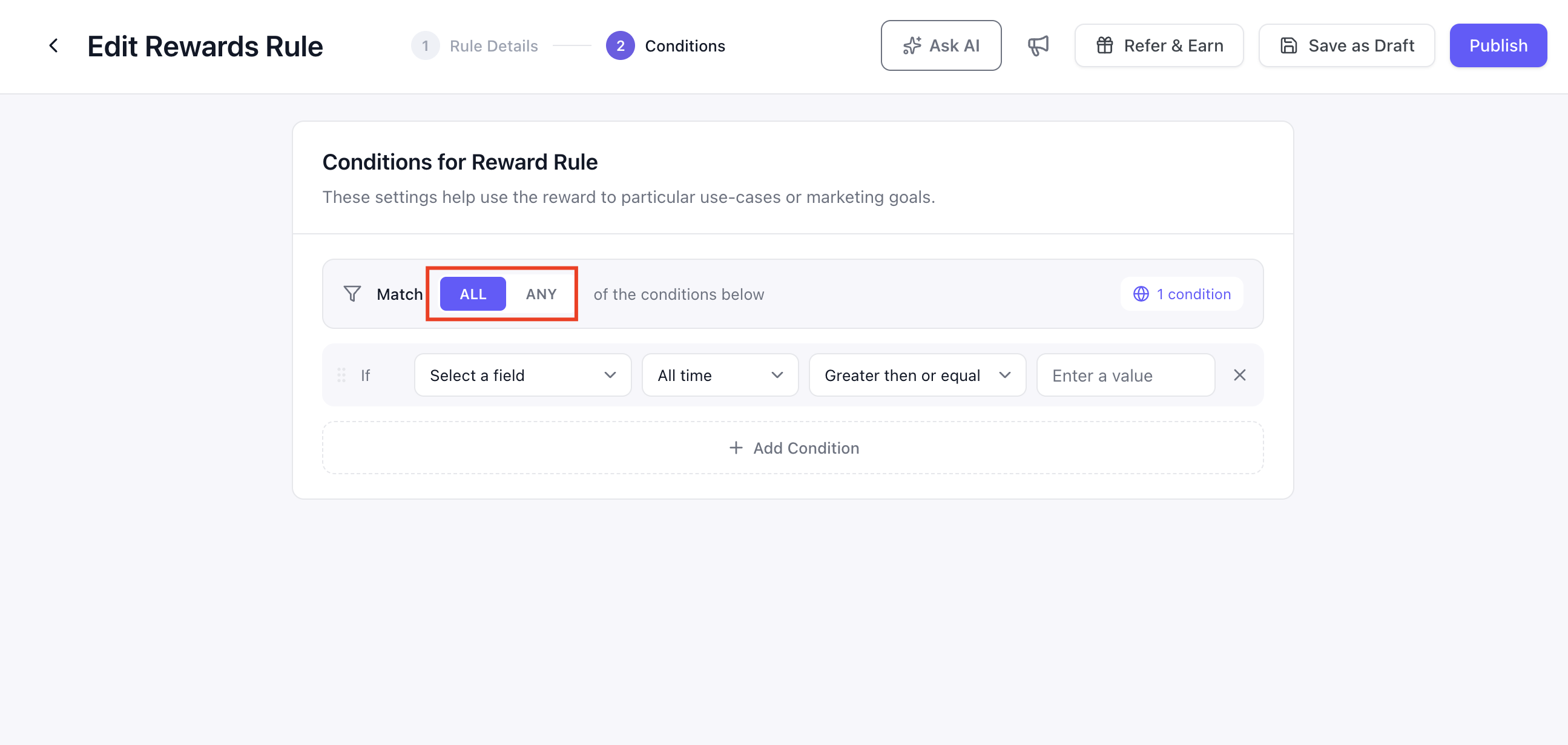
| Control | Meaning |
|---|---|
| Match ALL | Every condition row must be true. This is the default. |
| Match ANY | At least one condition row must be true. |
The badge on the right shows how many condition rows are currently in the builder.
Step 3: Pick a Field #
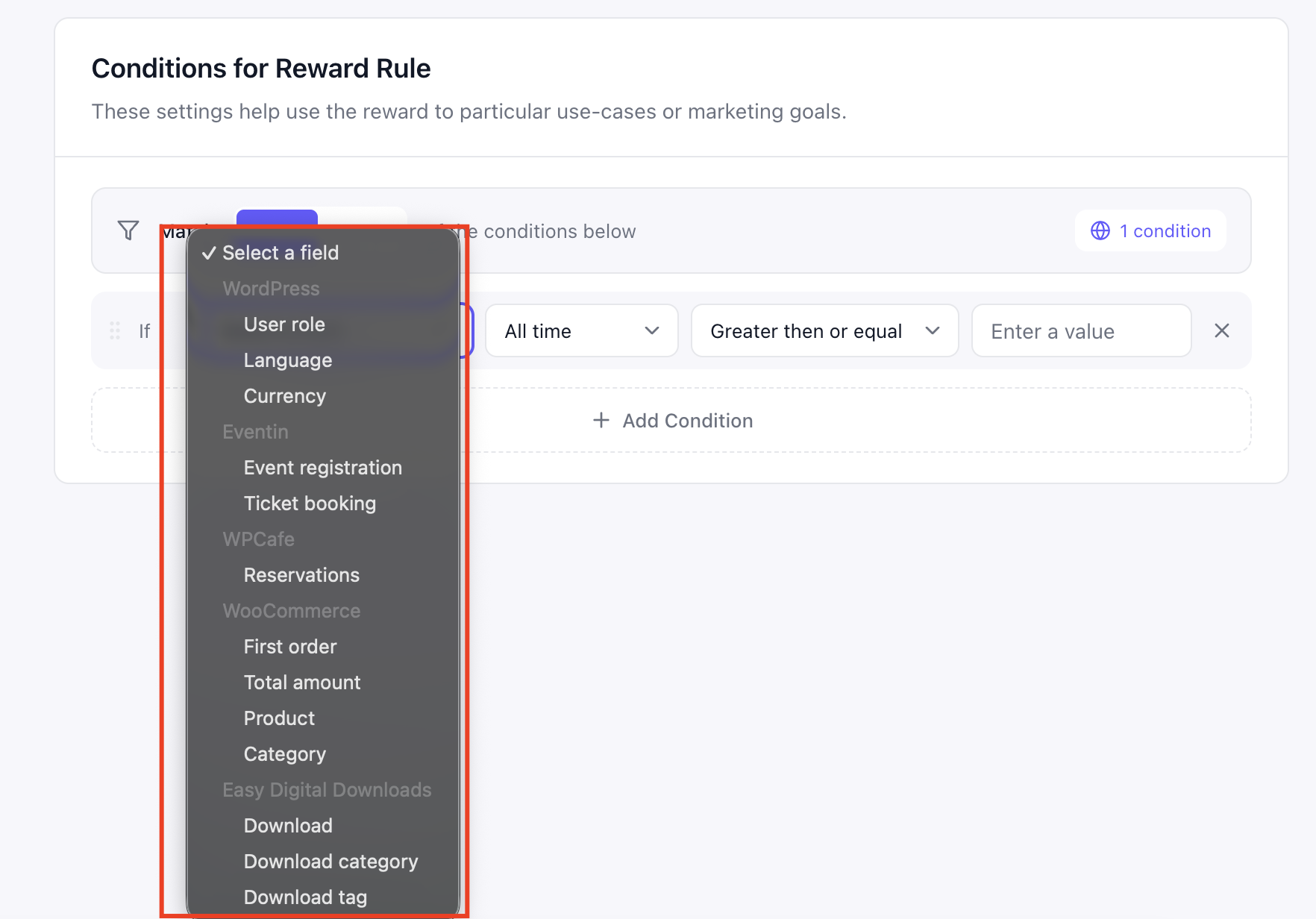
Fields are grouped according to where their data comes from. A group only appears while the corresponding plugin is active.
| Group | Field | Needs |
|---|---|---|
| WordPress | User role | WordPress |
| WordPress | Language | WordPress |
| WordPress | Currency | WordPress |
| WooCommerce | First order | WooCommerce |
| WooCommerce | Total amount | WooCommerce |
| WooCommerce | Product | WooCommerce |
| WooCommerce | Category | WooCommerce |
| Eventin | Event registration | Eventin |
| Eventin | Ticket booking | Eventin |
| WPCafe | Reservations | WPCafe |
For rewards, the WordPress fields are especially useful because they describe the customer directly, which is often what an exclusive reward depends on.
Step 4: Complete the Condition Row #
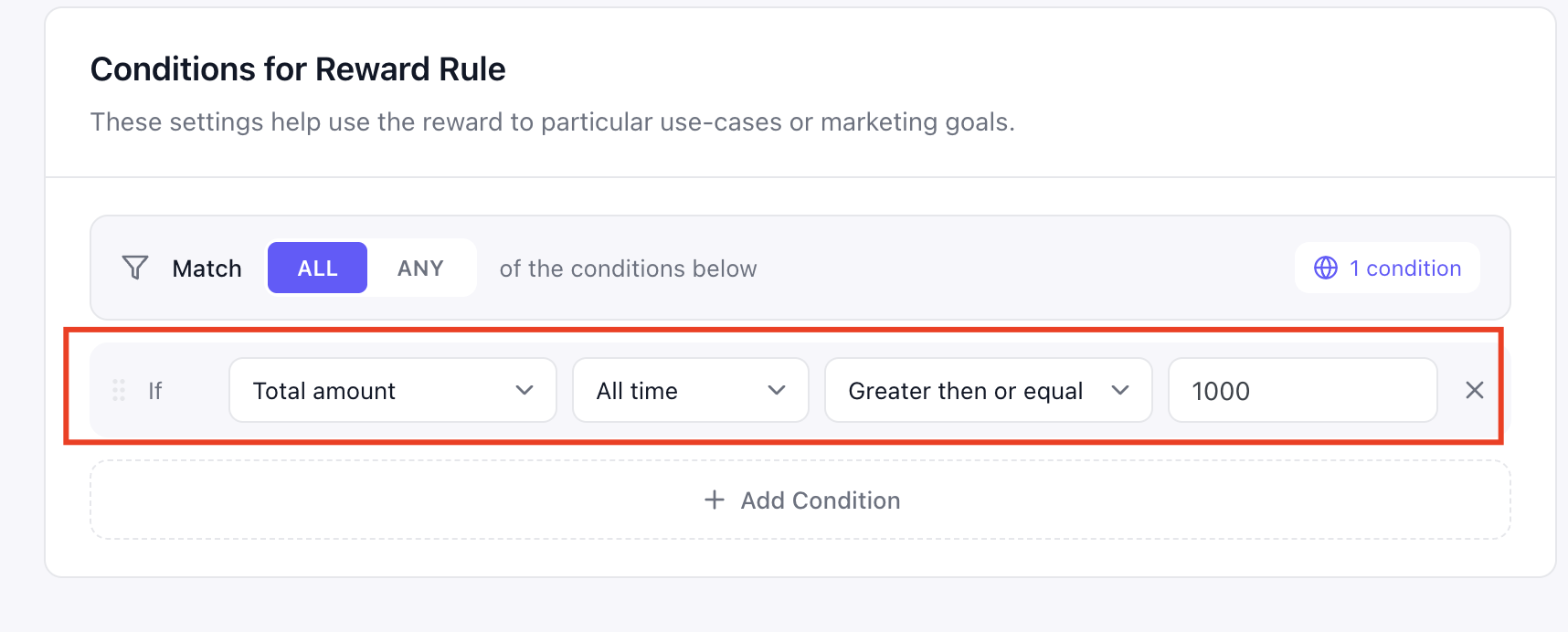
The rest of the row changes depending on the field you choose.
| Field | Time Window | Comparison | Value |
|---|---|---|---|
| User role | — | Including · Excluding | One or more roles |
| Language | — | Including · Excluding | One or more locales |
| Currency | — | Including · Excluding | One or more currencies |
| First order | — | — | — |
| Total amount | Yes | Greater then or equal · Less then or equal · Equal to · Not equal to | A number |
| Product | — | All products · Specific products | Product picker when Specific is selected |
| Category | — | All categories · Specific categories | Category picker when Specific is selected |
| Event registration | Yes | Greater then or equal · Less then or equal · Equal to · Not equal to | A number |
| Ticket booking | Yes | Greater then or equal · Less then or equal · Equal to · Not equal to | A number |
| Reservations | Yes | Greater then or equal · Less then or equal · Equal to · Not equal to | A number |
Including keeps customers whose values are in the selected list. Excluding keeps customers whose values are not in the list.
You can select several values in one row. For example, Including: Subscriber, Customer means either role qualifies.
All products and All categories mean there is no restriction on which items qualify. Choose Specific to reveal the appropriate picker.
Click anywhere inside a value box to open its list. You do not need to click directly on the arrow.
Step 5: Add More Rows #
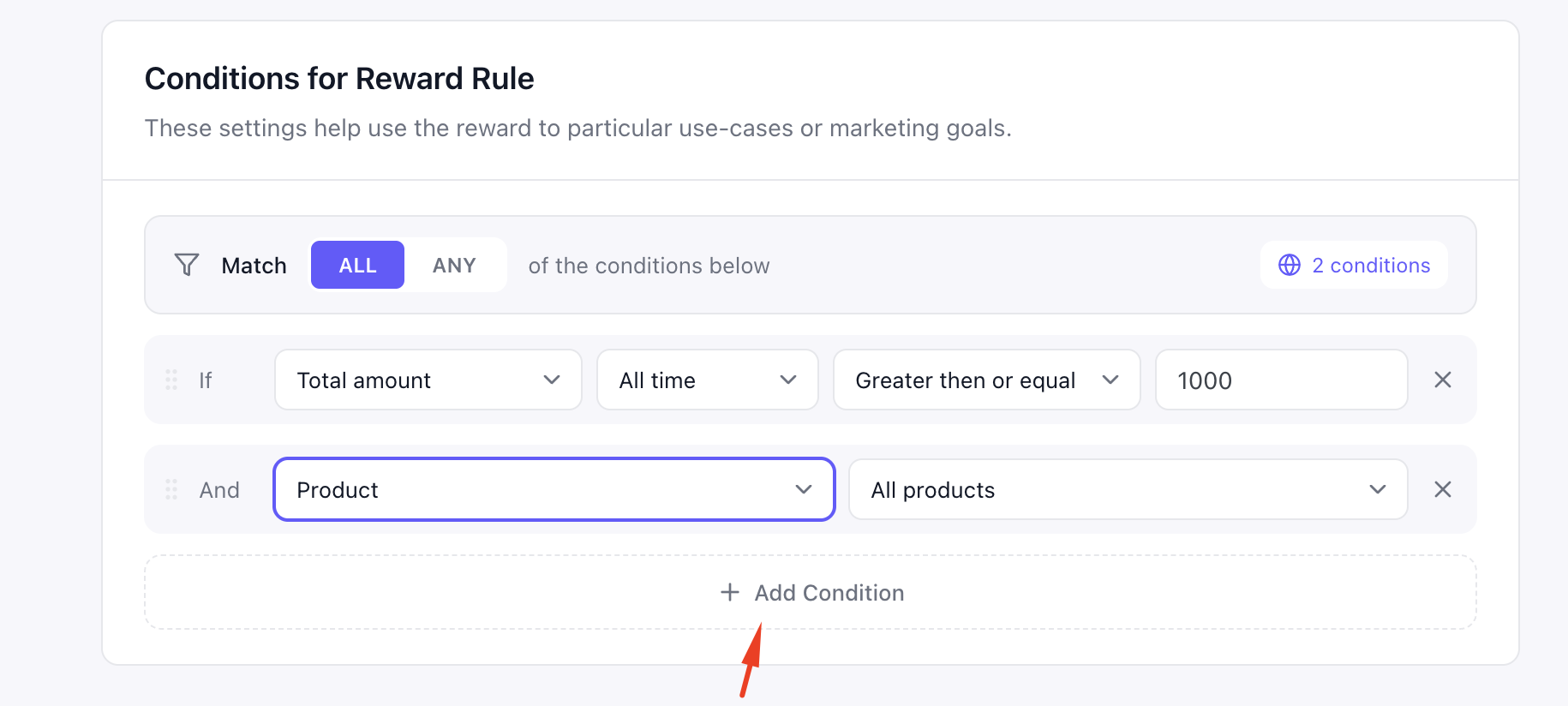
Click Add Condition to add another condition row.
Additional rows are prefixed with And when using Match ALL or Or when using Match ANY.
Use the remove button at the end of a row to delete it. Removing the final row leaves one empty row instead of an empty Conditions card.
Step 6: Save the Reward #
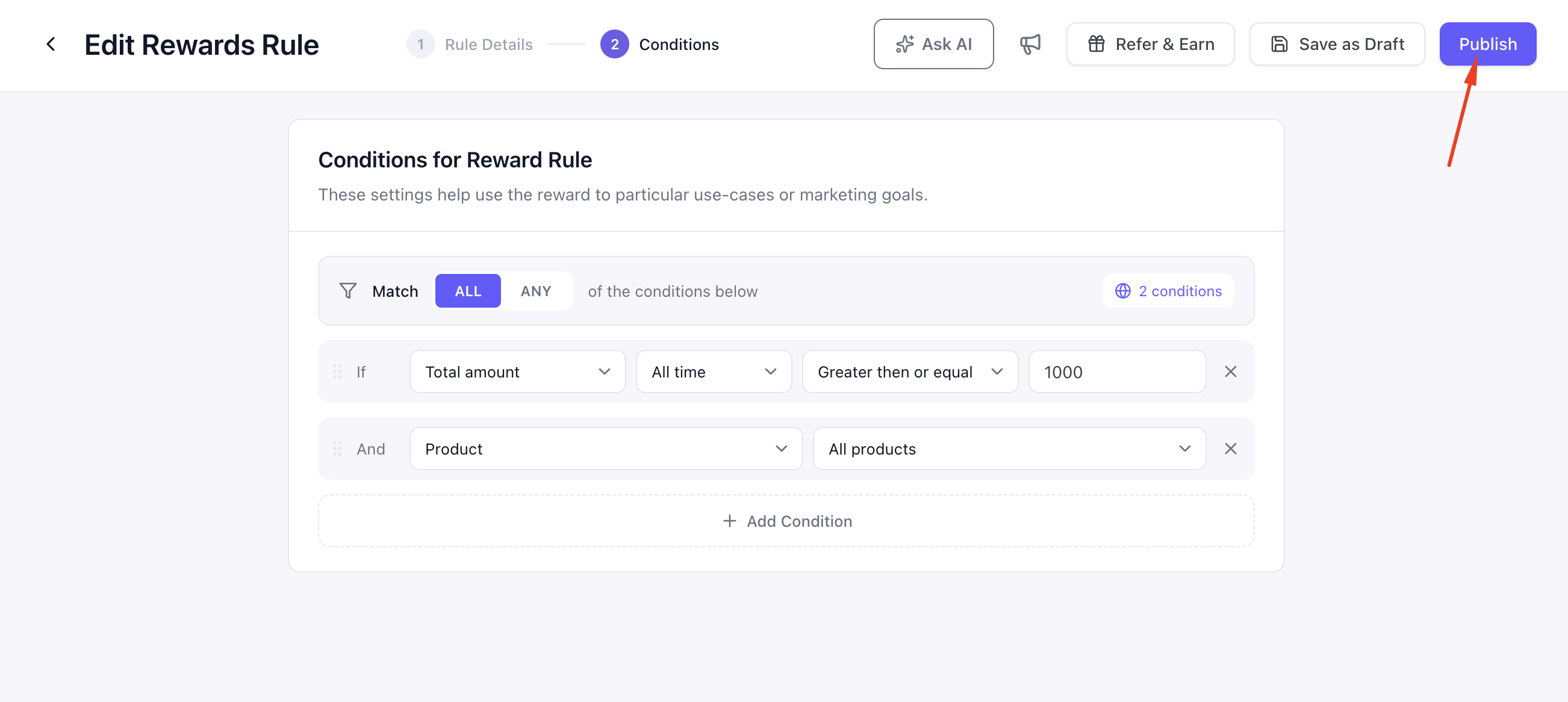
Conditions are saved together with the reward. Click Save draft or Publish as usual.
Reopening the reward restores the saved condition rows exactly as they were saved.
If no complete condition rows exist, the reward is stored as unconditional, which is the same as having no Conditions section configured.
Key Functionality #
Worked Examples #
| Goal | Rows |
|---|---|
| Wholesale-only discount | Match ALL · User role · Including · Wholesale Customer |
| Everybody except staff | Match ALL · User role · Excluding · Administrator, Shop Manager |
| Euro-zone offer | Match ALL · Currency · Including · EUR |
| French-language reward | Match ALL · Language · Including · fr_FR |
| VIPs or big spenders | Match ANY · User role · Including · VIP — Or — Total amount · ≥ · 500 |
Which Rows Are Actually Saved? #
Incomplete rows are ignored rather than stored as partial restrictions.
| Field | Condition Is Kept When |
|---|---|
| User role / Language / Currency | At least one value is selected |
| First order | Always, once the field is selected |
| Total amount | A number is entered. A blank field is not treated as zero. |
| Product / Category | Set to All, or Specific with at least one item selected |
How a Reward Is Gated #
Pointics checks reward conditions before deciding whether a customer should see and be able to use the reward.
- A customer opens the reward catalogue.
- Pointics checks whether the reward has conditions.
- If there are no conditions, the reward is offered when the customer can afford it.
- If conditions exist, Pointics checks the selected Match mode.
- With Match ALL, every condition row must match.
- With Match ANY, at least one row must match.
- If the conditions fail, the reward is not offered.
- If the conditions pass, the reward is offered if the customer can afford it.
Validation Rules #
- A condition row with no field selected is ignored.
- Total amount requires a number. A blank value means no condition rather than zero.
- Specific products and Specific categories require at least one selected item.
- Including and Excluding require at least one selected value.
- Incomplete conditions do not block Save draft or Publish. They are quietly dropped while the rest of the reward is saved.
Limitations #
- Conditions require Pointics Pro. The free version displays a locked line instead of the condition builder.
- The Time window is not currently saved. The control may appear for Total amount and count fields, but the selected window is not stored or enforced.
- Eventin and WPCafe conditions are not currently enforced. They can be selected, but nothing evaluates them yet.
- Condition rows use a flat list. Nested logic such as A and (B or C) is not supported.
- Language values use locale codes such as
en_USandfr_FR. - Currency has no available values without WooCommerce.
- Conditions determine whether a reward is offered. They are separate from the reward’s own User roles setting and its point cost.
Troubleshooting #
| Problem | Solution |
|---|---|
| The Conditions section shows a locked line with an Upgrade to Pro link | Conditions require Pointics Pro. Activate and license Pointics Pro. |
| A whole group is missing from the field list | The integration that provides the group is inactive. Enable it under Pointics → Integrations. |
| Currency has no options | WooCommerce is not active, so there are no currencies to select. |
| The reward saved but a condition disappeared | The condition row was incomplete, commonly because a picker had no selected value. |
| Nobody can see the reward | With Match ALL, every row must match. Try Match ANY or remove conditions one by one to identify the failing row. |
| The wrong customers can still see the reward | Check whether you meant Excluding instead of Including, and confirm the reward is not separately available through its own User Roles setting. |
| A time window has no effect | Time windows are not currently saved or enforced. |
Notes #
- Excluding fails safely. If Pointics cannot read the required value from the event, the exclusion condition fails instead of passing.
- The same builder is available in the point rule editor. See How Do I Limit Which Events Earn Points?
- Changing a reward’s conditions does not revoke rewards that were already issued. It only changes who is offered the reward from that point onward.
- If a Pro-authored reward containing conditions is later edited without Pro, Pointics preserves the existing conditions instead of deleting them.


