
What are Email Automations? #
Email Automations send emails when something happens in your loyalty program, such as when a customer earns points, redeems a reward, changes level, or is about to lose points due to expiry.
You can build flows in a visual editor. Choose a trigger, select who receives the email, write the subject and body, and optionally add a delay.
Three ready-made flows are created automatically on a fresh installation, so you can start sending important loyalty notifications without building everything from scratch.
Why Do You Need It? #
- Encourage customers to use their points: Expiry reminders can bring customers back before their points disappear.
- Make membership status meaningful: Level-change emails notify customers when their loyalty status changes.
- Start without building flows from scratch: Three ready-made automation flows are available from the beginning.
Prerequisites #
- An Administrator account.
- The Email Automations feature must be enabled.
- WordPress scheduled tasks must be running because expiry reminders are processed on a schedule.
- A working site mailer.
Where to Find It #
Go to Pointics → Automation.
/wp-admin/admin.php?page=pointics#/automationThe page header displays Email Automations with the description “Trigger emails and notifications when customers earn, redeem or level up.”
Step-by-Step Instructions #
Step 1: Review the Ready-Made Flows #
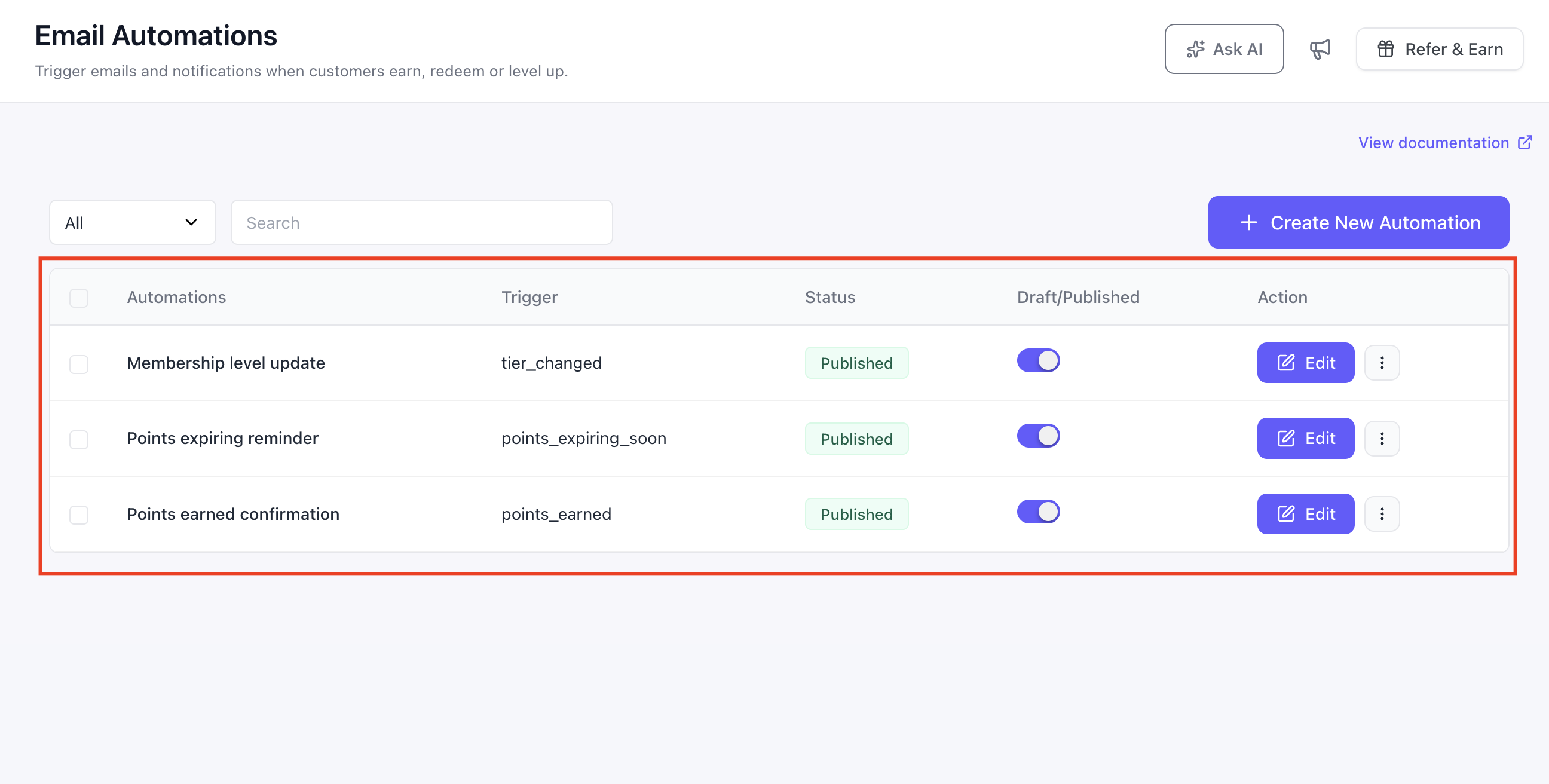
Pointics automatically creates three flows when Email Automations loads for the first time.
| Flow | Trigger | Subject |
|---|---|---|
| Points Earned Confirmation | Points Earned | “You just earned {%points%} points” |
| Points Expiring Reminder | Points Expiring Soon | “{%expiring_points%} of your points expire soon” |
| Membership Level Update | Tier Changed | “Your membership level is now {%new_tier%}” |
The membership-level message is intentionally neutral because the Tier Changed trigger runs for both promotions and demotions. A flow cannot branch based on the direction of the level change.
If Pointics adds another ready-made flow in a future release, your site can offer that flow later. You are not limited to the original three flows.
Step 2: Create Your Own Flow #
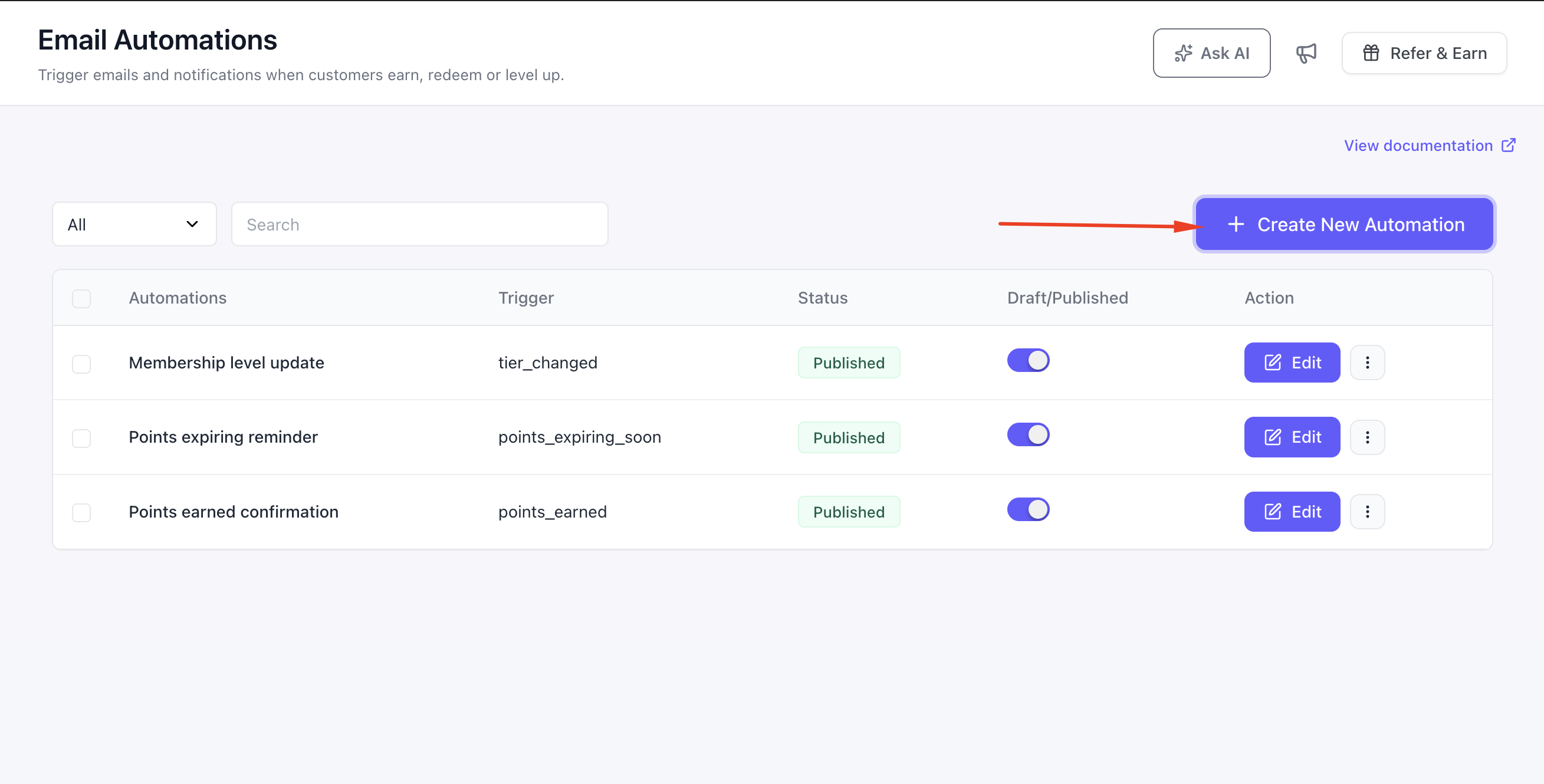
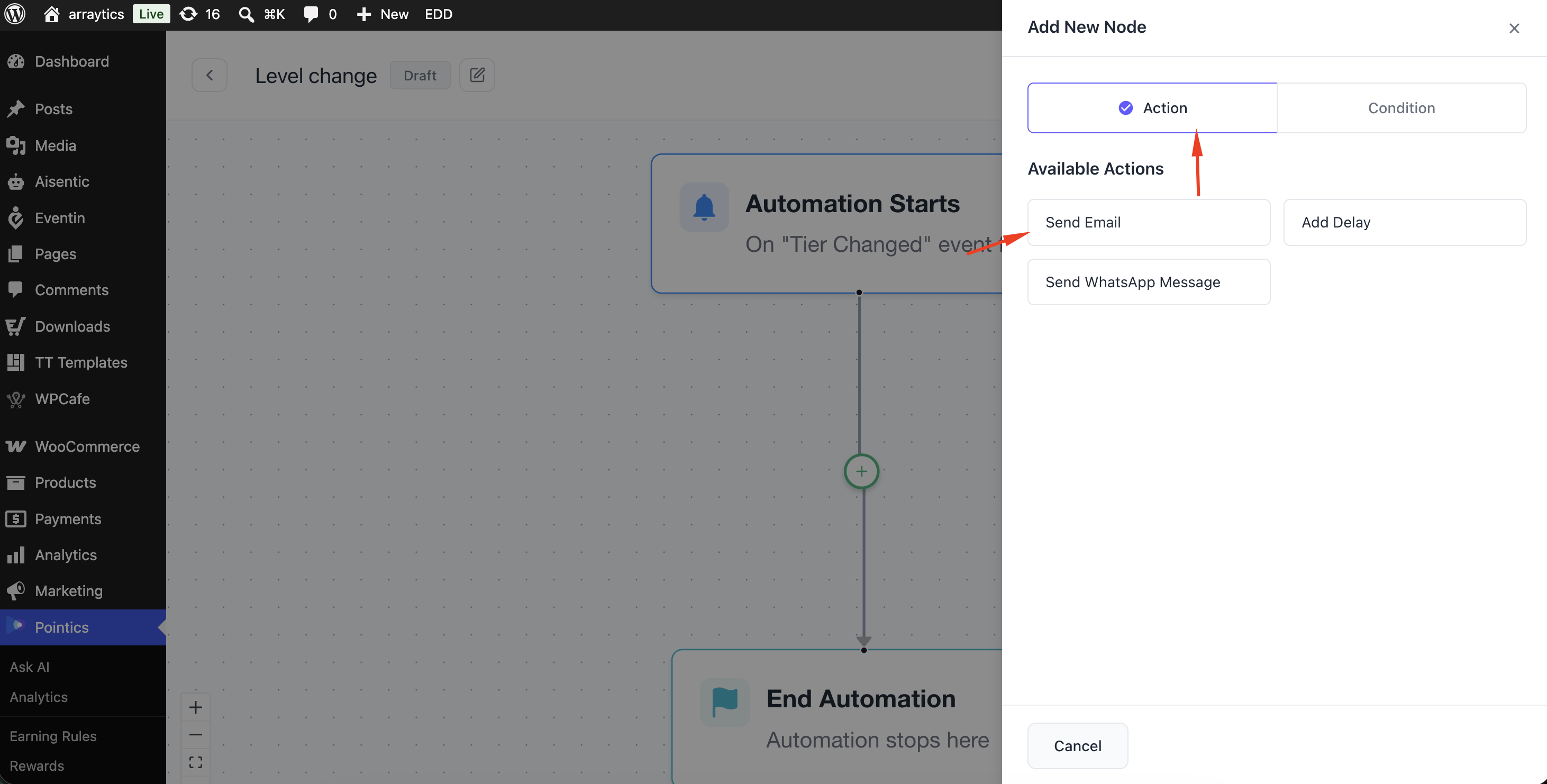
Go to Pointics → Automation and create a new automation flow.
Step 3: Choose a Trigger #
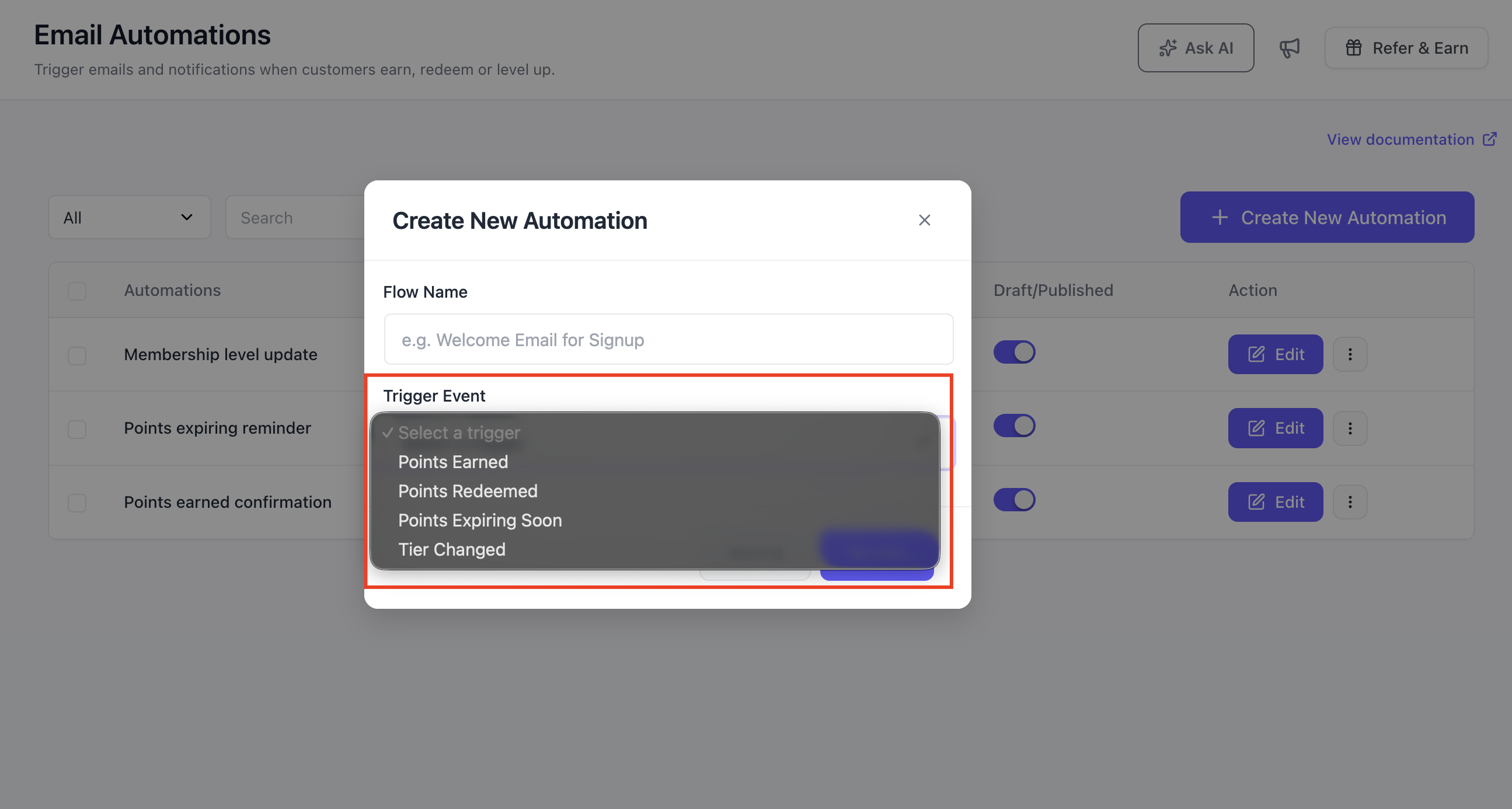
Select one of the four available triggers. Each trigger provides its own fields and placeholders that you can insert into the email.
- Points Earned
- Points Redeemed
- Points Expiring Soon
- Tier Changed
Step 4: Choose Who Receives It #
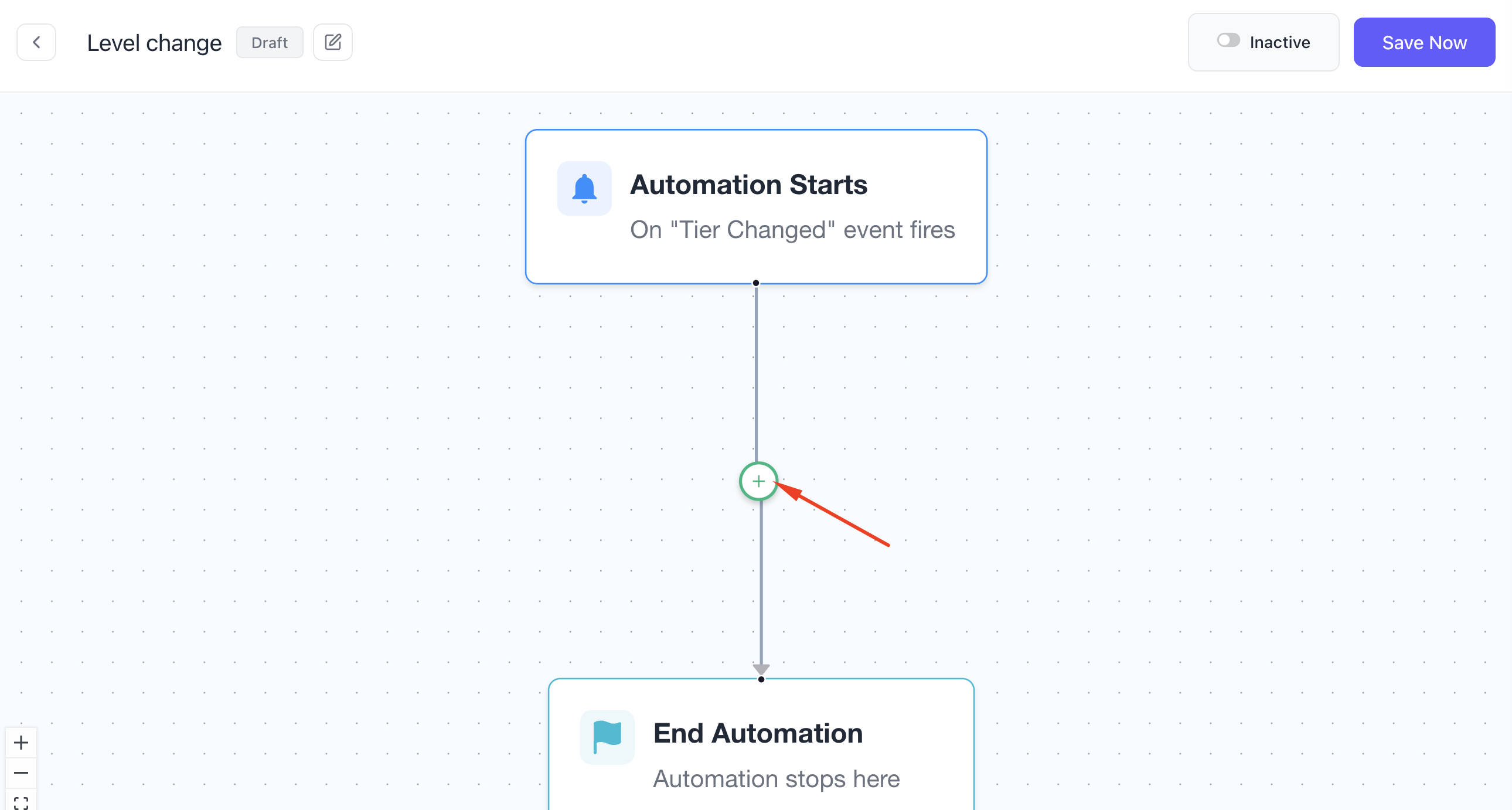
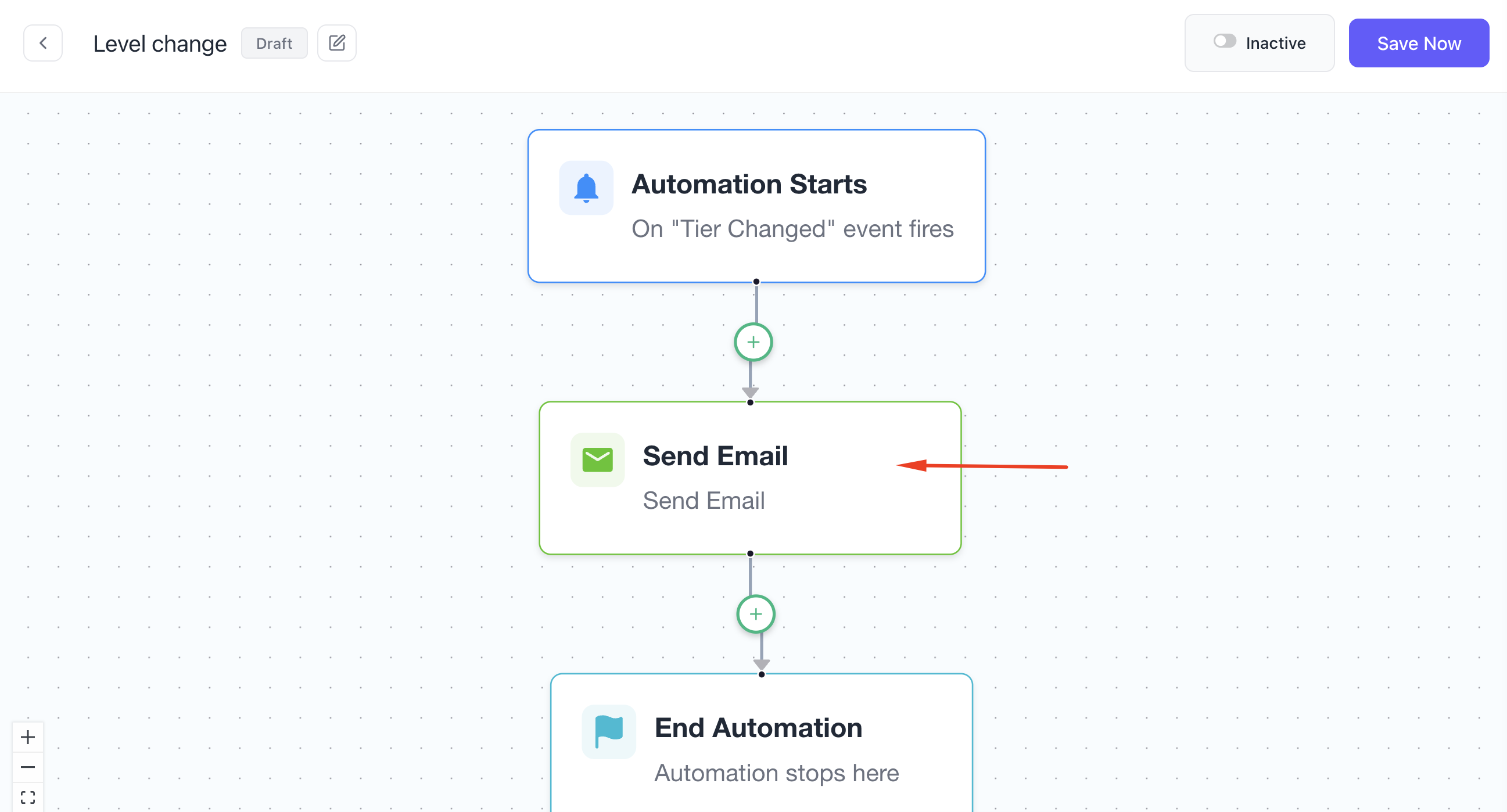
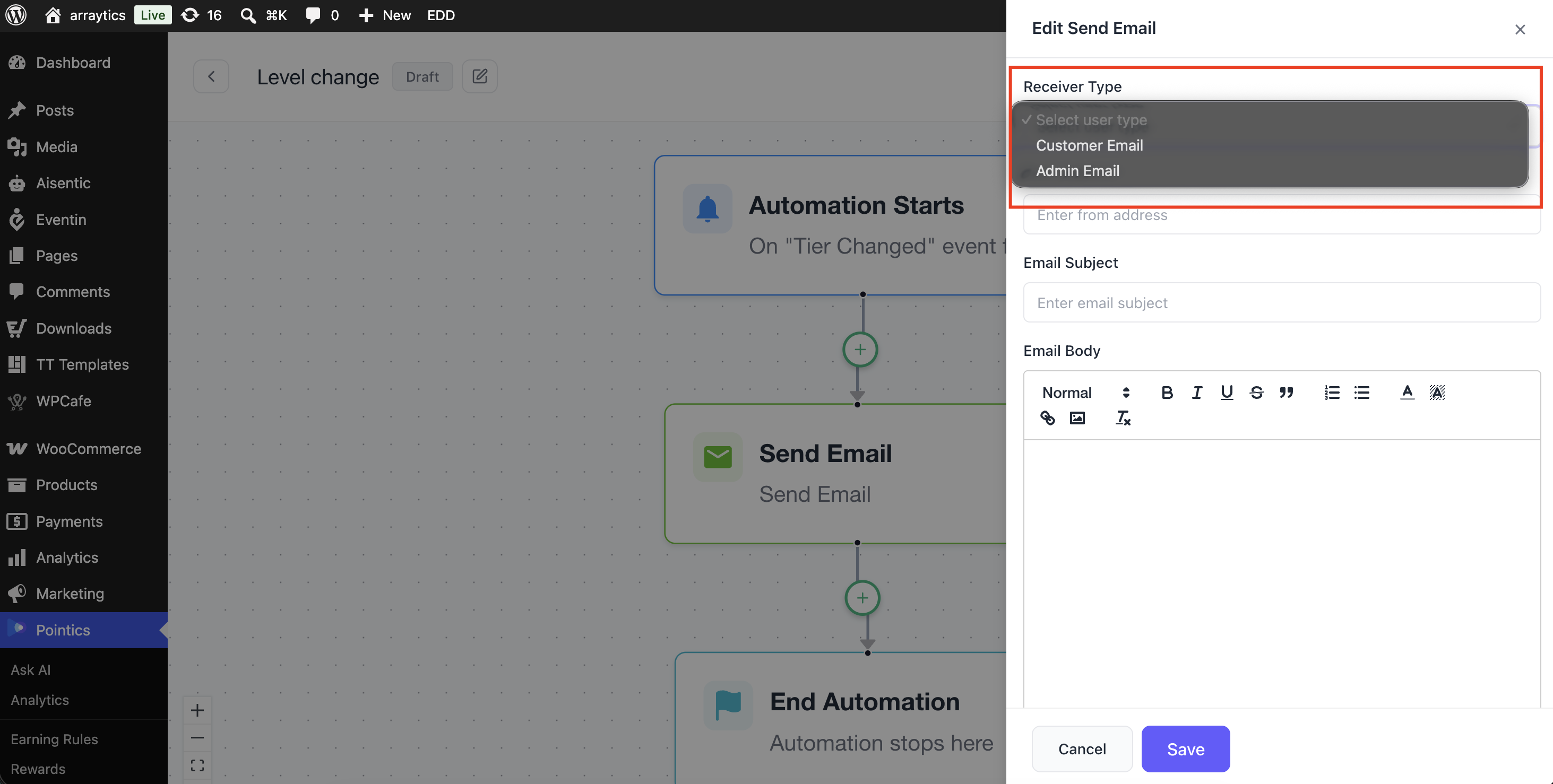
Each trigger provides two recipient options:
- Customer Email
- Admin Email
Step 5: Write the Subject and Body #
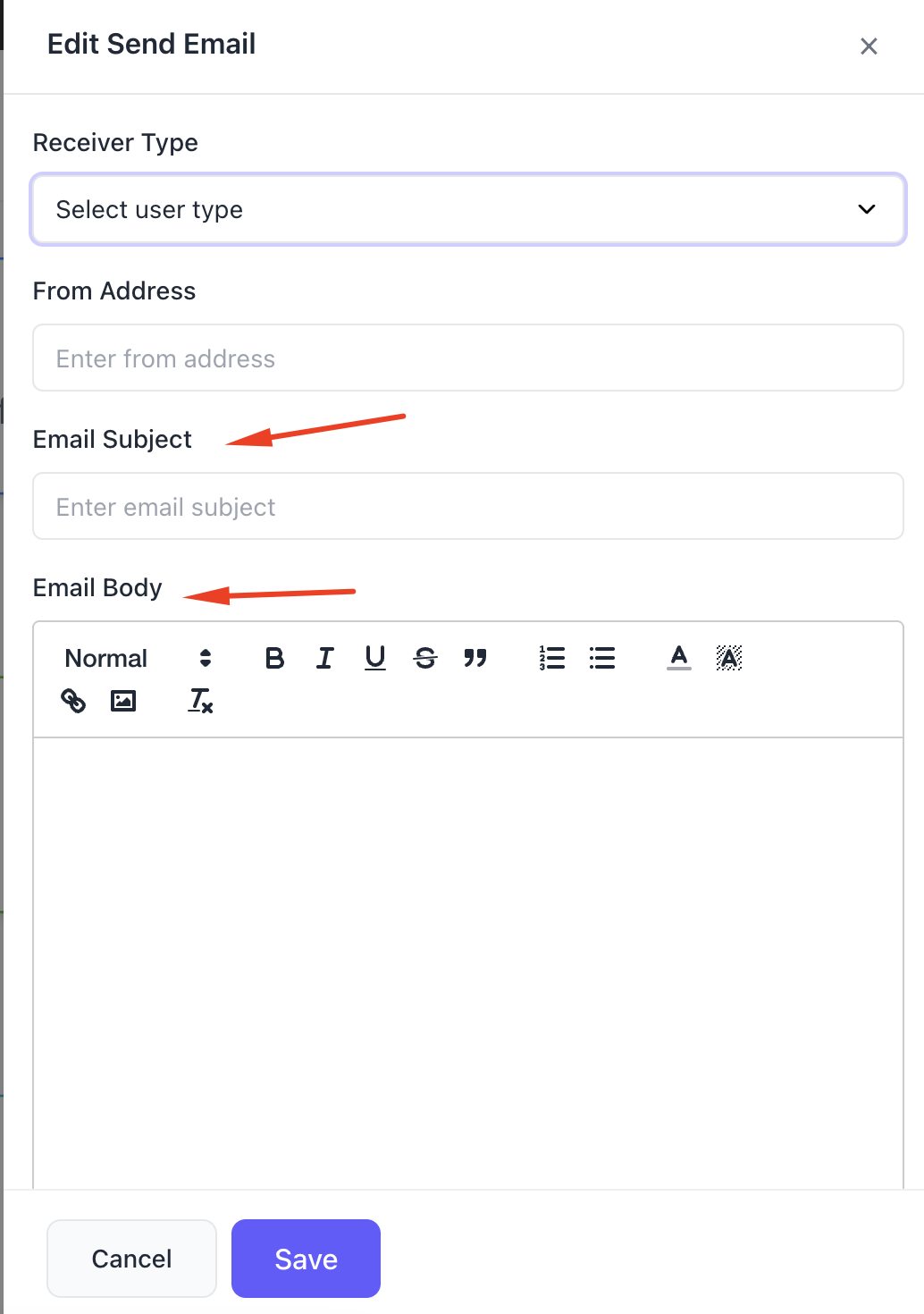
Write the email subject and body, then use placeholders to insert customer and loyalty information automatically.
Every trigger provides these three placeholders:
| Placeholder | Inserts |
|---|---|
{%customer_name%} | The customer’s name |
{%customer_email%} | The customer’s email address |
{%points_balance%} | The customer’s current points balance |
Step 6: Set a Delay #
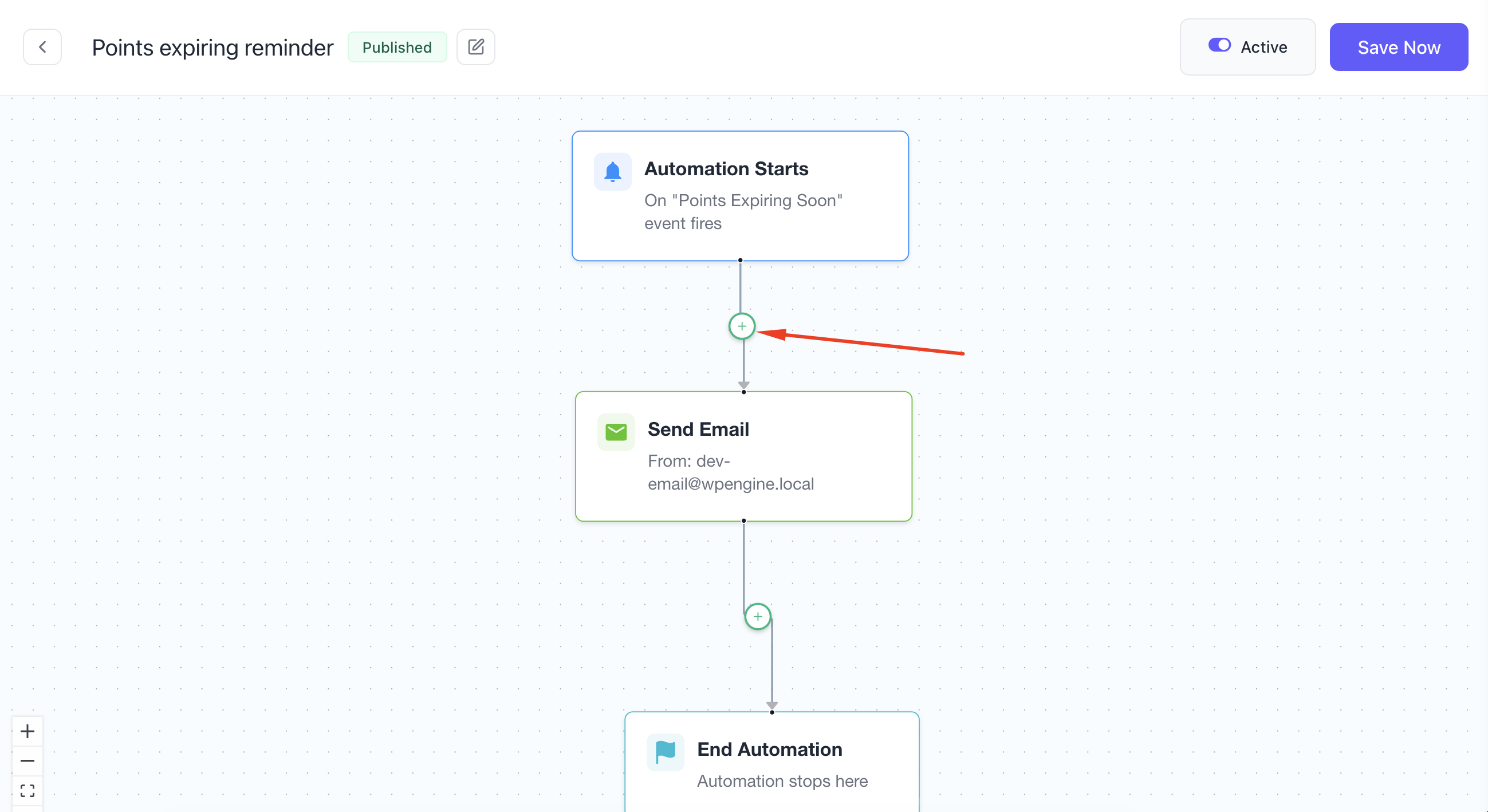
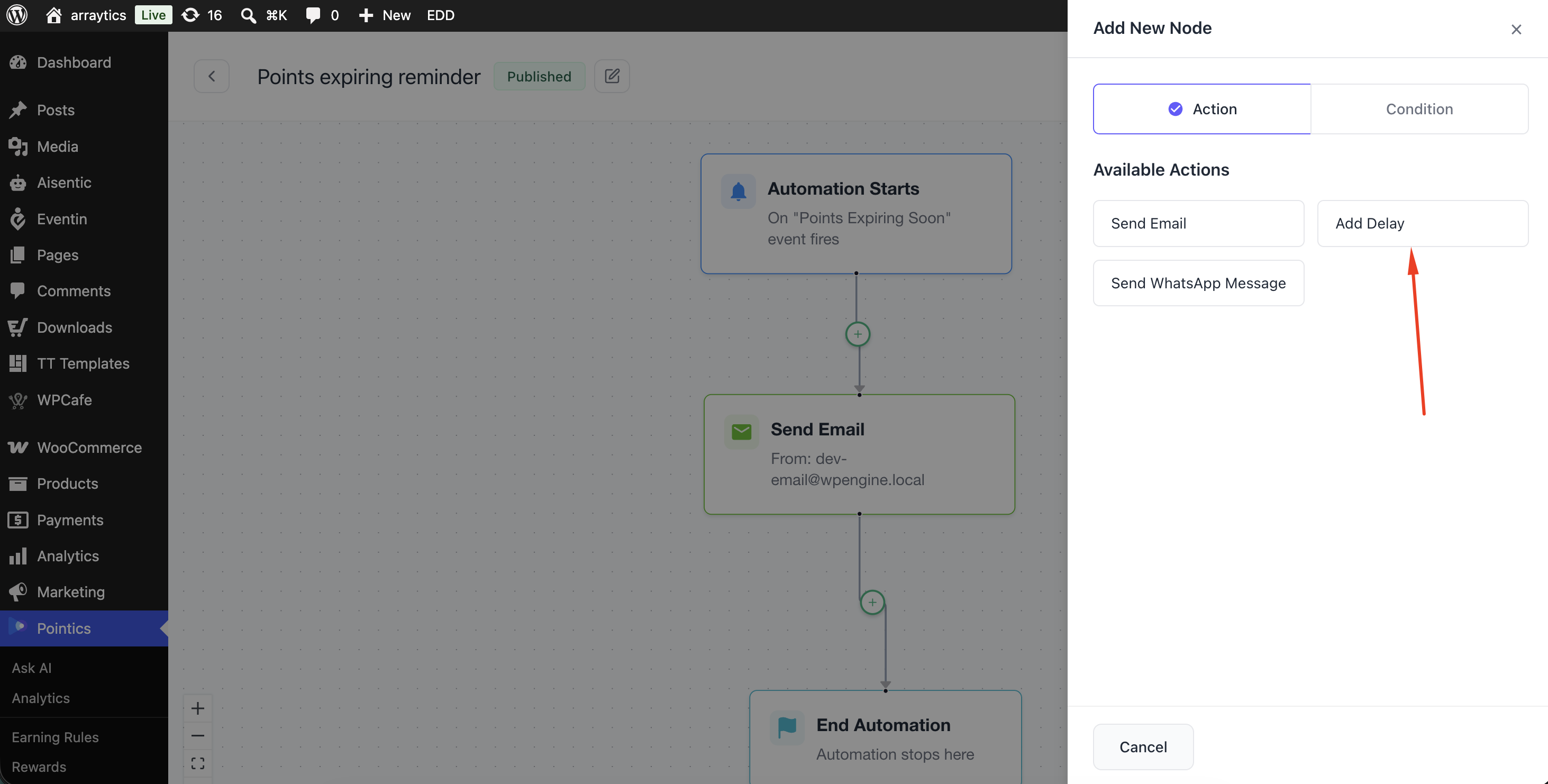
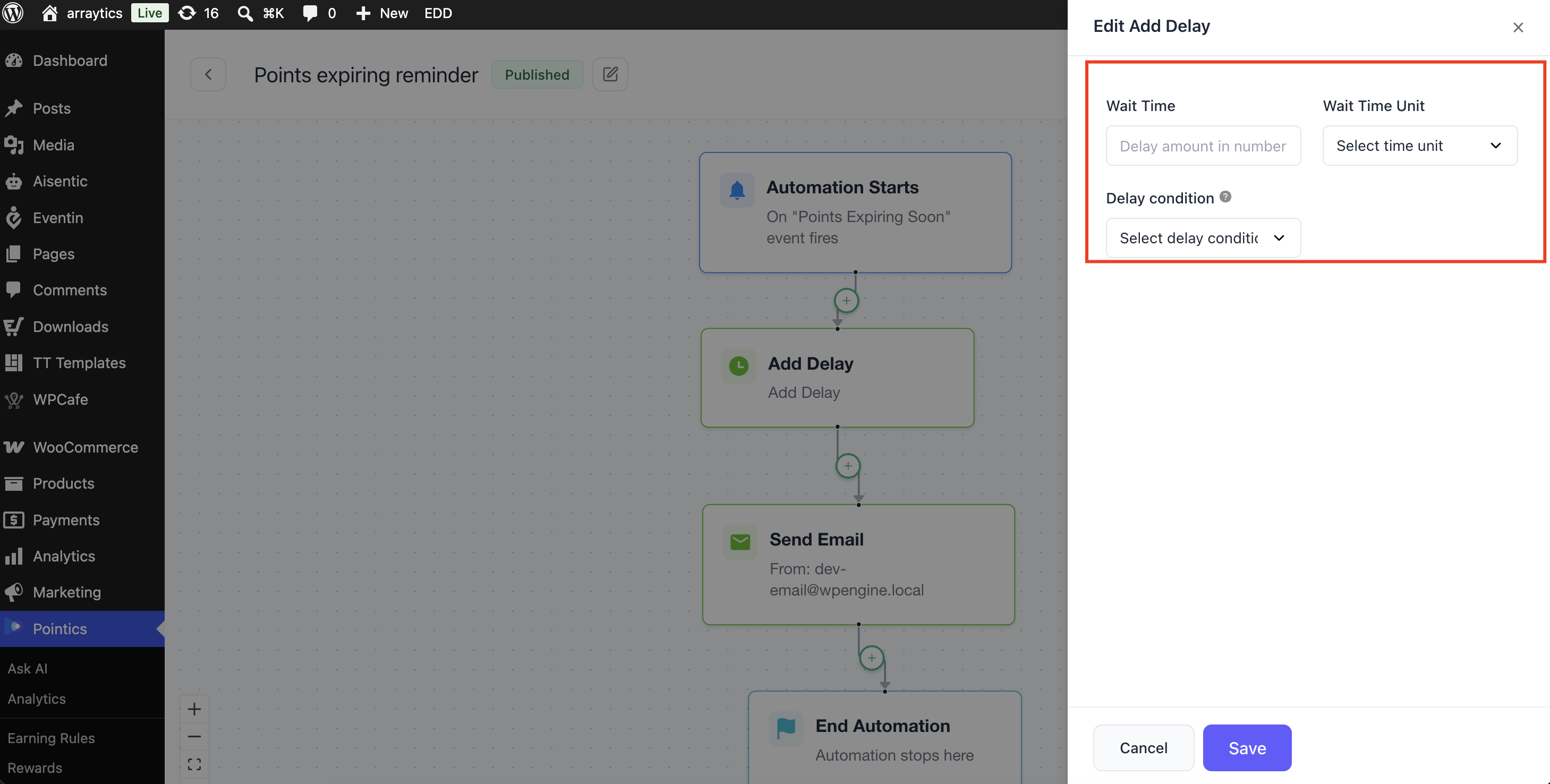
You can optionally delay an email based on the date provided by its trigger. For example, you could configure an email to send three days after points were earned.
Step 7: Save and Activate #
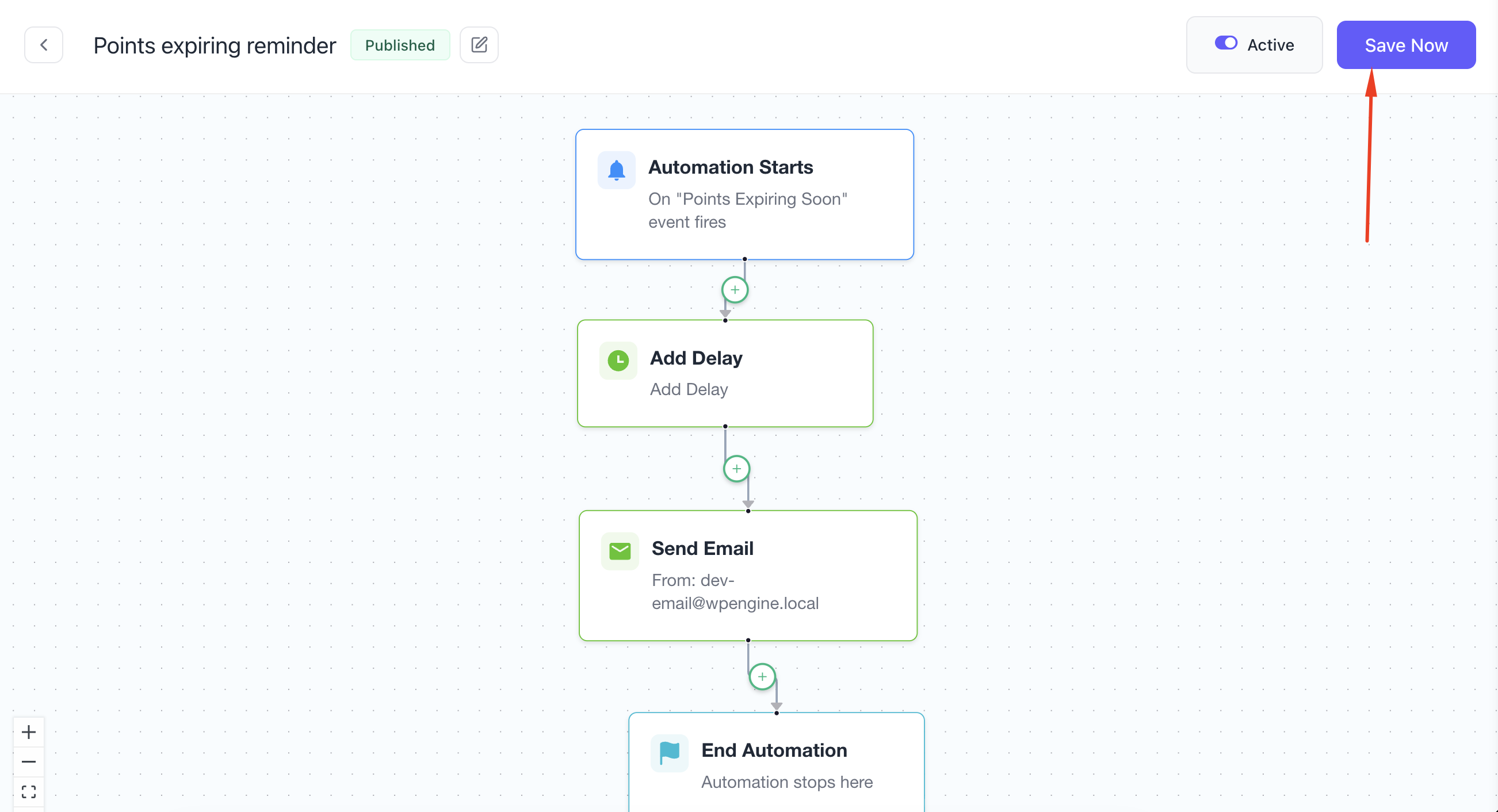
Save the automation flow and switch it on. Only active flows can send emails.
Key Functionality #
What Each Trigger Offers #
Points Earned #
The delay for this trigger is measured from the Earned Date.
| Placeholder | Inserts |
|---|---|
{%points%} | The number of points earned |
{%source%} | The source that awarded the points |
{%description%} | The earning rule’s description |
{%expires_at%} | The date when those points expire |
Points Redeemed #
The delay for this trigger is measured from the Redeemed Date.
| Placeholder | Inserts |
|---|---|
{%points%} | The number of points redeemed |
The redemption value and redeemed reward are also available. Use the editor’s field picker to insert them.
Points Expiring Soon #
The delay for this trigger is measured from the Expiry Date.
| Placeholder | Inserts |
|---|---|
{%expiring_points%} | The number of points about to expire |
{%expires_at%} | The expiry date |
{%days_until_expiry%} | The number of days remaining until expiry |
Tier Changed #
The delay for this trigger is measured from the Changed Date.
| Placeholder | Inserts |
|---|---|
{%new_tier%} | The customer’s new level |
{%previous_tier%} | The customer’s previous level |
Whether the change was a promotion or demotion is also available as a field, but an automation flow cannot branch based on that value.
How an Email Gets Sent #
Email automations follow this process:
- A customer earns points, completes a redemption, changes level, or becomes eligible for an expiry reminder.
- For expiry reminders, the daily scheduled check finds points that will expire within 7 days.
- Pointics checks whether the customer has already been reminded about that expiry date.
- If the customer was already reminded, the reminder is skipped.
- If a notification is required, Pointics dispatches the appropriate trigger.
- Pointics finds all active automation flows that match the trigger.
- The configured delay is applied.
- Placeholders are replaced with the customer’s actual loyalty information.
- The email is sent to the selected recipient.
- If the email sends successfully, the customer is marked as reminded when applicable.
- If an expiry reminder fails to send, Pointics retries it during the next daily run.
Settings #
| Setting | Default | Notes |
|---|---|---|
| Expiry Reminder Lead Time | 7 days | Can only be changed by a developer |
| Ready-Made Flows | 3 | Each ready-made flow is created once |
Validation Rules #
- A flow requires a trigger, recipient, and subject before it can send.
- Only active automation flows are matched.
- Every automation screen and setting is restricted to Administrators.
- A customer receives only one reminder per expiry date.
- If a customer has points expiring on two different dates, they can receive a separate reminder for each date.
- An expiry reminder is marked as sent only after the email has actually been sent successfully.
- If sending temporarily fails, Pointics retries the reminder during the next daily check.
Limitations #
- The Tier Changed trigger also fires for demotions. Automation flows cannot branch based on whether the customer was promoted or demoted.
- The daily expiry reminder process runs in batches with a time limit. Very large sites may require multiple runs to process every customer.
- The expiry reminder lead time is fixed at 7 days unless changed by a developer.
- The automation flow editor is shared with other Arraytics plugins. Available conditions, branches, and channels are controlled by that editor rather than Pointics.
- There is no ready-made flow for Points Redeemed. The trigger is available, but you must create the automation yourself.
- The first visit to the Automation screen may be slightly slower because additional editor files need to load.
- The entire Automation feature disappears when Email Automations is switched off.
Troubleshooting #
| Problem | Solution |
|---|---|
| Automation menu item is missing. | The Email Automations feature may be switched off, or the installation may be incomplete. |
| No emails are being sent. | Confirm that the flow is active, WordPress scheduled tasks are running, and your site can send email. Test mail delivery with an SMTP plugin. |
| Expiry reminders never arrive. | Confirm that points expiry is enabled and WordPress scheduled tasks are running. Each customer is reminded only once for each expiry date. |
| An expiry reminder arrived twice. | This can happen if the customer’s next expiry date changed between scheduled runs. |
| A level-change email sounds incorrect for a demotion. | The trigger is used for both promotions and demotions. Use neutral wording because the flow cannot branch based on direction. |
| Ready-made flows did not appear. | Ready-made flows are created once. If they were deleted, they are not automatically recreated. |
| A placeholder appears literally in the email. | The placeholder is not available for the selected trigger. Use the editor’s field picker to select a supported field. |
| Emails are going to spam. | This is a mail deliverability issue. Configure SPF, DKIM, and an SMTP service for your site. |
Notes #
- Pointics reacts to four events: points earned, a redemption settling, a level change, and the daily points-expiry check.
- Expiry dates are stored and compared in universal time, ensuring that Days Until Expiry remains accurate regardless of the server’s timezone.


