How to Add Event List in WordPress (Step-by-Step Guide with Eventin)


Table of Contents
If you want to show upcoming events on your WordPress website, a simple text list won’t work anymore.
People expect a clean event layout, clear dates, location details, and easy booking options. Without that, visitors get confused and leave.
The problem is, WordPress doesn’t have a built-in way to create and manage event listings. So, how do you actually add an event list in WordPress?
In this guide, we will discuss how to add event list in WordPress and the easiest way to display events on your website using a WordPress event plugin like Eventin.
Let’s dive in and turn your website into a full-featured event listing platform.
Quick Overview
This guide shows you how to create and display a complete event listing in WordPress, step by step. You’ll learn the easiest way to add events, manage them, and present them in a clean layout — and how Eventin helps you handle everything from listings to ticket sales in one place.
- What is an event listing, and why add it to WordPress?
- Best way to add event listings in WordPress
- How to choose the best event listing plugin for WordPress
- How to add an event list in WordPress using Eventin
- Customize and Enhance Your Event Listings
- What are the common mistakes to avoid when listing events in WordPress
What is an event listing, and why add it to WordPress?
An event listing is a dedicated section or page on your website that shows upcoming events — including their date, time, location, and details. It can be displayed as a simple list, a calendar view, or even a card-style layout with images and buttons.
If you’re running workshops, webinars, meetups, conferences, or online classes, having an event list helps visitors:
- Know what’s happening next
- Register or buy tickets instantly
- Share your events with others
Why add an event list to your WordPress site?
Adding an event listing is not just about showing dates. It helps people understand what’s happening and decide quickly if they want to join.
When your events are clearly organized, visitors trust your website more. They can see event details, check schedules, and plan ahead without confusion.
And since WordPress is SEO-friendly, your event listings can show up in Google search, appear in snippets, or even get pulled into Google’s new AI-powered results — bringing you more visibility without extra marketing spend.
🎯 Pro Tip: A structured event listing improves your site’s user experience (UX) and search engine visibility (SEO + AEO) at the same time.
If you’re planning a whole site for event promotion, you might also want to check this guide to creating an event management website from scratch.
Best way to add event listings in WordPress
There are two common ways to add event listings in WordPress:
1. Manual Method
You can create pages or posts and list events manually.
But this becomes hard to manage when:
- You have multiple events
- Dates change
- You need filters or categories
2. Using a Plugin (Recommended)
A plugin gives you a complete system to create, display, and manage events.
With a WordPress event listing plugin like Eventin, you can:
- Create event listings in minutes
- Display them in list or calendar view
- Add an events calendar to any page
- Automate event registration and ticketing
- Send reminders, create recurring events, and track attendees efficiently
- Optimize your event listing page for search engines and AI Overviews
This is the method most websites use today because it saves time and avoids errors.

How to choose the best event listing plugin for WordPress
When it comes to creating an event list in WordPress, the process is simple but only if you’re using the right combination of tools.
To build a complete, functional event listing with ticketing, calendar views, and attendee management, you’ll typically need two key components:
- WooCommerce – to handle ticket sales, payment gateways, and order management
- An event management plugin – to create, display, and manage your event listings on the front end
There are plenty of plugins in the WordPress ecosystem that can help with this, including The Events Calendar and Events Manager. But for this guide, we’re going to use Eventin – the all-in-one WordPress event management plugin.
Why Eventin is the best plugin to add event list in WordPress
Here’s why Eventin stands out in a crowded market:
- All-in-one platform: Create event calendars, ticket types, QR code check-ins, speaker listings, and Zoom integration — all from one plugin
- WooCommerce-ready: Fully supports WooCommerce for ticket sales, coupons, and product-based event bundling
- Easy to use: Clean UI, beginner-friendly setup, and drag-and-drop builder support (Elementor, Divi, Gutenberg)
- Recurring events, custom schedules, and shortcodes to list events anywhere on your site
- Mobile-optimized listings with flexible layout and calendar views
- Powerful integrations like Twilio SMS, Zoom, Google Meet, and CRM support with FluentCRM and others
Build Your Event Listing System the Right Way
In this tutorial, we’ll walk you through setting up your event listing platform using Eventin + WooCommerce — the most efficient, scalable combination for WordPress event websites.
How to add an event list in WordPress using Eventin: Step-by-step tutorial
Now, let’s see how to add event listing in WordPress with the best event management plugin, Eventin.
Step 1: Install WooCommerce and Eventin
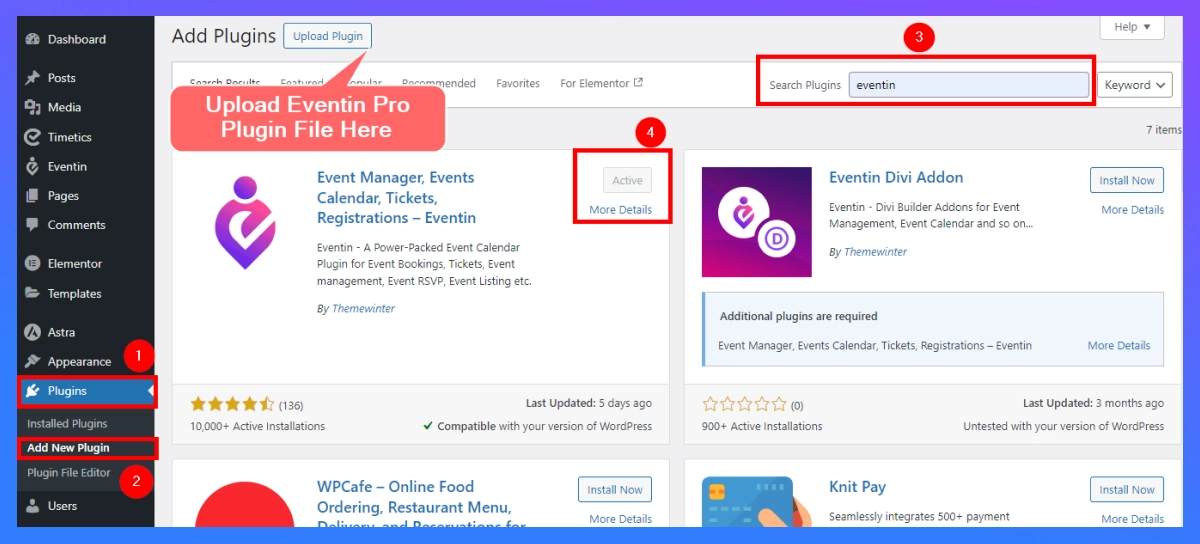
Here, I will show you the process of installing a plugin through the WordPress dashboard.
- Log in and go to the WordPress dashboard
- Go to Plugins > Add New Plugin.
- Type “Eventin” in the search bar. (Similarly, do it for WooCommerce)
- Now, click on Install Now, then activate the plugin after installation.
👉 When you install the Eventin Pro plugin
- Download Eventin Event Manager Pro
- Log in and go to the WordPress dashboard
- Go to Plugins > Add New Plugin > Upload Plugin
- Now, click on Install Now, then activate the plugin after installation.
Step 2: Configure Settings
After activation, find the “Eventin” menu on the left sidebar of your dashboard. Go to Eventin > Settings to configure general settings such as currency type, date format, time format, color settings, and more. Adjust all of these to suit your event management needs. After that, click the “Save Changes” button. Don’t forget to save your changes before moving on to the next step.
Step 3: Create your first event
- Click on Eventin > Events > Add New Event.
- Provide details about your event, such as the title, description, date, and time.
- Choose the event’s location, whether it is a physical or online location.
- Create ticket options: Set prices, types, and quantities, if applicable.
- Upload an eye-catching feature image to make your event more attractive.
Step 4: Create event list page
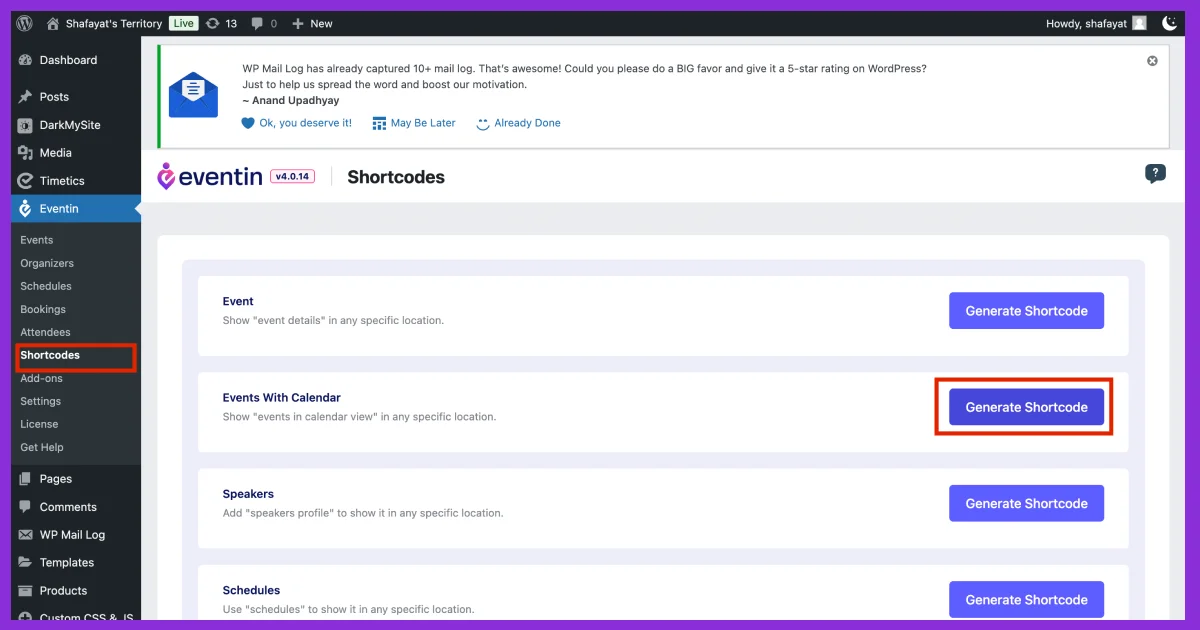
- Go to your WordPress dashboard and navigate to Eventin > Shortcodes
- Click “Generate Shortcode”
- Select the Calendar Event, Category, and others that you would like to view.
- Click “Generate” or “Get Script” to get the shortcode
- Copy and paste into the page (guide below).
- To display your events, create a dedicated page. Go to Pages > Add New.
- Now paste the shortcode into your page “Shortcode box.”
- Publish the Page: Title your page (like Upcoming Events) and hit “Publish.” This page will automatically generate a list of all events you have added.
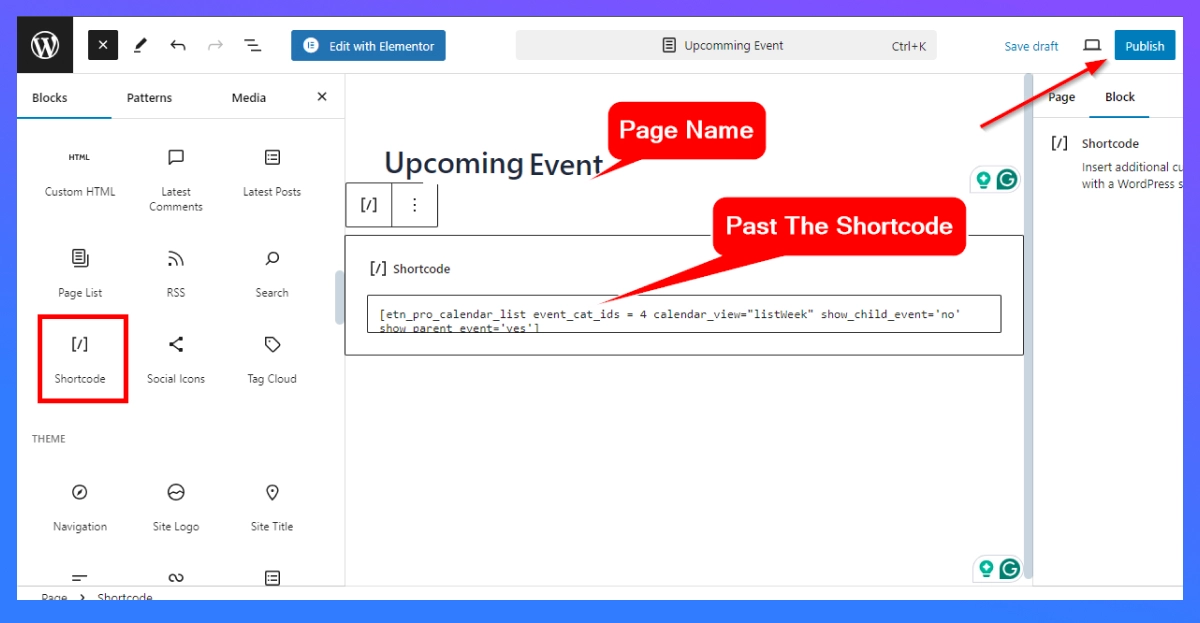
Here is the final overview of the event list on a website.
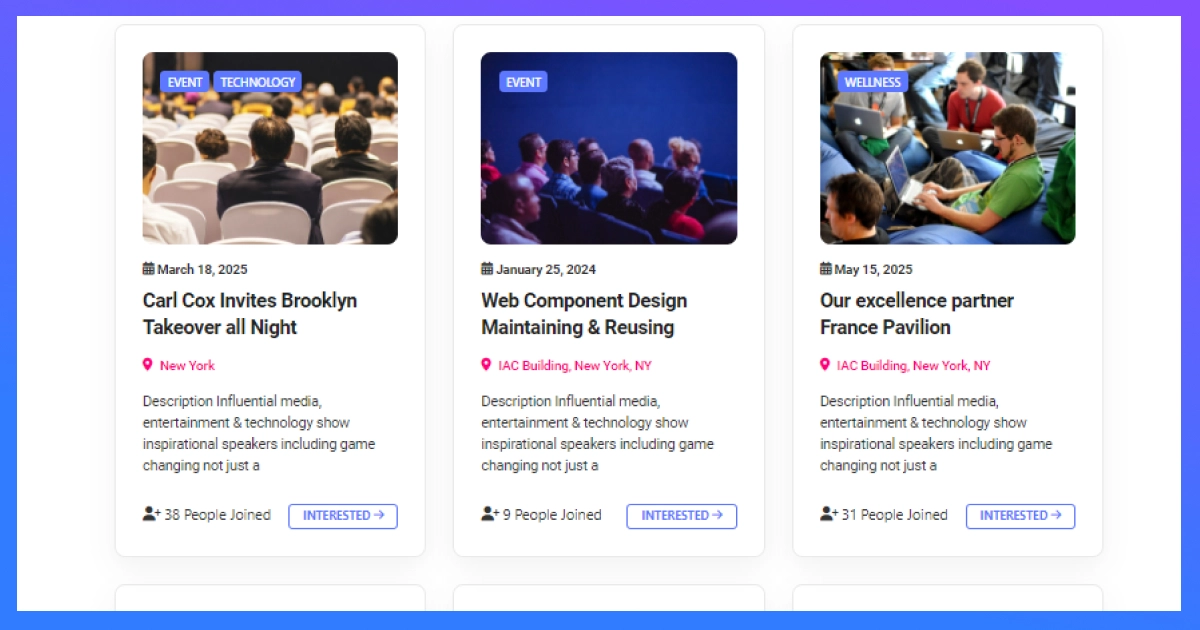
Event Listing Preview
Display the event list in the website menu
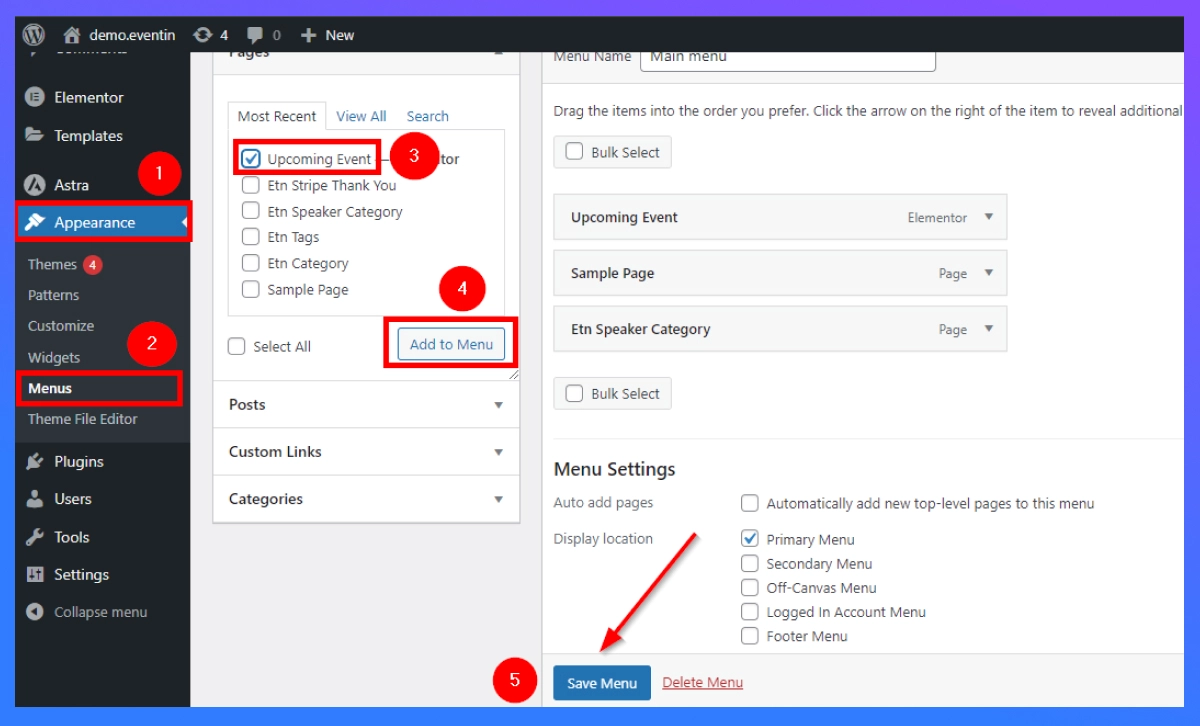
- To make your event list readily accessible, go to Appearance > Menus.
- Find the page you just created(“Upcoming Event”) and add it to your menu.
- Click the “Save Menu” button to finalize the changes.
Step 5: Manage your events
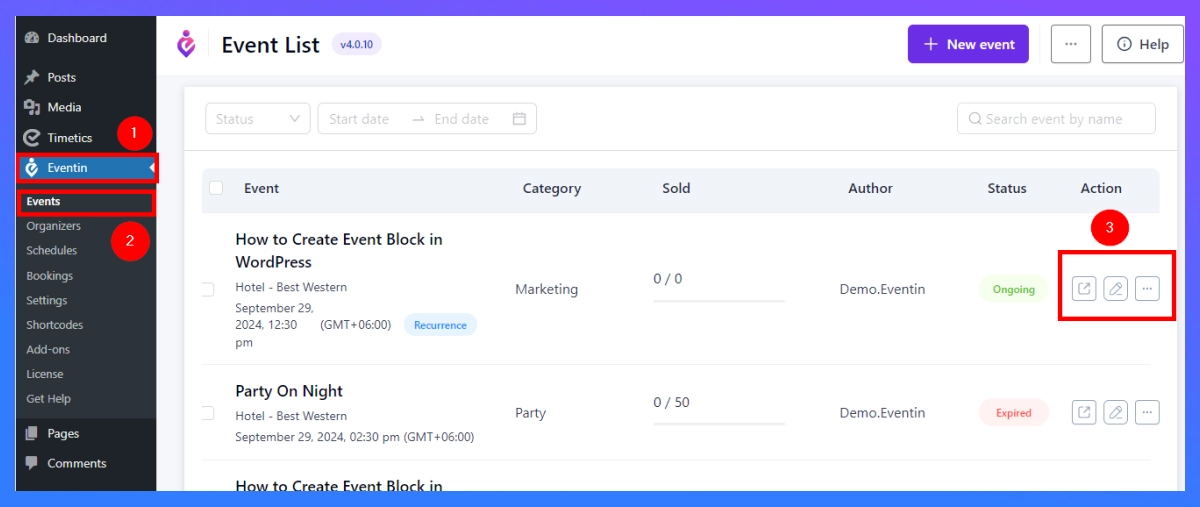
- To update or modify any event, navigate to Eventin > All Events. Here, you can edit, delete, or view the details of existing events.
- If you have events that recur regularly, use the recurring event feature provided by Eventin to set this up easily.
Customize and Enhance Your Event Listings (Optional But Powerful)
Once your event list is live, it’s time to make it shine. Customizing the layout and improving discoverability will not only create a better user experience but also increase conversions and visibility across search engines and AI Overviews.
Below are a few easy yet impactful ways to enhance your event listing in WordPress:
1. Add your event list to the navigation menu
Make sure your visitors can find your events easily. After creating your event listing page with Eventin, go to:
- Appearance → Menus → Add Page → Save Menu
This places your “Upcoming Events” page in the main navigation for better visibility.
🎯 Pro Tip: Add it as the first or second item in your menu if events are your primary offering.
2. Use different layouts: list, grid, or calendar view
With Eventin shortcodes, you can easily change how your event list appears:
- Show a full event calendar in list, calendar, and grid view
- Display a list of upcoming events in cards
- Filter by event category, tag, or location
Want to go a step further? Use Elementor, Gutenberg, or Divi to design beautiful event sections — no coding required.
3. Display events in a sidebar or footer widget
Eventin allows you to show a list of upcoming events in any widgetized area. This is perfect for:
- Sidebar visibility
- Blog post cross-promotion
- Footer CTAs
Follow this guide to create a sidebar calendar with Eventin and boost engagement from every corner of your site.
4. Enable recurring events to save time
If you host events on a weekly, monthly, or fixed schedule, don’t waste time recreating them.
With Eventin Pro, you can set up recurring events in just a few clicks — saving hours of manual work and keeping your event calendar updated automatically.
Some powerful yet handy features with Eventin Pro
While the free version of Eventin gives you everything you need to get started, Eventin Pro unlocks a suite of advanced features designed to help you scale your event marketing, automate admin tasks, and create a more professional attendee experience.
If you’re serious about event management, here’s what makes Eventin Pro a must-have:
1. Speaker profiles and organizer listings
With Eventin Pro, you can easily showcase event speakers and organizers using pre-built blocks and templates. This helps boost trust and engagement, especially for professional or educational events.
2. Recurring events and multi-date scheduling
Don’t repeat yourself. Create events that repeat weekly, monthly, or custom intervals — perfect for classes, webinars, or ongoing training sessions.
3. Custom ticketing with QR Codes and certificates
Design your own event tickets with logos, seat numbers, or access levels. Then enable QR code check-ins and even issue event certificates upon attendance.
4. CRM, Zoom, and automation integrations
Connect Eventin with your favorite tools to automate and scale:
- Zoom/Google Meet for virtual events
- Twilio SMS for attendee reminders
- FluentCRM, Mailchimp, Zapier for marketing automation
5. Visual seat plan, countdown timers and more
With the Pro version, you can:
- Create visual seating arrangements
- Display event countdowns
- Add custom fields for deeper attendee data
- Offer multi-tier ticket pricing for different access levels
💡 See Why Thousands Trust Eventin for Event Management
Eventin goes beyond just listing events — it’s a complete platform for selling tickets, managing speakers, automating reminders, and creating seamless virtual or in-person experiences. Whether you’re running a small meetup or a full-scale conference, Eventin scales with your needs.
🔍 Read the Full Eventin Review Compare with The Events Calendar →What are the common mistakes to avoid when listing events in WordPress
Even with the right tools, many WordPress users fail to get the most out of their event listings. Below are common mistakes to avoid if you want your event pages to rank, convert, and scale effectively.
1. Ignoring mobile optimization
More than half of all web traffic comes from mobile. If your event list isn’t responsive, users will bounce before they take action. Eventin is fully mobile-optimized, including calendar views, ticketing sections, and countdowns that adapt to all screen sizes.
2. Not using structured data (Schema)
Search engines rely on structured data to display events in featured snippets, Google Events boxes, and AI-powered results. Without it, your listings may be invisible to search. Tools like AIOSEO and Eventin Pro automate schema markup and ensure you’re aligned with Google’s event guidelines.
3. Manually recreating recurring events
Hosting the same event weekly or monthly? Stop duplicating effort. Use recurring events to automate schedules and save time while keeping your calendar accurate and organized.
4. Using too many overlapping Plugins
Trying to combine separate plugins for tickets, registration, calendars, and reminders can lead to UI conflicts and slow performance. Instead, use an all-in-one event management solution like Eventin that handles everything from ticketing to automation.
5. Skipping Clear Calls-to-Action
Having events listed without prominent CTAs like “Register,” “Get Tickets,” or “Add to Calendar” reduces conversions. Eventin’s built-in CTA buttons appear automatically and can be customized for maximum engagement.
FAQs About Event Listings in WordPress
How do I list events in WordPress?
You can list events in WordPress by using an event plugin like Eventin. Once installed, create events, use the shortcode generator, and paste it into any page or post.
Do I need WooCommerce to list events?
Not necessarily. You can display events without WooCommerce. But if you want to sell tickets, offer discounts, or accept online payments, integrating with WooCommerce is recommended.
Can I show events in my sidebar or footer?
Yes. With Eventin, you can use shortcodes and widgets to display an event calendar in the sidebar or any widget area of your theme.
Which plugin is best for event listing in WordPress?
There are several options, but Eventin stands out for its clean UI, flexibility, and features like recurring events, ticketing, speaker management, and CRM integrations.
How do I make my event list more visible in search engines?
Use proper schema, add internal links, optimize titles and descriptions, and keep your listings updated. For more strategies, read our event promotion guide.
Can I sell event tickets on my WordPress website?
Yes, you can sell tickets using a plugin that integrates with payment systems. Eventin works with WooCommerce, so you can accept payments, offer discounts, and manage ticket sales directly from your site.
Final thoughts
Adding event listings to your WordPress website is no longer just a convenience — it’s a strategic move.
An optimized event list improves visibility, encourages action, and saves hours of manual work. Event tools like Eventin allow you to manage events, sell tickets, track attendance, and even automate marketing — all without writing a single line of code.
Whether you’re listing free community events or managing paid conferences with hundreds of attendees, your event page should work as hard as you do.
If you’re ready to create event listing on WordPress, consider upgrading to Eventin Pro — and turn your WordPress site into a complete event marketing platform.