General settings are the foundation of configuration parameters. To ensure that the Eventin Plugin works correctly, it is important to configure the general settings before using it in WordPress.
Event Settings Tab #
Events Details #
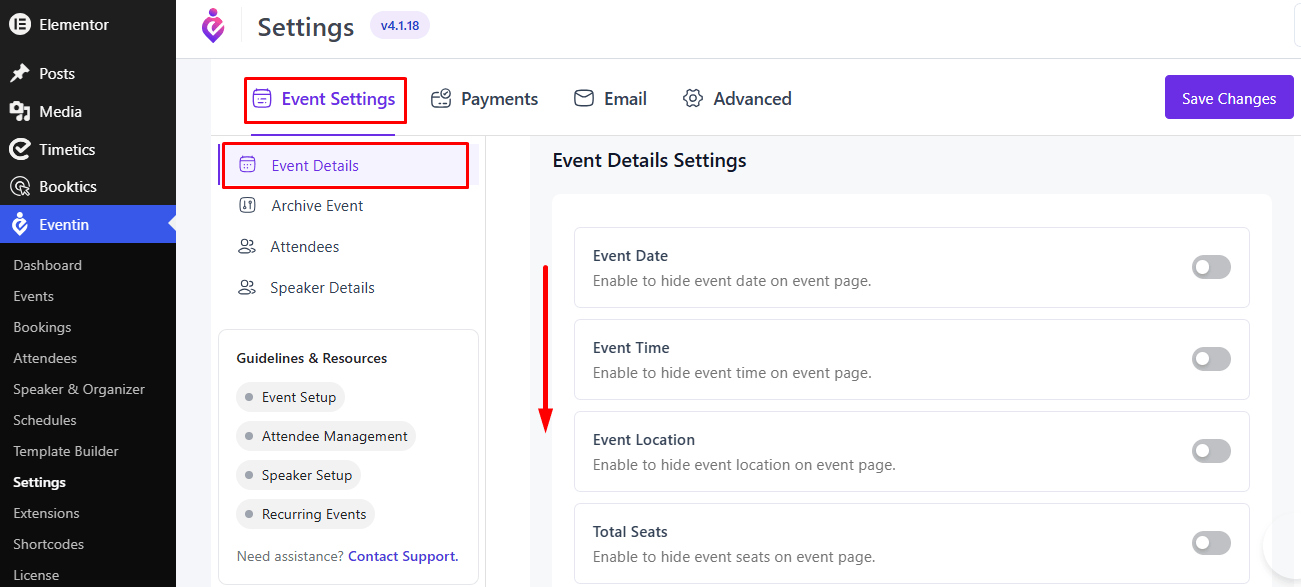
From your Event Settings tab, you can access Event Details settings.
Go to Eventin → Settings → Event Settings → Event Details to configure the display of event details on the single event page. From here, you can show or hide the event date, time, location, total seats, ticket sale end date, attendee count, organizers, speakers, schedule, countdown timer, FAQs, social media icons, and related events. You can also enable Schema Markup, hide past recurring events, configure vendor-specific settings, limit tickets per email, manage the Support Chat Widget, and set the number of related events displayed per page.
Archive Event #
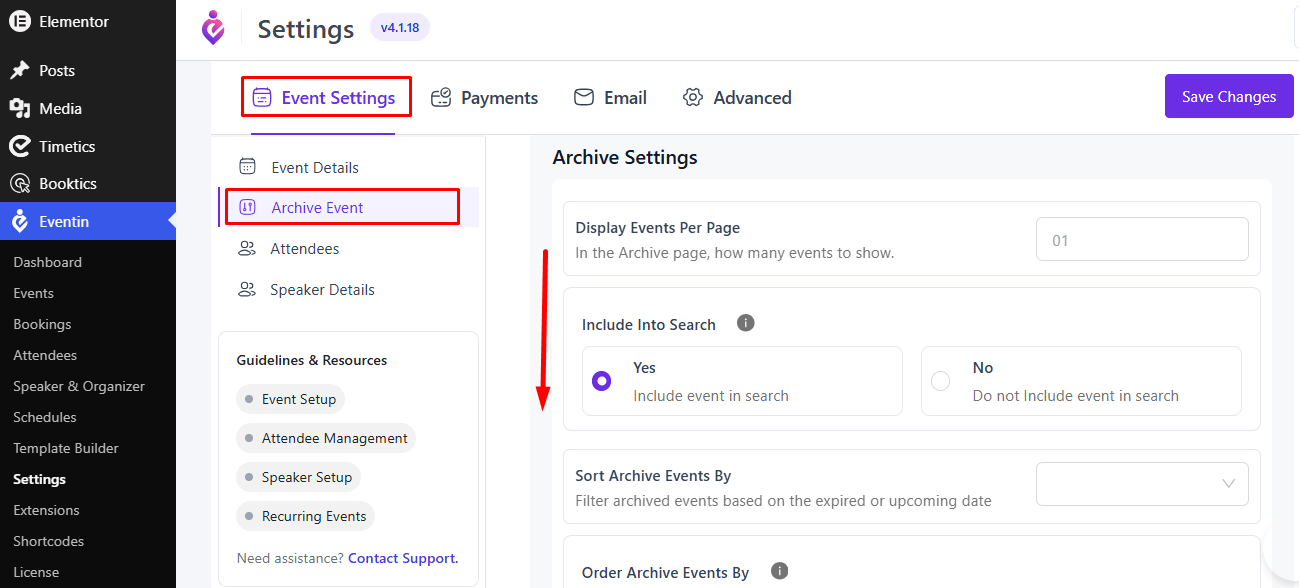
You can access Event details settings to change Event show per page, sort or order events from the archive, and include a search option.
Attendees #
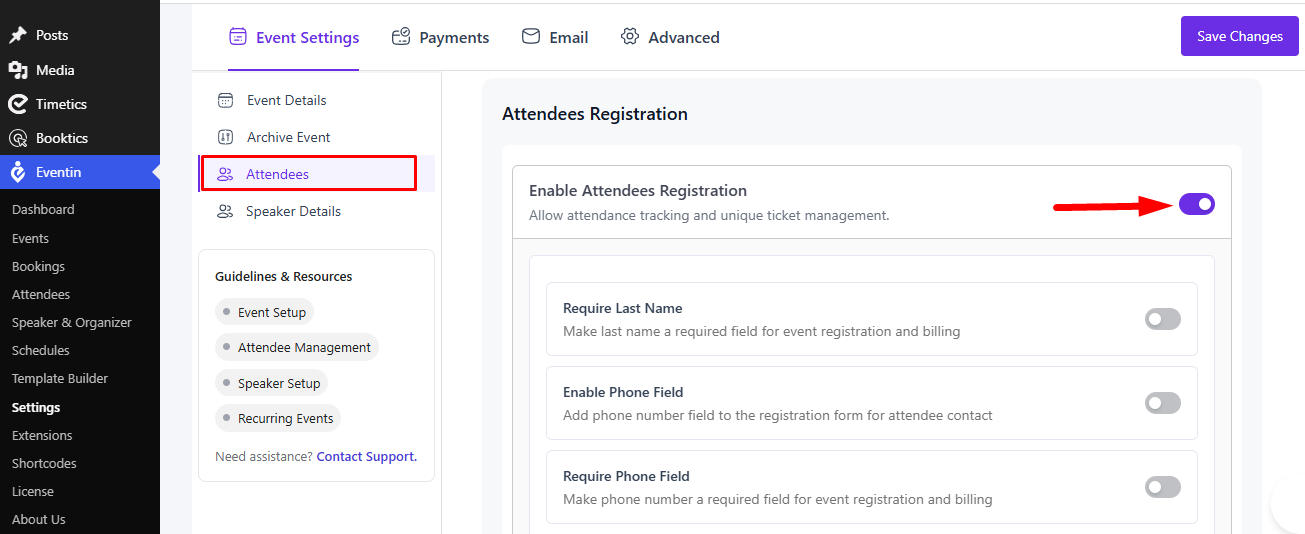
Go to Eventin -> Settings -> Event Settings -> Attendees to find the settings for event attendees. You can check the documentation on Eventin Attendee for more details.
Payments Tab #
Payment Method #
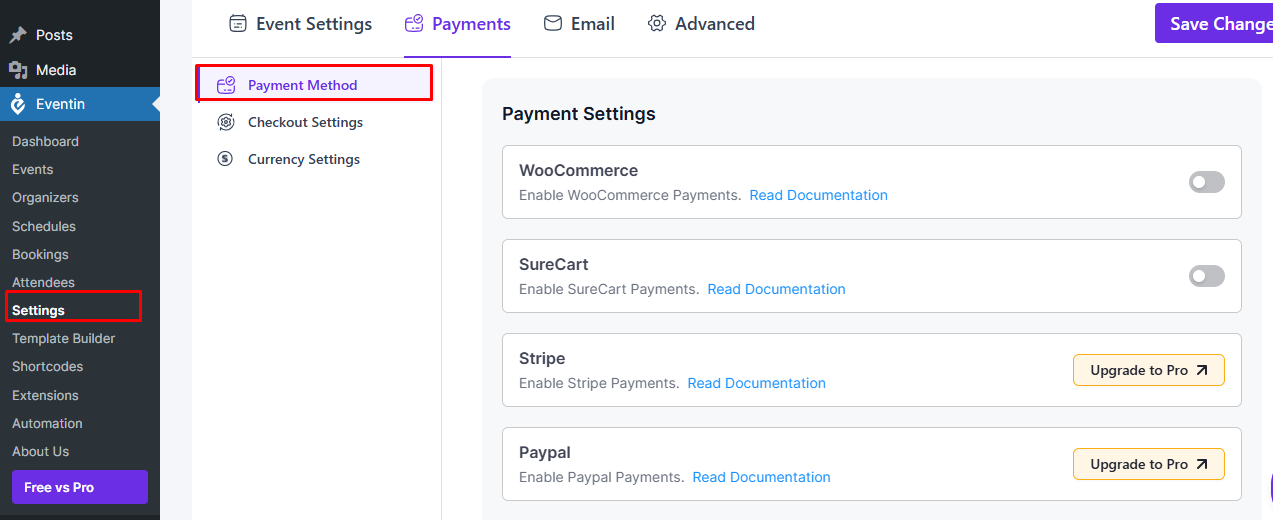
From the Payments tab, you can choose the payment option for selling your event tickets. You can use WooCommerce, Stripe, PayPal, SureCart, and Local Payment.
- WooCommerce
- Stripe
- PayPal
- SureCart
- Local Payment
Currency Settings #
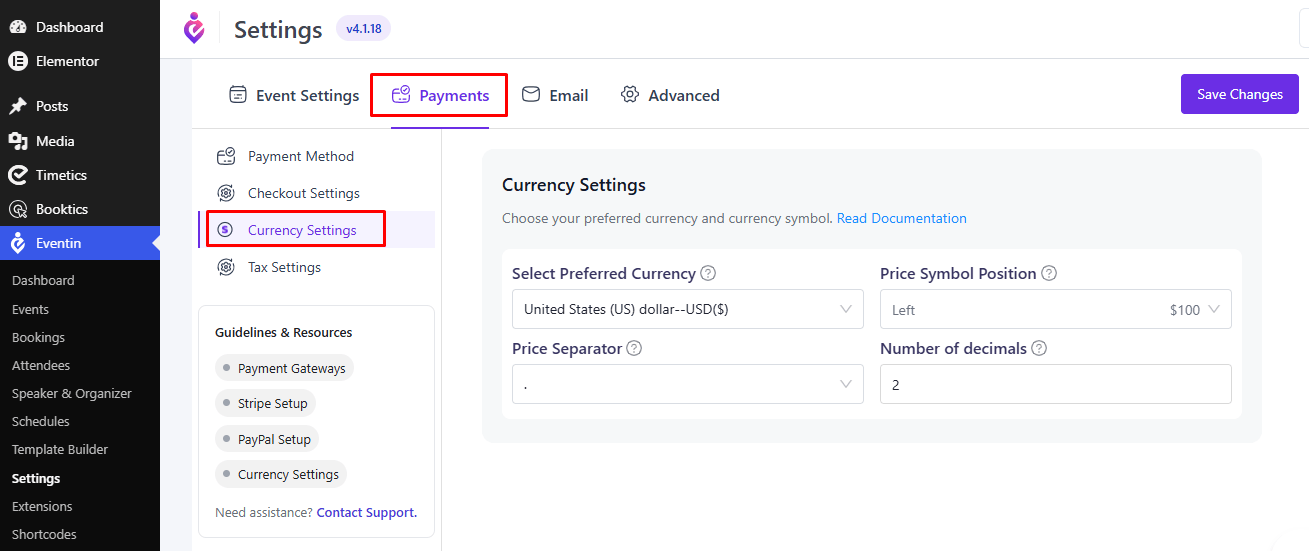
You can change the currency for your event price for Stripe and PayPal payment methods. For WooCommerce, you can change the currency in the WooCommerce settings.
Email Tab #
Purchase Email #
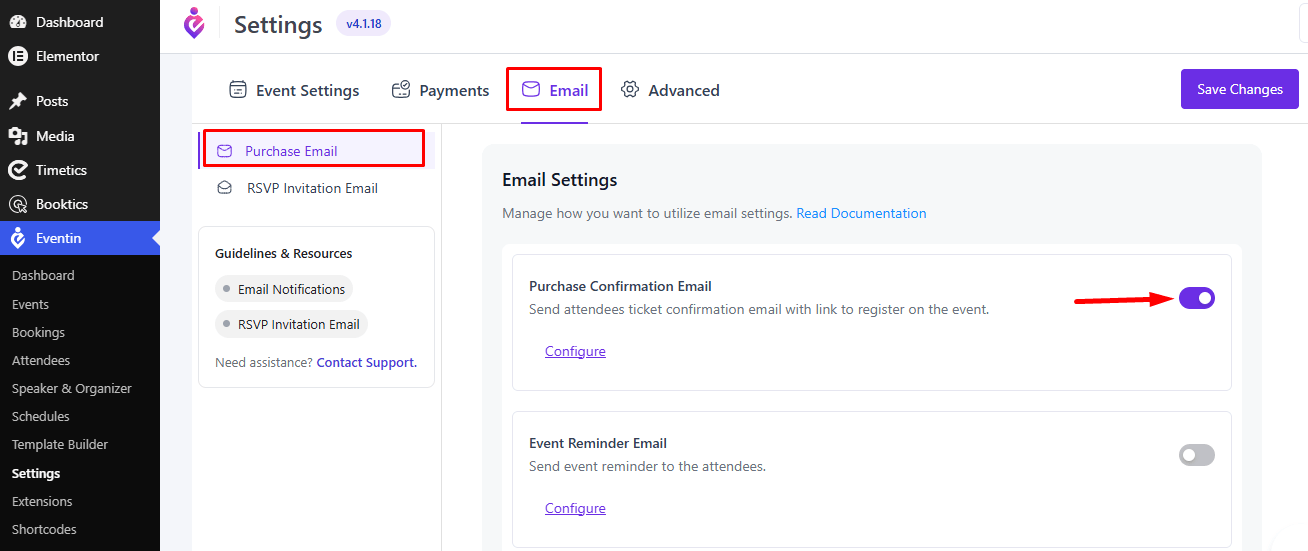
You can enable and configure the event ticket email and reminder email. Check our Documentation for more details.
RSVP Email #
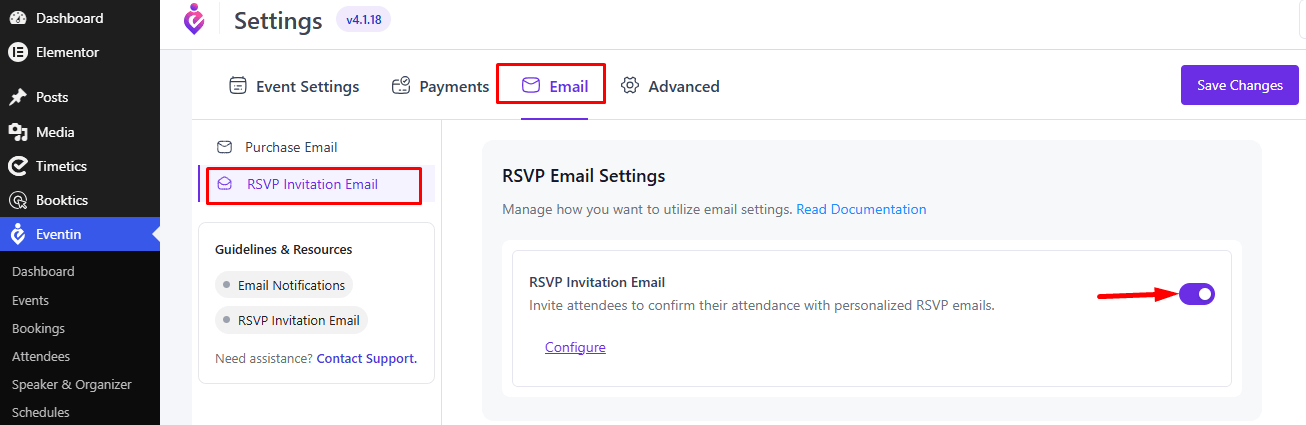
You can activate and set up the RSVP email from here. Refer to the documentation for further information.
Advanced Tab #
General #
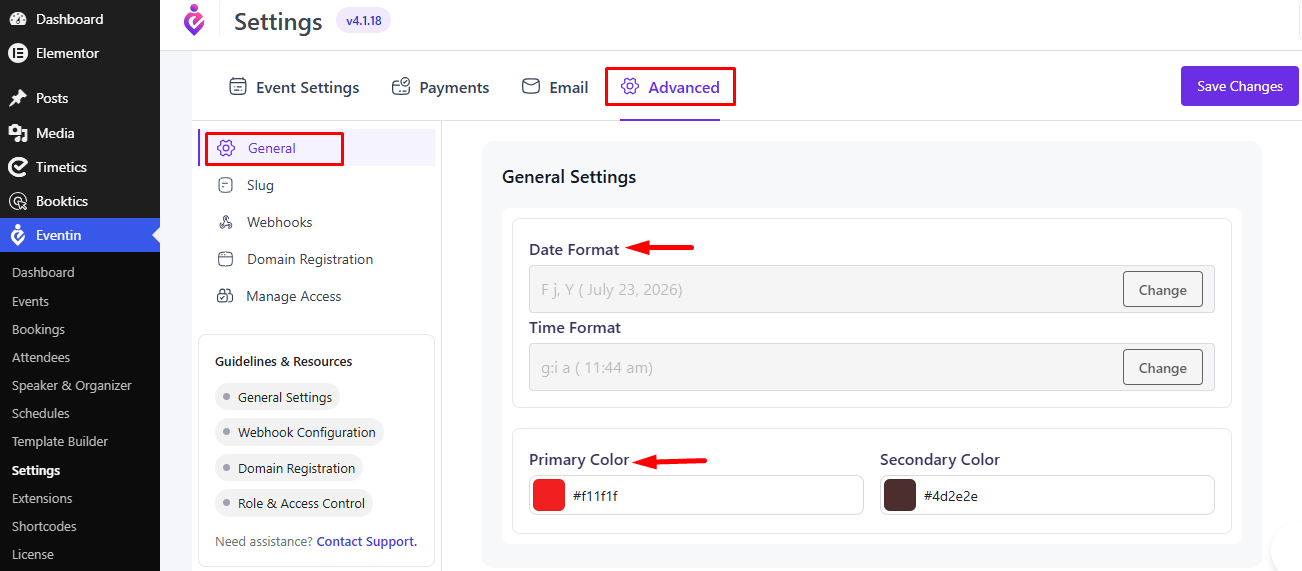
To change the event date and time format and Eventin primary and secondary colors, go to Settings → Advanced → General and change the date and time format and colors.
Slug #
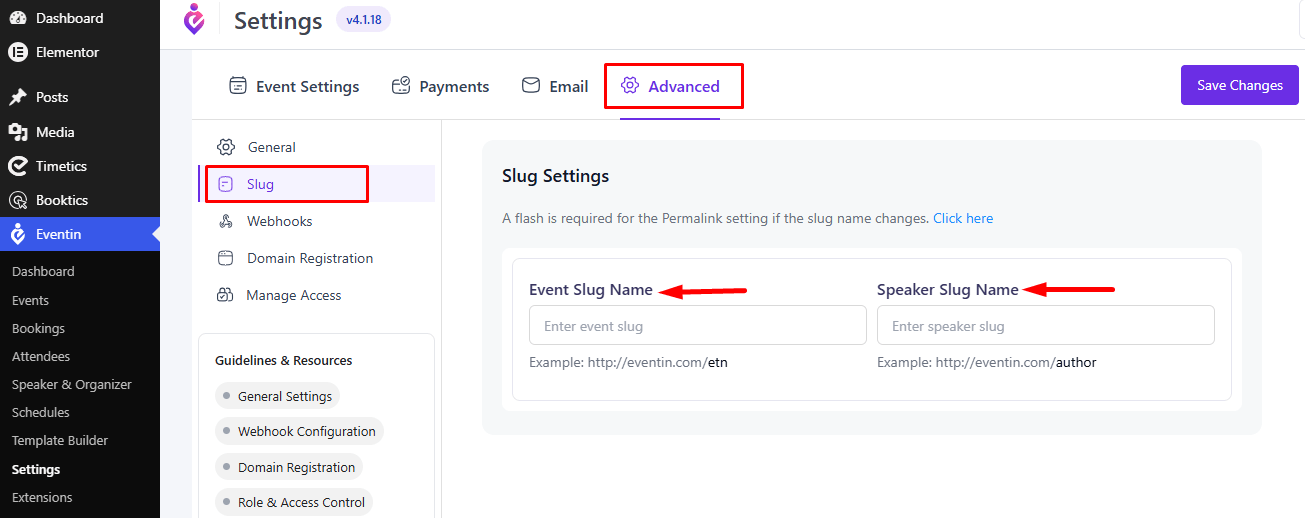
You can change the event and speaker slug from Settings ->Advanced -> Slug. Check our Documentation for more details.
Webhooks #
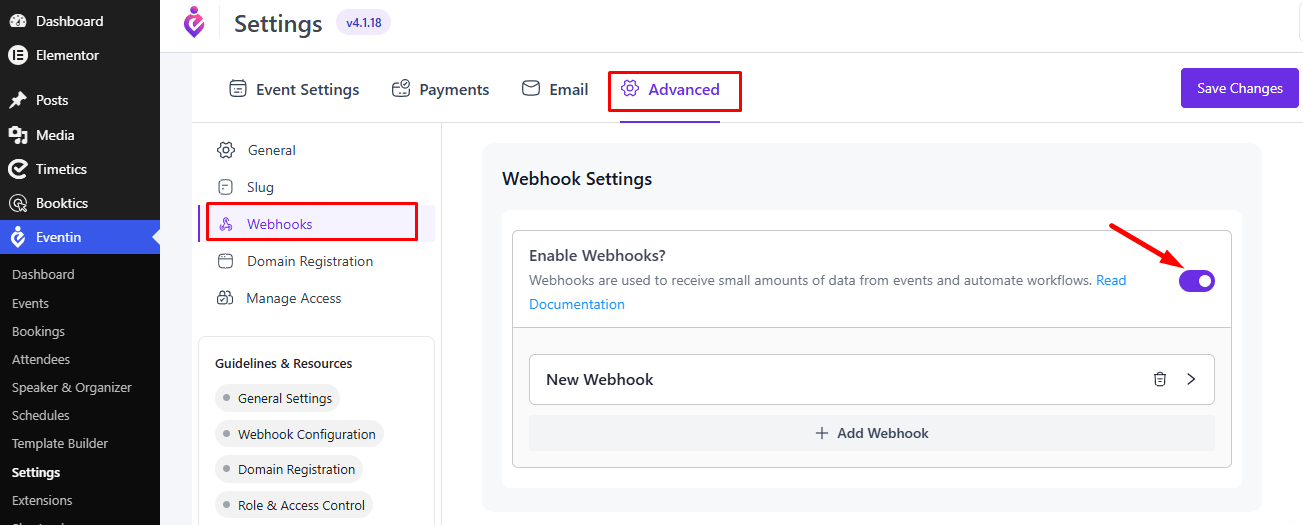
For webhook integration, refer to the documentation.
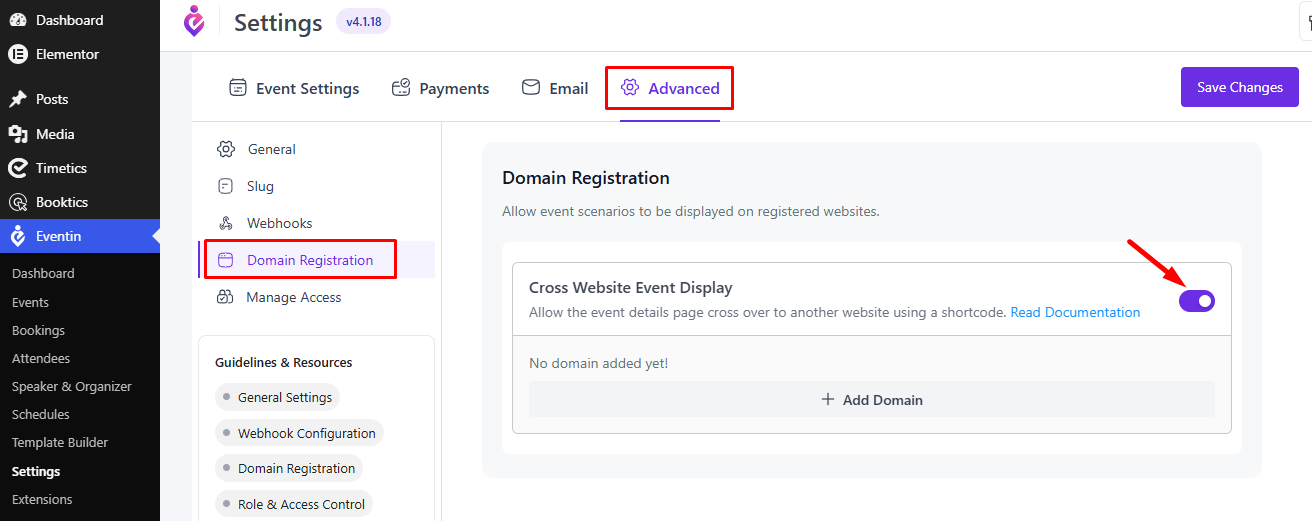
Domain Registration #
For domain registration, refer to the documentation.