
1. Introduction #
AI MatchMaking helps people at your event find the right people to meet. Each attendee makes a Connect Card. The plugin compares the cards and shows each person a short list of good matches. People can then send a connection request. Contact details are shared only after the other person accepts.
This guide has two parts. First, the site admin sets up the plugin. Then, attendees use it from the Event Dashboard.
Prerequisites #
- Eventin (free) — installed and active.
- Eventin Pro — installed and active.
- AI Match Maker for Eventin — installed and active. You can also turn it on from Eventin → Extensions → Addons.
- A Pinecone account. Pinecone is an online service that compares the meaning of words. The plugin uses it to find similar people.
- Only for the AI (LLM) engine: a WordPress version with the built-in AI Client (tested with WordPress 7.1), and an AI provider (for example Google, OpenAI or Anthropic) connected in WordPress.
2. Setup for admins #
Step 1 — Choose the matchmaking engine #
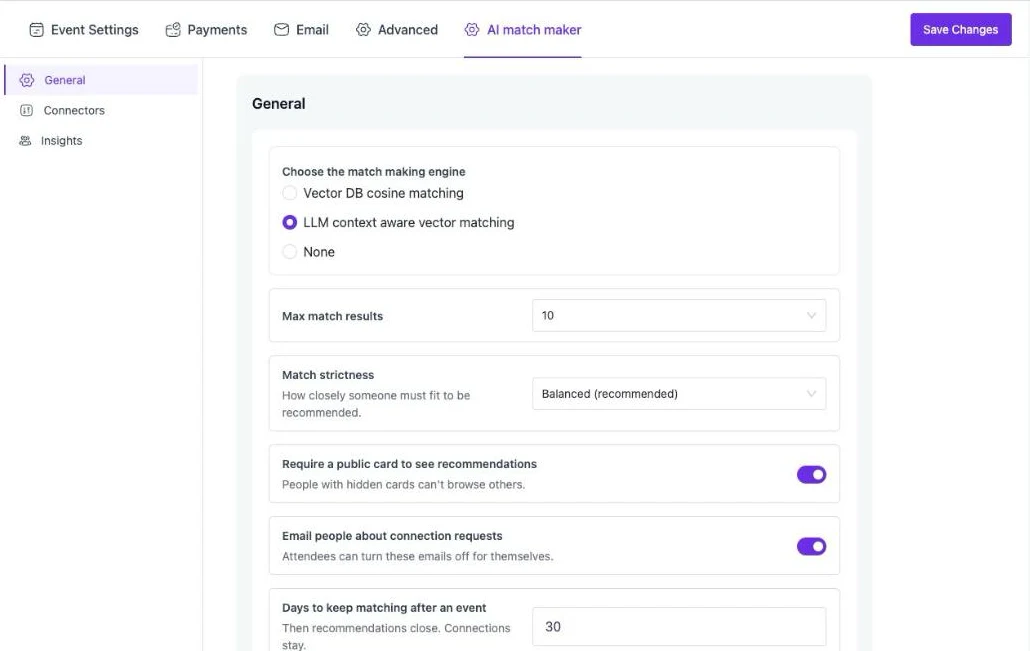
- Go to Eventin → Settings → AI match maker → General.
- Under Choose the match making engine, pick one option (see the table below).
- Set Max match results. This is the most people one attendee sees. The default is 10.
- Set Match strictness. Balanced is good for most events. Use Relaxed for small events. Use Strict for big events.
- Keep Require a public card to see recommendations on. Then only people who share their card can see others.
- Keep Email people about connection requests on if you want the plugin to send emails.
- Days to keep matching after an event: how long people can still see matches after the event ends. The default is 30 days.
| Engine | What attendees do | Good for |
|---|---|---|
| Vector DB cosine matching | Pick tags from a list, like “Founder” or “Hiring talent”. | Simple setup and low cost. |
| LLM context aware vector matching | Write two short sentences. AI turns them into tags. | People who want to describe themselves in their own words. |
| None | Matching is off. | Turning the feature off. |
Step 2 — Set up tags and blocked words #
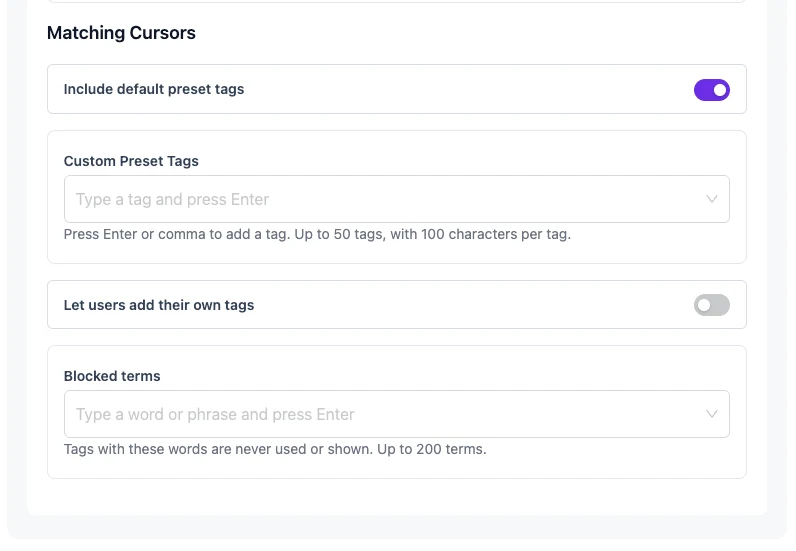
This part shows only when you pick Vector DB cosine matching.
- Include default preset tags — turn on to use the 71 built-in tags (roles, skills and goals).
- Custom Preset Tags — add your own tags, for example the name of a track at your event. Press Enter after each tag. You can add up to 50.
- Let users add their own tags — turn on if attendees may type new tags.
- Blocked terms — words you never want to see in tags. A tag with one of these words is not used or shown. This works for both engines.
Step 3 — Connect Pinecone #
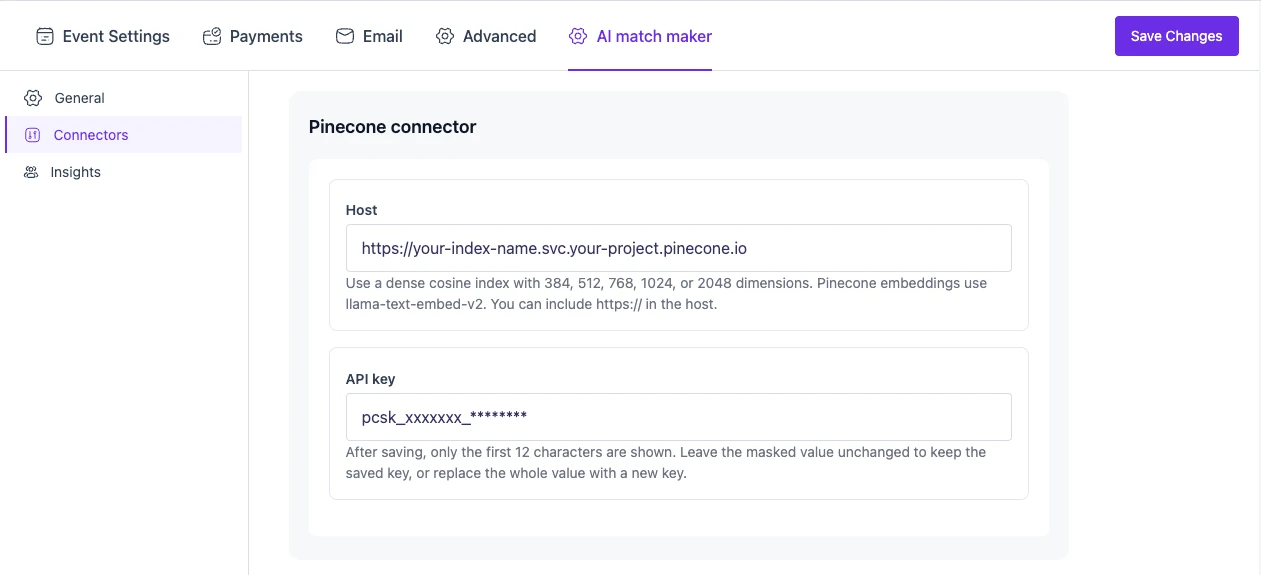
- Log in to your Pinecone account. Create an index. Choose dense type and cosine metric. Choose 384, 512, 768, 1024 or 2048 dimensions.
- Copy the index Host and an API key from the same project.
- In WordPress, open AI match maker → Connectors.
- Paste the Host and the API key.
After you save, only the first 12 characters of the API key are shown. This keeps your key safe.
Step 4 — Choose an AI model (LLM engine only) #
Skip this step if you use the Vector engine.
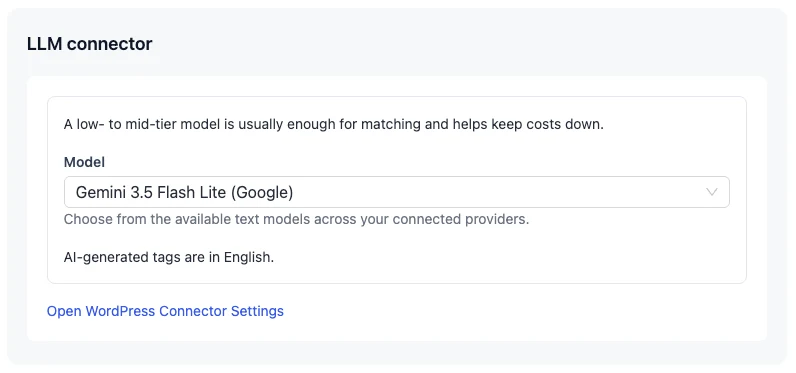
- On the same Connectors page, find LLM connector.
- Pick a Model from the list. A small, low-cost model is enough.
- If the list is empty, click Open WordPress Connector Settings and connect an AI provider first.
AI-made tags are always in English.
Step 5 — Save and check Insights #
- Click Save Changes at the top right.
- If a field shows an error, fix it and save again.
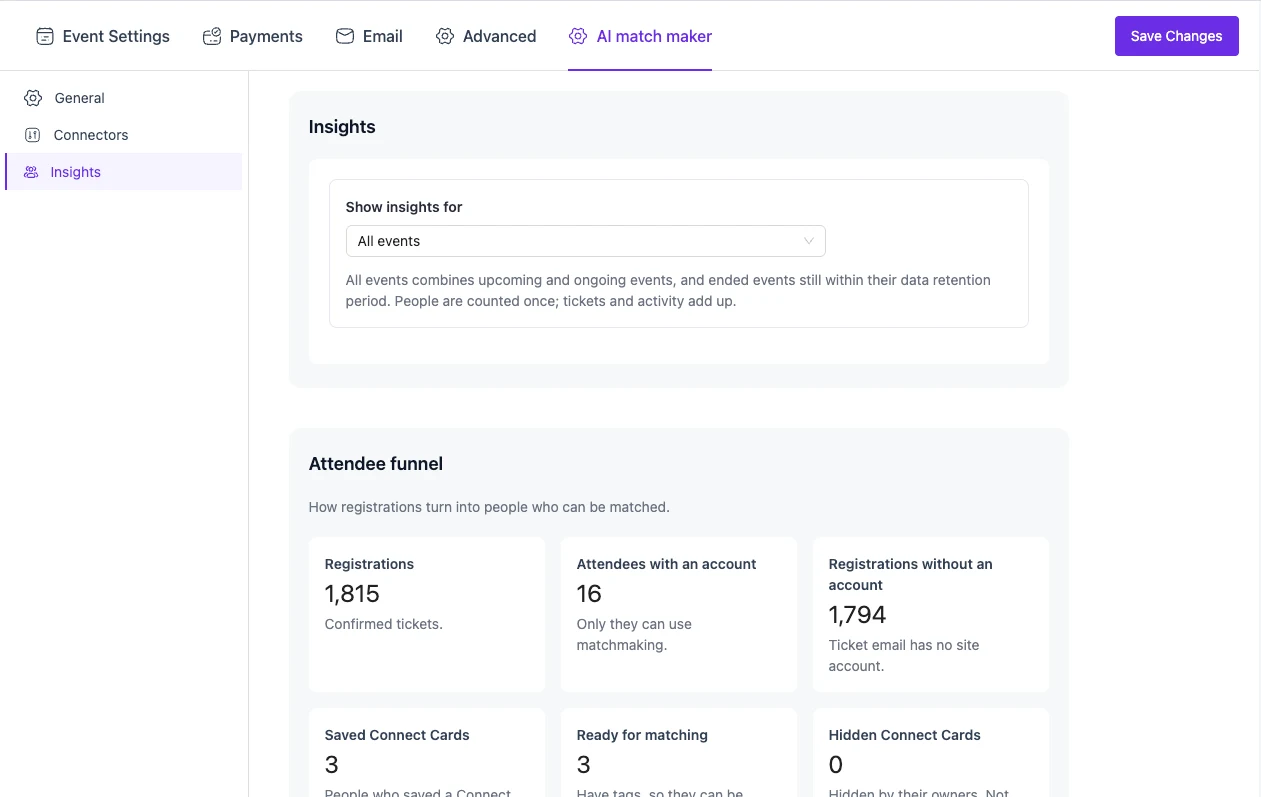
- Open AI match maker → Insights. Here you see how many people registered, made a card, and got matches.
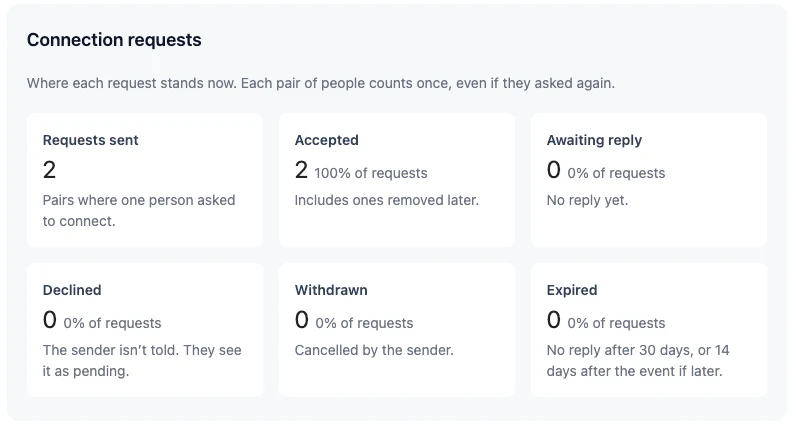
Scroll down to see Connection requests. It shows how many requests were sent, accepted, declined or expired.
Site with old users? If people made cards before you set up the plugin, run wp eventin-match-maker sync --all once. This adds their cards to matching.
3. How attendees use AI MatchMaking #
Step 1 — Open My Matches #
An attendee needs two things: a confirmed ticket for a published event, and a site account with the same email as the ticket.
- Log in to your account.
- Open the Event Dashboard.
- Click My Matches.
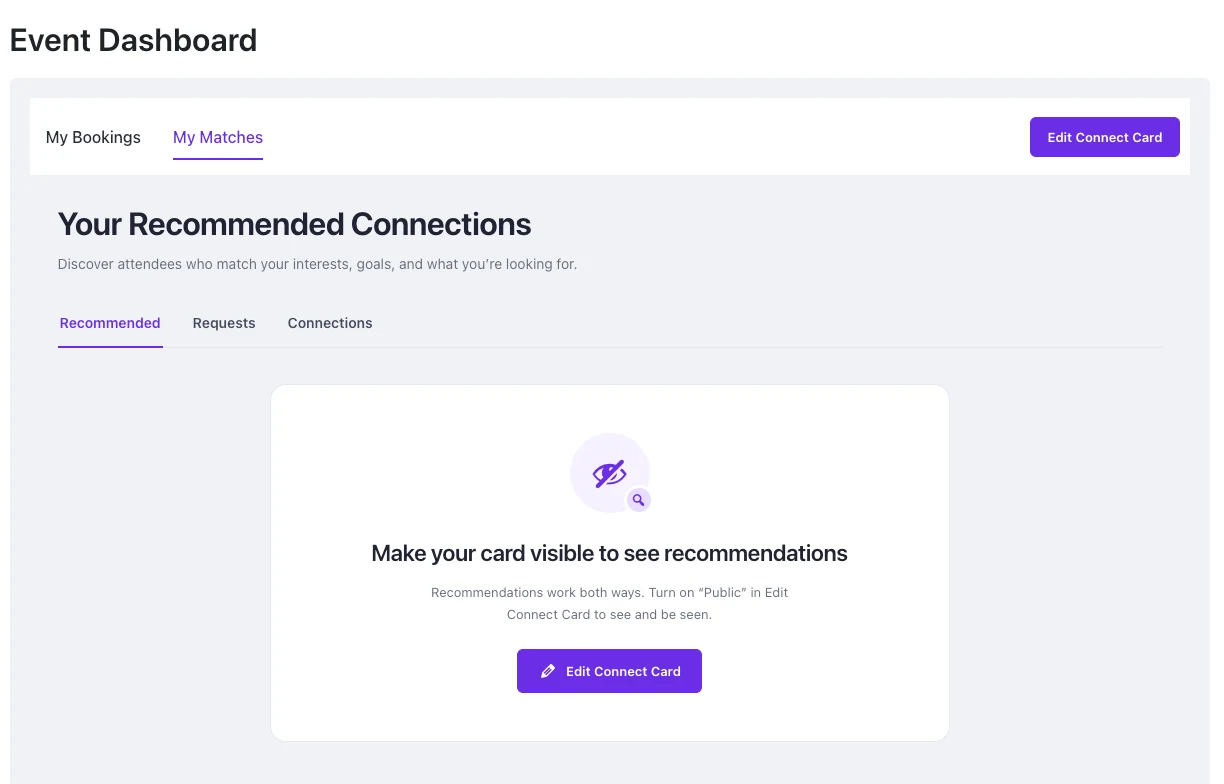
If the card is not public yet, you see Make your card visible to see recommendations. Click Edit Connect Card to start.
Step 2 — Fill in your Connect Card #
- Click Edit Connect Card.
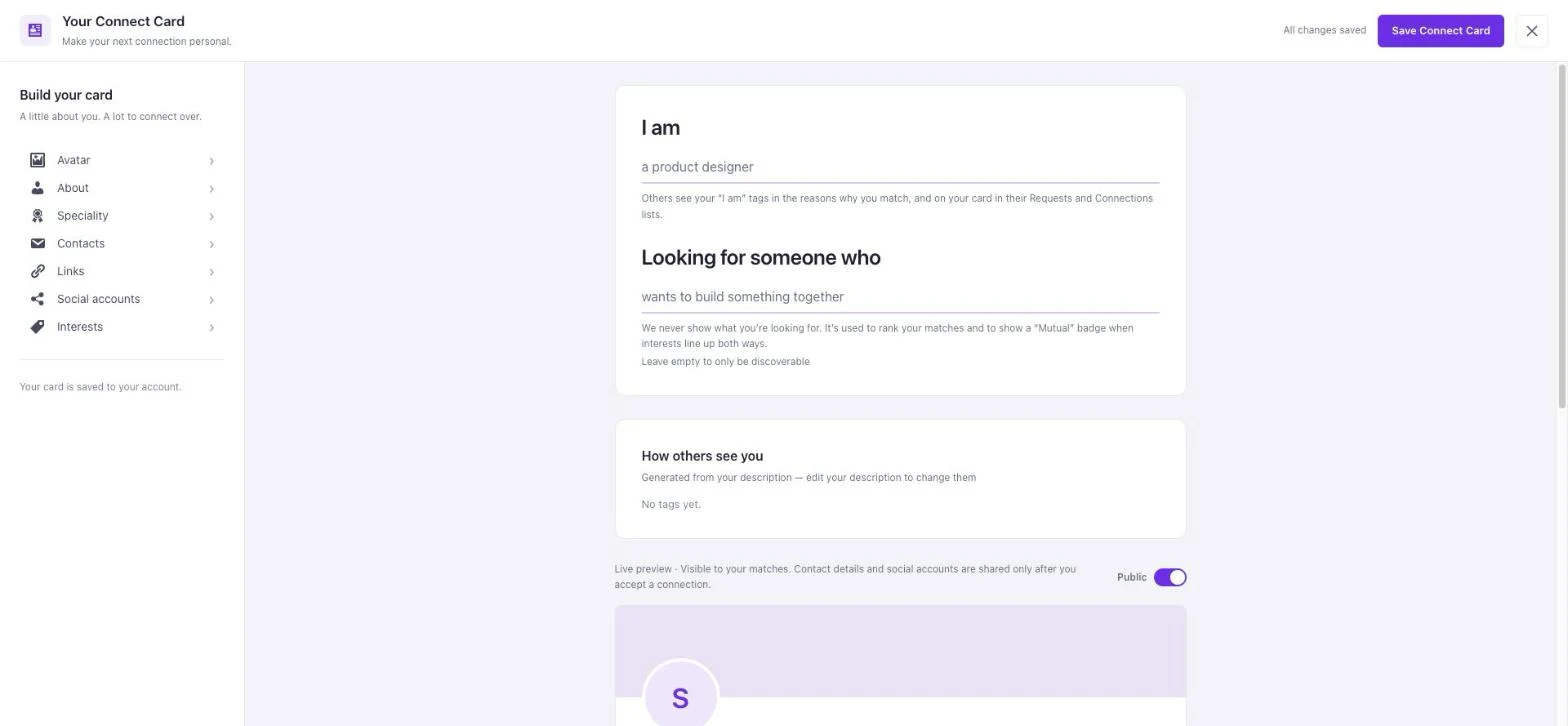
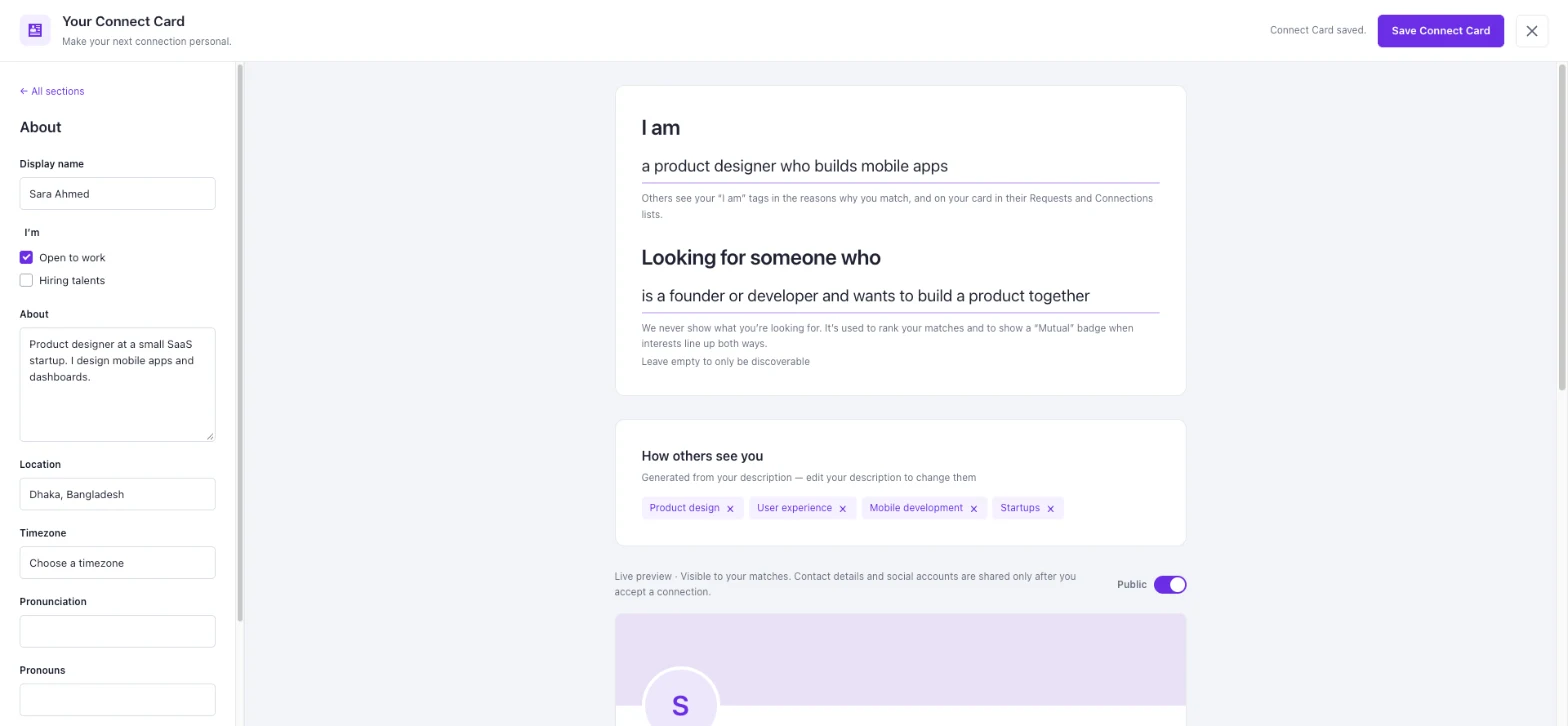
- On the left, open each section and fill it in: Avatar, About, Speciality, Contacts, Links, Social accounts and Interests.
- In I am, say who you are. Example: “a product designer who builds mobile apps”.
- In Looking for someone who, say whom you want to meet. Example: “is a founder or developer and wants to build a product together”.
Nobody sees your “Looking for” text. It is only used to find your matches.
- Click Save Connect Card.
- Wait a few seconds. The plugin makes your tags. They show in How others see you.
- Don’t like a tag? Click the × next to it to hide it.
Step 3 — Check your card and make it Public #
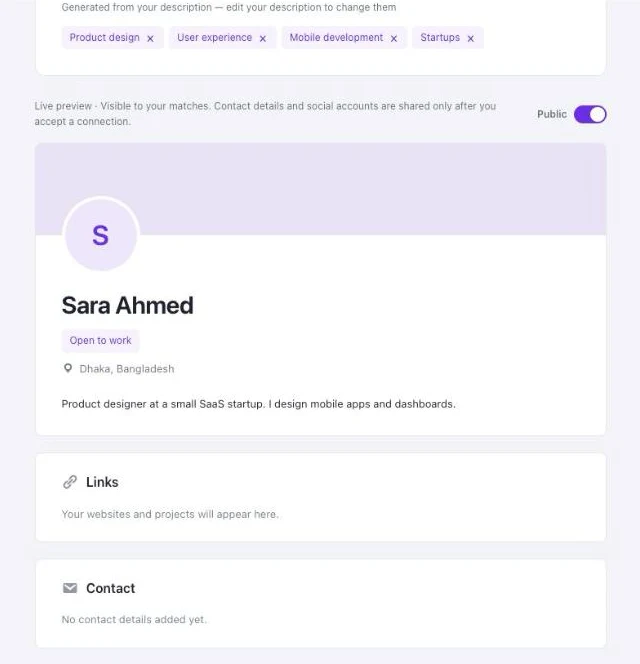
Scroll down to see a live preview of your card. Keep the switch on Public. A hidden card is not shown to anyone, and you can’t see recommendations.
Your email, phone and social accounts stay private. They are shared only after you accept a connection.
Step 4 — See your matches #
- Close the editor. You are back on My Matches.
- If you have tickets for more than one event, pick the event at the top right.
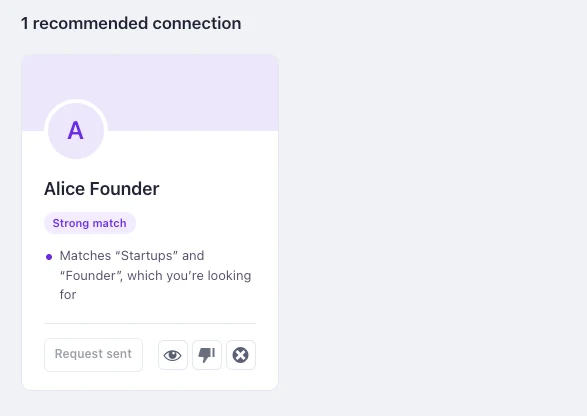
- Each card shows a Strong match or Good match label and a short reason, like Matches “Startups” and “Founder”, which you’re looking for.
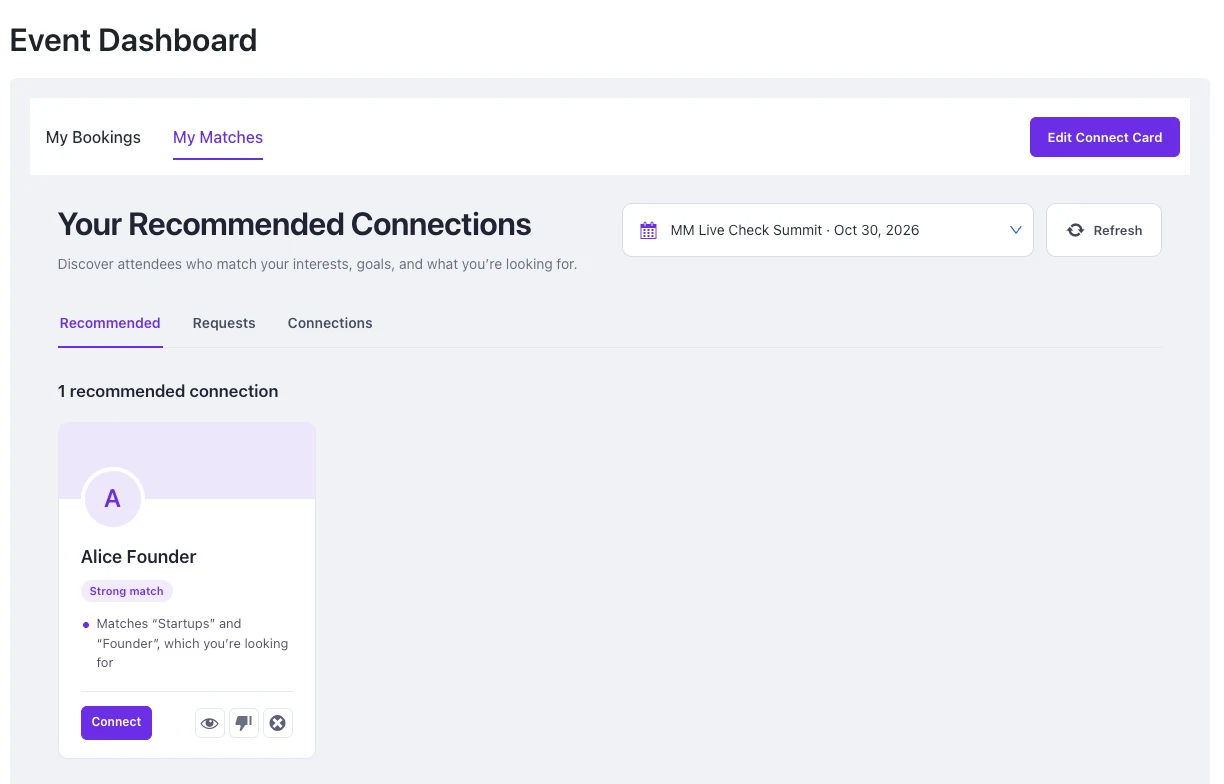
The buttons under each card:
| Button | What it does |
|---|---|
| Connect | Sends a connection request. |
| Eye icon | Opens the full Connect Card. |
| Thumbs-down icon | “Not relevant”. Removes this person from your list. |
| X icon | “Block”. You will not see each other again. |
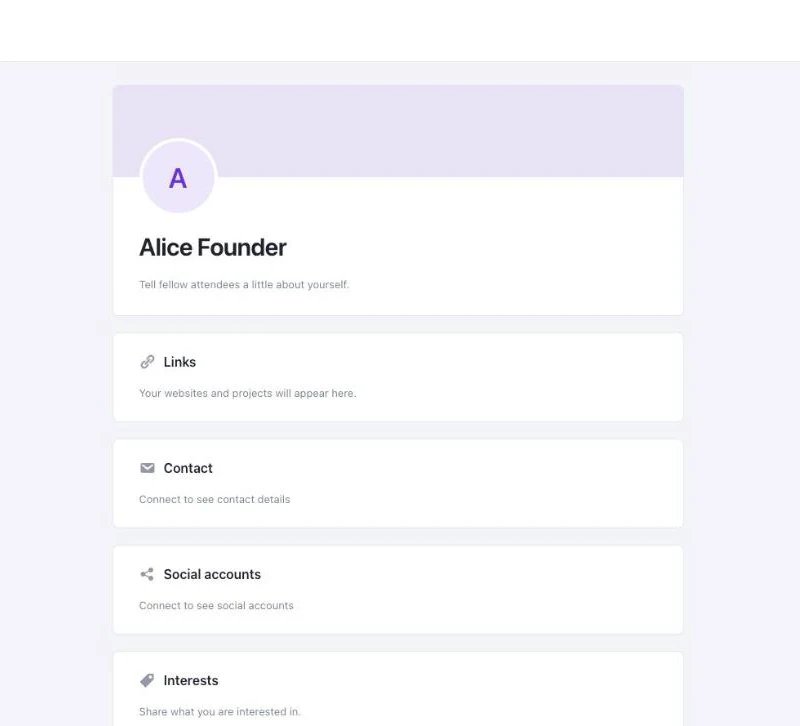
Click the eye icon to see the full card. Contact and social details say Connect to see contact details until you are connected.
Step 5 — Send a connection request #
Click Connect. The button changes to Request sent. You can see it later in the Requests tab under Requests you sent.
Step 6 — Accept a request #
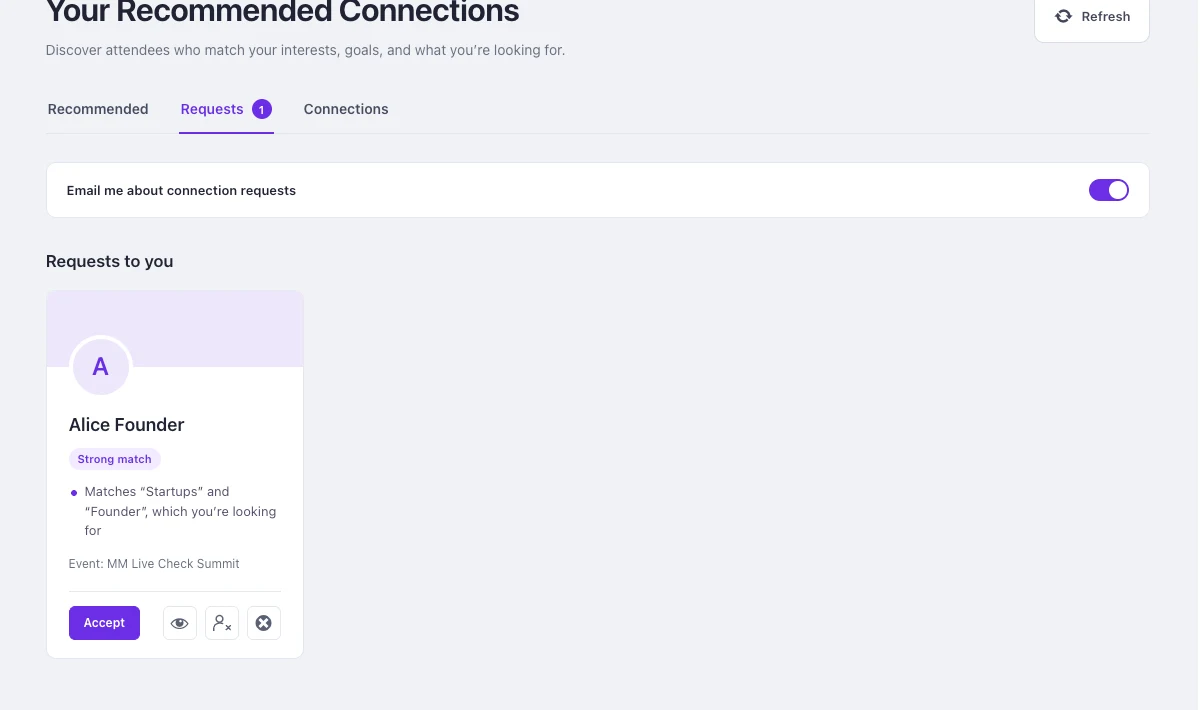
- Open the Requests tab. The number on the tab shows how many requests wait for you.
- Under Requests to you, click Accept. Or click the person icon to decline.
You can turn emails on or off with Email me about connection requests.
Step 7 — See your connections #
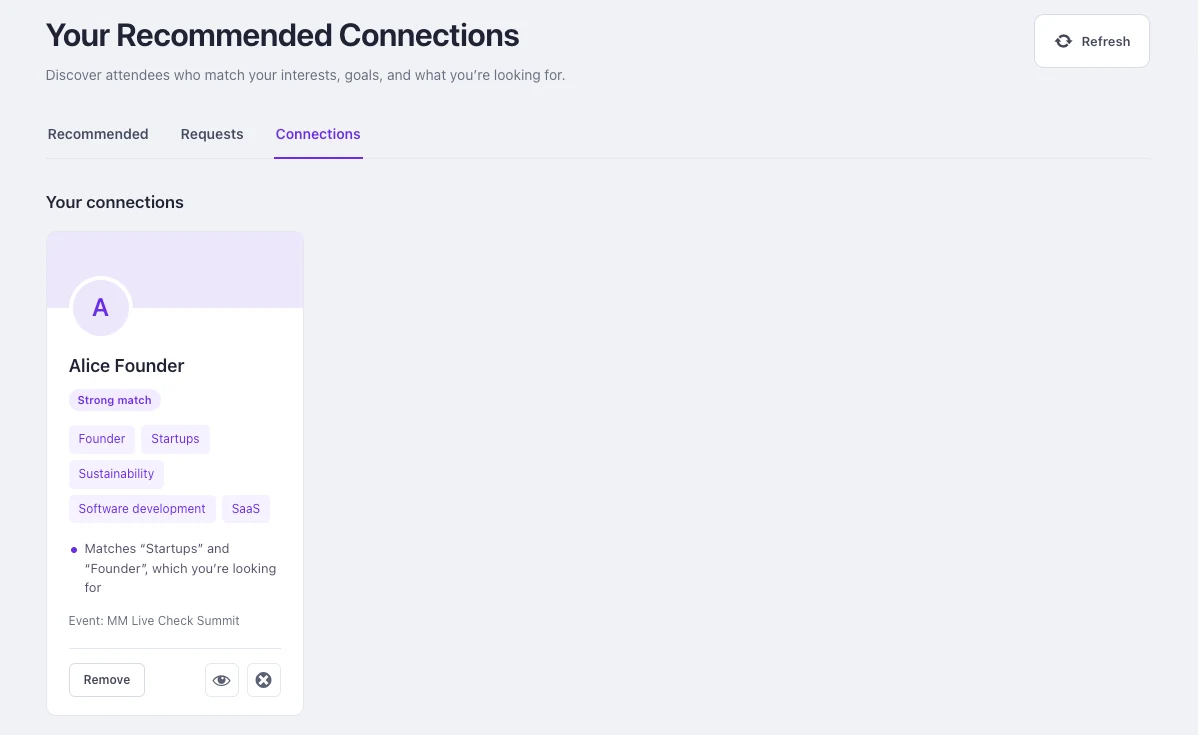
Open the Connections tab. Here you see everyone you are connected with. Now you can open their card and see their email, phone and social accounts. Click Remove to end a connection.
4. FAQs #
Q: Which engine should I choose? #
A: Choose Vector DB cosine matching if you want a simple setup. People pick tags from a list. Choose LLM context aware vector matching if you want people to write about themselves. It needs an AI provider and costs a little more.
Q: Do I need a Pinecone account for both engines? #
A: Yes. Both engines use Pinecone to compare tags.
Q: An attendee does not see My Matches. Why? #
A: Check three things. The attendee has a confirmed ticket for a published event. The attendee is logged in with the same email as the ticket. The engine is not set to None.
Q: Can other people see my email or phone? #
A: No. Only your connections can see them. People see your contact details only after you accept their request, or they accept yours.
Q: Can people see what I am looking for? #
A: No. Your “Looking for” text is never shown. It is only used to find matches.
Q: What happens to a request nobody answers? #
A: It expires after 30 days, or 14 days after the event ends (whichever is later).
Q: How long can people see matches after the event? #
A: 30 days by default. You can change it in Days to keep matching after an event.
Q: Can I stop some words from showing as tags? #
A: Yes. Add them to Blocked terms on the General page. Tags with these words are never used or shown.


