
Integrating Razorpay with Eventin lets you accept secure online payments, including UPI, credit/debit cards, net banking, and digital wallets directly during ticket checkout. It streamlines transactions and automatically syncs payment and refund statuses with your event orders.
Get Your Razorpay API Keys #
- Log in to your Razorpay Dashboard and select Test Mode or Live Mode from the top menu.
- Go to Account & Settings > API Keys and click Generate Key.
- Copy both your Key ID (
rzp_test_...orrzp_live_...) and Key Secret.
Configure Razorpay in Eventin #
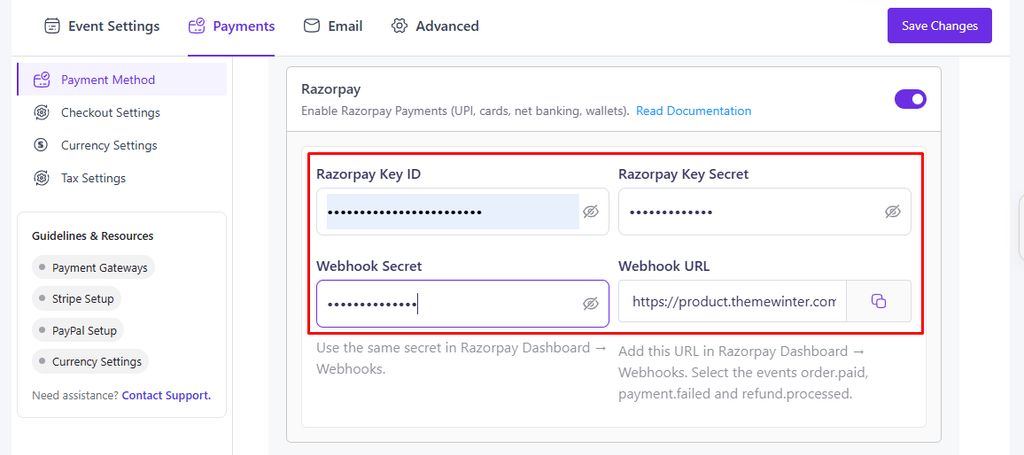
- Go to Eventin > Settings > Payments > Payment Method, enable Razorpay, and paste your Key ID and Key Secret.
- Enter a custom Webhook Secret and copy the Webhook URL from Eventin.
- In Razorpay Dashboard > Account & Settings > Webhooks, click + Add New Webhook, paste the Webhook URL and Webhook Secret, select
order.paid,payment.failed, andrefund.processed, and save. - Return to Eventin and click Save Changes.
Frontend Checkout Experience #
Once configured, Razorpay appears as a payment option on the Eventin ticket checkout page. Selecting Razorpay opens a secure payment popup modal directly on the screen, allowing attendees to pay via UPI, card, wallet, or net banking without leaving your site.
Frequently Asked Questions (FAQ) #
Q1: Can I test Razorpay payments before going live?
A1: Yes. Switch your Razorpay Dashboard to Test Mode, generate test API keys (rzp_test_...), and configure the webhook in Test Mode to run test checkouts without real money. Remember to replace them with Live Mode keys (rzp_live_...) before launching your event.
Q2: Why is the Webhook setup required?
A2: Webhooks allow Razorpay to communicate directly with Eventin in real time, automatically updating ticket order statuses when a payment succeeds (order.paid), fails (payment.failed), or gets refunded (refund.processed).
Q3: Which currency should I set in Eventin for Razorpay?
A3: Set your Eventin store currency to INR (Indian Rupee) under Eventin > Settings > Payments > Currency Settings (unless international currency support is explicitly enabled on your Razorpay merchant account).
Q4: Do attendees leave my website to complete the payment?
A4: No. Razorpay opens a secure payment modal directly over your Eventin checkout page, keeping attendees on your site throughout the transaction.
Conclusion #
Setting up Razorpay in Eventin gives your attendees a fast, familiar, and secure checkout experience while automating order and refund tracking in the background. With your API keys and webhooks properly configured, you are ready to start selling event tickets seamlessly.


