
Overview #
Order Delay Notification in WPCafe lets restaurant staff push back the delivery or pickup time on a WooCommerce order after it was placed, then tell the customer automatically. You edit the time on the order screen, WPCafe logs the change, adds an order note, and sends a delay email.
Kitchens run late. Until now the customer’s checkout time was fixed and staff had no clean way to reschedule it or notify the customer. Order Delay Notification fills that gap without ever changing the customer’s original chosen time.
Requirements #
- WooCommerce: active, since orders and order meta come from it.
- WP Cafe: the free plugin active.
- WP Cafe Pro: active with a valid license. Order Delay is a Pro feature.
- Order Delay module: enabled on the WP Cafe Modules page (covered in Step 1).
Step 1: Enable the Order Delay module #
The card only shows once the module is on.
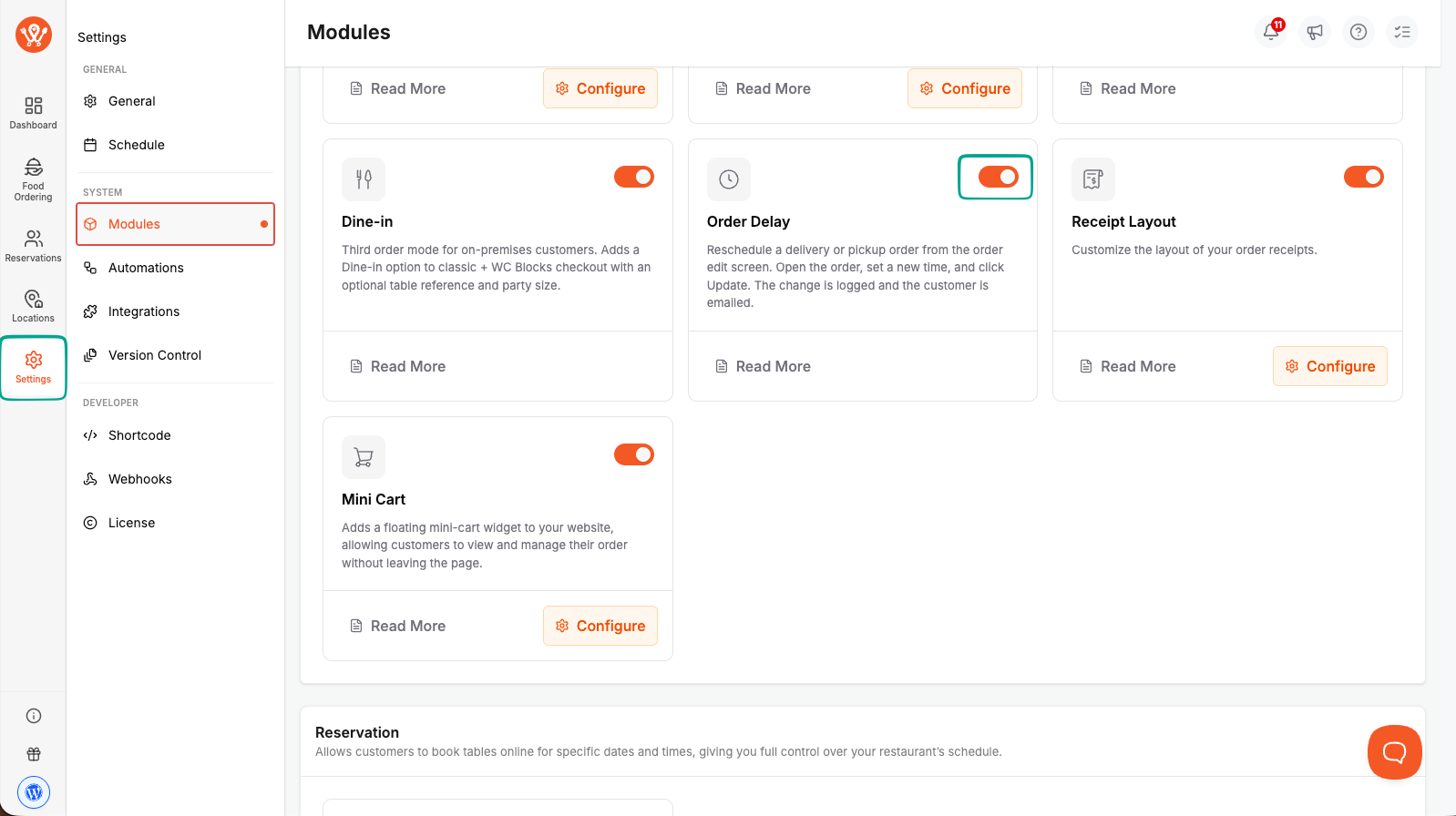
- Go to WP Cafe > Modules.
- Find Order Delay module and turn it on.
- Load any admin page once so WPCafe can add the two ready-made email flows (see Step 4).
Step 2: Update the delivery or pickup time #
The schedule card shows on Delivery and Pickup orders only. Dine-in and other order types do not show it.
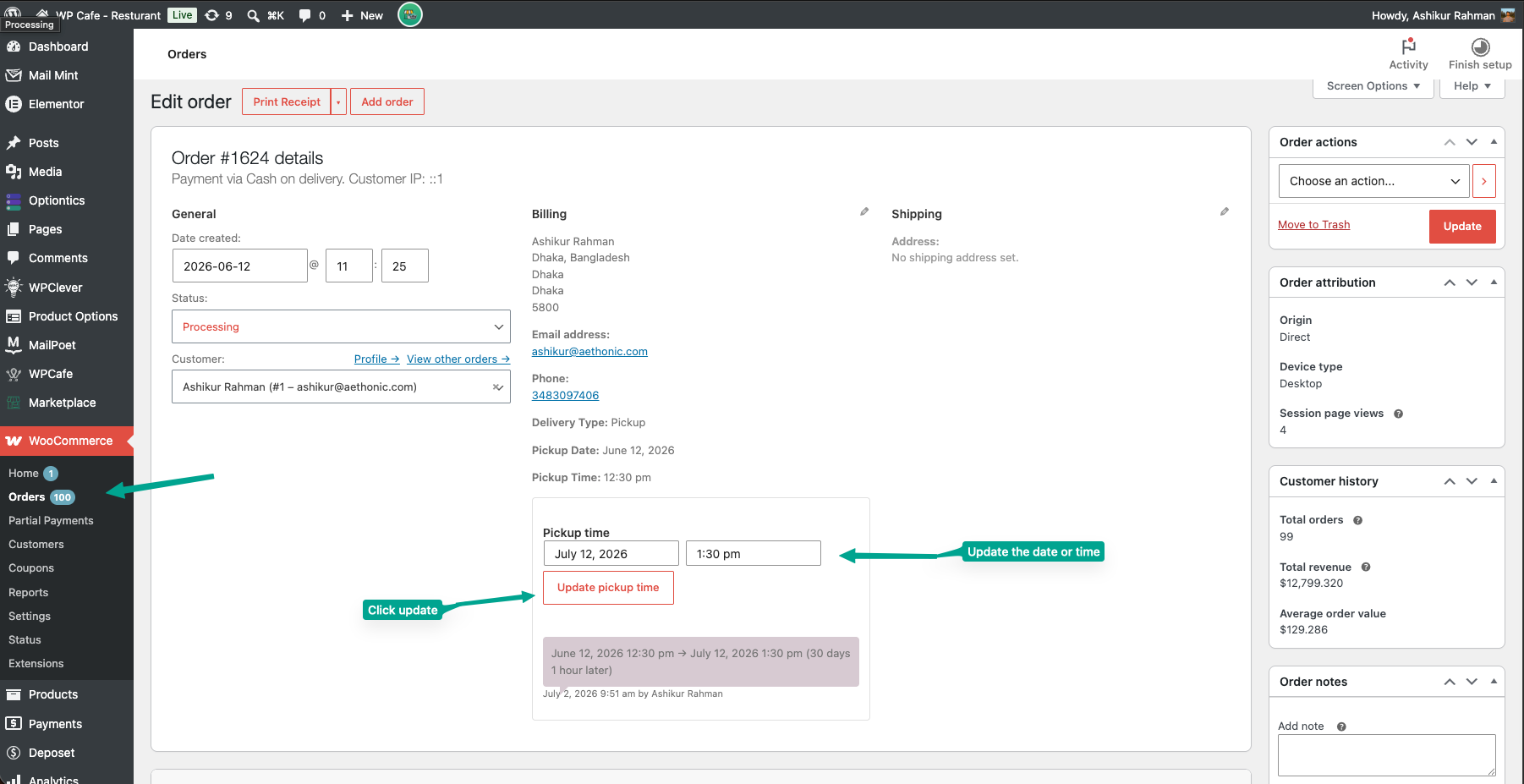
- Go to WooCommerce > Orders and open an order.
- Find the Delivery time or Pickup time card under the billing address. The date and time pickers are pre-filled with the customer’s current scheduled time.
- Pick a new date and time.
- Click Update delivery time or Update pickup time.
| Tip: You do not need to click WooCommerce’s own Update button. The card’s own button saves the new time, writes the log, adds the order note, and sends the email by itself. |
Step 3: Read the change log #
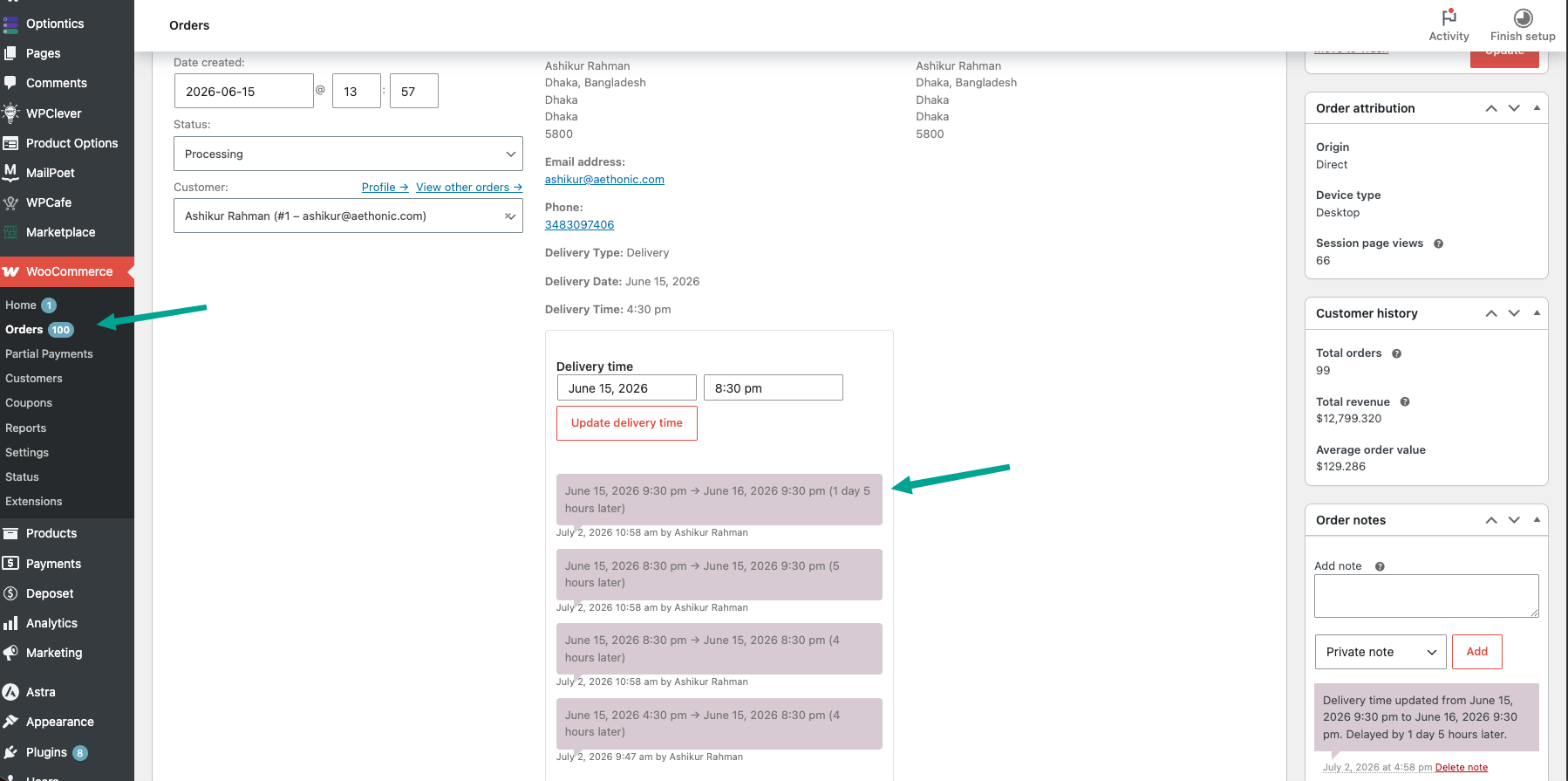
Every update adds a row to the card so you can see the full history of the schedule.
- Old time to new time.
- The delay in plain words, for example “7 hours 30 minutes later”, “1 hour earlier”, or “No change”.
- Who made the change and when.
The delay is always measured from the customer’s original checkout time, not the last edit. If you push a time back twice, the log still reports the total delay from the first choice. WPCafe also adds a matching WooCommerce order note on each update.
Step 4: Set up the delay emails #
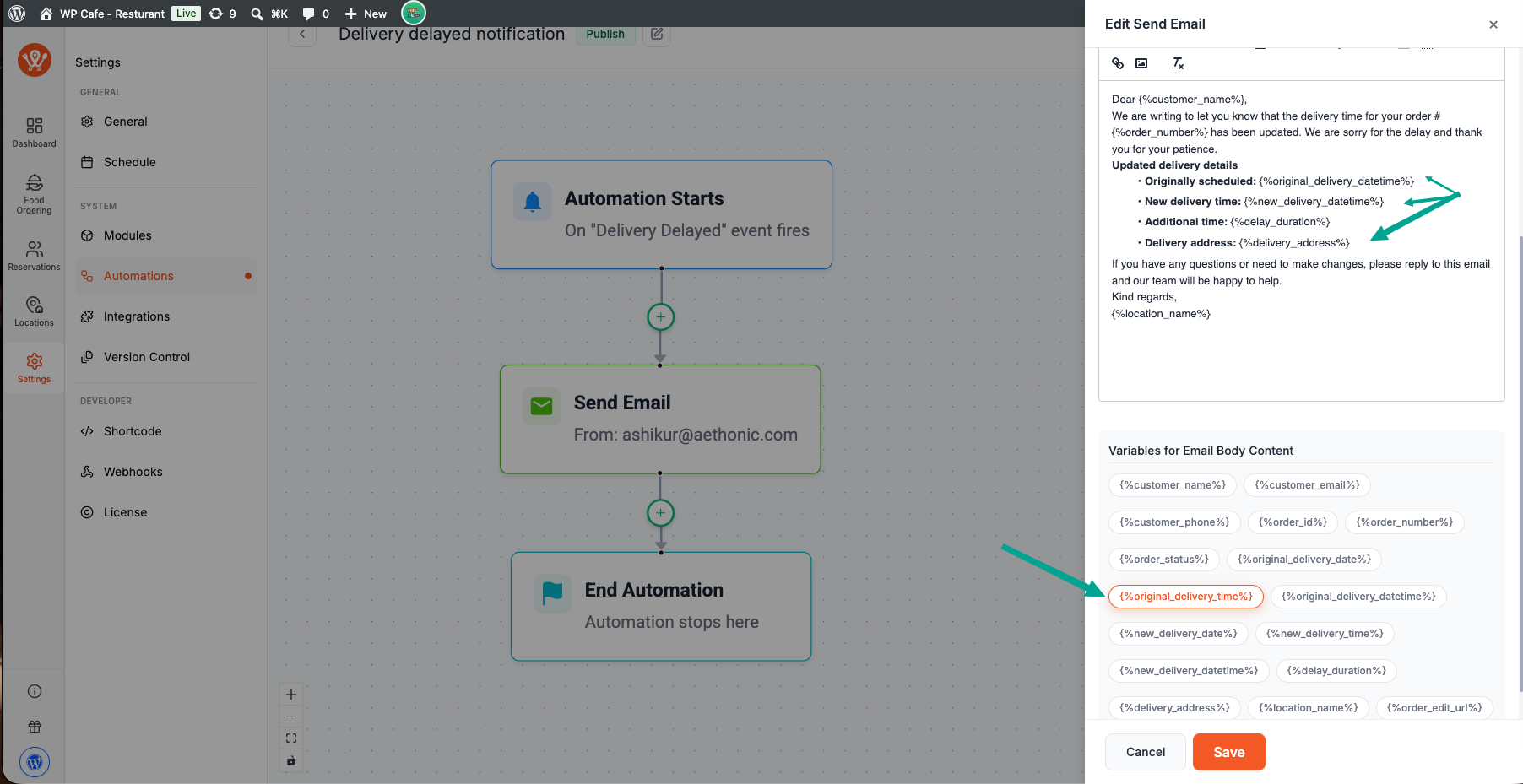
The module ships with two ready-made, published flows and seeds them the first time you open the admin after enabling Order Delay:
- Delivery delayed notification: fires on the
delivery_delayedtrigger. - Pickup delayed notification: fires on the
pickup_delayedtrigger.
Edit them under WP Cafe > Email Automation, or build your own flow on either trigger. See the Email Automation guide for how flows work. Delay emails use the same branded template as the rest of your WP Cafe emails.
Use these merge tags in the subject or body. Replace {mode} with delivery or pickup to match the trigger.
| Tag | Value |
| {%customer_name%} | Customer full name |
| {%order_number%} | Order number |
| {%original_{mode}_datetime%} | Original date and time |
| {%new_{mode}_datetime%} | New date and time |
| {%delay_duration%} | Delay in words, e.g. “7 hours 30 minutes later” |
| {%delivery_address%} | Delivery address (delivery flow) |
| {%location_name%} | Restaurant or location name |
| {%order_edit_url%} | Admin order edit link |
Separate date-only and time-only tags exist too: {%original_{mode}_date%}, {%original_{mode}_time%}, {%new_{mode}_date%}, and {%new_{mode}_time%}.
Frequently Asked Questions (FAQ) #
| Q1: Does updating the time change the customer’s original order details? No. The original delivery or pickup time the customer chose at checkout is never overwritten. It stays on the thank-you page and order columns. The new time is stored in separate meta and shows only in the card, the change log, and the delay email. |
| Q2: Do I have to click the WooCommerce Update order button as well? No. The card has its own Update delivery time or Update pickup time button. That single click saves the new time, records the change log, adds the order note, and fires the delay email. The native WooCommerce Update button is not involved. |
| Q3: What happens if I set an earlier time or the same time? The email still sends, and the wording adapts. The {%delay_duration%} tag reads “1 hour earlier” for an earlier time or “No change” when the time matches. For orders placed before Pro with no saved time, the card still shows but the delay line is skipped. |
Conclusion #
Order Delay Notification keeps customers informed when a delivery or pickup runs late, without touching their original order. Enable the module, set up the two flows, and you are ready to reschedule and notify from the order screen.


