
DIVI Builder Integration With Eventin Event Management Plugin for WordPress #
Divi Builder is a powerful visual page builder that is included with the Divi theme for WordPress. This builder lets you create theme templates and assign them to pages or posts across your theme (including custom post types like Divi Projects and WooCommerce Products and Pages).
Eventin event plugin for WordPress now supports DIVI, the most popular WYSIWYG builder. Design with DIVI to create the perfect event management website. To use DIVI, you will need to have the following plugins installed on your WordPress site:
- Theme Requirement: Divi Theme
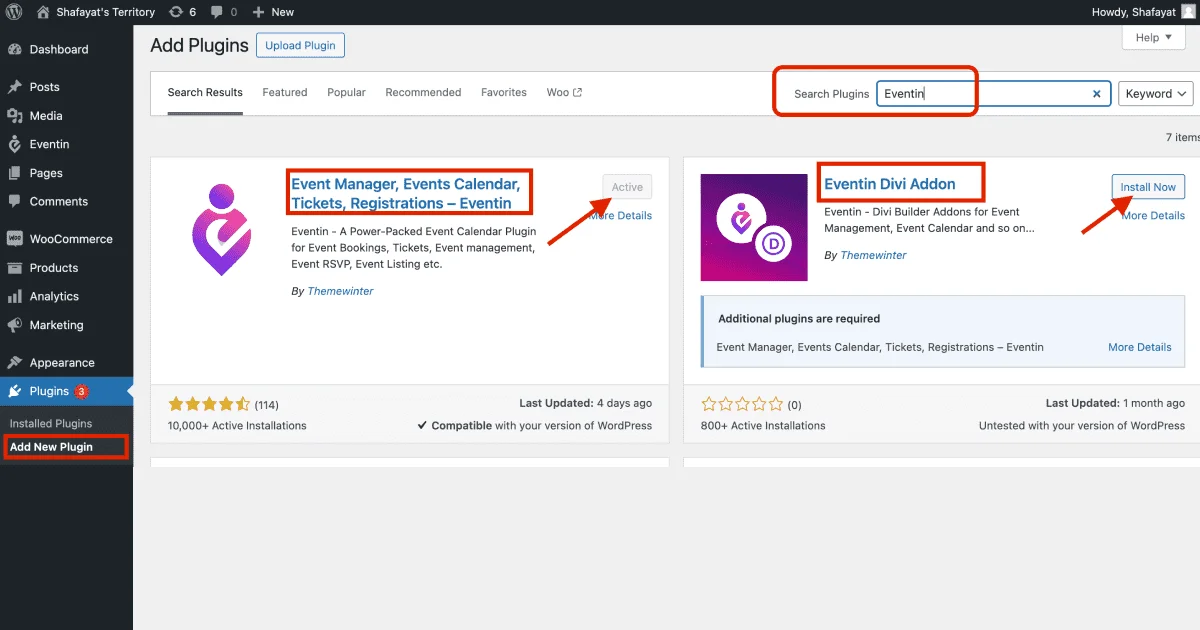
To install Eventin DIVI Addons, please log in to your WordPress dashboard and go to “Plugins” then “Add New”. After that, search with “Eventin DIVI Addons”. You can see the Eventin Divi Addon developed by Themewinter. Install and activate the add-ons.
To install the plugin, click on “Plugins” and then “Add New“. Then type Eventin in the upper-right search plugins search box. After that, click on “Install Now”. Wait a bit till installed, then click on Activate.
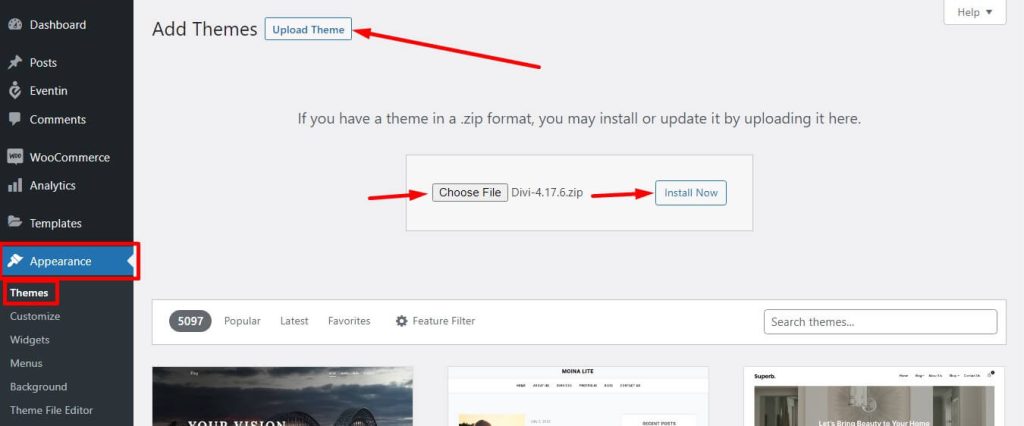
In order to install the theme, you need to go to “Appearance,” then Themes, and then “Add New Theme“. You can see the theme upload option. Select the theme file or drag and drop the theme. Finally, click on Install Now > Activate.
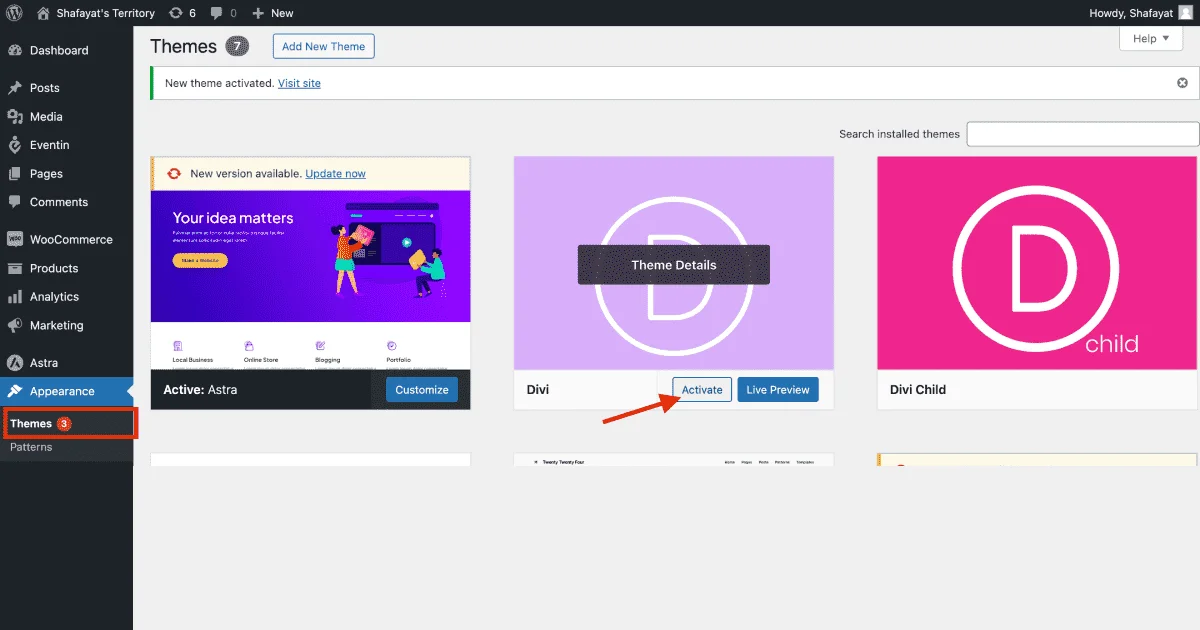
Once you have activated the theme and plugins, you are ready to go. Please choose a page on which you want to display events-related information. From the page list, click on “Edit With Divi”. Hold on a moment, and it will take you to the Divi editable page.
- Settings key: Admin dashboard -> Pages -> Edit With Divi
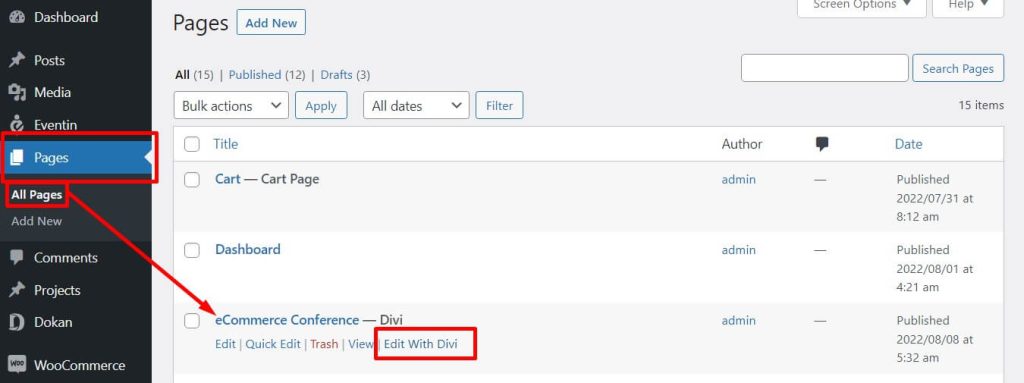
After clicking on “Edit With Divi,” you will be redirected to the Divi page editor, and you can see the options to start the builder and editing. Please see the screenshot.
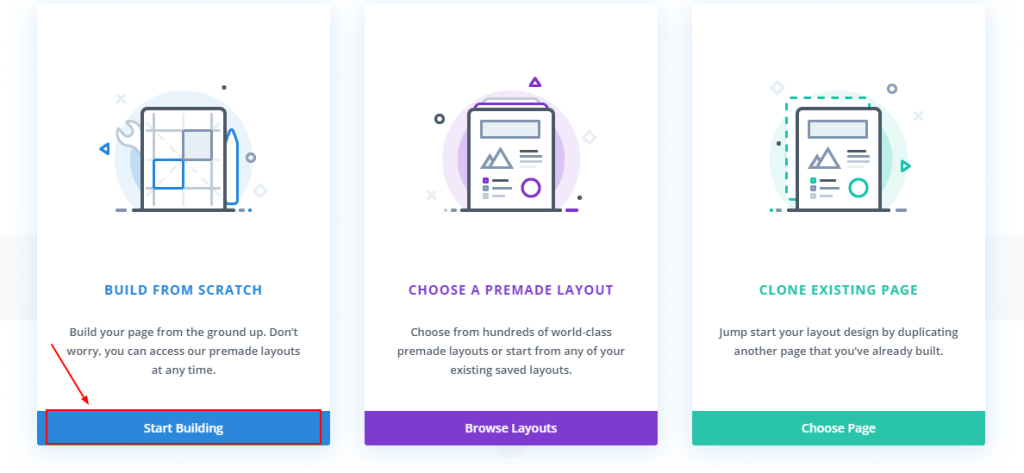
Click on Start Building, and then you will find the option to choose the row. You can select the row as you need.
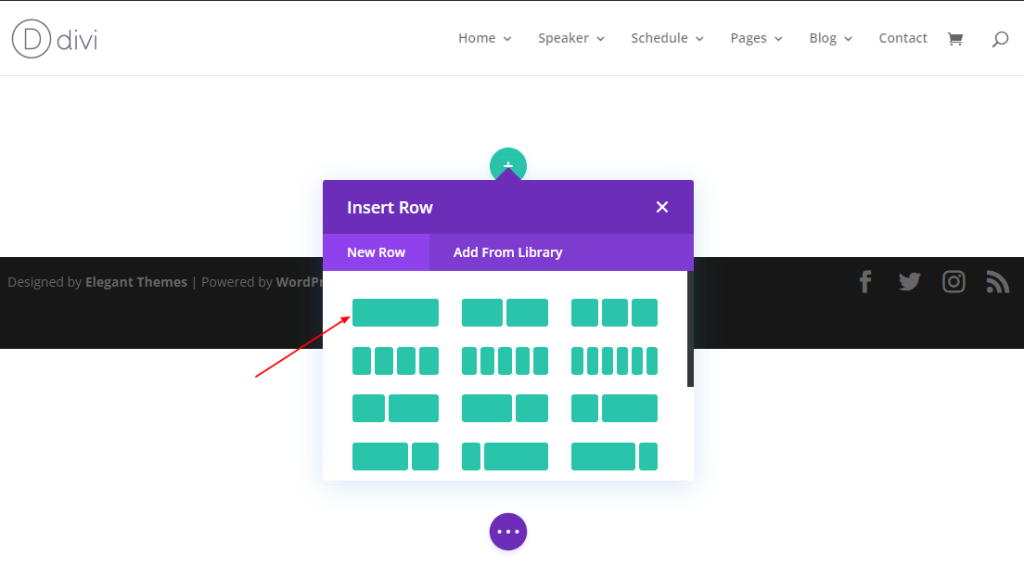
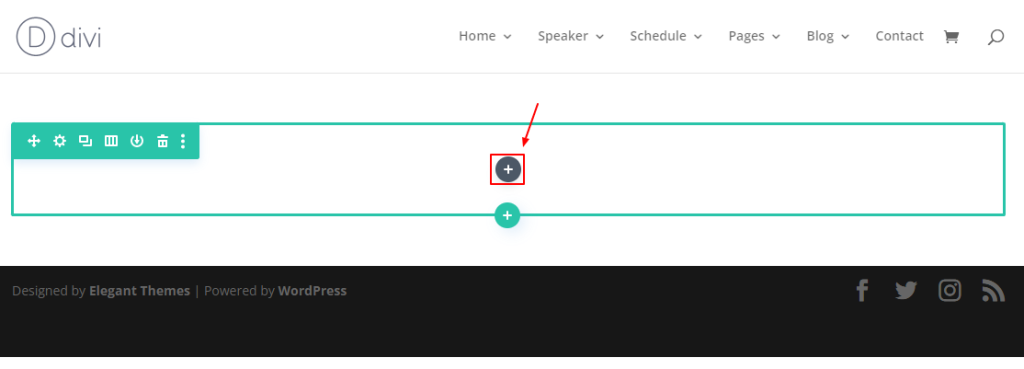
On the page, click on the plus(+) sign and insert the module. After that, search for the event keyword. All the Eventin widgets will appear in the box.
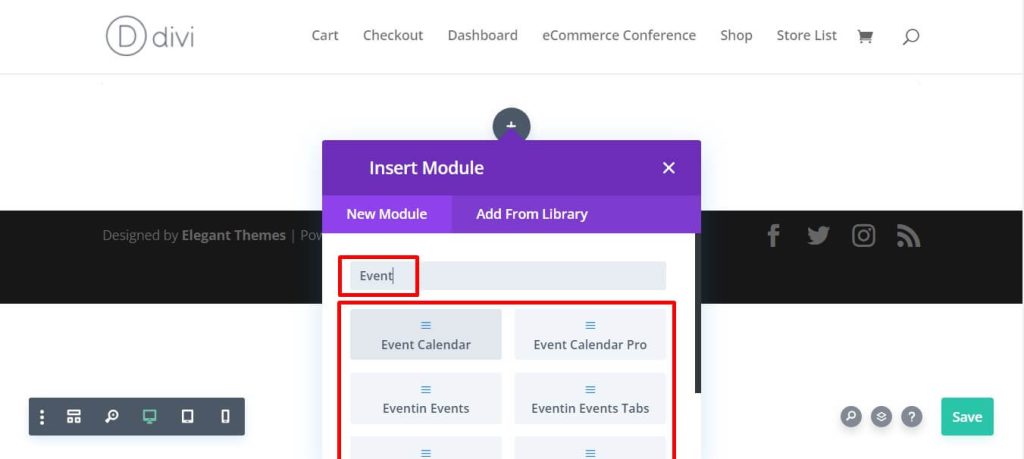
After selecting your specific event module, you can see the options; you can choose these options as you require.
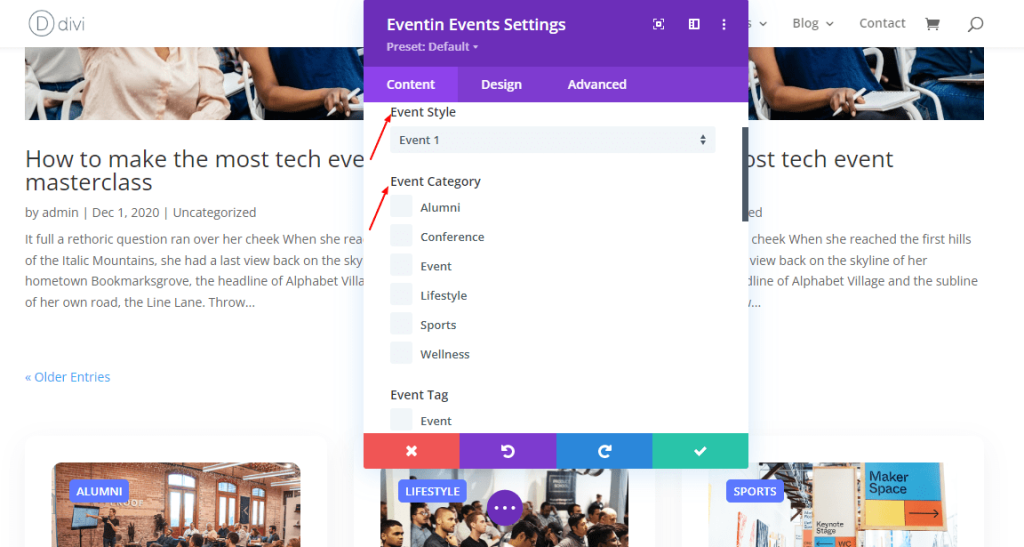
Add anything that you need, customize, and save the changes. Done. Here is the sample output.

For more details, please watch the video.


