
Overview #
WP Cafe sends your reservation and order customer data to Zoho through a webhook. WP Cafe POSTs the data to a Zoho Flow webhook, and Zoho Flow forwards it into any connected Zoho app (Zoho CRM, Sheet, Mail, and more). No API keys or OAuth setup on the WP Cafe side — just one webhook URL.
| Requirements: You need the WP Cafe plugin active, with WooCommerce active for order-based data. You also need a Zoho Flow account (https://flow.zoho.com) with a destination Zoho app (such as Zoho CRM) already connected. |
You need the WP Cafe plugin active, with WooCommerce active for order-based data. You also need a Zoho Flow account (https://flow.zoho.com) with a destination Zoho app (such as Zoho CRM) already connected.
Step 1: Create the Webhook in Zoho Flow #
Set up the webhook that will receive WP Cafe data.
- Log in to Zoho Flow and go to My Flows.
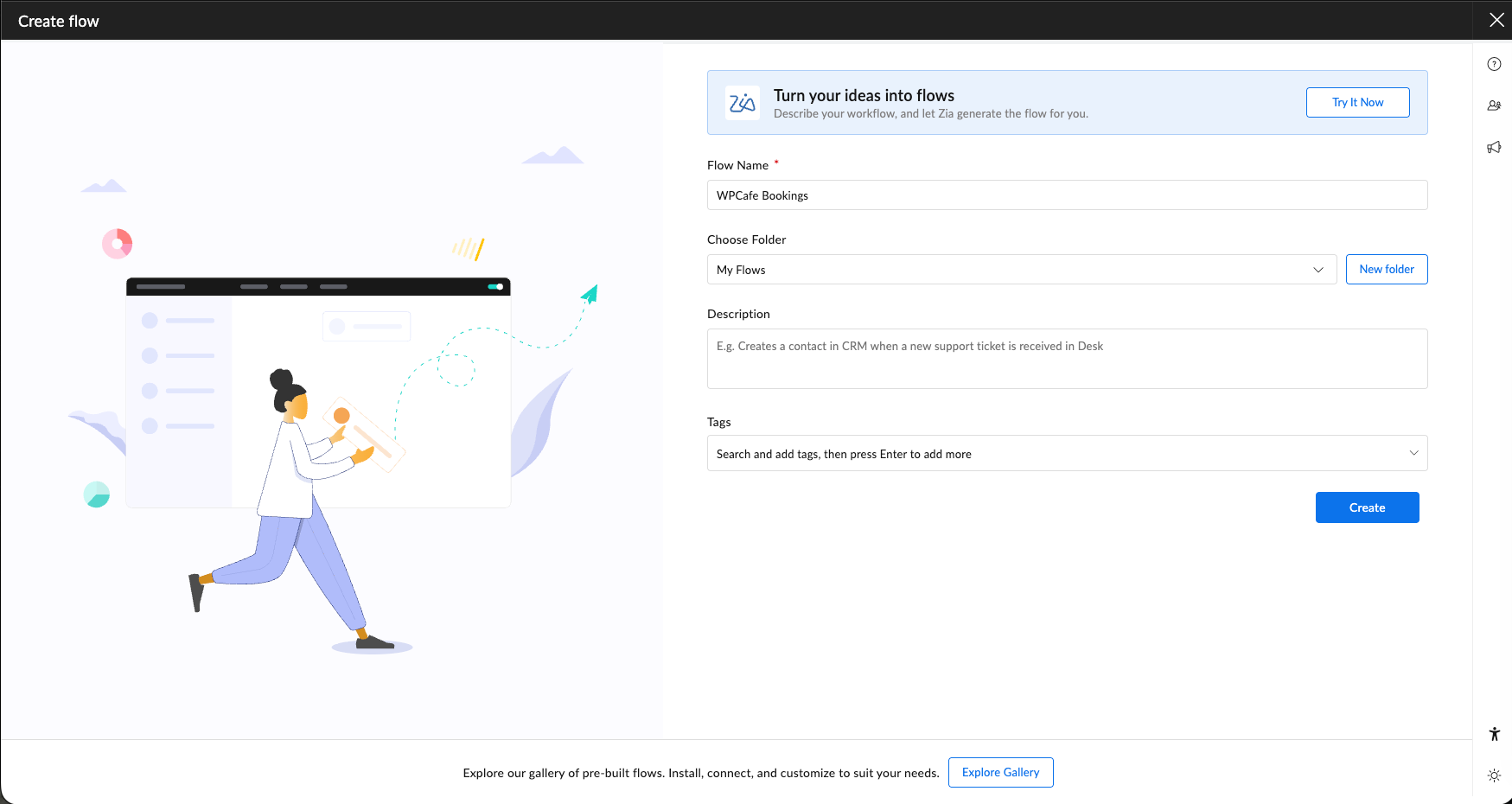
- Click Create Flow, give it a descriptive name (e.g. “WP Cafe Leads”), and click Create.
- In the trigger window, search and select Webhook, then choose Configure.
- Set the payload format to JSON — this matches WP Cafe’s data format.
- Copy the generated webhook URL. You’ll paste it into WP Cafe.
- Keep the flow open on the test step so you can verify the incoming data later.


Step 2: Enable Zoho Flow in WP Cafe #
Turn the integration on and paste your webhook URL.
- In WordPress admin, go to WP Cafe → Integrations.
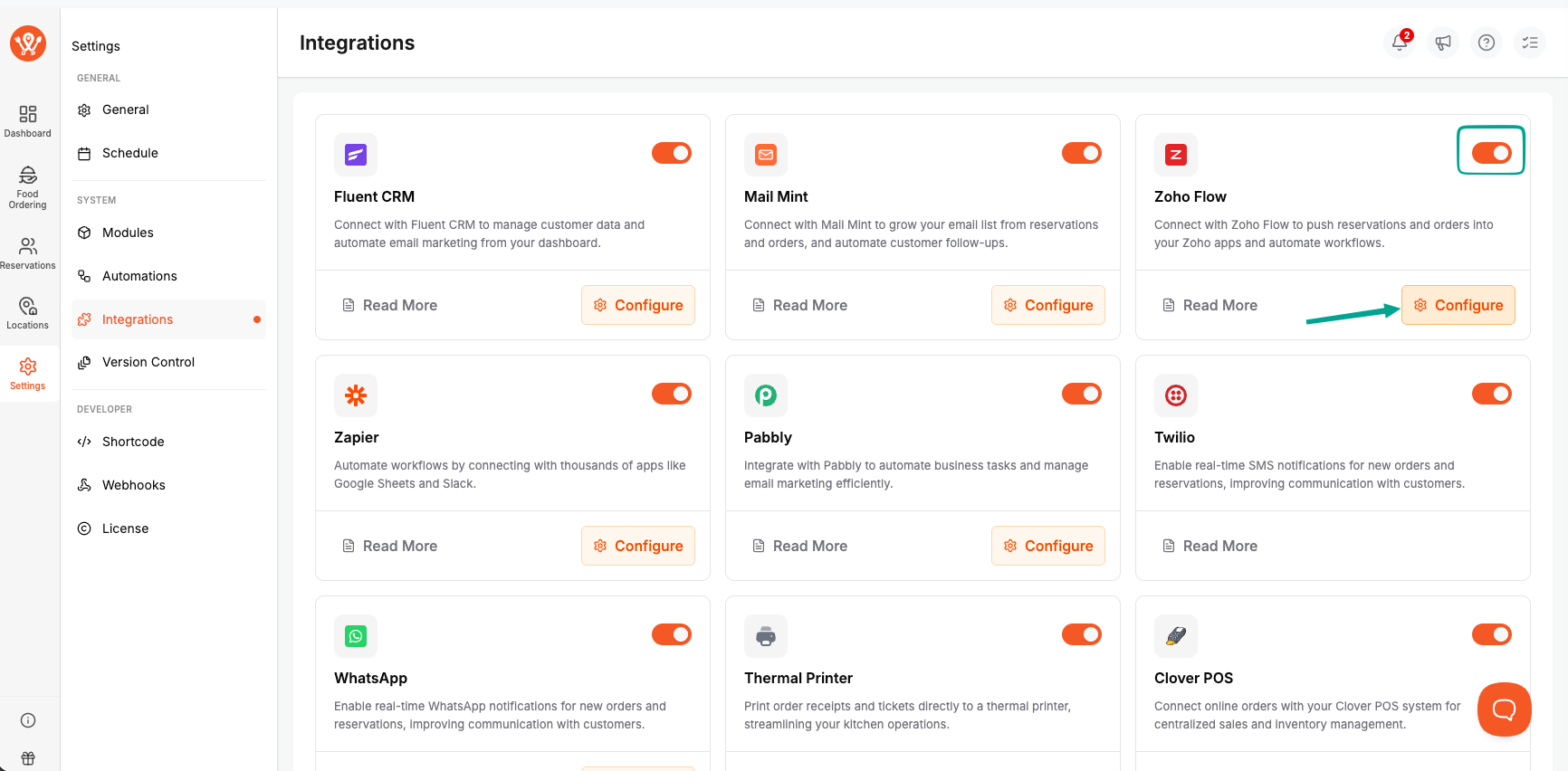
- Find the Zoho Flow card and toggle it On.
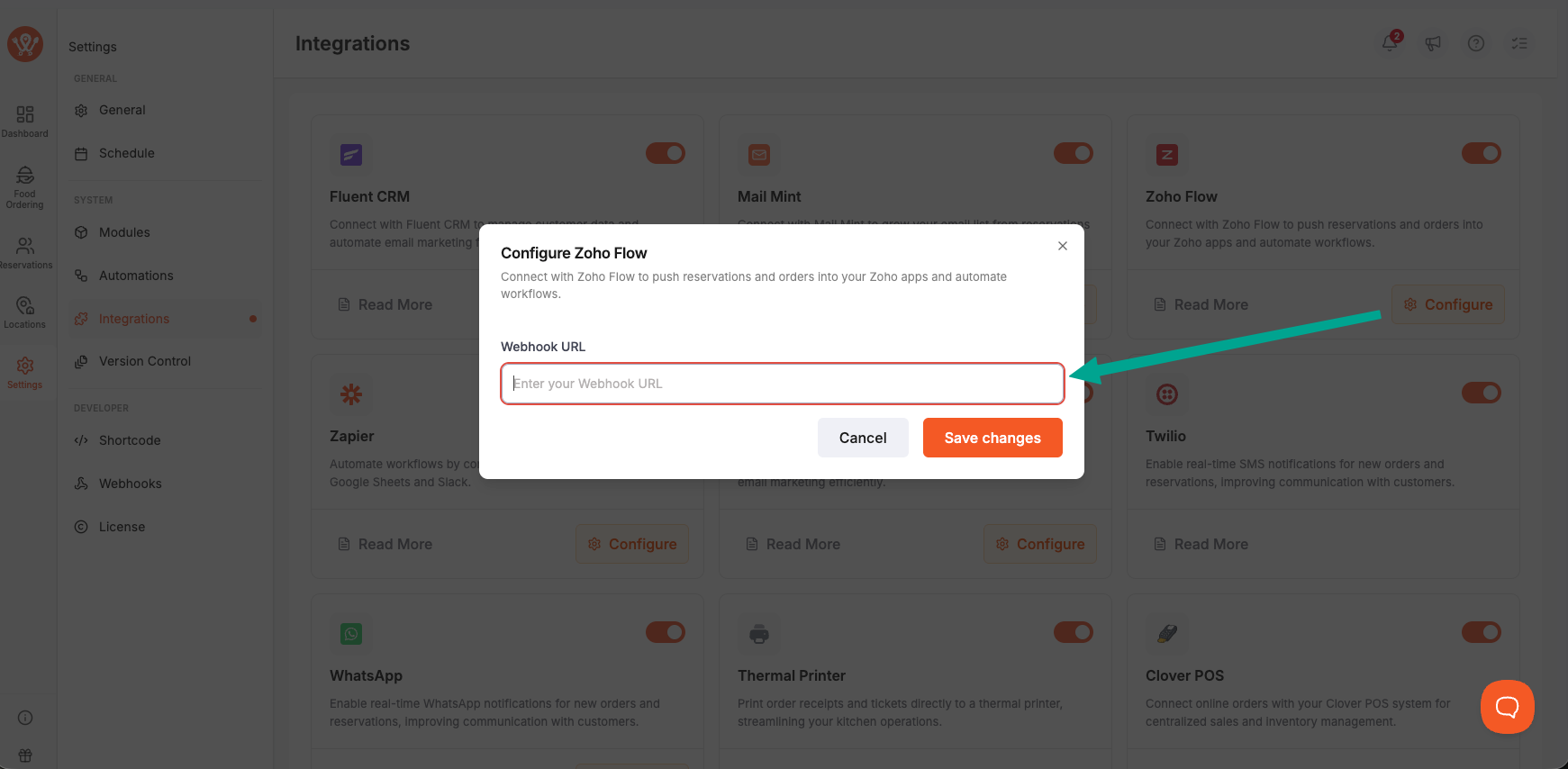
- Click Configure on the Zoho Flow card.
- Paste your Zoho Flow webhook URL into the Webhook URL field.
- Click Save.
Step 3: Understand the Data Sent #
When the integration is on, WP Cafe sends a JSON payload on these events:
- Reservation created —
name,email,phone. - WooCommerce order placed —
name,email,phone. - Restaurant onboarding —
name,email,phone,address.
In Zoho Flow you map these fields to your destination app (for example, the Leads or Contacts module in Zoho CRM).
Step 4: Test the Connection #
Confirm data flows end to end before going live.
- Create a test reservation (or place a test order) on your site.
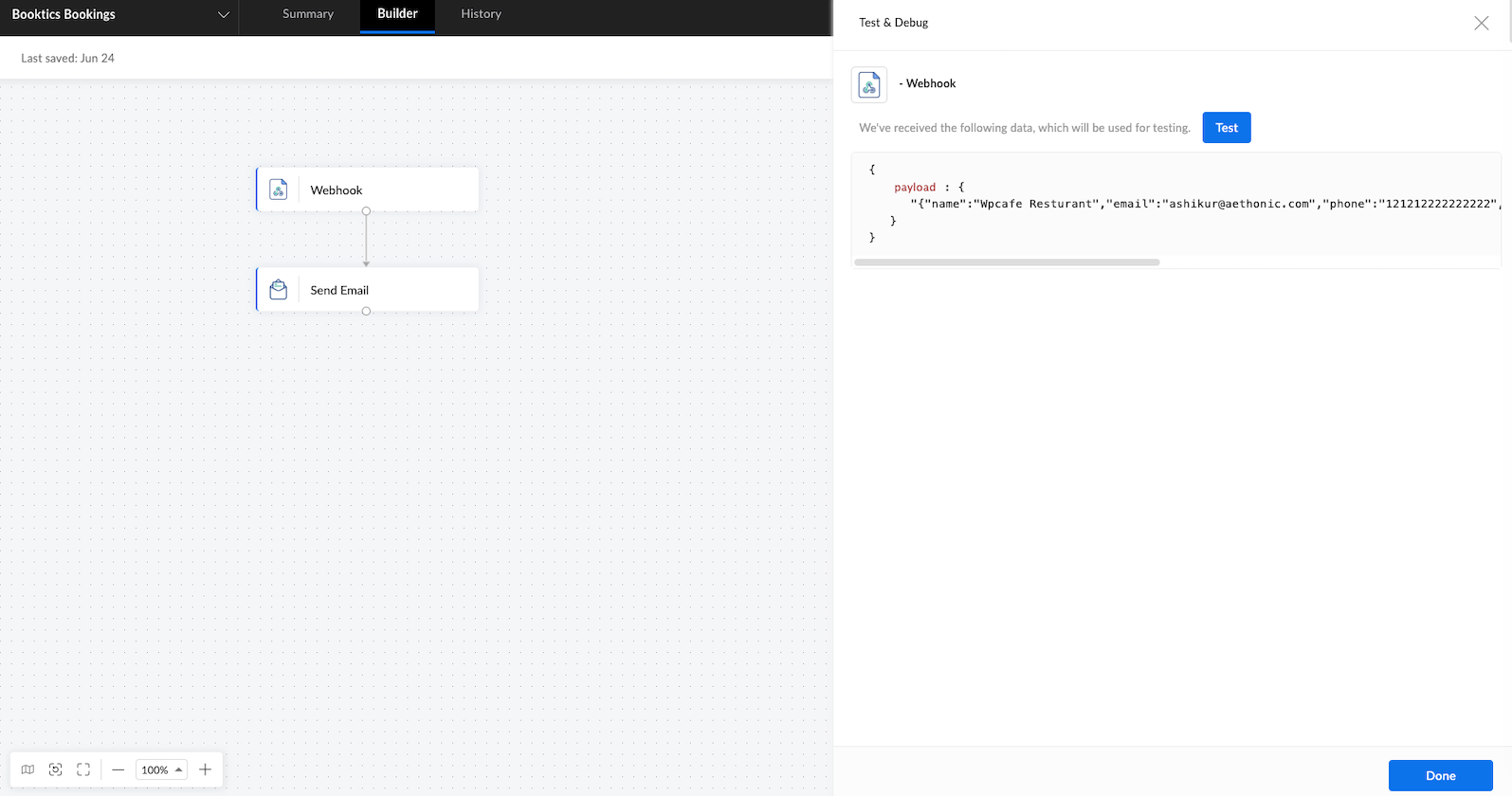
- Return to your open flow in Zoho Flow and confirm the webhook received the payload.
- Map the fields, add your Zoho action (e.g. Create Lead), and Switch On / publish the flow.
- Check your destination Zoho app for the new record.
| Note: If no data arrives, recheck that the Zoho Flow card is toggled On in WP Cafe and that the webhook URL was saved exactly as copied. |
Frequently Asked Questions (FAQ) #
| Q: Which WP Cafe actions trigger data being sent to Zoho Flow? Three events: a new reservation, a placed WooCommerce order, and restaurant onboarding. Reservation and order events send name, email, and phone; onboarding also includes address. |
| Q: Can I create Contacts instead of Leads in Zoho CRM? Yes. WP Cafe only delivers the raw data to your webhook — the destination is decided inside Zoho Flow. Change the action step in your flow to create a Contact, add a Sheet row, or any other Zoho action. |
| Q: What happens if I toggle Zoho Flow off? Data transmission stops immediately. WP Cafe checks the integration status before every send, so no reservations or orders are forwarded while it’s off, even if the webhook URL is still saved. |
Conclusion #
Once connected, every WP Cafe reservation and order is automatically pushed into your Zoho apps through Zoho Flow — no code, just one webhook URL.


