
Skip to content
Themewinter Logo
  • Home
  • About
  • Our Products
    • Eventin
    • WPCafe
    • WP Timetics
    • Poptics New
    • Booktics New
  • Blog
  • Deals
  • Login
Popular Search ticketqr codeemailtranslatelocation

Aisentic

  • Gettings Started
    • How to Manage Eventin Events Using AISentic’s AI Chatbot
    • How to Connect Your WordPress Plugins with AISentic
    • Getting Started with Aisentic: Your AI Assistant for WordPress

Authorsy

  • Introduction
  • Getting Started
    • Introduction
    • Plugin installation
    • License
  • Author Box
    • Add New Author
    • Author Settings
  • Voting
    • Voting
  • Shortcodes
    • ShortCode
  • Translation
    • Translation with Loco Translate

Delivery Module(Pro)

  • General
  • Add Food Store’s Location on Google Map(Pro)
  • Google autocomplete address in the checkout(Pro)
  • Minimum order amount to place order(Pro)

Eventin

  • Introduction of Eventin
  • Gettings Started
    • Introduction of Eventin
    • How to install Eventin Plugin
    • How to Upgrade Eventin Free to Pro Version
    • How to Activate Eventin License
    • Quick Start Guide
  • General Settings
    • General Settings for Eventin
    • How to Change Event & Speaker Slug
    • How to Create a Webhook for Events (Pro)
    • How to Use Embeddable Scripts in Events(Pro)
    • How to Manage Role-Based Access in Eventin
    • Getting support
  • Events
    • How to Create Event in Eventin
    • How to work global stock
    • How to Use the Waitlist Feature in Eventin
    • How to Create Event Categories and Tags
    • How to Assign Categories and Tags to Events
    • How to Create Event Ticket Variations
    • How to Create Recurring Event in Eventin
    • How to Check Event Report
    • How to Customize the Eventin Event Page with Elementor
    • How to Use WooCommerce Coupon for Events
    • How to insert Event Location in Eventin
    • How to Submit Events from the Front End in Eventin
    • How to Create a Hybrid Event in Eventin
  • Event Attendees
    • How to Enable Event Attendee Registration
    • How to Add Attendee Extra Fields
    • How to Generate and Scan QR code(Pro)
    • How to Purchase Tickets on Eventin
    • How to Set a Countdown Timer for Ticket Purchases in Eventin
    • How to Send Event Certificates
    • How to Manage Attendees in Eventin
    • How to Manage Booking of Events
    • How to Add Attendees Manually (Pro)
    • How to View Event Bookings on the Frontend
  • Event Imports
    • How to import event from The Events Calendar to Eventin
    • How to import event from facebook in Eventin
    • How to import events in Eventin from Eventbrite?
  • Email Settings
    • How to Configure Confirmation Email for Event
    • How to Configure Reminder Email for Event
    • How to Configure RSVP Email
    • Email Automation Workflow Builder
  • Speakers and Organizers
    • Introduction of Eventin Speaker & Organizer
    • How to Create Eventin Speaker
    • How to Create Eventin Organizer
    • How to assign speakers on schedules
    • How to assign a speaker/organizer on events
  • Schedules
    • Introduction of Eventin Schedules
    • How to Create Eventin Schedule
    • How to Assign Schedule on Events
  • Payment Type
    • How to Configure FluentCart with Eventin
    • Which payment methods are supported by Eventin?
    • How to Configure the WooCommerce in Eventin
    • How to Configure the Stripe Payment Gateway in Eventin (Pro)
    • How to Configure the PayPal Payment Gateway in Eventin
    • How to Configure the Local Payment in Eventin
    • How to Configure SureCart in Eventin
  • Shortcodes & Widgets
    • Available Shortcodes & Widgets in Eventin
    • How to Use Eventin Shortcodes
    • Elementor Widgets in Eventin
    • Event Calendar View In Eventin
  • RSVP Events (Pro)
    • What is RSVP Event
    • How to Create RSVP in Eventin
    • RSVP Attendee Report
    • How to send RSVP invitations
  • Visual Seat Map
    • How to Create Event with Visual Seat Map in Eventin
  • Integration
    • How to integrate Zoho CRM with Eventin
    • How to integration Funnelkit (autonami ) with Eventin
    • How to integrate Mail Mint with Eventin
    • How to Integrate Tutor LMS with Eventin
    • How to Integrate Eventin with Bit Integrations
    • How to Integrate Eventin with Bit Flows
    • How to Integrate Eventin with OttoKit (formerly SureTriggers) to Automate Event Workflows
    • How to Integrate WowRevenue with Eventin
    • How to Integrate Oxyzen Builder with Eventin(Pro)
    • How to Integrate Bricks Builder with Eventin(Pro)
    • How to Integrate DIVI Builder with Eventin
    • How to Integrate FluentCRM with Eventin (pro)
    • How to Integrate Calendar with Eventin (Google, Apple etc)
    • How to Integrate Pabbly with Eventin
    • How to Integrate Twilio SMS Remindar with Eventin
    • How to Integrate Zapier with Eventin
    • How to Integrate BuddyBoss with Eventin(Pro)
    • How to Integrate Zoom Module with Eventin
    • How to Integrate Google Meet with Eventin (Pro)
    • How to Integrate Artificial Intelligence (AI) with Eventin (Pro)
    • How to Integrate Dokan with Eventin for Multivendor Events( Pro)
    • How to Integrate SEO Plugin with Eventin
    • Automate Eventin Bookings with Make.com Webhooks
  • Templates
    • How to Override Email Template
    • How to Change Event Templates
    • How to Change Speaker Templates
    • How to Change Ticket Templates
    • How to Override Event Template
    • How to Override Speaker Template
    • How to Override Archive Page
  • Eventin MCP
    • How to use Eventin’s MCP to manage your WordPress events through Claude, Codex, and other AI assistants
  • Template Builder
    • How to Create Custom Event Landing Pages in Eventin (Pro)
    • How to Create Event Ticket Templates in Eventin (Pro)
    • How to Create Event Certificate Templates in Eventin (Pro)
  • Translations
    • Which languages are supported in Eventin?
    • Which translation plugins are supported in Eventin?
  • Rollback V4 to V3
    • Rollback V4 to V3
  • Troubleshooting
    • Admin Email Showing in Public Source Code
    • Ticket Email Sent from WordPress
    • ACF Field Support
    • How to Fix 404 issue on Event Page

General

  • How to Cancel Your Subscription

Optiontics

  • How to use Image Swatch Field in Optiontics
  • How to use in Button Group Field in Optiontics
  • How to use Checkbox Input in Optiontics
  • How to use Dropdown Field in Optiontics
  • How to use Radio Field in Optiontics
  • How to use File Upload Field in Optiontics
  • How to use Switch Product Addon using Optiontics
  • How to Add ShortCode Product Option Using Optiontics
  • How to use Range Slider Block in Optiontics
  • How to Add Font Picker Product Option Using Optiontics
  • How to Use Advanced Date and Time Picker using Optiontics
  • What is Optiontics?
  • How to Install Optiontics?
  • How to Create Product Options?

WPCafe

  • Introduction of WPCafe
  • Troubleshooting
    • Slug Change
  • Getting Started
    • How to install the WPCafe Plugin
    • How to Upgrade WPCafe Free to Pro Version
    • How to Activate WPCafe License
    • Quick Start Guide
    • Plugin Uninstallation
  • Email Settings
    • How to Automate Reservation Emails in WPCafe
  • Product Addons
    • Product Addons (Pro)
  • Translation
    • How to Translate WPCafe
  • Rollback V2 to V3
    • How to Roll Back to an Older Version of WP Cafe
  • General settings
    • How to Manage Global Schedule Settings
    • General Settings for Date and Time
    • Get Support
    • Theme Compatibility
    • User Roles and Permissions
    • How to use shortocde on WPCafe
    • WpCafe Elementor Widgets
  • Food Ordering
    • Product Nutritional and Allergen Info in WP Cafe
    • How to Use Product Label in WP Cafe
    • How to Manage Restaurant from Frontend or WordPress Site Panel – WP Cafe
    • How to Set Up the One Page Checkout in WPCafe
    • How to Add & Manage Food Categories and Tags
    • How to Add & Manage Brands
    • How to Add and Manage Food Menu in WPCafe
    • How to Manage Restaurant Locations in WPCafe
    • How to Show Food Menu by Location in WPCafe
    • How to Generate QR Codes for Food Menu
    • How to Enable Mini Cart in WPCafe
    • How to Set Up Tipping Using WPCafe
    • How to Add Discounts Using WPCafe
    • How to Enbale Sound Notification in WPCafe
    • How to Use Time Based Products in WPCafe
    • How to Setup Pickup for Food Ordering in WPCafe
    • How to Setup Delivery for Food Ordering in WPCafe
    • Searching Products with Pickup/Delivery(Pro)
    • How to Setup Recipt Layout in WPCafe
  • Reservation
    • How to Receive Deposit Payment in Reservation in WP Cafe
    • How to Configure Reservation Settings in WPCafe
    • How to Customize the Reservation Form in WPCafe
    • How to Display the Reservation Form
    • Schedule
    • Email Settings
    • Reservation with Food Ordering (PRO)
    • How to Customize Table Layout in Reservation
  • Integrations
    • How to Integrate Fluent CRM with WPCafe
    • How to Integrate Zapier in WPcafe
    • How to Integrate Pabbly with WPCafe
    • How to Integrate Shipday Plugin with WPCafe
    • How to Integration Twilio SMS with WPCafe
    • How to Integrate Clover POS with WPCafe
    • Loyalty Program Points & Rewards for Food Orders
    • How to Integrate Multivendor Addon in WPCafe
    • How to Use WPCafe Elements in Oxygen Builder
  • Style Settings
    • Style Settings
  • Home
  • Docs
  • Optiontics
  • How to use Checkbox Input in Optiontics
View Categories

How to use Checkbox Input in Optiontics

Overview #

The Checkbox field lets customers select multiple options from a list on a WooCommerce product. Each checked choice adds to — or subtracts from — the price, can show an image, and can carry a per-choice quantity. It’s the go-to field for add-ons, extras, and bundles.

Use Cases: #

  • Build Your Own” Gift Baskets / Boxes: Let users check off multiple treats to include (e.g., [x] Dark Chocolate, [x] Roasted Almonds, [ ] Vanilla Caramels).
  • Hardware / PC Upgrades: Upgrading a device with multiple accessories (e.g., [x] Include Wireless Mouse, [x] Include Laptop Sleeve, [ ] Include Extra Charger).
  • Pizza / Food Toppings: Selecting multiple ingredients for a custom dish.

Step 1: Add the Checkbox Field #

  1. Go to Optiontics → Add-ons and edit or create an add-on form.
  2. Drag the Checkbox block from the toolbox onto the canvas.
  3. Select the block to open its settings on the right.
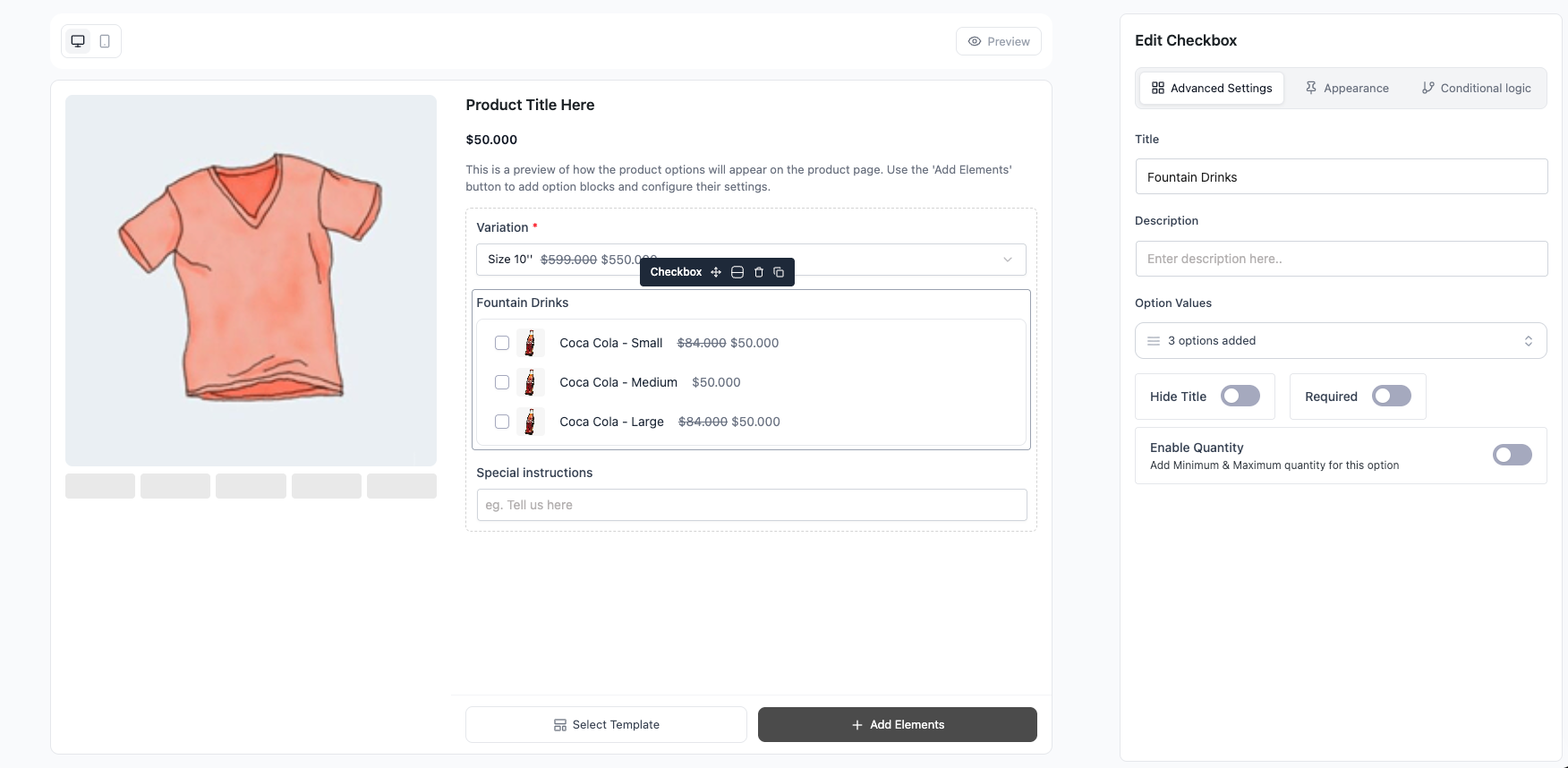
Add-on builder canvas with the Checkbox block dropped in and selected

Step 2: Add and Price Your Choices #

Add one choice per option customers can check. For each choice set:

  1. Label — text shown next to the box (e.g. “Extra Cheese”).
  2. Price — amount added when checked. Enter a negative value to subtract.
  3. Price type — Fixed (flat amount) or Percentage of the product base price.
  4. Default — mark any choices that should start checked.
  5. Image (optional) — a thumbnail shown with the choice.
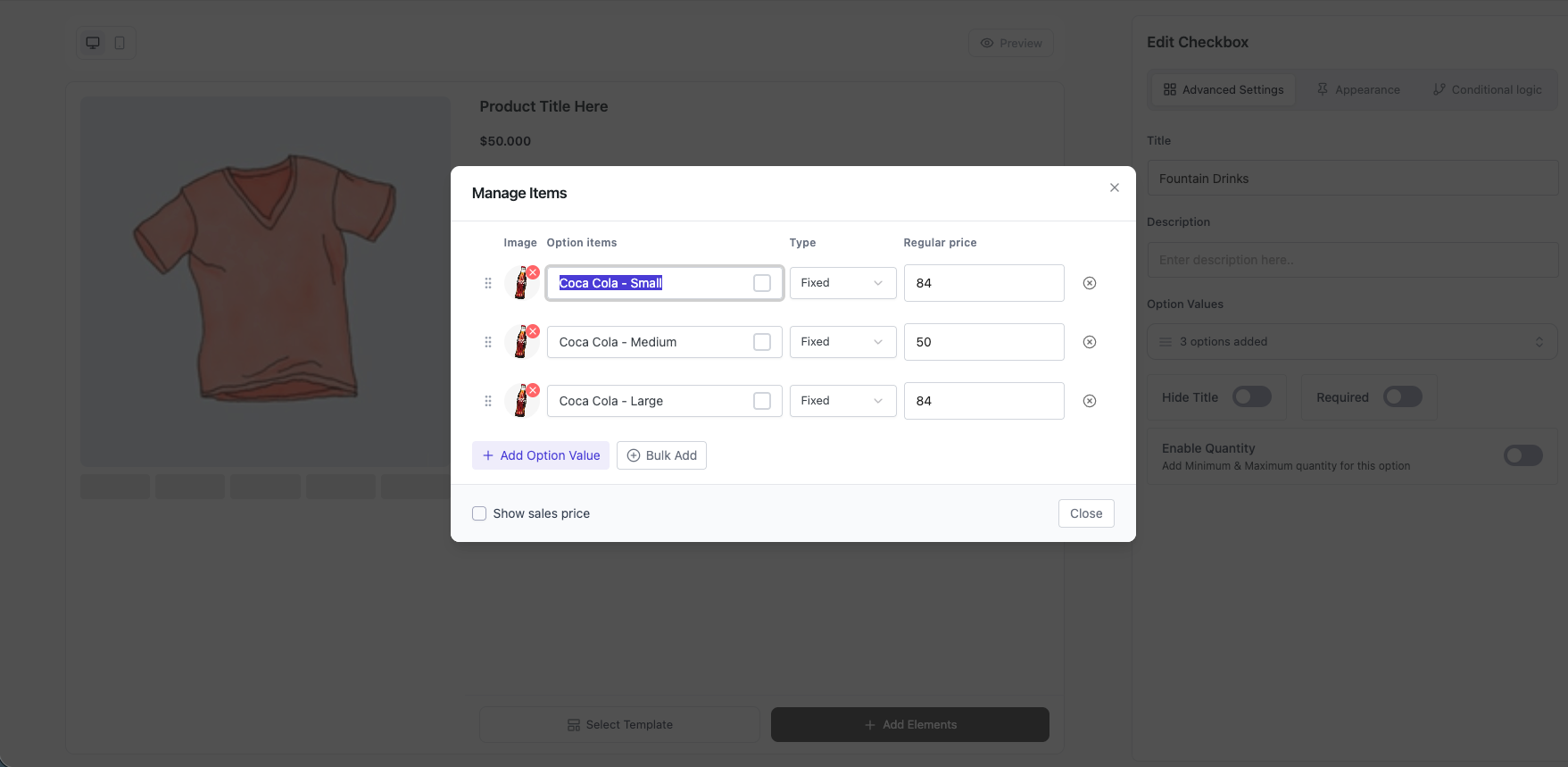
Optiontics Checkbox options

Step 3: Adjust Field Settings #

  • Title / Hide title / Description — control the heading and helper text.
  • Required — at least one box must be checked before add to cart.
  • Columns — lay choices out in 1–N columns.
  • Quantity — enable a per-choice quantity input and set Min and Max.
  • Show sale price — display the discounted choice price when one is set.

Step 4: Save and Preview #

  1. Click Save.
  2. Assign the add-on to a product (or category).
  3. Open the product page — each checked box updates the total live and carries through to cart and checkout.

Frequently Asked Questions (FAQ) #

Q1: Can customers pick more than one option? Yes — that’s the point. Checkbox is multi-select, so customers can check as many choices as you offer.
Q2: Can I charge per quantity of an add-on? Yes. Enable Quantity on the field and set Min and Max — the checked choice price is multiplied by the quantity the customer enters.
Q3: How do I force at least one selection? Enable Required on the field. The customer can’t add to cart until at least one box is checked.

Conclusion #

Use the Checkbox field whenever customers should choose more than one option. With per-choice pricing, optional images, column layout, and quantity, it’s the go-to field for extras and add-on bundles.

What are your Feelings

Share This Article :

  • Facebook
  • X
  • LinkedIn
  • Pinterest
Updated on June 7, 2026
How to use in Button Group Field in OptionticsHow to use Dropdown Field in Optiontics
Table of Contents
  • Overview
  • Use Cases:
    • Step 1: Add the Checkbox Field
    • Step 2: Add and Price Your Choices
    • Step 3: Adjust Field Settings
    • Step 4: Save and Preview
  • Frequently Asked Questions (FAQ)
    • Conclusion
Copyright © 2013-2026 ThemeWinter. – A Brand of Arraytics.