
Overview #
Deposit payment lets your guest pay only a small part of the booking now and pay the rest at the restaurant. This way they can book without paying the full amount, and fewer people skip their booking. WP Cafe gets the deposit amount from the free Deposits & Partial Payments for WooCommerce – Deposet plugin and shows it on the reservation.
Requirements #
You need the free Deposits & Partial Payments for WooCommerce – Deposet plugin installed and activated. You can install and activate it from the Settings → Modules → Addons tab. The guest also needs to pay online with WooCommerce, because the deposit is only taken for online payment, not when they pay at the restaurant.
Step 1: Enable the Deposet Plugin #
Turn on the Deposet addon so WP Cafe can read its deposit settings.
- Go to WP Cafe → Settings → Modules.
- Open the Addons tab.
- Find Deposits & Partial Payments for WooCommerce – Deposet and enable it.
Once it is active, the deposit option becomes available inside your reservation settings.
Step 2: Turn On Partial Payment in Reservation Settings #
The deposit option is off by default, so switch it on to start collecting deposits.
- Go to WP Cafe → Settings → Reservation.
- Find the Collect a partial payment (deposit) at booking checkbox.
- Check the box to enable it.
| Note: The checkbox stays disabled with a tooltip until the Deposet plugin is active. Enable Deposet first if you cannot turn it on. |
Step 3: Configure the Deposit Amount in Deposet #
Set how big the deposit is from the Deposet plugin’s own settings. WP Cafe uses these values directly.
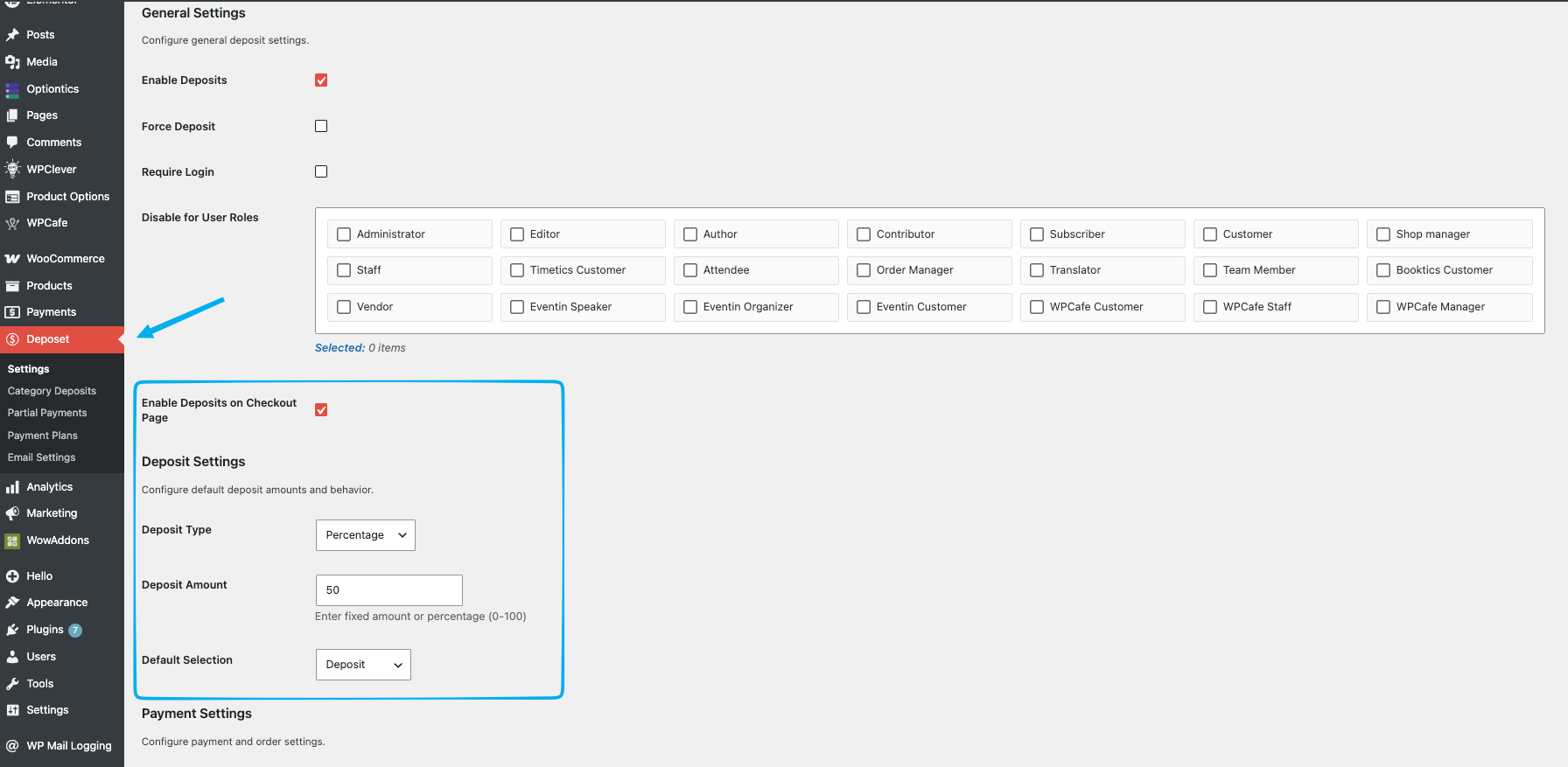
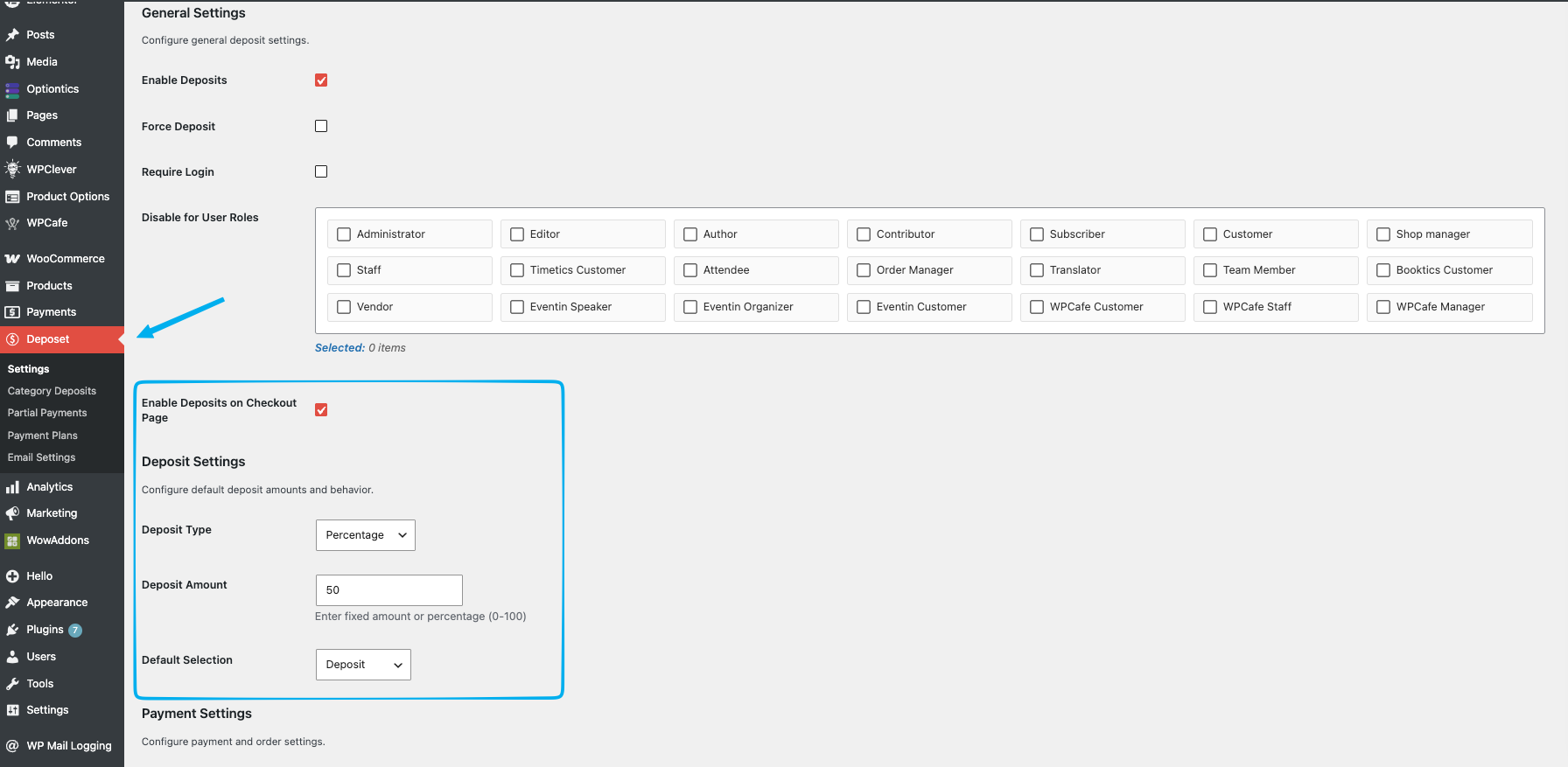
- Open the Deposet plugin settings and go to Deposit Settings.
- Set Deposit Type to Percentage (or Fixed).
- Set Deposit Amount — enter a fixed amount or a percentage between 0 and 100. For example,
50with Percentage means a 50% deposit. - Set Default Selection to Deposit.
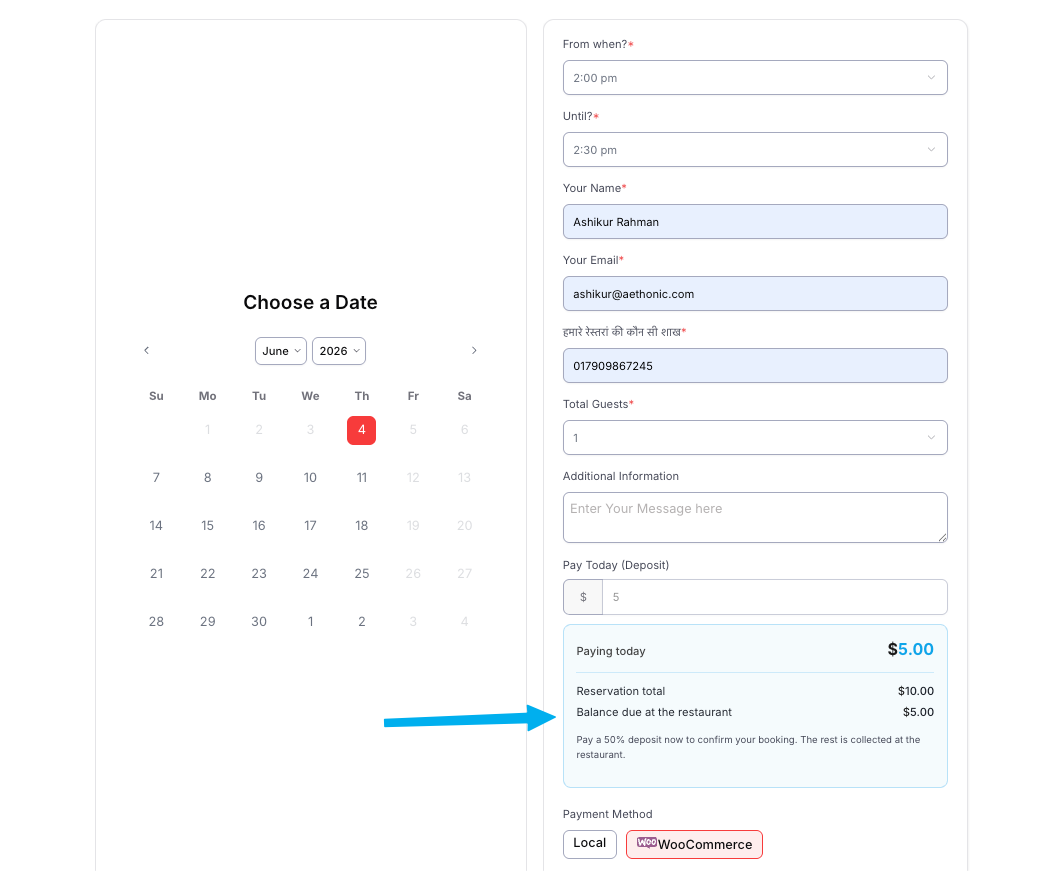
For a $10 booking with a 50% deposit, your guest pays $5 now and $5 at the restaurant.
Step 4: See the Deposit on the Reservation #
After setup, the deposit appears automatically when a guest books with online payment.
- Open the reservation form on the front end.
- Select WooCommerce as the payment method.
- The form shows what to pay today, the full reservation total, and the balance due at the restaurant.
At checkout and on the order confirmation page, your guest sees the same split, so the part-payment is always clear.
Frequently Asked Questions (FAQ) #
| Q1: My guest selected Local (pay at venue) — why is there no deposit? A1: The deposit only applies to online (WooCommerce) payments. A local payment is always the full booking amount, since there is no online charge to split. |
| Q2: I set a fixed deposit larger than the booking total. What gets charged? A2: The deposit is capped at the booking total, so the guest simply pays the full amount and nothing is left as a balance. |
| Q3: I disabled the Deposet plugin after a guest already booked with a deposit. Is that booking affected? A3: No. The deposit and balance are saved on that order, so it still shows and charges correctly. New reservations will go back to charging the full amount until Deposet is active again. |
Conclusion #
With the Deposet plugin enabled and the partial payment option turned on, WP Cafe collects a deposit at booking and shows your guests exactly what they pay now and what is due at the restaurant.


