
Overview #
WPCafe connects with FlowMattic through a simple webhook. Once linked, every new reservation, WooCommerce order, and restaurant onboarding event is pushed to FlowMattic in real time, so you can trigger automated workflows across 760+ connected apps without writing any code.
Restaurants often need bookings and orders to flow into email tools, spreadsheets, or chat apps. FlowMattic handles that routing for you, and this guide shows how to wire it to WPCafe.
Requirements #
- An active WPCafe installation with WooCommerce.
- The FlowMattic plugin installed and activated on your WordPress site (a paid plugin with a 14-day trial).
- Administrator access to manage plugin settings in WordPress.
Step 1: Create a Workflow in FlowMattic #
Start on the FlowMattic side to generate the webhook that will receive WPCafe data.
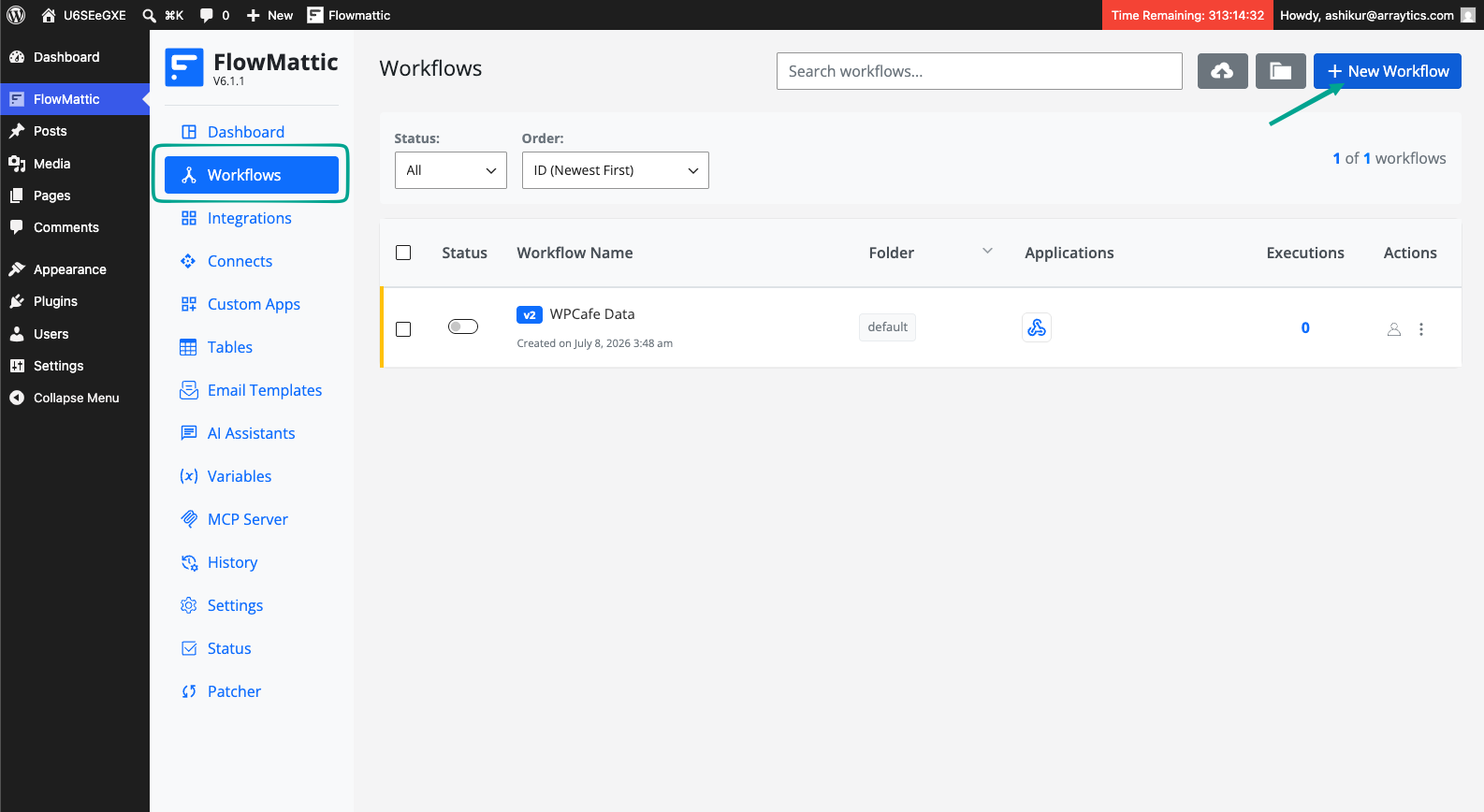
- In your WordPress dashboard, go to FlowMattic → Workflows.
- Click Create New Workflow and give it a clear name, for example “WPCafe Reservations”.
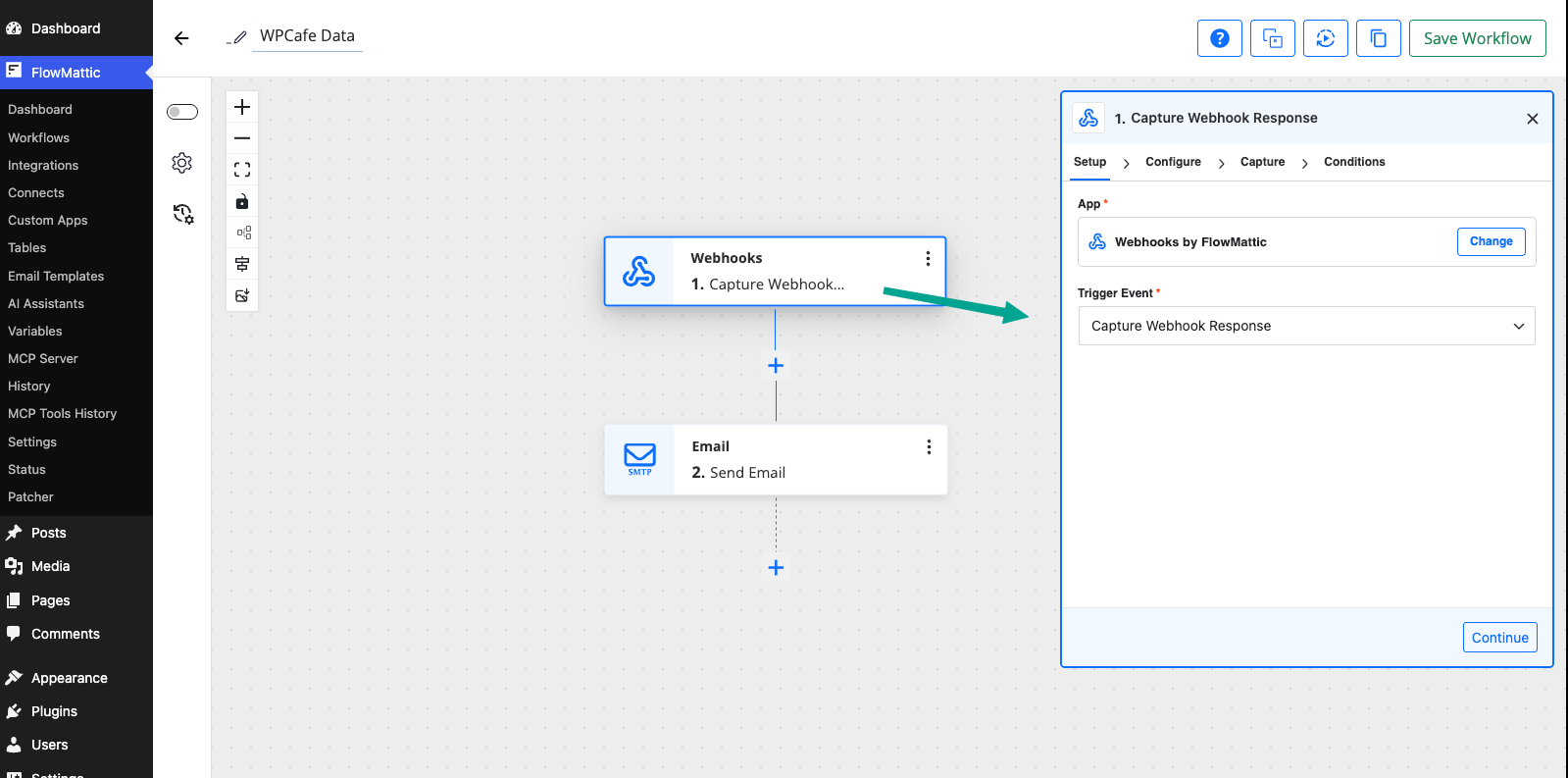
- On the trigger step, search for and select the Webhook app.
- Choose the Catch Webhook trigger event.
Step 2: Copy the Webhook URL #
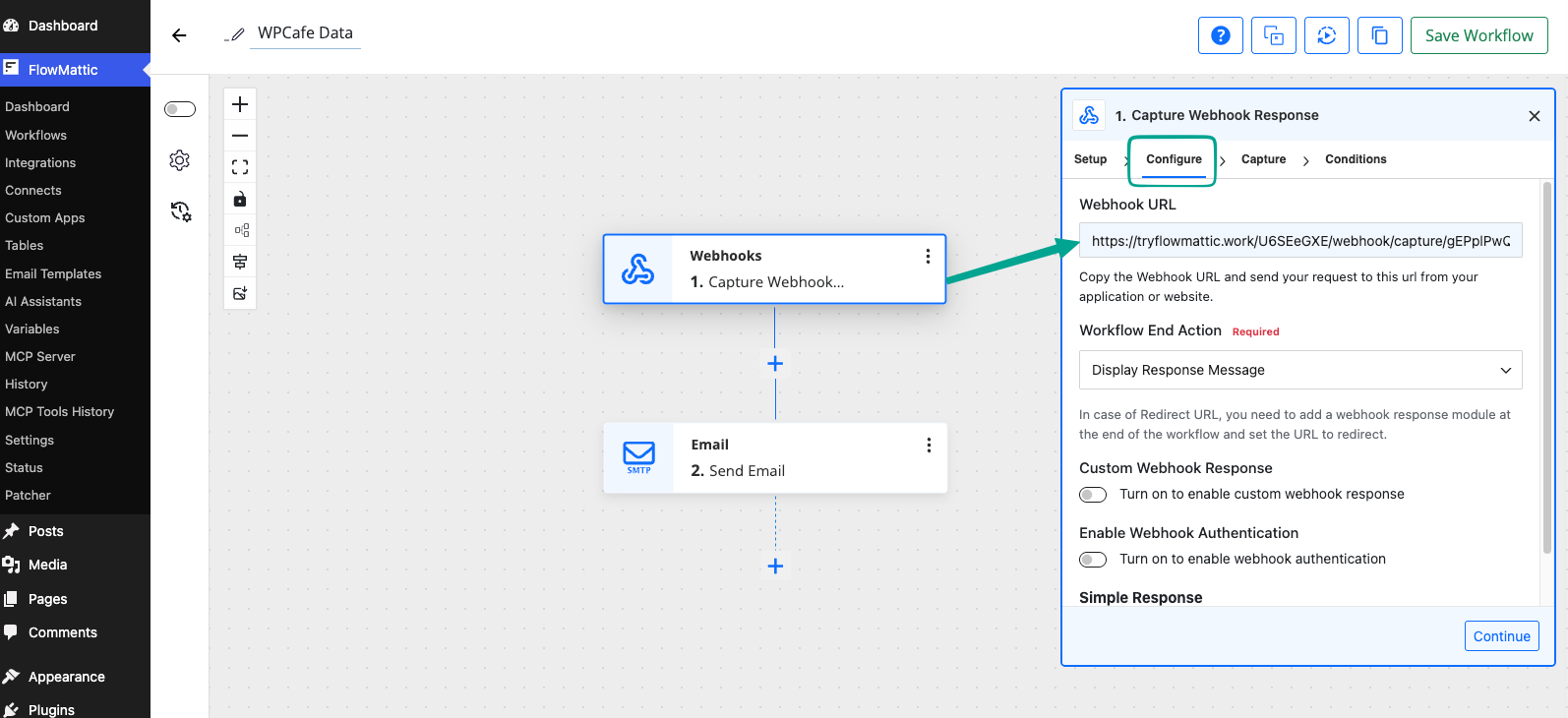
FlowMattic creates a unique address for this workflow. You will paste it into WPCafe next.
- FlowMattic generates a unique Webhook URL for this workflow.
- Click Copy to save the URL to your clipboard.
- Keep this workflow tab open. You will return to capture the test response after connecting WPCafe.
Step 3: Enable FlowMattic in WPCafe #
Turn the integration on and paste the webhook URL so WPCafe knows where to send data.
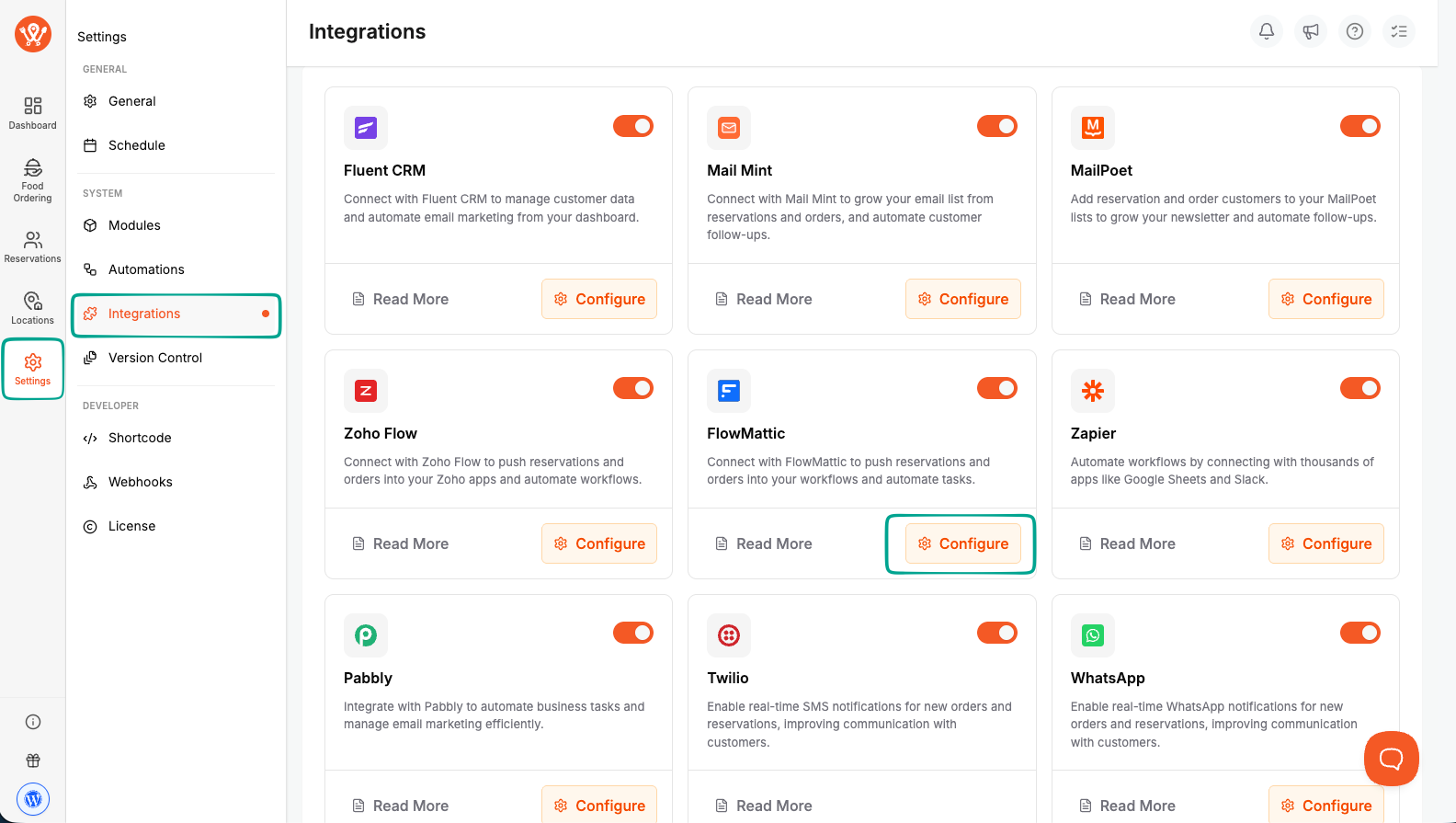
- In your WordPress dashboard, go to WP Cafe → Settings & Tools → Integrations.
- Find the FlowMattic card and turn the toggle On.
- Click Configure on the FlowMattic card.
- Paste the webhook URL you copied from FlowMattic into the Webhook URL field.
- Click Save.
Step 4: Capture the Response and Test #
Send a sample event so FlowMattic can read the fields and confirm the connection.
- Return to your FlowMattic workflow tab.
- Click Capture Response on the webhook trigger.
- In WPCafe, create a test reservation or place a test WooCommerce order to send sample data.
- FlowMattic receives the payload and displays the captured fields, confirming the connection works.
- Add your next action steps in FlowMattic (send an email, add a row to a sheet, notify a chat app) and turn the workflow On.
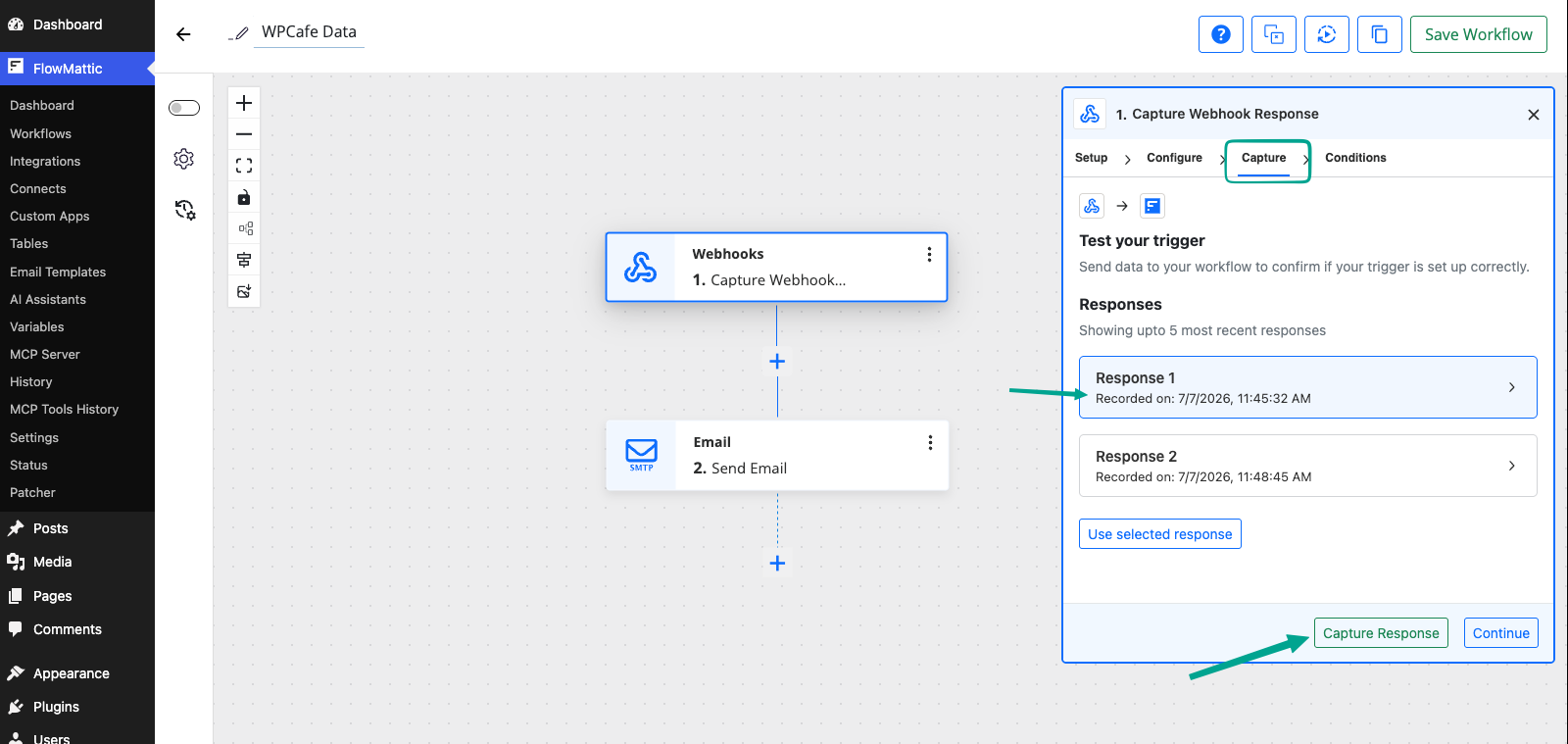
| Note: Capture Response must be active in FlowMattic at the moment you send the test reservation or order, otherwise no fields are recorded. |
What Data WPCafe Sends #
WPCafe posts data to your FlowMattic webhook on three events. Each payload includes a source field so you can branch your workflow based on the event type.
- Reservation created: sends the reservation details when a customer books a table.
- WooCommerce order placed: sends order details when a food order is checked out.
- Restaurant onboarding: sends restaurant setup data when settings are saved.
Frequently Asked Questions (FAQ) #
| Q1: Do I need the paid version of FlowMattic? Yes. FlowMattic is a paid automation plugin, though it offers a 14-day trial so you can test the WPCafe connection before purchasing. |
| Q2: Can I send reservations and orders to different workflows? The Webhook URL field accepts one workflow URL. To split events, read the source field inside a single FlowMattic workflow and route each event type to its own action path. |
| Q3: Nothing shows up in FlowMattic after saving. What should I check? Make sure the FlowMattic toggle is On in WPCafe, the webhook URL is pasted correctly and saved, and that Capture Response is active in FlowMattic when you send the test reservation or order. |
Conclusion #
Connecting FlowMattic with WPCafe turns every reservation and order into an automation trigger. With the webhook in place, you can route WPCafe data to any FlowMattic-connected app and keep your restaurant workflows running automatically.


