QR Code Food Menu Ordering for Restaurants (Best Practices + Setup Guide)


Table of Contents
Running a restaurant today is not just about good food. Customers expect quick service and a smooth ordering experience. But printed menus, long wait times, and busy staff can slow everything down.
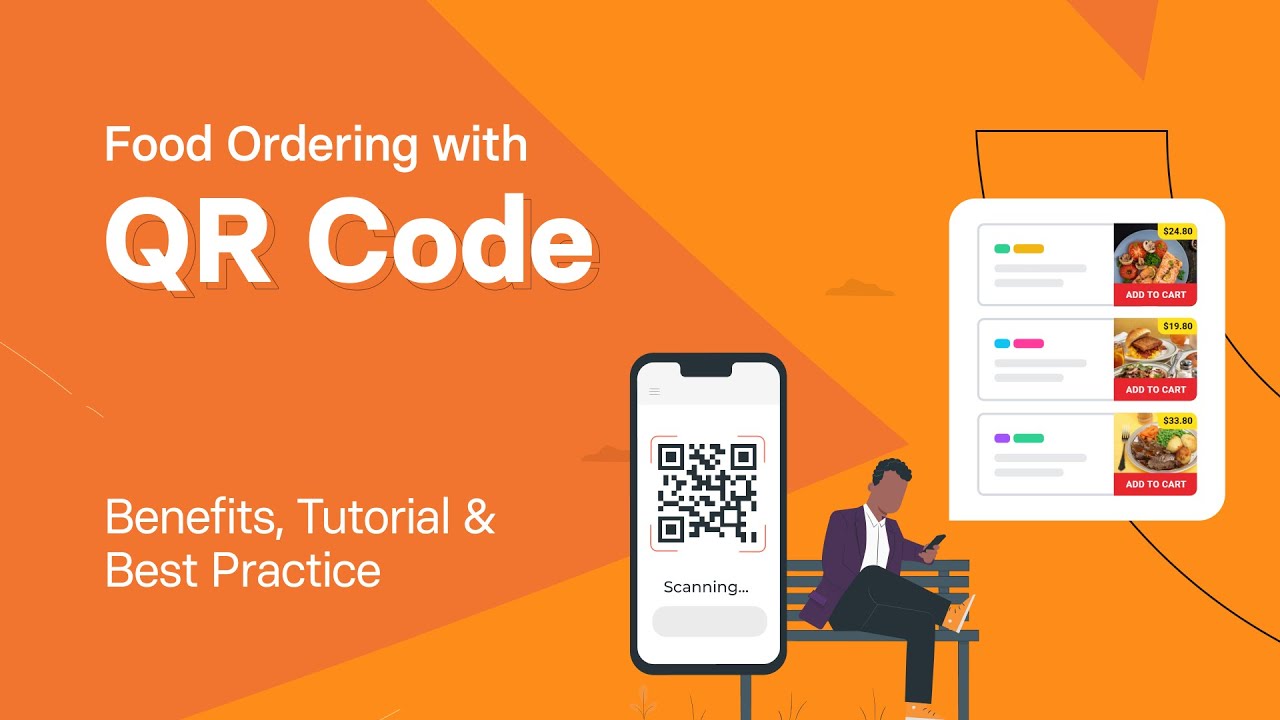
This is why many restaurants are switching to QR code menu ordering. Instead of waiting for a menu, customers simply scan a QR code on the table, view the menu on their phone, and place their order right away.
It makes ordering faster for customers and easier for restaurants to manage menus and orders.
In this guide, you will learn how QR code menu ordering works, why restaurants are adopting it, and how you can set up a QR code ordering system on your WordPress website using WPCafe.
Let’s get started.
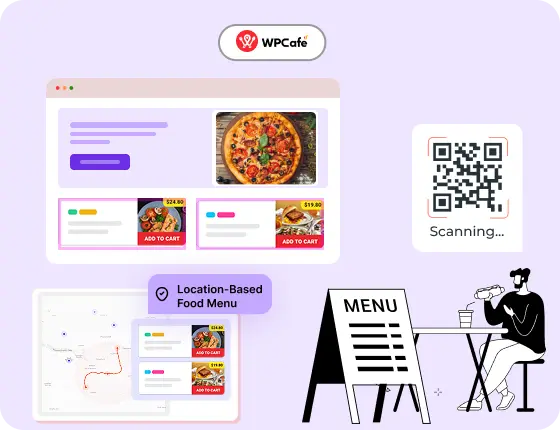
Start Your Restaurant Website in Minutes – Free with WPCafe
WPCafe helps you take food orders, manage reservations, and run your restaurant online, without extra tools.
- 🟣 34+ ready-to-use food menus
- 🟣 Easy table reservations
- 🟣 Accept online payments
- 🟣 Location-based menus & schedules
- 🟣 Multivendor support

What is the difference between QR code menus vs. QR code ordering
Many people think QR code menus and QR code ordering are the same. They are related, but they are not the same thing.
A QR code menu simply lets customers view your menu on their phone. When they scan the code, it opens a web page or a PDF that shows your food and drink items. This is a digital version of a printed menu. Customers still need to call a server or go to the counter to place their order.
A QR code food ordering system goes one step further. It lets customers order directly from their phones. After scanning the QR code, they can select items, add notes or modifiers, and submit the order without speaking to a staff member. Some systems also allow online payment.
The key difference is whether customers can order and pay through the system or just view the menu. If your goal is to improve speed and reduce contact, QR code restaurant ordering is the better option.
Here is a simple way to look at it:
| Setup type | What customers can do | Common use case |
| QR code menu only | View menu | Fine dining, cafés that prefer staff service |
| QR code menu + ordering | View menu and place order | Casual dining, busy restaurants |
| QR code menu + ordering + payment | Full self-service | Food courts, fast service, and limited staff |
How to set up QR code food ordering in WordPress: 4 simple steps
If you want to run a QR code ordering system, WordPress is a very practical option. It gives you full control over your restaurant website, menu, and orders.
Many restaurant plugins support QR menu ordering, but there is a common problem. Most of them require extra add-ons or separate extensions to enable QR code ordering, table management, or online ordering features. That means higher cost and a more complicated setup.
WPCafe makes this much easier. It provides a complete restaurant management solution where you can manage:
- food menu management
- online ordering
- pickup and delivery
- table reservations
- QR code menu ordering
Another big advantage is that WPCafe is fully compatible with WooCommerce. This gives you much more flexibility because WooCommerce powers millions of online stores worldwide. You can use its ordering system, payment options, and order management tools while running your restaurant website.
Below is a simple way to set up QR code food ordering on your WordPress restaurant website.
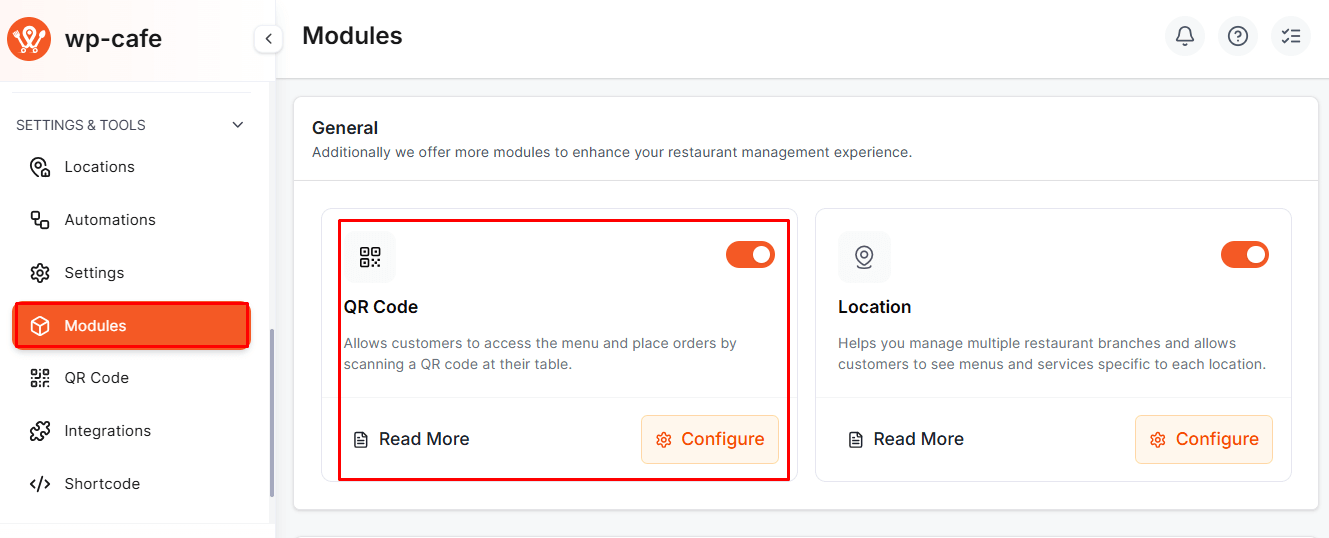
Step 1: Enable the QR code module
Before generating any QR code, the module must be active. Go to WPCafe > Settings & Tools > Modules. Find the QR Code module and switch it on. This enables QR menu features across your site.
Step 2: Create a new QR code
Once the module is enabled, go to WPCafe > QR Menu. Click the Create QR Code button.
Now enter two things:
- Table Name (or table ID)
- Page URL where your food menu is displayed
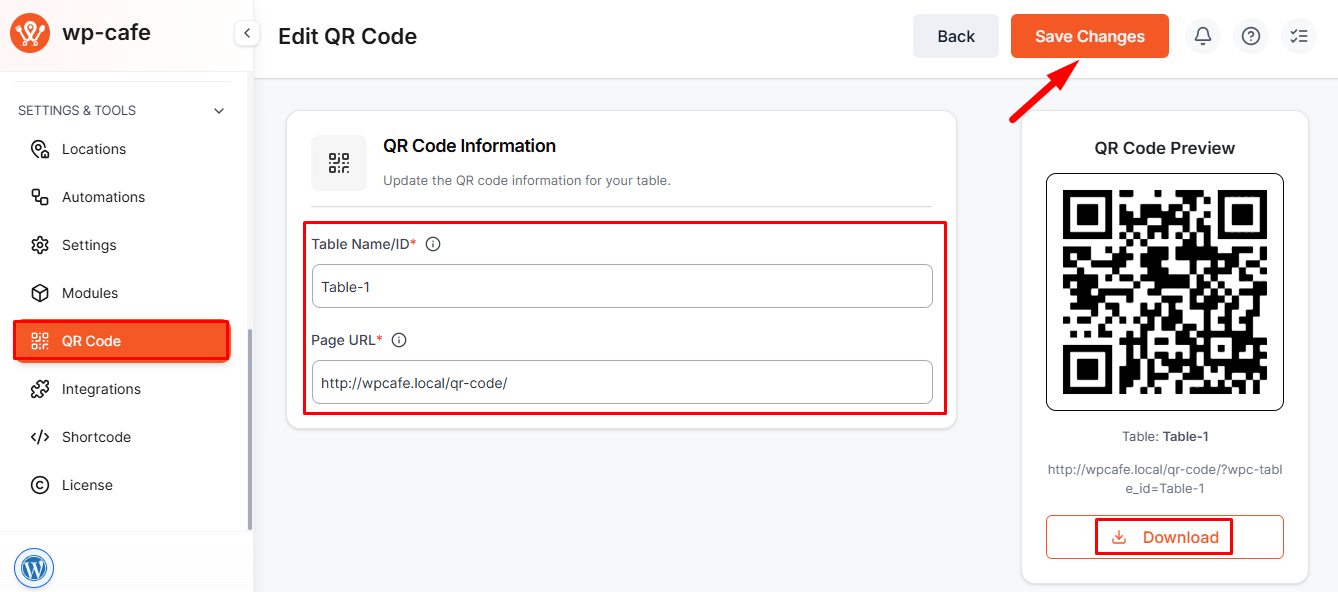
As soon as you add this information, the QR code is generated automatically in the sidebar.
Step 3: Download and manage QR codes
After creating a QR code, you can download it, print it, edit or delete it later.
All QR codes appear in a list under the QR Menu section. This makes it easy to manage multiple tables or menu pages from one place.
Step 4: Place QR Codes on Tables
Once downloaded, place the QR codes physically on your restaurant tables or counters.
When customers scan the code:
- They are redirected to the exact menu page you set
- The system knows which table the order comes from
- Orders stay organized for the staff
This setup supports smooth QR code menu ordering for restaurants and helps avoid confusion during busy hours.
📚 Related reading: Table Ordering vs. Online Ordering vs. QR Ordering, Which Should Restaurants Use in 2026
Why use WPCafe for QR code restaurant ordering
If you are using WordPress for your restaurant website, WPCafe is one of the easiest ways to set up a QR code menu for restaurants. It is designed for food businesses and works smoothly with WooCommerce.
Here are a few reasons why WPCafe is a good choice as an online food ordering system:
- Seamless integration with WordPress: WPCafe is built specifically for WordPress. You don’t need to deal with external platforms or complicated plugins. You can manage everything from your WordPress dashboard. If you already have a site, adding a QR code ordering system is simple.
- WooCommerce compatibility: Since WPCafe uses WooCommerce, you can connect it to your existing payment and order system. It supports online payments, tax settings, and order tracking. If you’re already using WooCommerce, there’s no need to change anything.
- Easy for non-tech users, scalable for larger restaurants: Whether you run a small café or a large restaurant with many tables, WPCafe supports multiple QR codes. You can add different menus for different areas or times of day. It also lets you manage modifiers, special requests, and delivery or pickup options.
- Design control with customization: You can match the menu design to your brand using WPCafe QR code customization features. Change colors, layout, or menu sections to reflect your restaurant’s style. This makes your menu more appealing and helps customers trust the ordering process.
6 Proven QR code menu design tips that increase orders
A QR code menu is not just about showing food items. Design plays a direct role in how easily customers decide and how much they order. These QR code menu design tips focus on clarity and ease of use, not decoration.
1. Use images carefully
Images can help, but only when used with purpose. Use images for your most popular or high-priced items, not every item. This keeps the menu fast and helps highlight your best dishes. Also, use high-quality images that are clear on mobile screens.
2. Apply simple price anchoring
Price placement affects decisions. Listing items in a clear order helps customers compare options faster. Avoid hiding prices or mixing formats. You can list a premium dish first, then show the popular one right after.
3. Highlight best sellers
Customers often look for safe choices. Marking best-selling or recommended items helps them decide faster. This is useful during peak hours when people want to order quickly through QR code restaurant ordering.
4. Make add-ons easy to choose
If you offer extras, like adding cheese or choosing spice level, make the options simple to select. Use checkboxes or dropdowns. The goal is to let customers customize their meals without slowing them down or making them restart their order.
5. Improve readability in low light
Many restaurants have dim lighting, especially in the evening. Make sure your menu is easy to read in these conditions. Use high-contrast colors, large font sizes, and avoid light gray text. Also, test your menu on a mobile device in different lighting conditions.
6. Keep the design consistent
Your digital menu should look like part of your restaurant, not a generic template. Use your logo, your colors, and fonts that match your main website or printed menu. WPCafe QR code customization lets you change the layout and style to match your brand.
📚 Related reading: Avoiding Order Mistakes: Best Practices for Managing High-Volume Orders with WPCafe
Conclusion
QR codes play a vital role in your restaurant management strategies. But success does not come from placing a code on a table and hoping for the best. What matters is how the whole system works together.
A proper QR code menu ordering for restaurant setup starts with clear planning. Restaurants need to understand the difference between a simple menu and complete ordering. They need to focus on mobile usability, clear structure, and fast-loading pages. Ignoring these basics leads to frustration and low adoption.
For WordPress-based restaurants, tools that fit into the existing website make management more effortless. WPCafe is one of the best WordPress restaurant management plugins available. It allows restaurants to manage menus, tables, and orders from one place. This reduces confusion and keeps operations simple.
FAQs
Do QR code menus work for fine dining restaurants?
Yes, they can. Many fine dining restaurants use QR codes as a digital menu only. This allows customers to browse at their own pace while staff still take orders in person. The key is clean design and clear presentation.
How much does it cost to implement QR code ordering with WordPress?
The cost depends on your tools. Using WordPress with WPCafe and WooCommerce, you can start with free versions. For advanced features, WPCafe Pro offers more control and styling options at $89 (for 2 sites).
What if customers don’t have smartphones?
Not all customers use smartphones, and in that case, restaurants should always keep a small number of printed menus available. Staff should also be ready to assist when needed. QR codes should support service, not replace it entirely.
Can I use QR codes for takeout and delivery orders?
Yes. QR codes can link to menus that support takeout and delivery. This works well for counters, flyers, or packaging. The same QR code restaurant ordering system can handle both dine-in and takeout with proper setup.
How do I handle menu changes and updates quickly?
With WPCafe, you can update menu items from your WordPress dashboard. Changes appear right away. This helps avoid confusion about pricing or availability.
What’s the difference between free and paid QR code ordering solutions?
Free versions usually offer a basic QR code menu for restaurants. Paid tools include more features, such as table-based tracking, design customization, and better reporting.