Event Check-In Software: How to Verify Tickets and Track Attendees


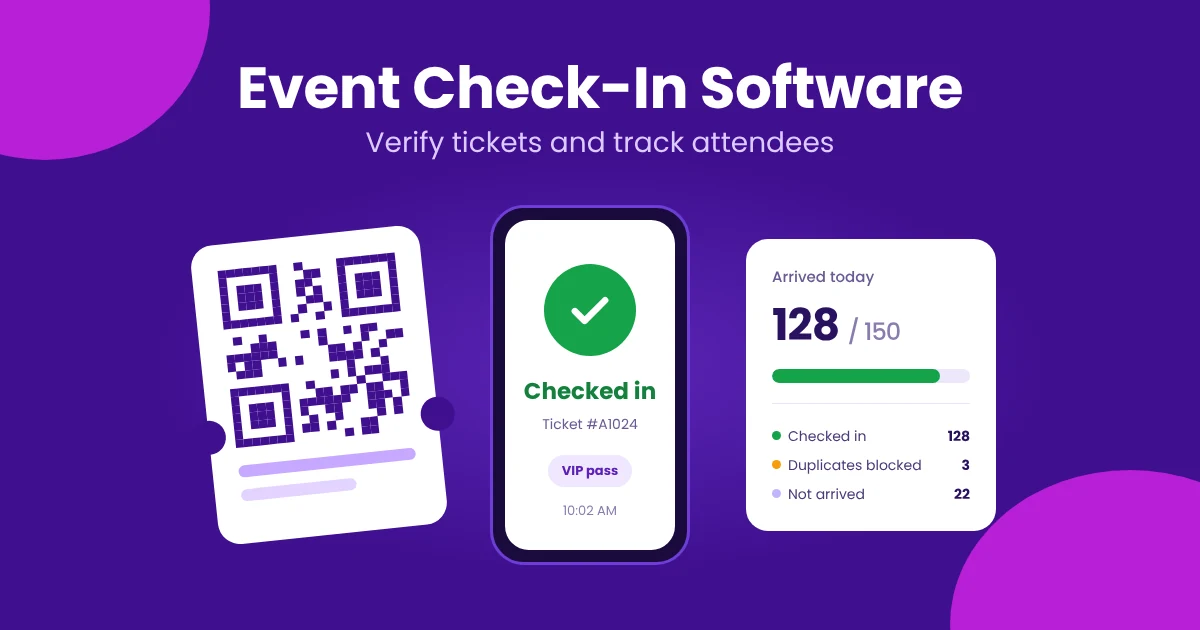
Table of Contents
The first hour of an event decides how people remember it. If the line stalls, a ticket won’t scan, or two people show the same QR code, the day starts badly. Event check-in software helps prevent that by checking each ticket in seconds and keeping a live record of who is in the room.
In PheedLoop’s check-in data from 688 live events, about half of opening-day check-ins happened within a single hour. That hour is what your door has to handle. We build event software and work with organizers on event day, so this guide covers what matters at the door, from how check-in works to choosing the right tool. If your site runs on WordPress, we also walk through the setup in Eventin.
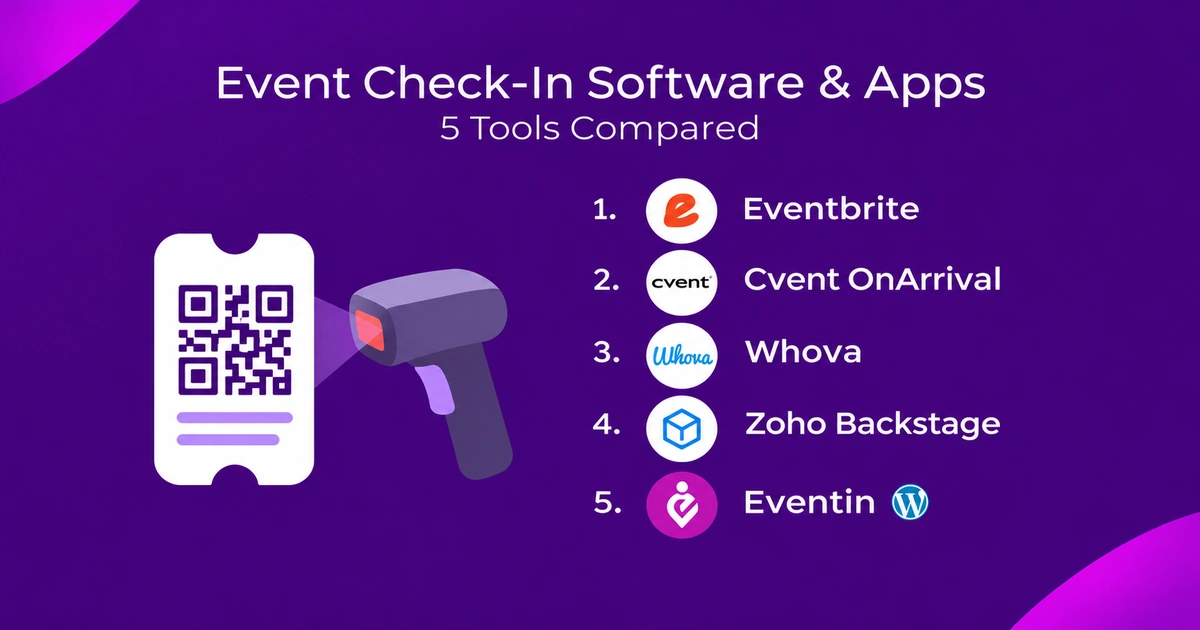
| Tool | Best for |
|---|---|
| Eventbrite | Public events that also sell tickets |
| Cvent OnArrival | Large conferences with badges and session scanning |
| Whova | Multi-day conferences that also want an attendee app |
| Zoho Backstage | Kiosks and badging on a tight budget |
| Eventin | WordPress sites wanting ticketing and check-in together |
What Is Event Check-In Software?
Event check-in software verifies each attendee’s ticket at the entrance, blocks tickets that are invalid or already used, and records who arrived and when, giving you a complete attendance report for every event. Staff work from a live attendee list in an event check-in app or browser, instead of a printed sheet.
Event Check-In vs. Registration and Ticketing
These three are often sold together, but each answers a different question:
- Registration: Who plans to attend? It collects sign-ups and attendee details.
- Ticketing: What did they buy, and is it paid? It takes payment and issues tickets.
- Check-in: Is this ticket valid now, and who has arrived? It validates tickets at the door and tracks attendance.
Most door problems happen in the gaps between them, like a refund or late sign-up that never reached the door list. When all three share the same records, staff always see the current status.
Who Needs Event Check-In Software?
Any event where slow lines or wrong entries cost money or trust needs it, and size alone isn’t the test. Small events feel the rush too: in the same PheedLoop data, events with fewer than 150 attendees saw about 71% of opening-day check-ins land in their busiest hour, often with only one or two people at the door. If you run smaller events, our guide to event management software for small business compares tools that fit a smaller team and budget.
How Does an Event Check-In System Work?
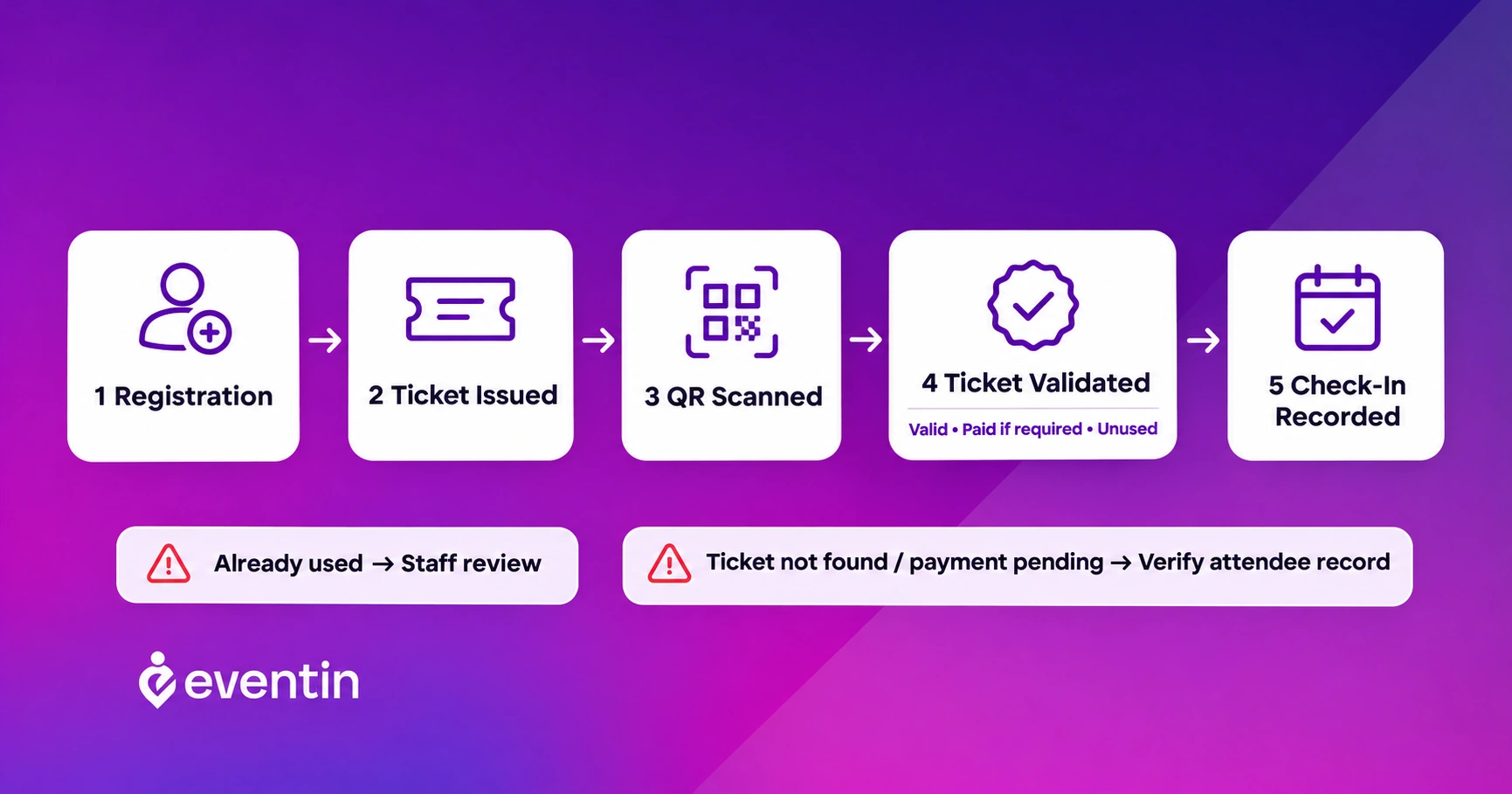
An event check-in system links each ticket to one attendee record. After registration, the attendee gets a ticket with a unique QR code. At the door, staff scan it, the software confirms it’s valid and unused, and the attendee is checked in with a timestamp. Used or unknown tickets are flagged for staff.
Attendee Registration and Ticket Generation
The attendee registers or buys a ticket, and the system creates a record with their name, ticket type and payment status. A WordPress event ticketing plugin or a ticketing platform then issues the ticket from that record, so the two stay linked.
Sending Digital Tickets with Unique QR Codes
Each ticket gets its own QR code, usually sent by email and often downloadable as a PDF. Attendees show it on their phone or print it.
Scanning and Verifying Attendee Tickets
At the entrance, staff scan the code with a phone, tablet or handheld scanner. The software returns a clear result in seconds: valid, already used or not found. For more on how the codes work, see our guide to QR code event management.
Recording Successful Check-Ins and Attendance
A valid scan marks the attendee as checked in and saves the entry time. That record shows who came, who didn’t, and when the rush peaked.
Essential Features of Event Check-In Software
The essential features of event check-in software are QR and barcode scanning, real-time validation that blocks reused tickets, a searchable attendee list, manual check-in, ticket types with access levels, attendance reporting and a mobile-friendly app. Not every tool has all seven, so test them in a free trial.
QR Code and Barcode Ticket Scanning
Scanning replaces reading names off a list, which is where most door delays start. Look for scanning that works with phone cameras, printed tickets and handheld scanners.
Real-Time Ticket Validation and Duplicate-Entry Prevention
A QR code can be screenshotted and shared. Good software marks a ticket as used on the first accepted scan and flags every repeat, so the second person is stopped. If several staff scan at once, check how quickly scans sync between devices.
Attendee List and Registration Management
When a code won’t scan, staff need to find the person fast by name, email or ticket ID. The list should also show payment status and ticket type, and let you add late registrations on the day.
Manual Attendee Verification
When a ticket won’t scan, manual check-in lets staff confirm the attendee from their record. Ideally, it saves an entry time, so attendance data stays complete.
Multiple Ticket Types and Access Levels
General admission, VIP, and student tickets often have different entry rules. The scan result should show the ticket type, so staff spot a general ticket at the VIP entrance.
Attendance Records and Reporting
After the event, you need check-ins by event and ticket type, entry times, no-shows, and an export for follow-ups, sponsor reports or certificates. No-shows add up: across PheedLoop’s 1,070+ events with check-in data, about 1 in 5 registered attendees didn’t show up, and only check-in records reveal it.
Mobile-Friendly Check-In Experience
Most door teams scan with phones or tablets. A mobile-friendly scanner or event check-in app lets volunteers start in minutes, without special hardware or long training.
QR Code Check-In vs Manual Event Check-In
QR code check-in should be your default for ticketed events because it’s faster and blocks reused tickets. Manual check-in is the backup for cases a scan can’t settle.
| QR code check-in | Manual check-in |
|---|---|
| Scan the attendee’s ticket | Search or verify attendee details |
| Faster verification workflow | Useful for exceptions and walk-ins |
| Helps prevent repeat ticket use | Requires staff attention |
| Requires a compatible scanner or device | Can be performed from attendee records |
Advantages of QR Code Ticket Scanning
Scans stay quick even with long lines and new staff. Each scan also leaves a timestamped record and blocks reused tickets automatically, which manual ticking can’t do reliably.
When Manual Verification Is Still Necessary
Keep manual check-in ready for dead phones, tickets bought under someone else’s name, last-minute guests and VIPs without tickets. For small invite-only events, a name list can even be the main method.
How to Handle Duplicate, Invalid or Missing Tickets
Set up a help point away from the main line, and agree on the rules before doors open:
- Duplicate: The ticket shows as already used. Compare the attendee and buyer records, then follow your transfer policy.
- Invalid: The code matches no ticket. Check whether it belongs to another event or was refunded.
- Missing: Search by name, buyer or email, confirm payment and check the person in manually.
Missing tickets pile up fast when the signal drops, so test every scanner where staff will stand and keep a mobile hotspot and an exported attendee list ready in case the signal drops.
What Types of Events Need Check-In Software?
The right setup depends on how many people arrive at once, how many ticket types you sell and how strict entry needs to be.
Conferences and Business Events
Most attendees arrive in the first hour of opening day, holding different passes. Plan several scanners and quick access-level checks, plus kiosks and badges for big crowds.
Workshops, Training and Seminars
Groups are small, but certificates or training credits often need proof of attendance. A 40-seat workshop needs little more than one phone scanner and an exportable attendance list.
Concerts, Festivals and Public Events
Large crowds and resold tickets bring screenshots and copies to the gate. Duplicate blocking and several staff scanning at once matter most here.
Corporate and Private Events
Guest lists change at the last minute, and VIPs rarely carry tickets. Quick name search and manual check-in matter more than scanning speed.
How to Choose the Right Event Check-In Software
To choose event check-in software, start with your door, not the feature list: estimate peak arrivals, test validation and attendee search, then check devices, total cost and ticketing integration. These six checks narrow the options quickly.
Consider Event Size and Expected Attendance
Estimate how many people arrive in the first hour, not just how many tickets you sell. That number tells you how many scanners you need and whether self-service kiosks are worth paying for.
Check Ticket Validation and Security Features
In a trial, scan one ticket twice, then once from a screenshot. Both repeats should be flagged. Also check whether staff can confirm or reject a scan for VIP or ID-checked entries.
Evaluate Attendee Management Capabilities
On event day, staff will need to find someone whose code won’t scan. In a trial, buy two tickets in one order, then search for the second guest by name, and check that you can add a walk-in and export the list. If you’re on WordPress, see how attendee management compares across these WordPress event ticket plugins.
Check Device Compatibility and Staff Access
Will volunteers scan with their own phones, or will you hand out tablets? Check iOS and Android support and scan-only staff access. If the venue’s signal is weak, ask about offline scanning.
Compare Pricing, Licensing and Transaction Fees
Some platforms take a fee on every paid ticket, some quote per event or charge a subscription, and WordPress plugins usually sell a yearly or lifetime license. Work out the total cost at your expected ticket volume.
Consider Integration with Your Existing Ticketing Platform
Check-in works best when it reads live from wherever your tickets are sold. Most check-in apps only validate their own tickets, so import every attendee list before the event if you sell through several channels.
Quick checklist before you decide
- Can staff scan with phones, tablets and handheld scanners?
- Does a repeat scan get flagged as already used?
- Can staff find attendees by name, email or ticket ID?
- Is there a backup if the Wi-Fi drops?
- Can you export attendance data after the event?
- Do you know the total cost at your expected ticket volume?
5 Event Check-In Software and Apps Compared
With those checks in mind, here’s how five popular tools compare. Ratings come from G2 and other review sites, and prices from each vendor’s own pricing page, all checked in November 2026. Pricing models range from per-ticket fees to custom quotes, monthly plans and a yearly plugin license, so the cheapest option depends on how many paid tickets you sell. We build Eventin, so weigh our view of it accordingly.
1. Eventbrite: Best for Public Events That Also Sell Tickets
Eventbrite fits organizers who sell tickets to the public and want buyers to find the event, since it combines a ticketing marketplace with door check-in. Staff download the free Organizer app, scan QR codes from phones or printouts, and search attendees by name when a code won’t scan. If the venue’s signal drops, the app keeps checking people in and syncs once it’s back online.
On G2 it holds 4.3/5 from over 900 reviews, with ease of use praised most. “Expensive” is a top complaint, since paid tickets carry per-ticket fees that grow with every sale. It also only checks in tickets sold on Eventbrite, so it isn’t a fit if you sell through your own website or several channels.
Pricing: Free events cost nothing. Paid tickets carry a 3.7% + $1.79 service fee per ticket plus 2.9% payment processing per order in the US, paid by buyers by default (see Eventbrite pricing). That suits free or low-volume events but adds up fast on large paid ones.
2. Cvent OnArrival: Best for Large Conferences with Badges and Sessions
Cvent OnArrival is built for large conferences where thousands of people arrive at once and each needs a badge and session access. Self-service kiosks let attendees check themselves in, badges print on demand, and staff scan attendees into individual sessions. With event data preloaded, check-in keeps running even if the venue’s internet fails.
OnArrival scores 4.6/5 on Capterra (18 reviews). On G2, the wider Cvent platform’s top complaints are cost and a less intuitive interface, so expect setup time and staff training. It’s sold by quote, which usually makes sense for enterprise teams rather than small events.
Pricing: Quote only, built on an annual license plus a per-registrant fee (see Cvent pricing on G2). It’s priced for organizations running many large events, not a single small one.
3. Whova: Best for Multi-Day Conferences with an Attendee App
Whova suits multi-day conferences where attendees need more than a ticket check, because they also want the agenda and a way to meet other people. Check-in runs through QR scans, self-service kiosks or name search, inside the same app attendees use for sessions and networking, so one download covers the whole event.
It scores 4.8/5 on G2 from about 1,900 reviews, and users praise how easy it is to use. The most common complaints are missing features and too many notifications. Offline scanning isn’t documented, so plan for reliable Wi-Fi or a mobile hotspot at the entrance.
Pricing: Quote-based, set by your event’s format, length and expected attendance (see Whova pricing). Ask for a quote early, since cost scales with event size.
4. Zoho Backstage: Best Budget Option for Kiosks and Badging
Zoho Backstage is the budget-friendly way to get kiosks and printed badges without an enterprise contract. Check-in and badging come on every plan, including the free one, so small and mid-size events can test a professional check-in setup before paying anything.
G2 reviewers rate it 4.3/5 and praise its support and ease of use, though some report usability snags. With only about 20 G2 reviews, there’s less public feedback than for the other tools here, so run it on a small event first.
Pricing: The free plan covers up to 100 attendees per event, and paid plans start at about $119 a month (see Zoho Backstage pricing). It’s the lowest-cost way here to get kiosks and badges.
5. Eventin: Best for Event Sites Already on WordPress
Eventin is for organizers whose event site already runs on WordPress and who don’t want to move ticket sales to another platform. Tickets, attendee records and QR check-in stay in your WordPress dashboard, so there’s no list to sync and no commission on each ticket. Staff scan from the dashboard’s Ticket Scanner, any phone QR app or a connected scanner, and can choose automatic check-in or a manual confirm step for VIP and ID checks.
It holds 4.6/5 from 355 WordPress.org reviews and 4.8/5 on G2 (9 reviews), where users praise support and value, though AppSumo buyers ask for more tutorials. Registration is free, but QR validation needs Eventin Pro, scanning needs a WordPress login, and kiosks aren’t documented. If your site is on WordPress, it’s the simplest setup here.
Pricing: The free version covers registration, and Eventin Pro, which adds QR check-in, starts at $99 a year for two sites with no per-ticket fees (see Eventin pricing). For paid events on WordPress, a flat yearly license usually costs less than per-ticket fees.
Event Check-In Software for WordPress: Using Eventin
Here’s how check-in works in Eventin, our WordPress event management plugin, using a test event with three ticket types. Registration is free, and QR ticket validation requires Eventin Pro.
Create an Event and Enable Ticket Registration
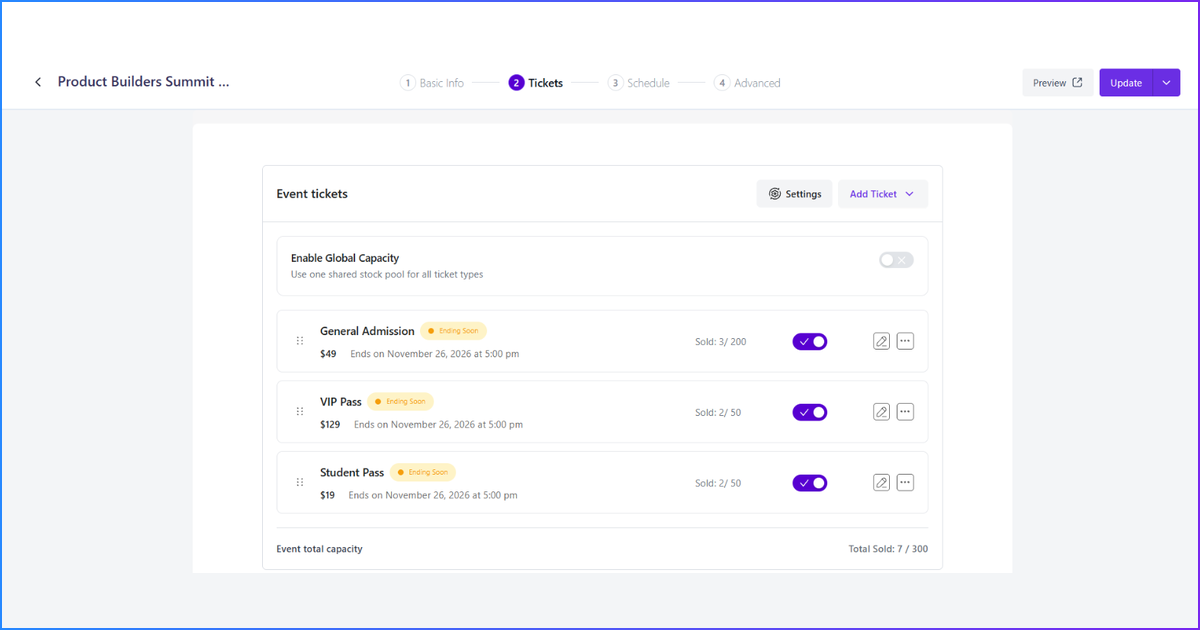
Go to Eventin → Events → New Event and add the event details. In the Tickets step, add one ticket type per access level, such as General Admission, VIP and Student, with price, quantity and sale dates. Choose payment under Eventin → Settings → Payments, then publish.
Generate Unique QR Codes for Event Tickets
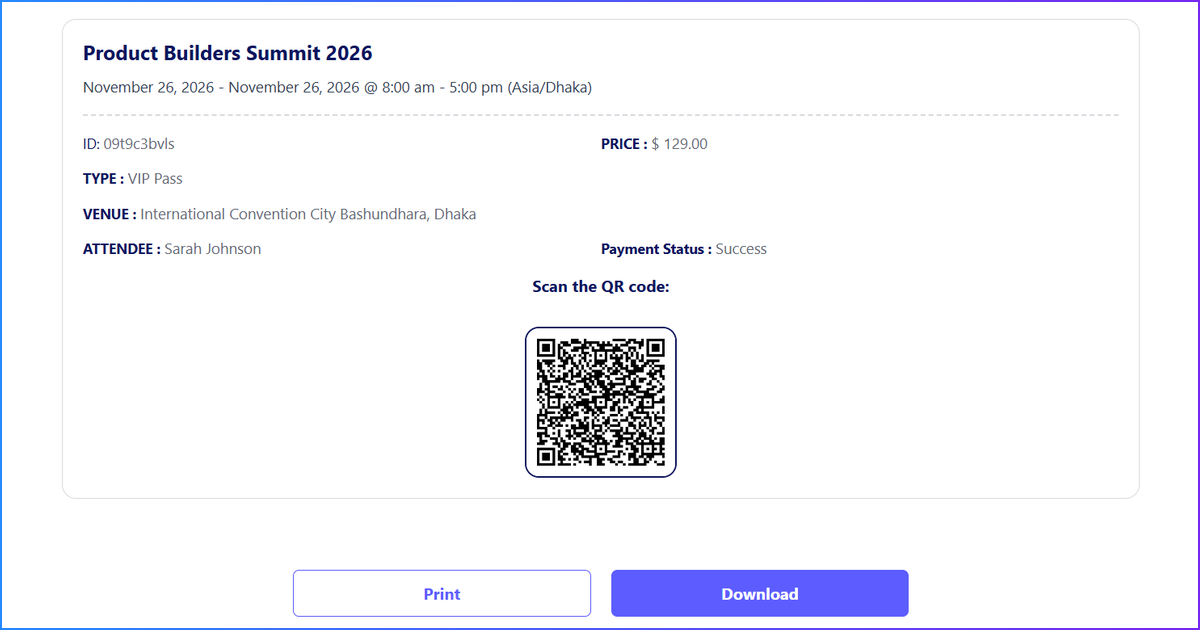
With Eventin Pro active, every attendee gets a ticket with its own QR code, plus the event, date, venue, ticket type and payment status. Attendees can print or download it. See the QR code documentation for setup details.
Open the Eventin Ticket Scanner
Go to Eventin → Attendees → Ticket Scanner to scan with your device’s camera. You can also use any Android or iOS scanning app, or a connected QR scanner. The code opens a check-in link on your site, so whoever scans must be logged in to WordPress. A valid scan shows “The Ticket is Valid. Successfully Checked in.”
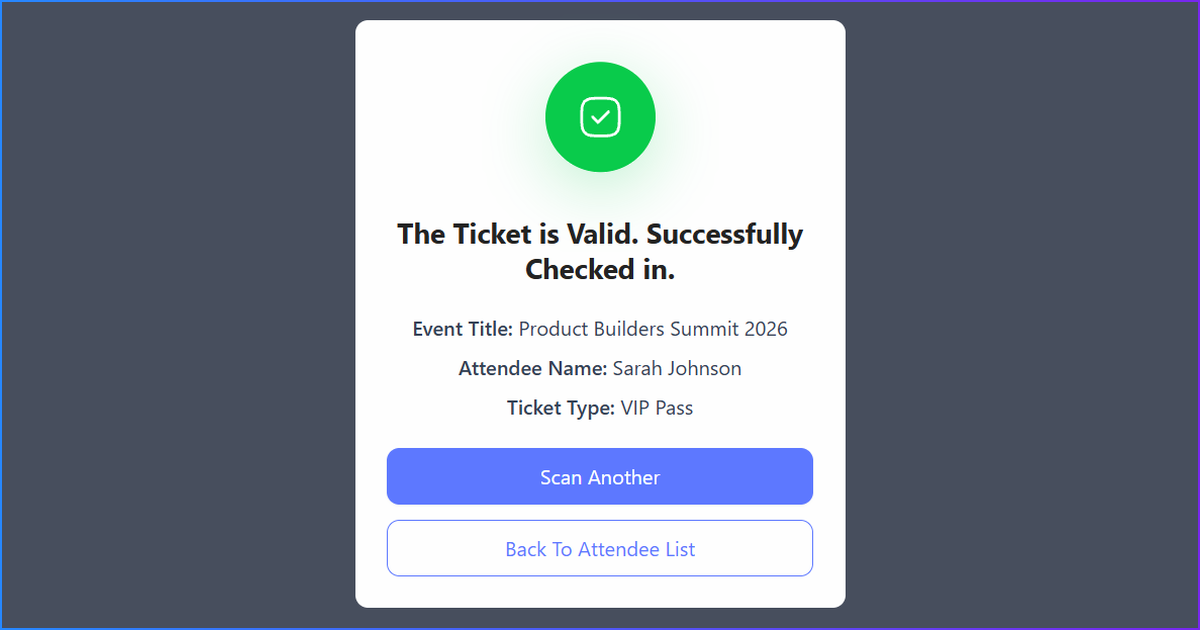
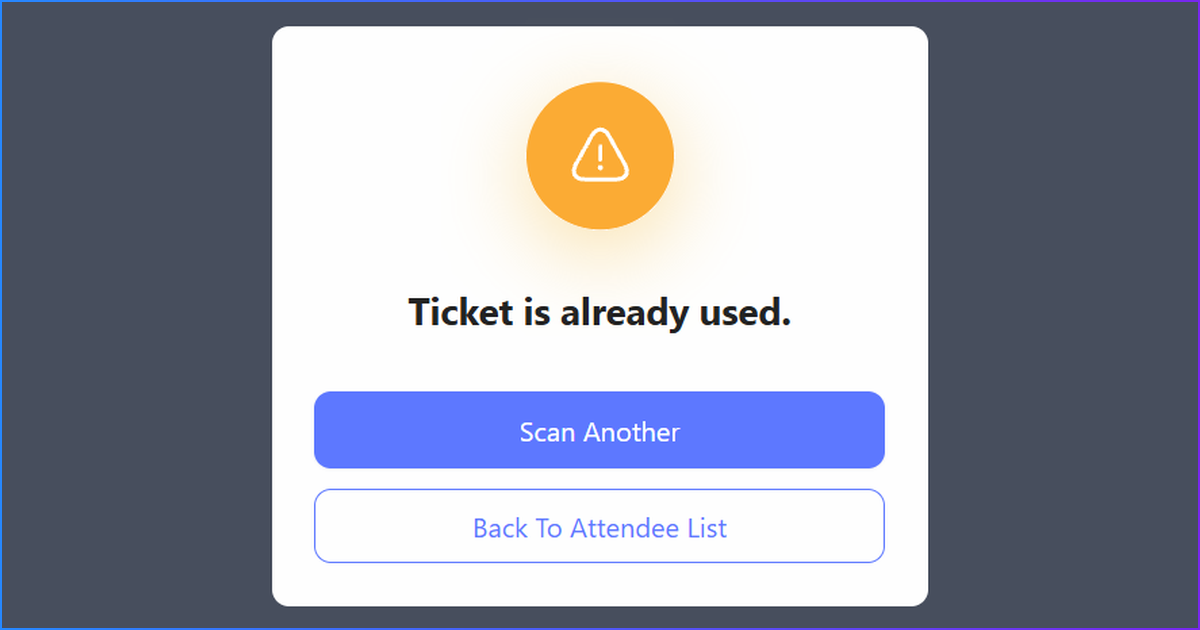
A ticket that was already scanned is stopped with a “Ticket is already used” warning.
Choose Automatic or Manual Ticket Verification
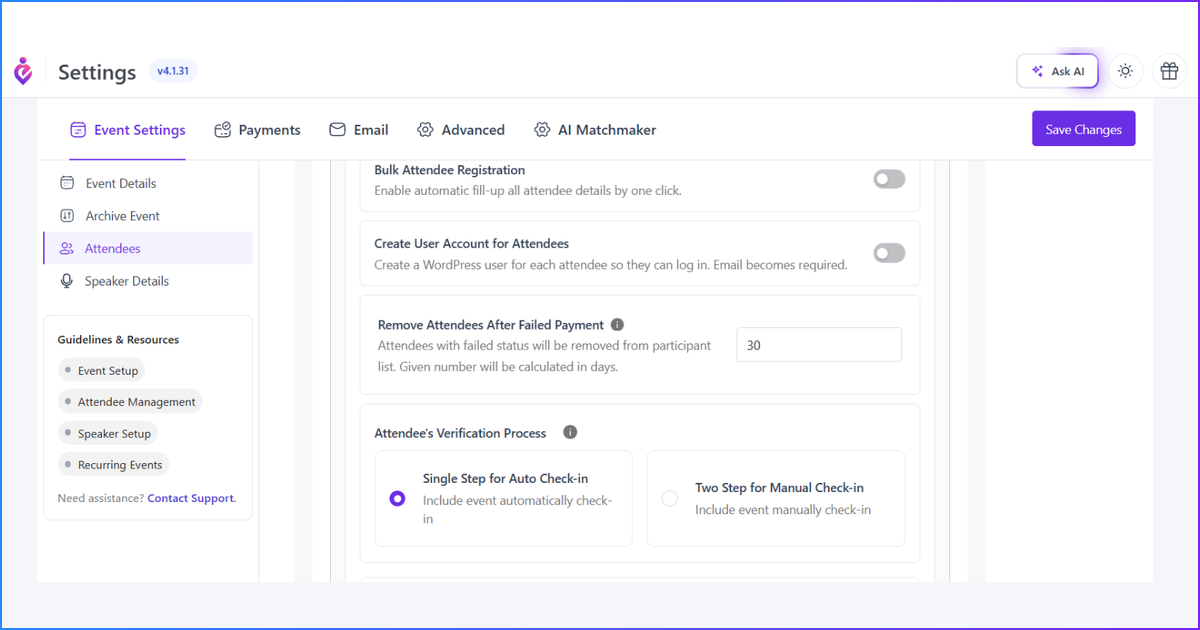
Under Eventin → Settings → Event Settings → Attendees, pick a verification process. Single Step for Auto Check-in checks in a valid ticket the moment it’s scanned, which keeps lines moving. Two Step for Manual Check-in shows the result first and lets staff confirm or reject the entry, which suits VIP areas or ID checks.
Manage Attendees and Check-In Records
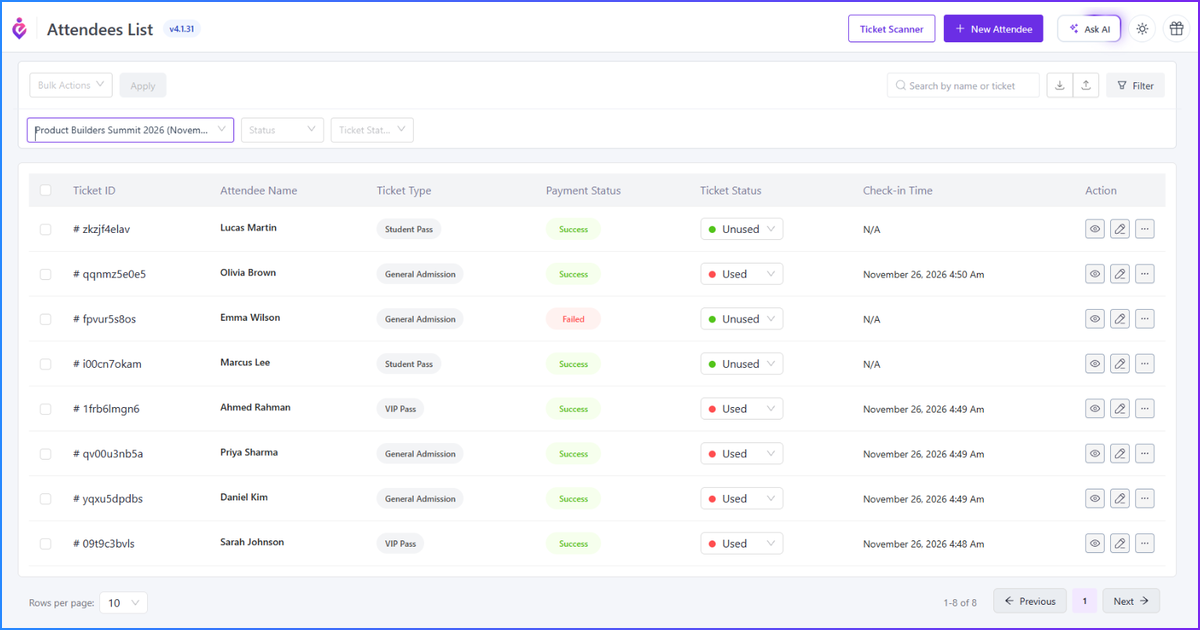
Open Eventin → Attendees to see every attendee and their check-in status. Search by name or ticket ID, filter by event, payment or ticket status, add walk-ins with New Attendee and export the list after the event. The Check-in Time column shows when each scanned ticket came through. See the attendee management documentation, or learn how to manage event attendees in WordPress.
Frequently Asked Questions About Event Check-In Software
What Is the Best Event Check-In Software?
It depends on your event. Cvent OnArrival and Whova suit badge-heavy conferences, Eventbrite suits public ticketed events, Zoho Backstage suits tight budgets and Eventin suits WordPress sites.
How Does QR Code Event Check-In Work?
Staff scan the code from the attendee’s phone or printed ticket. The software matches it to one paid, unused ticket and checks the person in within seconds.
Can Attendees Check In Using Their Phones?
Yes. Attendees show the QR code from their email or downloaded ticket, and staff scan it. Some platforms also offer self check-in kiosks where attendees scan their own code.
Can Event Check-In Software Prevent Duplicate Ticket Use?
Yes, from the first scan on. A repeat scan of the same ticket is flagged as already used, so a shared screenshot only gets one person in.
Is Event Check-In Software Different from Event Registration Software?
Yes. Registration collects sign-ups before the event, while check-in verifies tickets at the door and records who came. Many platforms, including Eventin, do both.
Can I Use Event Check-In Software on WordPress?
Yes. Plugins like Eventin let you sell tickets, manage attendees and scan QR codes from your own dashboard. Registration is free, while QR ticket validation requires Eventin Pro.
Do I Need a Separate App to Scan Event Tickets?
Not always. Many platforms include a free staff app. In Eventin, staff scan from the dashboard, any phone QR app or a connected scanner while logged in to WordPress.
Simplify Your Event Check-In Process with Eventin
A smooth door needs fast scans, clear exception rules and a reliable attendance record. If you run events on WordPress, Eventin brings ticketing, attendee management and QR validation into one dashboard, with no commission on ticket sales. Explore Eventin and see how it fits your next event.
Running your events on WordPress?
Eventin keeps ticket sales, attendee lists and QR check-in in your own dashboard, with no commission on ticket sales. Registration is free, and QR ticket validation comes with Eventin Pro.
Free version on WordPress.org · 15-day money-back guarantee on paid plans