How to Manage WordPress Events With AI Using Eventin MCP


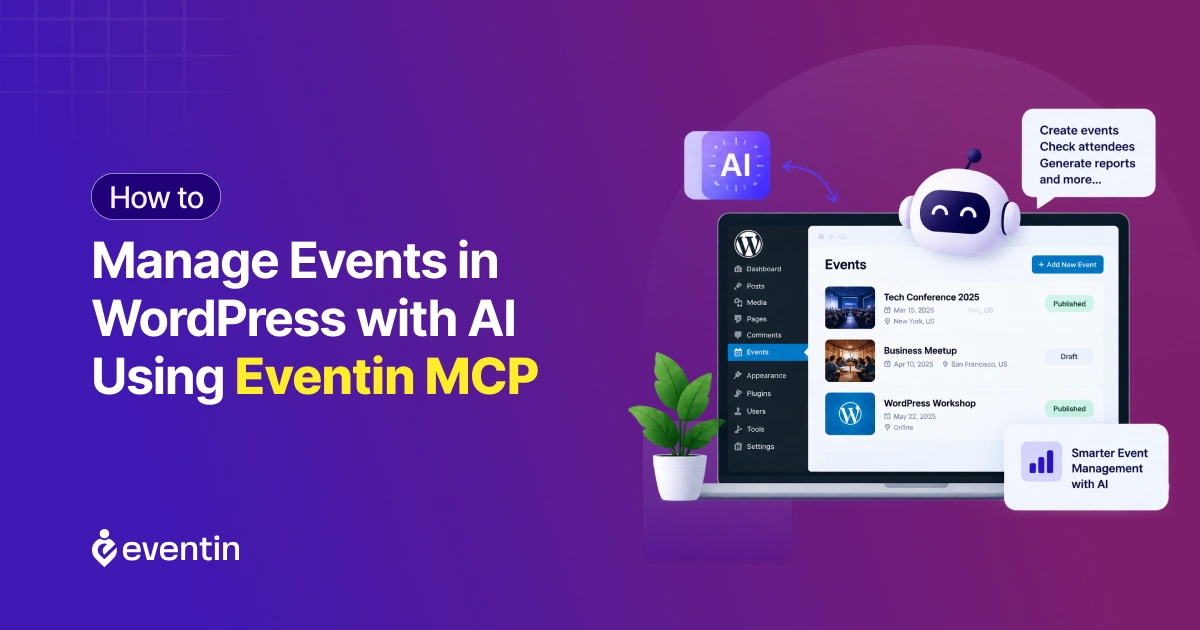
Table of Contents
Managing events in WordPress often means jumping between event pages, attendees, orders, schedules and reports. AI can cut that back-and-forth, but it needs a secure route into the right data. Eventin MCP provides that route, so your team can run everyday event work from Claude, Codex or another MCP client using plain language.
This guide explains what AI can do for your events, how MCP connects it to WordPress, and where Eventin MCP fits. It also includes ready-to-use prompts, setup steps for each client, and safety checks for a live site.
Why Is WordPress Event Management So Time-Consuming?
You finish setting up an event, but the work keeps coming: checking attendee reports, resolving failed orders, handling refund requests, sending certificates manually, and following up with attendees. Each task pulls you into another screen, often forcing you to retrace your steps to find the right event or booking. By the time you’ve finished the back-and-forth for one event, you’re already behind on the next.
Repeating Event Details Manually
Creating one event is rarely the whole job. The same title format, venue, ticket rules, speakers and schedule may need to appear across a series. Copying details by hand increases the chance of a wrong date or a missing ticket.
Searching Through Attendee and Order Data
Organizers often need quick answers: who registered, who hasn’t paid, and which ticket needs to be resent? Finding those details takes longer when the request covers one event, a date range or a payment status. A connected assistant can return only the records you need.
Making Small Updates Across Multiple Screens
Changing a venue or start time may affect the public event page and internal planning records. The problem isn’t only the number of clicks. It’s remembering every related detail. AI can locate the record and prepare the update while a person checks the result before publication.
Can You Manage Events in WordPress With AI?
Yes, you can manage events in WordPress with AI. When an MCP-compatible assistant connects to your site through an integration such as Eventin MCP. With Eventin MCP, you can handle day-to-day event work through plain-language commands from publishing events and managing bookings to sending certificates and generating reports.
According to W3Techs, WordPress powers over 40% of all websites. For many organizations, that is where event details, registrations and payments already live. AI does not replace the event manager. It makes that information faster to work with.
What Can AI Help You Do With WordPress Events?
AI can help with event creation, recurring schedules, attendee searches, order checks, reports and routine updates. The exact actions depend on the connected tools and the WordPress account, so the assistant works within defined access rather than acting as an unrestricted administrator.
| Task | What AI can help with | What to verify |
| Event creation | Create event details from a prompt | Date, time, venue |
| Recurring events | Set repeating schedules | Occurrence dates |
| Attendees | Find or update attendee records | Personal information |
| Orders | Check ticket and payment status | Payment accuracy |
| Reports | Summarize attendance and revenue | Date range and refunds |
| Event updates | Modify or clone an event | Review before publishing |
For example, ask: “Create a monthly WordPress workshop from October through December with 50 seats and General and VIP tickets. Save it as a draft and show me a summary first.” You can then catch an incorrect date, time zone, venue or ticket rule before anything goes live.
AI Tasks That Require Human Approval
AI should handle preparation and recommendations, but a person should approve any action that publishes content, moves money, changes customer records or affects site behavior.
Always review requests to:
- Publish, delete or cancel events
- Issue refunds
- Change ticket prices or capacity
- Send bulk messages
- Edit attendee information
- Modify Eventin settings or integrations
Ask the assistant to prepare the change and show you what it will do before you confirm. That keeps AI event management efficient while you keep control of high-risk decisions.
What Is MCP and How Does It Connect AI to WordPress?
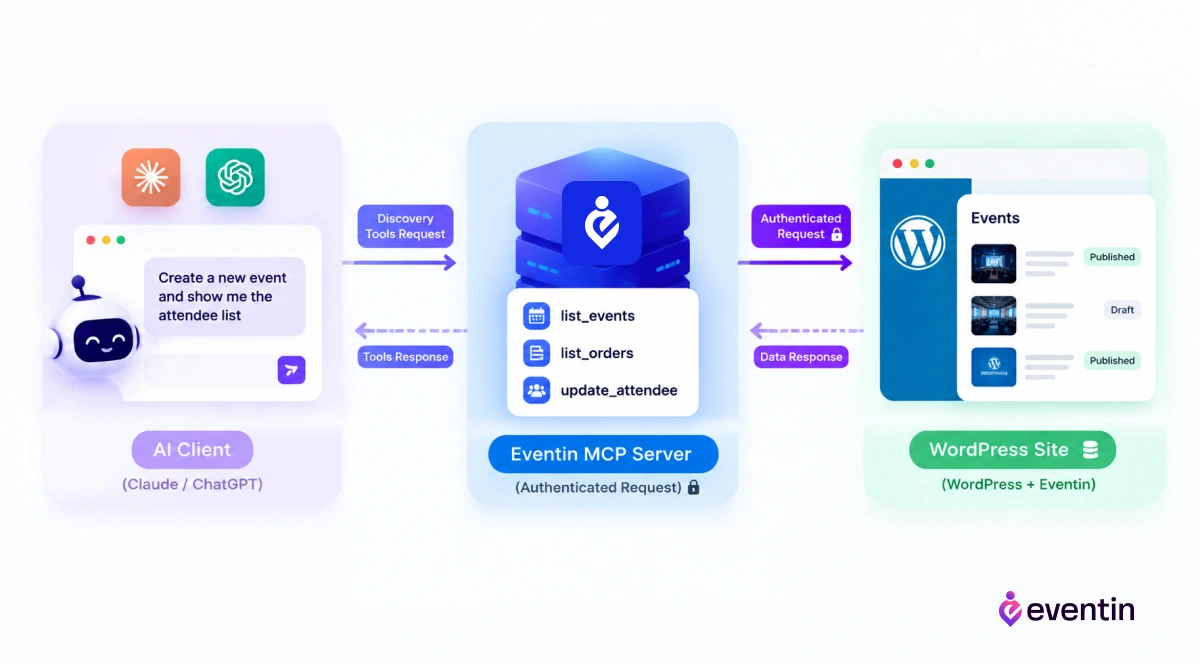
MCP (Model Context Protocol) is an open standard that lets AI applications connect to external data and tools. The official MCP specification groups server capabilities into three areas: tools that perform actions, resources that provide context, and prompts that guide workflows.
What Is the MCP(Model Context Protocol)?
MCP lets an AI assistant connect to other software, access its data, and carry out actions using the tools that software provides. Instead of guessing how WordPress stores event information, the client can call functions such as listing events, checking orders, or updating attendees. Authentication and server permissions still apply.
How the Connection Works
The process usually follows five steps:
- Add an MCP server to an AI client such as Claude or Codex.
- Authenticate the server with your WordPress site.
- The client discovers the available Eventin tools.
- You describe an event task in ordinary language.
- You review the result and approve the action when needed.
MCP vs the WordPress Dashboard and Zapier
| Best for | Limitation | |
| WordPress Dashboard | Visual inspection, detailed settings | Many clicks for repeated tasks |
| Zapier | Fixed trigger-and-action workflows between apps | Can’t answer ad hoc questions |
| MCP | Conversational queries and updates using live site data | Needs setup and careful permissions |
Use the dashboard for design and configuration, Zapier for fixed automations, and MCP when you want to ask questions and make controlled changes in plain language.
How Eventin MCP Applies AI to WordPress Event Management
Eventin MCP is the product-specific implementation for Eventin users who want to manage WordPress events with AI. The official Eventin guide says it works with Claude, OpenAI Codex, and other MCP-compatible AI tools.
Eventin MCP as the Practical Implementation
Eventin MCP is the practical implementation that connects an AI assistant to Eventin’s event data inside WordPress. It runs through the eventin-mcp server and allows supported clients such as Claude and Codex to discover tools for event management.
Eventin’s MCP offers 42 tools covering events, attendees, speakers, schedules, orders, categories, reports, locations, and settings. This lets you manage WordPress events with AI through a product-specific connection while WordPress and Eventin permissions continue to control what the assistant can access or change.
What Eventin MCP Can Manage
You can use it to create, list, update, clone, publish, or move events to draft. The documented workflows also cover attendees, speakers, schedules, orders, categories, locations, reports, and selected Eventin settings. Example requests include “Show all draft events,” “List unpaid attendees for event 42,” and “Give me the revenue report for event 55.”
Eventin MCP and Generic WordPress MCP
Generic WordPress MCP tools may expose wider site functions, such as posts, pages, or general site information. Eventin MCP focuses on Eventin’s event data and workflows. If your main goal is to manage WordPress events with AI, a product-specific connection may give the assistant more relevant actions, while a generic server can support broader WordPress work.
Three Practical Ways to Manage Events With Eventin MCP
Good prompts include the event name, date, time zone, record ID when available, and the action you want. Ask for a preview whenever a task could change public content or financial information.
Create a Recurring Event Series
A recurring event prompt works best when it includes the recurrence rule, time zone, venue, capacity and ticket types.
Try: “Create a recurring online marketing clinic every Tuesday at 6:00 PM Eastern from October 6 through November 24, with 100 General tickets. Save it as a draft and show every occurrence.” Before publishing, check holidays, daylight-saving changes and the final date.
Find Attendees With Pending Payments
Instead of scanning every order, ask: “List unpaid attendees for the November 12 workshop. Include name, email, order status and registration date, but do not send any messages.”
Review the result before acting on it, because some payment gateways report status with a delay.
Generate an Attendance and Revenue Report
Eventin MCP can summarize attendance and revenue for a single event in one response. Ask: “Create an attendance and revenue report for the 2026 leadership summit. Include tickets sold, registered attendees, gross revenue, refunds and net revenue in USD.”
Verify the date range, currency and refund figures before sharing the report.
How to Connect Claude or Codex to Eventin MCP
You need Eventin active on your WordPress site, Node.js 18 or later, an MCP-compatible client such as Claude or Codex, and a WordPress Application Password. The WordPress account also needs Eventin admin rights, such as an Administrator or Event Manager role.
What You Need Before Starting
- Confirm Eventin is active on your WordPress site.
- Install Node.js 18 or later on the computer running your AI client.
- In WordPress, go to Users → Profile → Application Passwords, enter a name (for example “Claude MCP”), and click Add New Application Password.
- Copy the password shown. It looks like Ab12 Cd34 Ef56 Gh78 Ij90 Kl12.
Connect Claude to Eventin MCP
Open your Claude Desktop config file. You can reach it from Settings → Developer → Edit Config, or open it directly:
- Mac: ~/Library/Application Support/Claude/claude_desktop_config.json
- Windows: %APPDATA%\Claude\claude_desktop_config.json
Add the Eventin server and replace the example values:
{
  "mcpServers": {
    "eventin": {
      "command": "npx",
      "args": ["eventin-mcp"],
      "env": {
        "EVENTIN_SITE_URL": "https://your-wordpress-site.com",
        "EVENTIN_USERNAME": "your-wp-username",
        "EVENTIN_APP_PASSWORD": "your-application-password"
      }
    }
  }
}
Fully quit Claude Desktop (Cmd+Q on Mac) and reopen it. The Eventin tools will appear in the tools panel.
Connect Codex to Eventin MCP
Codex reads MCP servers from ~/.codex/config.toml. The ChatGPT desktop app, Codex CLI and Codex IDE extension share this file, so one setup works for all three. Add this block and replace the example values:
[mcp_servers.eventin]
command = "npx"
args = ["eventin-mcp"]

[mcp_servers.eventin.env]
EVENTIN_SITE_URL = "https://your-wordpress-site.com"
EVENTIN_USERNAME = "your-wp-username"
EVENTIN_APP_PASSWORD = "your-application-password"
In the ChatGPT desktop app, you can also add it from Settings → MCP servers → Add server, choosing STDIO as the type.
Test the Connection
Start with a read-only request such as “List my draft events” or “Show the next three Eventin events.” Once that works, try a low-risk update on a draft event.
If the connection fails, check the error:
- EVENTIN_SITE_URL is not set: credentials weren’t passed; check your client config
- HTTP 401: wrong username or Application Password
- HTTP 403: the user lacks Eventin capabilities; use an Administrator or Event Manager account
- HTTP 404: wrong site URL, or Eventin isn’t activated
- Cannot reach: the site is offline or unreachable
Is It Safe to Let AI Manage WordPress Events?
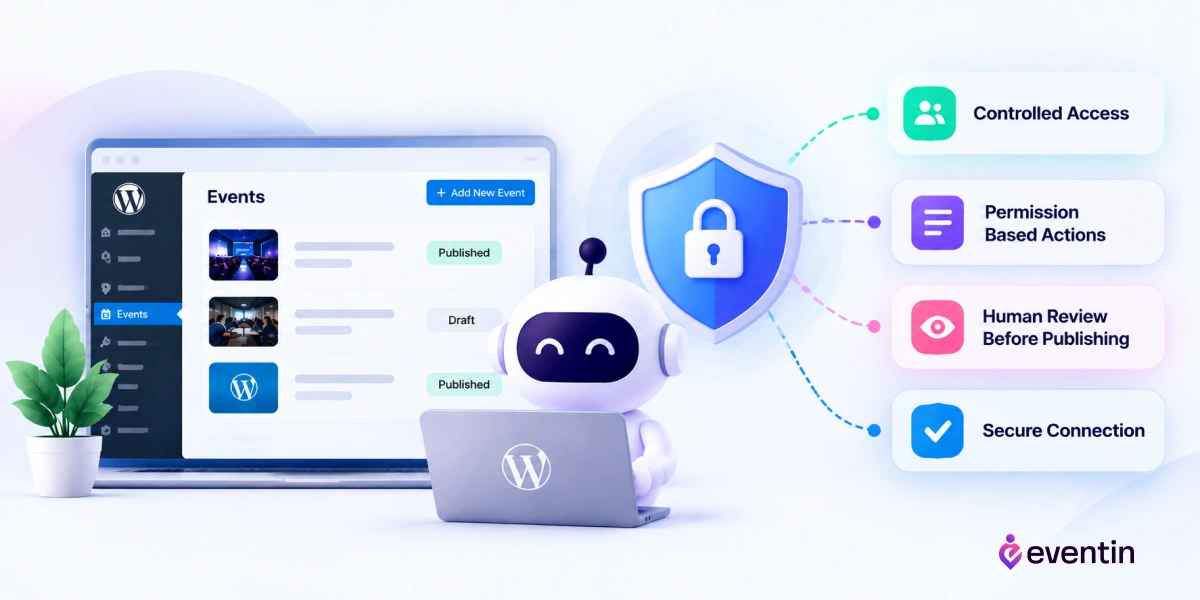
Yes, Eventin MCP can be used safely when you limit account access, use HTTPS, protect your credentials, and approve sensitive actions before they run. The MCP security guidance says users should understand and consent to data access and tool calls.
Use an Application Password
Use a dedicated Application Password instead of sharing your normal WordPress password. Revoke it when a team member leaves or the integration ends. Store it in secure configuration, not a screenshot or shared chat.
Use HTTPS and Secure Credential Storage
Use HTTPS and restrict access to the computer or service running the MCP client. Eventin’s guide says credentials are kept in memory and warns when the connection is not secure. Continue your host’s password, backup, and logging practices.
Give AI the Minimum Necessary Access
Create a dedicated WordPress user for AI event management. If you only need reports and lookups, give that user just the etn_manage_dashboard capability for read-only access. Use Administrator or Event Manager access only when the AI needs to create or change records, and test on a staging site first.
Keep Human Approval for High-Risk Actions
Require approval before publishing, deleting, refunds, price changes, bulk messages, or integration changes. Say, “Prepare the change and wait for my confirmation.” This keeps AI event management useful without handing over business decisions.
Eventin MCP puts you in control of what your AI assistant can do. In the local setup described here, it connects through a dedicated WordPress Application Password, follows the permissions you assign to that account, and lets you revoke access at any time. Our team brings more than 13 years of WordPress software experience and carefully reviewed and tested Eventin MCP before release, so you can manage events with confidence.
Frequently Asked Questions
Do I Need Coding Skills to Use Eventin MCP?
No. Once the connection is configured, you can manage events through plain-language prompts without writing code. The initial setup requires creating an Application Password and adding the Eventin server details to your AI client.
Can I use Eventin MCP with ChatGPT?
Yes, in the ChatGPT desktop app, which supports local MCP servers through the same setup as Codex.
Is Eventin MCP Installed as a WordPress Plugin?
No. Eventin MCP runs as a separate MCP server that connects your AI client to the active Eventin plugin on your WordPress site. You still need Eventin installed and activated for the connection to work.
Does Eventin MCP Work With Other WordPress Event Plugins?
No. Eventin MCP is designed specifically for Eventin’s event data and workflows. If you use another WordPress event plugin, you will need its own AI integration or a suitable general WordPress MCP solution.
How Do I Troubleshoot Eventin MCP Connection Errors?
First, check your site URL, WordPress username, Application Password, Eventin activation, and user permissions. A 401 error usually points to incorrect credentials, a 403 error indicates insufficient permissions, and a 404 error may mean the site URL is wrong or Eventin is inactive.
Can Agencies Connect Multiple WordPress Sites to Eventin MCP?
Yes. You can connect multiple Eventin sites to one AI assistant, such as Claude Code. Add a separate MCP connection for each site with its own site URL and WordPress Application Password, then give each connection a clear name so you can specify which site a command applies to.
Is Eventin MCP Open Source?
Yes. The Eventin documentation identifies Eventin MCP as an open-source project released under the MIT License. Developers can review the project or run it locally instead of relying only on the npx setup method.
Conclusion: Use AI for Repetitive Event Work
Your events move quickly, and the work behind them should too. Eventin MCP helps you manage events in WordPress with AI by turning the daily back-and-forth between bookings, attendees, updates, and reports into simple commands. Your assistant can bring the information you need from Eventin into one conversation and carry out supported tasks without sending you through screen after screen.
It can also help you look beyond the task in front of you. Ask how an event is performing, how tickets are selling, or which bookings need attention, and use those answers to plan your next move. Eventin MCP makes your AI assistant a practical partner for event operations and revenue decisions, while you stay in control.