Eventin MCP Use Cases: 8 Real Workflows for Busy Event Managers


Table of Contents
You have seven workshop dates to publish, a venue change to make, and an attendee who entered the wrong email address. Meanwhile, ticket sales are moving at different speeds across your events.
The problem is not one difficult task; it is the constant switch between event pages, bookings, attendees, and reports. These Eventin MCP use cases show how a connected AI assistant can handle specific jobs and help you decide what needs attention next.
This article assumes you already have Eventin MCP connected to an assistant. If you are new to the connection, start with our guide to managing WordPress events with AI.
Here we will put it to work: five operational workflows that change or organize records, followed by three sales workflows that use your event data. Each example includes a prompt you can adapt to your own site.
What Can Eventin MCP Do for Event Managers?
Quick answer: Eventin MCP lets a connected AI assistant create and update events, manage attendees and bookings, resend tickets, and read event reports. A busy event manager can use it to set up multiple event dates, fix registration problems, clean up bookings, and compare ticket performance across events.
The assistant only works with the records and permissions available on your WordPress site. Eventin’s MCP documentation lists the supported areas.
One habit makes every workflow safer: for anything that changes an event or affects a customer, ask the assistant to find the exact records and show the proposed change before it acts. Afterward, have it read the records again and confirm what changed. Each prompt below builds that check in.
Afterward, have it read the records again and report what changed. The examples below build that check into each workflow.
| Workflow | What the assistant does | Type |
|---|---|---|
| 1. Create seven event dates from one brief | Calculates dates and creates drafts | Changes records |
| 2. Update an event and its agenda | Edits event and schedule fields | Changes records |
| 3. Correct attendee details and resend a ticket | Updates contact details, resends ticket | Changes records |
| 4. Register an offline booking | Creates a booking or attendee | Changes records |
| 5. Remove stale incomplete bookings | Lists candidates, deletes approved IDs | Changes records |
| 6. Find the event that needs promotion | Compares sales, capacity, and timing | Reads data |
| 7. See which ticket tier earns the most | Compares units, price, and revenue | Reads data |
| 8. Plan the next Early Bird offer | Analyzes past sale windows | Reads data |
Before You Start
Three things to have in place before you try the workflows below (style this as a callout box in WordPress):
- A connected assistant. Eventin MCP works with AI assistants that support MCP, such as Claude, ChatGPT, Cursor. Setup takes a few minutes; follow the Eventin MCP setup guide.
- The right plan. MCP is available on Eventin (free / Pro / specific plan)]. See Eventin pricing.
- Clear permissions. Some prompts read data and others change records. Every prompt that changes something asks the assistant to show the change first and wait for your approval.
8 Eventin MCP Use Cases for Event Managers
Each workflow starts with a question you might ask while running an event. Every prompt asks the assistant to show its evidence and name missing data, so you can review the advice before you change anything. Replace the example event IDs and targets with your own.
1. Create seven event dates from one brief
Suppose you run a workshop every 14 days and need seven sessions on the calendar. You could enter the title, location, ticket tiers, and times seven times, then check each date by hand. Instead, give the assistant the first date, timezone, duration, and shared details, and ask it to calculate all seven dates. Have it show the date list before creating seven draft events, then verify each draft afterward.
Try this prompt: “I need seven workshop events, 14 days apart, starting [first date] in [timezone]. Each runs from [start time] to [end time] at [venue], with [ticket types and capacities]. Show me all seven dates first, including the last one. After I approve the list, create seven separate Eventin drafts and return their IDs, dates, times, and ticket details for review. Do not publish them.”
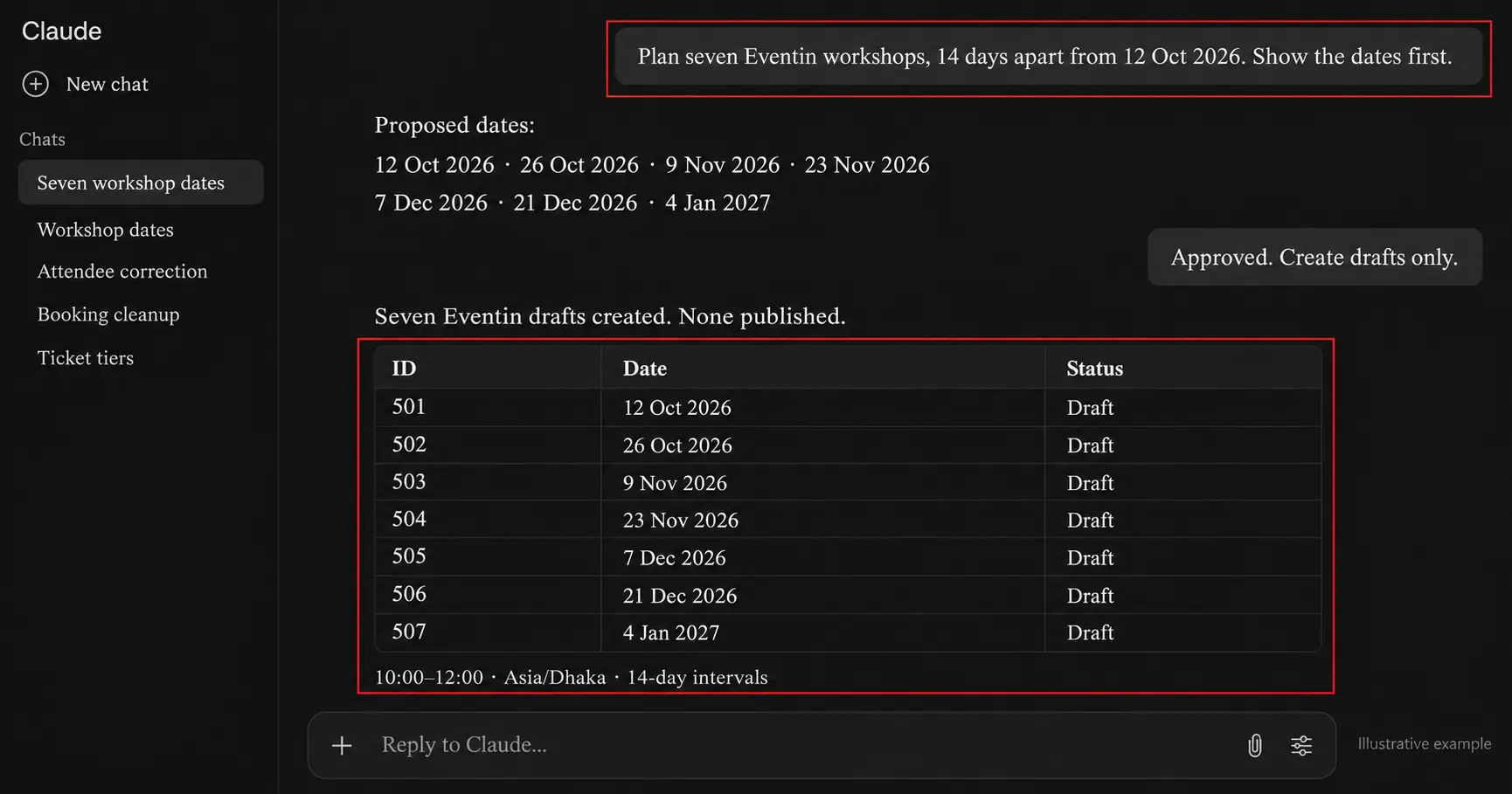
This workflow creates seven individual drafts that you can review and publish. If you need one native recurring event with linked occurrences, use Eventin’s recurring-event controls to set the frequency and end date.
The current MCP event-creation inputs include a recurrence on/off field but do not expose the full interval and occurrence settings shown in that editor. Ask for individual drafts when seven separate event records meet your need, and check the date math before publishing.
2. Update an event and its agenda after a change
A speaker changes rooms, or a workshop starts an hour later. Changing only the public event time may leave the session agenda showing the old time.
Eventin MCP can retrieve the event, find its related schedule, and update supported event and schedule fields. Give the assistant the exact event and the new details, then ask it to show every affected field before making the change.
Try this prompt: “For Eventin event [ID], change the start time to [time] and location to [venue]. First retrieve the event and its schedule, then list any session slots or speaker assignments that may need an update. Show me the proposed event and schedule changes before editing. After I approve, make only those changes and read the records again to confirm the final times and location.”
The assistant can make the record changes, but the prompt does not assume it has notified attendees. Check whether you need to send an update through your usual email channel, especially if tickets have already been sold.
If the schedule is shared or the change affects several sessions, inspect those links before approving the edit. This is where a preview prevents one quick fix from creating a second problem.
3. Correct an attendee’s details and resend the ticket
An attendee says their confirmation went to a misspelled address, or their name is wrong on the ticket. Searching by name alone can return more than one person, so give the assistant the event and an order number or existing email too.
It can find the attendee record, correct supported details such as name or email, and resend the ticket after you approve the match. Ask it to confirm the updated address before it sends anything.
Try this prompt: “An attendee for event [ID] says their email should be [correct email], not [old email]. Find the attendee using the old email and order number [number]. Show me the name, event, and ticket record you found without changing it. After I confirm the match, update the email, verify it, and resend that attendee’s ticket to the corrected address.”
There is an important boundary here: the attendee update tool supports contact and registration details, but not changing the ticket tier or ticket ID.
Eventin’s attendee guide also excludes the ticket name and ID from routine editing. If the customer wants to switch from General to VIP, handle that as a separate ticket or order change rather than asking the assistant to rewrite the attendee’s tier. The distinction keeps an email correction from becoming an inaccurate ticket record.
4. Register someone who booked outside the checkout
Some registrations arrive by phone, at the door, or through an offline payment you have already verified.
Eventin MCP provides tools to create a booking order or add an attendee, so you can record that person without asking them to repeat the online checkout. Give the assistant the event, ticket type, attendee details, and actual payment status. Before adding anything, have it check for an existing order or attendee with the same details.
Try this prompt: “I have verified an offline payment for [attendee name and email] for the [ticket type] at event [ID]. Check whether this person already has an order or attendee record and whether that ticket type has capacity. Show me the booking details and payment status you intend to record. After I approve, create the appropriate booking, verify the attendee and ticket record, and tell me whether a ticket email needs to be resent.”
Do not mark an unpaid booking as completed merely to issue a ticket. For a complimentary place, state that it is complimentary and use the correct free ticket or registration setup.
Eventin’s manual-attendee documentation identifies that dashboard feature as Eventin Pro, so check the plan and permissions on your site before using this workflow. The final verification matters because a manual entry should match the payment and ticket you actually agreed with the attendee.
5. Review and remove stale incomplete bookings
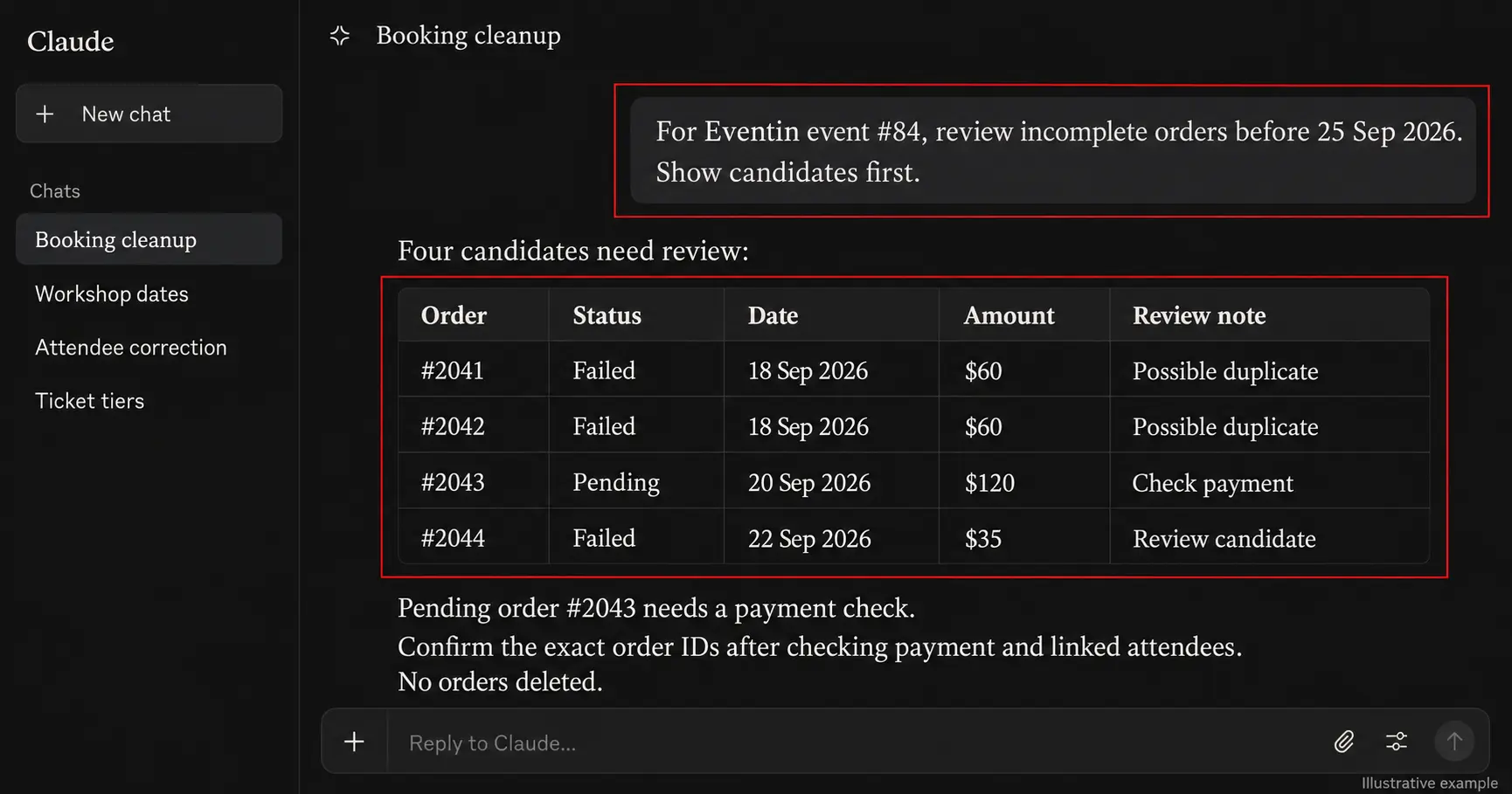
Pending and failed bookings can pile up after checkout retries. That does not mean every incomplete order should be deleted: a pending payment may still be valid, and repeated attempts may belong to one buyer.
Ask the assistant to list candidates for a particular event, check the order details, and show you exactly which IDs it proposes to remove. Supply a cutoff date or a dated export if you want a time-based cleanup.
Try this prompt: “For event [ID], review pending and failed orders older than [cutoff date]. List each candidate’s order ID, status, date if available, amount, and any linked attendee records. Flag possible duplicate attempts and any order that might still be awaiting payment. Do not delete anything; show me the exact IDs to review first.”
Once you have checked payment and selected the IDs, you can give a second instruction to delete only those orders.
The Eventin MCP order tool can permanently delete an order and its associated attendee records, so this step deserves a deliberate review. If the order data returned to the assistant does not include a usable date, narrow the list with a dated booking export or inspect records individually.
Eventin’s booking guide covers the dashboard filters and exports that can help with that check. The aim is a clean booking list without losing a valid registration.
6. Find the event that needs promotion this week
If you manage several upcoming events, the one with the lowest revenue is not always the most urgent. Ask the assistant to compare days remaining, tickets sold, capacity, and reported revenue across events.
An event with many empty seats and little time left may deserve attention before one whose sales opened yesterday. Give it a target when a venue has no fixed ticket limit.
Try this prompt: “Compare my upcoming Eventin events by event date, completed tickets sold, remaining capacity or my stated sales target, and reported revenue. Rank the three that need attention this week. Show the numbers behind your ranking and suggest one action to review for each. Do not change ticket prices, capacities, or event settings.”
The ranking tells you where to look first, not why an event is lagging. To judge whether sales are accelerating or slowing, add dated booking records or saved weekly snapshots.
A single current total cannot show a trend on its own. That extra history turns a broad “promote this event” suggestion into a more informed timing decision. For tactics after you choose an event, see our guide on how to increase event ticket sales.
7. See which ticket tier earns the most
Early Bird may sell the most tickets while VIP brings in more money per purchase. Ask the assistant to compare each tier’s units sold, price, remaining quantity, and revenue if the event report provides it.
If it only has units and listed prices, the calculation is an estimated list-price value, not actual revenue after coupons and refunds. That distinction matters before changing a price or promoting a tier.
Try this prompt: “For event [ID], compare Early Bird, General, and VIP by completed tickets sold, listed price, remaining quantity, and actual revenue by tier if available. If actual revenue by tier is missing, show a clearly labeled list-price estimate instead. Tell me which tier leads in ticket volume and which leads in value, then suggest one offer to review. Do not edit the tickets.”
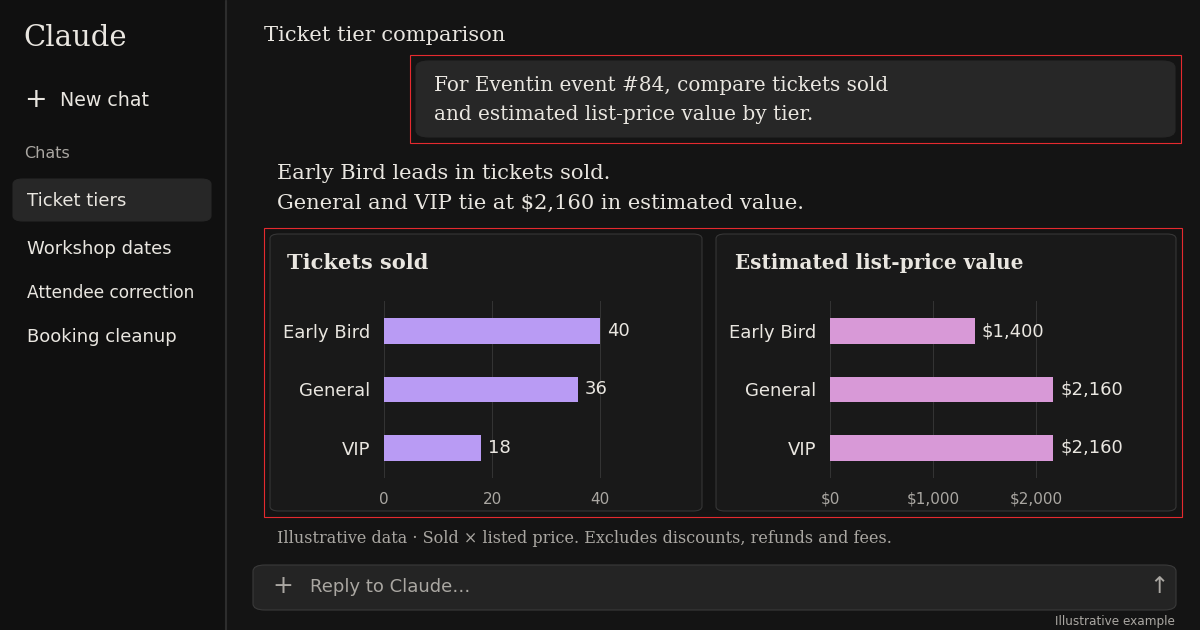
Here is an illustrative example, not a result from an Eventin customer. At list price, General and VIP contribute the same estimated value even though General sells twice as many tickets. The assistant could suggest reviewing the General offer, but it should first check actual paid amounts, sale windows, and remaining stock.
Eventin’s ticket variations guide explains the separate prices and capacities behind that comparison. For ideas on structuring the tiers themselves, see our guide to multi-tier ticket pricing.
8. Plan the next Early Bird offer from past sales
An assistant cannot tell you a universal best day or price for launching Early Bird tickets. It can compare your past events if you provide their sale windows and dated paid bookings. That lets you ask whether tickets moved earlier or later in the sales period and what each window brought in.
Use the result to plan a testable launch window and price, not to claim that past sales guarantee the next event’s outcome. For the broader thinking behind a ticket price, see our guide to event pricing psychology.
Try this prompt: “Compare the Early Bird windows for these similar past events [IDs and sale dates], using the dated completed bookings and actual paid revenue I provide. Show tickets sold at 60, 30, and 14 days before each event, and explain any major differences in audience or promotion. Suggest two launch-window and price scenarios for my next event, with assumptions and a measure for checking which one works. If the history is incomplete, tell me what data to collect instead.”
If you also want to compare two marketing messages, the assistant can propose the test and analyze the campaign results you bring back.
The current Eventin MCP tools do not randomly split an audience or attribute page visits and purchases to an ad. Track those measures in your email or analytics platform, then ask the assistant to compare like-for-like results. This makes its marketing advice traceable to evidence rather than a guess dressed up as a forecast.
A Worked Example: From Ticket Data to a Sales Recommendation
Here is an illustrative example, not data from a live Eventin site. Imagine an event with 21 days left to sell tickets, three paid ticket types, and separate capacities for each tier. An assistant could combine ticket sales from the event report with ticket prices and capacities from the event details. The first useful step is a table that shows both volume and estimated value.
| Ticket type | Ticket type | Sold | Capacity | Sell-through | Estimated list-price value |
|---|---|---|---|---|---|
| Early Bird | $35 | 40 | 50 | 80% | $1,400 |
| General | $60 | 36 | 120 | 30% | $2,160 |
| VIP | $120 | 18 | 25 | 72% | $2,160 |
General and VIP have the same estimated list-price value, even though General sold twice as many tickets. Early Bird leads in units sold, but it may already be near the end of its sale period. The assistant could suggest reviewing how General is presented before extending the discount on Early Bird. It should first ask when each tier opened, whether coupons were used, and what the actual paid revenue shows.
Try this prompt: “Using event 84’s report and ticket settings, make a table like the one above. Tell me which tier leads in units, which leads in actual revenue if available, and which has the most remaining capacity. Suggest one marketing action to review, but list the missing facts that could change your advice.”
The figures in this table are estimates: sold tickets multiplied by list price. They do not account for coupon discounts, refunded purchases, payment fees, or other adjustments. Replace this illustration with an anonymized screenshot or figures from a real Eventin event before presenting it as a customer result.
FAQs About Eventin MCP
Can Eventin MCP compare ticket sales across events?
Yes. An AI assistant can request reports for multiple Eventin events and place their results side by side. Ask it to compare similar events at similar points in their sales windows, especially when capacities differ. The comparison shows what happened and helps you decide what deserves a closer look.
Can it show which ticket type performs best?
It can compare tickets sold by type with the prices and capacities available in your event records. First define “best”: most tickets sold, highest sell-through, or most revenue are different answers. If actual revenue by type is not available, label units sold multiplied by list price as an estimate.
Can it tell whether an event’s sales are growing?
Yes, if you give it dated history to compare. Two snapshots show how much was sold between those dates, while three equally spaced snapshots let it compare the pace of two periods. A single current event report cannot establish a trend by itself.
Can it recommend when to launch Early Bird tickets?
It can suggest a launch window using dated sales from comparable past events and the sale windows you used. Treat that suggestion as a test, since speakers, audience, promotion, and event timing can change demand. Eventin lets you set start and end times for a ticket type in the event editor.
Can it recommend a ticket price?
It can model price and revenue scenarios when you provide your costs, goals, available capacity, and current results. Those scenarios show what would happen under stated assumptions; they do not prove how buyers will respond. Review the effect on existing buyers and your event promise before making a price change.
Can Eventin MCP run an A/B test?
No native A/B testing or campaign attribution tool appears in the current Eventin MCP tool list. Your AI assistant can help plan a fair comparison and analyze the results you bring back. To measure conversion or revenue per visitor, you also need traffic and completed purchase tracking outside the MCP reports.
Does Eventin MCP automatically change prices or send marketing campaigns?
Eventin MCP has tools for updating event ticket details when you ask it to make a supported change, but it is not an automatic pricing engine. The current tool list does not include a marketing campaign sender or a built-in experiment runner. Use its recommendations to plan the change, review the settings in Eventin, and run your campaign through the tools you already use.
Conclusion: Make the Next Sales Decision With Evidence
Eventin MCP use cases become more valuable when you move beyond asking for a total and start asking what that total means. Compare events, check the ticket mix, watch changes over time, and test the ideas that follow. A good answer shows the source numbers, explains the recommendation, and tells you what it still cannot know.
Start with one event you are selling now. Ask your AI assistant to compare its ticket types and identify the decision worth reviewing this week. If you have not connected Eventin MCP yet, follow our setup guide; if you are planning a new event, explore Eventin and its ticket options.