Increase Average Order Value in WooCommerce with Product Add-ons


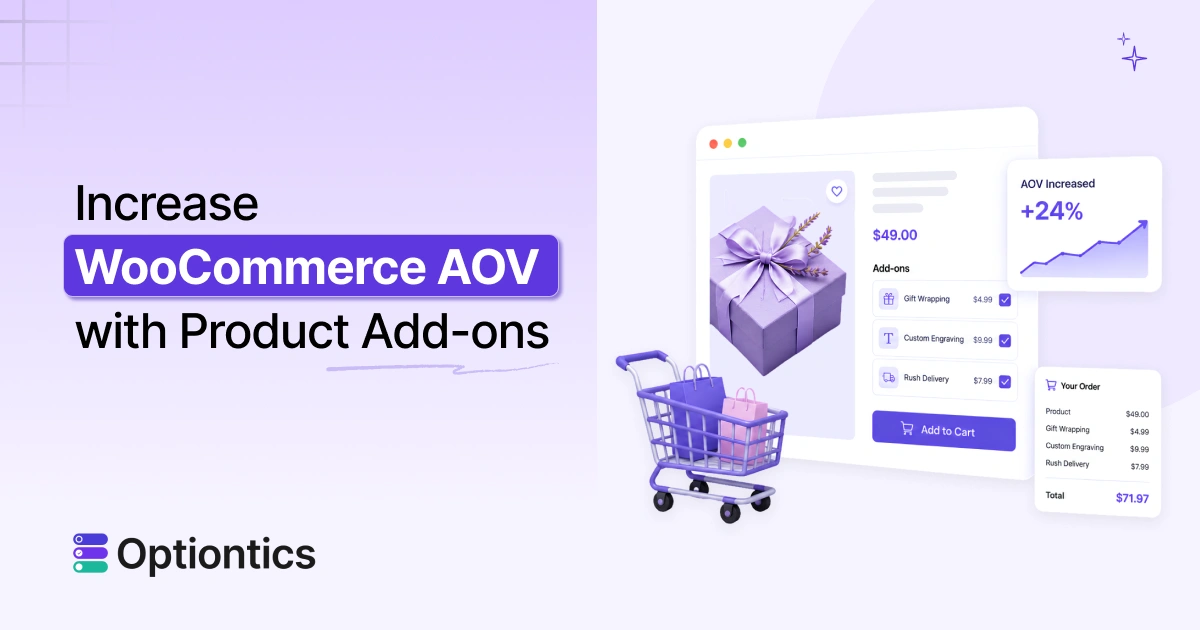
Table of Contents
You can increase average order value in WooCommerce by offering relevant paid add-ons, upgrades, bundles, and personalization options directly on the product page. These choices help customers build a more complete order and increase revenue per transaction.
Many WooCommerce stores already attract interested buyers, but customers often purchase only the main product.
Product add-ons give them useful reasons to increase their order, such as adding gift wrapping, premium materials, extra toppings, custom text, file uploads, or faster delivery. The key is to offer add-ons that match the main product and solve a clear customer need.
In this guide, you will learn which product add-ons convert well, how to price and bundle them, and how to measure AOV growth. You will also see how Optiontics helps you add and manage these upsell product options in WooCommerce.
What Is Average Order Value in WooCommerce?
Average order value, or AOV, is the average amount a customer spends per WooCommerce order. Calculate it by dividing total revenue by the total number of orders within the same period.
How Do You Measure AOV Growth?
Measure AOV growth by comparing average order value before and after launching product add-ons. Also track the percentage of orders containing an add-on, the revenue and profit generated by those options, and any change in checkout conversion.
Start by recording your current AOV for a fixed period, such as 30 or 60 days.
You can also calculate the add-on conversion rate:
For example, a store that earns $12,000 from 200 orders has an AOV of $60.
Track:
| Metric | What it shows |
| Average order value | Spending per completed order |
| Add-on conversion rate | Percentage of orders with add-ons |
| Add-on revenue | Revenue generated by extras |
| Add-on profit | Revenue after direct costs |
| Checkout conversion | Whether extra fields affect purchases |
| Add-on refunds | Problems linked to specific options |
Compare similar periods and avoid comparing a quiet month with a major holiday campaign. Test one change at a time, such as the price, label, placement, or field type.
Regular tracking helps you improve order value using real sales data instead of assumptions.
Tracking WooCommerce average order value helps you understand customer spending patterns. It also shows whether product bundles, upsell product options, discounts, and WooCommerce product add-ons are increasing revenue per transaction.
A higher AOV can improve revenue per customer and help recover marketing costs faster.
📚 Quick definition: Average order value, or AOV, is the average amount customers spend per WooCommerce order during a specific period. You calculate it by dividing total revenue by the total number of orders.
There is no single good average order value for every WooCommerce store. A healthy AOV depends on your product prices, industry, profit margins, customer type, location, and sales channel.
A store selling $20 food items will naturally have a lower AOV than a furniture, jewelry, or electronics store. For this reason, comparing your store with a broad ecommerce average may not provide a useful target.
Some ecommerce benchmark reports place average order values at around $150 to $180 globally, while the median AOV across Triple Whale’s paid advertising data was $74.12 in 2025. These figures show how widely AOV can vary based on the dataset, market, and product category.
A better WooCommerce AOV benchmark is your own historical performance. Compare your current AOV with the previous 30, 60, or 90 days and measure whether your changes increase both order value and profit.
For example:
- Current AOV: $60
- Target increase: 10%
- New AOV target: $66
A higher AOV is useful only when the extra revenue also produces enough profit. Heavy discounts may increase order value while reducing the amount you earn from each order.
How do Product Add-ons Increase Average Order Value?
Product add-ons increase average order value by giving customers relevant paid choices before checkout. Common examples include personalization, premium materials, additional services, accessories, and convenience upgrades.
These options increase spending when they improve or complete the product the customer already plans to buy.
The timing also matters. Customers see these upsell product options while they are already deciding to buy, so they do not need to search for another product or visit a different page. A small extra charge often feels reasonable beside the price of the main item, especially when the add-on saves time or improves the final result.
For example, a customer buying a custom mug may also pay for a photo upload, gift wrapping, and faster delivery. A restaurant customer may add extra toppings, sauces, or a drink to the same order. These WooCommerce product add-ons increase revenue per transaction while giving customers more control over what they buy.
📚 TL;DR Product add-ons increase average order value by giving customers relevant paid upgrades before checkout, making it easier to spend more without leaving the product page.
What Is the Difference Between Product Add-ons, Upsells, Cross-sells, and Bundles?
A product add-on modifies the current product, an upsell promotes a better version, a cross-sell recommends a related item, and a bundle combines several items or extras in one offer.
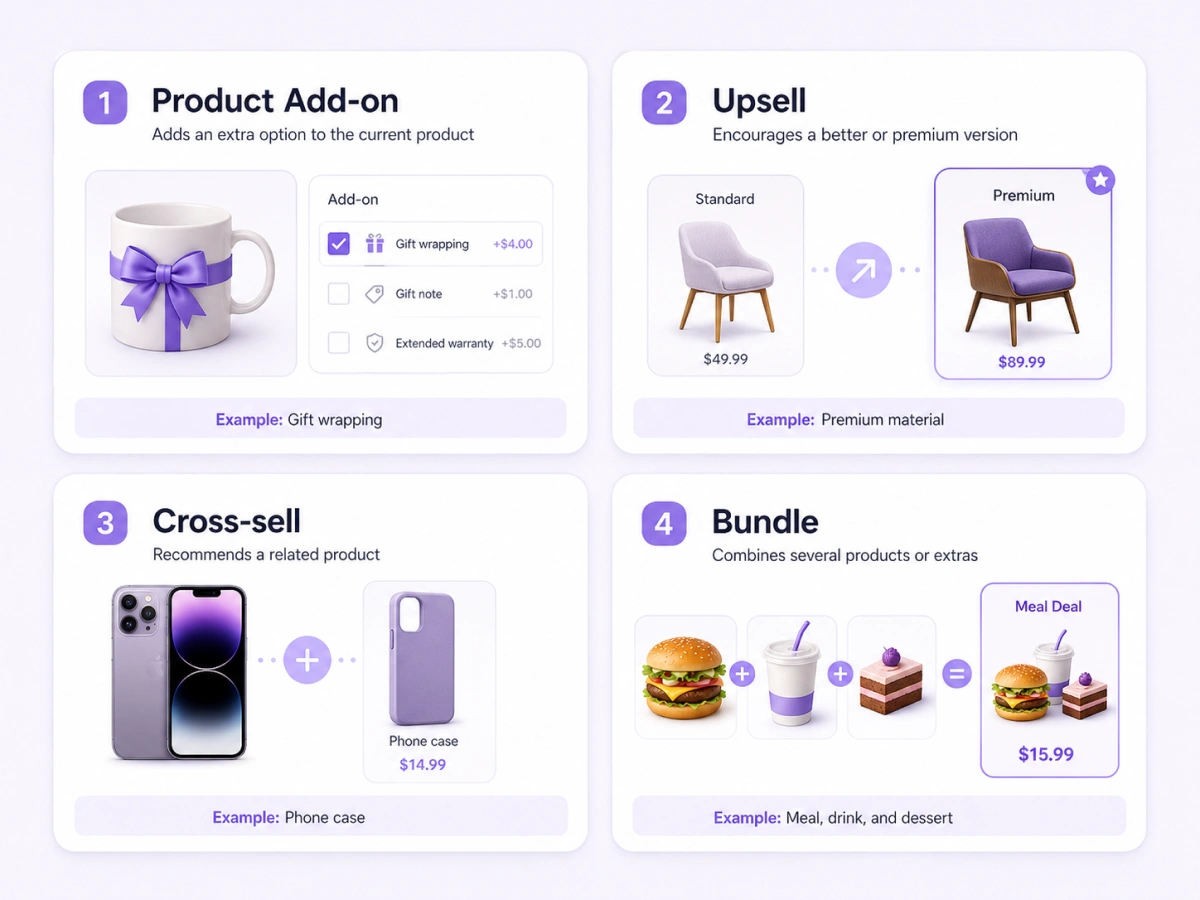
| Method | What it does | Example |
| Product add-on | Adds an extra choice to the current product | Gift wrapping |
| Upsell | Encourages a better or premium version | Premium material |
| Cross-sell | Recommends a related product | Phone case |
| Bundle | Combines several products or extras | Meal, drink, and dessert |
Product add-ons work best when they stay closely connected to the main purchase.
Which Product Add-ons Increase Average Order Value Most?
The add-ons most likely to increase AOV are personalization options, premium upgrades, convenience services, complementary extras, and protection plans. They work because they improve quality, save time, reduce risk, or make the order more personal.
| Add-on type | Main customer benefit | Example |
| Personalization | Makes the product personal | Engraving |
| Premium upgrade | Improves quality | Premium material |
| Convenience | Saves time or effort | Assembly |
| Complementary extra | Completes the order | Extra topping |
| Protection | Reduces future risk | Extended warranty |
Personalization options
Personalization works well because it makes a product feel more relevant to the buyer. Customers may pay extra to add a name, message, image, logo, or custom design to an item. These options are common for gifts, apparel, printed products, jewelry, and promotional items.
Popular personalization add-ons include:
- Custom text or engraving
- Name printing
- Photo or logo upload
- Font selection
- Custom color choice
- Gift messages
WooCommerce product customization can also reduce manual communication. Instead of asking customers to send details by email, you can collect everything directly from the product page.
Premium upgrades
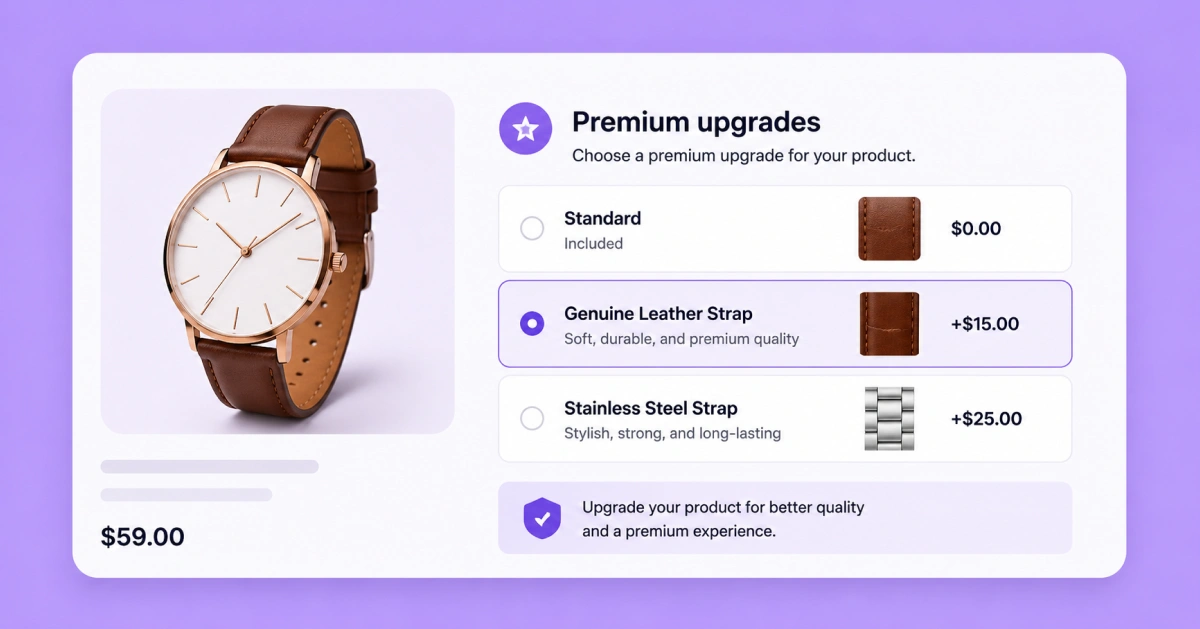
Premium upgrades give customers a better version of the product without forcing them to choose a completely different item. These options work best when the improvement is easy to understand and the extra price feels reasonable.
Examples include:
- Premium materials
- Larger sizes
- Better finishes
- Higher print quality
- Priority production
- Faster service
For example, a furniture store can offer a premium wood finish, while a printing business can charge more for thicker paper or lamination. These upgrades help increase revenue while giving customers more control over quality.
Convenience add-ons
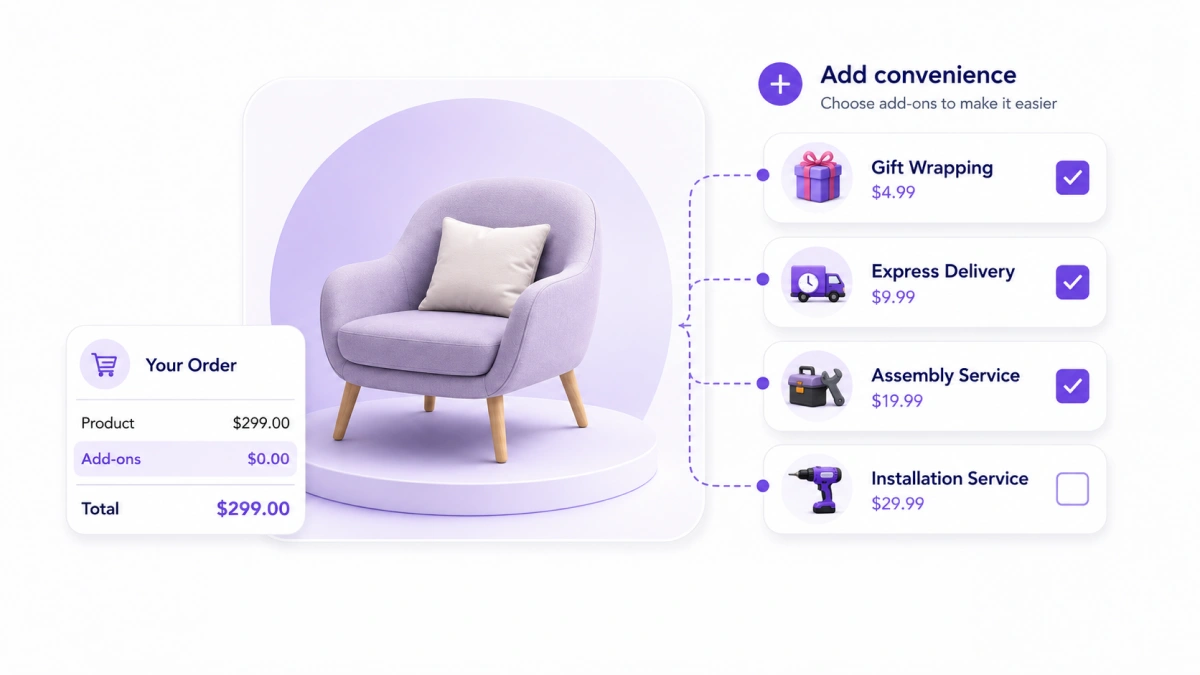
Convenience options save customers time or remove extra work after the purchase. Buyers often accept these add-ons because they make the full order easier to manage.
Useful convenience add-ons include:
- Gift wrapping
- Product assembly
- Installation
- Express delivery
- Setup service
- Priority handling
A customer buying furniture may pay for assembly, while someone ordering a gift may add premium packaging and direct delivery. These extras can raise customer spending without changing the base product.
Complementary extras
Complementary add-ons complete the main purchase. They work well when the customer would likely need the extra item or service anyway. A restaurant can offer extra toppings or drinks, while an event organizer can add meals or merchandise to a ticket.
Protection and support options

Protection and support add-ons reduce risk after the purchase. These options are more suitable for higher-value products, electronics, services, and items that may require future support.
Common examples include:
- Extended warranty
- Damage protection
- Replacement coverage
- Maintenance plans
- Priority support
- Extra support hours
These add-ons should be clear and optional. Customers need to understand what the protection covers and how long it lasts before they agree to pay for it.
📚 TL;DR Personalization, premium upgrades, convenience services, complementary extras, and protection plans are the product add-ons most likely to increase AOV because they improve the customer’s purchase.
How Do Product Bundles Increase WooCommerce AOV?
Product bundles increase average order value by combining several related products, services, or add-ons into one offer. Customers receive a more complete purchase, while the store earns more from each transaction.
A bundle may include a fixed group of items or allow customers to choose from several available options. The bundle price can equal the full combined value or include a small discount to encourage customers to purchase everything together.
Restaurant bundles
Restaurants can combine items customers often order together.
Examples include:
- Burger, fries, and drink
- Pizza, side dish, and dessert
- Main course and premium topping
- Family meal with drinks and sauces
- Event catering package with meals and delivery
A restaurant bundle works best when the items naturally complete one meal and the total price remains easy to understand.
Event bundles
Event businesses can combine admission with useful upgrades.
Examples include:
- Event ticket and workshop access
- Ticket, lunch, and merchandise
- Conference pass and networking session
- VIP access, reserved seating, and parking
- Family ticket package
These bundles help attendees choose a complete event experience without selecting every item separately.
Service bundles
Service businesses can combine related tasks or deliverables.
Examples include:
- Website design and maintenance
- Photography session and printed album
- Consultation and follow-up support
- Cleaning service and additional rooms
- Basic service with priority delivery
- Design package with extra revisions
Service bundles work well when customers commonly purchase the included services together.
Can You Create Product Bundles in WooCommerce?
Yes. You can create product bundles in WooCommerce by using a bundle extension or a compatible product options plugin. WooCommerce’s Product Bundles extension can group simple, variable, subscription, virtual, and downloadable products into one bundle.
The exact setup depends on whether you need:
- Fixed products
- Optional products
- Customer-selected quantities
- Separate inventory tracking
- Bundle discounts
- Conditional options
- Custom fields or services
Use a standard product bundle when each item already exists as a separate WooCommerce product. Use product add-ons when the extra is a customization or service that does not need its own product page or inventory record.
When Should You Discount a Product Bundle?
You do not need to discount every bundle. Customers may buy a bundle because it saves time, simplifies the decision, or provides a complete solution.
Consider a discount when:
- Customers rarely purchase all items together
- The bundle helps move slower-selling inventory
- The combined price feels too high
- You want to promote a larger order
- The discount still protects your profit margin
Avoid large bundle discounts when customers already buy the included items together at full price.
For example:
| Individual prices | Bundle price | Customer saving |
| Main product: $50 | ||
| Accessory: $15 | ||
| Gift packaging: $10 | ||
| Total: $75 | $69 | $6 |
Before publishing a discount, calculate the product cost, payment fees, packaging, shipping, and expected profit. A larger order is not helpful if the discount removes most of the profit.
How Do You Choose Product Add-ons That Increase AOV?
Choose add-ons that improve, complete, protect, or personalize the main product. Strong options solve a clear need, appear in customer requests or order data, and remain easy to understand. Start with two or three options and expand only when the results support it.
Choose add-ons that solve a clear customer need
The best product add-ons stay closely connected to the main purchase and solve a clear customer need. A useful option should improve the product, add convenience, complete the order, support personalization, reduce risk, or save time.
For example, gift wrapping fits a personalized product, assembly fits furniture, and express delivery fits time-sensitive orders. Review customer questions, order notes, and repeated requests to find add-ons people are already asking for.
Review customer and order data
Your existing store data can reveal strong add-on opportunities. Review:
- Customer support questions
- Product reviews
- Order notes
- Custom requests
- Frequently purchased combinations
- Best-selling variations
- Refund reasons
If customers often ask for gift packaging after ordering, add it directly to the product page. If buyers regularly purchase an accessory separately, offer it during the main purchase.
Avoid offering too many choices
Too many options can make a product page difficult to understand. Start with two or three useful add-ons and track which ones customers select.
Remove weak offers and test new ones based on real customer behavior. This approach can generate more revenue per order without making the buying process difficult.
Choose the Right Pricing Method
Use fixed pricing for simple extras, percentage pricing for upgrades tied to product value, per-character pricing for custom text, and formula pricing for dimensions or quantities.
| Pricing method | Best use | Example |
| Fixed pricing | Simple extras | $5 gift wrapping |
| Percentage pricing | Upgrades linked to product value | 10% premium material fee |
| Per-character pricing | Engraving or printed text | $0.50 per character |
| Formula pricing | Custom measurements or quantity | Width × height × rate |
Fixed pricing works well for toppings, wrapping, or setup services. Per-character pricing suits engraving, while formula pricing is better for custom dimensions and quantities.
For a deeper explanation of fixed, percentage, per-character, and formula pricing, read this WooCommerce product add-on pricing guide.
Explain the Benefit Clearly
An add-on label should explain what the customer receives, not only the extra cost. FAn add-on label should explain both the benefit and the price. “Add premium gift packaging for $10” is clearer than “Add $10.”
Clear labels make WooCommerce product options easier to understand and reduce hesitation.
📚 TL;DR Choose add-ons that solve a real customer need, complement the main product, and remain easy to understand. Start with only a few options and improve them using customer data.
How Should You Display Product Add-ons for More Conversions?
Display product add-ons close to the main product choices, use field types that match the option, show every extra price clearly, and keep the form easy to use on mobile devices.
A useful add-on can still reduce conversions when customers cannot find it, understand it, or select it easily.
Place add-ons near the relevant product choice
Show each add-on where customers need to make the decision. For example:
- Show engraving fields near personalization choices
- Show gift wrapping before the Add to Cart button
- Show extra toppings below the food size selection
- Show installation after the product dimensions
- Show express delivery near the delivery information
Avoid placing important paid options far below long product descriptions. Customers may add the main product to the cart without seeing them.
Use swatches for visual choices
Image and color swatches work well when customers need to see the difference between options. Use swatches for:
- Colors
- Materials
- Patterns
- Finishes
- Food toppings
- Packaging styles
- Printed designs
Each swatch should include a clear name and extra price. Do not rely only on color or an image because customers may not understand what the option represents.
Use dropdowns for long or simple lists
Dropdowns work better when the options are text-based or when the list contains many choices. Use dropdowns for:
- Service locations
- Delivery time slots
- Standard sizes
- Support plans
- Workshop sessions
- Installation types
Avoid using a dropdown for two or three important visual choices. Buttons, radio fields, or swatches make those options easier to compare.
Use checkboxes for independent extras
Checkboxes work well when customers can select several extras at the same time. Examples include:
- Gift wrapping
- Extra warranty
- Priority delivery
- Additional support
- Extra sauce
- Printed copy
Use radio buttons instead when customers can choose only one option from a group.
Show the price beside every paid add-on
Customers should see the extra cost before selecting an option. Clear label: “Add premium gift packaging (+$10)”
Unclear label: “Premium gift packaging”
Also update the total product price after a customer selects an add-on. This prevents unexpected charges at checkout.
Keep mobile forms simple
Test the complete add-on form on a phone before publishing it. Check whether:
- Buttons are large enough to tap
- Dropdowns open correctly
- Swatches remain visible
- Labels do not overlap
- File uploads work
- Conditional fields appear correctly
- Price updates are easy to notice
- The Add to Cart button remains accessible
Use one column for most mobile product forms. Several fields placed side by side may become difficult to read or select on smaller screens.
Show only relevant options
Conditional logic can hide options until they become relevant. For example, show a custom text field only after the customer selects engraving. Show a workshop meal choice only after they add workshop access. This keeps the initial product form shorter and reduces unnecessary decisions.
How Does Optiontics Help Increase Average Order Value?
Optiontics helps WooCommerce stores increase AOV by adding paid extras, conditional upsells, visual choices, and flexible pricing directly to product pages. Store owners can create these options without code and apply them to individual products, categories, or reusable option groups.
For the full setup process, see this guide on how to add custom product options in WooCommerce, including fields, pricing rules, and conditional options.
| Optiontics feature | How it supports AOV |
| Paid extras | Adds extra revenue to the main order |
| Conditional logic | Shows only relevant upsells |
| Flexible pricing | Matches charges to the product |
| Visual options | Makes upgrades easier to compare |
| Reusable groups | Applies add-ons across similar products |
| Templates and AI | Reduces setup time |
Add Paid Extras
Optiontics lets you charge for extras such as gift wrapping, toppings, engraving, rush delivery, and VIP access. The selected charge is added to the main product price.
Show Relevant Upsells with Conditional Logic
Conditional logic shows an add-on only when it matches a customer’s previous selection. This keeps the product form easier to follow and prevents irrelevant offers from appearing.
Use Flexible Pricing
Optiontics supports fixed, percentage, per-character, and formula pricing. This lets you match the pricing method to the product and the type of customization.
Add Visual Product Options
Image swatches, color selectors, and button groups help customers compare visual choices such as colors, finishes, materials, packaging, and food options.
Visual product options can also make premium upgrades more noticeable. Customers can quickly compare the standard and higher-value choices.
Create Reusable Option Groups
Reusable option groups let you apply the same fields, prices, and rules to several products or categories. This reduces repeated setup and keeps add-ons consistent.
For example, you can create separate groups for gift options, restaurant extras, event upgrades, or print customizations.
Use Templates and AI
Optiontics provides templates and AI-assisted suggestions for fields, pricing rules, and conditions. These tools reduce setup time, but every generated option should be reviewed before publishing.
Review the Optiontics features and pricing plans to compare its available tools, site limits, and annual or lifetime options.
📚 TL;DR Optiontics helps WooCommerce stores increase AOV by creating paid product options, flexible pricing, conditional logic, and reusable add-on groups without coding.
A Simple 7-Step WooCommerce AOV Growth Plan
Use this seven-step plan to launch product add-ons without changing your entire store at once.
Step 1: Record your current AOV
Choose a fixed period, such as the previous 30 days.
Calculate:
Also record your conversion rate, profit per order, refund rate, and total number of orders. You will need these numbers for comparison later.
Step 2: Choose one high-traffic product
Start with a product that already receives regular traffic and sales. Avoid testing on several unrelated products at the same time.
A product with existing demand will give you useful results faster than a product that rarely sells.
Step 3: Find one relevant add-on
Review customer questions, support messages, order notes, product reviews, and frequently purchased items.
Choose an add-on that:
- Improves the product
- Saves time
- Adds personalization
- Completes the purchase
- Reduces risk
For example, add gift wrapping to a gift product or extra toppings to a restaurant item.
Step 4: Set a clear and profitable price
Choose a fixed, percentage, per-character, or formula-based price that matches the add-on.
Calculate the direct cost before choosing the price. Include materials, labor, packaging, processing fees, and delivery where relevant.
Step 5: Display the add-on clearly
Place the option close to the related product choice and explain what the customer receives.
Use a suitable field type:
- Swatches for colors or materials
- Radio buttons for one required choice
- Checkboxes for multiple extras
- Text fields for personalization
- File uploads for images or designs
- Dropdowns for longer lists
Display the extra price before customers add the product to the cart.
Step 6: Test the full purchase journey
Complete a test order on desktop and mobile.
Check:
- Field visibility
- Conditional rules
- Price calculation
- Product page total
- Cart details
- Checkout details
- Order confirmation
- Admin order information
- Refund behavior
Fix unclear labels, broken fields, or unexpected prices before sending traffic to the page.
Step 7: Measure and improve the result
Run the test for a fixed period or until you collect enough orders for a useful comparison.
Track:
- Average order value
- Add-on selection rate
- Add-on revenue
- Add-on profit
- Product conversion rate
- Checkout conversion
- Refunds
- Customer feedback
Keep profitable add-ons, improve options customers do not understand, and remove choices that reduce conversions.
After the first test, repeat the process with another product or test a different label, price, placement, or field type.
What Product Add-on Mistakes Reduce Sales?
The most common add-on mistakes are irrelevant offers, too many choices, hidden prices, unclear labels, poor mobile usability, and missing performance tracking. Review the common reasons a WooCommerce product page isn’t converting before adding more fields or offers.
- Offering unrelated add-ons: Keep every option connected to the main product.
- Showing too many choices: Start with a few useful add-ons to avoid confusion.
- Hiding extra costs: Show the added price clearly before checkout.
- Using unclear labels: Explain exactly what the customer gets.
- Ignoring mobile users: Test fields, swatches, and price updates on phones.
- Skipping performance tracking: Measure add-on sales, profit, and AOV growth.
FAQs About WooCommerce Product Add-ons and AOV
Can free shipping increase average order value?
Yes. A free shipping threshold can encourage customers to add another product or paid extra to their cart. Set the threshold slightly above your current AOV so the offer increases revenue without reducing profit.
Do product add-ons need separate inventory limits?
Physical add-ons may need separate stock limits. This is useful for items such as merchandise, meal packages, accessories, and limited premium materials. Stock control prevents customers from selecting unavailable extras.
Are WooCommerce product add-ons taxable?
They may be. Tax treatment depends on the store’s location, product type, and tax settings. An add-on may use the main product’s tax class, but store owners should confirm the correct setup with a qualified tax adviser.
Can product add-ons reduce conversion rates?
Yes. Too many fields, unclear prices, or irrelevant extras can cause customers to leave without buying. Track both average order value and conversion rate to confirm that add-ons increase revenue without reducing completed orders.
Can I use product add-ons with WooCommerce subscriptions?
Yes, when the add-ons plugin supports the subscription product. Confirm whether the extra charge applies only to the first order or repeats with every renewal.
Should every WooCommerce product include add-ons?
No. Product add-ons work best for items that support personalization, upgrades, accessories, or extra services. Adding unnecessary options to simple products can make the buying process harder.
How often should I review product add-on performance?
Review product add-on performance at least once a month. Check selection rates, revenue, profit, refunds, and customer feedback. Keep strong options, improve unclear offers, and remove add-ons that customers rarely select.
Can product add-ons increase customer lifetime value?
Yes. Useful add-ons can create a more complete buying experience and improve customer satisfaction. Customers who receive a product that better matches their needs may be more likely to return.
Final Thoughts: Increase Revenue from Every WooCommerce Order
Relevant product add-ons can increase revenue per purchase while giving customers more control over what they buy. The strongest options solve a clear need, use transparent pricing, and remain easy to select.
Start with one popular product and one useful paid add-on. Record your current AOV, launch the option, and compare the results after a fixed period.
Optiontics provides the fields, pricing methods, conditional rules, and visual choices needed to apply this strategy in WooCommerce. Use real order data to decide which add-ons to keep, improve, or remove.