How to Create WooCommerce Product Upsells with Add-Ons


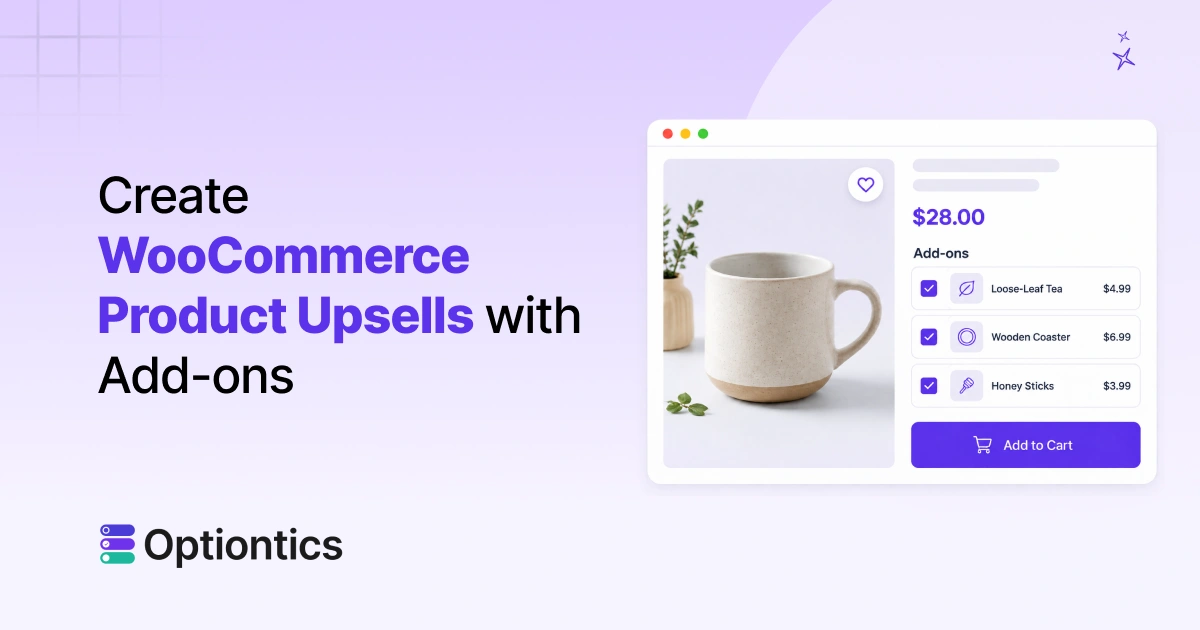
Table of Contents
WooCommerce product upsells with add-ons let customers choose complementary products, paid upgrades, and bundle items directly from a product page.
Use separate WooCommerce products for stocked extras, option fields for services or customizations, and a bundle tool when customers need to choose several products. This approach keeps pricing, quantity limits, and inventory easier to manage.
Many stores make related extras difficult to find. Someone buying a ceramic mug may also want tea, a coaster, or gift packaging, but those choices are easy to miss when they appear elsewhere on the site.
This guide shows how to use WooCommerce and Optiontics to display these offers, build mix-and-match bundles, and test the complete purchase flow.
Upsell, Cross-Sell, Add-On, or Bundle: Which Should You Use?
Use an upsell to recommend a better replacement, a cross-sell to offer a complementary product, an add-on to customize the current item, and a bundle to sell several products together.
These offers may appear similar, but they require different product, pricing, and inventory settings. Choose the offer type before configuring the product page.
| Offer type | Purpose | Use it when | Example |
|---|---|---|---|
| Upsell | Promotes a better replacement | Customers may prefer a more advanced version of the product | Premium laptop instead of the standard model |
| Cross-sell | Adds a complementary product | Another product naturally supports or completes the main purchase | Laptop bag with a laptop |
| Product add-on | Customizes or enhances the current product | Customers need optional features, services, or personalization | Gift wrapping or engraving |
| Product upgrade | Adds a higher-value option | Customers want improved service, performance, or convenience without replacing the main product | Priority delivery |
| Bundle | Sells several products together | Products are commonly purchased as a ready-made combination | Camera starter kit |
| Mix-and-match bundle | Lets customers choose the included products | Customers want control over the items included in a bundle | Choose any six cupcakes |
In WooCommerce, an upsell means “buy this better product instead,” while a cross-sell means “buy this as well.”
Although phrases such as WooCommerce upsell add-ons are used informally, stocked products purchased alongside the main item should use the Cross-sells field. Reserve option fields for services or customizations that do not require separate inventory.
What Do You Need to Create WooCommerce Upsells and Bundles?
You need an active WooCommerce store, a base product, and the complementary products you want to offer. Every physical extra should already have its own price, image, SKU, and stock settings before you connect it to the main product.
You will also need Optiontics to create product-page upsells and mix-and-match bundles. Optiontics provides dedicated elements such as the Upsells block for displaying related products and the Mix & Match Products block for creating customizable bundles with quantity rules and pricing controls.
Configure the offer on a staging site or test product so you can verify its pricing, quantity rules, and inventory behavior before publishing.
Where Can WooCommerce Upsells Appear?
Relevance matters at every step. In a Baymard usability benchmark, 52% of desktop sites showed cart or added-to-cart cross-sells that were either irrelevant or based only on what other customers bought. Use the shopper’s current product and cart contents to decide which offers appear, as shown in Baymard’s cross-sell usability research.
WooCommerce upsells can appear on product pages, cart pages, checkout pages, thank-you pages, and post-purchase offers. Each placement supports a different goal, from increasing order value to encouraging repeat purchases.
Product Page Upsells
Product pages are the most common place to show upsells. You can recommend product upgrades, premium versions, complementary products, or extra options before the customer adds an item to the cart.
For example, a customer buying a basic laptop could see an upgraded model, additional storage, or a premium warranty.
Cart Page Upsells
Cart-page upsells encourage customers to add complementary products before checkout. This is useful for low-cost extras such as accessories, free-shipping add-ons, or related products.
For example, a customer buying a camera may see a memory card or camera bag in the cart.
Checkout Page Upsells
Checkout upsells should be simple and highly relevant because customers are already completing their purchase. You can offer a small upgrade, an additional product, or a useful service without distracting the customer from checkout.
Avoid showing too many products at this stage, as unnecessary offers may reduce conversions. This restraint matters on mobile as well as desktop.
Baymard’s 2025 Checkout UX benchmark rated 64% of leading desktop sites and 63% of mobile sites as having “mediocre” or worse checkout UX. Keep the order form and payment path more prominent than any checkout upsell, as explained in Baymard’s checkout UX research.
Thank-You Page Upsells
The thank-you page can promote a follow-up purchase after the customer completes an order. You may offer a related product, a limited-time discount, a referral reward, or an invitation to join your loyalty program.
This placement is especially useful for turning a completed order into a future sales opportunity.
Post-Purchase Upsells
Post-purchase upsells appear after the initial transaction and can encourage customers to accept a relevant one-time offer. Examples include product upgrades, bundles, subscriptions, and complementary products.
Product-page options can be created with Optiontics, while cart, checkout, thank-you, and post-purchase placements require a compatible WooCommerce upsell, checkout, or funnel extension.
How Do You Create WooCommerce Product Upsells with Add-Ons Using Optiontics?
To create WooCommerce product upsells with add-ons using Optiontics, add each extra as a separate WooCommerce product, connect it to the base product through Cross-sells, and display it beside the add-to-cart button with the Optiontics Upsells block.
Although the Optiontics feature is called the Upsells block, you should normally choose Cross-sells as its product source.
Cross-sells are complementary products customers can purchase alongside the main item, while traditional WooCommerce upsells encourage customers to choose a better or more expensive replacement. Each add-on remains a real WooCommerce product with its own price, stock, and sales record.
Step 1: Create the Base Product and Add-On Products
Start by creating the main product and every complementary item you want to offer. For example, a ceramic mug could be the base product, while tea, honey sticks, and a wooden coaster could be optional extras. Give each extra its own price, product image, SKU, and inventory settings.
Step 2: Connect the Add-Ons as Cross-Sells
Open the base product and navigate to:
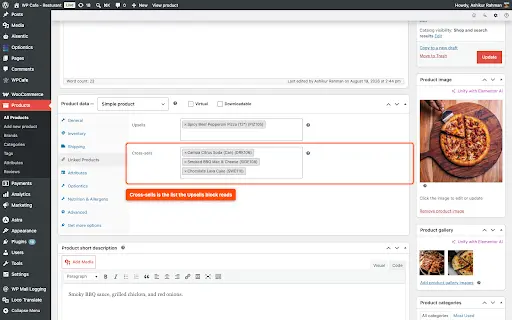
Product Data → Linked Products → Cross-sells
Search for the complementary products, select them, and update the base product. Use the Cross-sells field because these products are being offered in addition to the main product, not as replacements. Optiontics will use this linked-product list to determine which extras appear on the product page.
Step 3: Add the Optiontics Upsells Block
Navigate to:
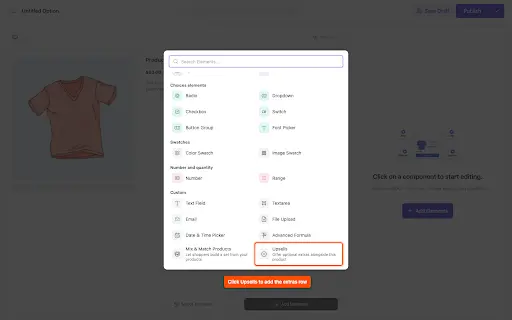
Optiontics → Options → Add New → Add Elements → Custom → Upsells
Add a customer-facing title such as “Complete Your Order” or “Add to Your Purchase.” The block uses Cross-sells as its default product source, so products connected in the previous step should appear automatically. This setup follows the official Optiontics Upsells block procedure.
Step 4: Configure the Upsell Quantity Rules
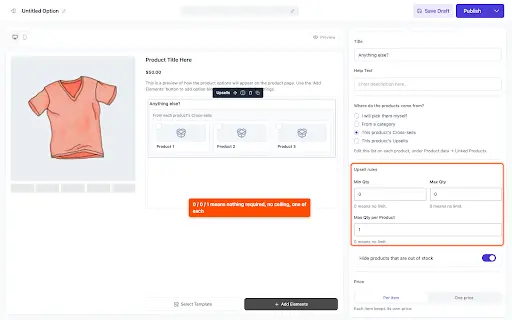
Optiontics provides three quantity controls for product-page add-ons:
| Setting | Recommended value | Purpose |
|---|---|---|
| Minimum quantity | 0 | Keeps every add-on optional |
| Maximum quantity | 0 | Allows customers to select any available extras |
| Maximum per product | 1 | Allows one unit of each extra |
When the maximum per product is set to 1, Optiontics displays each add-on as a selectable tick or checkbox. Increasing the limit to 2 or more changes the selection control to quantity buttons. This works well when customers may want several units of the same extra.
Step 5: Style and Assign the Upsells Block
Open the Appearance settings to choose the layout, number of columns, image size, colours, and spacing. Publish the option set, then assign it to all WooCommerce products, specific products, or a selected product category.
If every product has its own Cross-sells list, one option set can display different add-ons across multiple product pages.
Step 6: Test the Product and Cart Experience
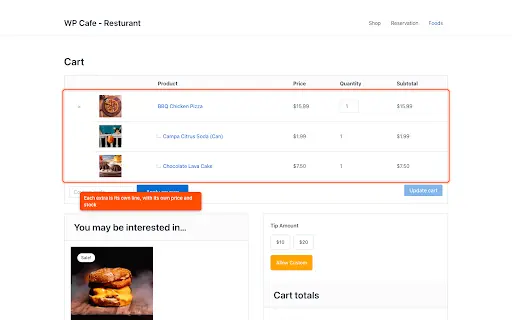
Open the product page and confirm that customers can select or skip the add-ons without leaving the page. Each selected extra should appear as a separate, indented cart line associated with the main product.
Complete a test order to verify the prices, quantities, inventory reduction, checkout details, confirmation email, and admin order information.
How Can You Offer Paid Upgrades Without Separate Products?
Not every paid extra needs to be created as a separate WooCommerce product. Option fields are better suited to gift packaging, engraving, rush processing, installation, or support when those choices do not require separate inventory.
Use checkboxes, radio buttons, or text fields, then apply fixed, percentage, per-character, or formula-based pricing. Conditional logic can display additional options only when they become relevant to the customer’s previous selection. The separate guide to adding custom product options explains these fields and pricing rules in detail.
How Do You Create a Mix-and-Match WooCommerce Product Bundle Using Optiontics?
To create a mix-and-match bundle in WooCommerce, add a selectable product pool to the main product page. Define where the products come from, how many customers must choose, and whether pricing is fixed or calculated per item. Each selection should remain visible in the cart and connected to its inventory record.
Step 1: Add the Mix & Match Products Block
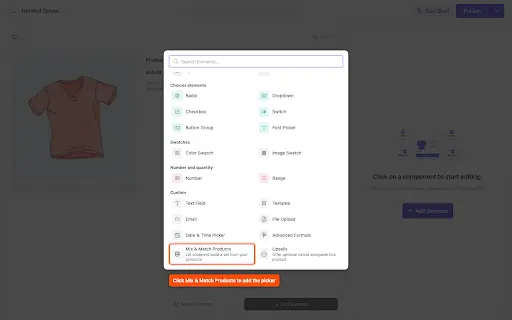
Go to Optiontics → Options, create an option set, and select Add Elements → Mix & Match Products. Add a title such as “Build Your Own Gift Box” or “Choose Any Four Products.” The Optiontics Mix & Match Products documentation explains the block’s complete controls.
Step 2: Choose the Bundle’s Product Source
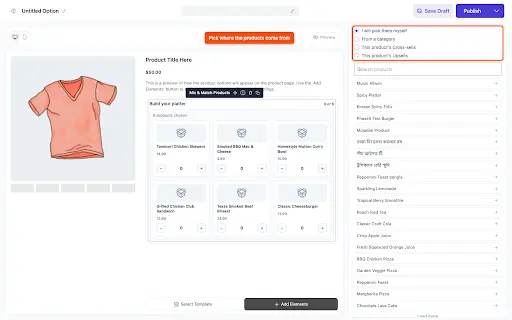
Optiontics can pull bundle items from a manual list, product category, or the current product’s cross-sells or upsells. Choose a manual list for a tightly curated bundle and a category when new eligible products should appear automatically. Cross-sells work well when the product already has a maintained list of complementary items.
Step 3: Configure Bundle Quantities
The minimum controls how many items customers must choose, while the maximum sets the total limit. Maximum per product prevents one item from filling the entire bundle.
For a choose-four box, set the minimum to 4, the maximum to 4, and the maximum per product to 2. Hide out-of-stock products so customers cannot select unavailable items.
Step 4: Fixed-Price vs Per-Item WooCommerce Bundles
Per-item pricing retains each selected product’s catalog price and suits products with different values. One-price mode applies a fixed charge regardless of the chosen combination, as in “choose any four items for $40.” Test the most expensive permitted combination to ensure the fixed price protects your margin.
Step 5: Style and Assign the Bundle
Choose a grid when product images help customers compare their options, or use a list when names and descriptions matter more. Adjust the columns, image proportions, spacing, and colours to match your WooCommerce theme.
The selection counter should remain easy to see so customers know how many items they still need to choose. Assign the completed bundle to the intended product or category and check the layout on both desktop and mobile.
Step 6: Preview the Bundle and Cart
Test the rules with incomplete, valid, and excessive selections. A valid bundle should appear as a grouped cart purchase while every selected item retains individual inventory. Also test quantity changes, cancellations, and refunds to confirm that all included items update correctly.
Example: Combining Add-Ons and Bundles on a Ceramic Mug Product
Consider a store selling a ceramic mug for $28. Premium gift packaging can use a paid checkbox because it is a service rather than a separately stocked product. Loose-leaf tea, a wooden coaster, and honey sticks can appear through the Upsells block because each item has its own price and inventory.
The same page could offer a “Choose Any Three Teas” bundle through the Mix & Match Products block. Set the minimum and maximum quantities to 3, limit each tea to one selection, and use per-item pricing when the varieties have different prices.
Customers can then personalize the mug, add complementary products, or build a tea bundle without leaving the product page.
WooCommerce Upsell and Bundle Testing Checklist
Before publishing, test the selection rules, price changes, inventory, checkout details, emails, refunds, and mobile experience. Complete at least one desktop and one mobile order using optional, required, incomplete, and excessive selections. The final totals and selected products should remain consistent throughout the complete order journey.
- Optional and required selections behave correctly.
- Minimum and maximum quantities are enforced.
- Product prices and bundle totals update accurately.
- Individual stock quantities decrease correctly.
- Out-of-stock products are hidden or unavailable.
- Bundle contents remain grouped correctly in the cart.
- Checkout and confirmation emails show every selection.
- The WooCommerce admin order contains the correct details.
- Changing or removing the main bundle updates its contents.
- Refunds restore the appropriate product inventory.
- Coupons and discounts calculate correctly for fixed-price and per-item bundles.
- Taxes and shipping costs reflect the selected products correctly.
- Variable products and variations behave correctly if the configuration supports them.
Common WooCommerce Upsell and Bundle Mistakes
Most setup problems come from using the wrong offer type or leaving important rules undefined. These mistakes can confuse customers, produce incorrect totals, or create unreliable inventory records. Review these common issues before publishing your first offer.
| Mistake | Recommended fix |
|---|---|
| Using Upsells for complementary products | Use Cross-sells for “buy this too” items |
| Using option fields for stocked products | Create separate WooCommerce products |
| Requiring every extra | Keep genuine add-ons optional |
| Offering too many extras | Show only closely related products |
| Leaving bundle quantities unrestricted | Set clear minimum and maximum limits |
| Choosing the wrong pricing method | Compare per-item and one-price totals |
| Hiding additional costs | Display every charge before Add to Cart |
How Optiontics Handles Upsells, Add-Ons, and Bundles
Optiontics displays stocked cross-sells, paid option fields, and mix-and-match selections on WooCommerce product pages. Stocked extras remain separate products, while services and customizations can use option fields without requiring their own inventory.
Store owners can configure pricing, quantity limits, display rules, and conditional logic without writing code. This provides a practical way to create WooCommerce product upsells with add-ons while keeping selections connected throughout the product, cart, and order experience.
How Do You Measure WooCommerce Upsell Performance?
Measure WooCommerce upsell performance using average order value, attachment rate, product-page conversion rate, and revenue from added items. Compare equal periods before and after launching the offer so different time windows do not distort the results. Review each offer separately because a bundle may increase order value while an unrelated add-on could reduce product-page conversion.
Use these basic calculations:
- Average order value: Total revenue ÷ Number of orders
- Attachment rate: Eligible orders containing an extra ÷ Total eligible orders × 100
- Upsell revenue: Revenue generated by the selected extras
An offer is producing a positive result when more customers add relevant extras without a harmful reduction in conversion.
If customers view an offer but rarely select it, reconsider the products, price, placement, or number of choices. The guide to increasing average order value in WooCommerce explains how to evaluate the broader result.
Frequently Asked Questions
How do I upsell products in WooCommerce?
Add better alternatives under Product Data → Linked Products → Upsells. WooCommerce can then recommend them on the product page. Use Cross-sells for products bought alongside the original item.
Should complementary products be upsells or cross-sells?
Complementary products should normally be cross-sells because they accompany the main product. A laptop bag and tea are familiar examples. Use upsells for higher-value alternatives that replace the original choice.
What is the difference between an add-on and an upsell?
An add-on enhances the current purchase through an extra product, service, or customization. An upsell promotes a better alternative. The distinction is whether the original product remains in the order.
Can WooCommerce create bundles without a plugin?
WooCommerce can recommend products, but core WooCommerce does not provide this mix-and-match workflow. A compatible plugin must control selections, quantities, pricing, and cart grouping. Confirm that it also supports individual inventory tracking.
Do WooCommerce bundle products track inventory separately?
Yes, when each selection remains a real WooCommerce product. Optiontics keeps chosen items as individual order lines so their stock updates separately. Verify the behavior with a test order and refund.
Can I charge one fixed price for an entire bundle?
Yes, Optiontics provides a one-price mode for bundle contents. Customers choose permitted products while paying one fixed amount. Test the most expensive combination to protect your margin.
How many upsells should you display on a WooCommerce product page?
There is no universal number that works for every store. Display a small set of closely related products and avoid overwhelming customers with unnecessary choices. Test whether adding more options increases average order value without reducing product-page conversion.
Conclusion: Which WooCommerce Upsell or Bundle Method Should You Use?
Use cross-sells for stocked complementary products, option fields for services or customizations, and Mix & Match Products for customer-built bundles. WooCommerce product upsells with add-ons work best when every extra is relevant, clearly priced, and easy for customers to change or remove.
Test pricing, inventory, checkout details, refunds, and mobile usability on one product before expanding the offer, then track average order value and attachment rate to measure the result.