How to Create Multiple Events in WordPress and Manage Them Effectively


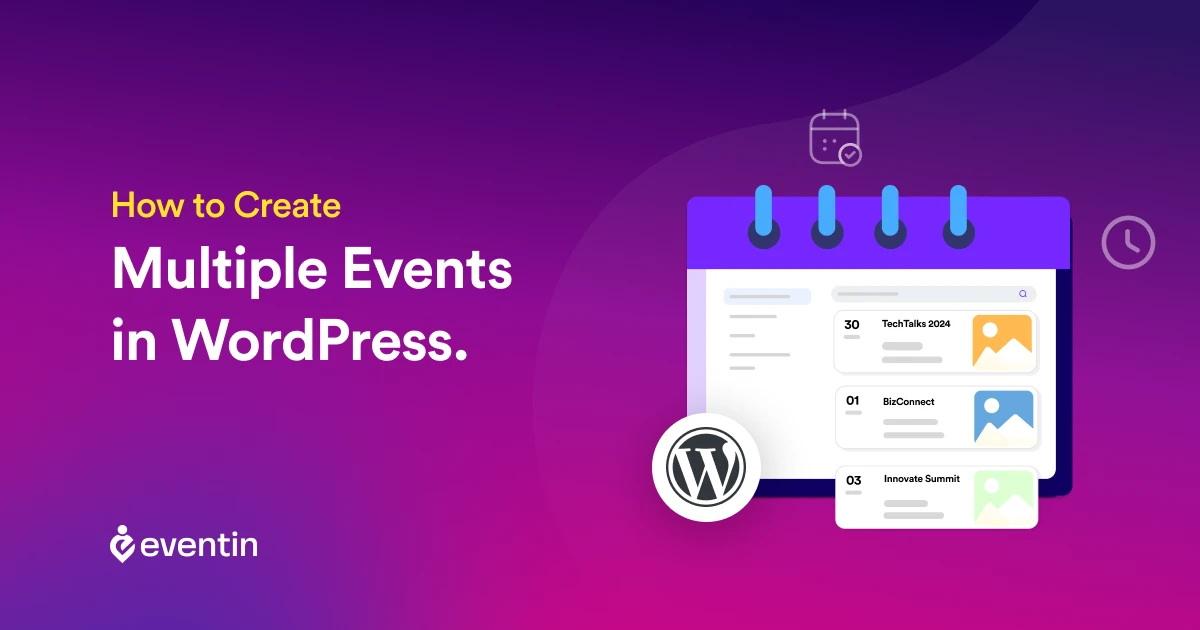
Table of Contents
Running multiple events can help you reach different audiences, organize complex schedules, and grow your business faster. But if setting up one event takes time, how do you manage several at once?
With WordPress, the answer is simple: use the right tools. A solid event management plugin lets you create, manage, and sell multiple types of events in just a few clicks.
In this guide, we will discuss the easiest way to create and manage multiple events in WordPress, even if you’re handling different formats, dates, or ticket types.
Let’s get started.
📚 Quick Overview:
Creating multiple events in WordPress helps you manage recurring events, schedules, and registrations without setting up each event manually.
In this guide, you’ll learn:
- how to create multiple or recurring events step by step.
- how to manage event schedules, tickets, and attendees.
- how to handle different dates, sessions, and event types.
- how a plugin like Eventin helps you manage everything from one dashboard.
By the end, you’ll understand how to organize and manage multiple events efficiently on your WordPress site.
Grow Your Events Faster
Plan, manage, and grow your events with Eventin event manager.
- 🟣 Attendee registrations
- 🟣 Virtual events with Zoom
- 🟣 Smart email reminders
- 🟣 Secure ticket sales with Woo

Why create multiple events in WordPress
As an event manager or an event planner, you know how time-consuming it is to create events again and again. Especially when it comes to repeating that same process every time, it increases the risk of mistakes, overlooking projects, and boredom among sales representatives.
This is where the importance of multiple events arises. With the use of the best event management plugins, you can now create multiple events with a click. Here’s how multiple events boost businesses—
- Increases attendee engagement by helping create consistent collaboration.
- Helps to build brand identity by connecting with more audiences in a short time.
- Faster lead collection by gathering valuable resources from different events.
- Allows better resource management through staff, venue, and tool accessibility.
- Helps to scale business and get a faster event ROI.
📚 Related reading: Best WordPress Event Management Plugins (Compared)
How to Create Multiple Events in WordPress Using a Plugin
Creating an event or multiple events in WordPress is the most efficient, suitable, and fastest way to create and manage events as an event planner. You can create events for a whole week, publish them, and focus on other tasks while your events get activated automatically.
There are packs of the best event management plugins for WordPress that are available even for free. You and your team can access the same dashboard, track event reports, and attract more attendees.
To create a WordPress event, it’s important to choose a suitable plugin. For today’s tutorial, I am going to pick the Eventin Event management plugin for WordPress. It offers an intuitive user interface, is feature-rich, and is efficient for all business types.
Step 1: Install the plugin
From your WordPress account dashboard, go to ‘Plugins’ using the left sidebar and click on ‘Add New Plugin.’
A new interface will appear. Search for Eventin > Install > and Activate it.
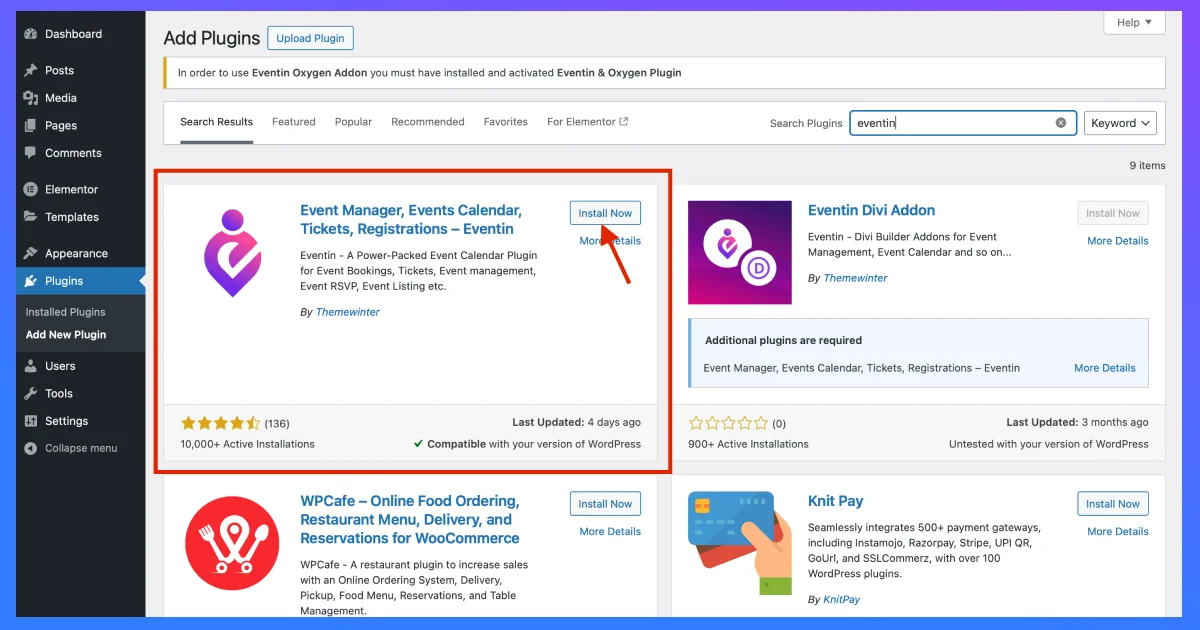
Once done, you are ready to move forward to the next step.
Step 2: Create events
There are two different ways an event planner can continue, ‘how to create multiple events in WordPress.
- Create Different types of events.
- Create Recurring Events
Luckily, with the Eventin event plugin for WordPress, it’s just a click away.
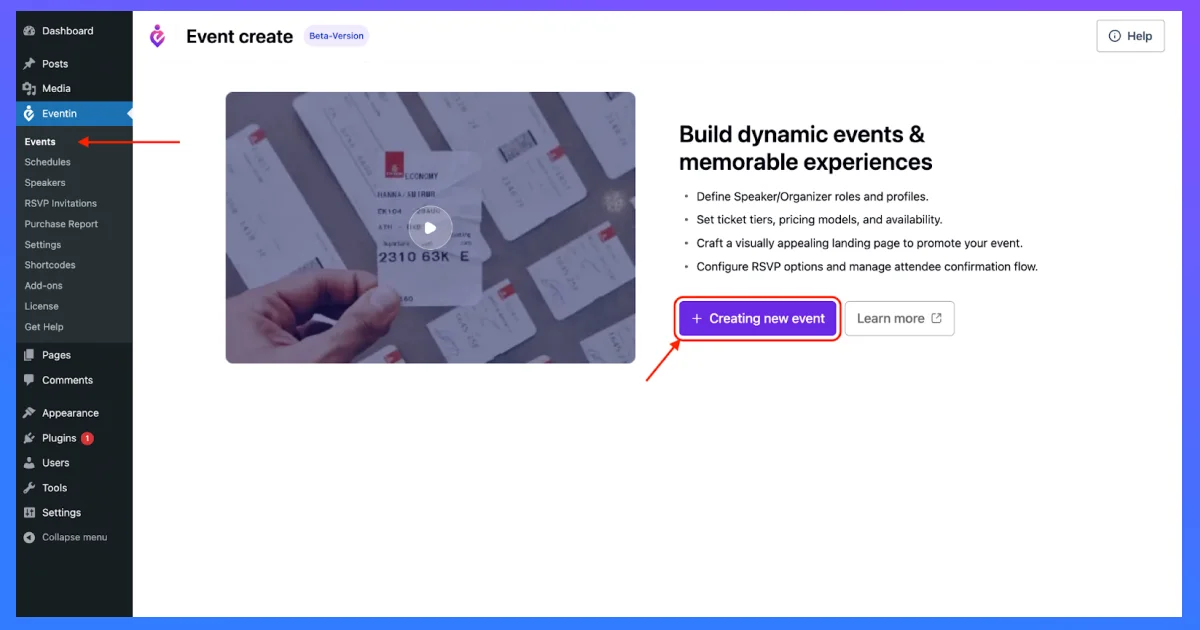
Go to Eventin from your WP Dashboard on the left sidebar. Here, go to Events and click on ‘ + Create new event.’
Here, you will be introduced to the primary event setup. All you need to do is add your event name, venue, and date.
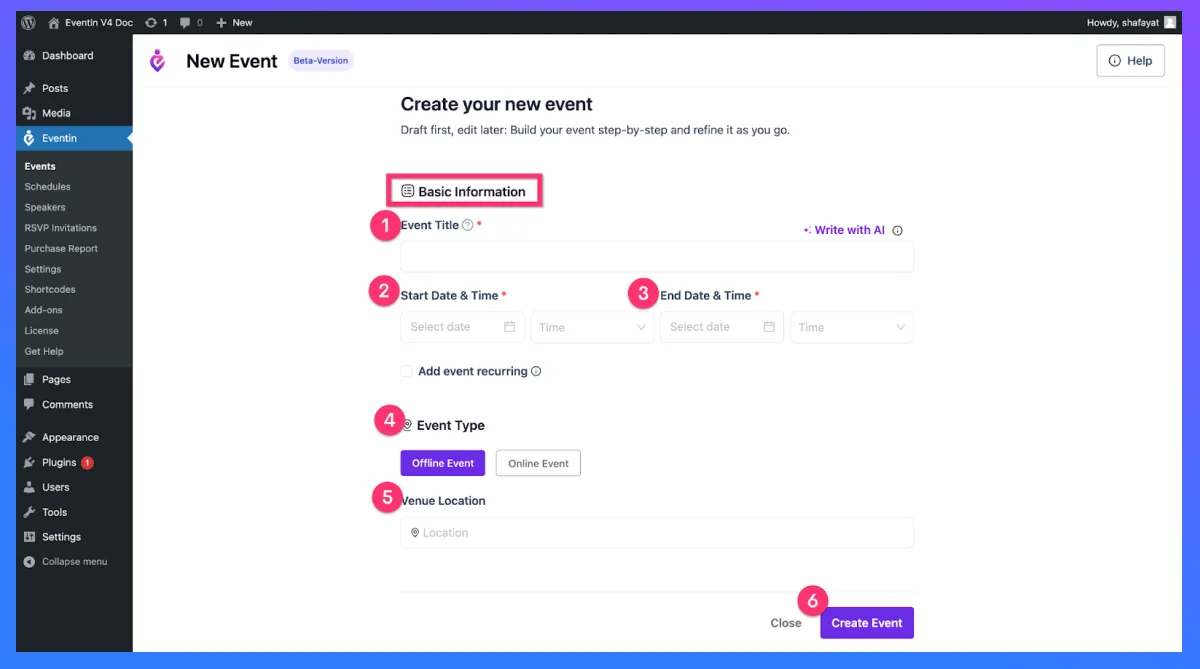
What makes all these things different is that you can decide and set whether you want to create recurring events or create unique multiple single events from this section.
If you want to create recurring events, it means that you will create an event for now, and it will automatically be repeated over time. So you don’t need to go through the same process every time, enable the ‘Add event recurring’ option.
Once selected, hit the ‘Create event’ button.
Step 3: Customize and manage your events
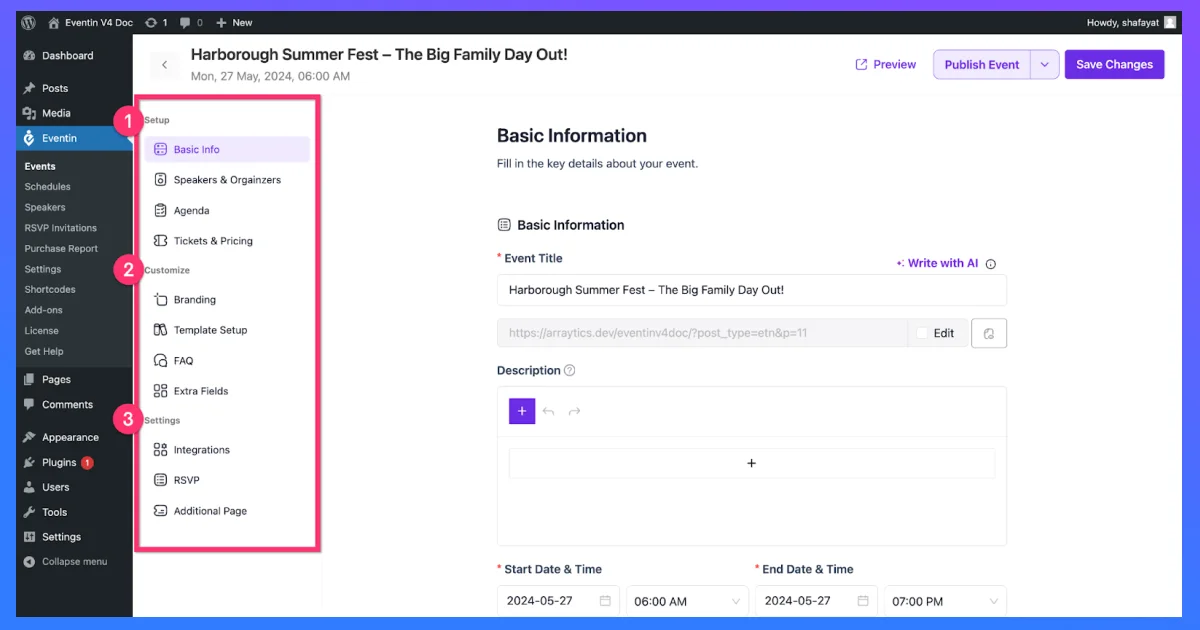
Once created, you can set up other settings like assigning particular speakers and event agendas, creating tickets, setting up event certifications, and so on from this phase.
Not all the options available here are mandatory to fill out. You can skip any or set up according to the way you want to manage your events.
Step 4: Publish your event
When creating and editing your event setups and pages are perfectly completed, you can save it as a draft or publish the event.
Anyone can edit and update their events from the event page at any time.
From a newly created event from the events list, you can clone an event to create multiple events in WordPress.
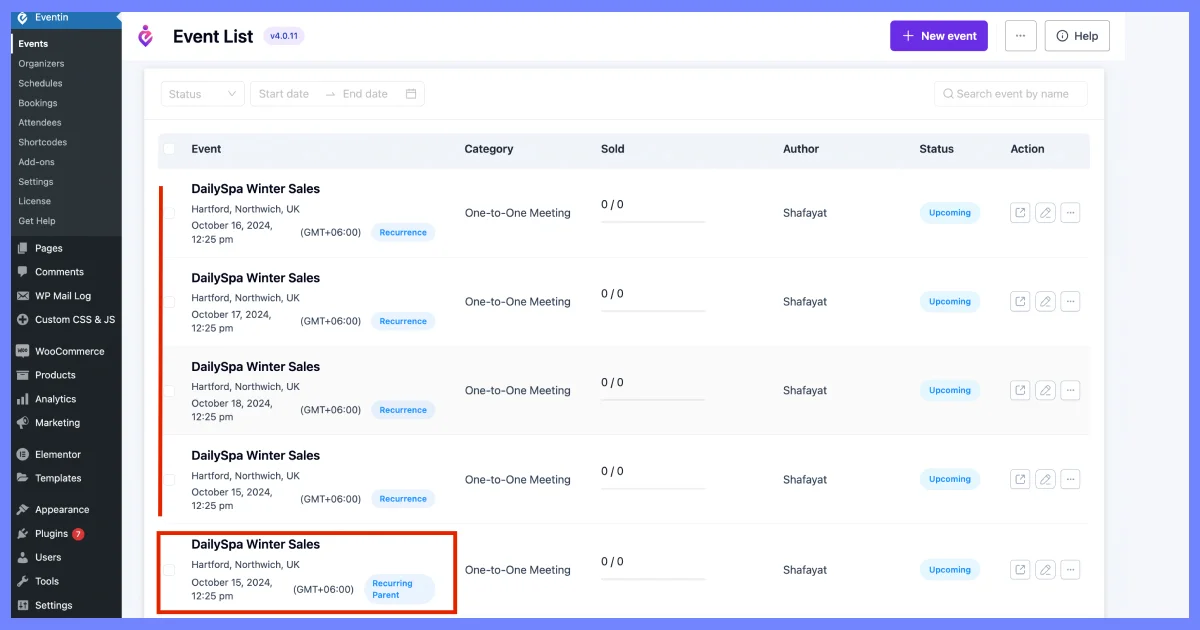
However, when you follow the steps of how to create recurring events, you can see all the multiple types of events on your event lists.
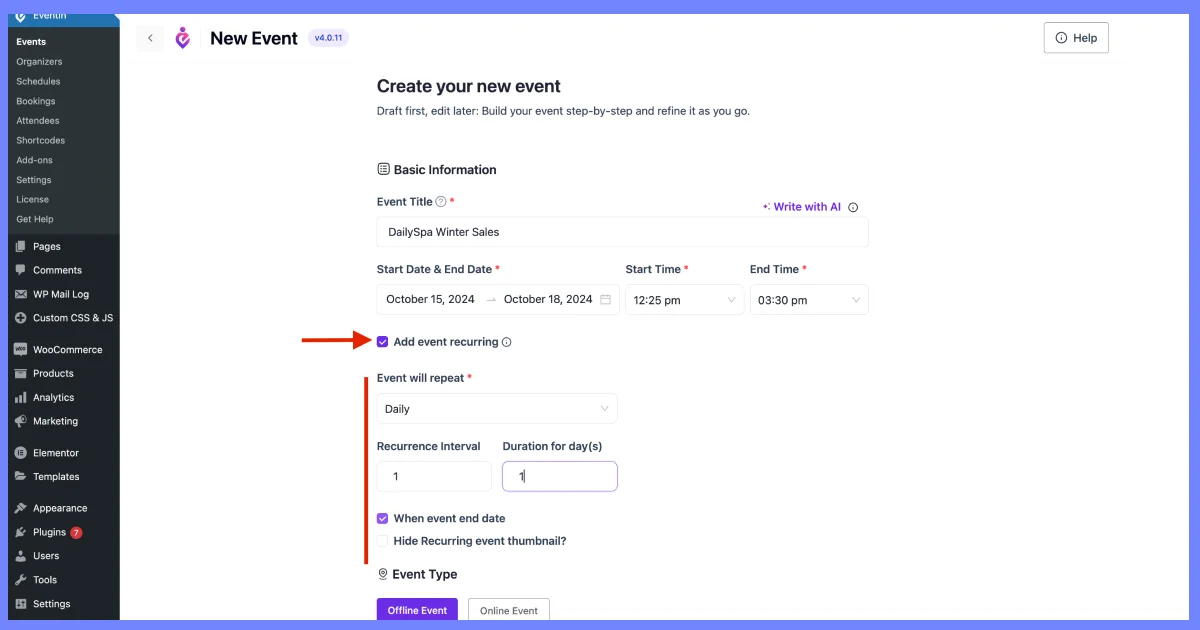
Here’s how you can get multiple types of events by creating recurring events–
Proven tips to manage multiple events like a pro
When it comes to simultaneously managing multiple events, the complexity increases. However, leveraging the right WordPress event plugin can help anyone streamline that experience without getting stressed out.
Here’s some of the proven tips on how to manage multiple events using the wordpress event plugin,
1. Choosing the right wordpress event plugin
Not all event management plugins are built equal. Before committing to one, make sure it supports:
- Multiple event management without overlap or confusion
- Recurring event functionality for repeating events
- Event duplication to save setup time
- Scalability to grow with your organization’s needs
Choosing the right plugin from the start saves you from switching tools mid-way and keeps your workflow smooth.
2. Use recurring events and multi-day event features
Multiple events come in different forms — and your plugin should handle them all. Two key features to leverage:
- Recurring Events — Events that repeat daily, weekly, monthly, or yearly. Set it once and let the plugin handle the rest.
- Multi-Day Events — Events spanning more than one day. Set the duration, publish it, and it remains active for the entire period — no re-creation needed.
These features save time, boost team productivity, and help you close more tickets than ever before.
⛱️ Bonus: Learn how to make recurring events to manage multiple events more efficiently.
3. Manage registrations and handle attendees with ease
Attendee registration is often the most pressure-filled part of event management. A good WordPress event plugin simplifies this by:
- Automatically storing all registration data in one centralized dashboard
- Eliminating manual data entry and reducing human error
- Giving you instant visibility into who registered, their details, and follow-up status
No spreadsheets. No back-and-forth. Just clean, automated data management.
4. Automate event reminders
Sending event reminders to your event organizers, speakers, and attendees ensures everyone remains alerted about every detail of your events. According to Salesforce’s research, 94% of marketers agree that clients like to connect with businesses that prefer personalized emails.
So, in order to manage multiple events and a large number of attendees, try out the automated email reminder functionalities of your preferred event manager plugin. This way, you can ensure all your event registers get their email on time and avoid event management errors.
5. Enable online ticket sales
While managing events, you don’t have to do everything manually.
We know there are few things like serving food or distributing physical souvenirs that might not be done online. But, you know, there are still ways that can simplify your management of events even easier. For instance, you can steadfastly manage events of chaos by leveraging an online ticket-selling system.
This way, you can leverage space management to decrease event ticketing and selling gatherings from your event venue.
6. Do post event analysis
When you ensure proper lead capturing, ticket selling, and automating your event management task, it’s time to track event data. Stepping into this crucial step of easy event management, you can find the gap between visitors and paying attendees.
📚 Related reading: How to Get Sponsorships for an Event (Even If You’re Just Starting)
Simplify your event with the Eventin event manager plugin
Managing multiple events is a headache if you are an event manager or an event organizer. However, with popular event management plugins for WordPress like Eventin Event Manager, it’s just a matter of minutes.
You get your plugin, set the ground floor, and get your events ready right in front of your dashboard.
Simply follow the most accessible guide on how to create multiple events on WordPress and let your event management business close faster deals. It’s easy, efficient, and incredibly time-saving.
Get Started with Eventin
Try the demo or download the Eventin plugin to manage events, ticketing, and automation ,all inside WordPress.
Frequently Asked Questions
Why create multiple events?
Creating multiple events based on different audience needs, locations, and types helps event organizers significantly boost their reach, engagement, and growth.
What are the best multiple events creation plugins?
To manage multiple events, you need WordPress event management plugins that simplify scheduling, event registration and attendee engagement. Eventin event management plugin for WordPress offers intuitive features like recurring events, event certificate builders, selling WooCommerce products, etc. WP Event Manager helps to organize smaller events.
How do you create an event budget for easy management of events?
To create an event budget for managing multiple events efficiently, start by listing event costs, setting goals, and measuring your event’s break-even points. You can use budgeting tools or powerful features from solutions like Event event plugin for WordPress to get event analytics.
Who is Eventin actually for?
Eventin is built for event organizers, businesses, marketers, and agencies that run in-person, virtual, or hybrid events. It works well for conferences, workshops, webinars, meetups, classes, and recurring events.
Why Eventin is the best event management plugin for WordPress?
Eventin is one of the best event management plugins for WordPress because it combines event creation, event registration, and online event ticket sales in one system. It works for virtual, hybrid, and in-person events and reduces the need for multiple tools.