Event Schema Markup in WordPress: A Practical Guide for Event Organizers


Table of Contents
Quick answer: Event schema markup is structured data, usually written in JSON-LD, that tells search engines a page is about a specific event. It describes the event’s name, start date, and location, plus optional details like tickets and status. Google uses it to decide whether your event can appear in its enhanced event listings.
You’ve put real work into your event page: the date is clear, the venue is listed, and the ticket button works. A visitor gets all of that in a few seconds. A search engine has a harder time. It sees a block of text, and it has to guess which date is the event date, which address is the venue, and whether “$25” is the ticket price or something else.
Event schema markup removes the guessing. This guide covers what it is and what it changes in Google Search. Later sections show how to write it yourself and how to add it to WordPress with Eventin without touching code.
Key Takeaways
- Event schema markup uses JSON-LD to help search engines understand your event’s name, date, location, tickets, and status.
- Only
name,startDate, andlocationare required, but adding offers, images, and event status can provide more complete event information. - Online, hybrid, and multi-ticket events may require small changes to the markup rather than a separate schema setup.
- When an event is cancelled, postponed, or sold out, update the schema markup instead of removing the event page.
- Eventin Pro automatically generates and updates event schema based on your event details.

What is event schema markup?
Event schema markup is a small piece of code that describes an event in a format machines can read. It uses the Event type from Schema.org, a shared vocabulary that Google, Bing, and other search engines all support.
The markup doesn’t change anything visitors see. It sits in the page’s code and restates the key facts in labeled form:
{
  "@context": "https://schema.org",
  "@type": "Event",
  "name": "Small Business Marketing Workshop",
  "startDate": "2026-11-14T10:00:00-05:00",
  "location": { "@type": "Place", "name": "Riverside Community Hall" }
}
Google recommends JSON-LD over the other two formats (Microdata and RDFa) because it sits in a single script block instead of being woven through your HTML. It’s easier to add and easier to maintain.
Schema.org also has more specific event types, such as MusicEvent, BusinessEvent, EducationEvent, and SportsEvent. They work exactly like Event but describe the category more precisely. A concert can use MusicEvent and a training session can use EducationEvent. If nothing fits, use Event.
One rule matters more than any property: the markup must match what’s on the page. If your schema says the event starts at 7 PM, but the page says 6 PM, Google treats it as misleading structured data. That can make the page ineligible for event features.
What event schema markup does in Google Search
Without markup, an event page shows up in search like any other page: a blue link, a title, and a snippet. With valid event schema, the page becomes eligible for Google’s event experience. That’s the listing where people searching for things like “events in New York this weekend” or “jazz concerts near me” can see the event name, date, and venue together, often before they visit any website.
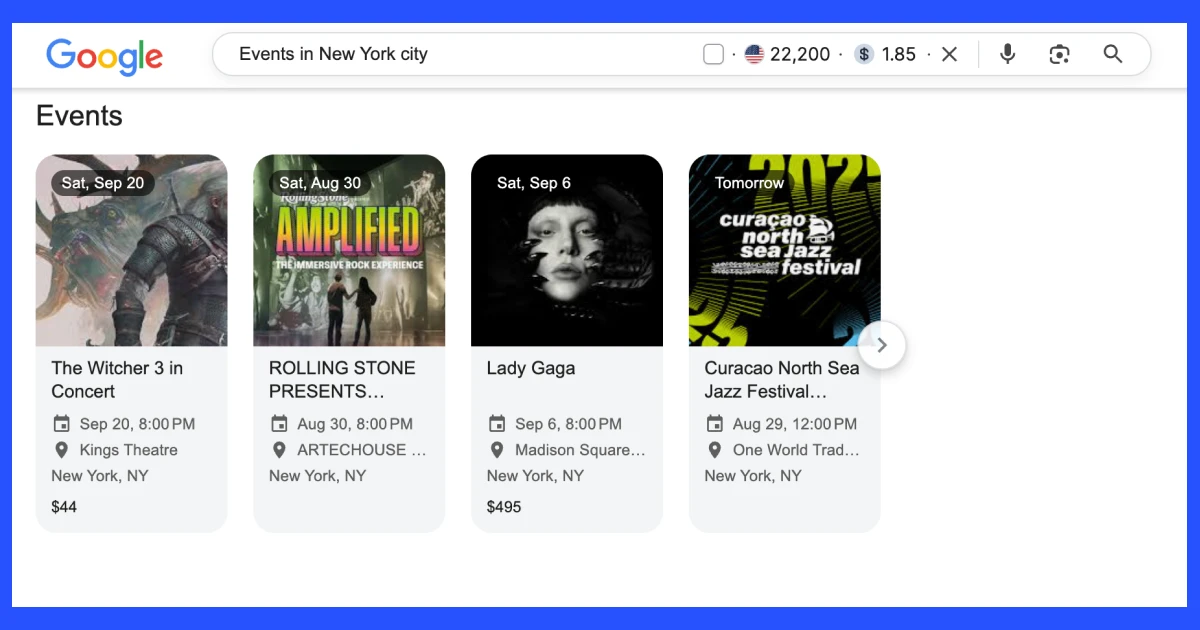
For organizers, this changes three practical things:
- Your event gets found by people who don’t know your brand. Searches like “events in [city] this weekend” pull from structured event data. Without markup, your event depends on Google working the details out from your text.
- People see the key facts before they click. Someone who sees the date and location up front already knows the event fits their plans. That tends to bring you visitors who are more likely to register.
- Your details stay consistent everywhere they’re read. Google has said AI Overviews don’t require any special markup. Even so, clearly labeled data means search features and other tools read your date and venue the same way you wrote them.
It’s just as important to know what schema doesn’t do. Event schema markup isn’t a ranking factor. It won’t move a weak page above a strong one. It also doesn’t guarantee an enhanced listing: Google decides case by case whether to show one, based on its guidelines, the page’s quality, and the search itself. What schema does is give a good event page a fair chance to show up in the places your attendees are searching.
Event schema properties: what to include and how to format it
Google sorts event properties into two groups. Required properties decide whether your page can qualify for event features at all. Recommended properties make the listing more complete and useful. The table covers the ones that matter for most organizers:
| Property | Status | What it holds | Format tip |
|---|---|---|---|
name | Required | The event title | Use the real event name. Don’t add promo text like “50% off” or the venue name. |
startDate | Required | Start date and time | ISO 8601 with a timezone offset, for example 2026-11-14T10:00:00-05:00 |
location | Required | Where it happens | A Place with a full PostalAddress, or a VirtualLocation with a URL for online events |
endDate | Recommended | When it finishes | Same format as startDate |
eventAttendanceMode | Recommended | In person, online, or both | OfflineEventAttendanceMode, OnlineEventAttendanceMode, or MixedEventAttendanceMode |
eventStatus | Recommended | Whether it’s going ahead as planned | EventScheduled by default (other values are covered below) |
description | Recommended | What the event is about | A short, plain summary that matches the page |
image | Recommended | Event visuals | Crawlable image URLs. Google suggests 16:9, 4:3 and 1:1 versions, each at least 50,000 pixels (width × height) |
offers | Recommended | Ticket details | Price, currency, availability, ticket URL, and sale start date |
organizer | Recommended | Who runs the event | A Person or Organization with a name and URL |
performer | Recommended | Speakers, artists, hosts | A Person or PerformingGroup |
The timezone offset is the detail people miss most often. A date like 2026-11-14T10:00 doesn’t say which 10 AM it means. That’s a real problem for online events, where attendees join from different time zones. Adding the offset (-05:00, +06:00) removes the doubt.
A complete event schema markup example
Here’s the workshop from above, now with every recommended property filled in. You can use it as a template:
<script type="application/ld+json">
{
  "@context": "https://schema.org",
  "@type": "EducationEvent",
  "name": "Small Business Marketing Workshop",
  "description": "A hands-on session on local SEO, email lists and social ads for small business owners.",
  "startDate": "2026-11-14T10:00:00-05:00",
  "endDate": "2026-11-14T13:00:00-05:00",
  "eventAttendanceMode": "https://schema.org/OfflineEventAttendanceMode",
  "eventStatus": "https://schema.org/EventScheduled",
  "location": {
    "@type": "Place",
    "name": "Riverside Community Hall",
    "address": {
      "@type": "PostalAddress",
      "streetAddress": "120 River Road",
      "addressLocality": "Columbus",
      "addressRegion": "OH",
      "postalCode": "43215",
      "addressCountry": "US"
    }
  },
  "image": [
    "https://example.com/images/workshop-16x9.jpg",
    "https://example.com/images/workshop-4x3.jpg",
    "https://example.com/images/workshop-1x1.jpg"
  ],
  "offers": {
    "@type": "Offer",
    "url": "https://example.com/events/marketing-workshop/",
    "price": "25.00",
    "priceCurrency": "USD",
    "availability": "https://schema.org/InStock",
    "validFrom": "2026-10-01T09:00:00-05:00"
  },
  "organizer": {
    "@type": "Organization",
    "name": "Columbus Small Business Network",
    "url": "https://example.com"
  },
  "performer": {
    "@type": "Person",
    "name": "Dana Whitfield"
  }
}
</script>
Change every value to match your event, and keep the price as a plain number. The currency goes in priceCurrency, so don’t add a currency symbol to the price.
Variations for online events, hybrid events and ticket tiers
Most events don’t fit the template above exactly. You don’t need a new block of markup each time. You only change the parts that are different.
Online events. Change the attendance mode and swap Place for VirtualLocation:
"eventAttendanceMode": "https://schema.org/OnlineEventAttendanceMode",
"location": {
  "@type": "VirtualLocation",
  "url": "https://example.com/events/marketing-workshop/live"
}
The URL can point to your event page or registration page. You don’t have to publish the private meeting link.
Hybrid events. Use the mixed mode, and put both locations in an array:
"eventAttendanceMode": "https://schema.org/MixedEventAttendanceMode",
"location": [
  { "@type": "Place", "name": "Riverside Community Hall", "address": { ... } },
  { "@type": "VirtualLocation", "url": "https://example.com/events/marketing-workshop/live" }
]
Several ticket types. Make offers an array with one Offer for each tier, such as early bird, general, and VIP. Each tier gets its own price, availability, and validFrom. When one tier sells out, change only that tier’s availability to SoldOut.
When plans change: using eventStatus correctly
Event schema markup needs to stay accurate after you publish. Old details create a bad experience: someone sees a listing for a cancelled show and turns up anyway. Google’s guidance is to keep the page live and update the markup rather than delete it.
| What happened | What to change |
|---|---|
| Cancelled | Set eventStatus to EventCancelled. Keep the original dates. |
| Postponed, new date unknown | Set EventPostponed. Keep the original startDate until you have a new one. |
| Rescheduled | Update startDate and endDate to the new dates. Set EventRescheduled and add the old date as previousStartDate. |
| Moved online | Set EventMovedOnline, switch location to VirtualLocation, and change the attendance mode to online. |
| Sold out | Keep EventScheduled. Change the offer’s availability to SoldOut. |
Remember the sold-out row: the event is still happening, so the status shouldn’t suggest that it isn’t.
Two content rules also apply here. Each event gets its own markup, so don’t combine a series of events into one entry. And don’t use event markup for things that aren’t events, such as a store sale or business hours.
Writing all of this by hand is manageable for one event. It gets risky when you run dozens of events and each one changes over time.
How to add event schema markup in WordPress
There are two ways to do it. Eventin generates the markup automatically from your event details. The manual method gives you full control, but you write and update the code yourself.
Method 1: Add event schema automatically with Eventin
If you manage events with Eventin, a WordPress event calendar plugin, the plugin builds the markup from the event details you’ve already entered, so there’s no code to write.
Before you start: Event schema is an Eventin Pro feature. Install and activate both the free Eventin plugin and Eventin Pro.
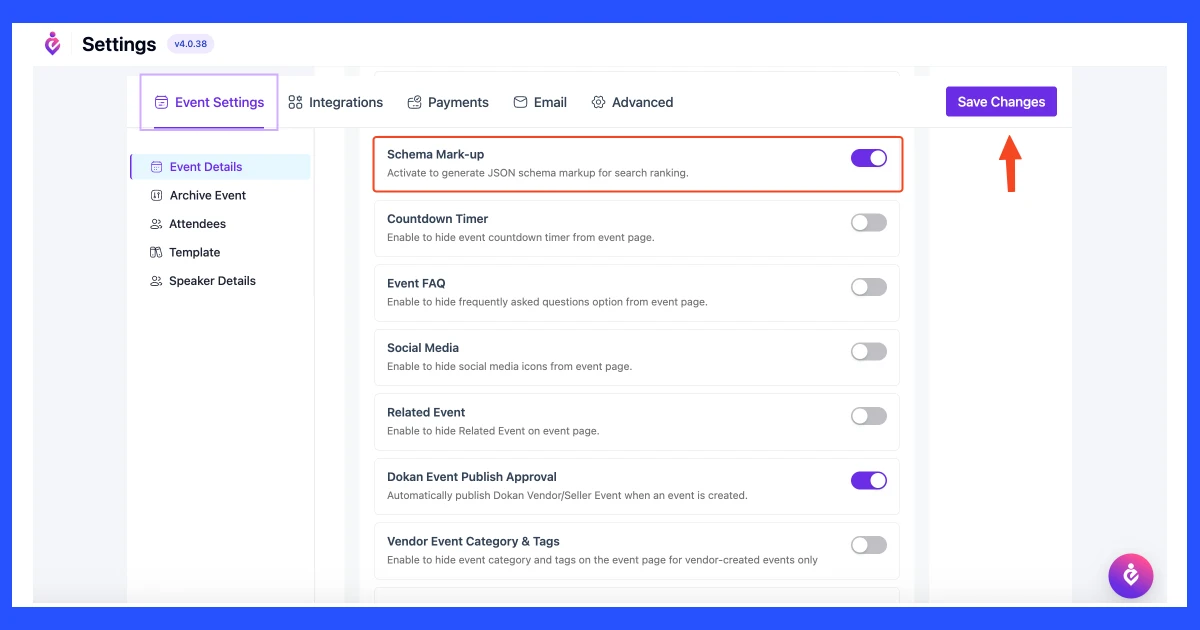
- Go to Eventin → Settings, find the schema markup option, enable it, and save.
- Open an existing event, or create one with Eventin. Fill in the date, time, timezone, venue, ticket, and organizer fields, because the schema is built from them.
- Publish or update the event. Eventin adds the markup to the event page, and the next section shows how to check it.
Method 2: Add event schema markup manually
This method suits developers, custom themes, or a site with only a few events. No plugin is needed, but you’ll have to update the code yourself every time an event changes.
- Open the page or post where your event is published.
- In the block editor, add a Custom HTML block.
- Paste the JSON-LD from the example above, replace every value with your event’s details, and update the page.
How to test and maintain your event schema markup
Adding the markup is only half the job. A missing field or a conflict with another plugin can quietly stop your event from qualifying, and you won’t see an error on the page itself. These three checks catch most problems: one right after you publish, one for plugin conflicts, and a few habits that keep the markup accurate as your events change.
Run the Rich Results Test
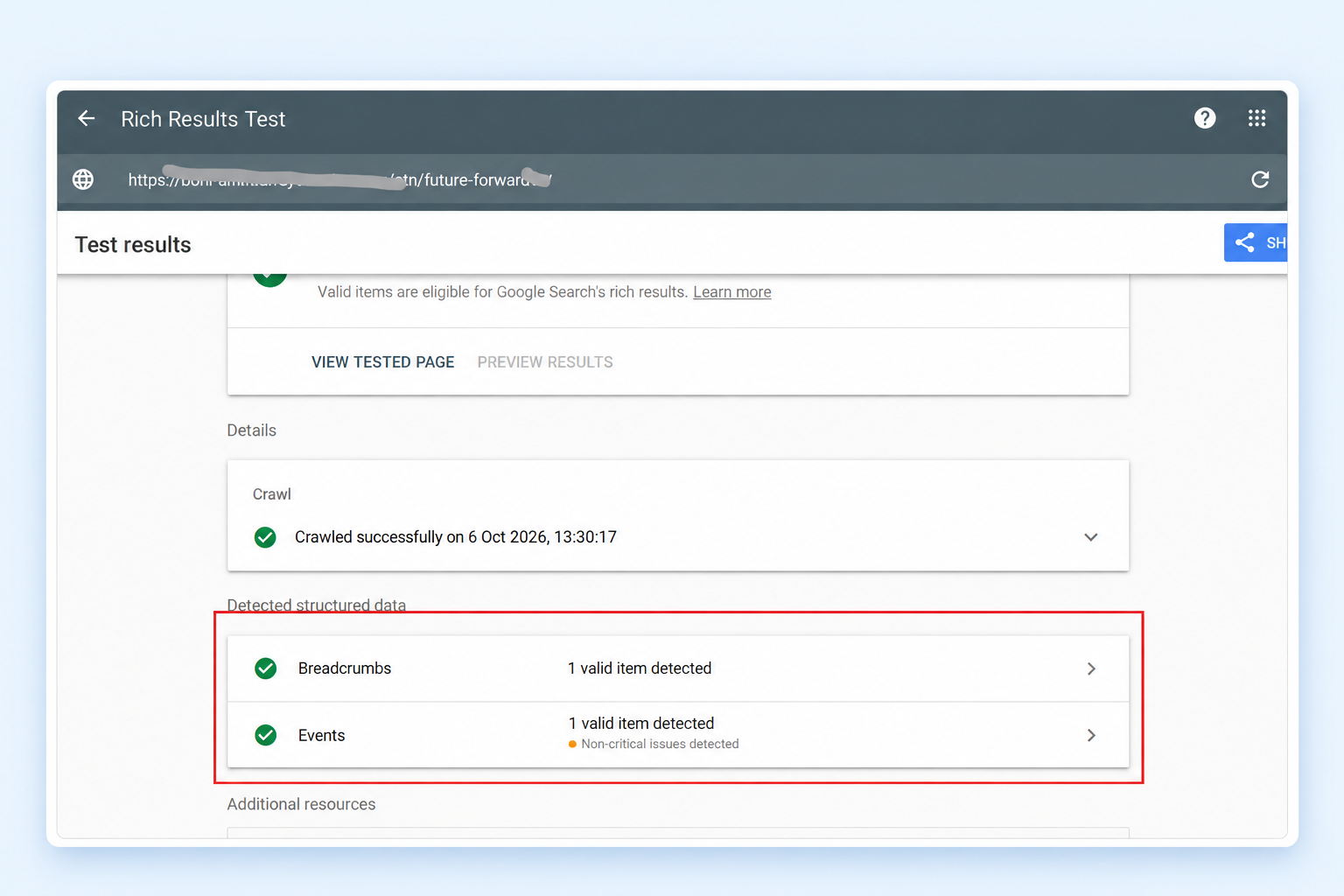
Once the event is live, paste its URL into Google’s Rich Results Test. A valid result lists the event as a detected item. Errors mean a required property is missing or badly formatted, and the event can’t qualify until you fix them. Warnings point to missing recommended fields, and those are usually worth filling in too.
Avoid duplicate schema from SEO plugins
If the test finds two event items for one event, an SEO plugin is probably adding its own markup on top of Eventin’s. Yoast SEO, Rank Math, and AIOSEO can all output schema, and two descriptions of the same event may not agree. Let Eventin handle the event markup, and let your SEO plugin handle site-level schema such as Organization and breadcrumbs. Our guide on integrating SEO plugins with Eventin explains the setup.
Keep the markup accurate after publishing
- Whenever plans change, update the event in Eventin and the schema updates with it.
- Every few weeks, open the Events report in Google Search Console. It flags errors across all your event pages at once, so you don’t have to test each URL.
- If an event still doesn’t appear after the markup passes, the cause is usually something other than schema. See why your event isn’t showing on Google Search.
Running more than a few events?
Eventin Pro builds event schema from the details you already enter, so you don’t have to write or maintain the code yourself. The same plugin also handles recurring events, ticket sales, and Zoom and Google Calendar sync, which helps when you’re managing multiple events.
See Eventin Pro →Frequently asked questions
Does the free version of Eventin include event schema markup?
No, event schema markup is an Eventin Pro feature. The free version lets you create and manage events, but the structured data output needs Pro. If you’re on the free version, you can still add the markup manually with the JSON-LD method above.
How do I add event schema markup for recurring events?
Mark up each date as its own event with its own startDate. A weekly class that runs for six weeks should have six event entries, not one entry with six dates. Where possible, give each date its own URL so the details on every page match its markup.
Should I remove event schema markup after the event ends?
No, you can leave it in place. Google’s event features show upcoming events, so a past event simply stops appearing there. Keeping the page live is useful as a record and for people searching for the event later. Just make sure the page doesn’t still say tickets are on sale.
Make your next event easy to find
Event schema markup won’t sell tickets by itself. What it does is make sure search engines read your event exactly as you wrote it: the right date, the right place, and the right ticket status. Write it by hand for a single event, or let Eventin Pro generate it for every event you publish.