Customize Menu Items in WPCafe Using Optiontics


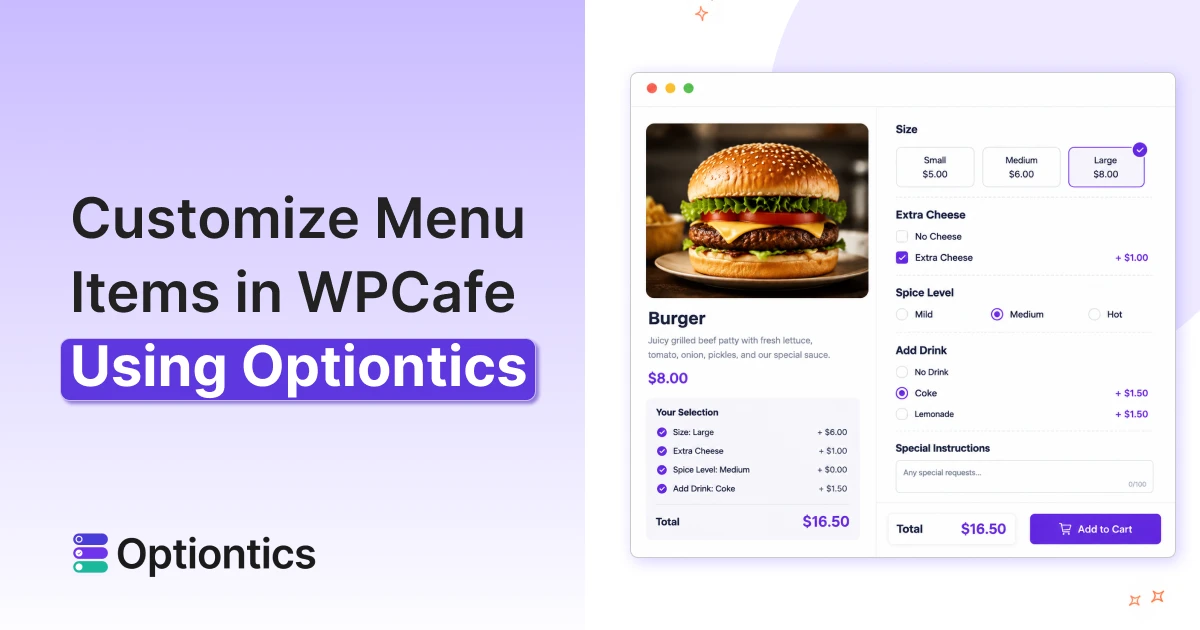
Table of Contents
Restaurant menu customization means letting customers modify a menu item before ordering, such as adding extra ingredients, spice level, or a drink.
Using Optiontics to customize menu items in WPCafe helps your customers to build their order the way they want.
Selling food online usually means selling one fixed version of a dish, and the customer either takes it or leaves it.
But real customers want more control, like extra cheese, a different spice level, a drink on the side, or an allergy note, without calling the restaurant or explaining themselves at checkout.
WPCafe already gives you a solid restaurant ordering system, with menus, online ordering, table reservations, and delivery or pickup built in.
However, its default setup has limits when it comes to customizing a single menu item in detail, since most restaurant ordering systems are built to sell a menu, not handle deep, per-item customization.
If you want customers to build their order the way they want, and earn more from every order, integrating Optiontics with WPCafe makes that possible.
Optiontics connects to WPCafe to add priced add-ons, spice or portion choices, and drink cross-sells to any menu item, with live, no-code pricing.
What Each Tool Does
Let’s get a brief idea on what each tool does.
What does WPCafe do?
WPCafe is a WooCommerce restaurant plugin that lets you manage menu, online ordering, table reservation, and delivery options from one WordPress dashboard. Moreover, you can also arrange QR-based dine-in ordering and multi-vendor set-ups.
Key features:
- Includes a basic native add-on system for simple item extras
- Works with payment gateways and delivery apps already connected to WooCommerce
- Runs kitchen order printing so staff see every order clearly.
What does Optiontics do?
Optiontics is a no-code WooCommerce product options plugin that adds paid extra, conditional fields and custom choices to any product page. It uses 20 or more fields and an AI option builder to create these choices without writing code.
Key features:
- Lets one option block be reused across many products at once
- Shows a live price update as customers make their selections
- Validates every price on the server so totals cannot be tampered
Use Optiontics to customize Menu Items in WPCafe
Now you can easily customize your menu items in WPCafe with Optiontics integrations. Once you connect Optiontics to WPCafe, you can add extra options directly to any menu item, such as extra cheese, spice level,or drink add-on.
Customers pick what they want on the product page, and price updates automatically before checkout. You don’t need any separate cart steps or manual order notes.
Just a menu item that adjusts to what the customer actually wants, with the final price calculated correctly every time.
How to Customize Menu Items in WPCafe Using Optiontics?
You can customize your menu items in WPCafe using Optiontics in 5 steps:
- Before you start, install and activate both Optiontics and WPCafe
- You create an Option Block in Optiontics
- Then target it at your WPCafe menu items
- After that enable the integration on each item
- Once set up, the options appear automatically on the menu item’s page
Here are all the steps explained in detail.
Install and Activate Both Plugins
Before creating options, install and activate both WPCafe and Optiontics on your WordPress site.
- Install and activate WooCommerce, if it isn’t already active
- Install and activate WPCafe, with at least one menu item published
- Install and activate Optiontics on the same site
Optiontics offers a free trial along with paid plans. You can check current pricing before getting started.
Create an Option Block
An option block is a set of reusable fields, like checkboxes for extra cheese or a dropdown for spice level. Each of these blocks have its own price attached. Here’s how to create an option block.
- Go to Optiontics>Options
- Click Add options.
- Name the block (i.e Pizza add-ons)
- Then use Add elements to build your fields
- Set a price on each choice using fixed, percentage or formula-based pricing.
Target the Right Menu Items
Targeting the right menu items will decide where the block is allowed to appear. It can either appear on every WPCafe menu item or only the ones you choose. Here’s how you can target the right menu item:
- Navigate to blocks’s Product Conditions setting
- Choose All WPCafe products to apply it everywhere
- Or you can choose Specific WPCafe Products to limit it to select items like pizzas or burgers.
Enable the WPCafe Integration
Each menu item has its own switch that turns the Optiontics fields on or off, so different items can offer different levels of customization. To enable the WPCafe integration, follow these:
- Open the item inside WPCafe
- Then find Integrate Optiontics Add-ons and toggle it
The setting is off by default, so it needs to be switched on per item.
Assign the Block to Your Item
Assigning connects a specific Option Block, or an entirely separate product like a Coke, to the menu item’s page. Here are the steps to assign the block:
- With the toggle on, select the block you want from the dropdown
- Then save the product
This way the fields will appear live on that item’s page for customers to use.
A Worked Example: Customizing a Pizza Order
Say a Margherita Pizza is listed at $10.00 on the menu. Using an Optiontics Option Block, the restaurant adds Extra Cheese (+$1.00), Extra Chicken (+$2.00), and a Coke cross-sell (+$1.50).
A customer picks all three, and the page updates instantly:
$10.00 + $1.00 + $2.00 + $1.50 = $14.50
No cart redirect, no note left for staff to guess at. The total is validated at checkout, and the full order, extra cheese, extra chicken, one Coke, prints clearly on the kitchen ticket.
Let AI Build Your Menu Options for You
Optiontics includes an AI option builder that creates a full set of menu options from a single sentence, without any manual field setup.
You describe the dish, and the AI generates the fields, choices, and pricing structure automatically, ready to review and publish
Using Optiontics with WPCafe, you are not limited to building option blocks by hand. You can even let AI build the entire menu option set for you.
Manual setup works fine for one or two menu items. But a full menu with pizzas, burgers, bowls, and drinks means repeating that same setup again and again.
This is where the AI builder changes the process. Using Optiontics’ AI feature, you can simply describe the dish in plain language instead of manually adding checkboxes and the AI builder does its own work.
Optiontics reads that description and builds the matching fields, complete with a suggested pricing structure, in seconds.
The result still goes through the same review step as the manually built block. Nothing publishes without a final check, so the AI speeds up the setup without removing control over what customers actually see.
What can you build with the WPCafe and Optiontics integration?
WPCafe and Optiontics support several practical, real-world ordering scenarios once connected, from priced ingredient add-ons to full build-your-own menu items.
Each scenario reflects a request restaurants already handle by phone or in person, now built directly into the menu item page.
Priced Ingredient Add-ons
Menu item add-ons let customers pay extra for more of an ingredient they want, such as extra cheese, extra mayonnaise, or extra chicken on a pizza. Each choice carries its own price, and the total updates automatically as the customer selects it.
This works the same way for burgers, bowls, sandwiches, or any dish where a customer might want more of a specific ingredient.
Cross-Selling Separate Products
Restaurant cross-sell WordPress setups let a completely different product, like a Coke, appear right on another item’s page.
Optiontics attaches the drink as a selectable add-on with its own price and quantity, instead of sending customers to a separate product page.
A customer ordering a pizza can add a Coke without leaving the pizza’s page or searching the menu separately. This keeps the order simple while still increasing what the customer ends up buying.
Spice Level, Portion Size & Dietary Swaps
Customers can choose a spice level, portion size, or a dietary swap like vegan cheese directly on the menu item, using a dropdown, button group, or radio field.
These choices can carry no extra charge or a set price, depending on how the restaurant configures them.
This removes the need for a customer to leave a note and hope the kitchen sees it. The choice is captured cleanly as part of the order itself.
Build-Your-Own Menu Items
A build-your-own item combines a base dish with a set of configurable toppings or mix-ins, each priced individually. Customers pick exactly what goes into their pizza, bowl or sandwich and the price reflects every choice they make.
This is useful for restaurants that want to offer one customizable base item instead of listing dozens of near-identical variations on the menu.
Special Instructions & Allergy Notes
A simple text field lets customers add special instructions or allergy notes directly on the menu item. So, the request is attached to the order instead of left to a phone call or a guess.
This is not a paid option, but it removes a common source of order mistakes especially for allergies that need to reach the kitchen clearly.
Does This Work Across Every Ordering Channel?
Yes, the WPCafe and Optiontics integration works across dine-in, pickup, delivery, and multi-vendor marketplace orders. Options are attached to the menu item itself, not to a specific ordering flow.
Dine-In & QR Ordering
The same option fields also show up in WPCafe’s QR-based dine-in ordering. A customer scanning a table code can still add extra cheese or a drink, no server needed.
Pickup & Delivery
Pickup and delivery orders go through the same WooCommerce checkout as any menu item. Add-ons, cross-sells, and special instructions carry through exactly as configured.
Multi-Vendor Marketplace
Multi-vendor restaurant customization works because Option Blocks can target specific menu items instead of applying globally. Two vendors selling pizza in the same marketplace can each have their own add-ons, prices and cross-sell products.
Why Use Optiontics to Customize Menu Items in WPCafe?
Dynamic menu pricing, reusable option blocks, and a no-code setup are the core benefits of connecting Optiontics with WPCafe, all of which lead to a measurable increase in average order value.
Reuse Option Blocks Across the Whole Menu
Build one Option Block, like ‘Pizza Add-ons’ and assign it to every pizza on the menu instead of recreating the same fields for each item individually.
Live Pricing at Checkout
The order total updates the moment a customer selects an add-on, so there is no surprise cost at the final payment step.
No-Code Setup
Every option, from a simple checkbox to full build-your-own item, is created through a visual builder, with no developer needed.
Higher Average Order Value
According to a study by the National Restaurant Association, upselling can increase average order value by up to 20 percent. So, restaurants that add clear, in-menu upsell prompts tend to see that effect grow stronger over time.
Consistent Options Across Branches or Vendors
A single Option Block can be reused across branches or marketplace vendors, so pricing and available add-ons stay consistent without manual setup on each one.
Who Should Use This Integration?
Restaurant menu customization through WPCafe and Optiontics fits several kinds of restaurant operations, from single-location cafes to larger multi-vendor food market places.
- Restaurant owners using WPCafe: Looking to increase order value without rebuilding their existing menu setup.
- Cafe & Multi-Branch Restaurant Operators: Running several locations that need consistent menu options across all of them.
- Multi-vendor Food Marketplace owners: Managing multiple vendors who each need their own independent add-ons and pricing.
- WordPress Agencies & Developers: Building restaurant sites for clients who need flexible customization without code.
- Existing WPCafe Users: Already using native add-ons and looking for more field types, cross-sells, and reusable blocks.
Quick Recap Table
Before moving to setup, here is a quick side-by-side look at what changes when Optiontics is added to WPCafe’s native add-on system.
| Comparison | WPCafe Native Add-ons | WPCafe + Optiontics |
|---|---|---|
| Field types | Basic checkboxes and simple extras | 20+ field types, including swatches, sliders and conditional logic |
| Pricing | Fixed price per add-on | Fixed, percentage, or, formula-based pricing |
| Cross-selling separate products | Not supported | Attach a separate product, like a Coke, to any menu items |
| Reusability | Set up per item | Build once, reuse across the whole menu items |
| Setup method | Manual, per item | Manual or AI-generated from a single sentence |
| Multi-vendor method | Same options for all vendors | Independent options and pricing per vendor |
Final Thoughts
A restaurant menu should not stop at listing fixed dishes. The best time to offer extra cheese, a spice level choice, or a Coke on the side is right when the customer is ordering. That is the real value of restaurant menu customization.
WPCafe handles ordering, reservations, and delivery. Optiontics adds the missing piece, reusable option blocks, dynamic pricing, cross-sell products, and an AI builder that sets it all up from a single sentence.
If you want to earn more from every order, connecting Optiontics to WPCafe makes that possible, starting with your next menu item.
Frequently Asked Questions
Can I Use WPCafe’s Native Add-ons and Optiontics at the Same Time?
Yes, WPCafe’s native add-ons and Optiontics can run on the same menu item at once. Restaurants often keep simple native add-ons for a few items and use Optiontics only where deeper customization is needed.
Is There a Limit to How Many Add-ons I Can Offer on One Item?
There is no fixed limit built into the integration itself, though very long option lists can make a menu item’s page harder for customers to scan quickly.
Does This Work on Mobile Ordering?
Yes, since the options render on the standard WooCommerce product page, they display the same way on mobile as they do on desktop, including WPCafe’s QR ordering flow.