How to Add Discount in Woocommerce Restaurant Website


Table of Contents
Running a restaurant today is not easy. You are not just competing with nearby places anymore. You are also competing with dozens of food delivery businesses and other online restaurants.
And when customers order food online, they don’t just look at the food menu. They look for offers and discounts.
It is proven that adding discounts is one of the best ways to boost sales and maintain a running WooCommerce restaurant website. So, how do you actually add discounts to your WooCommerce restaurant website in a simple way?
In this guide, you will learn how to set up food ordering discounts step by step using WooCommerce. We will also show you a better way to manage restaurant offers using a tool built specifically for food businesses. So, let’s start. 💁
📚 Quick Overview:
Adding discounts to your WooCommerce restaurant website helps you attract more customers and increase order value without changing your menu prices.
In this guide, you’ll learn:
- how to create and apply discounts in WooCommerce step by step.
- how to set up coupon codes, special offers, and time-based deals.
- how discounts can increase sales and repeat orders.
- how WPCafe helps you manage discounts and offers within your ordering system.
By the end, you’ll understand how to use discounts effectively to grow your restaurant sales and improve customer engagement.
Why Add Discounts to Your WooCommerce Restaurant Website? (Benefits + ROI)

If you look at how people order food online today, one thing is clear – offers influence decisions.
Customers often compare multiple restaurants before placing an order. And in many cases, the one with a better deal wins.
That is why adding WooCommerce restaurant discounts is not just a marketing trick. It directly affects how many orders you get and how much customers spend.
Let’s break down how discounts actually help your restaurant grow.
🍽️ Attract More First-Time Customers
People love a good deal – especially when trying a new restaurant. A simple “10% off your first order” can be enough to turn a hesitant visitor into a paying customer.
Think about it: if someone is choosing between your restaurant and a competitor, a welcome discount could tip the decision in your favor.
Example: A new pizza place offers 15% off for first-time online orders. Within a month, their online orders double – simply because people felt it was low-risk to try.
📈 Increase Average Order Value
Discounts can actually encourage customers to spend more, not less.
Discounts like:
- Returning customer offers
- Weekly deals
- Loyalty-based discounts
make customers feel valued and give them a reason to order again from your website instead of switching to competitors.
🎯 Boost Average Order Value
Discounts don’t always reduce profit. In many cases, they actually increase it.
For example:
- “Get 15% off on orders above $30”
- “Buy 2 items, get 1 free”
These types of food ordering discounts encourage customers to add more items to their cart, which increases your total order value.
💰 The ROI of Restaurant Discounts
Here’s a simple way to think about return on investment:
| Discount Offer | Customer Action | Business Outcome |
|---|---|---|
| 10% off first order | New customer places order | Gain a new customer |
| Free item on $50+ spend | Customer adds more to cart | Higher order value |
| Happy hour 20% off | Customers order during slow hours | Fill slow time slots |
| Weekly loyalty deal | Customer orders every week | Predictable repeat revenue |
A well-placed discount doesn’t cost you – it pays you back through volume, loyalty, and growth.
📚 Related reading: Most Used WooCommerce Plugins for Restaurants: Accept Orders, Deliveries, Reservations and More
How to Add Discounts Using Built-in WooCommerce Coupons (Step-by-Step + Simple)
WooCommerce already comes with a built-in discount system called Coupons. You don’t need any extra plugin to create basic discounts. But here’s the thing – this system is made for general online stores, not for restaurants.
For now, let’s see how you can create basic WooCommerce restaurant discounts using the default option.
Step 1 — Go to Coupons in WooCommerce
From your WordPress dashboard:
- Go to Marketing → Coupons
- Click on “Add Coupon”
This is where you will create your discount.
Step 2 — Create Your Coupon Code
You can:
- Add your own code (like FOOD10)
- Or click “Generate coupon code”
Try to use simple and clear names so customers can remember them easily.
Step 3 — Choose the Discount Type
Under General settings, you will see different options:
- Percentage discount → e.g., 10% off
- Fixed cart discount → e.g., $5 off total order
- Fixed product discount → discount on specific items
For most restaurant websites, percentage or cart discounts work best.
Step 4 — Set Basic Rules
You can control how the discount works:
- Minimum order amount (e.g., $20)
- Maximum discount value
- Apply to specific products or categories
This helps you manage your food ordering discounts more carefully.
Step 5 — Publish and Test
Once everything is set, click “Publish” on the right side.
Your coupon is now live! Share the coupon code with your customers via email, social media, or directly on your website.
⚠️ Default WooCommerce Discount Limitations for Restaurants
WooCommerce coupons are functional – but they fall short when it comes to restaurant-specific needs.
Here’s a quick comparison:
| Feature | WooCommerce Default | WooCommerce + Dedicated Plugin |
|---|---|---|
| Basic coupon codes | ✅ Yes | ✅ Yes |
| Percentage & fixed discounts | ✅ Yes | ✅ Yes |
| Combo meal deals | ❌ No | ✅ Yes |
| Time-based / Happy Hour discounts | ❌ No | ✅ Yes |
| Food category-specific discounts | ⚠️ Limited | ✅ Yes |
| Easy restaurant-friendly setup | ❌ No | ✅ Yes |
| Built for food ordering workflows | ❌ No | ✅ Yes |
A Better Way to Manage Restaurant Discounts in WooCommerce
As you can see, the default WooCommerce discount system works – but it’s generic. It doesn’t understand the way a restaurant operates.
That’s where a dedicated restaurant plugin comes in.
Among all the available restaurant plugin options, one of the most popular and beginner-friendly solutions is the WPCafe.
WPCafe is a modern WordPress plugin designed specifically for restaurants. It simplifies the entire process of managing your food menu, online orders, delivery– and yes, discounts too.
Whether you want to offer combo meal deals, happy hour pricing, or special category discounts, WPCafe makes it straightforward.
The best part? No coding required. Any restaurant owner can set up and manage discount options directly from their WordPress dashboard in just a few clicks.
Let’s Add Discount in your Restaurant menus using WPCafe
Now that you know why WPCafe is a smarter choice for restaurant discounts, let’s get practical.
In this section, we’ll walk you through exactly how to add a discount to your restaurant menu using WPCafe. The steps are simple, beginner-friendly, and require absolutely no coding.
Let’s get started. 👇
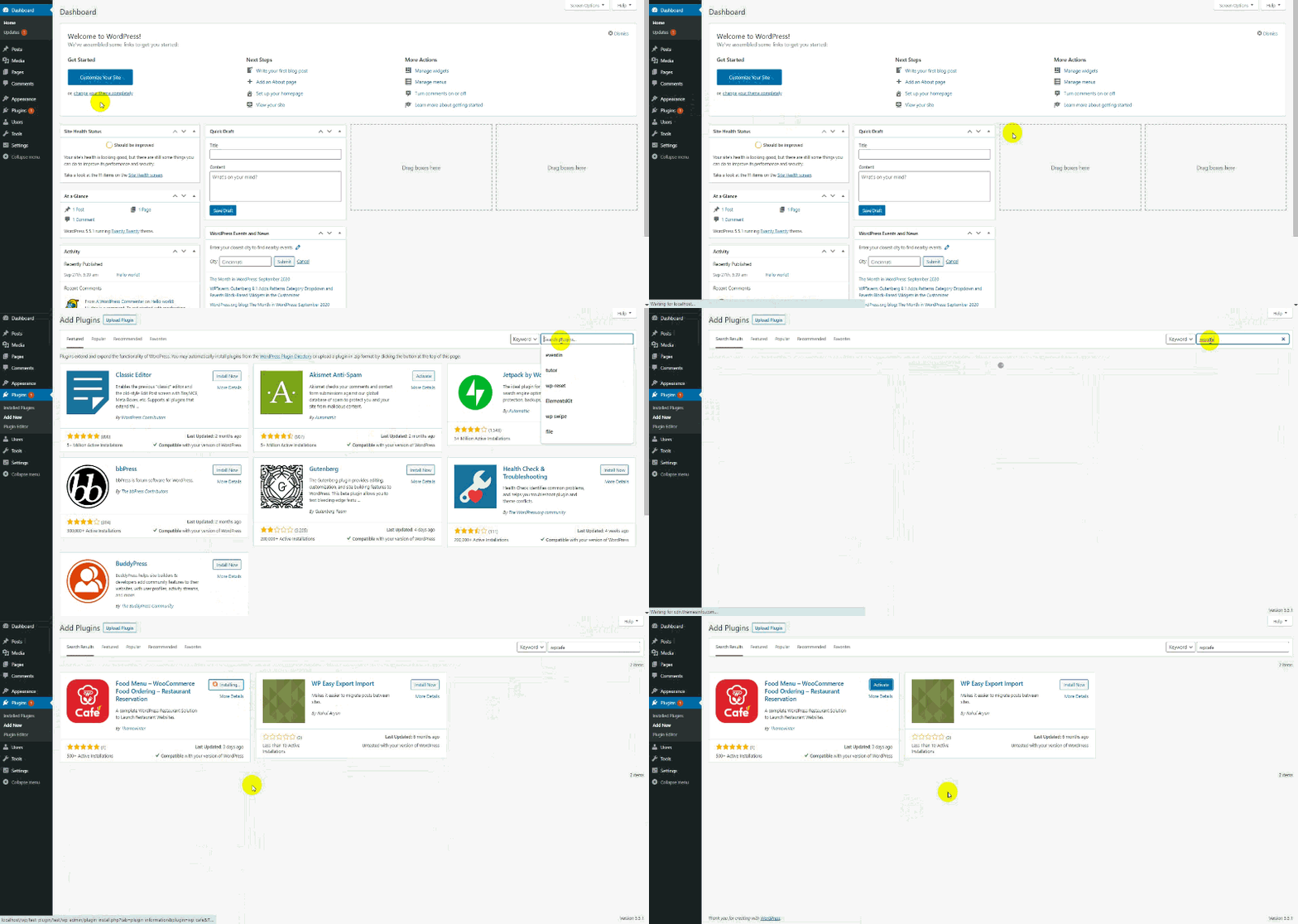
Step 1: Install and Activate WPCafe
First, you need to have WPCafe installed on your WordPress site.
- Go to your WordPress Dashboard
- Navigate to Plugins → Add New
- Search for “WPCafe”
- Click Install Now and then Activate
Once activated, you’ll see the WPCafe menu appear on your left dashboard panel.
Step 2: Go to Food Menu Settings
After activation:
- From your dashboard, click on WPCafe
- Navigate to Food Menu
- Select the food item you want to add a discount to
- Click Edit to open the item settings
This is where you’ll control everything about that menu item — including its price and discount.
Step 3: Set the Regular Price and Discounted Price
Inside the food item editor:
- Scroll down to the Product Data section
- You’ll see two price fields:
- Regular Price — the original price of the item
- Sale Price — the discounted price you want to offer
Example: If a burger normally costs $15, set the regular price as $15 and the sale price as $12. WPCafe will automatically show both prices on your menu – with the original price crossed out.
This makes the deal visually appealing to customers.
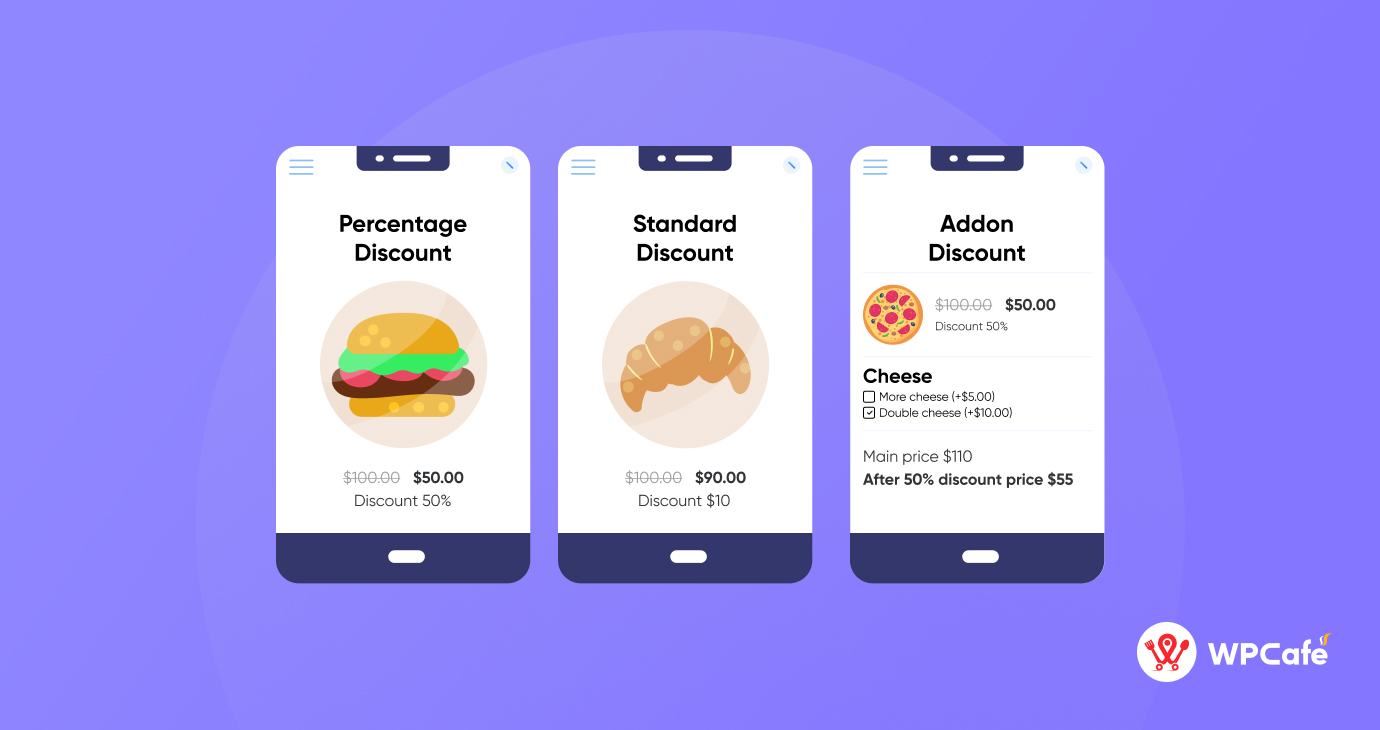
However, you can easily add“Percentage discount” or “Standard discount” to your food menu. Now, all that remains is to analyze your competitors and set the price.
⚙️ Settings Key: WPCafe > Settings > Food Ordering > Discount > Set discount > Save Changes
From the WordPress dashboard, go to WPCafe > Settings > Food Ordering, Simply scroll down to find the “Discount menu”. Choose Percentage Discount, Standard Discount, or pick specific menus or categories to apply discounts. Set the minimum order total and flat discount amount and add a standard money-off message for your menu.
1. Percentage discount
This discount method is perfect for enticing customers to spend more or try new dishes. It offers reductions based on a predetermined percentage of the item or order price. For example: Here I have put a 10% discount on the “Veggie Pizza” item.
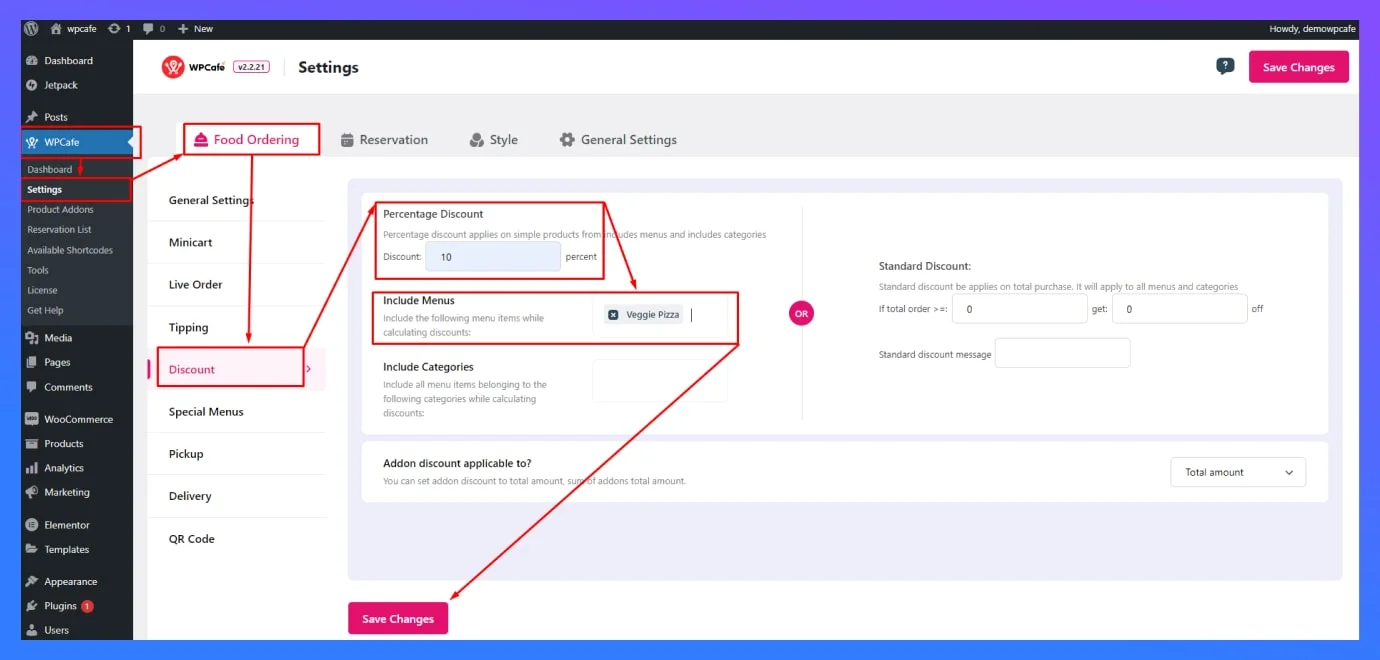
Backend Dashboard View
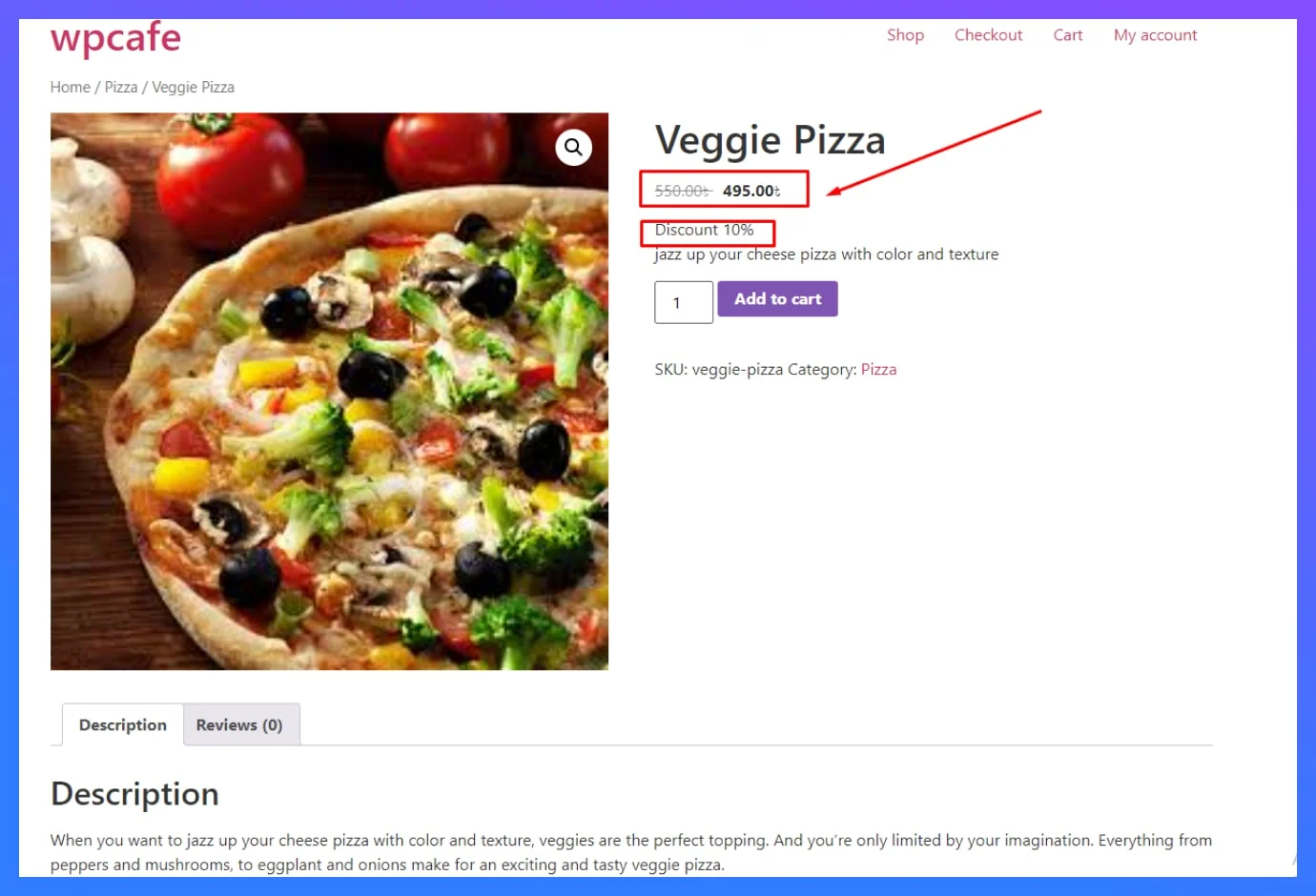
Web View Result
🔷You can also make category-wise discounts. For example: Here I have put a 10% discount on all “Pizza” categories.
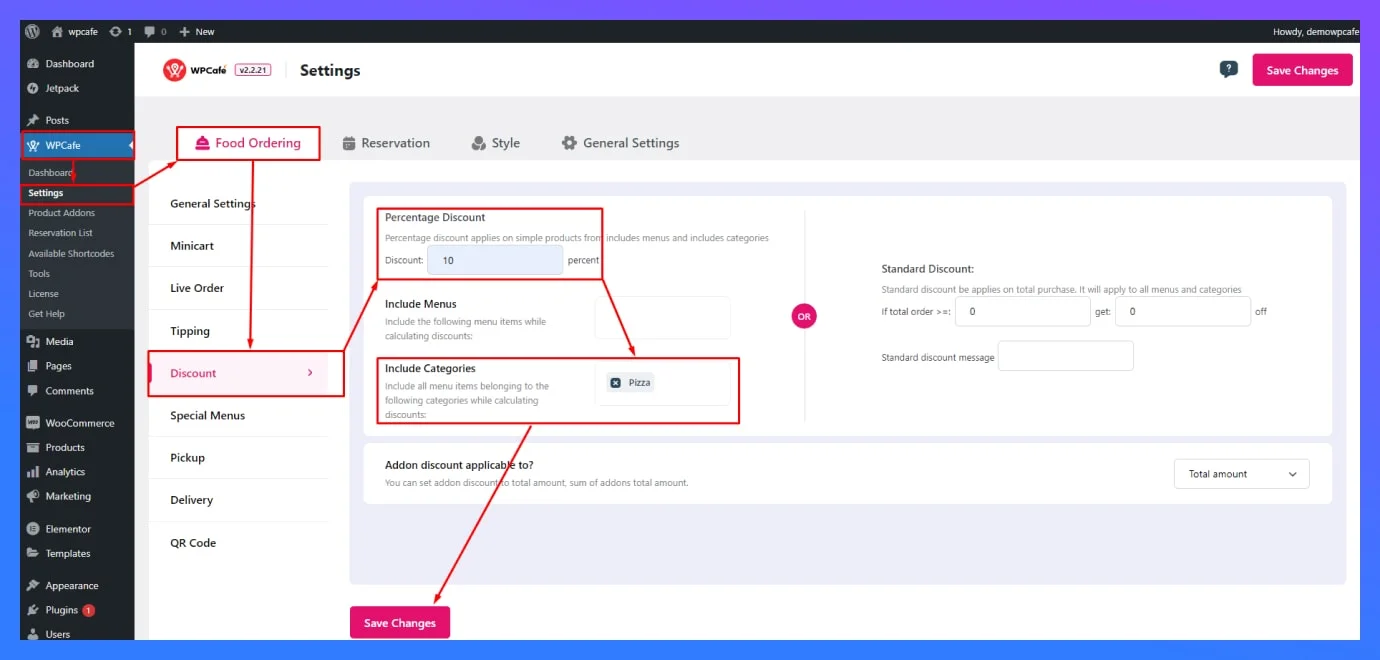
Backend Dashboard View
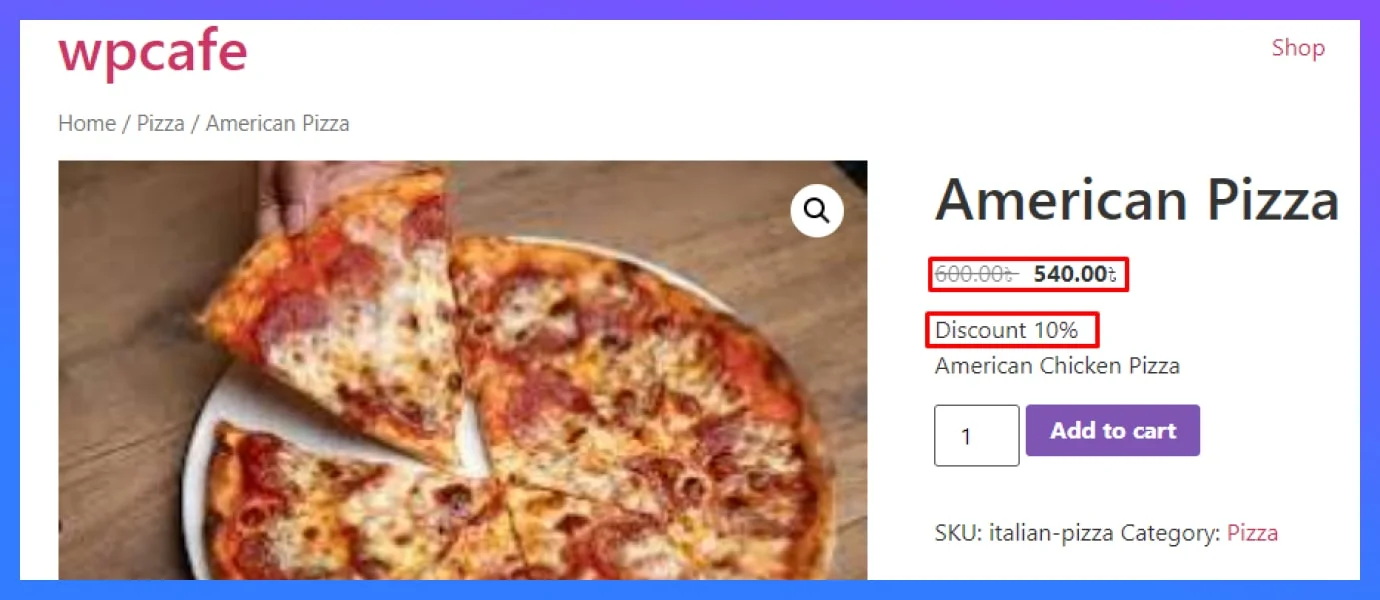
Web View Result (1)
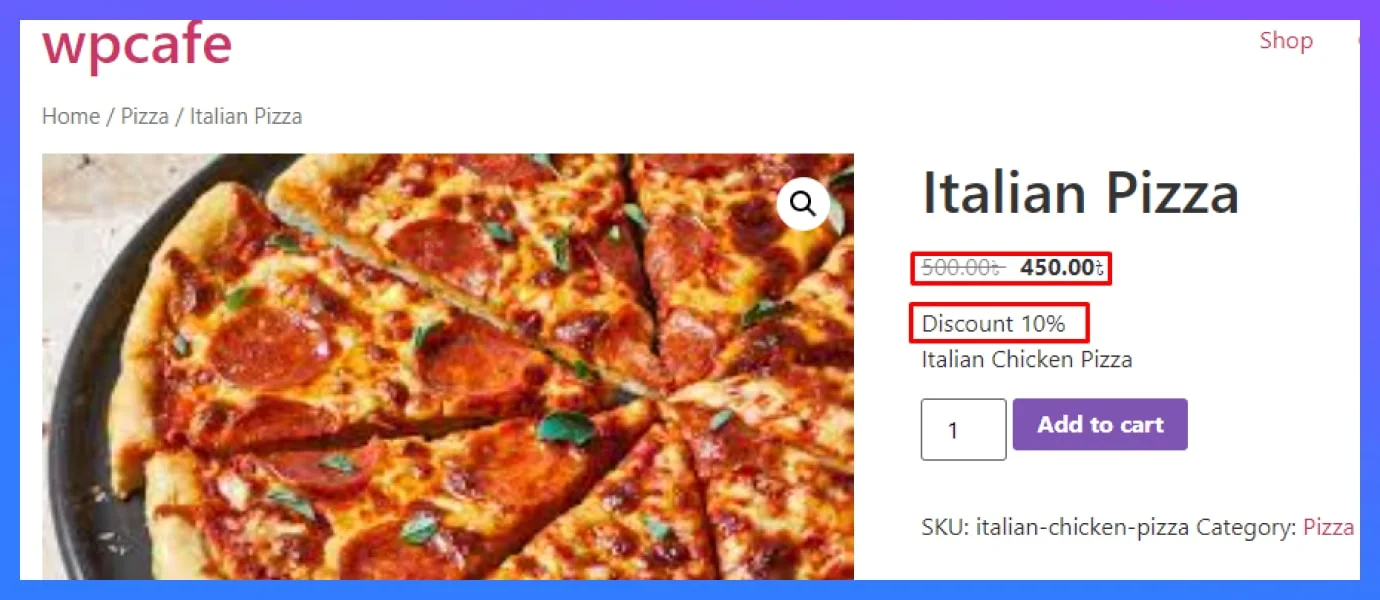
Web View Result (2)
2. Standard discount
These fixed-amount reductions work well for clearing slow-moving items or attracting budget-conscious customers. For example: Here I can pre-determine all items above 300 taka to get a discount of 50 taka. There is also a place for the standard discount message.
Note: The discount is automatically applied to the total price on the checkout page.
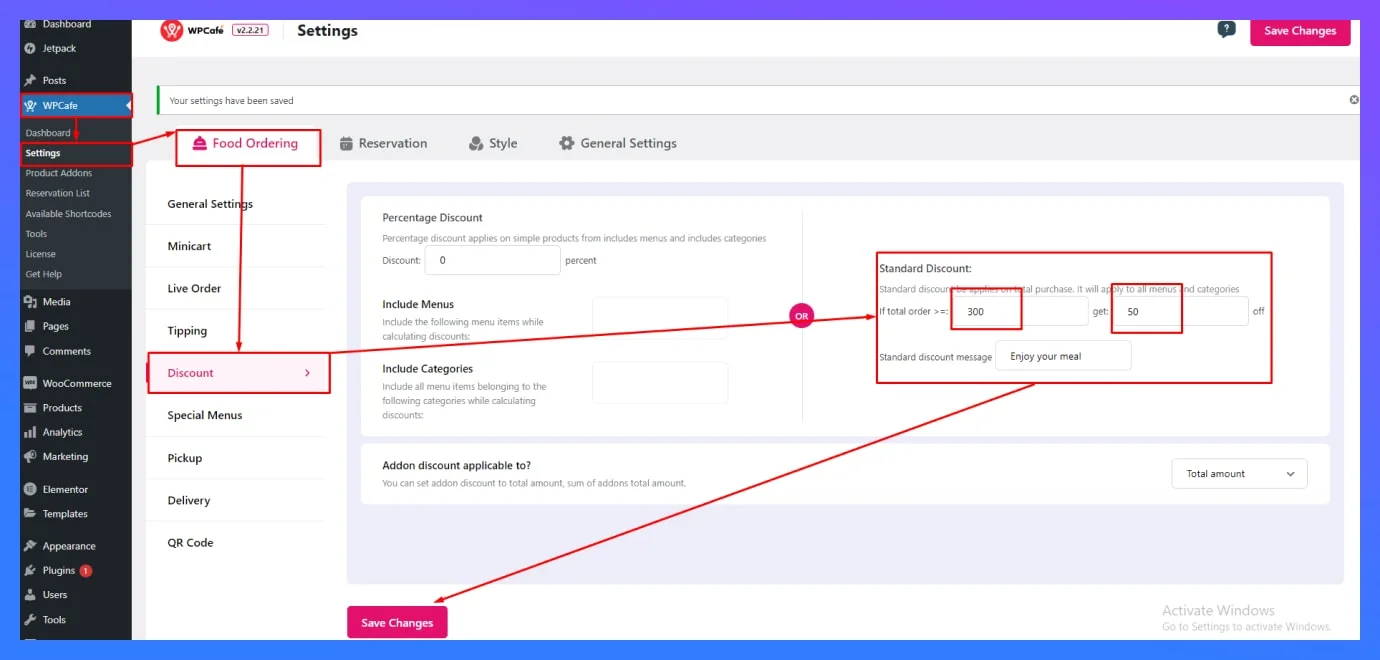
Backend Dashboard View
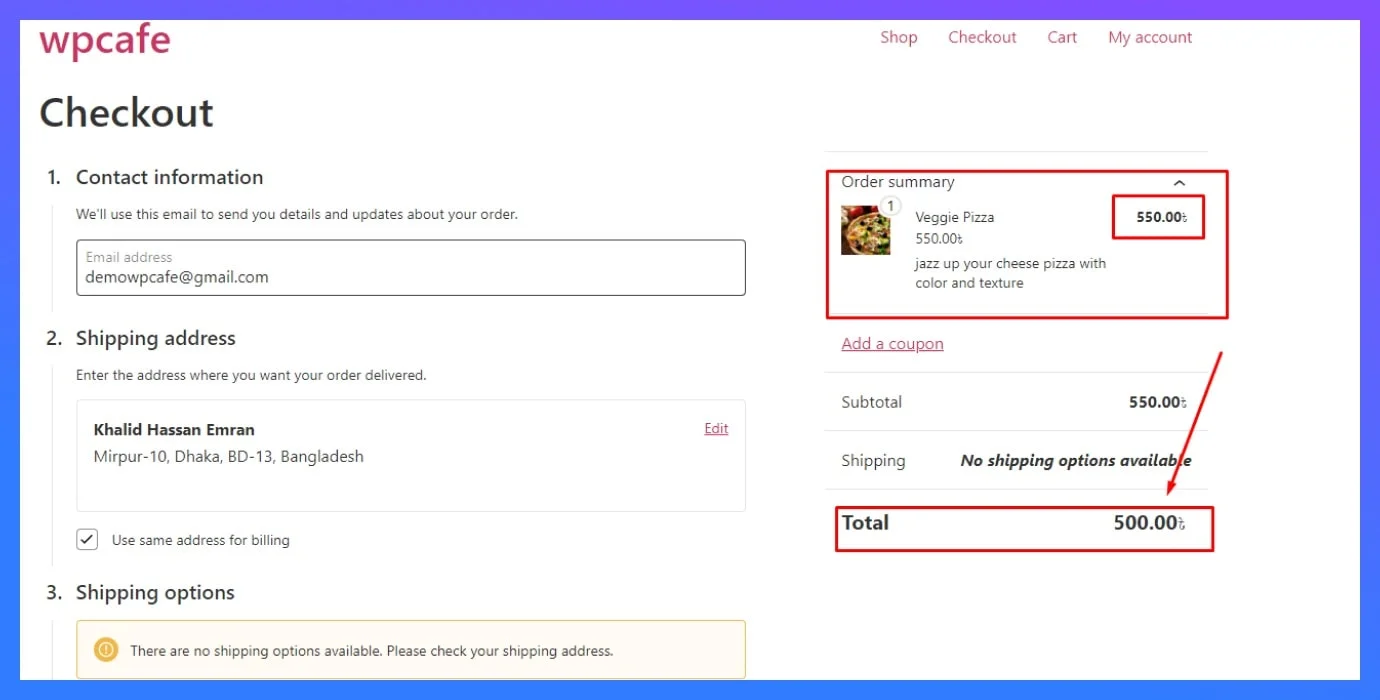
Web View Result
3. Addon discount
This is another magical feature. Through an addon, you can add a different product and you can apply a discount on that product as well.
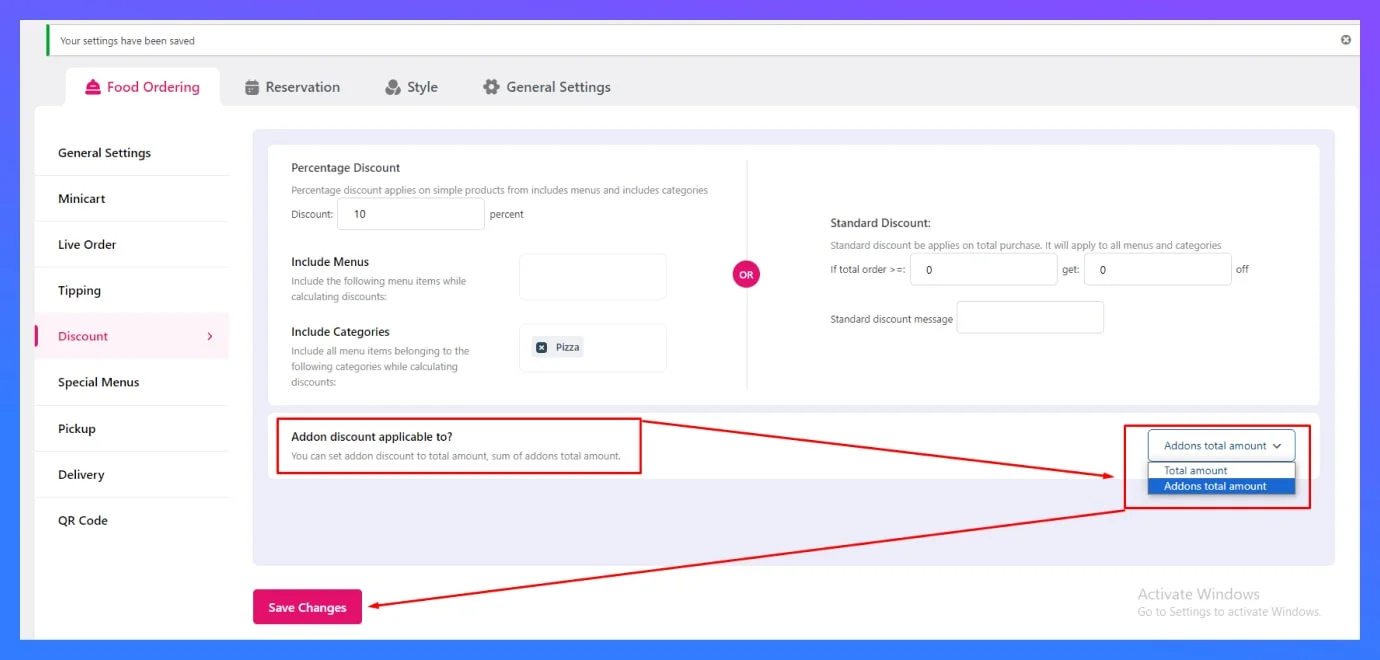
Backend Dashboard View
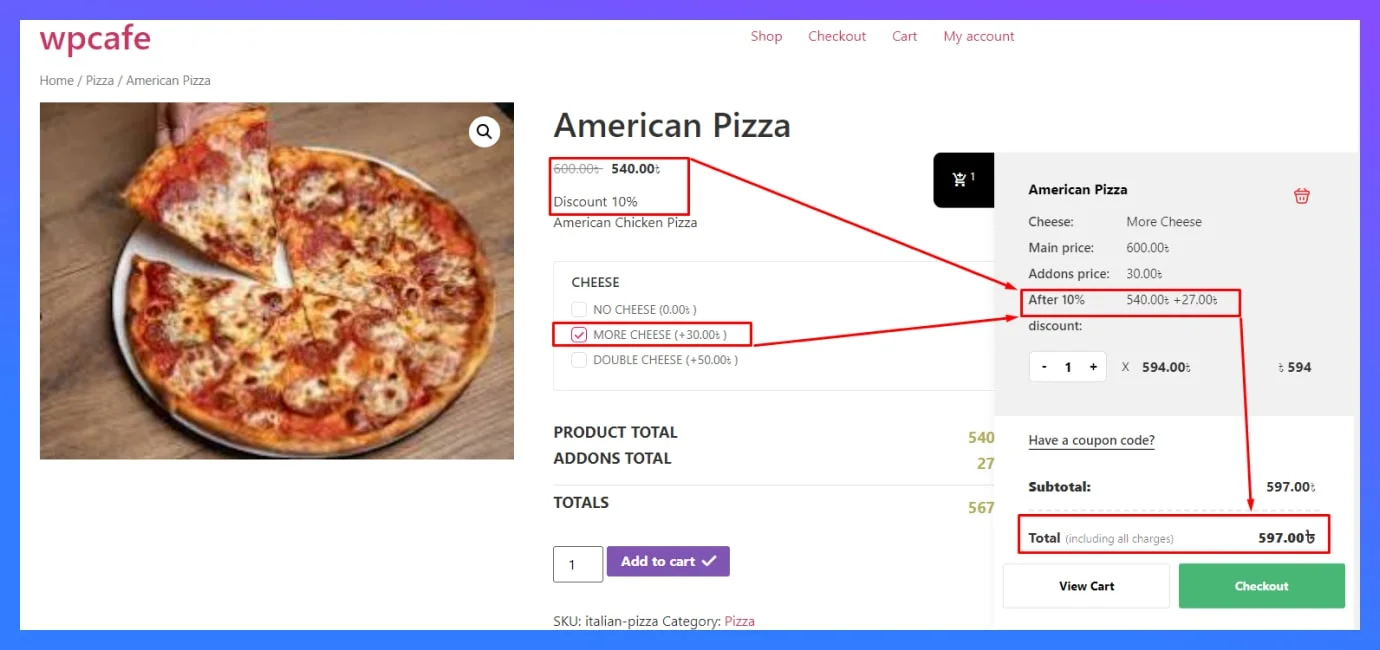
Web View Result
( Here I have an add cheese option and a discount on that too.)
Only WooCommerce Discount vs WPCafe(+WooCommerce)
| Feature | WooCommerce Only | WPCafe + WooCommerce |
|---|---|---|
| Basic coupon codes | ✅ Yes | ✅ Yes |
| Percentage & fixed discounts | ✅ Yes | ✅ Yes |
| Combo meal deals | ❌ No | ✅ Yes |
| Time-based / Happy Hour discounts | ❌ No | ✅ Yes |
| Schedule discount by date | ⚠️ Limited | ✅ Yes |
| Food category discounts | ⚠️ Limited | ✅ Yes |
| Show sale price on food menu | ❌ No | ✅ Yes |
| Restaurant-specific setup | ❌ No | ✅ Yes |
| No coding required | ⚠️ Sometimes needed | ✅ Always easy |
| Built for food ordering | ❌ No | ✅ Yes |
🚀 Get Started with WPCafe Today
Whether you’re just starting your online restaurant or looking to improve your existing WooCommerce food ordering setup – WPCafe is the easiest way to take control of your restaurant discounts.
Already using WooCommerce for your restaurant? WPCafe works seamlessly with your existing setup – no rebuilding required. Just install, configure, and start growing.
Frequently Asked Questions (FAQ)
Can I add discounts to my WooCommerce restaurant website without coding?
Yes, absolutely. With WPCafe, you don’t need any coding skills to add discounts to your restaurant menu. Simply go to your WordPress dashboard, navigate to WPCafe → Settings → Food Ordering, scroll to the Discount section, and choose your preferred discount type. It takes just a few minutes to set up.
Can I offer combo meal deals on my WooCommerce restaurant website?
Yes . but not with WooCommerce alone. The default WooCommerce coupon system doesn’t support combo meal pricing natively. WPCafe makes it easy to set up combo meal deals directly on your food menu.
Can I apply a discount to a specific food category in WooCommerce?
WooCommerce has limited support for category-based discounts. However, with WPCafe + WooCommerce, you can easily apply discounts to specific food categories – like all desserts, all drinks, or weekend specials. This gives restaurant owners full control over how and where their WooCommerce restaurant discounts are applied.
Is WPCafe compatible with my existing WooCommerce setup?
Yes. WPCafe is built to work seamlessly with WooCommerce. It uses WooCommerce’s existing payment gateways, checkout system, and order management — while adding restaurant-specific features on top. You don’t need to rebuild your website. Just install WPCafe, configure your discount settings, and you’re ready to go.
Is WPCafe free to use?
WPCafe has both a free version and a Pro version. The free version includes basic food menu and ordering features. For advanced discount options – like category-based discounts, scheduled deals, and combo pricing – the Pro version gives you everything you need to run a professional restaurant discount system on WordPress.