How to Create a Pizza Ordering Website in WordPress (Free & Easy Guide)



Table of Contents
Want to create a pizza ordering website where customers can browse your menu, choose delivery or pickup, pay online, and place orders without calling your restaurant?
If so, WordPress makes this possible without custom coding.
To create a pizza ordering website in WordPress, you need WooCommerce and a restaurant ordering plugin like WPCafe. With WPCafe, you can add your pizza menu, manage delivery and pickup schedules, accept online payments, and handle restaurant reservations from one dashboard.
In this guide, you’ll learn how to build an online pizza ordering system step by step using WordPress and WPCafe.
Let’s get started!
Quick Overview
To create a pizza ordering website in WordPress, you need a website, WooCommerce for cart and checkout, and a restaurant ordering plugin like WPCafe to manage pizza menus, pickup, delivery, online orders, and table reservations.
In this guide, you’ll learn how to:
- set up a pizza ordering website using WordPress and WPCafe
- create an online pizza menu with categories, prices, images, and descriptions
- manage pickup and delivery schedules for online pizza orders
- add table reservations if your pizza restaurant offers dine-in service
- test, launch, and promote your pizza delivery website for local customers
By the end, you’ll understand how to build an online pizza ordering system that helps customers order faster and gives your restaurant more control over orders, payments, delivery, and customer experience.
Why your pizza restaurant needs an online ordering website
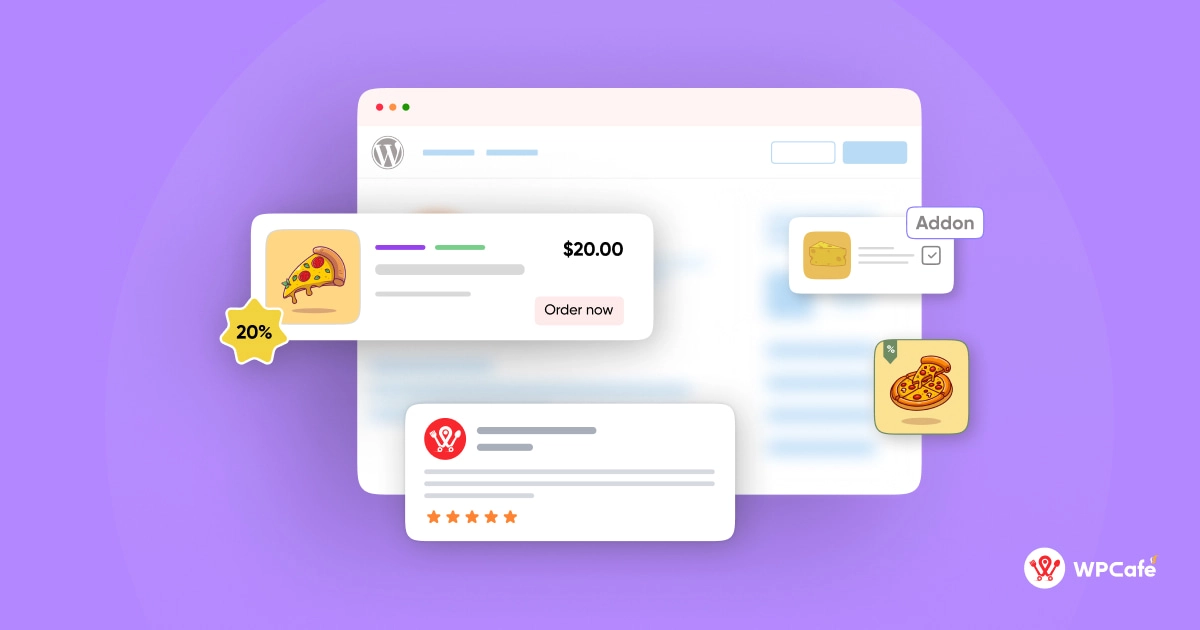
A pizza restaurant website is not just an online menu anymore. It can work as your own food ordering system where customers can browse pizzas, choose toppings, select delivery or pickup, pay online, and place orders without calling your store.
For pizza businesses, this matters because customers want fast and simple ordering. If they need to call, wait, repeat their order, or ask about delivery time, they may leave and order from another place. An online pizza ordering website removes that friction and gives customers a clear path from menu to checkout.
With your own website, you also get more control over your orders, pricing, customer experience, and brand. Instead of depending only on third-party food delivery platforms, you can bring customers directly to your restaurant website and keep them connected with your business.
Here’s why your pizza restaurant should have an online ordering website:
- More direct orders: Customers can place orders from your website anytime without calling your staff.
- Lower order mistakes: Customers choose pizza size, crust, toppings, quantity, delivery time, and payment method by themselves.
- Better staff productivity: Your team spends less time taking phone orders and more time preparing food.
- More repeat customers: You can collect customer details, offer coupons, and bring people back with email or SMS promotions.
- Clear pickup and delivery flow: Customers can select their preferred order type and time slot before checkout.
- Stronger local visibility: A well-optimized pizza ordering website can rank for searches like “pizza delivery near me” or “pizza restaurant in [city].”
- More control over your brand: Your menu, offers, images, reviews, and ordering experience stay on your own website.

Essential plugins to get started with a pizza-ordering system
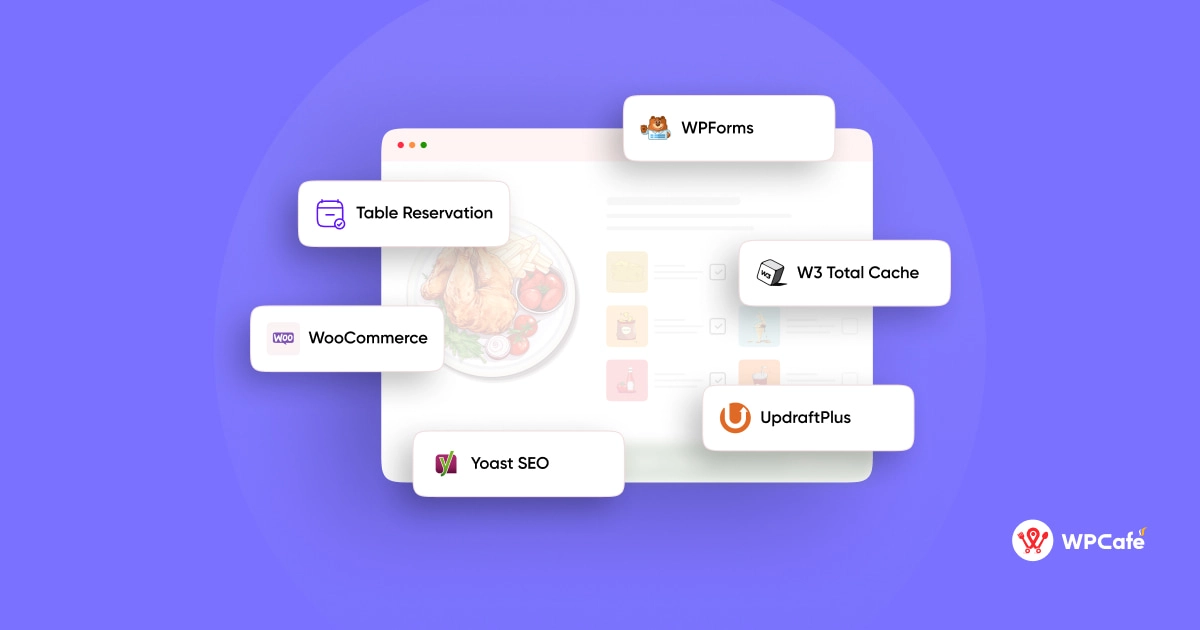
To create a pizza-ordering website, you need to rely on some plugins to smartly run your website. These plugins will help your website’s functionality and user experience.
Here are the essential plugins you might need:
1. WPCafe:WPCafe is a versatile plugin specifically designed for restaurant and food businesses. It helps you manage menus, orders, delivery, and more. It can also act as a table reservation plugin. WPCafe can help customers book tables online if your pizza restaurant offers dine-in options.
2 .WooCommerce: It’s is a popular e-commerce plugin that integrates seamlessly with WordPress. It can handle the online ordering and payment processing aspects of your pizza-ordering website.
3. Yoast SEO: For your restaurant search visbilities, Yoast SEO is one of the most popular SEO plugins in the WordPress ecosystem. It will give you an idea about your website’s content, meta tags, and overall restaurant SEO strategies to improve visibility in search results.
4.WPForms: There are so many different contacts forms available in the WordPress repo. But depending on your website’s type and vision, you need to choose the right one. For instance, WPForms is a user-friendly plugin that can help you create forms, track customers data and more.
5.UpdraftPlus: A website must have a backup ready for anytime. It will help you tackle any type of issue when your website face any technical errors or failure. For instance, installing and using a simple backup plugin like UpdraftPlus can save your money and effort. It will automatically backup your data and ensure you can restore your website in case of any issues.
6. W3 Total Cache: To improve website performance and load times, W3 Total Cache is a caching plugin that can help optimize your pizza-ordering website.
7. Popup builder: If you want to create promotional popups or offers to entice customers, a popup builder plugin can be helpful.
Why WPCafe is a smart WordPress restaurant ordering plugin for pizza shops
WPCafe is a smart choice for pizza shops because it turns your WordPress website into a complete restaurant ordering system. Instead of only showing your menu online, you can let customers choose pizzas, place orders, select pickup or delivery, pay online, and even reserve tables from the same website.
For pizza restaurants, speed and accuracy matter a lot. Customers want to order quickly, choose the right pizza size, add toppings, select delivery time, and complete checkout without calling your store. WPCafe helps you manage this flow inside WordPress with WooCommerce support.
Here’s how WPCafe helps pizza shops run online orders more smoothly:
- Create a clean online pizza menu: Add pizza items with images, prices, categories, descriptions, and special offers so customers can browse your menu easily.
- Accept direct online pizza orders: Customers can place orders from your website instead of depending only on phone calls or third-party delivery apps.
- Manage pickup and delivery schedules: Set available pickup and delivery times so customers know exactly when they can receive their pizza.
- Reduce manual order mistakes: Since customers select their own items, quantity, and order type, your staff does not need to write down every order manually.
- Use WooCommerce payments: WPCafe works with WooCommerce, so you can accept payments through popular payment gateways, cash on delivery, or other supported options.
- Add table reservations for dine-in customers: If your pizza shop has seating, customers can reserve tables online before visiting your restaurant.
- Improve mobile ordering experience: A clear online menu and ordering flow make it easier for customers to order pizza from their phones.
- Support offers and repeat sales: You can use WooCommerce coupons, discounts, and special deals to bring customers back for future orders.
WPCafe is also useful for freelancers and agencies building pizza restaurant websites for clients. It gives them a ready restaurant ordering system instead of setting up separate tools for menu display, checkout, pickup, delivery, and reservations.
If your goal is to build a pizza ordering website that looks professional and helps generate direct sales, WPCafe gives you the core features in one WordPress plugin.
Best Pizza Themes to Use With WPCafe: Pizzaro and Pizzeria

WPCafe handles your menu, orders, delivery and reservations. Your theme decides how all of that looks to customers. A theme made for pizza businesses gives you ready-made layouts for menus, offers and order buttons, so you don’t have to design pages from scratch.
MadrasThemes makes two pizza-focused WooCommerce themes that pair well with WPCafe.
Pizzaro: for pizza, fast-food and delivery businesses
Pizzaro is a restaurant WooCommerce theme for pizza shops, fast-food brands, cafés and food delivery services. It comes with 7 homepage demos and 20+ restaurant pages, and you can import any of them with one click. It works with Elementor, so you can customize pages visually.
Best for: pizza shops that want lots of layout choices and a drag-and-drop editor.
Pizzeria: for delivery-focused pizza shops and Italian restaurants
Pizzeria is a modern block theme built for pizza shops and Italian restaurants that focus on delivery. You edit everything in the standard WordPress editor using its 20+ blocks and 50+ patterns, and it’s built for a mobile-friendly ordering experience.
Best for: pizzerias that want a lightweight, modern site they can manage without a page builder.
Pizzaro vs Pizzeria at a glance
| Pizzaro | Pizzeria | |
|---|---|---|
| Best for | Pizza, fast food, cafés, delivery | Delivery-focused pizza shops, Italian restaurants |
| Editing | Elementor | WordPress block editor (Full Site Editing) |
| Homepage demos | 7 | 3 |
| Translation ready | Yes (WPML, RTL) | Yes (WPML) |
| Price | $59/year | $59/year |
How to set up a pizza theme with WPCafe
- Install and activate Pizzaro or Pizzeria.
- Import a demo with one click to get the homepage and pages.
- Install WooCommerce and WPCafe.
- Add your pizza menu in WPCafe and place the ordering and reservation sections on your pages.
For the full walkthrough, follow this guide to build a complete WooCommerce restaurant website with WPCafe.
How to create a pizza restaurant website using WPCafe
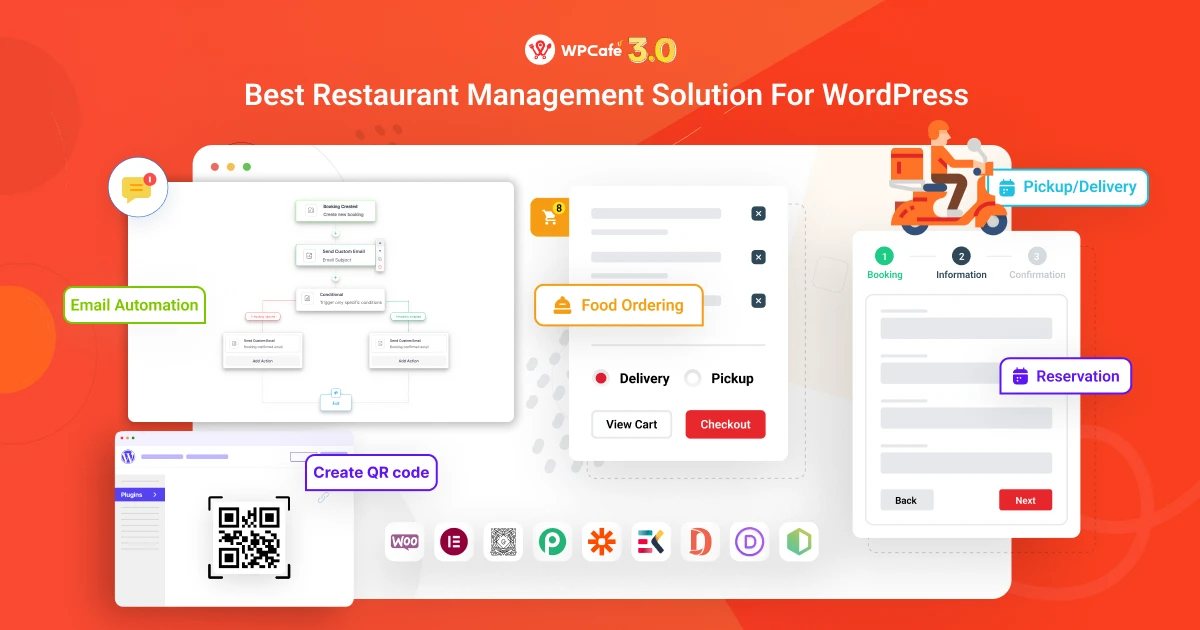
Creating a pizza restaurant website with WPCafe is simple if you follow the right setup process. The goal is not only to publish a website, but to build a complete online ordering system where customers can view your pizza menu, choose pickup or delivery, pay online, and place orders from any device.
Here’s how to set it up step by step.
Step 1: Set Up Your WordPress Website
First, you need a working WordPress website. This is where your pizza restaurant website will run. Choose a good hosting provider, install WordPress, and connect your domain name.
Your domain should be easy to remember and related to your pizza business. For example, if your restaurant name is “Hot Slice Pizza,” your domain can be something like hotslicepizza.com .
After installing WordPress, go to your dashboard and set up the basic pages your pizza restaurant needs. These pages may include Home, Menu, Online Order, About Us, Contact, Reservation, and Offers.
At this stage, keep your website structure simple. Your main goal is to make it easy for visitors to find your menu and place an order.
Step 2: Install WooCommerce
WPCafe works with WooCommerce, so the next step is to install WooCommerce on your WordPress website. WooCommerce helps you manage the cart, checkout, customer orders, coupons, taxes, and payment options.
To install it, go to your WordPress dashboard, then open Plugins > Add New. Search for WooCommerce, install it, and activate it.
After activation, WooCommerce will ask you to complete a basic setup. Add your store location, currency, payment method, and shipping or delivery details. You do not need to make everything perfect right away. You can update these settings later based on your pizza restaurant’s ordering process.
For a pizza restaurant, WooCommerce acts as the base system that handles orders and payments, while WPCafe adds the restaurant-specific features like food menus, pickup schedules, delivery schedules, and reservations.
Step 3: Install and Activate WPCafe
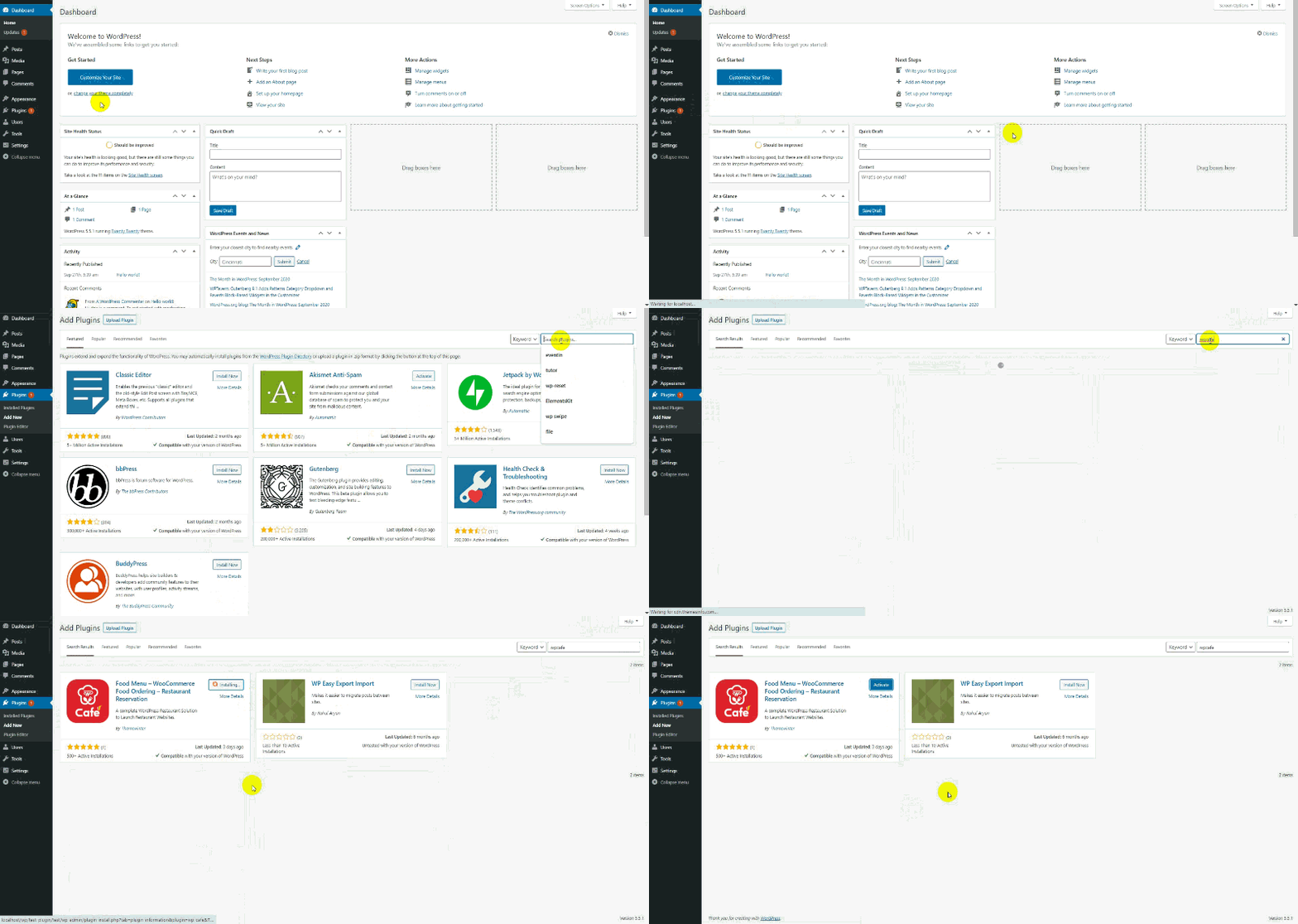
Once WooCommerce is ready, install WPCafe on your website. Go to Plugins > Add New, search for WPCafe, then install and activate the plugin.
After activation, you will see WPCafe settings inside your WordPress dashboard. From there, you can manage restaurant menus, online ordering, reservations, pickup and delivery schedules, and other restaurant-related settings.
This is where your pizza website starts becoming more than a normal business website. With WPCafe, you can turn it into a proper WordPress restaurant ordering system for online pizza orders.
Step 4: Choose a Restaurant-Friendly Theme
Your website design matters because customers decide quickly whether they want to order from you. A clean restaurant theme helps you show your pizza menu, offers, food images, opening hours, and order button in a better way.
You can use a restaurant-friendly WordPress theme like Cafesio, or any theme that supports WooCommerce and works well with WPCafe. Running a pizza shop? See our pizza theme picks above, or choose any of these restaurant themes.
When choosing a theme, look for a layout that has space for:
- Pizza menu items
- Food images
- Order now buttons
- Customer reviews
- Opening hours
- Delivery and pickup information
- Contact details
- Reservation button
Your website should also work well on mobile because many customers will order pizza from their phones.
Step 5: Add Your Pizza Menu Items
Now it’s time to add your pizzas as products. Since WPCafe works with WooCommerce, you can create each pizza item from the WooCommerce product area.
Go to Products > Add New and add your pizza name, description, price, image, and category.
For example, you can create menu items like:
- Margherita Pizza
- Pepperoni Pizza
- BBQ Chicken Pizza
- Veggie Pizza
- Cheese Burst Pizza
- Family Size Pizza
- Combo Meal
Write short but clear descriptions for each item. Mention the main ingredients, size, and special details. For example:
A classic Margherita pizza made with fresh tomato sauce, mozzarella cheese, basil, and a crispy golden crust.
Also, use real and high-quality pizza images. Food images can strongly affect buying decisions because customers want to see what they are ordering.
Step 6: Organize Your Menu with Categories
A pizza website should be easy to browse. If all items appear in one long list, customers may feel lost. So, divide your menu into clear categories.
You can create categories such as:
- Classic Pizza
- Chicken Pizza
- Vegetarian Pizza
- Family Pizza
- Sides
- Drinks
- Desserts
- Combo Offers
This makes your pizza ordering website easier to use. Customers can quickly find what they want instead of scrolling through every item.
For better conversion, place your best-selling pizzas and combo offers near the top of the menu page.
Step 7: Set Up Pickup and Delivery Options
Pickup and delivery are two of the most important parts of a pizza ordering website. Customers should know whether they can collect their order from your store or get it delivered to their address.
With WPCafe, you can manage pickup and delivery schedules from your WordPress dashboard. Set your available order times based on your restaurant hours.
For example, your pickup schedule can be:
➡️ 11:00 AM to 10:00 PM
And your delivery schedule can be:
➡️ 12:00 PM to 9:30 PM
You can also adjust schedules for holidays, busy days, or special events. This helps reduce confusion and prevents customers from placing orders when your kitchen is closed.
If you run a busy pizza shop, make sure your delivery and pickup time slots are realistic. Do not offer a 15-minute delivery time if your team cannot handle it during rush hours.
Step 8: Configure Online Payment Options
After setting up the menu and delivery options, configure your payment methods. WooCommerce allows you to connect different payment gateways, depending on your country and business needs.
You can offer payment options like:
- Card payment
- PayPal
- Stripe
- Cash on delivery
- Local payment gateways supported by WooCommerce
For a pizza restaurant, it is smart to offer both online payment and cash on delivery. Some customers prefer paying before delivery, while others may still want to pay when the food arrives.
A smooth payment process can reduce abandoned orders and make the checkout experience easier.
Step 9: Create a Dedicated Online Ordering Page
Next, create a clear online ordering page for your pizza menu. This page should be one of the most important pages on your website.
You can name it:
- Order Online
- Pizza Menu
- Online Pizza Ordering
- Order Pizza Now
Make sure the page includes your menu items, prices, add-to-cart buttons, pickup and delivery options, and checkout path.
Also, place a strong call-to-action button on your homepage that sends visitors to this page.
For example: Order Pizza Online or View Menu and Order Now
The easier you make the ordering path, the more likely customers are to complete their order.
Step 10: Add Table Reservation If You Offer Dine-In
If your pizza restaurant has seating, you can also add online table reservations with WPCafe. This is useful for families, groups, weekend customers, and special occasions.
Instead of calling your restaurant, customers can reserve a table directly from your website. You can show available times, collect customer details, and manage bookings from your WordPress dashboard.
This feature is especially helpful if your pizza shop offers both dine-in and takeaway service. Your website can handle online orders and reservations together from one place.
Step 11: Add Important Restaurant Information
A pizza restaurant website should answer the common questions customers have before ordering.
Add important details such as:
- Restaurant location
- Opening hours
- Delivery areas
- Contact number
- Pickup instructions
- Estimated delivery time
- Payment options
- Refund or cancellation policy
- Food allergy note
- Social media links
Place this information clearly on your homepage, contact page, menu page, and footer. This builds trust and reduces customer confusion.
Step 12: Test the Full Ordering Flow
Before you publish the website, test everything like a real customer.
Place a test order from your phone and check each step carefully. Start from the homepage, open the menu, add a pizza to the cart, choose pickup or delivery, go to checkout, select payment, and submit the order.
Check these things before going live:
- Is the menu loading properly?
- Are pizza prices correct?
- Are product images showing clearly?
- Does the cart work?
- Does checkout work?
- Are pickup and delivery times correct?
- Are payment methods working?
- Are order emails being sent?
- Does the website look good on mobile?
- Can customers find the order button easily?
This step is very important because even a small issue in checkout can stop customers from placing orders.
Step 13: Optimize Your Pizza Website for Local SEO
After your website is ready, optimize it for local search. This helps nearby customers find your pizza restaurant when they search on Google.
Use local keywords naturally across your website, such as:
- pizza restaurant in [city]
- pizza delivery in [city]
- order pizza online in [city]
- best pizza near [area]
- pizza takeaway in [city]
Also, add your restaurant name, address, and phone number clearly on your website. Keep the same information on your Google Business Profile as well.
You can also create blog posts or landing pages around topics like pizza delivery, party pizza orders, family combo offers, or local food guides.
Step 14: Launch and Promote Your Website
Once everything is ready, publish your pizza ordering website and start promoting it.
Share the website link on your social media pages, Google Business Profile, printed flyers, packaging boxes, and in-store posters. You can also add a QR code inside your restaurant so customers can scan and open the menu directly.
To get your first few online orders, you can offer a simple launch discount like:
Get 10% off your first online pizza order
This encourages customers to try your new online ordering system and helps you build repeat sales.
So, ready to launch your pizza website with online ordering and delivery management
Creating a pizza website is no longer only about showing your menu online. Your website should help customers order faster, choose pickup or delivery, pay easily, and stay connected with your restaurant.
With WordPress, WooCommerce, and WPCafe, you can build a complete pizza ordering website without custom coding. You can display your pizza menu, manage online orders, set delivery and pickup schedules, accept payments, and handle table reservations from one dashboard.
If you want more direct orders and less manual work, now is the right time to turn your pizza restaurant website into a full online ordering system.
Launch Your Pizza Website Today
Use WPCafe to build a fully functional pizza ordering system with menus, delivery options, and payment – all from your WordPress site. No coding needed.
Get Started with WPCafe — It’s Free!Frequently asked questions (FAQs)
1: How do I create a pizza ordering website in WordPress?
To create a pizza ordering website in WordPress, install WooCommerce and a restaurant ordering plugin like WPCafe. Then add your pizza menu, create delivery or pickup options, set order schedules, enable online payments, and publish the ordering page on your website.
2: What is the best WordPress plugin for a pizza ordering website?
WPCafe is a strong option for creating a pizza ordering website in WordPress because it supports food menus, online orders, pickup and delivery schedules, table reservations, and WooCommerce payments from one dashboard.
3: Can I take pizza orders online without third-party delivery apps?
Yes. You can take pizza orders directly from your own WordPress website using WooCommerce and WPCafe. This gives you more control over your menu, customer data, delivery rules, and online ordering experience.
4: How much does a pizza delivery website cost?
The cost depends on your hosting, theme, plugin, and payment setup. A WordPress pizza delivery website is usually more affordable than custom software because you can use WooCommerce and a restaurant plugin like WPCafe instead of building everything from scratch. You can see how they fit together in this WPCafe restaurant website guide.
5: Do I need WooCommerce for a pizza ordering website?
If you want to accept online payments and manage orders inside WordPress, WooCommerce is highly useful. WPCafe works with WooCommerce, so you can manage pizza menu items, orders, payments, pickup, and delivery from your WordPress site.