
- What is the WooCommerce Integration?
- Why Do You Need It?
- Prerequisites
- Where to Find It
- Step-by-Step Instructions
- Step 1: Activate WooCommerce
- Step 2: Choose Which Order Statuses Move Points
- Step 3: Create Your WooCommerce Earning Rules
- Step 4: Create Rewards Customers Can Spend Points On
- Step 5: Configure the Reward
- Step 6: Give Customers Somewhere to Manage Their Points
- Step 7: Check the Storefront Placements
- Step 8: Place a Test Order
- Key Functionality
- Validation Rules
- Limitations
- Troubleshooting
- Notes
What is the WooCommerce Integration? #
WooCommerce is one of the two stores Pointics runs on, alongside Easy Digital Downloads. Once WooCommerce is active, Pointics can award points for paid orders, product reviews and new accounts, turn points into a native WooCommerce coupon at the cart or checkout, show earn previews across your shop, add a Points & Rewards page to My Account, take points back when an order is refunded, and link every WooCommerce ledger row to the order that caused it.
Everything lives in the places you already know: the triggers appear in Points Program, the redemption methods appear in Rewards, and the order status rules and storefront placements appear in Settings under their own WooCommerce section.
Why Do You Need It? #
- Your store is the source of every event: Without an active store integration there is nothing for a rule to listen to. Activating WooCommerce gives Pointics orders, reviews and registrations to earn from.
- Points need somewhere to land: WooCommerce supplies the coupon that turns a redemption into real money off a real cart.
- Refunds have to be honest: A refunded WooCommerce order takes its points back in proportion to what was actually refunded, so a partial refund does not cost the customer their whole award.
- Customers should see what they earn: Product pages, the shop grid, the cart, the checkout and the order confirmation page all show points, so customers know the reward before they buy.
- You can run more than one store: WooCommerce coexists with Easy Digital Downloads and Eventin. Each keeps its own order status rules, and a customer’s balance is one balance across all of them.
Prerequisites #
- An Administrator account
- WooCommerce installed and active
- The loyalty program switched on under Settings → General
- WordPress scheduled tasks running for the daily reconciliation sweep
- Customers who check out with an account (guest orders earn nothing)
- Pointics Pro, only for the Percentage Discount and Free Shipping rewards, multiple products on a Free Product reward, and WooCommerce conditions
Where to Find It #
| What | Where | Direct URL |
|---|---|---|
| Install or activate WooCommerce | Pointics → Integrations | #/integrations |
| Order status rules and storefront placements | Pointics → Settings → WooCommerce | #/settings/woocommerce |
| WooCommerce earning triggers | Pointics → Points Program | #/points-program |
| WooCommerce redemption methods | Pointics → Rewards | #/rewards |
| WooCommerce-linked ledger rows | Pointics → Transactions | #/transactions |
| The customer’s rewards page | My Account → Points & Rewards | /my-account/points-and-rewards/ |
The WooCommerce section only appears in Settings while WooCommerce is active. Its saved values are kept either way, so temporarily deactivating WooCommerce does not remove your status rules.
Step-by-Step Instructions #
Step 1: Activate WooCommerce #
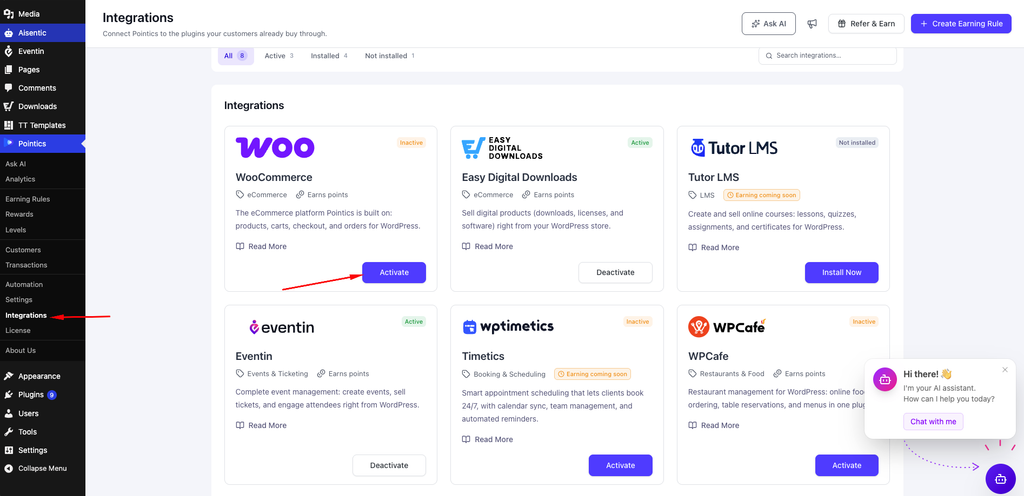
Go to Pointics → Integrations. WooCommerce appears on the Integrations shelf under the eCommerce category. Use the card action to install it, then activate it.
Until WooCommerce is active, its earning triggers and redemption methods still appear in the Points Program and Rewards pickers as locked cards, so you can see what activating it would unlock. They award nothing while the plugin is off.
Step 2: Choose Which Order Statuses Move Points #
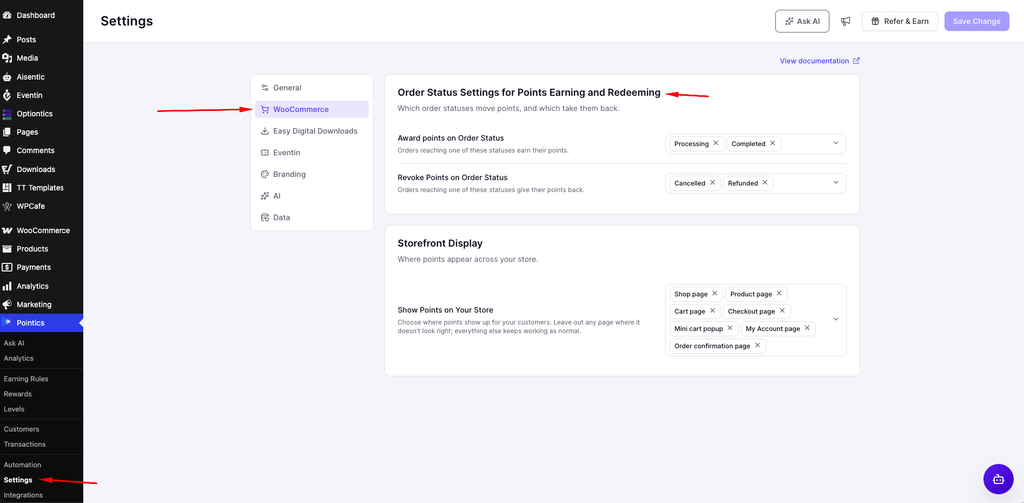
Go to Pointics → Settings → WooCommerce.
| Field | Description | Default |
|---|---|---|
| Award points on Order Status | Which WooCommerce order statuses pay points out | Processing, Completed |
| Revoke Points on Order Status | Which WooCommerce order statuses you treat as reversed | Cancelled, Refunded |
Both fields support multiple selections, and the list comes from WooCommerce itself using wc_get_order_statuses(). This means a custom order status registered on your site also appears here.
The award list matters most for offline payment methods such as Cash on Delivery, Direct Bank Transfer and Check. Those gateways never report a completed payment, so their orders earn when they reach a status in this list.
Points are taken back through WooCommerce refunds. Setting an order to Refunded makes WooCommerce record a refund for the remaining amount, so its points come back. See How Points Are Awarded and Taken Back below.
These lists are separate from Easy Digital Downloads’ and Eventin’s. If your site runs more than one store, configure the status rules for each independently.
Step 3: Create Your WooCommerce Earning Rules #
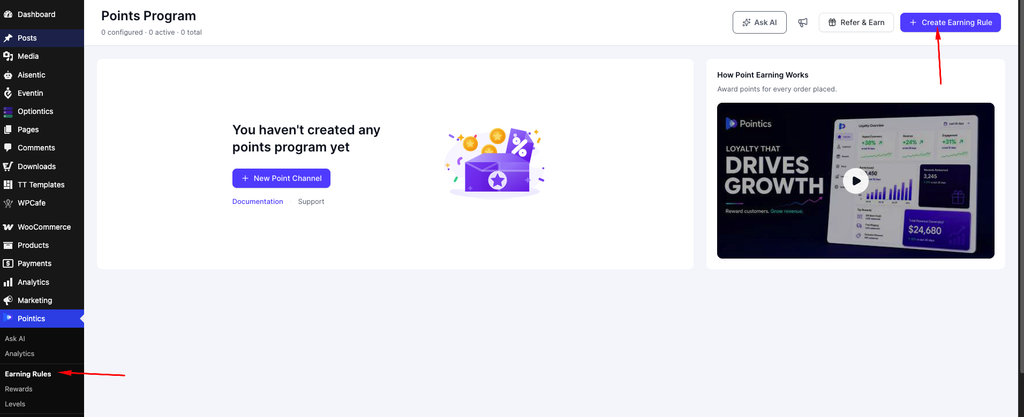
Go to Pointics → Points Program and add a rule. Three WooCommerce triggers are available:
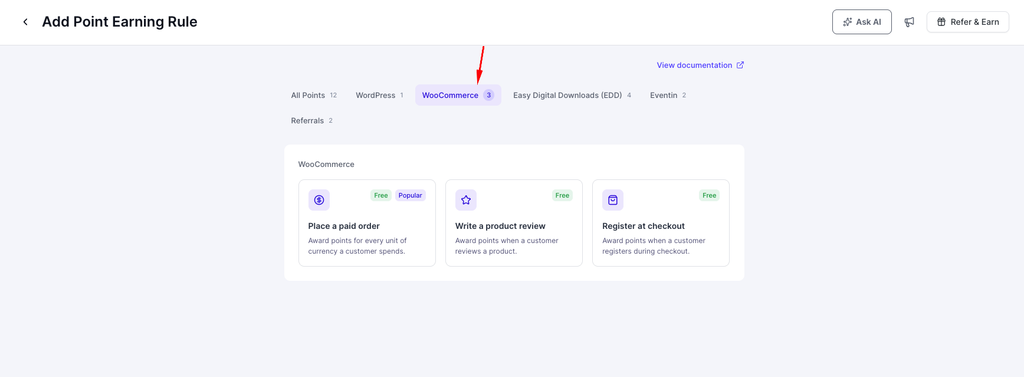
| Trigger | Fires When | Type | Default |
|---|---|---|---|
| Place a paid order (recommended) | A WooCommerce order is paid, or reaches a status in your award list | Per currency unit spent | 1 point per unit |
| Write a product review | A signed-in customer’s product review is published or approved | Fixed award | 250 points |
| Register at checkout | A customer creates a WooCommerce account | Fixed award | 1500 points |
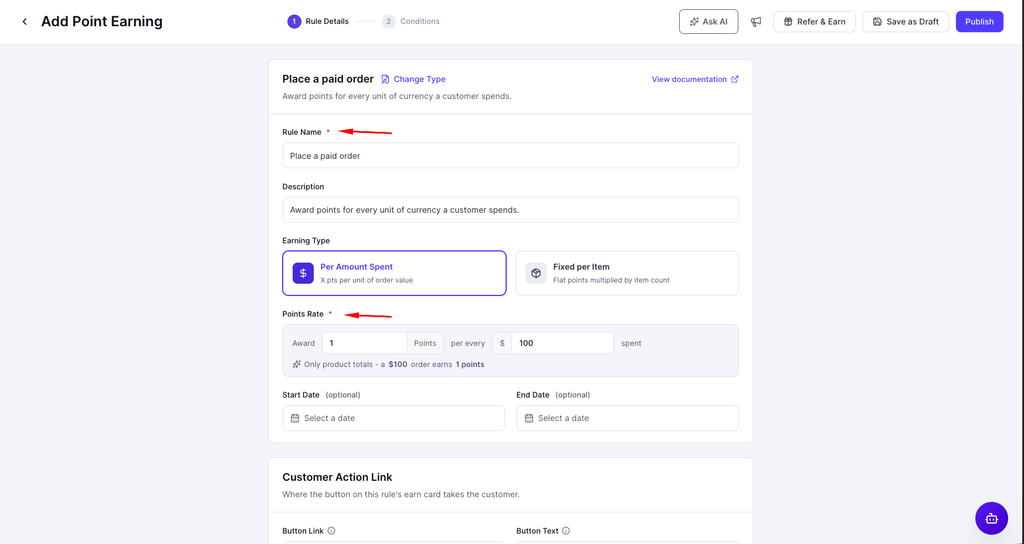
Place a paid order is the recommended trigger and the one every storefront earn preview is calculated from. It listens to both WooCommerce payment paths: the payment completion hook, and an order status change for gateways that only update the order’s status. The status path uses your Award points on Order Status configuration. The award is calculated from the order total.
Write a product review awards a review left by a signed-in customer. A review held for moderation earns when you approve it. Replies to reviews do not earn.
Register at checkout fires whenever WooCommerce creates a customer account, including the registration form on My Account.
Step 4: Create Rewards Customers Can Spend Points On #
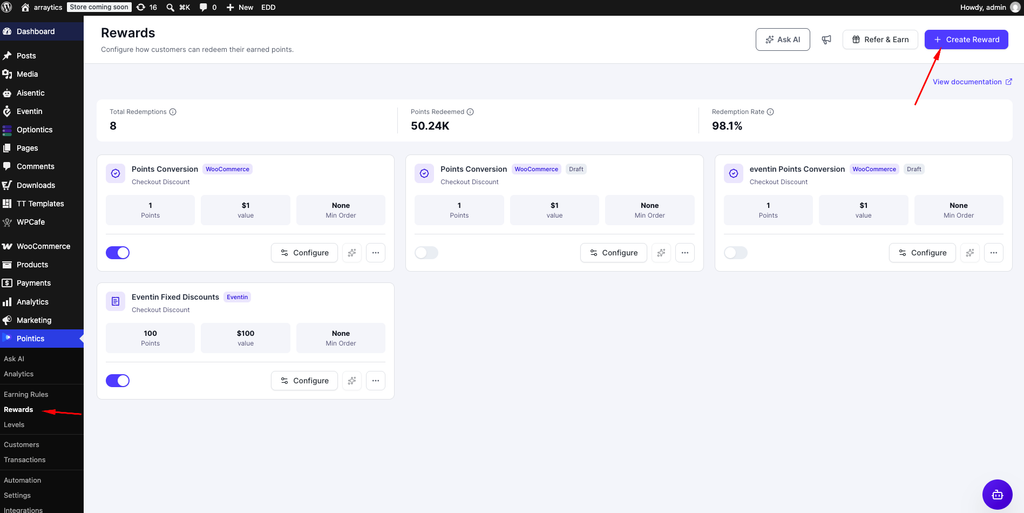
Go to Pointics → Rewards and add a reward. On a WooCommerce store, the built-in methods are:
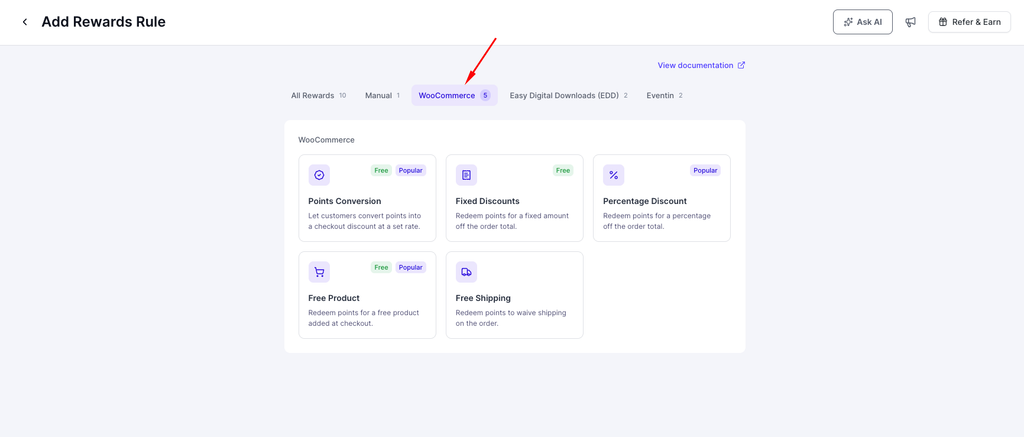
| Method | What It Does | Default Cost | Default Value |
|---|---|---|---|
| Points Conversion (recommended) | Converts points into a checkout discount at a set rate | 1500 points | 30 |
| Fixed Discounts | A fixed amount off the order total | 1500 points | 30 |
| Percentage Discount (Pro) | A percentage off the order total | 1500 points | 10% |
| Free Product | A chosen product added to the cart for free | 1500 points | None |
| Free Shipping (Pro) | Waives shipping on the order | 1500 points | None |
| Manual / generic | You fulfil the reward yourself outside checkout | None | None |
Every WooCommerce method produces the same underlying result: a native WooCommerce coupon created at the moment of redemption and restricted to the customer who redeemed it.
Step 5: Configure the Reward #
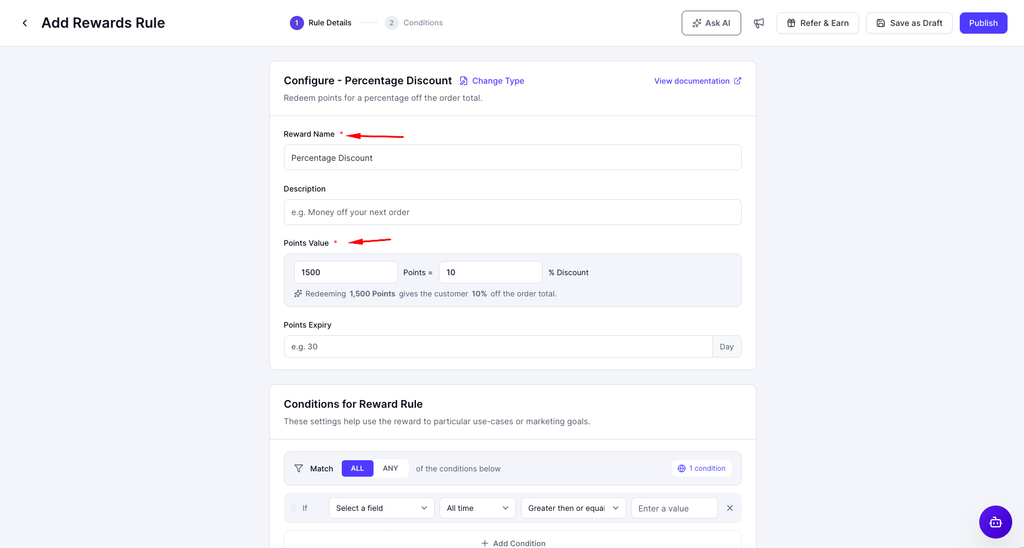
The fields depend on the method you picked:
| Method | Fields |
|---|---|
| Points Conversion | Point Cost (points and the value they buy, which sets the rate) and an optional Conversion Range (minimum and maximum points per redemption) |
| Fixed Discounts | Point Cost (points and the amount off) |
| Percentage Discount | Points Value (points and the percentage off) |
| Free Product | Choose Free Product (one product; Pro allows several) and Points Value |
| Free Shipping | Points Value |
Every reward also has Points Expiry: the number of days until the coupon expires and the held points return. Leave it blank for 30 days. Enter 0 for a coupon that never expires.
Generated coupon codes look like pts-a1b2c3d4. Each coupon:
- can be used once, and once per customer
- is restricted to the email address of the customer who redeemed it
- can be combined with your own coupons
- shows as Points reward in the cart and checkout totals, never as the code
Free Product coupons are 100% off the chosen products, one unit each. If a chosen product is not in the cart when the customer applies the reward, Pointics adds it.
Free Shipping coupons rely on WooCommerce’s own free shipping rules. Your shipping zone needs a Free shipping method that accepts a valid free shipping coupon.
Step 6: Give Customers Somewhere to Manage Their Points #
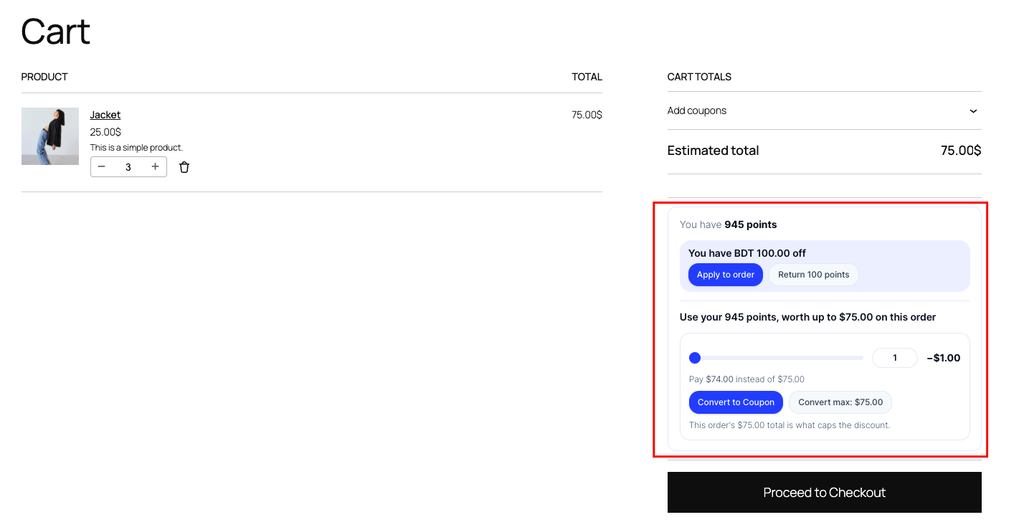
WooCommerce’s My Account page gets a Points & Rewards tab automatically, placed right after Addresses. Customers see their balance, redeem rewards, and apply or return held rewards there.
No setup is needed. If you want the rewards panel somewhere else as well, add the [pointics_account] shortcode or the Account block (pointics/account) to any page.
Step 7: Check the Storefront Placements #

Seven placements are controlled by the Show Points on Your Store option in the same Settings section. All are on by default:
| Placement | Option | Where It Appears |
|---|---|---|
| Shop badge | Shop page | Under the price on shop, category and tag archives, and on block product grids |
| Product badge | Product page | Under the price on a single product |
| Cart panel | Cart page | A points card in the cart totals: what the order earns, the balance, and rewards to apply |
| Checkout panel | Checkout page | The same points card in the checkout order review |
| Mini cart row | Mini cart popup | An earn line above the mini cart buttons |
| Account balance | My Account page | A balance line on the My Account dashboard |
| Order confirmation row | Order confirmation page | A Points: row on the thank you page, such as “+120 points” or “+120 points after payment” |
The cart and checkout panels work with both the classic shortcodes and the WooCommerce Cart and Checkout blocks.
A few elements have no option of their own and appear whenever the storefront is enabled:
- The Points & Rewards tab on My Account
- An “Earn N points for writing a review” line above the product review form, when a review rule is active
- The referral notice and the Referral code (optional) field on the registration form, when referrals are on
If your theme’s product template has no spot for the badge, place the [pointics_earn_preview] shortcode or the Earn Preview block (pointics/earn-preview) by hand.
Step 8: Place a Test Order #
Buy something from the front end while signed in to a customer account. Then go to Pointics → Transactions.
The new transaction row should contain the WooCommerce order number and link to that order.
Next, redeem a reward, apply it at checkout and complete the payment. The points move from held to spent when the order is paid.
Key Functionality #
How Points Are Awarded and Taken Back #
- Customer places a WooCommerce order.
- If the customer is not signed in, no points are awarded because guest orders have no account.
- If the customer is signed in, Pointics checks whether it is an Eventin ticket order.
- If it is an Eventin ticket order, Eventin’s Buy an event ticket rule awards it instead.
- If it is not an Eventin ticket order, points are awarded when payment completes or the order reaches an award status.
- Points are awarded against the order total and recorded in Transactions.
- If a full refund is recorded, all the points are taken back.
- If a partial refund is recorded, points are taken back in proportion to the refund.
- If no refund is recorded, the points stay.
Refunds are proportional. The share taken back is the refunded amount divided by the order total, capped at the whole award. Refund 40% of an order and 40% of its points come back.
Each partial refund is handled once, on its own. A second partial refund takes back its own share of what remains.
A payment and a status change on the same order award only once. Pointics recognises both as the same order.
How a Redemption Becomes a Coupon #
- The customer redeems a reward and the points are held, not spent.
- A private WooCommerce coupon is created.
- The coupon is applied to the customer’s cart.
- If the order is paid, the hold is settled and the points are spent for good.
- If the order is cancelled or trashed, the hold is released and the points are returned.
- If the order fails, it is left for the daily sweep because the customer may retry payment.
- If the coupon expires unused, the hold is released by the daily sweep.
- If the customer removes the coupon, the points stay held and the reward can be reapplied.
Removing a coupon from the cart is not treated as cancelling the redemption. The customer sees “Points reward removed. Your N points are still held. Use it or return it below.” They can apply it again or return the points from their rewards panel.
Coupons Are Private to the Customer Who Earned Them #
Every coupon Pointics creates is restricted to the redeeming customer’s email address and carries an ownership record. WooCommerce rejects the coupon for anyone else.
Pointics coupons are hidden from Marketing → Coupons, because they are per-customer rewards, not promotions you manage. Coupons you create yourself are never touched, hidden or relabelled.
The Daily Reconciliation Sweep #
Once a day, Pointics reviews open WooCommerce redemptions and finalizes any that have settled. This prevents points from remaining stuck if a normal order hook was missed.
| What It Finds | What It Does |
|---|---|
| The coupon was used on an order that is now paid | Settles the hold and permanently spends the points |
| The coupon was used only on orders that were cancelled, failed or trashed | Releases the hold and returns the points |
| The coupon is on an order still waiting for payment | Leaves it alone so the points cannot be spent twice |
| The coupon is counted as used but no matching order was found | Leaves it alone rather than refund a live discount |
| The coupon expired without being used | Releases the hold |
| The coupon is gone or is no longer owned by Pointics | Releases the hold |
| Creating the coupon failed and left no code more than an hour ago | Releases the hold |
The sweep checks each customer’s 50 most recent orders. It works in batches, stops after about twenty seconds, and picks up where it left off five minutes later. WordPress scheduled tasks must be running for this process to work.
What Else WooCommerce Supplies #
| Area | What WooCommerce Adds |
|---|---|
| Transactions | An order number and order link on every WooCommerce-linked row |
| Customers | WooCommerce’s order count in the Orders column |
| Currency | Prices and quotes use WooCommerce’s own currency and symbol |
| Prices | Product badges follow your store’s tax display setting. Variable products quote a range |
| Referrals | A referred customer’s paid order can complete a Referral makes a purchase award, subject to the minimum order value in referral settings |
| Compatibility | Pointics declares support for High-Performance Order Storage and the Cart and Checkout blocks |
Conditions on WooCommerce Rules (Pro) #
With Pointics Pro active, three WooCommerce conditions are available for narrowing an earning rule:
| Condition | Limits By |
|---|---|
| Product or category purchased | What is in the order. Only the matching items’ amount earns points. Child categories count as their parent |
| First WooCommerce order | Whether this is the customer’s only order in an award status |
| Order total | The order’s value compared against an amount (at least, at most, equal, not equal) |
Pro also adds WooCommerce tier perks: Order Discount and Free Shipping for members of a tier.
See How Do I Limit Which Events Earn Points?.
Running WooCommerce with Other Stores #
| Thing | Shared or Separate |
|---|---|
| The customer’s points balance | One balance across every store |
| Award and revoke order statuses | Separate lists, one per store |
| Show Points on Your Store options | Shared with Easy Digital Downloads. Eventin has its own |
| The Orders column on Customers | Summed across WooCommerce and Easy Digital Downloads |
| Ledger rows | Tagged per store, so a WooCommerce row never resolves as another store’s order |
| Rewards | Each store publishes its own Points Conversion and Fixed Discounts. A reward belongs to the store it was created for |
| Eventin tickets sold through WooCommerce | Earn through Eventin’s Buy an event ticket rule, never through Place a paid order, so one purchase is never paid twice |
Validation Rules #
- A guest order awards no points because there is no customer account to hold them.
- Points award only when WooCommerce reports a completed payment, or the order reaches a status in your Award points on Order Status list.
- A payment and a status change on the same order award once.
- A refund can never take back more points than the original award.
- A WooCommerce order that pays for Eventin tickets never earns through Place a paid order.
- A product review earns only when it is approved and written by a signed-in customer.
- A Free Product reward with no product chosen cannot create a coupon, and the points return.
- Pointics tries up to five times to generate an unused coupon code. If every attempt collides, the redemption fails rather than reusing an existing code.
- Points Expiry left blank means 30 days.
0means the coupon never expires and the points remain held until it is used. - A coupon can be used once, by one customer, and only with that customer’s email address.
- Only coupons carrying Pointics’ ownership record are hidden, relabelled or swept. Your own WooCommerce coupons are untouched.
- Only an order that uses the coupon can settle or release that coupon’s held points.
Limitations #
- Points come back only when WooCommerce records a refund. A paid order moved to Cancelled without a refund keeps its points.
- Percentage Discount and Free Shipping require Pointics Pro. A Free Product reward grants one product without Pro.
- Free Shipping needs a WooCommerce Free shipping method that accepts a free shipping coupon.
- There is no subscription renewal trigger for WooCommerce.
- A reward coupon is single use. It cannot be split across multiple orders.
- Removing a coupon at checkout does not return the points. The points remain held until the customer uses or returns the redemption.
- The order confirmation Points: row appears on the thank you page only, not in emails or the My Account order view.
- The sweep checks a customer’s 50 most recent orders. An older order carrying the coupon is left for the customer to settle.
- Automatic reconciliation requires WordPress scheduled tasks. Without them, expired coupons do not automatically release their points.
Troubleshooting #
| Problem | Solution |
|---|---|
| The WooCommerce section is missing from Settings | WooCommerce is inactive. Activate it and reload. |
| WooCommerce triggers show as locked in Points Program | WooCommerce is inactive. Activating it unlocks them. |
| An order was paid but no points were awarded | Check that the customer was signed in and that the order status is in your Award points on Order Status list. For Cash on Delivery or bank transfer orders, the status is the only signal. |
| A ticket order paid through WooCommerce earned nothing under Place a paid order | This is expected. Eventin ticket orders earn through Eventin’s Buy an event ticket rule. |
| A cancelled order kept its points | Cancelling does not create a refund. Issue a refund, or set the order to Refunded, to take the points back. |
| A refund took back only part of the points | Refunds are proportional to the refunded amount. Refund the rest to take back the rest. |
| “The points could not be redeemed. Please try again.” | WooCommerce could not create the coupon. Check that WooCommerce coupons are enabled, that no add-on blocks coupon creation, and that a Free Product reward has a product chosen. |
| The coupon is rejected at checkout | The coupon belongs to another customer. It only works for the email address of the account that redeemed it. |
| The customer removed the coupon and their points did not come back | This is expected. The points remain held. The customer can reapply the reward or return it from My Account → Points & Rewards. |
| Points did not come back after a coupon expired | The release runs during the daily sweep. Confirm WordPress scheduled tasks are running. |
| Points are stuck as held | The coupon may be on an order still waiting for payment. The hold settles or releases when the order is paid, cancelled or fails. |
| A Free Shipping reward still charges shipping | Add a Free shipping method to the customer’s shipping zone and set it to accept a valid free shipping coupon. |
| The Points & Rewards tab returns a “page not found” error | Go to Settings → Permalinks and click Save Changes to refresh your site’s links. |
| No badge appears on product pages or the shop | Check the Product page and Shop page options under Show Points on Your Store, and confirm the loyalty program is enabled. On a block theme, place the [pointics_earn_preview] shortcode or Earn Preview block. |
| No points card appears in the cart or checkout | Check the Cart page and Checkout page options. Signed-out visitors see only the earn and sign-in lines, not the redeem card. |
| Pointics coupons are missing from Marketing → Coupons | This is expected. Pointics hides the per-customer coupons it creates. |
Notes #
- Deactivating WooCommerce deletes nothing. Points already earned through WooCommerce remain in customer balances. The rules stop firing and the WooCommerce section stays hidden until the integration is active again.
- Pointics does not load its WooCommerce adapter on a site without WooCommerce, so the integration costs nothing there.
- Coupons created through redemption are normal WooCommerce coupons with an ownership record attached. They are moved to the trash automatically when a hold is released.
- A bookkeeping problem during checkout is logged and retried by the reconciliation sweep rather than being shown to the customer, so an accounting issue does not fail the purchase.
- Earn previews on product pages, in the cart and at checkout are calculated from the Place a paid order trigger. If that rule is disabled, the badges have nothing to display.
Was this article helpful?
Related Articles #
- How Do I Configure Pointics Settings?
- How Do I Create Point Earning Rules?
- How Do I Create Rewards Customers Can Redeem?
- How Do Customers See Their Points?
- How Do I Install and Manage Integrations?
- How Do I Read the Points Ledger?
- How Do I Use Pointics with Easy Digital Downloads?
- How Do I Use Pointics with Eventin?
- How Do I Activate Pointics Pro?


